

The Discord integration connects your WordPress site to your Discord servers so recipes can message members, manage roles and channels, and invite people, all from activity on your site. This article covers connecting Discord, adding the Automator bot to a server, letting your users verify their own Discord accounts, and using a verified account in an action.
If you have Uncanny Automator Lite, you’ll first need to connect your site to a free Uncanny Automator account, which gives you app credits to use with Discord. On a paid plan, app integrations are included. Uncanny Automator must be installed and active.
Once connected, these actions appear under Discord in the recipe builder:
- Send a message to a channel
- Send a direct message to a Discord member
- Assign a role to a member
- Remove a role from a member
- Add a member to a channel
- Update a member
- Remove a member
- Create a channel
- Send an invitation to join a server to an email
Connecting to Discord
- In your WordPress dashboard, go to Automator > Settings > App integrations > Discord.
- Click Connect Discord account at the bottom of the Discord panel. Discord asks you to sign in (if you are not already) and to authorize Uncanny Automator, then returns you to the settings page with your server list loaded.
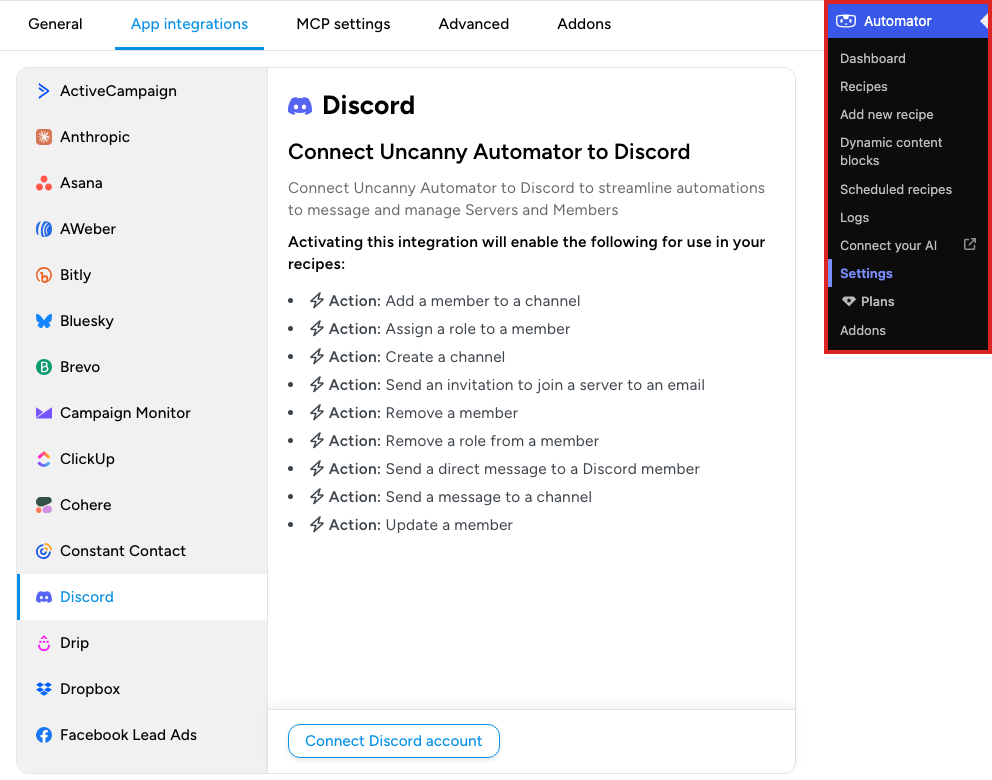
Until an account is connected, the recipe builder’s picker hides Discord while its Ready-to-use only switch is on.
Connecting Discord servers
After you connect, the Discord tab lists the servers your account can manage. For each one you can:
- Connect server: authorizes the Uncanny Automator Bot and installs it on that server. Recipe actions run through the bot, so a server must be connected before its channels, roles, and members appear in action fields.
- Disconnect server: removes the bot from the server. Actions that target that server stop working until you connect it again.
If the bot is connected but an action fails on permissions, see Troubleshooting Discord permission issues.
User Discord verification
Actions that target a member, such as sending a direct message or assigning a role, need to know which Discord account belongs to which WordPress user. Users make that link themselves through a shortcode you place on any page or post.
The shortcode shows a Verify Discord Account link to logged-in users. When a user clicks it, Discord’s authorization page opens; once the user approves, Automator saves their Discord Member ID to their WordPress user account and shows a success message. Users who have already verified see the success message instead of the link.
[[automator_discord_user_mapping]]Optional attributes:
- label: the link text. Defaults to “Verify Discord Account”.
- css_class: CSS classes added to the link. Defaults to “uap-discord-user-mapping-button”.
- verified_message: the success message. Defaults to “Your Discord account is verified.”
- error_message: the error message. Defaults to “Unable to verify Discord account. Please try again.”
[[automator_discord_user_mapping label="Connect Discord" verified_message="Your Discord account is now connected!" error_message="Unable to connect Discord account. Please try again."]]The verified Member ID is stored in the user meta key automator_discord_member_id. The next section shows how a recipe reads it.
Using the verified member in an action
To make a Discord action target the WordPress user who triggered the recipe:
- Open the action’s Set up step.
- In the Member field, select Use a token/custom value.
- Click the ∗ button at the end of the field, open the Global tab, expand Advanced, and click User meta. In Meta key, enter
automator_discord_member_idand click Save. - Click Save.
When the recipe runs, the token resolves to the Member ID saved on that user’s account, so the action reaches the right Discord member.
Related: Troubleshooting Discord permission issues, Managing tokens, Finding integrations in the recipe builder


Comments (0)