

Connecting Bluesky lets a recipe publish a post to your Bluesky account whenever something happens on your WordPress site: a new article goes live, a product launches, a member reaches a milestone. Once connected, the Create a post on Bluesky action appears under Bluesky in the recipe builder. This article covers connecting your account, the action’s fields, a worked example, and Bluesky’s limits.
If you have Uncanny Automator Lite, you’ll first need to connect your site to a free Uncanny Automator account, which gives you app credits to use with Bluesky. On a paid plan, app integrations are included. See Connecting your site with a free Uncanny Automator account and What are App Credits?.
Connecting your Bluesky account
Bluesky is connected from the Automator settings, not from inside a recipe. Until it is connected, the picker hides the Bluesky integration while Ready-to-use only is switched on; see Finding integrations in the recipe builder.
- In your WordPress dashboard, go to Automator > Settings > App integrations and click Bluesky in the list of apps. The panel describes the connection, lists the available actions, and shows the steps for getting an app password, followed by the Username and App Password fields.
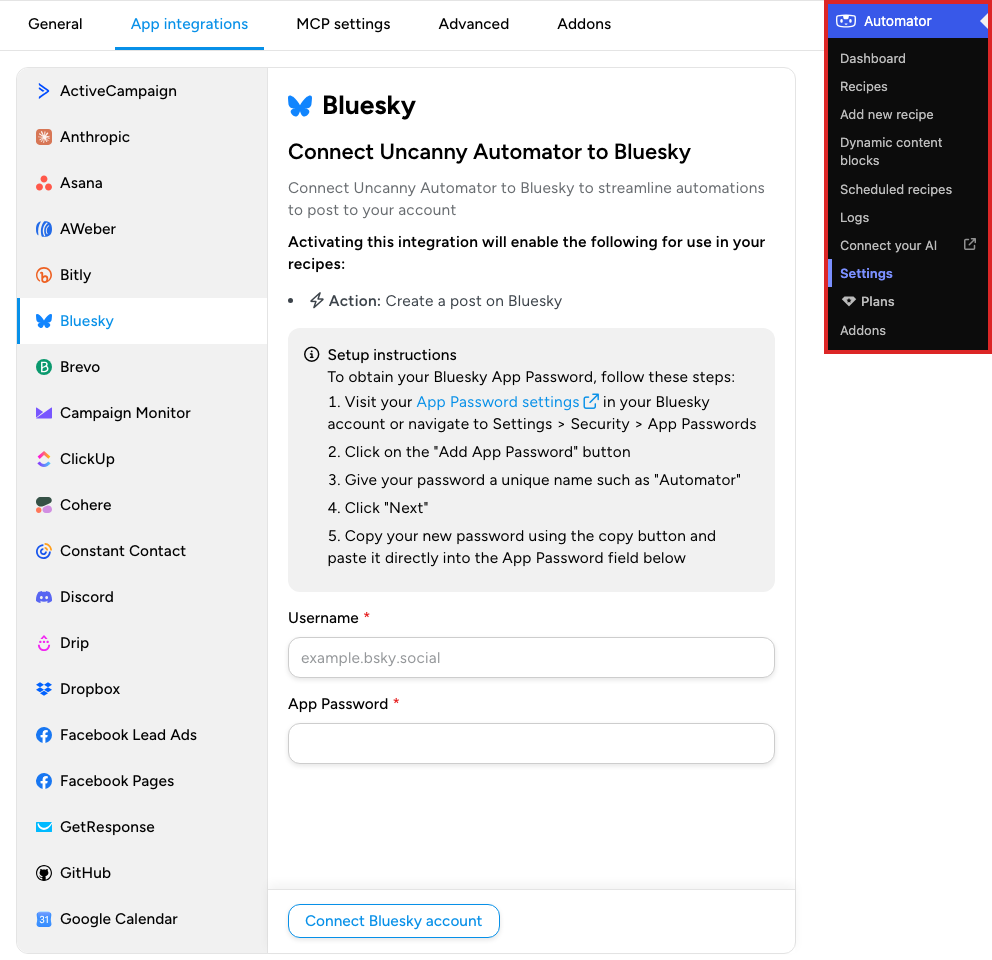
- In a new tab, sign in to Bluesky and go to Settings > Privacy and security > App passwords. The App Password settings link in the panel’s setup instructions also opens it.
- Click Add App Password.
- Give the password a name that tells you what it is for, such as “Automator”. Leave Allow access to your direct messages unchecked and click Next. Bluesky generates the password.
- Copy the password and click Done. Bluesky shows an app password only once; if you lose it, delete it and create a new one.
- Back in WordPress, enter your Bluesky handle in Username, in the form example.bsky.social, and paste the password into App Password.
- Click Connect Bluesky account.
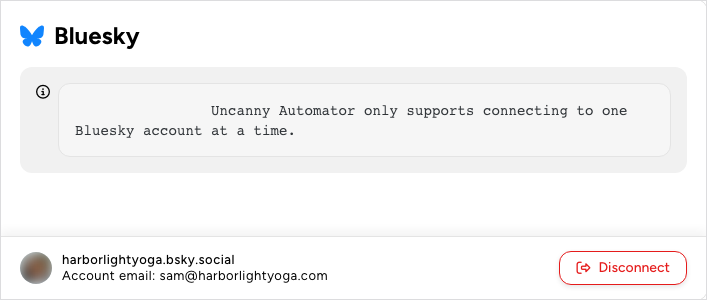
The panel now shows the connected handle and the account email, with a Disconnect button for when you want to remove the connection. Uncanny Automator connects to one Bluesky account at a time. An app password is not your account password: it lets Uncanny Automator post on your behalf and nothing else, and you can revoke it in Bluesky at any time without changing your login.
The Create a post on Bluesky action
Create a post on Bluesky publishes one post to the connected account. It does not need a logged-in user, so it works in both Logged-in users and Everyone recipes. Its fields:
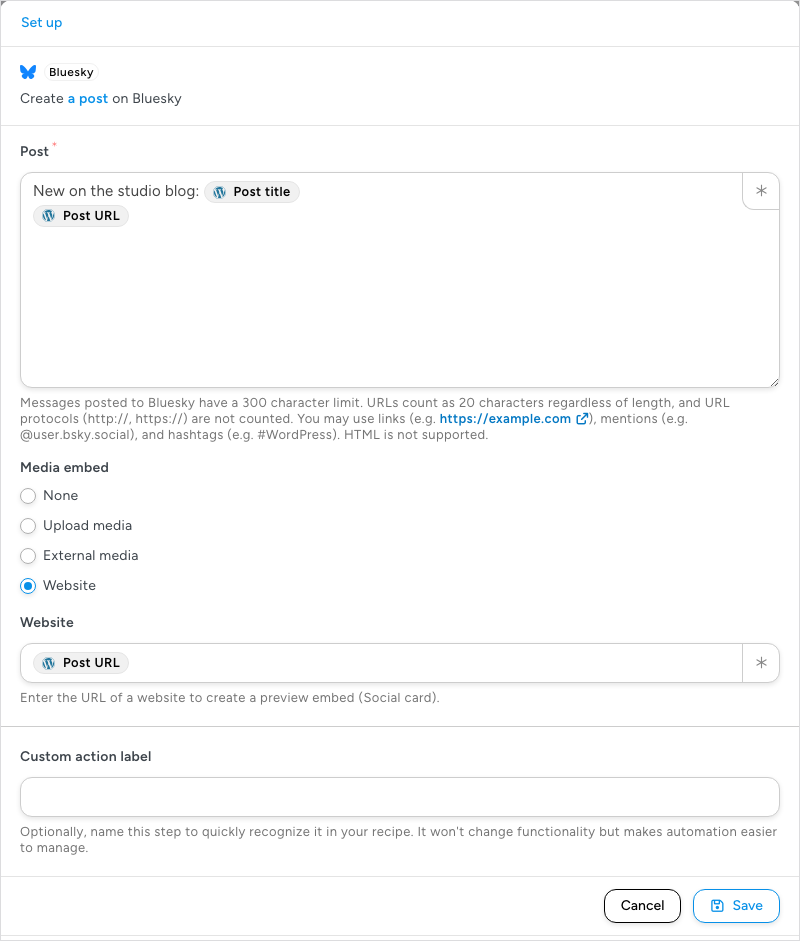
- Post — the text of the post. Insert tokens with the ∗ button so each post carries data from the trigger. In the plugin’s words: “Messages posted to Bluesky have a 300 character limit. URLs count as 20 characters regardless of length, and URL protocols (http://, https://) are not counted. You may use links (e.g. https://example.com), mentions (e.g. @user.bsky.social), and hashtags (e.g. #WordPress). HTML is not supported.”
- Media embed — what, if anything, to attach. None is selected until you choose otherwise and posts text only. The other three options each reveal one more field:
- Upload media shows Uploaded media, a file picker for your WordPress media library. It accepts JPEG, PNG, GIF, and WebP images and MP4 and QuickTime videos.
- External media shows an External media URL field. Enter the address of a media file, or of a page on a video site such as YouTube or Vimeo, which Bluesky shows as a preview card. The field accepts tokens, so a featured image URL token from the trigger attaches each post’s own image.
- Website shows a Website field. Enter a page address and the post carries that page’s social card: its title, description, and image, read from the page’s Open Graph tags. The page must have a title for the card to be created.
The action provides one token for later actions, Post URL, the public address of the post it created, which you can log to a spreadsheet or include in a notification. If Bluesky does not accept the post, the action fails with “The post was not created. Please try again.” and the reason appears in the recipe log.
Example: post when an article is published
- Go to Automator > Add new recipe, choose Logged-in users, and click Confirm.
- Click Add trigger, click WordPress Core, then A user publishes a post. Set Post type to Post and click Save.
- Click the + under the trigger, click Bluesky, then Create a post on Bluesky.
- In Post, write a short line and insert the trigger’s Post title token, then on a new line insert the Post URL token.
- Under Media embed, choose Website and insert the same Post URL token in the Website field, so the Bluesky post shows the article’s card.
- Click Save.
- The canvas now shows the trigger and the Bluesky action. Switch Recipe off in the top bar to Recipe on.
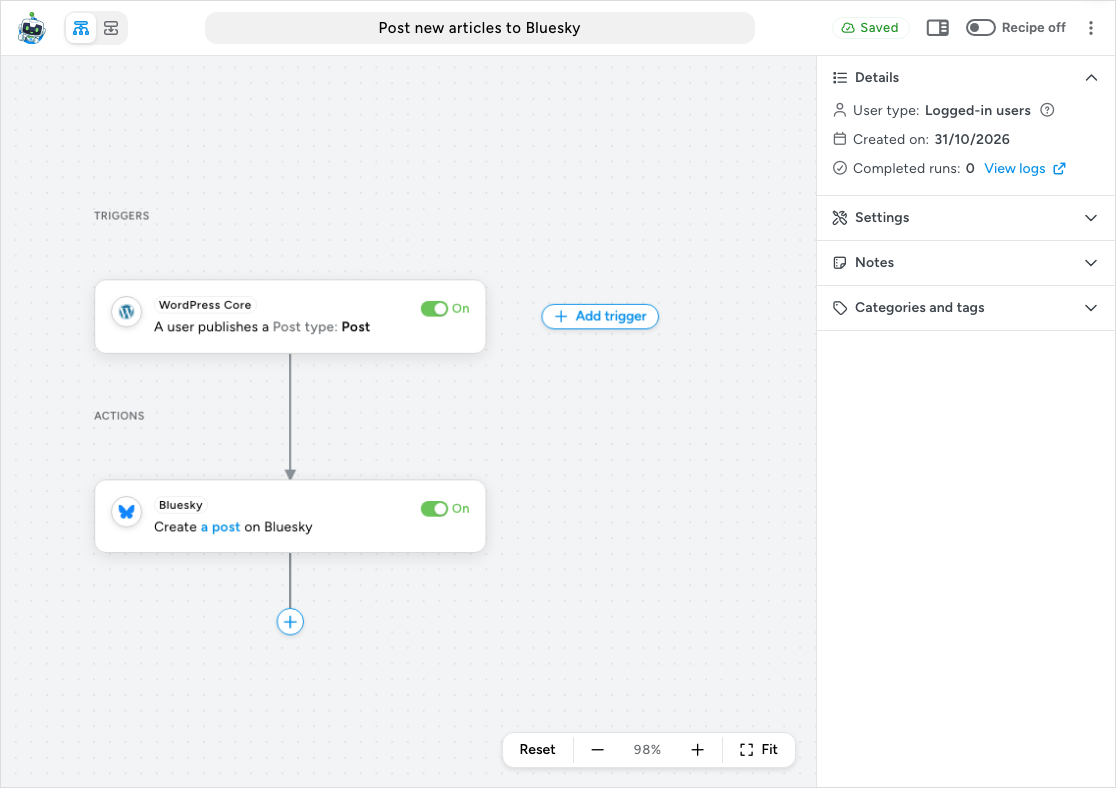
Publish a test article and check your Bluesky profile. A new recipe’s Times per user setting is Unlimited, so every article the author publishes is posted, not only the first. If you changed it, set it back in the sidebar’s Settings panel.
Things to know
Bluesky’s own limits apply to every post the action creates. When a post is refused, the recipe log explains why; see Using Automator Logs.
- Length. Posts are limited to 300 characters, counted after tokens are filled in, and must be at least three characters. A long post title plus a URL can exceed the limit; shorten the fixed text if posts fail.
- Threads. Uncanny Automator posts single posts. It does not create threads or replies.
- Images and video. A post can carry up to four images, each 1 MB or smaller, and videos must be three minutes or less.
- Rate limits. Bluesky allows 5,000 points per hour (about 1,666 posts) and 35,000 points per day (about 11,666 posts) per account. Ordinary sites never approach these, but a loop that posts once per item could. See Bluesky’s rate limits.
- Reconnecting. If you delete the app password in Bluesky, posts fail and the log asks you to reconnect your Bluesky account. Create a new app password and repeat the connection steps.
Related: Finding integrations in the recipe builder, Connecting your site with a free Uncanny Automator account, What are App Credits?, Managing tokens, Using Automator Logs.

Comments (0)