

An error in the Uncanny Automator recipe builder is usually caused by a conflict with another plugin, the theme, or the browser, rather than by Automator itself. WordPress lets every plugin and theme change the admin screens, so conflicts are not unusual. This article walks through finding the conflict, then lists what to send our support team if the error remains.
If your site is live, run these checks on a staging site first (we recommend every WordPress site has one), so that deactivating plugins or switching themes doesn’t disrupt your visitors. On a staging site or a site that isn’t live yet, you can start right away.
Find the cause
Work through these checks in order. Each one rules out a common cause before you move to the next.
- Update everything. Make sure Uncanny Automator, Uncanny Automator Pro (if you use it), and WordPress are on their latest versions; many errors are already fixed in a newer release. The Status card on Automator > Dashboard shows the installed version of each Automator plugin, with an Up to date mark when no update is waiting.
- Check for a plugin conflict. Temporarily deactivate every plugin except Uncanny Automator and, if you use it, Uncanny Automator Pro. Then open the recipe builder again.
- If the error goes away, reactivate the other plugins in small groups until it comes back. The last group you reactivated contains the conflicting plugin; reactivate those plugins one at a time to find it.
- Once you know which plugin it is, check whether it has an update and install it.
- If updating doesn’t help, or there is no update, contact our support team and tell us which plugin causes the error.
- If the error is still there with every other plugin deactivated, go on to step 3.
- Check for a theme conflict. Code in a theme can also conflict with Uncanny Automator. Switch temporarily to another theme, ideally one of the default themes that ship with WordPress, and check again.
- If the error goes away, contact our support team and tell us which theme causes it.
- If the error is still there with other plugins deactivated and a different theme active, go on to step 4.
- Rule out the browser. It’s rare, but an outdated browser or a browser extension can cause the error. Update your browser to its latest version, then open the recipe builder in a private (incognito) window, where most extensions don’t run. If the error goes away there, an extension is the likely cause.
Note: A dialog titled “This recipe can’t go live yet” when you try to switch a recipe to Recipe on is not a plugin error. It means the recipe is not finished yet, and it lists what is missing. Fix each item on the list and switch the recipe on again. On sites where Uncanny Agent is available, the dialog also offers Fix with Uncanny Agent, unless both Uncanny Agent launchers are switched off in its settings.
Contact support
If none of these steps resolves the error, open a support ticket. These details help us find the cause faster:
- If the error started recently, anything that changed on the site around that time, such as plugin updates, new custom code, or a new theme.
- The name of your web host.
- Any caching plugins on the site, and any caching your host runs that you know of.
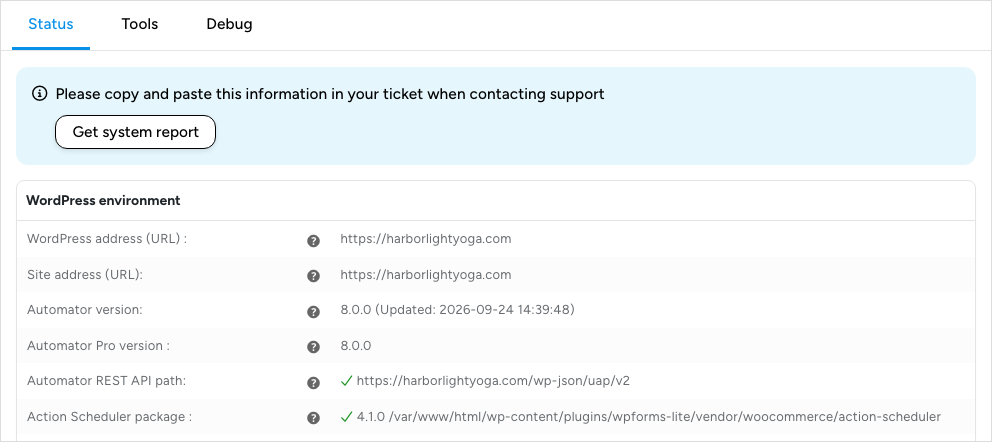
- Your system report, which lists your WordPress, server, and Automator details in one place.
To get the system report:
- In your WordPress dashboard, go to Automator > Dashboard.
- On the Status card, click View full status. The page opens on the Status tab.
- Click Get system report, then paste the report into your ticket.
Related: Having trouble? Read this, Setup wizard and dashboard, PHP version

Comments (0)