

The Twilio integration sends SMS text messages from your recipes: a message to a customer when they make a purchase, an alert to an admin when a form arrives, a note to a learner when they complete a course. Once Twilio is connected, the Send an SMS to a number action appears under Twilio in the recipe builder. This article covers getting the three values Uncanny Automator needs from Twilio, connecting your account, and adding the action to a recipe.
If you have Uncanny Automator Lite, you’ll first need to connect your site to a free Uncanny Automator account, which gives you app credits to use with Twilio. On a paid plan, app integrations are included.
You also need a Twilio account with a phone number that can send SMS messages. A trial account works: a trial phone number is fine for sending messages from a recipe.
Get your Twilio details
Uncanny Automator needs three values from your Twilio account: the phone number to send from, the Account SID and the Auth Token.
- Sign in to Twilio and open the Twilio Console.
- If you don’t have a number to send SMS messages from yet, click Get a Trial Number, or buy a number. Make sure the number supports SMS, and make a note of it.

- On the Console dashboard, find Account SID and Auth Token. Click Show to reveal the Auth Token, then copy both values.

Connect Twilio to Uncanny Automator
- In your WordPress dashboard, go to Automator > Settings > App integrations and select Twilio in the list.
- Paste the values from the Twilio Console into Account SID and Auth token.
- In Active number, enter the Twilio number you noted. The placeholder shows the expected format, +15017122661, and the Active numbers link under the field opens the list of numbers in your Twilio account.
- Click Connect Twilio account.
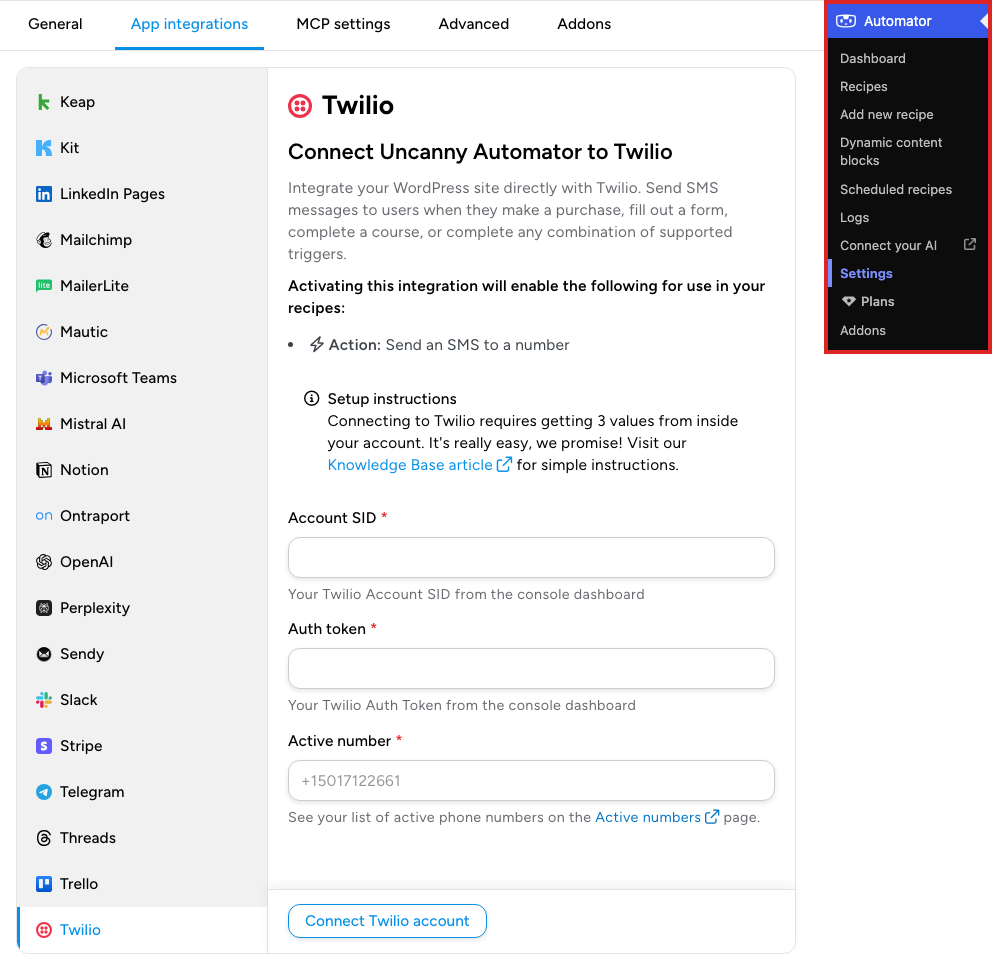
Uncanny Automator checks the credentials and the number against your Twilio account, then shows the connected account and its active number. It connects to one Twilio account at a time. To send from a different number in the same account later, change Active number and click Update active number.
Until Twilio is connected, the recipe builder’s picker hides it while Ready-to-use only is switched on; see Finding integrations in the recipe builder.
Send an SMS from a recipe
- Open the recipe at Automator > Recipes, or create one from Automator > Add new recipe, and add its trigger; see Creating a recipe.
- Click the + at the end of the flow. In the picker, search for Twilio, select it, then select Send an SMS to a number.
- In To, enter the number to send to, or insert a phone number token with the ∗ button (see Using tokens for the phone number). Separate several numbers with a comma to send the same message to each.
- In Body, write the message. A message can be up to 1600 characters. One SMS holds up to 160 GSM characters or 70 Unicode characters, so a longer message is sent as several SMS segments.
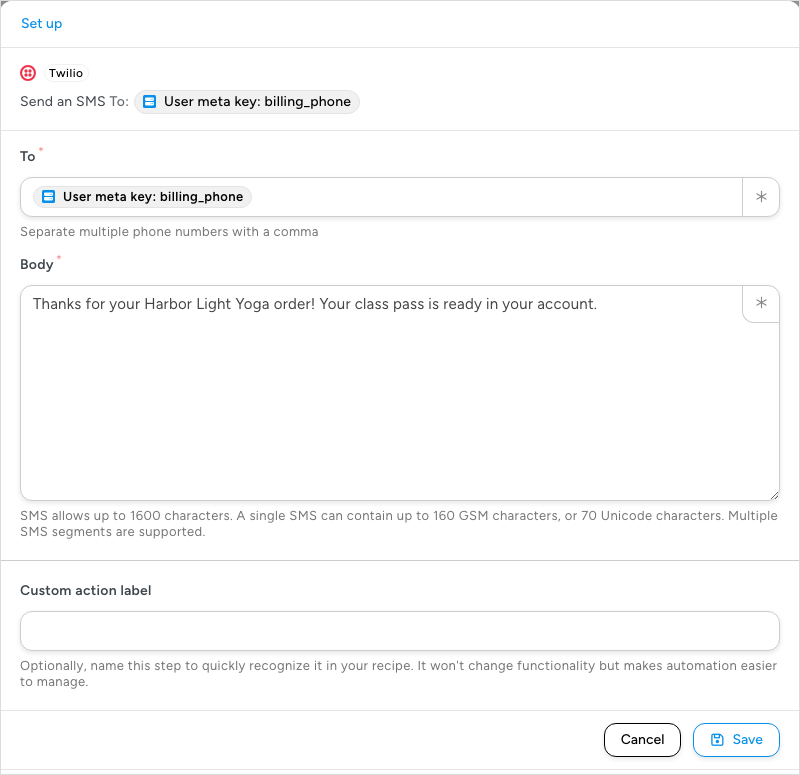
- Click Save.
- Switch Recipe on in the top bar. The recipe sends the message each time its triggers complete.
Using tokens for the phone number
A fixed number in To suits alerts to yourself or your team. To text the person who triggered the recipe, insert their number as a token with the ∗ button at the end of the field. For a WooCommerce purchase, choose Billing phone from the trigger’s tokens: it holds the number the customer entered at checkout.
WordPress does not store a phone number for users by default, so there is no standard phone token: the field depends on the plugin that collects the number. If you know the user meta key that plugin uses, insert it as a user meta token. WooCommerce, for example, saves a customer’s billing phone under the meta key billing_phone.
The action also adds two tokens for the actions after it: SMS status and SMS ID, the status and ID Twilio returns for the message.
Related: Managing tokens, User meta tokens, Finding integrations in the recipe builder, Managing actions

Comments (0)