

The Facebook Pages integration posts to your Facebook pages from activity on your WordPress site: share each new blog post, or post a link or photo when an admin or a user does something specific on your site. This article covers connecting your Facebook account, choosing the pages Uncanny Automator can post to, adding a Facebook action to a recipe, and disconnecting.
If you have Uncanny Automator Lite, you’ll first need to connect your site to a free Uncanny Automator account, which gives you app credits to use with Facebook. On a paid plan, app integrations are included.
Once connected, these actions appear under Facebook Pages in the recipe builder:
- Publish a post to a Facebook page
- Publish a post with an image to a Facebook page
- Share a link with a message to a Facebook page
- Create a draft post on a Facebook page
Posting to Facebook groups is not supported. The Facebook Groups integration was removed in Uncanny Automator 8.0.
Connect Uncanny Automator to your Facebook account
- In your WordPress dashboard, go to Automator > Settings > App integrations and select Facebook Pages in the list.
- Click Connect Facebook Pages account.
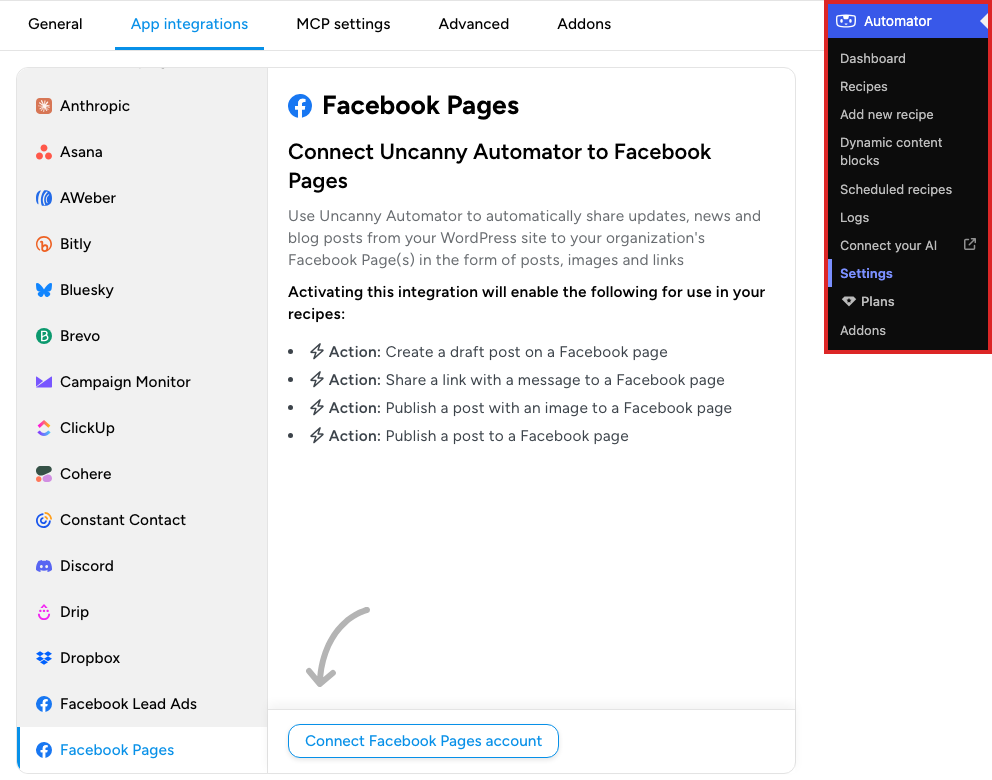
- Facebook opens and connects your account with the Uncanny Automator Facebook app, which is what lets Uncanny Automator post updates to your page. Sign in if asked and continue.

- If an Instagram Business account is connected to your Facebook account, Facebook may ask which Instagram accounts to allow next. To let Uncanny Automator post to Instagram too, select the account here; see Instagram Business.

- Choose the Facebook pages Uncanny Automator can post updates to.

- Review the permissions Uncanny Automator needs to post to your Facebook page and your Instagram Business account. Leave them all on; if you turn any of them off, Uncanny Automator may not work correctly.

- Click OK on the last screen.

- Facebook returns you to the Facebook Pages settings page, which shows the connected account and your Linked pages.
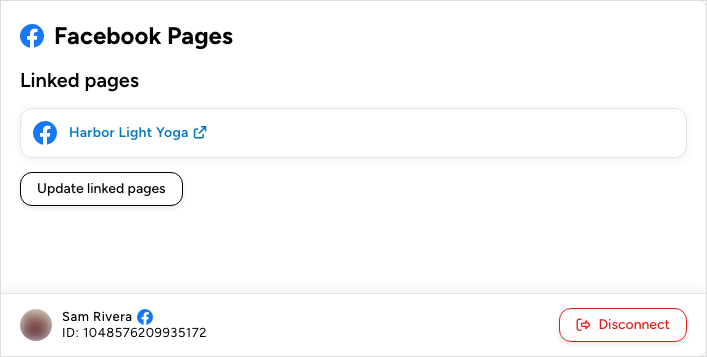
To add or remove pages later, click Update linked pages and go through Facebook’s screens again. If the settings page reports “No Facebook Pages were found linked to this account”, click the button to authenticate again and make sure the correct pages and permissions are selected.
Until an account is connected, the recipe builder’s picker hides Facebook Pages while its Ready-to-use only switch is on; see Finding integrations in the recipe builder.
Post to a Facebook page from a recipe
- Open the recipe at Automator > Recipes, or create one from Automator > Add new recipe, and add its trigger; see Creating a recipe.
- Click the + at the end of the flow. In the picker, search for Facebook and select Facebook Pages.
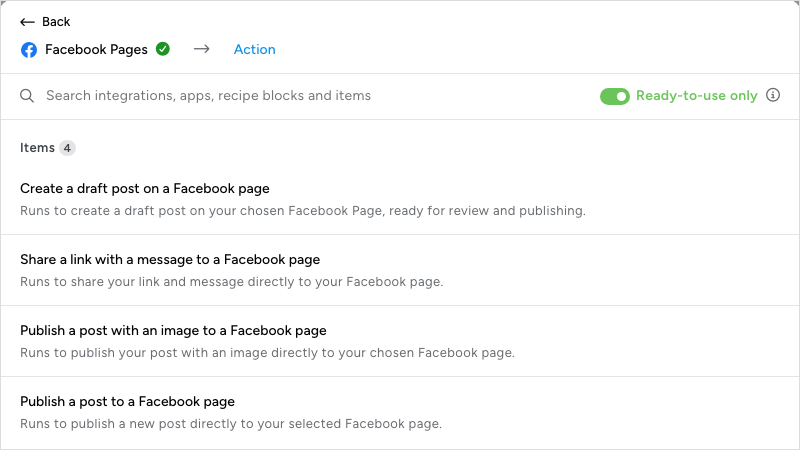
- Choose the action, for example Publish a post to a Facebook page.
- In the Set up step, choose the Facebook Page and write the Message. Insert tokens with the ∗ button at the end of the field (the post title and URL, the user’s name) so each post carries the data from the event that fired.
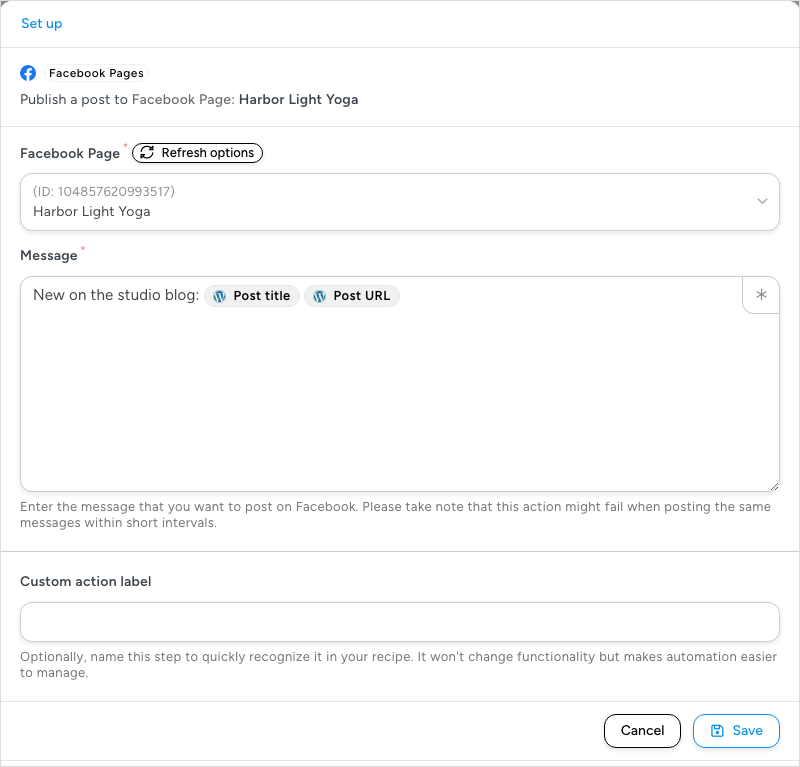
- Click Save.
Make sure the action is On, then switch Recipe on in the top bar. The recipe posts to your page each time its triggers complete, and the post actions return a Link to Facebook post token for later actions. Facebook may reject the same message posted again within a short interval, so include something that changes, such as the post title, in recurring messages.
The other actions add these fields:
- Publish a post with an image to a Facebook page — Image URL or Media library ID. The image must be publicly accessible.
- Share a link with a message to a Facebook page — External link URL. Start the URL with
https://. - Create a draft post on a Facebook page — no extra field. The draft is saved to the page’s Publishing Tools, where you can review and publish it later.
Disconnecting your Facebook account
To stop using the Facebook Pages integration on this site, go to Automator > Settings > App integrations > Facebook Pages and click Disconnect. Instagram uses the same connection, so this also stops any Instagram actions on the site.
Disconnecting affects only this site. The Uncanny Automator app stays on your Facebook account so that recipes on your other sites keep working. To remove the app from your Facebook account:
- On Facebook, go to Settings & privacy > Settings.
- Click Business integrations.
- Find Uncanny Automator and click Remove.
Related: Instagram Business, Finding integrations in the recipe builder, Managing actions

Comments (0)