

When a Discord action in a recipe fails on permissions, the cause is usually the Uncanny Automator bot’s role on your Discord server: the role sits too low in the server’s role hierarchy, or it has lost a permission it needs. This article covers both checks, in the order to try them. To connect Discord and add the bot to a server, see Discord.
Check the bot’s role hierarchy
The most frequent problem when a recipe manages members, for example assigning or removing a role, is that the bot’s role is lower in the hierarchy than the roles it is trying to manage. Discord enforces a strict role hierarchy, so the bot’s role must sit above every role it adjusts.
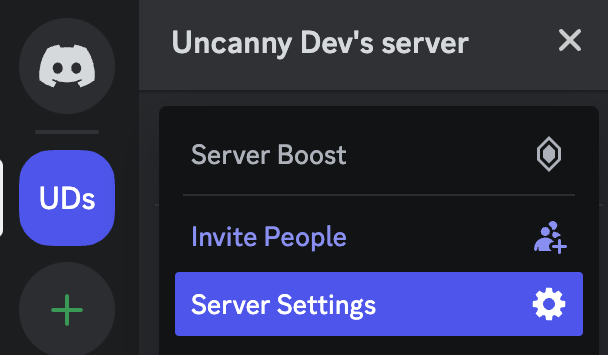
- In Discord, open your server’s Server Settings.
- Go to the Roles section.
- Drag the Uncanny Automator bot role above every role you want the bot to manage.
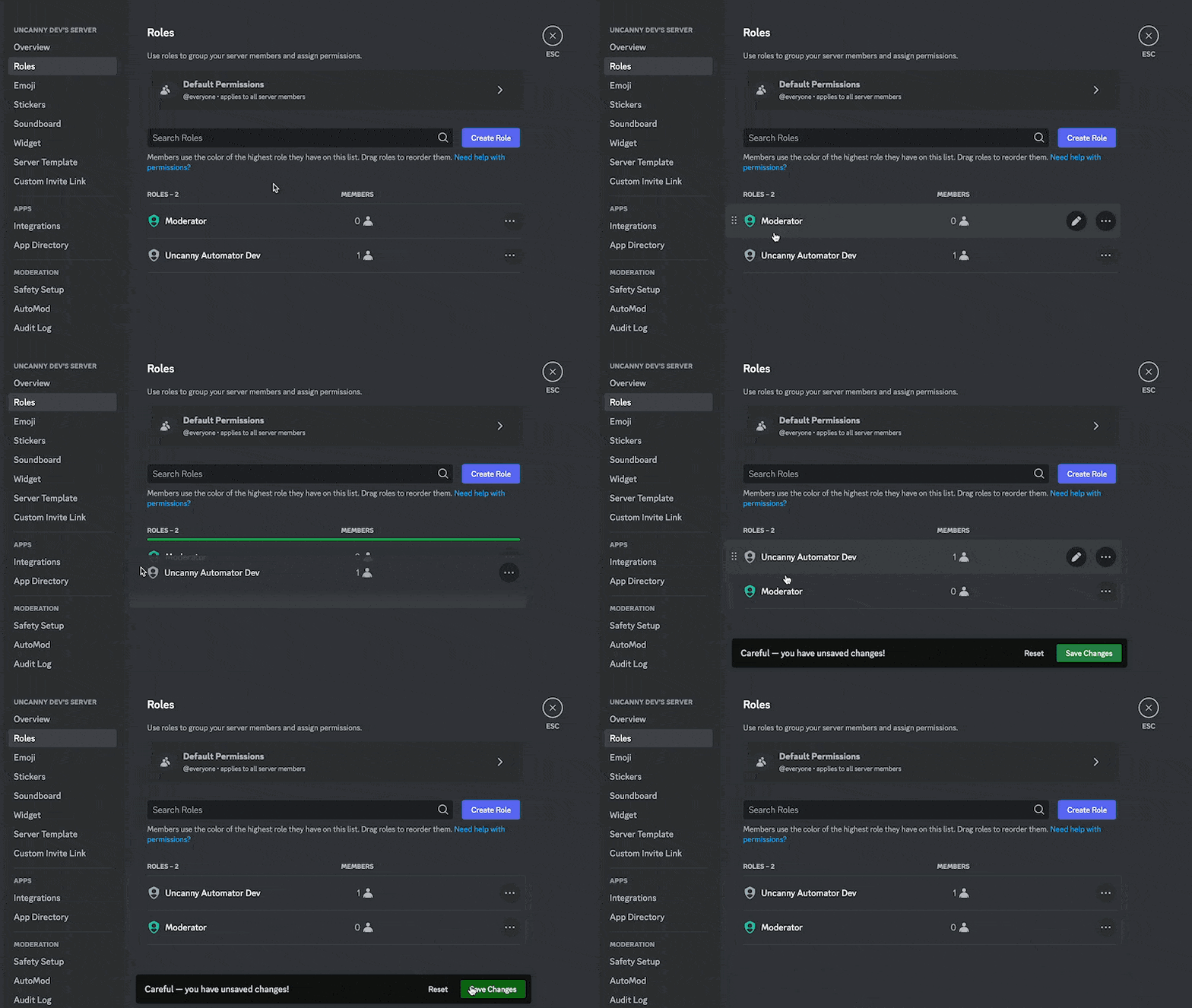
- Save your changes.
Run the recipe again. If the action still fails, move on to the permissions check.
Check the bot’s permissions
The bot needs certain permissions to carry out Discord actions. If they were changed or removed after the bot was added to the server, restore them in one of two ways.
Option 1: Reconnect the server
- In your WordPress dashboard, go to Automator > Settings > App integrations > Discord.
- Next to the server, click Disconnect server and confirm with Yes, disconnect server.
- Click Connect server for the same server and authorize the bot in Discord.
Reconnecting reinstates the permissions the bot needs.
Option 2: Adjust the permissions in Discord
- In your Discord Server Settings, go to Roles.
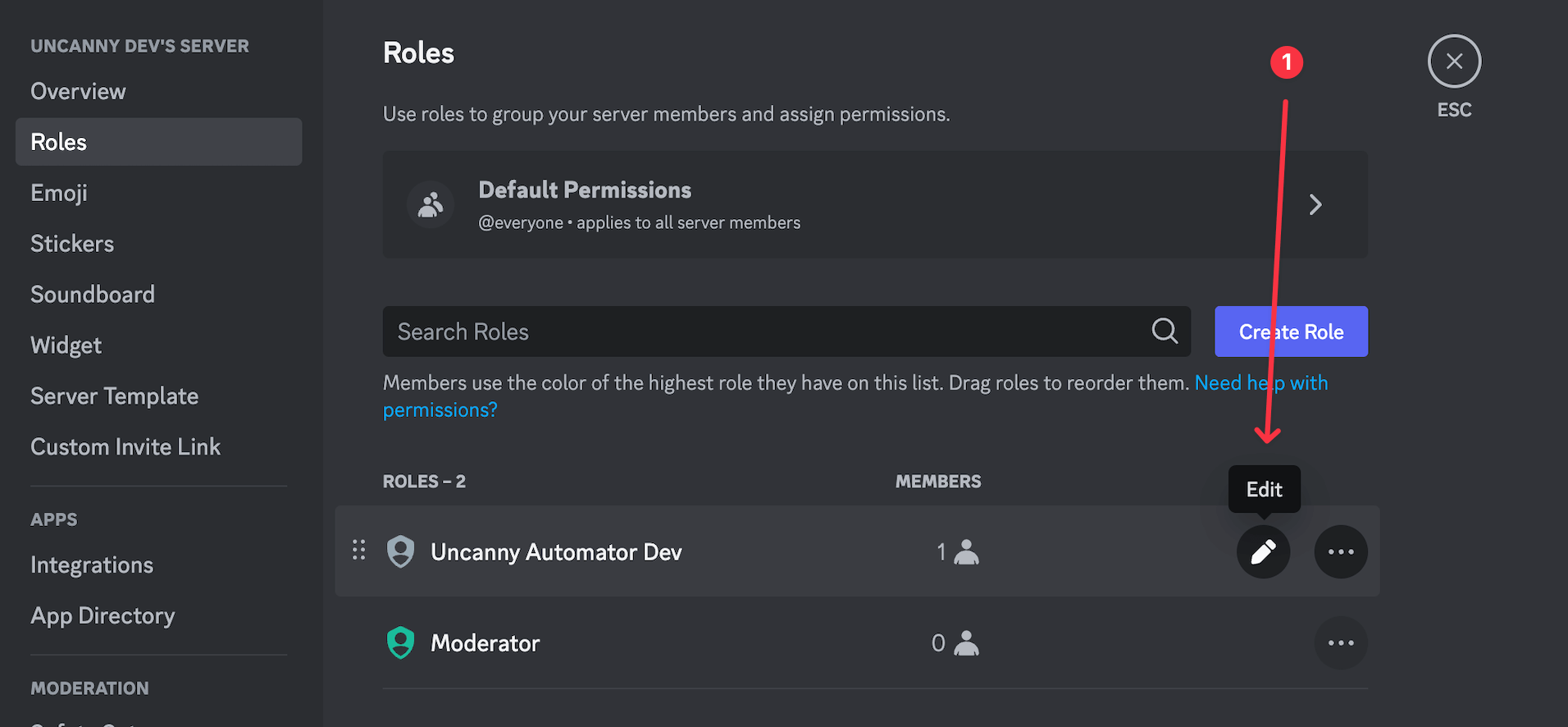
- Find and select the Uncanny Automator bot’s role.
- Click Edit to open the role’s settings.
- Open the Permissions tab and check that these permissions are enabled:
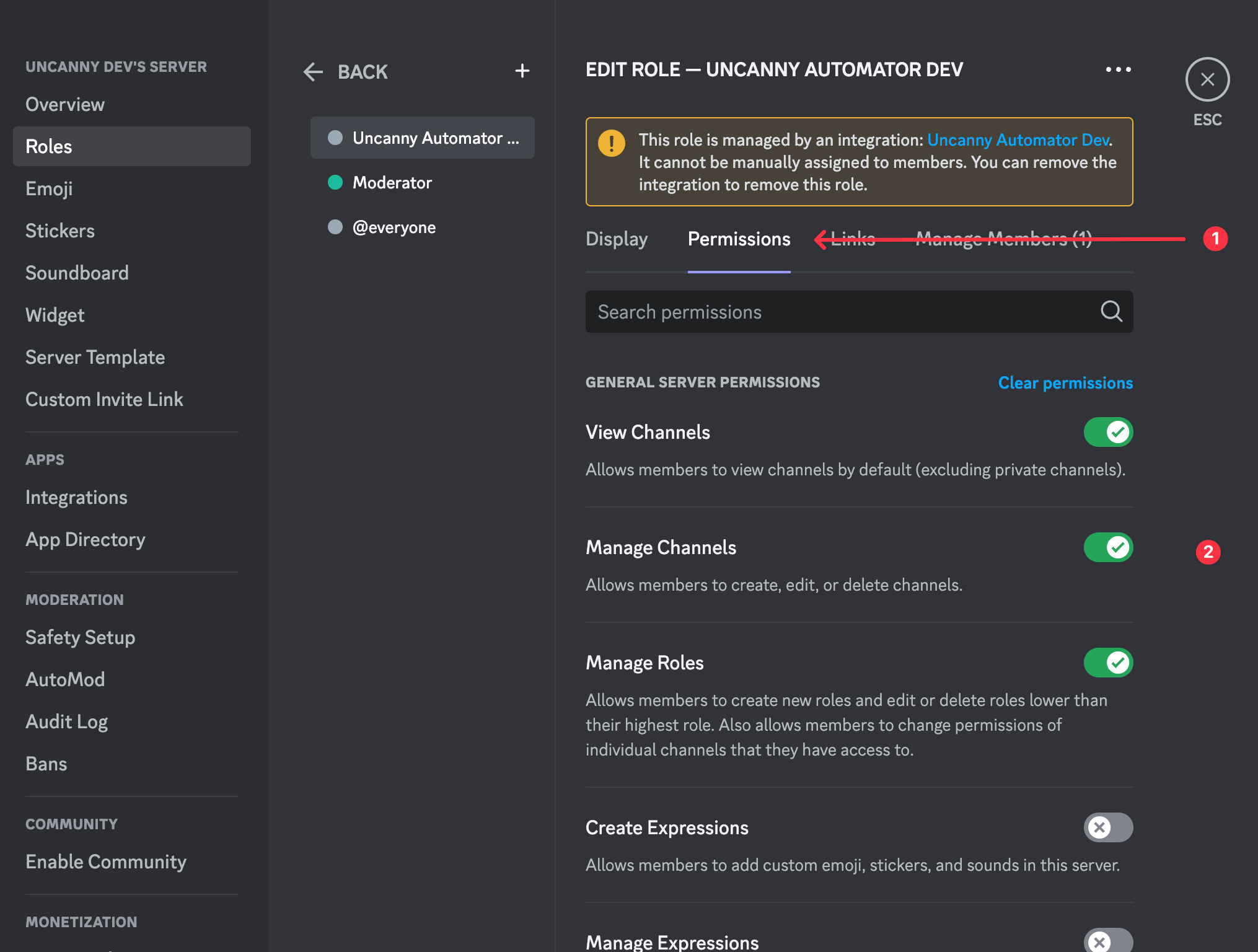
- View Channels
- Manage Channels
- Manage Roles
- Manage Server
- Create Invite
- Manage Nicknames
- Kick Members
- Timeout Members
- Send Messages
- Send Text-to-Speech Messages
- Connect
Save your changes and run the recipe again. For more on how Discord roles and permissions work, see Discord’s Permissions FAQ.
Related: Discord, Using Automator logs

Comments (0)