

Gravity Forms automations can save you hours of repetitive work every week. You can get…
WordPress Slack Notifications: How to Send and Format Slack Messages from WordPress
Send WordPress Slack notifications with Uncanny Automator and format them so they get read. Includes a Slack message formatting cheat sheet and four recipes.
You got the integration working. WordPress is connected to Slack, the test message landed, and every new order now pings the sales team channel.
But look at what it’s sending. One grey wall of text. A raw URL that runs off the edge of the screen. No order number anywhere near the top. The person who needed to see it scrolled right past.
That’s the gap this post closes.
Uncanny Automator sends WordPress Slack notifications for any event on your site. Within the same field that you use to draft the message, you can format it also using Slack’s formatting codes. A bold first line, a link back to the order and an @mention are a few extra characters of typing.
I’ll start with the cheat sheet, since you’ll want it open when we start running through some examples together. Then I’ll build one recipe (what Automator calls its automated workflows) step by step and leave you three more to copy.
What You’ll Need
- Uncanny Automator Lite (free forever), plus a free Automator account. Slack is a cloud integration, so each message it sends uses an app credit (credits for using third-party apps). A free account includes 250 app credits; Automator Pro removes the cap.
- A Slack workspace where you’re allowed to install apps.
- The Uncanny Automator bot in your target channel. In Slack, open Apps > Uncanny Automator, then choose “Add this app to a channel.” Private channels won’t show up in Automator until you do this.
Already connected? Skip ahead. If not, the Slack knowledge base article walks you through connecting your account. It takes about two minutes.
Automator’s Slack integration gives you four actions (the things a recipe does):
- Send a message to a channel
- Send a direct message to a Slack user
- Create a channel, and
- Add users to a channel.
There are no Slack triggers (the events that start a recipe), though Automator Pro allows for incoming webhooks.
Slack Message Formatting Cheat Sheet (Copy and Paste)
First, a quick word on Markdown, because the name will come up. Markdown is a way to format text by typing punctuation instead of clicking buttons: two asterisks around a word make it bold, one asterisk makes it italic, and square brackets followed by parentheses make a link.
Plenty of apps use it, so you may have picked it up without ever hearing the name.
Slack messages sent by apps and other external tools — such as Uncanny Automator — use Slack’s own version of this idea, which Slack calls “mrkdwn.” It looks like Markdown, but the rules are different. In Slack, double asterisks do nothing; single ones make bold.
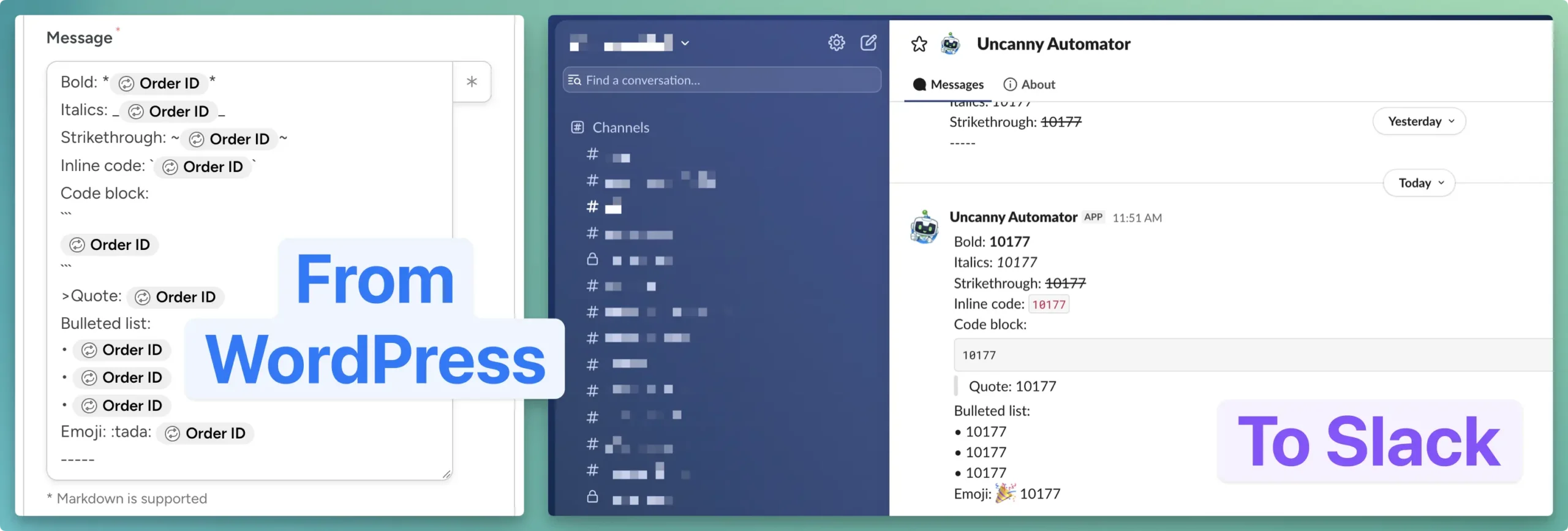
Whatever you type in Automator’s Message field is what Slack receives, so the codes below work there.
(Note: send one test message before you build the real thing. Rendering rules can change, and a test takes a minute. Slack’s own formatting reference is the source of truth if something looks off.)
Text Styling
Links, Mentions and Dynamic Data
To find someone’s member ID, open their Slack profile, click the three-dot menu and choose Copy member ID. Channel IDs are at the bottom of a channel’s details panel.
For smoother automations, you can save Slack member IDs as a custom field in WordPress with Automator’s Custom User Fields Addon.
Gotchas
- &, < and > are special characters in Slack. When you mean the literal character, type & < or > instead.
- There’s no table or heading syntax. Use a bold line as a heading and a code block to keep columns lined up.
- Nothing inside inline code gets formatted. It shows exactly as typed, asterisks and all.
- Mentions need IDs, not names. @Dana is just text; <@U0123ABCD> notifies Dana.
- A URL with a space in it breaks the link. Tokens that output URLs are fine.
Here’s a skeleton that uses four of the codes at once. Tokens are shown in square brackets; insert the real ones from the asterisk menu.
:tada: *New order [Order number]* for [Order total]
*Customer:* [Billing first name] [Billing last name]
<[Order URL]|Open the order>
Try Uncanny Automator free >>>
Recipe 1: A New-Order Alert You Can Read at a Glance
Order data is the best way to show what formatting does, because an order has a number, a total, a customer and a link, and every one of them wants a different treatment.
If you want the complete WooCommerce-to-Slack walkthrough with five order recipes, we have one. This section is about making the message readable.
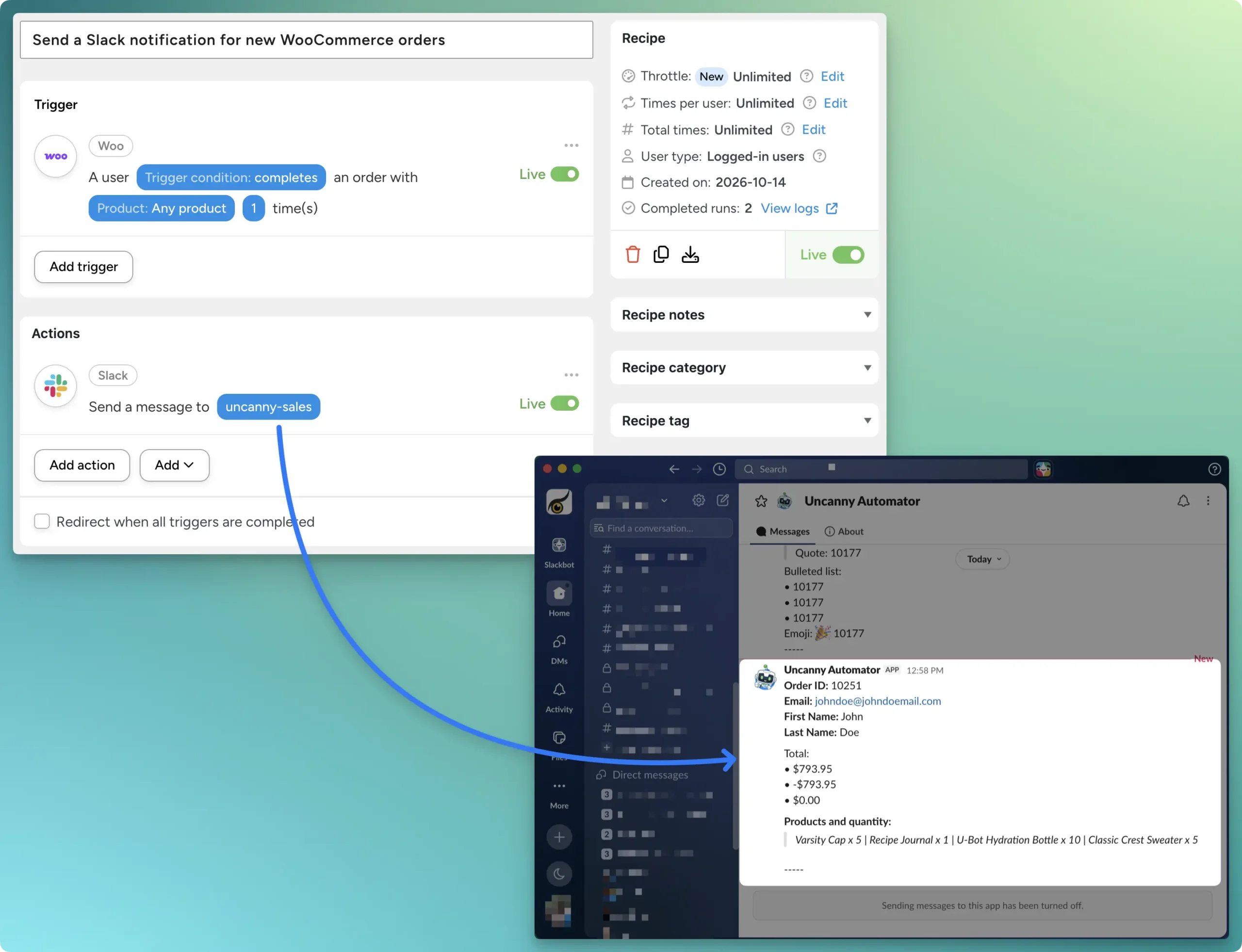
Here’s how you can format your Slack messages from within WordPress:
Step 1: Create and Name a New Recipe
From your WordPress Admin Dashboard, navigate to Automator > Add new recipe.
In the modal that appears, select Logged-in users.
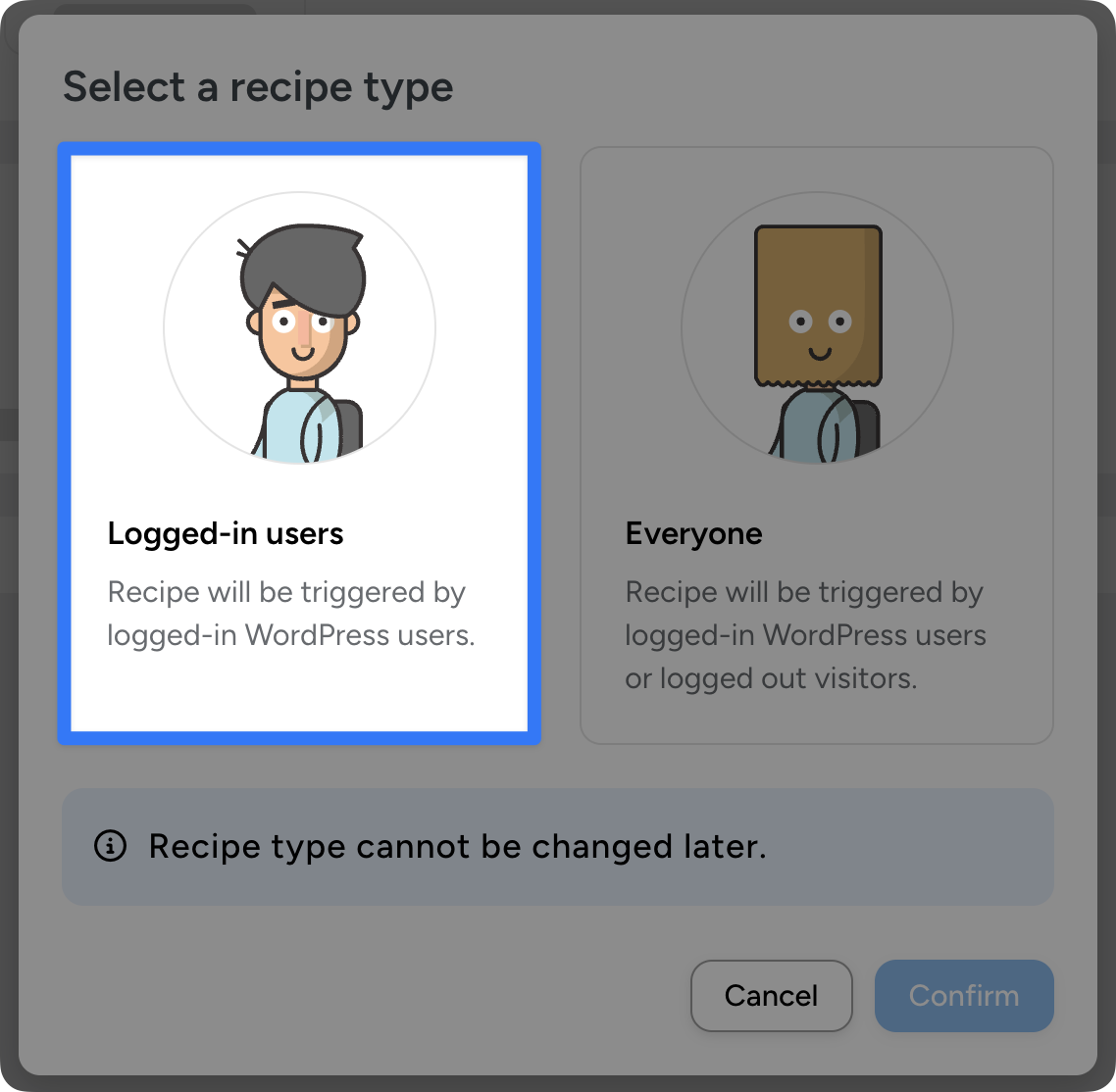
(Note: If you allow guest checkouts, you can select Everyone. However, most “Everyone” triggers for WooCommerce in Automator are only available to Pro users.)
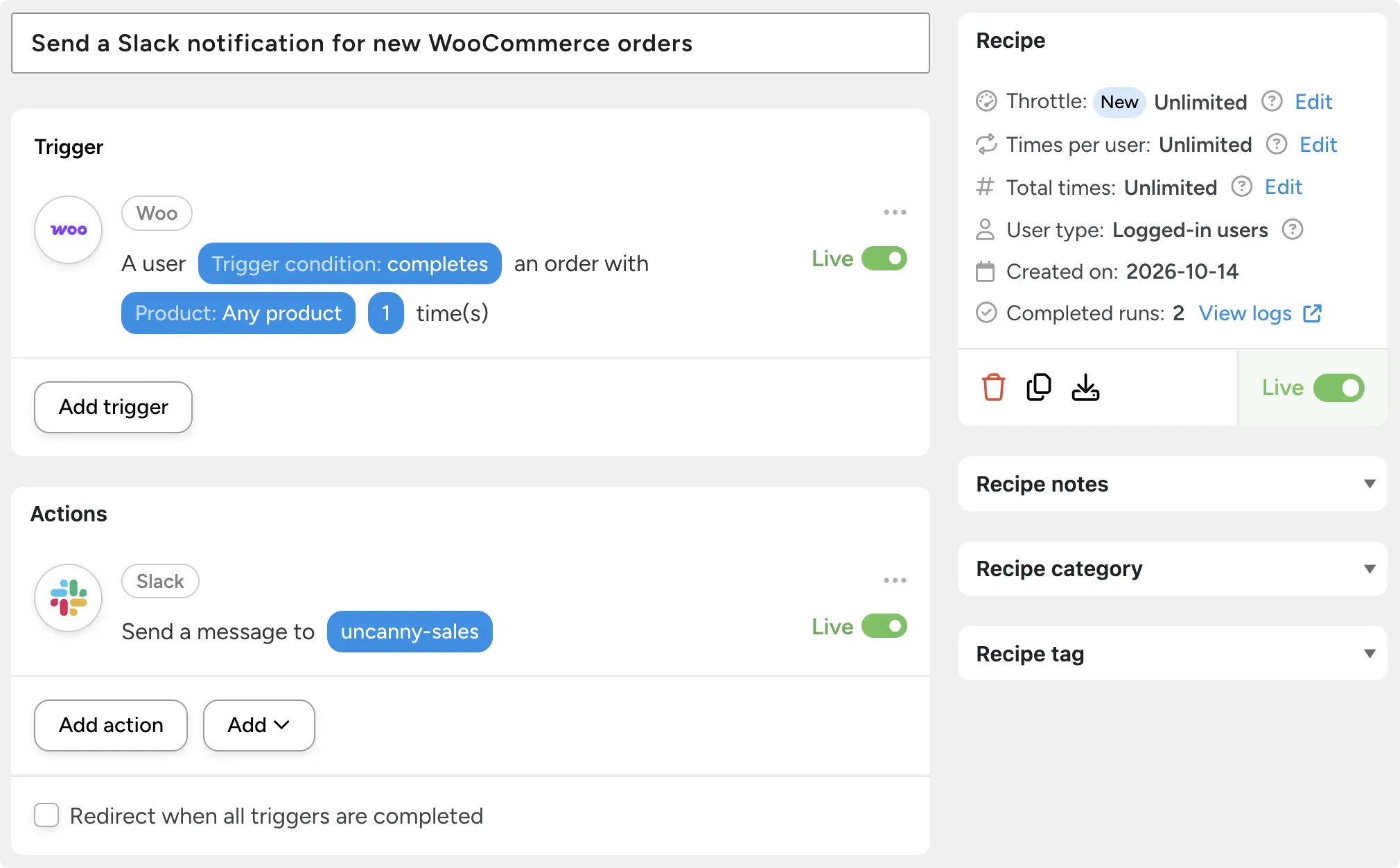
Give your recipe a name. For example, I’ve named this recipe “Send a Slack notification for new WooCommerce orders”.
Step 2: Configure Your Trigger(s)
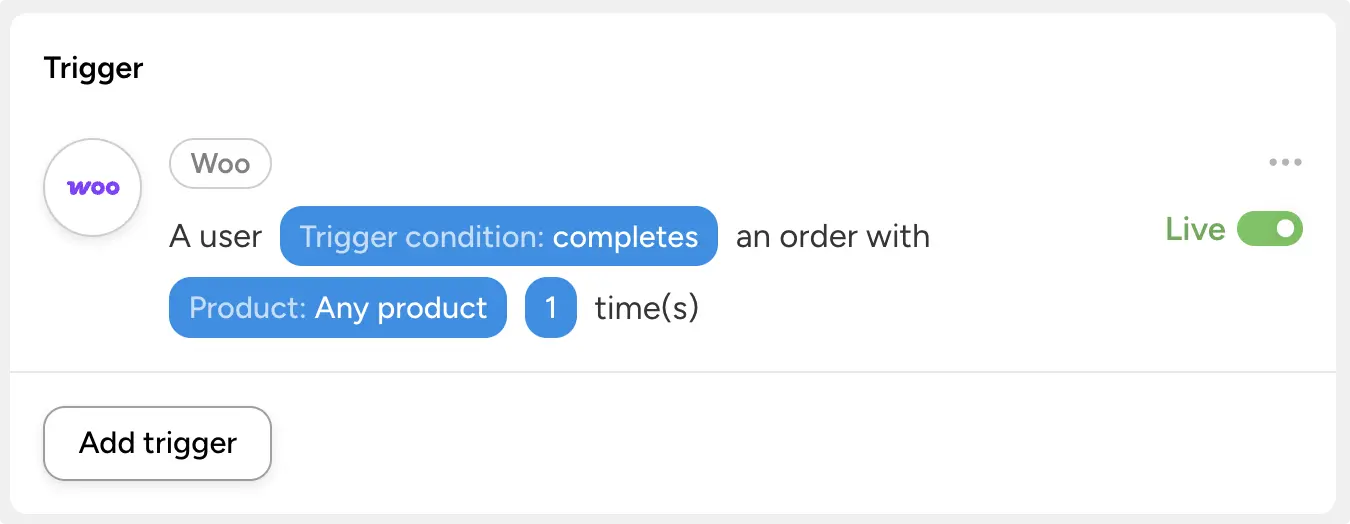
In the Trigger panel, from the menu of available integrations, select WooCommerce > A user purchases a product.
Set the first dropdown to “pays for” and the product to “Any product,” then click Save.
Your trigger should look something like this:
Step 3: Configure Your Action(s)
In the Actions panel, click Add action and select Slack. From the dropdown list that appears, select Send a message to a channel, then pick the channel from the dropdown.
Not connected yet? Start with our guide to integrating Slack with WordPress, then come back here.
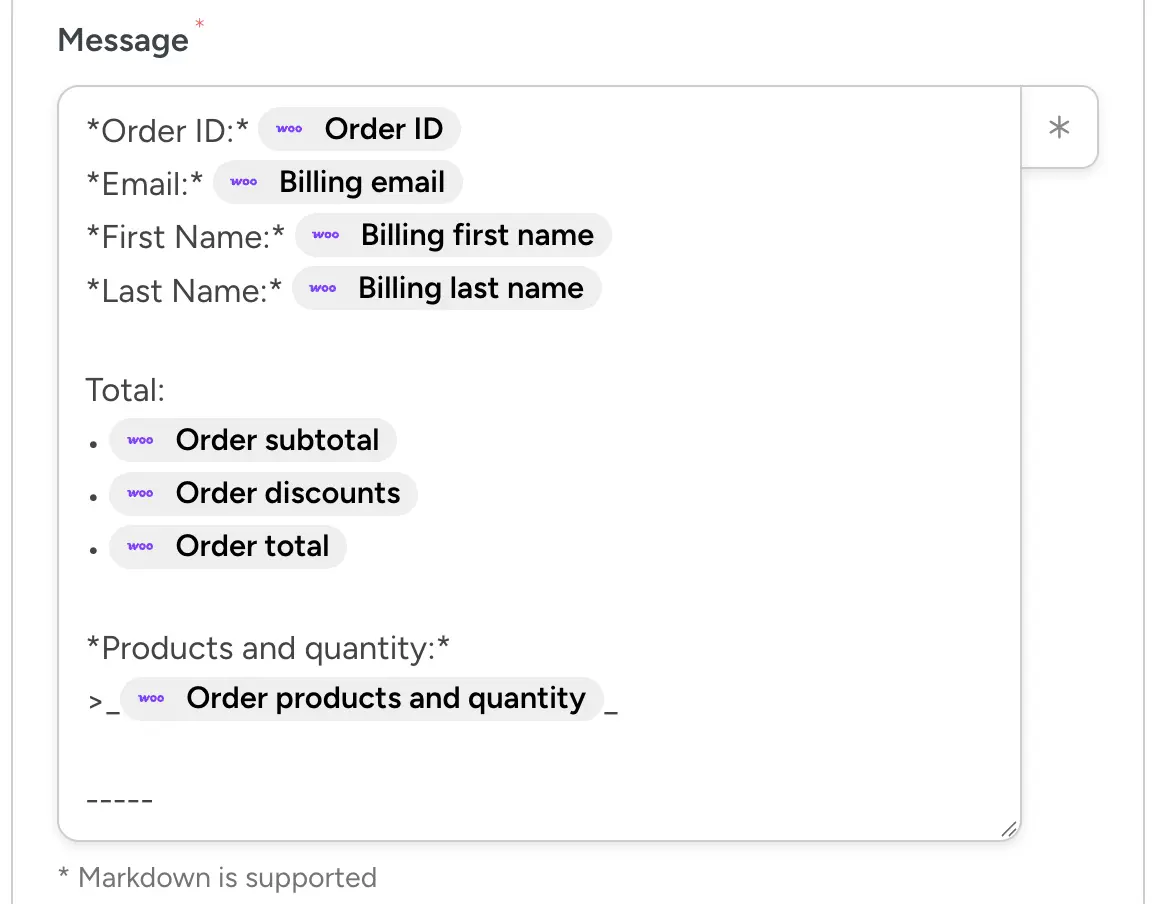
Now the part that matters. In the Message field, type the formatting codes and insert tokens (i.e., dynamic data from your WordPress site and from within recipes) using the Asterisk.
Something like this:
:tada: *New order [Order number]* for [Order total]
*Customer:* [Billing first name] [Billing last name]
*Items:* [Order items]
<[Order URL]|Open the order in WordPress>
Once you’re finished, click Save.
Step 4: Go Live!
Toggle your recipe from Draft to Live.
Run a test. Place an order on your store and check the channel or user you sent it to.
The bold first line should be the first thing you see, and the link should open the order in your WordPress admin. If anything shows up as literal asterisks or angle brackets, compare it against the cheat sheet; a stray space or a double asterisk is usually the culprit.
Want your Slack messages to do more? Upgrade to an Automator Pro Plus or higher license to get the Customer User Fields Addon and more powerful automation features >>>
Three More WordPress Slack Notification Recipes
The cheat sheet works the same way in every Slack action, whatever the trigger. Here are three WordPress Slack notification recipes you can copy. Tokens are in square brackets.
A New Lead, Flagged for the Sales Team
Gravity Forms > A form is submitted, then Slack > Send a message to a channel. Pick your lead form and your sales channel. The @here wakes up whoever is online; the email link means one click to reply. (Note: WPForms, Formidable Forms, Fluent Forms and Ninja Forms all have the same trigger.)
<!here> *New lead: [Name]*
*Company:* [Company] · *Budget:* [Budget]
<mailto:[Email]|Reply by email>
A Product Review, Quoted
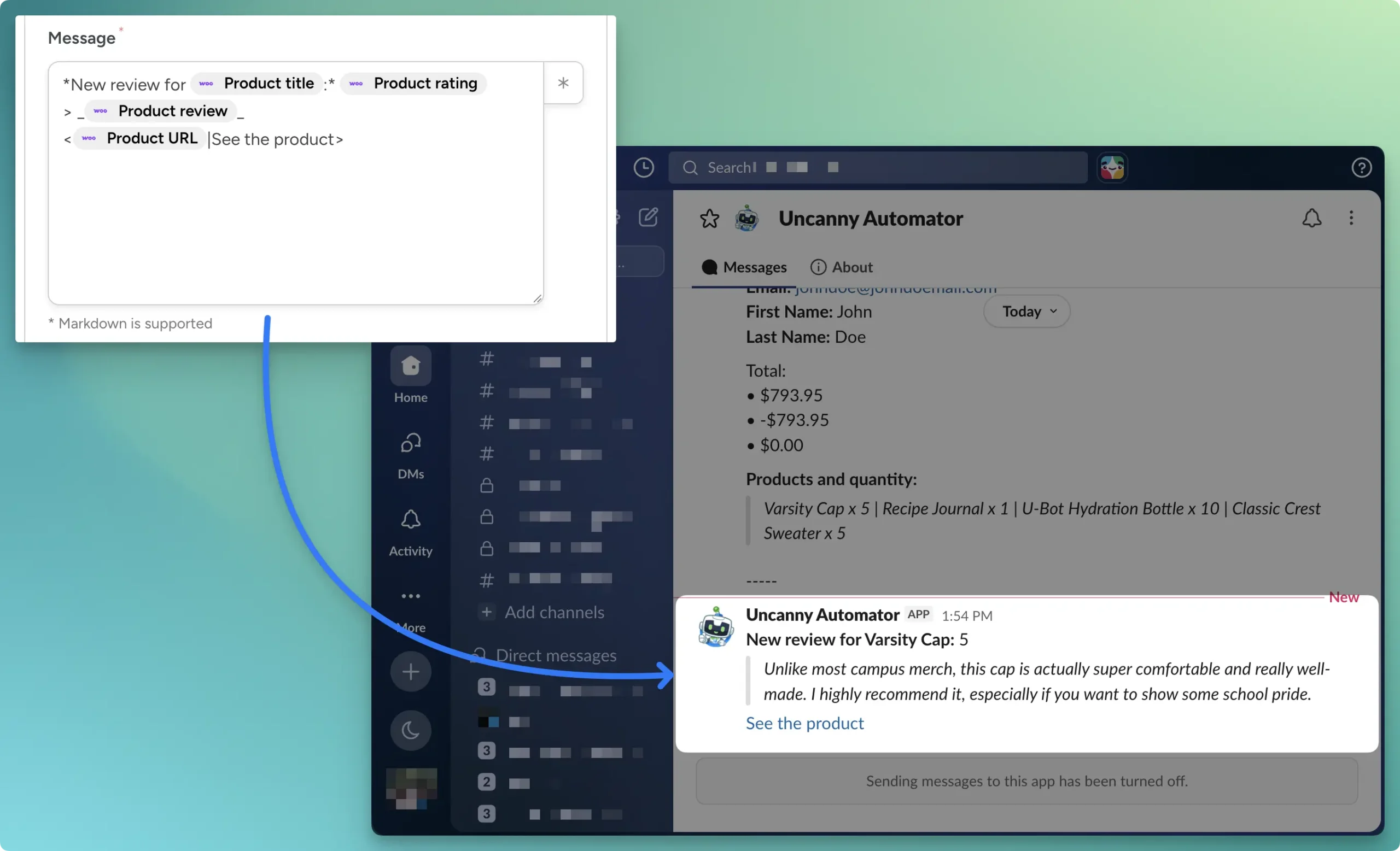
WooCommerce > A user reviews a product, then Slack > Send a message to a channel. The quote bar makes the customer’s words stand out from your own. Good for a product channel or a support channel.
A Course Completion, Sent to the Instructor
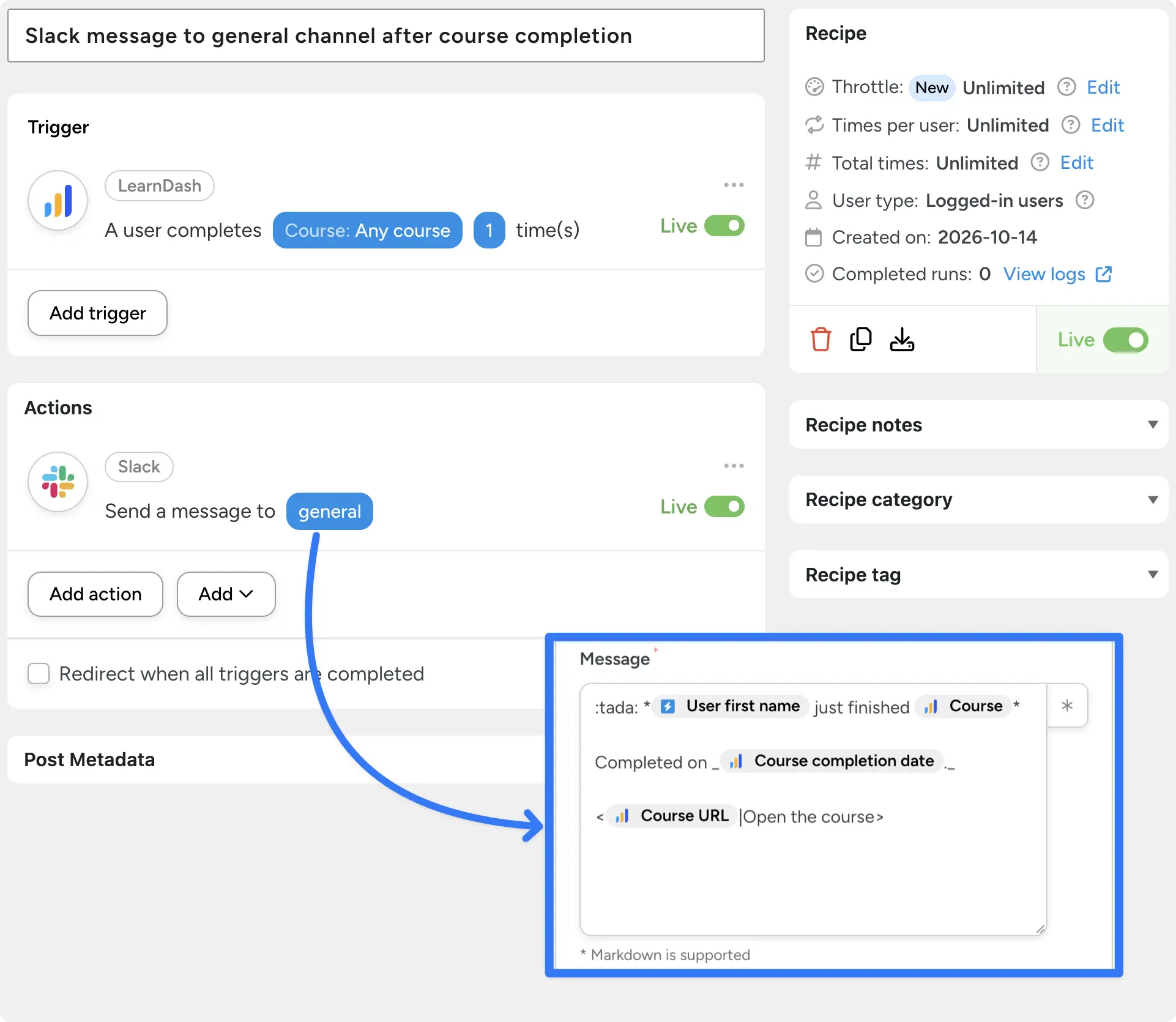
LearnDash > A user completes a course, then Slack > Send a direct message to a Slack user. Pick the instructor. A direct message means they see it even if they’ve muted the busy channels.
If Slack starts to feel noisy, add a filter (conditional logic that controls when an action runs) so only orders over a certain total, or only leads from a certain form, get through. A delay works too: our post on combining filters, delays and tokens shows both.
Pro Tips
- One channel per event type. Orders, leads and reviews each get their own channel. Mentions stay meaningful, and nobody mutes the channel that pays the bills.
- Test in a private channel first. Add the bot, send a few messages, then switch the action to the real channel once the formatting looks right.
- Keep the first line scannable. Slack shows the first line in notifications and previews, so lead with the thing that matters: the order total, the lead’s name, the course title.
Conclusion
The integration worked all along. What changed is that the messages now do their job: the order number is in bold, the link is one click, and the right person gets pinged. All of it from a Message field you already had.
Keep the cheat sheet handy, build the order alert first, and copy the three recipes whenever a new channel needs a feed. Every notification you don’t have to re-read is a few seconds back, and those add up fast.
Try Uncanny Automator free >>>
What will you do with more time?
Frequently Asked Questions
Does Slack support Markdown?
Not the standard kind. Slack uses its own markup for messages sent by apps: single asterisks for bold, underscores for italics and tildes for strikethrough. Double asterisks and [text](url) links show up as plain text.
How do I put a table in a Slack message?
Slack has no table syntax. The closest thing is a code block, which uses a fixed-width font, so columns you line up with spaces stay lined up. For anything bigger than a few rows, link to the page in WordPress instead.
How do I quote text in a Slack message?
Start the line with > and a space. Each line that starts with > becomes part of the quote. Tokens work inside quotes, which is how the product review recipe above quotes the customer.
Do I need Automator Pro to send Slack notifications from WordPress?
No. Uncanny Automator Lite plus a free Automator account includes 250 app credits, and each Slack message uses one. If you’ll send more than that, Automator Pro includes unlimited app credits.
Can I @mention a specific person in an automated Slack message?
Yes. Use their member ID in the form <@U0123ABCD>. You’ll find it under “Copy member ID” in the three-dot menu on their Slack profile. Typing @ and their name only produces plain text.
Why does my Slack message show asterisks and brackets instead of formatting?
Usually because the message uses standard Markdown. Replace **double asterisks** with *single ones* and [text](url) links with the <url|text> form from the cheat sheet. A space after the opening asterisk, as in * bold*, also breaks the formatting.

Related Posts


























































Comments (0)