

OttoKit vs Uncanny Automator — which is better for WordPress automation in 2026? An honest…
What Is No-Code Automation? A WordPress Owner’s Guide
↓ Jump ahead to build your first no-code automation
Every WordPress site comes with a list of small jobs that you didn’t sign up for. Copy-paste contact form entries into your email tool. Enroll new members in the appropriate courses. Update the product descriptions for your new catalog.
None of it is hard, but all of it adds up. Before you know it, the afternoon is gone. Or the whole evening if you accidentally copy-pasted the wrong entries.
That’s what no code automation is for: reclaiming your time, off-loading the busywork, and improving your site’s operations.
In this guide, I’ll show you what no-code automation is, what it looks like on a WordPress site, how AI is changing it, and (my favorite) how to start for free.
Let’s dive in.
What Is No-Code Automation?
For the modern WordPress website, automation isn’t just a nice-to-have — it’s a must-have. It’s how your site becomes more than a billboard.
It’s how site visitors become leads, how guest checkouts become lifelong customers, how blog posts become marketing campaigns. With the right automation tools, you can even build landing pages from prompts.
The “no-code” part is what makes automation exciting for WordPress sites.
No-code automation allows your WordPress site to initiate and execute workflows and carry out tasks, using visual builders or AI chat interfaces instead of programming languages like PHP and JavaScript.
Once upon a time, building automations in WordPress meant learning to code or hiring a developer. However, no-code automation tools like Uncanny Automator have changed that reality completely. Think of it as hiring a very reliable, technically competent assistant who can help manage your site operations.
With the introduction of AI, that assistant has become a lot more skilled and much more widely available. (But more on that later.)
How No-Code Automation Works
On a WordPress site, no-code automation usually takes one of two forms: process automation, or task automation.
Process Automation (“If This, Then That)
When most people think of automating their WordPress site, process automation is what they are thinking of. It’s easiest to think of process automation as automating recurring workflows — if this thing happens, do that other thing.
These types of automations follow a general structure; an event occurs on your WordPress website and an action or series of actions follows.
A new user registers > Send them a welcome email > Add them to your CRM.
In Uncanny Automator, for example, these types of automations are called “recipes.” A recipe is a deterministic automation: one or more triggers, optional conditions, and the actions that run when they fire, running the same way every time.
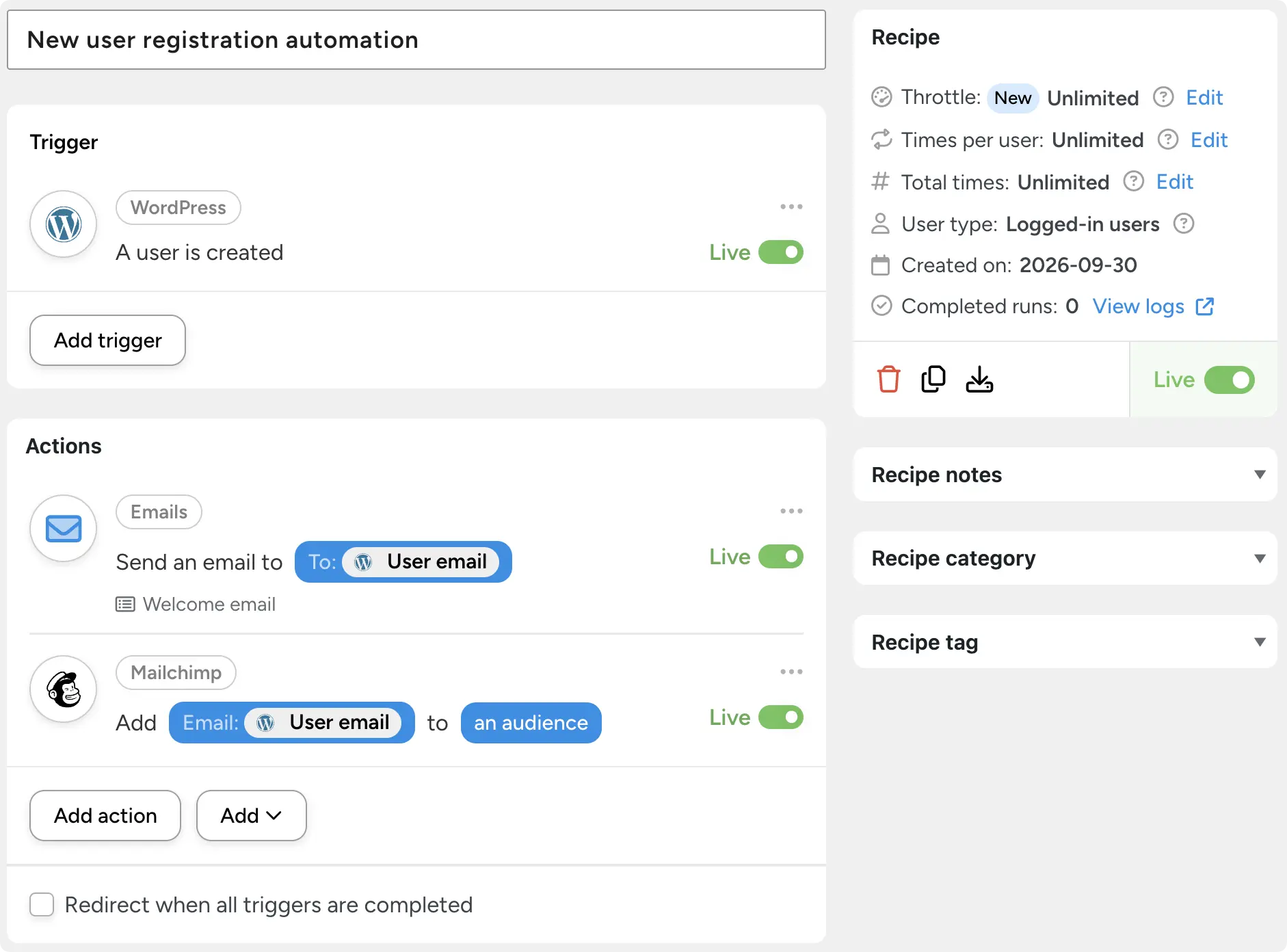
Learn how to build recipes in Uncanny Automator >>>
Task Automation (Done on Request)
Not every job that you want to automate needs a recurring setup. Sometimes you just need something done — once, right now. For example, updating 40 product descriptions, adding a list of contacts to Mailchimp, or compiling a sales report.
That’s task automation; automating the one-off jobs that clutter up your to-do list.
Tools like Uncanny Automator handle these one-off requests using different kinds of recipes (loops, run now triggers, etc.) or through AI chat.
With AI, you simply describe the job in plain language and an AI agent carries it out on your site. Nothing is saved for next time. The task simply gets done.
Task automation covers a broad range of tasks, from requesting sales or registration data to building web pages.
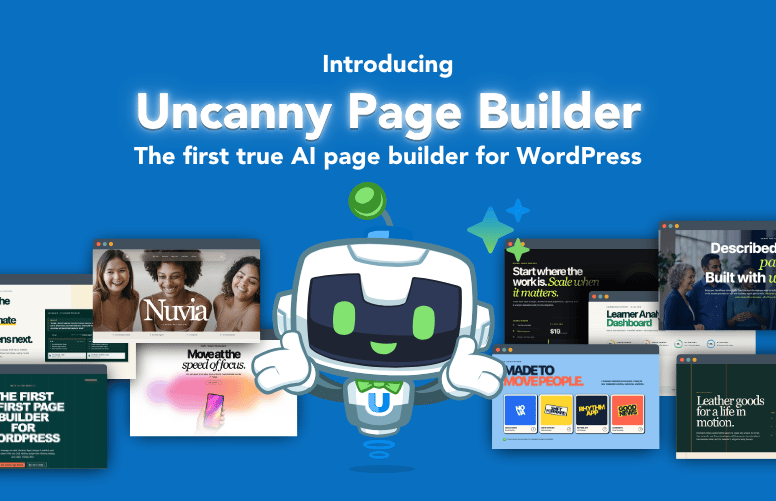
Uncanny Page Builder, for example, is an AI-first page builder that serves as a great example for task automation. You describe the page you want, in however much detail you desire, and AI builds it.
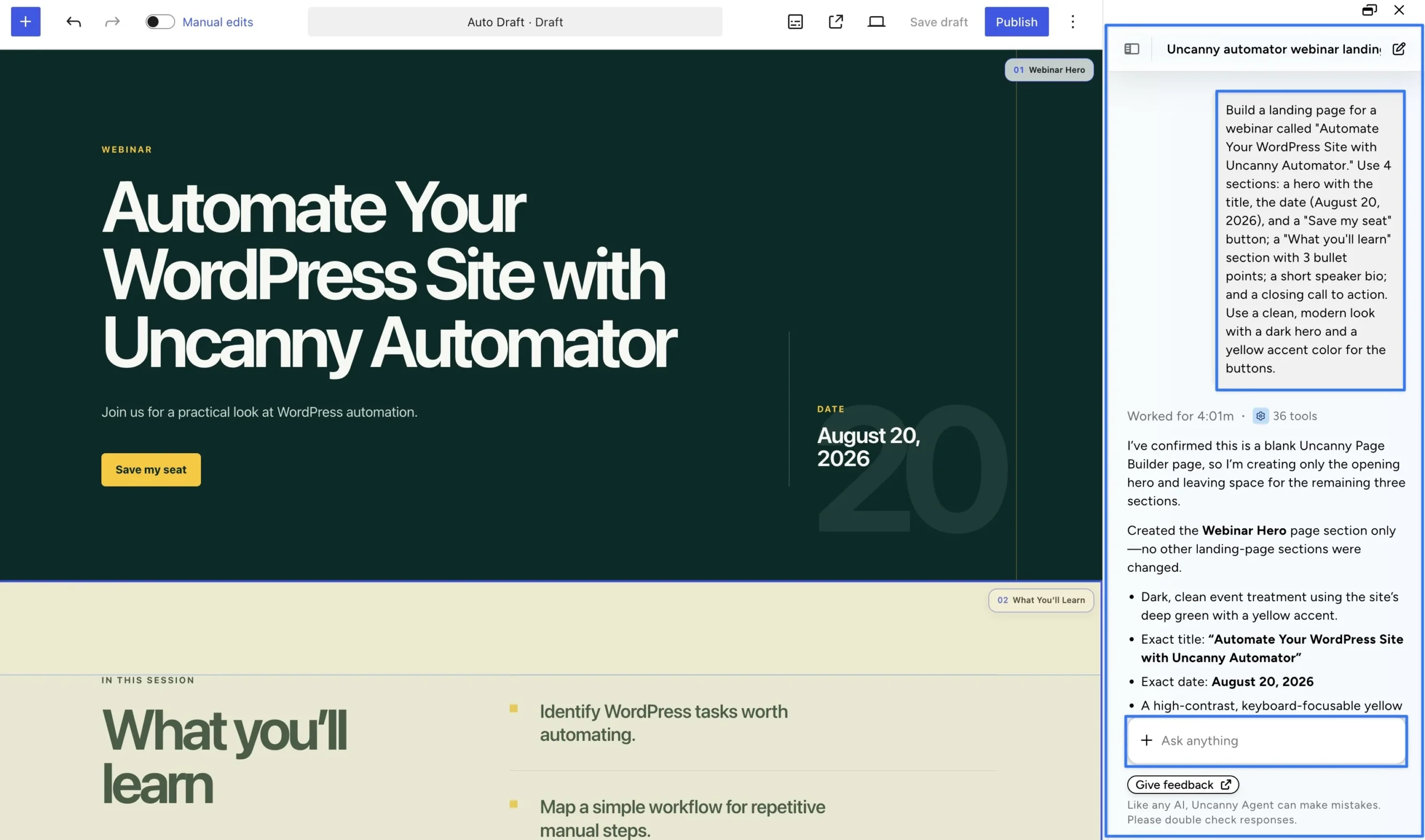
The two forms of no-code automation work well together. The one-off tasks that you request today can be recurring actions in an automated workflow that runs without your intervention.
For the full tour, see The Complete Guide to WordPress Automation.
Why WordPress Site Owners Use No-Code Automation
As I mentioned before, no-code automation is what gives your WordPress website real capabilities. It’s also what allows WordPress site owners, admins, and developers to optimize their operations.
- Make your site do more. Out of the box, WordPress is a powerful CMS. No-code automation is what makes it a powerful business tool. Create exit-intent popups with limited-time offers that are directly connected to your eCommerce store and CRM. Publish blog posts and immediately push excerpted versions to your social media platforms. Change page content based on user roles. That’s no-code automation.
- Save time and money. Every job you automate is one you stop doing by hand. Five minutes a day on welcome emails adds up to more than 30 hours a year — and that’s just one process. A WordPress-native tool can also replace separate automation subscriptions, and the contractor you’d call to wire them all together.
- Reduce errors. People forget. Software doesn’t. No missed follow-ups, no copy-paste mistakes, and no customer who paid but never got access. A process runs the same way every time, and a task gets done the way you asked.
- Integrate your tech stack. Your store, forms, courses and email list each know something the others don’t. No-code automation connects them. A single purchase in WooCommerce can update your CRM, enroll the buyer in a course and post a note in your team’s Slack channel — all without you lifting a finger.
How AI Is Changing No-Code Automation
No-code took programming out of the picture. AI is taking the builder out too.
From Clicking to Describing
A few years ago, no-code meant clicking through every menu, field and setting yourself. That meant that you had to have at least some familiarity with the thousands of triggers, actions, and filters in a tool like Uncanny Automator or OttoKit.
Today, however, you can describe the result you’re looking for and let AI pick the triggers and actions that get you there.
Regardless, one thing hasn’t changed: what the AI builds is still something you can open, check, and edit. In other words, when you’re automating with AI, always keep the “human-in-the-loop”.
Exactly what that looks like depends on how you incorporate AI into your automations.
AI Actions Within Workflow Automations
The simplest way to add AI is as a step inside a recipe. One action in the workflow calls an AI model — Claude, GPT, Gemini and others — and hands the result to the next step.
Say a new blog post goes live. The recipe asks the AI to write a social caption, then posts it to X and LinkedIn. Or a support form comes in, and the AI scores how frustrated the customer sounds before the ticket is routed.
Summaries, translations, product descriptions, SEO titles, even images: anything a model can generate or judge can happen mid-workflow.
You bring your own API key for the AI provider, and your automation tool handles the prompt and the workflow.
AI Agents and Assistants Within Automation Tools
The next step up is an assistant that lives inside the automation tool itself. Instead of assembling a recipe piece by piece, you describe what you want and the assistant does the clicking.
Uncanny Agent, for example, is the AI assistant built into Uncanny Automator. Ask it in plain language and it builds recipes you can open, edit and audit, completes one-off tasks on your site, and answers questions about your content, users and orders.
It’s made for people who don’t have an AI subscription, or would rather not set one up — there’s nothing to configure, and it’s free to start.
Other automation tools like Zapier and OttoKit have their own AI agents.
MCP Servers and External AI Platforms
Model Context Protocol (MCP) is an open standard that lets AI apps use tools on other systems. An MCP server is what makes a system, like your WordPress site, available to those apps.
In practice, it means the AI you already use can act on your site directly.
WordPress itself is building toward this. WordPress 6.9 added the Abilities API, a standard list of what your site and its plugins can do. WordPress 7.0 added a built-in AI Client. And the official MCP Adapter plugin makes those abilities available to AI apps. Today, that setup is mostly aimed at developers.
One caution: an MCP connection acts on your site as a logged-in user. Choose a tool that lets you decide exactly what the AI can and can’t do.
The Uncanny Automator MCP Server — connecting your current AI subscription to the most powerful automation engine in WordPress — is coming soon. Subscribe to our newsletter to know the minute it launches.
What Can You Automate on a WordPress Site?
The best first automation is a job you already repeat every week. Here are a few process automations to get you started, by site type.
Online Stores and eCommerce
When someone buys a product in WooCommerce, add them to your email list and tag them by what they bought.
Membership Sites
When someone joins a membership level, send a welcome email and unlock members-only content.
Online Courses
When a student finishes a LearnDash course, enroll them in the next one and send a congratulations email.
Lead Forms and Email Lists
When someone submits a WPForms form, add them to your CRM with the right tag.
Blogs and Content
When you publish a post, share it to your social accounts automatically.
Want more everyday ideas? Here are 11 time-saving WordPress automations for every website.
No-Code Automation Tools You Can Start Using Right Now
For WordPress businesses and developers, the answer to the question “Which automation tool should I use?” starts with finding out where your work actually happens.
Mostly off site? Go with a cloud-based solution. Mostly on-site? Go with a WordPress-native solution. A bit of both? Go with both and pick the plan for each that maximizes your value.
Typical options include:
- Uncanny Automator for a WordPress-native solution.
- Zapier for a cloud-based, SaaS app heavy workflow.
Want the full comparison? Get the full cost and capability overview with our list of the 8 Best Zapier Alternatives for WordPress Sites.
Getting Started: Build Your First No-Code Automation
I promised you at the beginning of this guide that I would tell you how to get started with no-code automation for WordPress for free. And this is where I deliver on that promise.
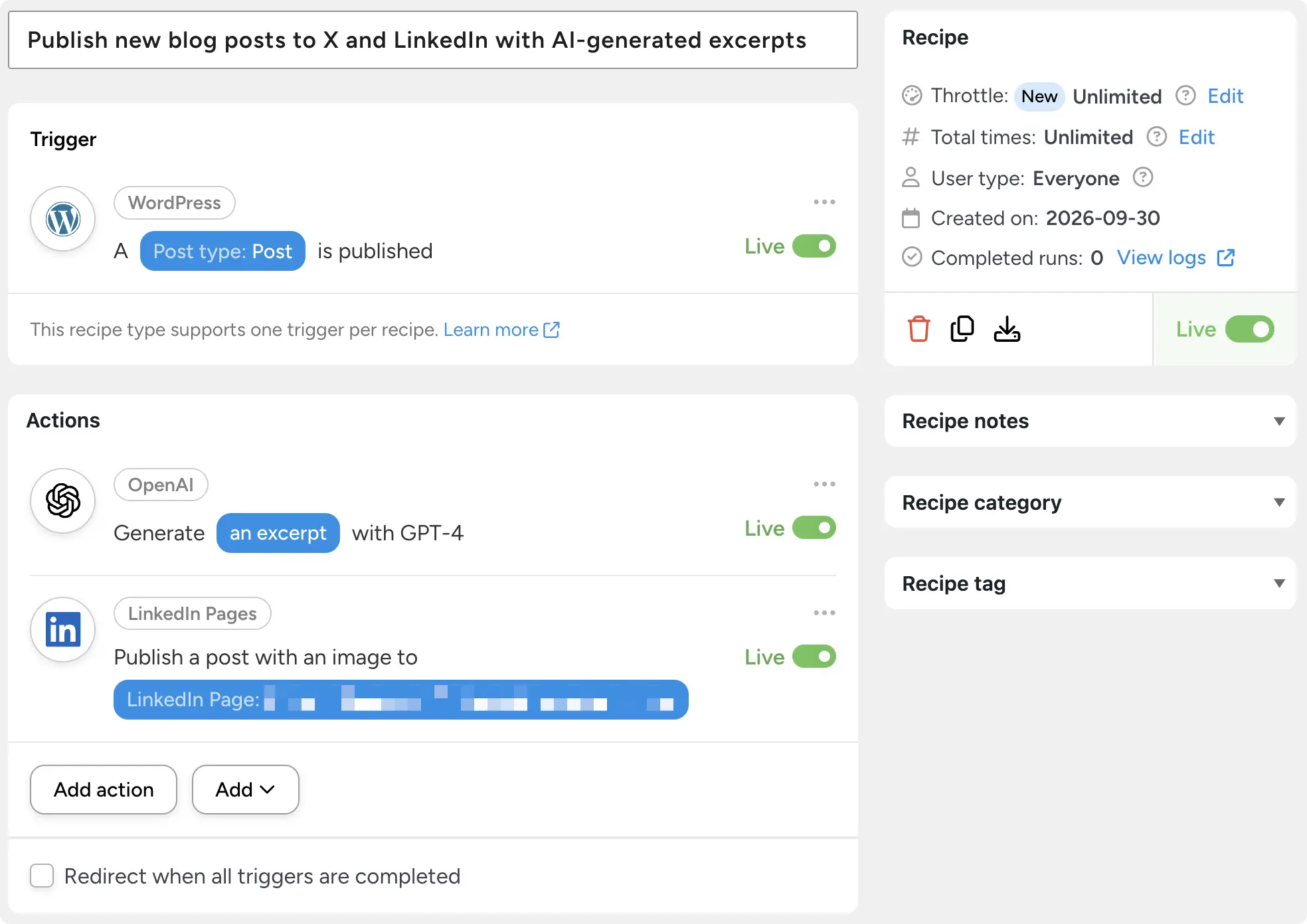
In the following steps, I’ll show you how to recreate the recipe pictured above. Let’s start no-coding.
Step 1: Install Uncanny Automator Lite (for Free)
From your WordPress Admin Dashboard /wp-admin/, navigate to Plugins > Add New. In the search bar, enter “uncanny automator” and click Install Now then Activate.

Recipes that stay inside your WordPress site are free, no strings attached. Steps that reach outside apps like X, LinkedIn, OpenAI or Anthropic use app credits.
Automator Lite comes with 250 free app credits.
To claim yours, create your free Automator account at automatorplugin.com/my-account or follow the instructions in this detailed walkthrough.
Step 2: Create and Name Your Recipe
Now that you have Automator Lite installed with your free app credits, it’s time to build your first recipe.
From your WordPress Admin Dashboard, navigate to Automator > Add new recipe. In the modal that appears, select Everyone.
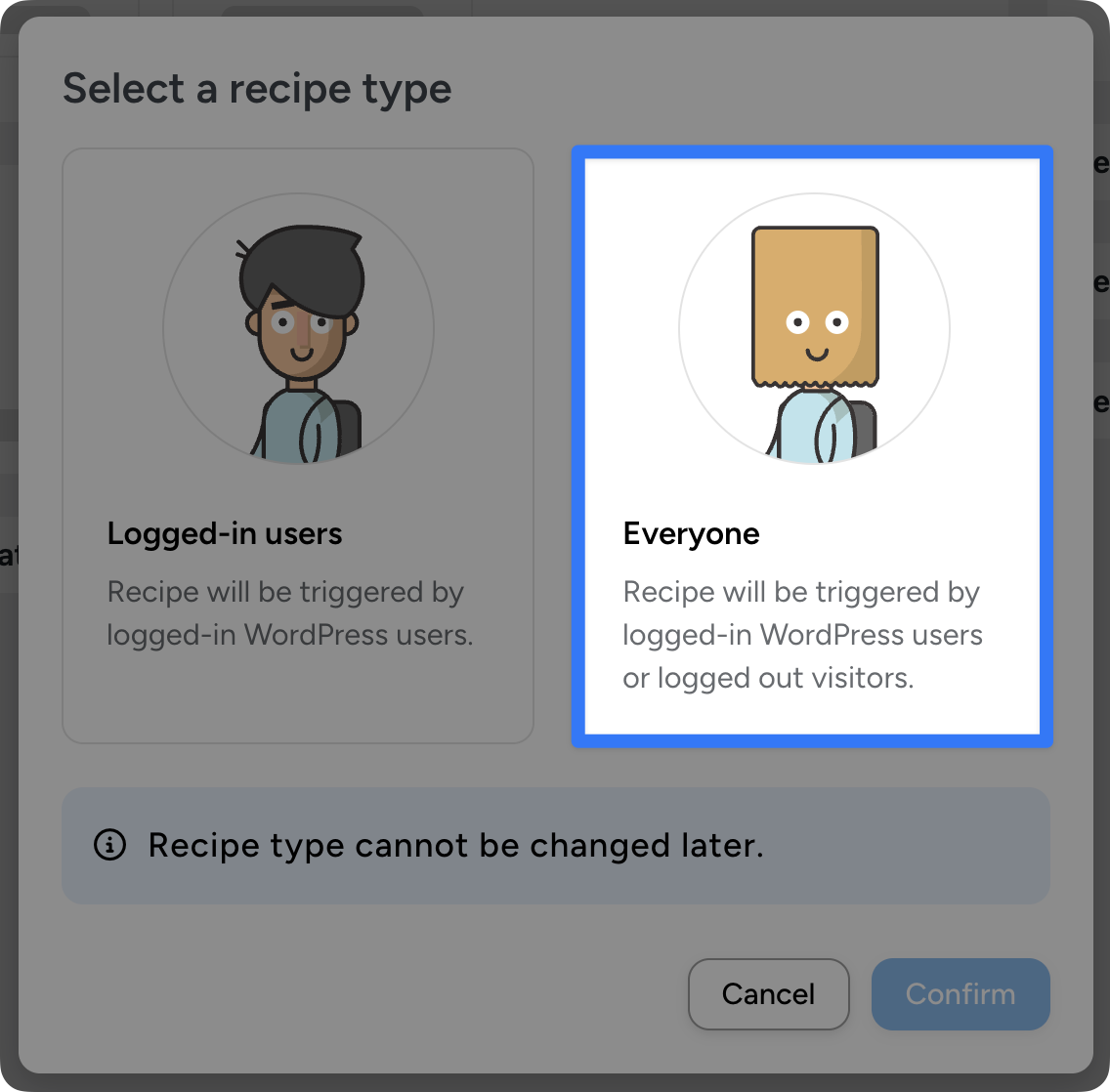
Give your recipe a name that makes it easy to recognize at a glance. For example, I’ve named this recipe, “Publish new blog posts to X and LinkedIn with AI-generated excerpts”.
Step 3: Configure Your Trigger(s)
In the Trigger panel, from the menu of available integrations, select WordPress > A post is published.
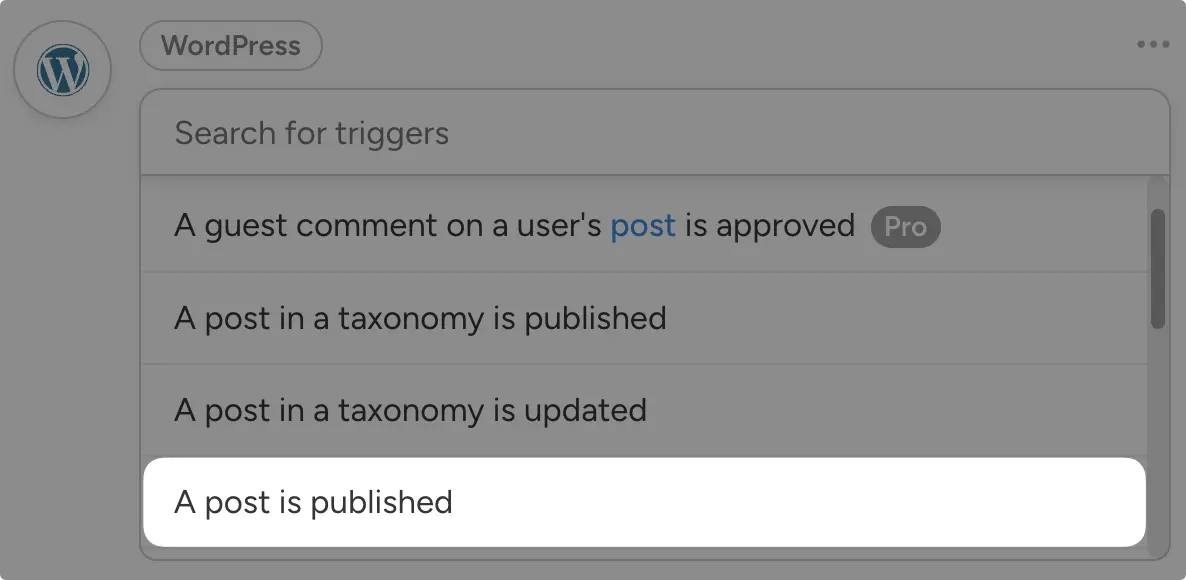
Automator will prompt you to select the Post type and give your trigger a custom label if you choose. For the Post type, select Post and click Save.
Step 4: Configure Your AI Action(s)
In the Actions panel, click Add action and select OpenAI (or your preferred AI integration).

Note: If you have not already connected your OpenAI account, simply click Connect account in the modal that appears and follow the instructions. You can find a more detailed walkthrough in this step-by-step guide.
From the dropdown list that appears, select Generate an excerpt or Generate an excerpt suitable for Twitter.
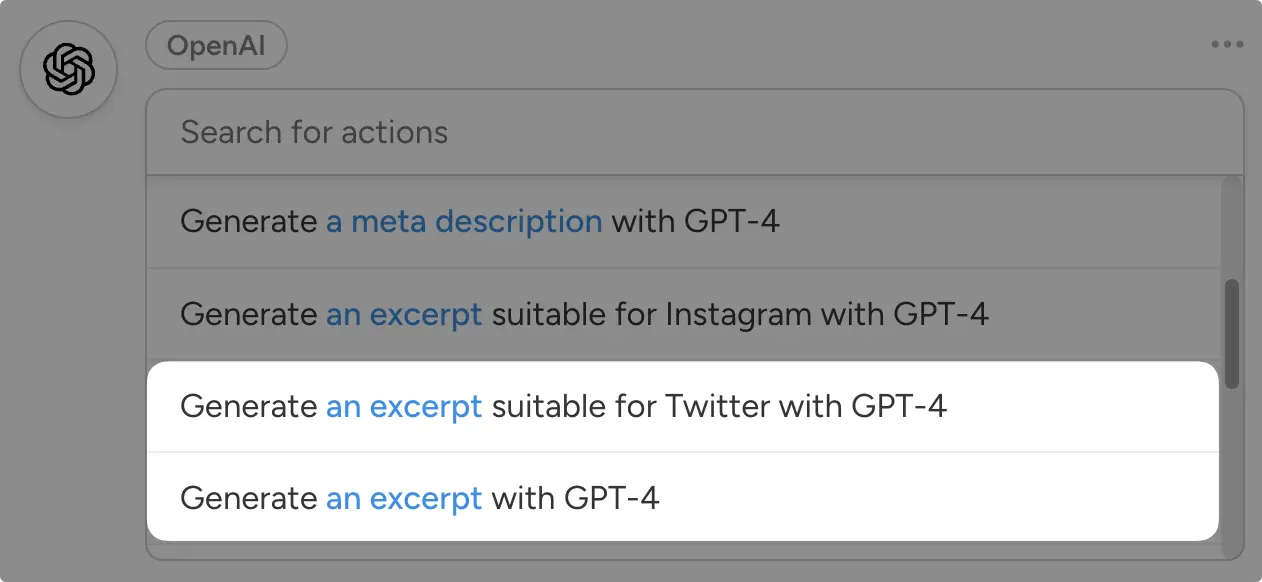
Automator will present you with a form for configuring your prompt. You can use tokens (i.e., dynamic data from your WordPress site and from within recipes) to give OpenAI/ChatGPT more context for a better response.
To use a token, click on the Asterisk in a given field and select the token that carries the data you are looking for. For example, in the Content field, you might select either the Post content (raw) token or the Post content (formatted).
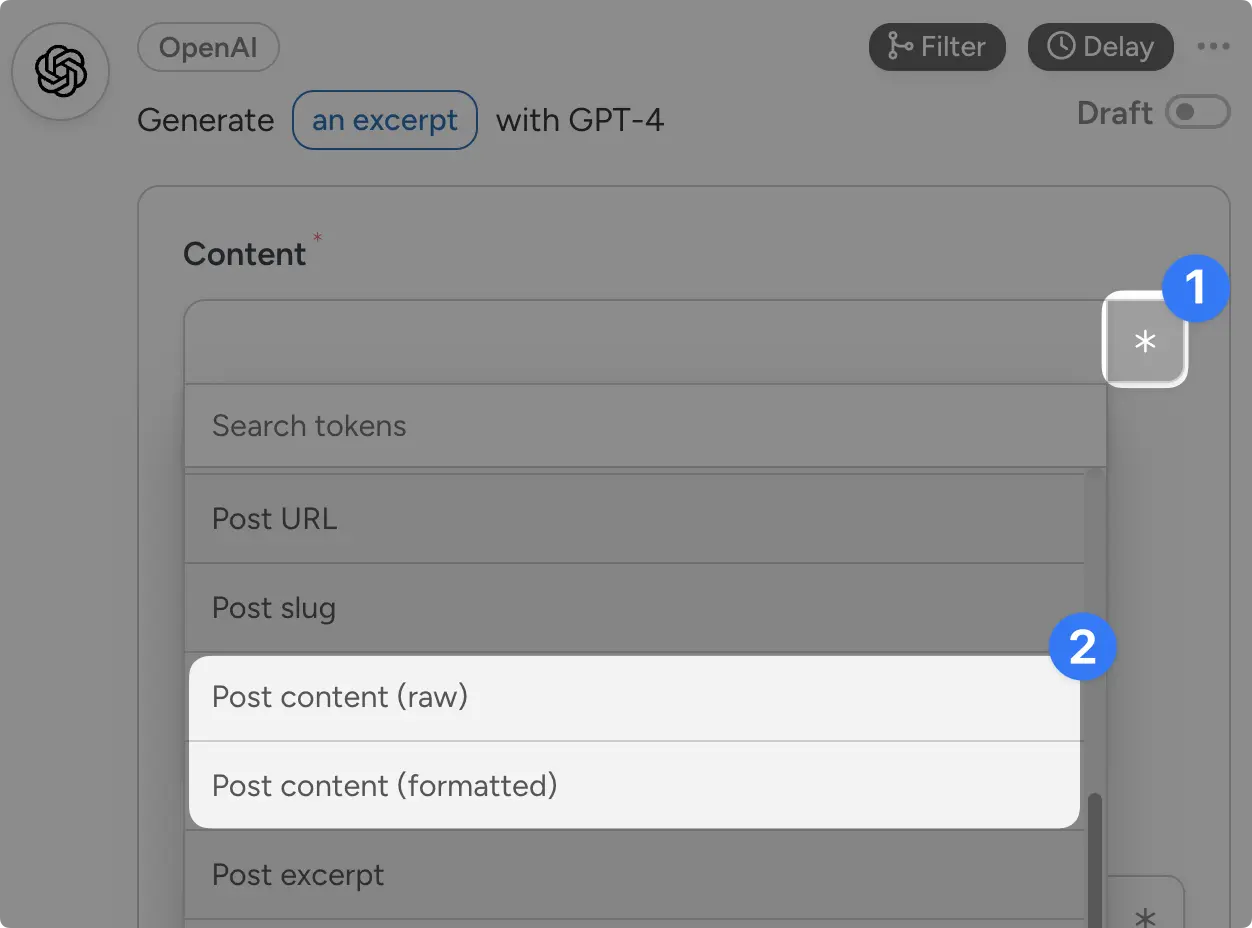
Finish configuring your prompt and click Save.
Step 5: Configure Your Social Media Action(s)
In the Actions panel, click Add action and select LinkedIn (or your preferred social media platform).
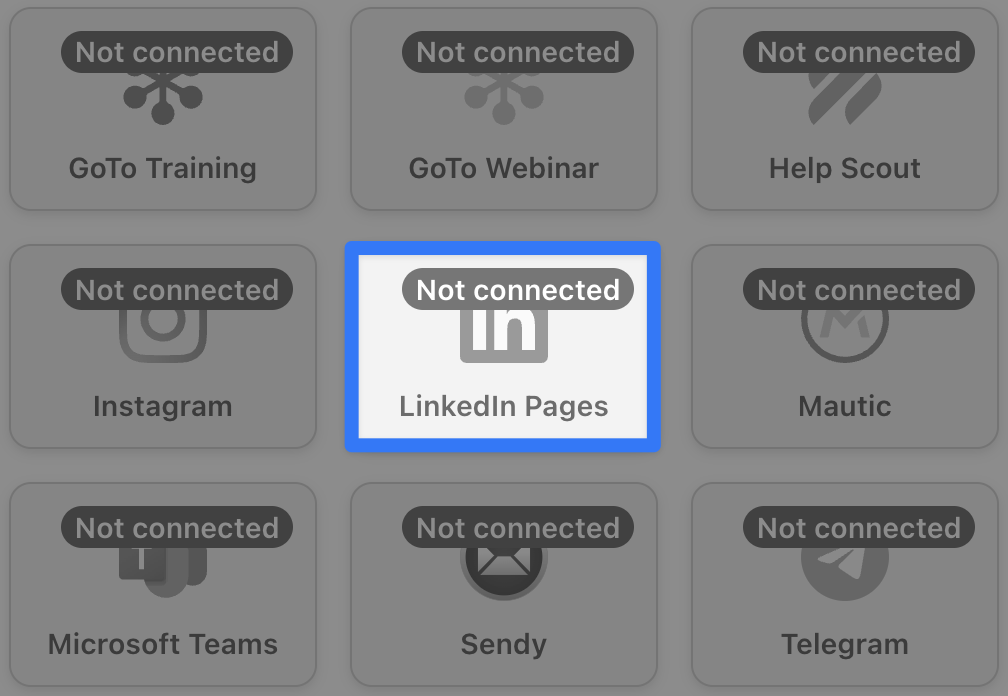
Note: If you haven’t already connected your LinkedIn account, you can follow the instructions from within the Recipe Builder. Alternatively, you can find a step-by-step guide here.
From the dropdown list that appears select Publish a post with an image to a LinkedIn page.
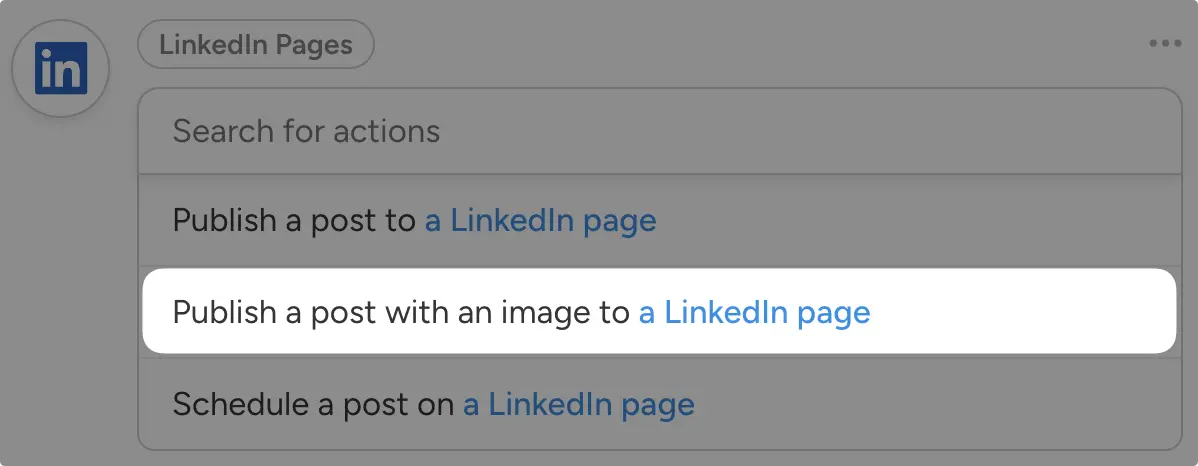
Automator will present you with a form for drafting your LinkedIn post. Using tokens once again, you can publish the LinkedIn post with the featured image from your blog post and the copy generated by OpenAI.
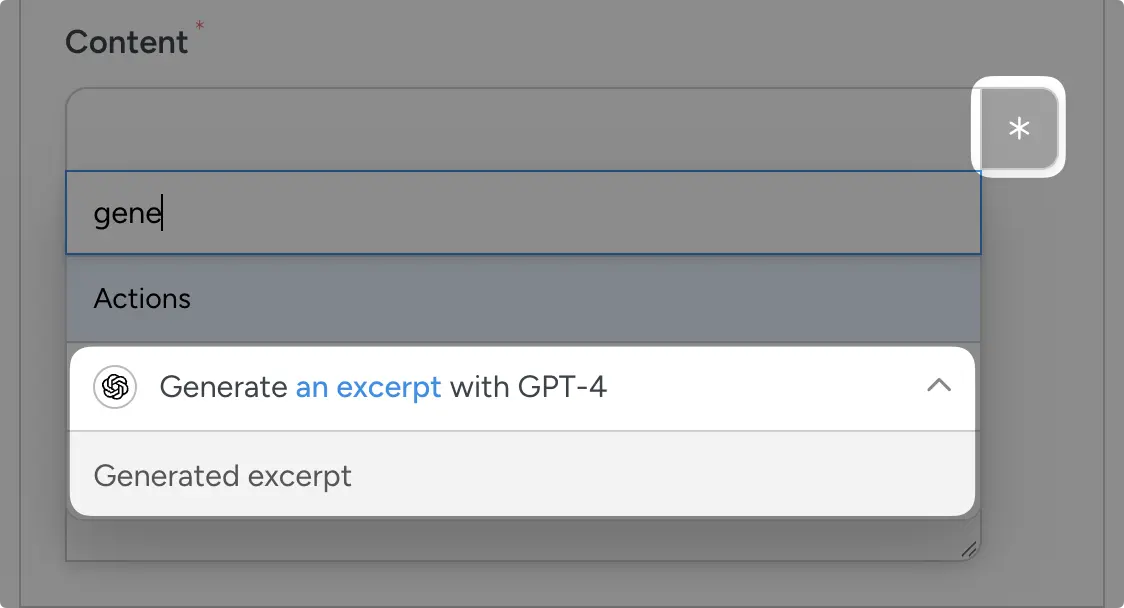
Pro tip: Use the search field to find tokens faster.
Once you’re done, click Save.
Step 6: Go Live!
You’ve almost created your first no-code automation. All that’s left for you to do is toggle the recipe from Draft to Live.
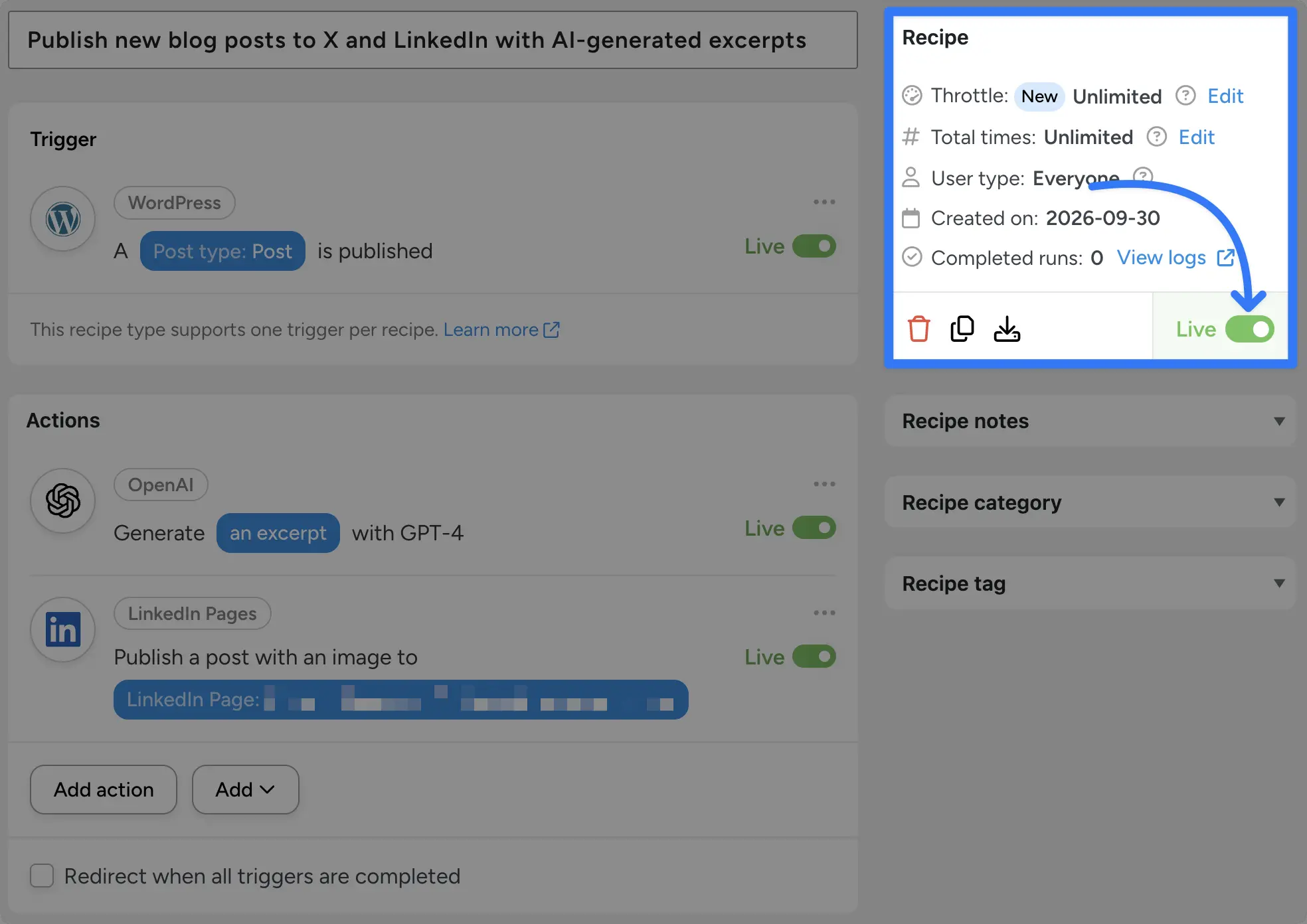
That’s it! Your recipe will continue promoting your content on social media until you switch it off.
Want a head start next time? Import a pre-built recipe from the Recipe Template Library.
No AI subscription? Uncanny Agent is built-in, and it can build this same recipe from a sentence.
Get Uncanny Automator free on WordPress.org >>>
Best Practices for No-Code Automation
No-code automation is easy to start. A few habits keep it running smoothly:
- Start with one job. Automate a task you repeat every week, get it running, then add the next.
- Check your tools first. Make sure your plugins and apps are supported before you plan a process.
- Review what AI builds. AI can misread what you meant, so open the recipe and check it before you switch it on.
- Limit AI access. An AI app that connects from outside acts as a logged-in user. Only give it the access it needs.
- Test, then trust. Run every new recipe once with test data and check the log before you rely on it.
- Know when to call a developer. In extreme cases, custom logic may still need a developer to configure properly.
Conclusion
Remember that reliable, technically competent assistant? That’s what you have now in no-code automation.
It runs your processes in the background and handles your one-off tasks on request — whether you set it up with a few clicks or a few words.
Start small. Pick one job you repeat every week and hand it off. Then add the next one. Before long, your site will be running itself and you’ll be planning your next big release.
Get started for free with Automator Lite >>>
What will you do with more time?
Frequently Asked Questions
What is no-code automation in simple terms?
It’s how your WordPress site runs workflows and carries out tasks without anyone writing code. You set it up in a visual builder or by describing what you want to an AI, and the tool handles the technical work.
Is no-code automation free?
Many tools have free tiers. Automator Lite is free, with unlimited recipes between the plugins on your site. See plans and pricing for what Pro adds.
Do I need a developer to automate my WordPress site?
Not for everyday tasks. Most processes and tasks can be set up with a visual builder or plain language. A developer is still useful for very custom logic.
Is Zapier a no-code tool? Do I still need it with a WordPress plugin?
Yes, Zapier is a no-code tool. For tasks inside WordPress, a WordPress-native plugin like Automator is usually the better fit. Zapier still helps connect outside apps, and Automator works with it.
Is AI replacing no-code automation?
No. AI is becoming the easiest way to build it. You describe what should happen and AI does the setup. For process automation, the result is a recipe that keeps running the same way every time — no AI in the loop.
What is a WordPress MCP server?
It’s a connection that lets AI apps like ChatGPT, Claude or Gemini work with your site’s content, plugins and settings directly. The Uncanny Automator MCP Server is launching soon. [Subscribe to the Automator newsletter]([NEWSLETTER SIGNUP URL]) to get it the minute it launches.
Do I need an AI subscription?
No. The Recipe Builder in Automator Lite needs no AI at all, and Uncanny Agent is built into the plugin: nothing to set up, and free to start.

Related Posts



















































Comments (0)