

The Queue block holds actions that should run later: a reminder five minutes after a form is submitted, a review request a week after a purchase, a message on a fixed date, or a follow-up at a time taken from a token. The actions inside the block wait; everything else in the recipe runs at once. This article covers the block’s three wait modes, the plain-English phrases the token mode understands, and where to see and cancel queued actions.
The Queue block is one of the three recipe blocks and requires Uncanny Automator Pro. In Uncanny Automator 7.x the same feature was the Delay button on each action; the block works the same way, and one block can hold any number of actions.
Adding a Queue block
- Open the recipe from Automator > Recipes.
- Click the + at the end of the flow, or + Add inside a Filter or Loop path if only part of the recipe should wait.
- In the picker, under Recipe blocks, click Queue.
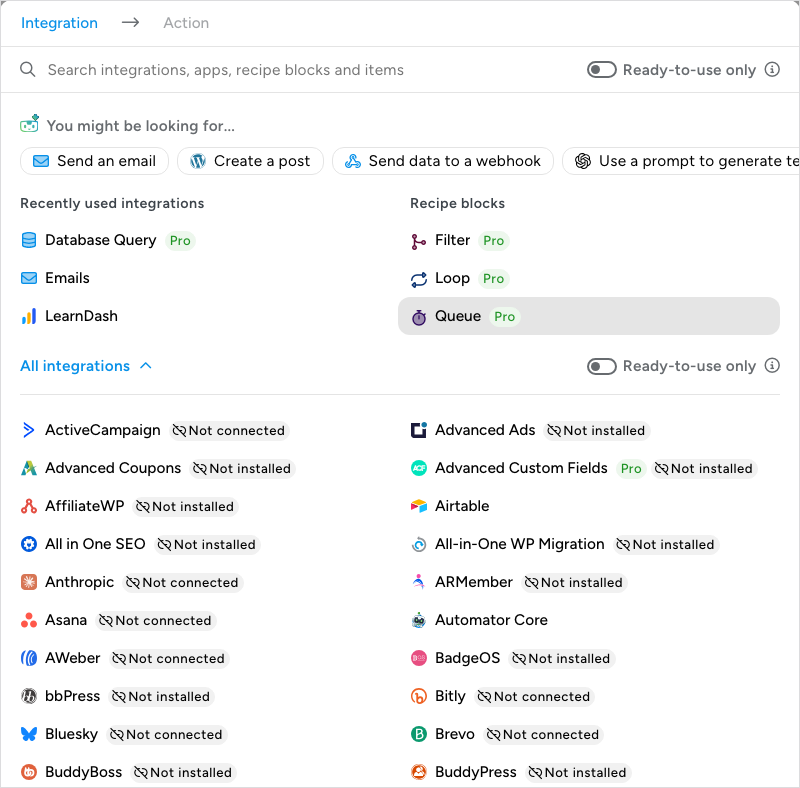
- In the Set up dialog, choose a Wait mode and fill in its fields (described below).
- Click Save.
- The block appears in the DELAYED ACTIONS section at the bottom of the canvas, as described under The recipe does not pause below. Point at its empty path, click + Add, and add the actions that should wait. Set each one up as usual; the actions inside a Queue are ordinary actions with their own Set up and Test steps, On and Off switch, and tokens.
A Queue block cannot go inside another Queue block, and a Redirect action cannot go inside a Queue: queued actions run in the background after the visitor has moved on, so a redirect would have nobody to send anywhere. Use the Redirect action outside the block instead.
Wait modes
Wait mode sets what the actions inside wait for. The dialog shows only the fields for the mode you pick.
Set time
Set time, the default, waits a fixed period after the recipe’s triggers complete. Amount is the number, which defaults to 1, and Unit is Seconds, Minutes, Hours, Days, Weeks, or Years, starting at Minutes. Change both before you save, or a new block waits one minute. An Amount of 0 or less does not run the actions at all: they are recorded as Skipped, and the block’s note in the run log reads “These actions did not run because the delay amount is not a number above 0.” The block’s sentence on the canvas reads back what you chose: Wait 7 Days after triggers complete.
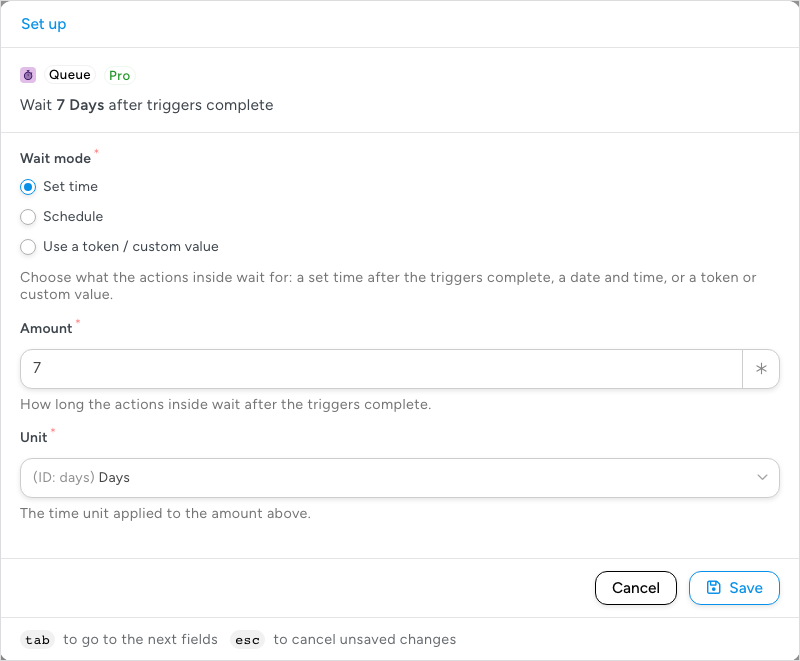
The wait counts from the moment the triggers complete for that run. If the wait is six months and a user completes the triggers on June 25, the actions run for that user on December 25. Each user’s run has its own wait.
Schedule
Schedule waits until a fixed Date and Time. Click each field to pick the date from a calendar and the time from a time picker; the sentence then reads, for example, Wait until the date at 9:00 AM. Both are in your site’s timezone (the one set under Settings > General in WordPress), and the dialog shows the timezone under each field so there is no guessing.
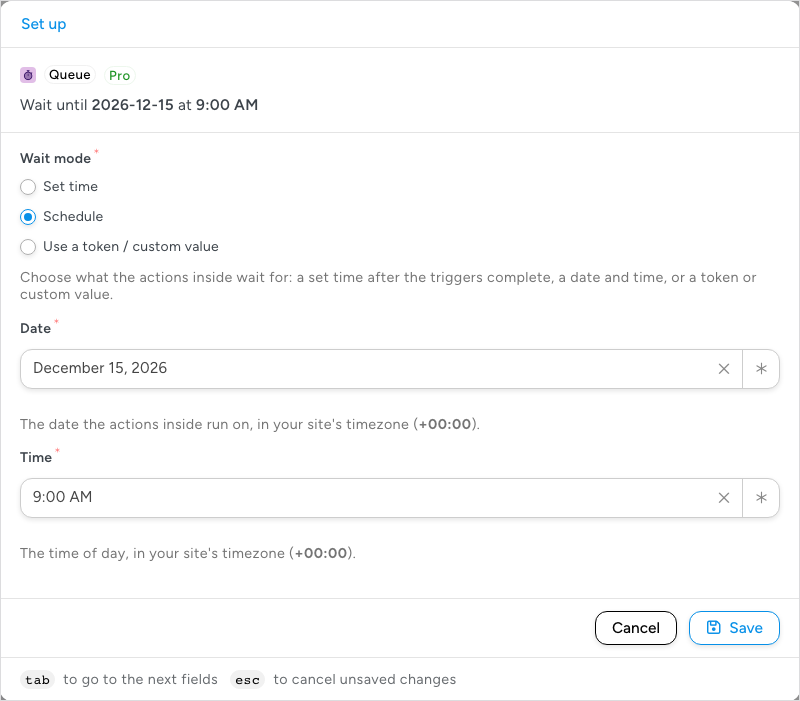
Every run waits for the same moment. If the schedule is November 12 at 9:00 AM and one user completes the triggers on June 25 while another completes them on November 1, the actions run for both on November 12.
Important: if the scheduled date and time has already passed when a user completes the triggers, the actions inside run immediately, and the Queue block’s note in the run log reads “The scheduled time had already passed, so these actions ran right away.” Update or remove a Schedule block once its date has gone by. If the date and time cannot be read, the actions do not run: they are recorded as Skipped, and the note reads “These actions did not run because the delay’s time could not be worked out: The scheduled date and time could not be read.”
Use a token / custom value
Use a token / custom value takes the time from a single field, Token or custom value, which accepts tokens and text in any of these forms:
- A plain-English phrase — “Friday at 1pm”, “November 9”, “2 hours”, “tomorrow midday”, “next Friday at noon”. The phrase is read relative to the moment the triggers complete, in the site’s timezone. The next section lists what the parser understands.
- A date or time token — a token that holds a date, such as an event start date from a trigger, a user meta date, or a value from a form’s date field. Insert it with the ∗ button.
- A Unix timestamp — a number of seconds, on its own or from a token, such as a WooCommerce subscription’s next payment timestamp.
- Timestamp arithmetic — a timestamp plus or minus a number of seconds:
{{timestamp token}} + 86400runs one day after the token’s time;{{timestamp token}} - 3600runs an hour before it. The tokens{{current_unix_timestamp}}(now) and{{currentdate_unix_timestamp}}(midnight at the start of today, UTC) are useful starting points.
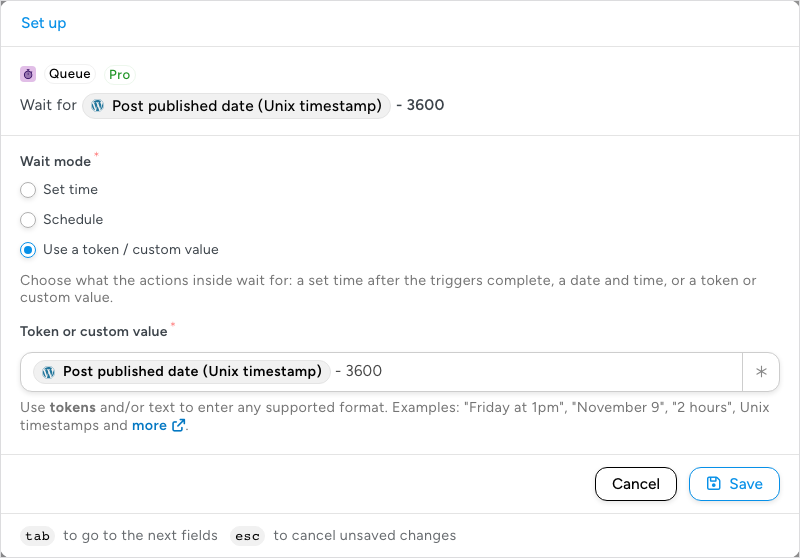
If the field cannot be read as a single point in time, the actions inside do not run. They are recorded as Skipped, and the Queue block’s note in the run log starts “These actions did not run because the delay’s time could not be worked out:” followed by the reason. Two cases come up most: a recurring phrase such as “every Friday” (“Recurring events like ‘every Friday’ cannot be parsed into a single timestamp.”), and text the parser does not recognise (“Cannot parse the input ‘…’.”). The Queue block runs a single time per recipe run; for recipes that repeat on a schedule, use the Schedule integration’s triggers.
Phrases the token mode understands
Combine a day with a time in any order: “next Friday at 1 pm”, “1pm tomorrow”, “2pm next week Friday”, “5 days”, “4 months”. The words “coming”, “upcoming”, and “following” mean “next”, and “at” is optional. These words have fixed meanings:
| Phrase | Means |
|---|---|
| midday, noon | 12:00 PM |
| midnight | 12:00 AM |
| early morning | 5:00 AM |
| morning | 8:00 AM |
| mid-morning | 10:00 AM |
| late morning, pre-noon | 11:00 AM |
| afternoon | 2:00 PM |
| early evening | 5:00 PM |
| evening | 6:00 PM |
| tonight | today at 8:00 PM |
| late night | 10:00 PM |
| pre-midnight | 11:00 PM |
| start of the day, sod | today at 12:00 AM |
| end of the day, eod | today at 11:59 PM |
| this morning, this afternoon, this evening | today at 8:00 AM, 2:00 PM, 6:00 PM |
| tomorrow night | tomorrow at 8:00 PM |
| day after tomorrow | two days from now |
| weekend | next Saturday |
| start of this week | this Monday |
| end of this week | this Sunday |
| next week, next month, next year | one week, month, or year from now |
| start of the month | first day of this month at 12:00 AM |
| mid of the month | 15th of this month at 12:00 PM |
| end of the month | last day of this month at 11:59 PM |
A phrase that resolves to a time already in the past runs the actions immediately, as with Schedule. “tonight” at 9 PM, for example, is an hour ago.
The recipe does not pause
A Queue block holds back only the actions inside it. When a user completes the triggers, Automator runs every action and block outside the Queue straight away, puts the actions inside the Queue in a queue with their run time, and marks the run complete apart from those actions. Nothing after the block waits for it. If a later action must run after the queued one, put it inside the same Queue block below it.
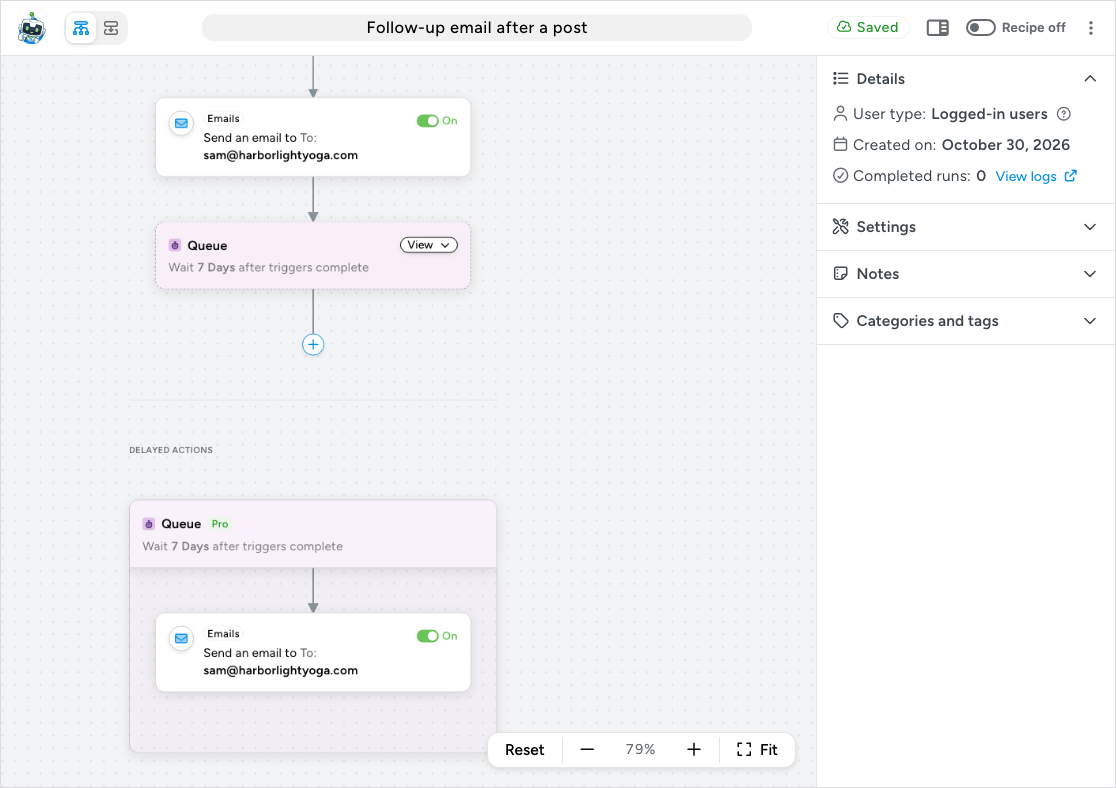
The canvas draws this the same way. In the flow, the Queue block appears as a marker with its wait (Wait 7 Days after triggers complete) and a View button. The marker always stays last in the main flow: an action you add with the + at the end of the flow is placed above it, and it still runs at once. The block itself, with the actions inside it, is drawn in a DELAYED ACTIONS section at the bottom of the canvas. Click View on the marker to jump to it; click the block there to reopen its Set up.
Viewing and cancelling queued actions
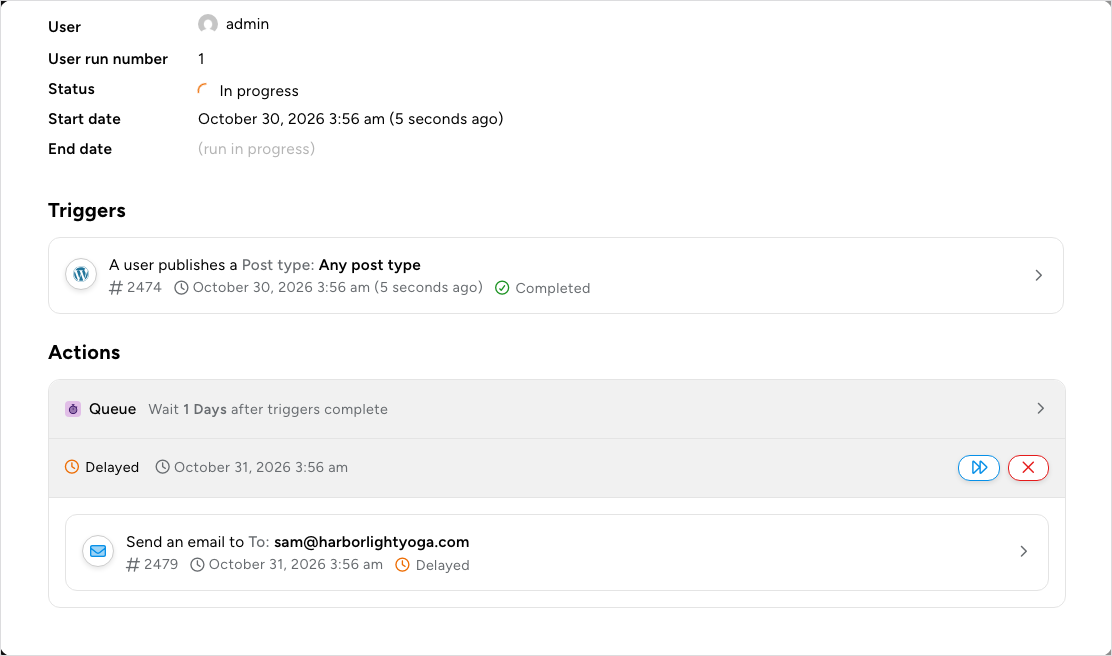
Queued actions appear in Automator > Logs. On the Recipe tab, find the run (its status is In progress while actions wait) and click Details. Under Actions, the Queue block has a row that reads Delayed with the time the actions will run, and each waiting action inside it is marked Delayed with the same time. The Action tab lists the waiting actions too, with the status In progress, but not their run time.
The Delayed row has two icon buttons that act on everything still waiting in that block. Point at them to see their names:
- Run now — the fast-forward icon. It stops waiting and runs the actions inside straight away.
- Cancel — the X icon. It stops the block: the actions inside do not run and the run is finished. Cancelled actions cannot be restored; the log records “Scheduled action was manually cancelled.”
Queued actions also need the recipe to stay on. When the time comes, an action runs only if the recipe is still switched to Recipe on and the action’s own switch is On; otherwise the log records “The associated recipe or action is not live.” and the action does not run. Deleting a run from the log, or using Clear activity logs on the Recipes page, cancels that recipe’s queued actions as well. Deleting the recipe also cancels its waiting actions.
A Queue block that could not wait leaves a note. In the run’s Details, click View details on the Queue block: its Notes row says what happened. When the actions did not run, the block reads Completed with errors, its actions read Skipped, and the run reads Completed with errors, so an error notification recipe hears about it. The same happens when the site’s background scheduler cannot take the job, for example “These actions could not be scheduled because Action Scheduler is not running on this site.” Inside a Loop block, a Queue block that could not wait skips its actions for that item only.
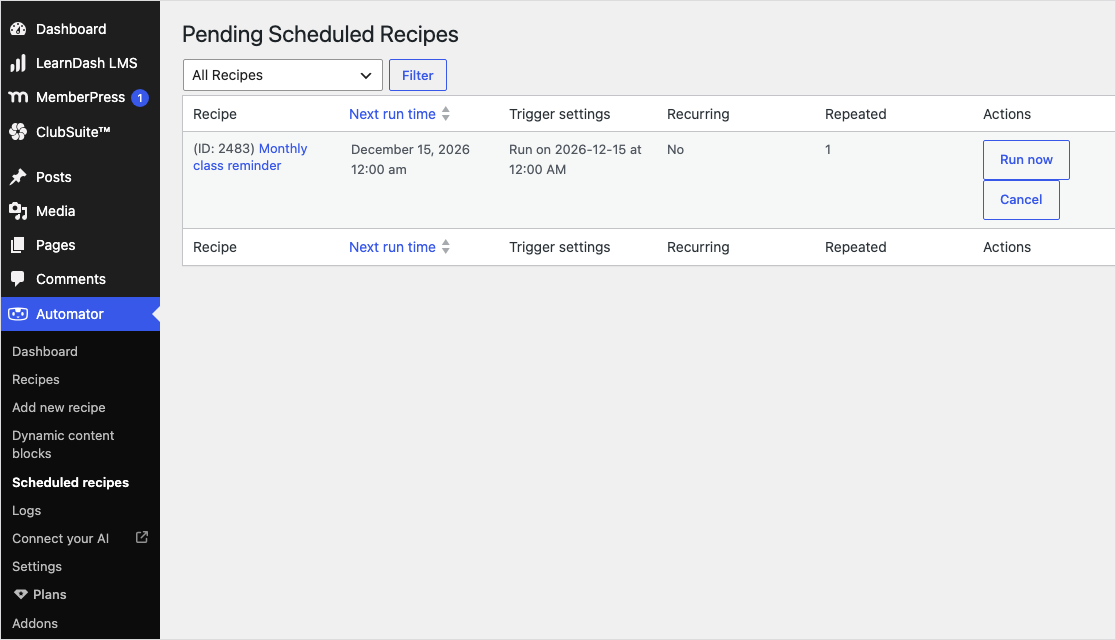
Queued runs are not listed on Automator > Scheduled recipes; use the run’s Details described above. The Scheduled recipes page is for recipes that start from a Schedule trigger, and the menu item appears only while such a recipe is switched on. Its Pending Scheduled Recipes table lists each pending run with its recipe, Next run time, trigger settings, and Run now and Cancel buttons, each of which asks you to confirm. Running a scheduled run early from this page does not remove the pending run, so the recipe fires an extra time.
Things to know
- Queued actions run from your site’s background scheduler, which WordPress fires when the site gets a visit. On a low-traffic site a wait set for two hours may run at two hours and 20 minutes because nobody visited at the exact moment. If timing matters, ask your host about a server-side cron job, which runs WordPress’s scheduled tasks on a fixed clock.
- Schedule dates and plain-English phrases use the site’s timezone, not the visitor’s and not the server’s. Check Settings > General if actions run at an unexpected hour.
- Tokens inside queued actions are filled in when the actions run, not when the recipe started. Values a trigger records when it runs, such as a form’s fields, keep what was submitted; tokens that read the user or the site, such as User email or a user meta token, show the value at the moment the action runs. If a user changes their email address during a two-week wait, User email sends to the new address, while a form’s email field token still holds the address that was submitted.
- A Filter block inside a Queue is checked when the wait ends, so conditions reflect the user’s state at that moment. A Queue inside a Filter path is queued only if the conditions passed when the recipe ran.
For developers
The phrase table above is a mapping the token mode applies before handing the text to PHP’s DateTime. Change or extend it with the automator_pro_custom_delay_synonyms_mapping filter:
add_filter( 'automator_pro_custom_delay_synonyms_mapping', function ( $mappings ) {
    $mappings['tea time']  = '4:00 PM';
    $mappings['next week'] = 'next Monday';
    return $mappings;
} );
Keys are matched case-insensitively anywhere in the phrase and replaced with their values before parsing, so a value must itself be something DateTime understands.
Related: Recipe blocks: Filter, Queue and Loop, Filter block and conditions, Loop block: users, posts and tokens, Schedule, Using Automator logs, Managing tokens

Comments (0)