

Send WordPress Slack notifications with Uncanny Automator and format them so they get read. Includes…
How to Create a Landing Page in WordPress With AI (For Free)
Learn how to create a landing page in WordPress with AI for free. Describe your page and Uncanny Page Builder designs and builds it — clean HTML, no lock-in.
TLDR? Get the highlights:
- You can create a landing page in WordPress by describing it in plain language — no dragging, no dropping, no design degree.
- Uncanny Page Builder, built into the free Uncanny Automator Lite, designs and builds the page for you — with enough AI usage included for your first few pages.
- No API keys, no separate AI subscription, no copy-pasting code between browser tabs.
- Every page is output as clean, standard HTML and CSS — your designs stay intact even if you deactivate the plugin.
Download Uncanny Automator for free and let Uncanny Page Builder design your next landing page >>>
When it comes to building a WordPress landing page, you typically have two options — and neither one is much fun.
The drag-and-drop doldrums: Pay $90+ every year or $250+ once to be locked in for life, then spend an entire afternoon nudging boxes into place — resizing columns, hunting through settings panels, and wondering why the padding looks right on desktop but unhinged on mobile.
The off-brand, external AI: Recruit an external AI tool for help. Claude and ChatGPT can write great copy and even generate HTML, but actually connecting an AI platform to your WordPress site means API keys, developer dashboards, and separate billing. And after all that setup, the AI still doesn’t know your site — your theme, your products, your content, or your brand.
But there is a third — pain- and cost-free — option. Describe the page you want, inside WordPress, and watch it get built.
In this tutorial, I’ll show you exactly how to create a landing page in WordPress with AI using Uncanny Page Builder, the AI-first page builder built into Uncanny Automator. And yes, you can do the whole thing for free.
Why Build Your WordPress Landing Page With AI?
Landing pages are deceptively hard to build by hand. The copy is the easy part — it’s the layout, the visual hierarchy, the spacing, the responsive tweaks, and the brand consistency that eat your afternoon. Most of us aren’t designers, and a blank canvas or an almost-right template can be just as intimidating as writing CSS.
That’s what makes an AI-first approach different. Instead of assembling a page element by element, you describe the page you want — the layout, the content, and the styling, all in one plain-language request — and the AI designs and builds it.
Do You Need a Separate WordPress Landing Page Plugin?
Short answer: no. WordPress landing page plugins and dedicated page builders can help you produce stunning landing pages. But they don’t help you design them.
Typical landing page plugins hand you the canvas and a few dozen toggles; text, spacing, box shadows, scroll effects, transitions, positions, conditions… you get the idea. For most site owners, that’s the real gap: not a missing plugin, but a missing designer.
So the better question isn’t whether you need another plugin. It’s whether you still have to design and then build your next landing page or whether a plugin can actually do that for you.
Can ChatGPT Build a WordPress Landing Page?
Sort of — and this is where a lot of DIY landing page projects go sideways.
General-purpose AI tools are decent writers and competent coders. But going from a prompt in your ChatGPT tab to a finished, publication-ready page on your WordPress site is a longer (and far more frustrating) conversation than you might initially expect:
- A separate AI subscription and billing setup. API access to these platforms is billed separately — it’s not even included with a ChatGPT Plus subscription.
- API keys and developer dashboards. You’ll need to generate secret keys, keep them safe, and paste them into the right places — comfortable territory for developers, less so for everyone else.
- Copy-paste gymnastics. The AI lives in one tab; your site lives in another. You become the integration.
- The AI doesn’t know your site. It’s never seen your theme, your brand settings, your products, or your existing pages. Every request starts from zero.
External AI tools are great at what they do. They’re just not page builders that live in your WordPress admin — and they never will be.
What You’ll Need: Uncanny Automator and a Little Imagination
The tool side of the equation is just one plugin: Uncanny Automator, the AI and automation platform for WordPress. It combines three core capabilities:
- The Recipe Builder (for no-code workflow automations)
- Uncanny Agent (an AI assistant for managing your site)
- Uncanny Page Builder (the AI-first page builder we’ll be using today)
Page Builder is included in every Automator plan — never as a paid add-on.
With Uncanny Page Builder, there are no tools to connect, no API keys to manage, and no explaining your website to a generic AI. It’s engineered together with your site, not glued on. Uncanny Agent reads your actual page and your site’s design settings before it builds, so every change is grounded in what’s really there.
Everything it builds is output as clean, standard HTML and CSS. That means no proprietary shortcodes and no lock-in. Your page designs stay intact even if the plugin is deactivated, and you can download any page as a complete, standalone web page and host it anywhere.
If you’ve seen what happens to your carefully built pages when switching from one page builder to another or during site migration, the no lock-in feature is worth its weight in digital gold.
Get started with Uncanny Automator Lite (it’s free forever) >>>
Note: Don’t forget to register your account to receive free Uncanny Agent usage along with 250 free app credits for running workflow automations with app integrations like ActiveCampaign, OpenAI, HubSpot, LinkedIn, and more.
That’s it. No separate AI subscription, no credit card — just enough imagination to describe the page you want. For a more detailed installation walkthrough, click here.
How to Create a Landing Page in WordPress With AI (Step by Step)
For this walkthrough, I’ll play the role of a small shoe retailer — let’s call it Pacer Running Co. — launching a new line of running shoes called the Horizon line. Follow along with your own business and product; the steps are identical, the results will be all yours.
Step 1: Set Up Your Brand Settings
Before building anything, tell Page Builder what your brand looks and feels like. These are site-wide settings — set them once and every page you build inherits them.
With Uncanny Automator installed and activated, from your WordPress admin dashboard, navigate to Page Builder > Settings.
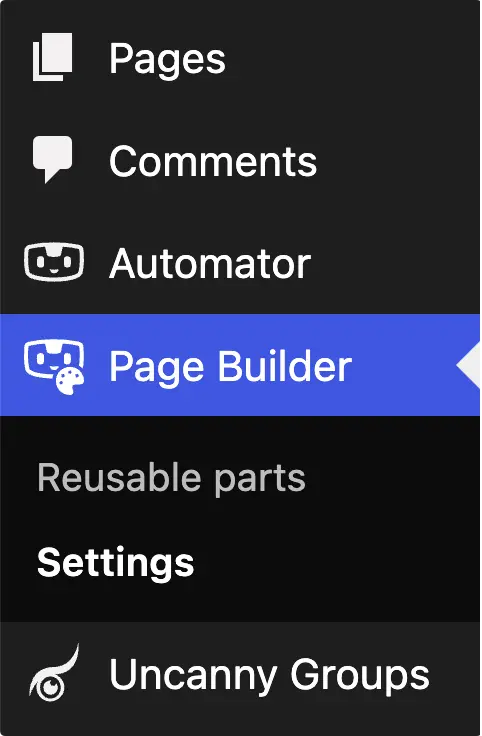
From this settings page, you can set:
- Brand styles (logo, fonts, colors)
- Typography (heading fonts and styles, body text fonts and styles, etc.)
- Design direction (how you want your brand to look and feel, described however you choose)
and more.
For Pacer Running Co., for example, here’s how I’ve configured a few settings:
- Montserrat for headings
- Inter for body/paragraph text
- Primary brand color is Jet Black (#111111)
- Secondary brand color is Signal Orange (#FF6A00)
- Design direction: “Energetic, bold colors, eye-catching headings, image-forward.”
You can also skip this altogether if you’d rather see what Uncanny Agent comes up with on its own.
Step 2: Create a New Page and Describe It
From your WordPress admin dashboard, navigate to Pages > Add page. (You can also have Uncanny Page Builder take over a page that you’ve already created and published, but for now we’re starting from scratch.)
In the editor, click Uncanny Page Builder in the top toolbar and then click Edit with Uncanny Page Builder.
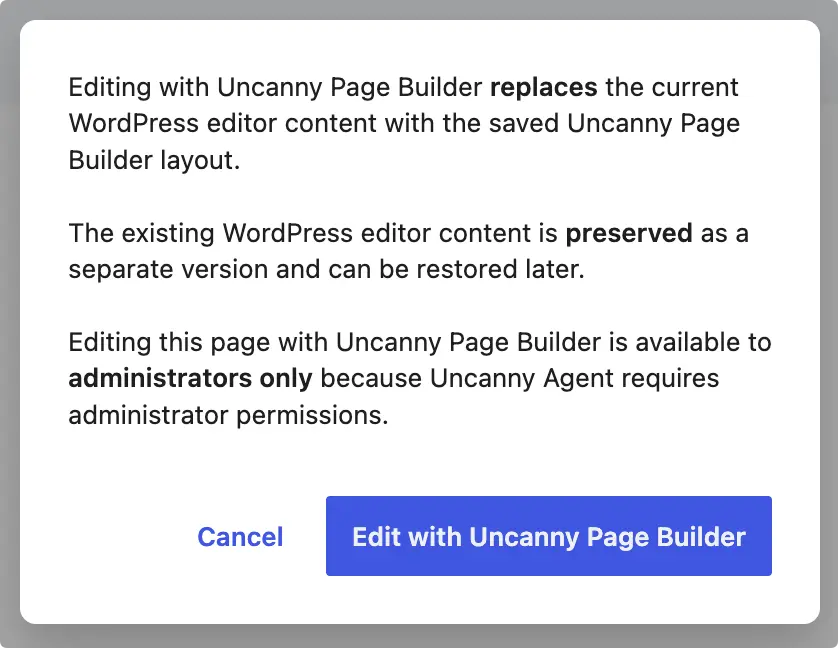
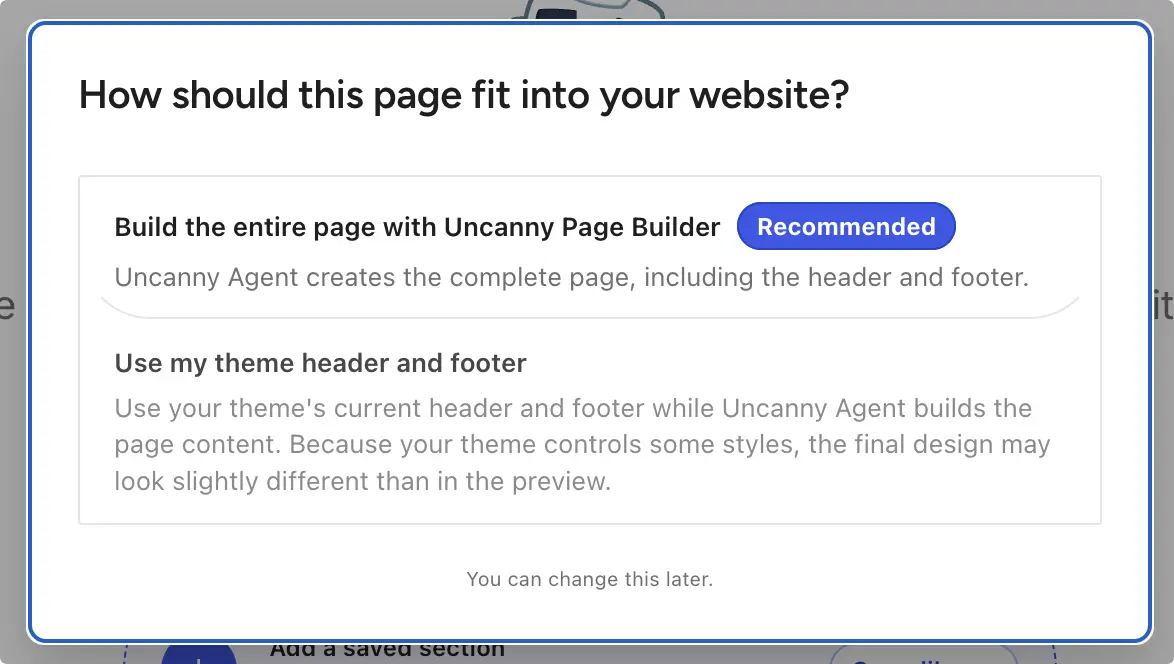
Next, Uncanny Page Builder will ask if you want it to build the entire page or if you’d rather use your existing header and footer. For now, we’ll build an entirely new page.
Now, all that’s left for you to do is to click Start chatting and tell Uncanny Agent what you want your page to look like.
You can write a brief prompt like this:
Build a landing page announcing our new Horizon line of running shoes. Include a hero, a few product highlights, photos from my Media Library, and a signup section.
or, if you already have a clear idea of what you’re looking for, you can write a more detailed prompt like this:
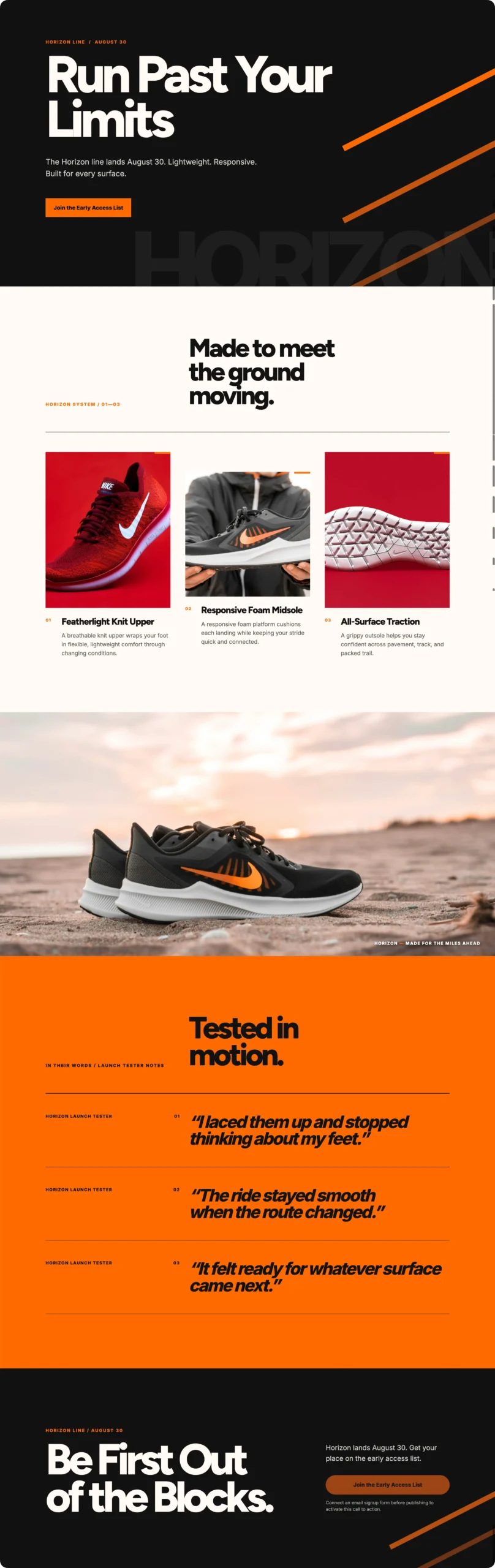
Create a landing page for the launch of our new Horizon line of running shoes. Structure it like this: (1) a full-width hero with the headline “Run Past Your Limits,” the subhead “The Horizon line lands August 30. Lightweight. Responsive. Built for every surface.” and a Signal Orange button that says “Join the Early Access List”; (2) a three-column feature grid — “Featherlight Knit Upper,” “Responsive Foam Midsole,” and “All-Surface Traction” — each with a one-sentence benefit and a matching photo from my image library (using ‘running-shoe-1,’ ‘running-shoe-2,’ and ‘running-shoe-7’ from my image library respectively); (3) a full-width image break using ‘running-shoe-3’ from my image library; (4) a testimonials section with three short quotes from our launch testers; (5) a closing signup section with the headline “Be First Out of the Blocks.”
(Note: I preloaded images into my Image Library in WordPress, but you can include up to 5 images/files in a prompt if you prefer.)
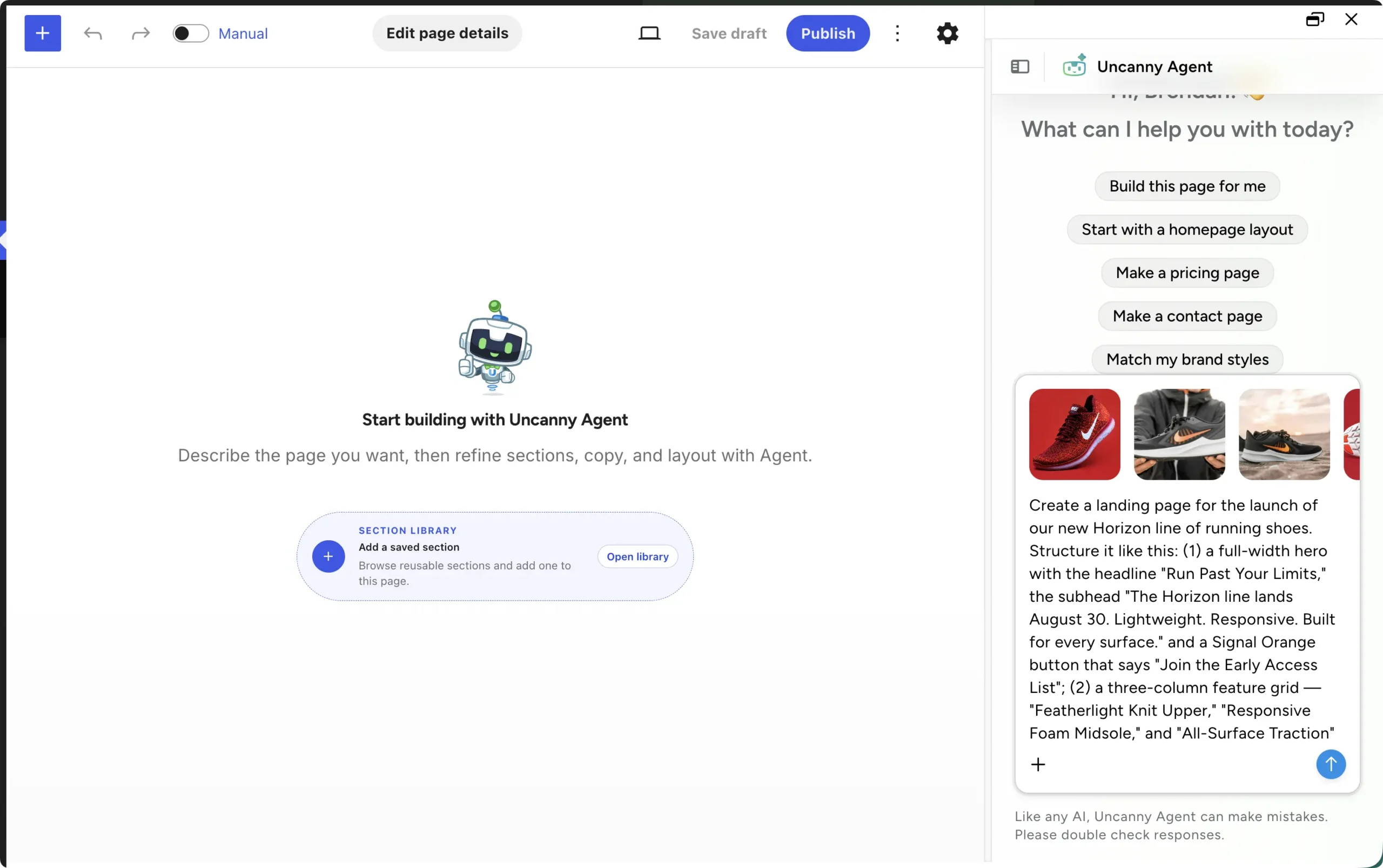
Both prompts produce a complete, designed landing page. The difference isn’t quality — it’s how many decisions you make versus how many you delegate. (And if you’re staring at a blank page with a blank mind, Page Builder suggests context-aware conversation starters to get you moving.)
Less than 8 minutes later, I had a page that was just waiting on me to add an email sign-up form before publication.
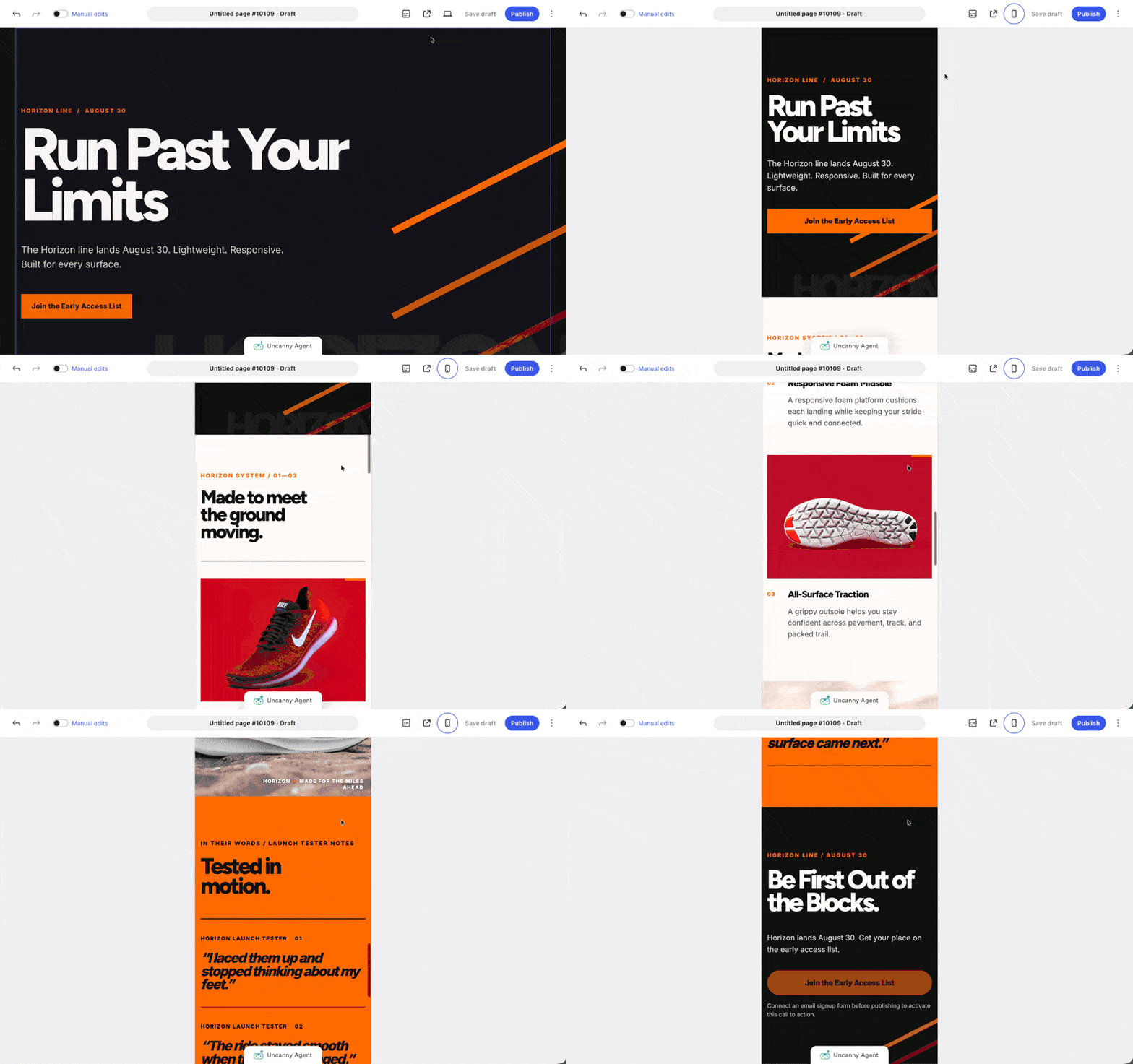
And don’t forget to check out the responsive views by clicking on the laptop icon in the toolbar.
Step 3: Refine Through Conversation
The first build is a draft, not a verdict. Keep the conversation going to make big changes or even small adjustments.
For example, you can say:
- “Use a different image in the hero section.”
- “Make the hero headline bigger on mobile.”
- “Darken the signup button on hover.”
- “Move the testimonials above the image break.”
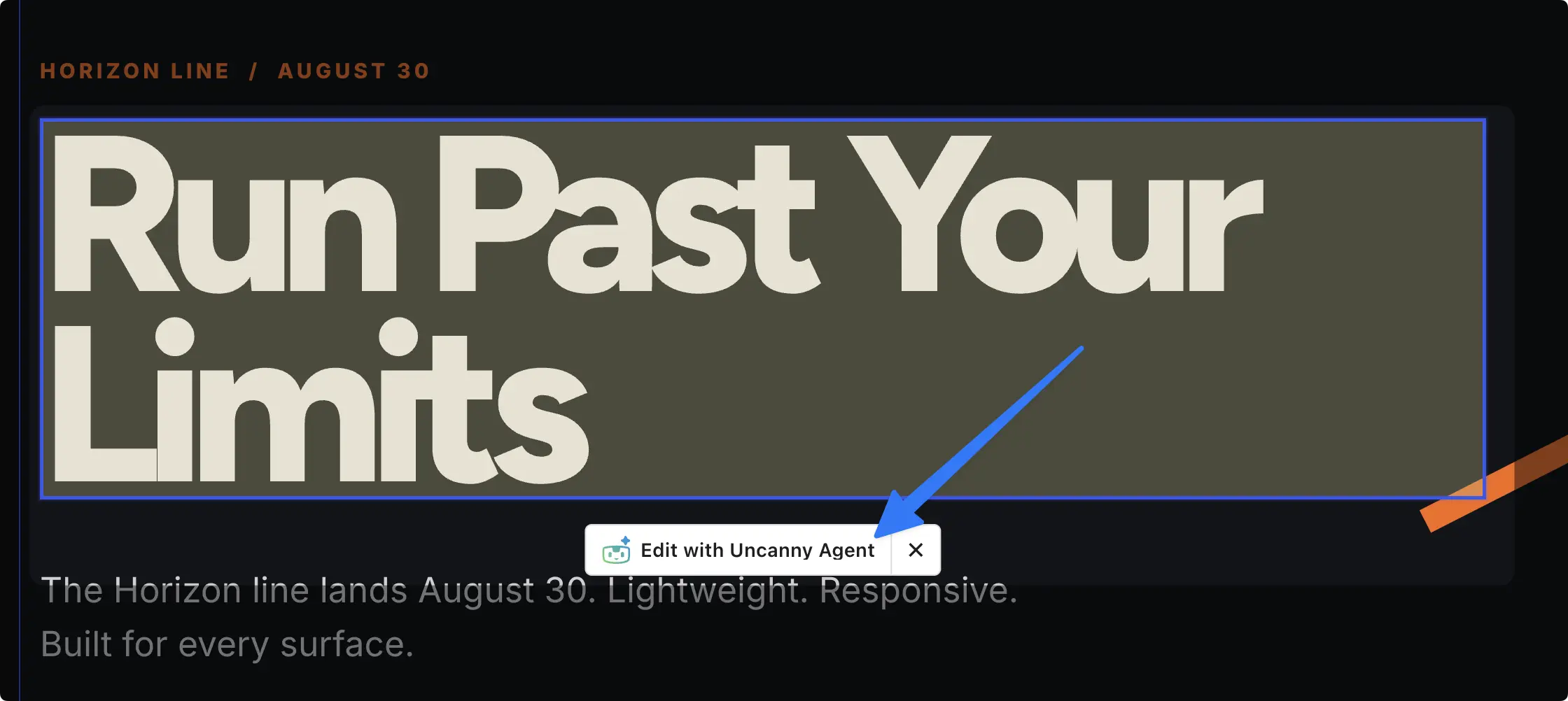
Or, select a specific element and tell Agent how you want it changed.
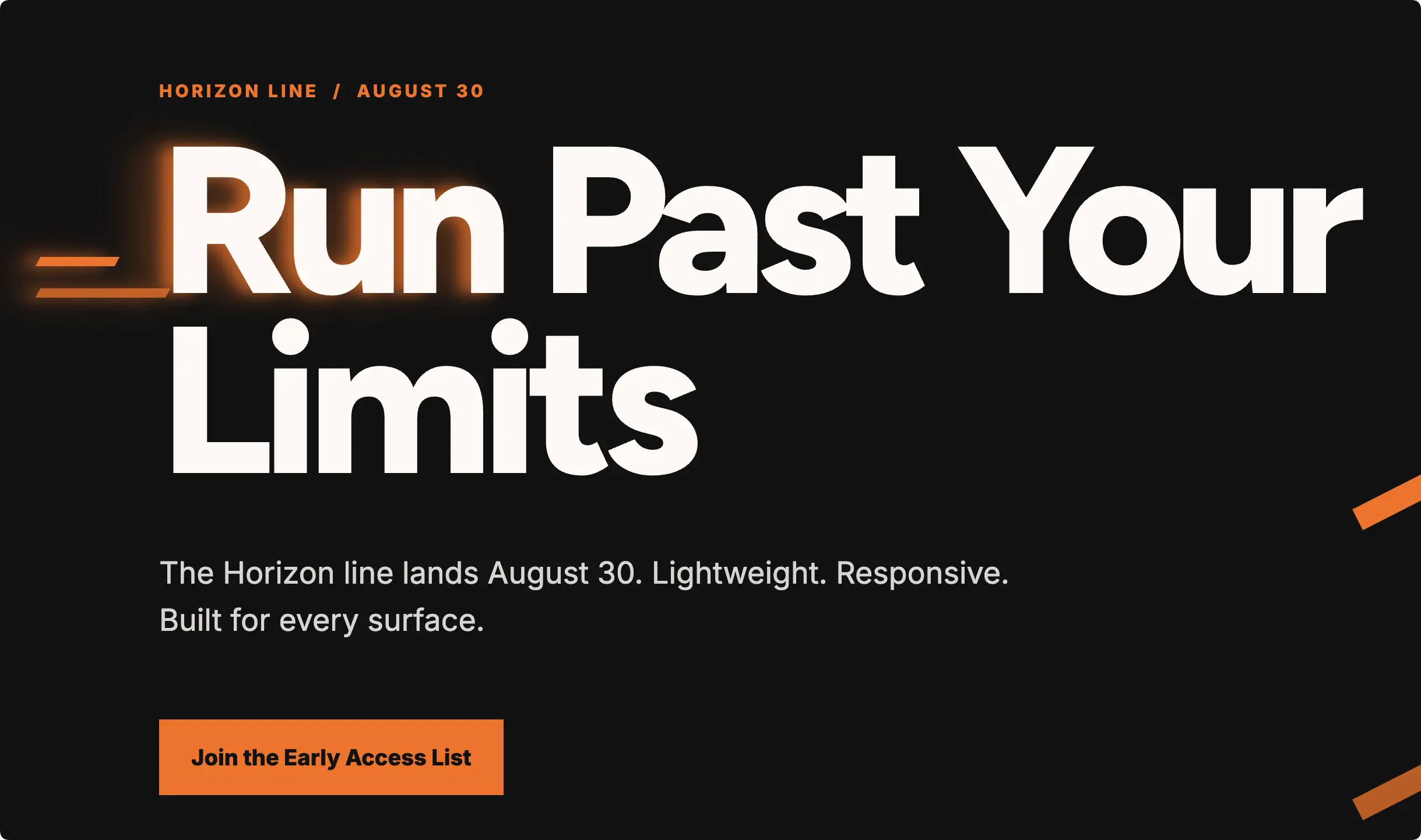
For example, I selected the hero header and told Agent to slightly increase the letter spacing and give the word “Run” a visual effect to make it look like it was in motion.
Less than a minute later, this is what Uncanny Agent gave me:
Step 4: Fine-Tune With the Manual Editor
For small, precise changes (swapping out an image, editing text, etc.), you can skip the conversation entirely.
To make edits by hand, simply toggle on the Manual editor in the toolbar.
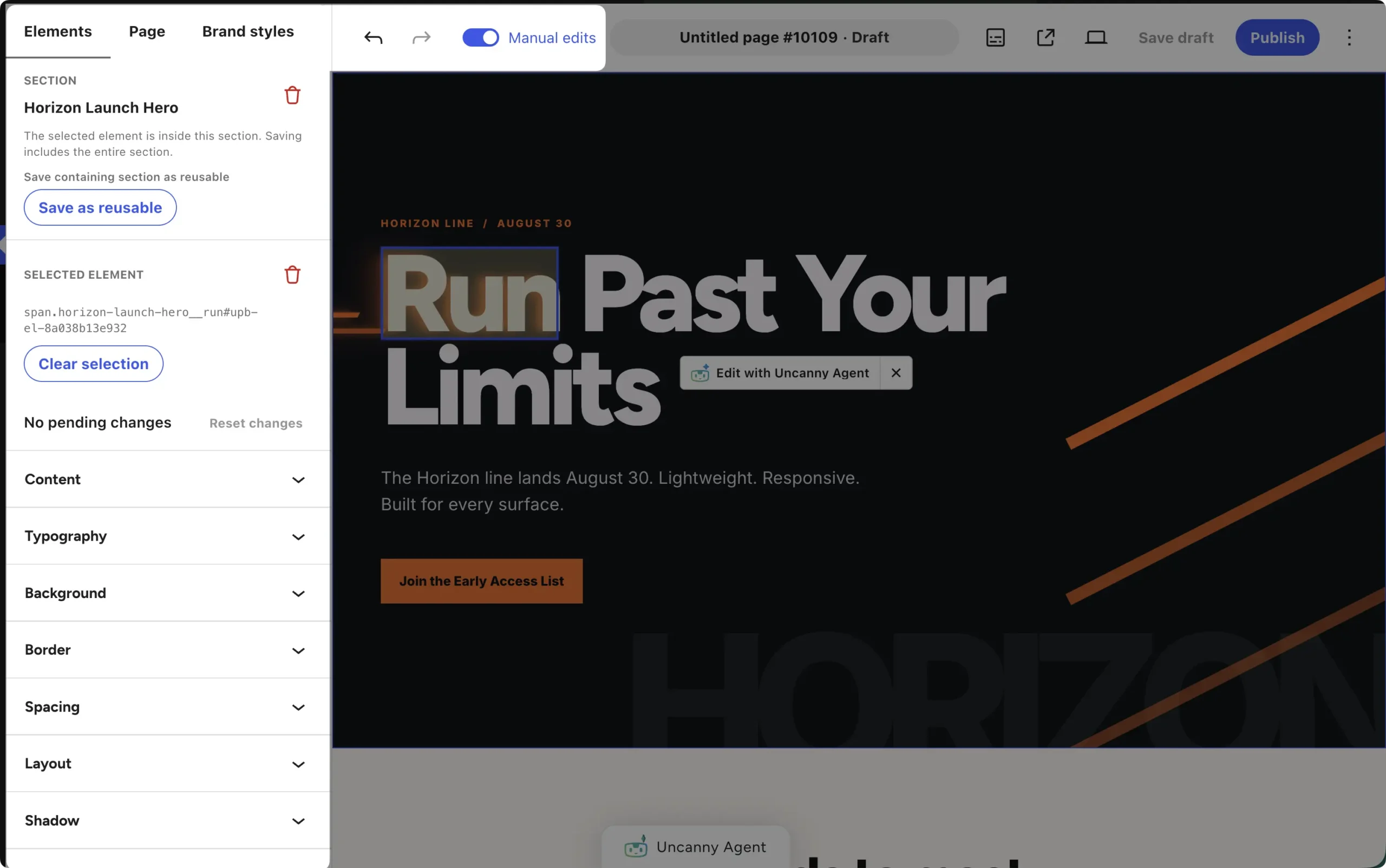
Open the visual style inspector to adjust typography, colors, spacing, borders, and shadows for any selected element.
You can preview and edit the page at desktop, tablet, and mobile widths, and undo/redo covers your last 30 changes per page. If a section feels almost-right-but-not-quite, select it and send it to Agent for a polish pass.
Step 5: Add Live Content (Optional but Powerful)
Now you’ve built your landing page — what about maintaining it?
Uncanny Page Builder includes live elements (dynamic content rendered fresh on every page load — no re-publishing required) that keep your pages fresh and current without the daily, weekly, monthly, and yearly reminders.
A few that would earn their place on Pacer’s launch page:
- Registration Form — a signup form built directly into the closing section’s design, so “Join the Early Access List” actually collects the list.
- Total Users Count — live social proof: “Join 2,400+ runners already on the list,” and the number updates itself as signups roll in.
- Copyright Year — set the footer once, never touch it again.
Uncanny Page Builder has dozens of live elements; find the full list here.
Step 6: Save and Go Live!
Here’s the part that makes experimenting stress-free: everything Agent built and everything you tweaked has been happening on an unsaved draft. Your live site hasn’t changed at all — and every edit along the way, human or AI, is undoable.
Happy with the page? Click Save draft then click Publish. Pacer Running Co. just went from a blank page to a branded, responsive, photo-rich launch page — and nobody dragged a single widget.
Build your own launch page with Uncanny Page Builder — free with Uncanny Automator >>>
After the Build: Putting Your Landing Pages to Work
A landing page is only half the job. The other half is what happens after someone clicks “Join the Early Access List” — and that’s where Automator’s Recipe Builder picks up the baton.
With a simple recipe (that’s what Automator calls workflow automations), Pacer can automatically send a welcome email to every new signup, add them to a CRM audience, or notify the team in Slack — no manual follow-up required.
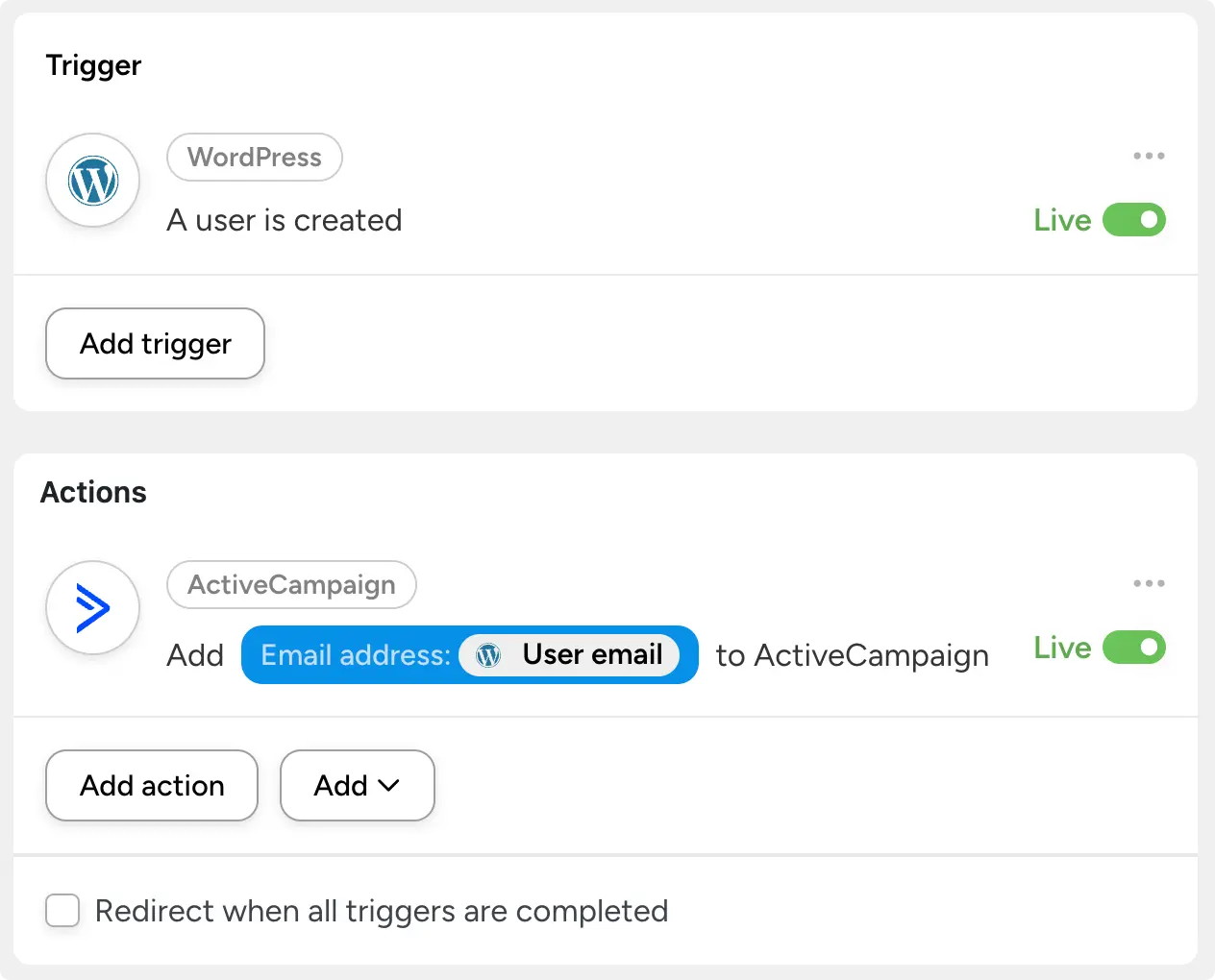
If you’re new to recipes, start here:
- Creating a Recipe — the beginner-friendly walkthrough for building your very first automation.
- Automating WordPress Lead Generation: A Comprehensive Guide — turn your new landing page into a lead-gen machine.
- How to Automate New Customer and User Onboarding in WordPress — give every signup a great first impression, automatically.
Pro Tips
- Build from an example. See a landing page design you love? Upload a screenshot of it, and Agent will build a page in that style. Design inspiration, minus the design work.
- Turn your best sections into reusable elements. Nailed the perfect signup section? Convert it into a reusable element and drop it onto any page. Shared headers and footers work the same way as global parts.
- Set a standing design direction. Teach Agent your style preferences once — “clean and minimal, generous white space” — and every future build follows them.
- Take your pages anywhere. Any page can be downloaded as a standalone web page, styling included, and hosted anywhere — even outside WordPress.
Conclusion
Landing pages used to demand a choice: lose an afternoon to a drag-and-drop builder, or lose an evening wiring up an external AI with API keys and crossed fingers. Uncanny Page Builder retires both options. Describe the page, refine it in conversation, click into anything you want to tweak by hand, and publish a finished, polished page in minutes.
Now, the distance between “we should have a landing page for this” and “the landing page is live” is about the length of one well-written paragraph.
Uncanny Automator Lite comes with more than enough Uncanny Agent usage for you to build, launch, and then run your next campaign.
Get Uncanny Automator for free and build your first landing page today >>>
Now that you don’t have to spend your entire evening dragging widgets into place — or hunting down API keys — the only question left is…
What will you do with more time?
Frequently Asked Questions
Do I need a separate WordPress landing page plugin?
No. Uncanny Page Builder is included in every Uncanny Automator plan, including the free Uncanny Automator Lite — it’s a core capability, never a paid add-on. You get an AI-first page builder, workflow automation, and an AI assistant in a single plugin.
What’s the best WordPress landing page builder for beginners?
The best builder for a beginner is the one that doesn’t require you to become a designer first. Uncanny Page Builder doesn’t just build pages — it designs them. Uncanny Agent brings the design intelligence, making the calls on layout, hierarchy, spacing, and style from your plain-language description. You bring the goal; it brings the design skills.
Can I create a WordPress landing page without changing my theme?
Yes. For each page, you choose whether it uses your theme’s header and footer (theme mode) or whether Page Builder designs the entire page (full-page mode). You can redesign one page and leave the rest of your site — and your theme — completely untouched.
Is there a free AI landing page builder for WordPress?
Yes — Uncanny Page Builder is included with Uncanny Automator Lite, free, with enough included Uncanny Agent usage to build a few pages. There are no API keys or separate AI subscriptions to manage. Continued AI building consumes Agent usage, so heavy builders may eventually want a paid plan — but your first landing pages won’t cost a cent.
Can I delete my page builder plugin without losing my pages?
With Uncanny Page Builder, your page designs are output as clean, standard HTML and CSS, so they stay intact even if the plugin is deactivated — and uninstalling never deletes your pages or content. (Live elements like forms and counters do require Uncanny Automator to be active to render.) You can also download any page as a standalone web page and host it anywhere.
Can AI build a landing page from a screenshot?
Yes. Upload a screenshot of any page or design you admire, and Uncanny Agent will build a page in that style. (Agent works from your uploaded image — it doesn’t browse the web or fetch URLs itself.)

Related Posts























































Comments (0)