

Wondering what WooCommerce AI can actually do? See what you can automate, create, and optimize…
8 Post-Course Automations That Turn LearnDash Completions Into Growth
These post-course automations turn LearnDash course completions into a growth stream—for your learners and your bottom line. Improve retention, boost upsells, and foster community.
TLDR? Get the highlights:
- Course completion is one of the highest-intent moments in the entire learner journey—and on most LearnDash sites, that high-conversion moment is passed over.
- Uncanny Automator listens for LearnDash completion events and fires recipes (that’s what Automator calls its automations) instantly—no code required.
- In this post: 8 ready-to-build workflows covering next-course enrollment, community invites, nurture sequences, on-site campaigns, certificate sharing, feedback collection, membership upsells, and coaching intake.
- Many of these automations work with Automator Lite, available free from the WordPress plugin repository.
If you run courses on LearnDash, you’ve probably poured most of your energy into one thing: getting learners to enroll. Landing pages, launch emails, checkout tweaks—all aimed at the moment someone clicks “Start Course”.
But here’s the moment almost everyone ignores: the moment a learner finishes a course.
Course completion is one of the highest-intent events on your entire site. It tells you exactly who your most engaged learners are, and it hands you a precise window to guide them toward whatever comes next—a new course, a community, a membership, a coaching call.
On most sites, that window opens, nobody does anything, and it quietly closes.
Completion is a signal, not a finish line. We built our LearnDash integration around exactly these moments, and in this post I’ll show you 8 post-course automations for LearnDash you can build today—every one of them triggered the instant a student completes a course.
How LearnDash Automation Works with Uncanny Automator
LearnDash is a powerful LMS, but it doesn’t natively push completion events out to the rest of your stack. When a learner finishes a course, your email platform doesn’t know. Your CRM doesn’t know. Your community plugin doesn’t know.
Traditionally, connecting those dots meant custom code or a developer on retainer. That’s the gap Uncanny Automator fills.
Automator acts as the connective tissue between LearnDash and everything else on (and off) your WordPress site. It listens for key learner moments and fires recipes—trigger-and-action workflows that run automatically in the background.
Here are just some of the LearnDash events that Automator can listen for:
- A user completes a course
- A user passes (or fails) a quiz
- A user completes a lesson or topic
- A user is enrolled in a course
- A user earns a certificate
And here’s a taste of what Automator can do the instant one of those triggers fires:
- Send emails—from Automator’s own native email action or a connected platform—or SMS
- Add learners to communities or membership tiers
- Enroll them in follow-up courses or learning paths
- Create WooCommerce orders or issue discount codes
- Post to Slack, add rows to Google Sheets, update CRM records
- Show personalized on-site campaigns via tools like OptinMonster
See the full list of LearnDash triggers and actions to see what you can automate.
Get started with Uncanny Automator
You can start building the recipes in this article as you read. An Uncanny Automator Pro license gives you added triggers and actions along with a host additional features.
However, you can get started with Automator Lite for free—forever.
Claim your Pro license. Reclaim your time >>>
- From your WordPress Admin Dashboard /wp-admin/, navigate to Plugins > Add new. In the search bar, enter “uncanny automator” and click Install and Activate. (This installs the free version of Uncanny Automator which must be active to use Automator Pro features.)
- Purchase your Automator Pro license from the Automator pricing page.
- Once purchased, you can download the latest version of Uncanny Automator Pro inside your Automator account.
- After downloading the .zip file, navigate to Plugins > Add New in /wp-admin/. Click the Upload Plugin button, select the Pro .zip file then install and activate the plugin.
- Once activated, be sure to visit Automator > Settings in /wp-admin/ to enter your license key (in your purchase confirmation email).
For a more detailed walkthrough, click here.
Building recipes with Uncanny Automator for LearnDash
Building recipes in Automator is easy—just clicks, no code. And if you purchased an Automator Pro license, you can even build recipes through conversation with Uncanny Agent.
Whichever post-course automations you decide to build, they all follow the same general steps:
- Step 1: Navigate to Automator > Add New Recipe and select Logged-in Users.
- Step 2: Name your recipe.
- Step 3: In the Trigger panel, select LearnDash > A user completes a course.
- Step 4: In the Actions panel, choose your tool and configure the action.
8 Post-Course Automations to Drive Retention and Growth
1. Auto-Enroll Learners in the Next Course or Learning Path (Automator Lite)
The workflow: When a learner completes Course A, automatically enroll them in Course B—or add them to an eligibility list with the User Lists Addon, or tag them in your CRM—and send a personalized email introducing the next step in their journey.
This is the workhorse recipe for structured course sequences (beginner → intermediate → advanced), certification paths that require modules in order, and drip-style curricula where each course unlocks the next.
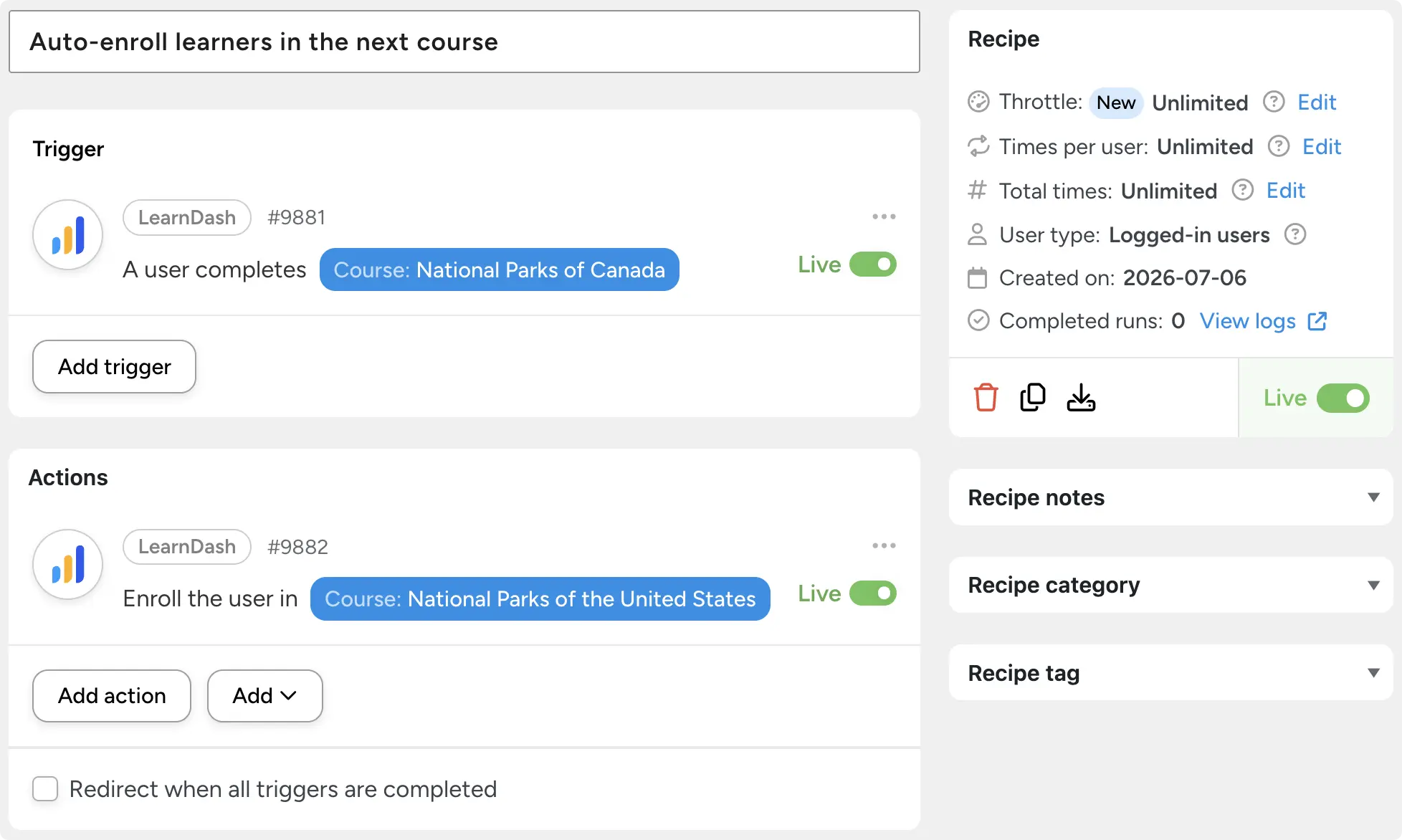
Why it works: Friction is the enemy of progression. When learners have to navigate back to your catalog and re-enroll manually, many simply don’t. Automating the handoff keeps momentum alive at the exact moment engagement peaks.
Pro tip: Use Automator’s delay feature (scheduling an action to run after a set amount of time) to send the enrollment email 24 hours after completion, giving learners a moment to celebrate before nudging them forward.
2. Invite Learners Into a Private Community
The workflow: When a learner completes a course, automatically send them an invitation to a private community—a BuddyBoss group, a Discord server, a Slack workspace—and unlock bonus content along the way.
Think alumni communities for completed cohorts, practice communities for skill-based courses, or peer accountability groups for learners working through a longer path.
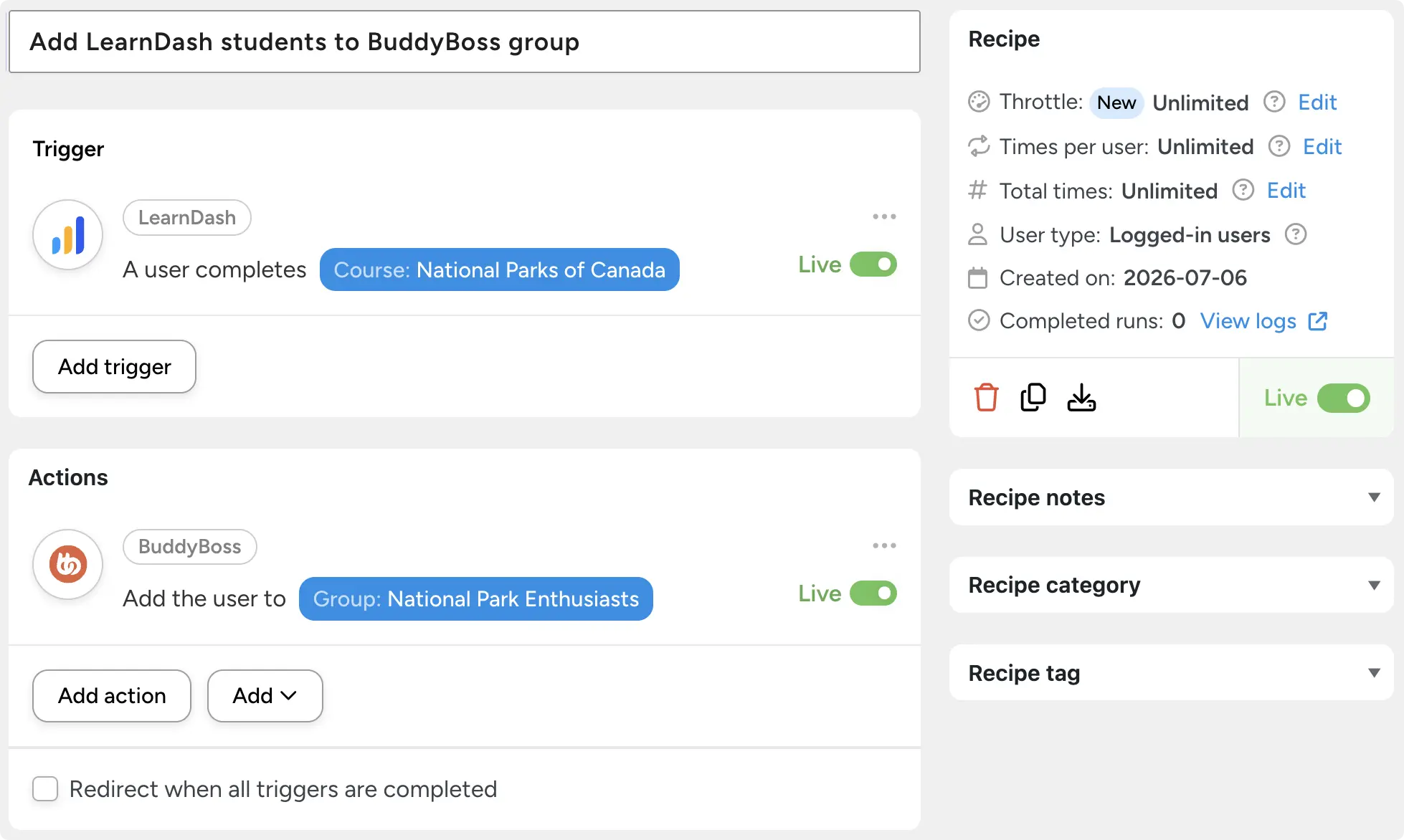
Why it works: Community belonging is one of the strongest retention drivers in eLearning. Learners connected to a peer group are far more likely to buy another course, show up to live events, and stick around as long-term members.
Pro tip: Add a filter (conditional logic that controls when actions run) so the invitation only goes to learners who match specific criteria such as user role or even email domain—not just anyone who crosses the finish line.
3. Trigger a Post-Course Nurture Email Sequence
The workflow: When a course is completed, add the learner to a targeted email sequence in ActiveCampaign or Mailchimp—typically by applying a tag—that delivers follow-up value over the next 7–14 days: related resources, instructor insights, student success stories, and finally a relevant offer.
This pattern powers post-course drip sequences that lead to an upsell, resource delivery campaigns (cheatsheets, templates, companion guides), and testimonial or review collection.
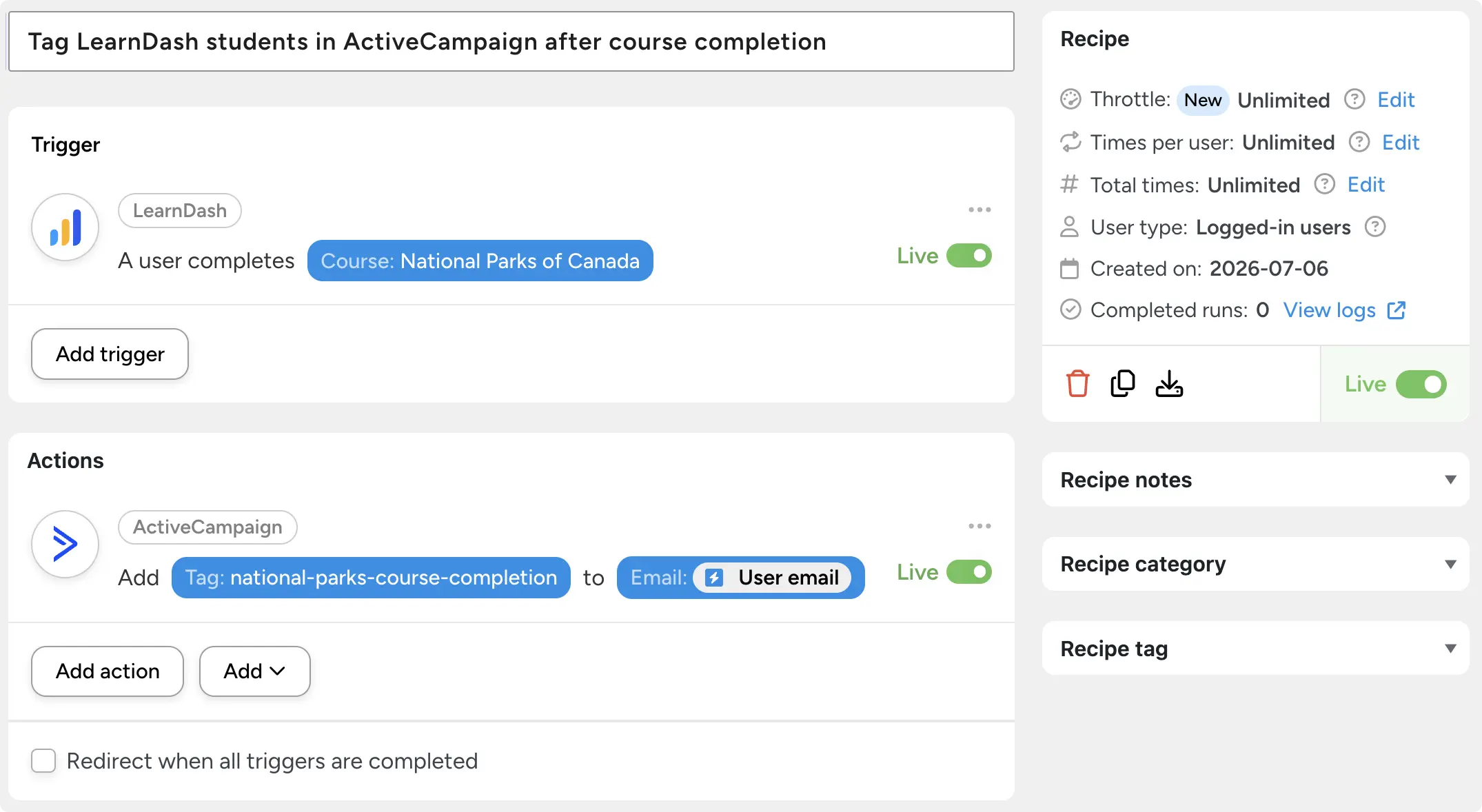
Why it works: Completion often marks the beginning of a learner’s real relationship with your brand. A well-timed sequence extends engagement beyond the LMS, reinforces what they learned, and builds the case for their next purchase.
Pro tip: If you send emails with Automator’s Email integration, use tokens (dynamic data pulled from your WordPress site and from within recipes) to personalize every email with the learner’s name, the course they just completed, and their enrollment date.
4. Promote the Next Course With a Personalized On-Site Campaign
The workflow: At the moment of completion, display a personalized OptinMonster popup or slide-in that showcases the logical next course—tailored to what the learner just finished.
Classic plays here: “You completed X—here’s what students take next” popups, limited-time discounts on the follow-up course, and learning path continuation prompts.
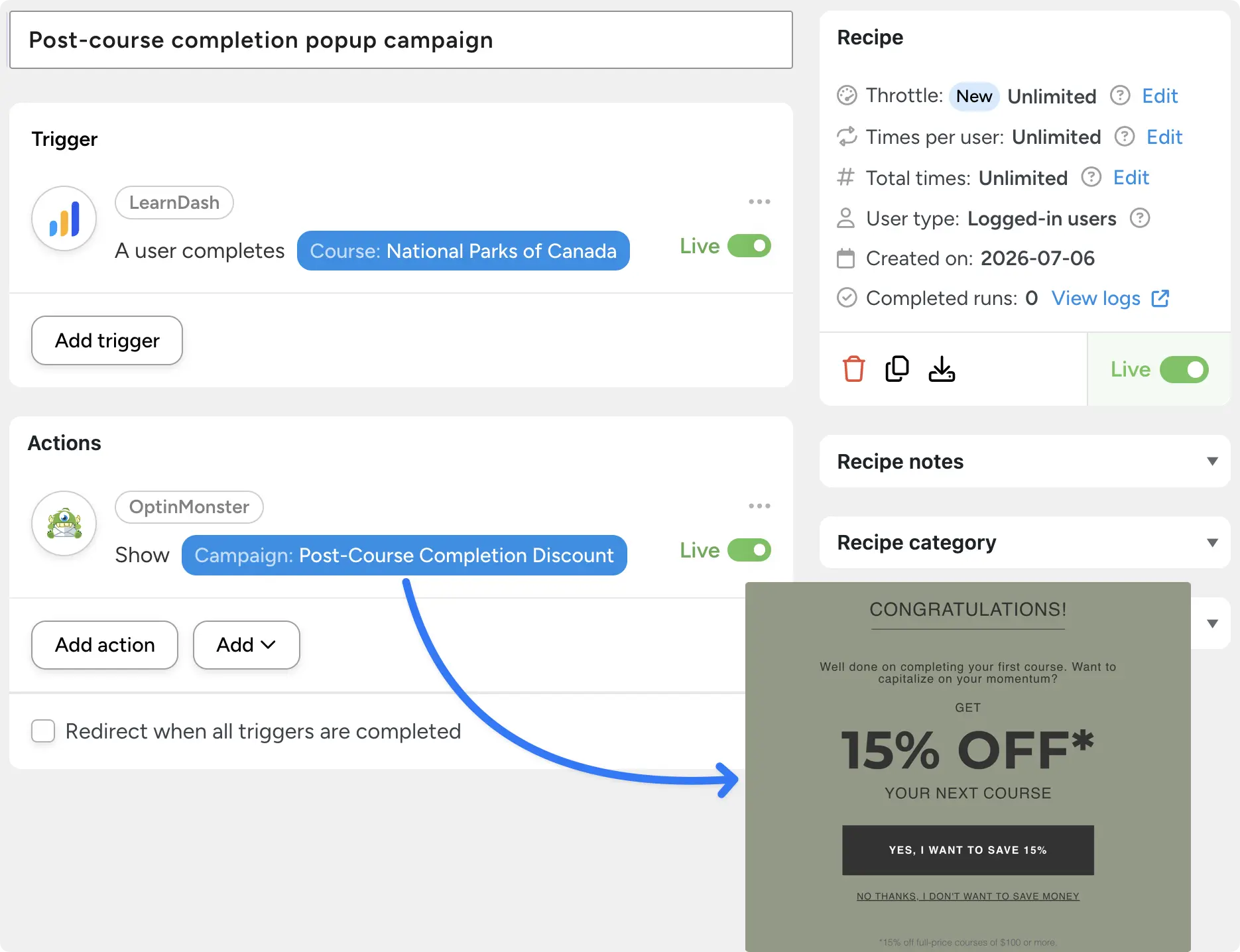
Why it works: A learner who just completed a course is primed to act—it’s the highest-intent moment on your site. A campaign triggered by that behavior reaches them while motivation is at its peak, instead of hoping they stumble across your catalog later.
5. Issue a Certificate and Prompt Social Sharing
The workflow: When a learner completes a course, automatically issue their certificate, then send a personalized email encouraging them to share the achievement on LinkedIn or another network—ideally with a pre-written message and a direct link so sharing takes seconds.
This shines for professional development and certification courses, credential-worthy skills training, and any course with a strong pride moment (fitness milestones, creative portfolios, you name it).
Why it works: Social sharing converts learners into organic advocates. When a student posts their certificate on LinkedIn, it’s a retention signal—pride and identity—and a top-of-funnel awareness driver for your next cohort, all in one post.
6. Collect Feedback and Build Social Proof Automatically
The workflow: When a learner completes a course, automatically send them a feedback survey with a form-building plugin like Gravity Forms, WPForms, or Typeform. Then route the response: a thank-you email (and a review request) for happy learners, or a support touchpoint for dissatisfied ones.
Use it for course quality surveys, star-rating and testimonial collection, or spotting at-risk learners who are still enrolled in other courses and might churn.
Why it works: Asking for feedback signals that you care about the learner experience—which itself increases satisfaction. And routing unhappy learners into a support flow lets you fix problems before they become refunds.
Pro tip: Feed positive responses into a testimonial display on your course sales page using Automator’s Dynamic Content Addon.
7. Convert Completers Into Members or Subscribers
The workflow: When a learner finishes a course, trigger an email sequence—or a direct enrollment action—that makes the case for a membership, subscription, or all-access pass. Frame it as the natural next step, not a cold pitch.
This is your “unlock all courses” membership upsell, your annual plan for ongoing learners, your tiered offering with community access and coaching baked in. It pairs beautifully with Woo Memberships or Subscriptions, EDD Recurring Payments, or Restrict Content Pro.
Why it works: Learners who buy one course at a time have lower lifetime value and a higher risk of drifting away. Post-completion is the ideal conversion window—motivation and trust are both at their highest—and members generate predictable, recurring revenue.
Pro tip: Automator’s Restrict Content Addon (included with Pro Plus and above) handles access management seamlessly when learners upgrade.
8. Book a Coaching Call or Onboard Into a High-Touch Program
The workflow: When a learner completes a course, send an invitation to book a 1:1 consultation via Zoom, schedule a coaching call, or apply for a cohort-based program—positioned as the natural graduation from self-paced learning into guided practice.
Certification programs route completers into coaching intake. Business courses route them into discovery calls. Bootcamps route them into the next cohort’s application.
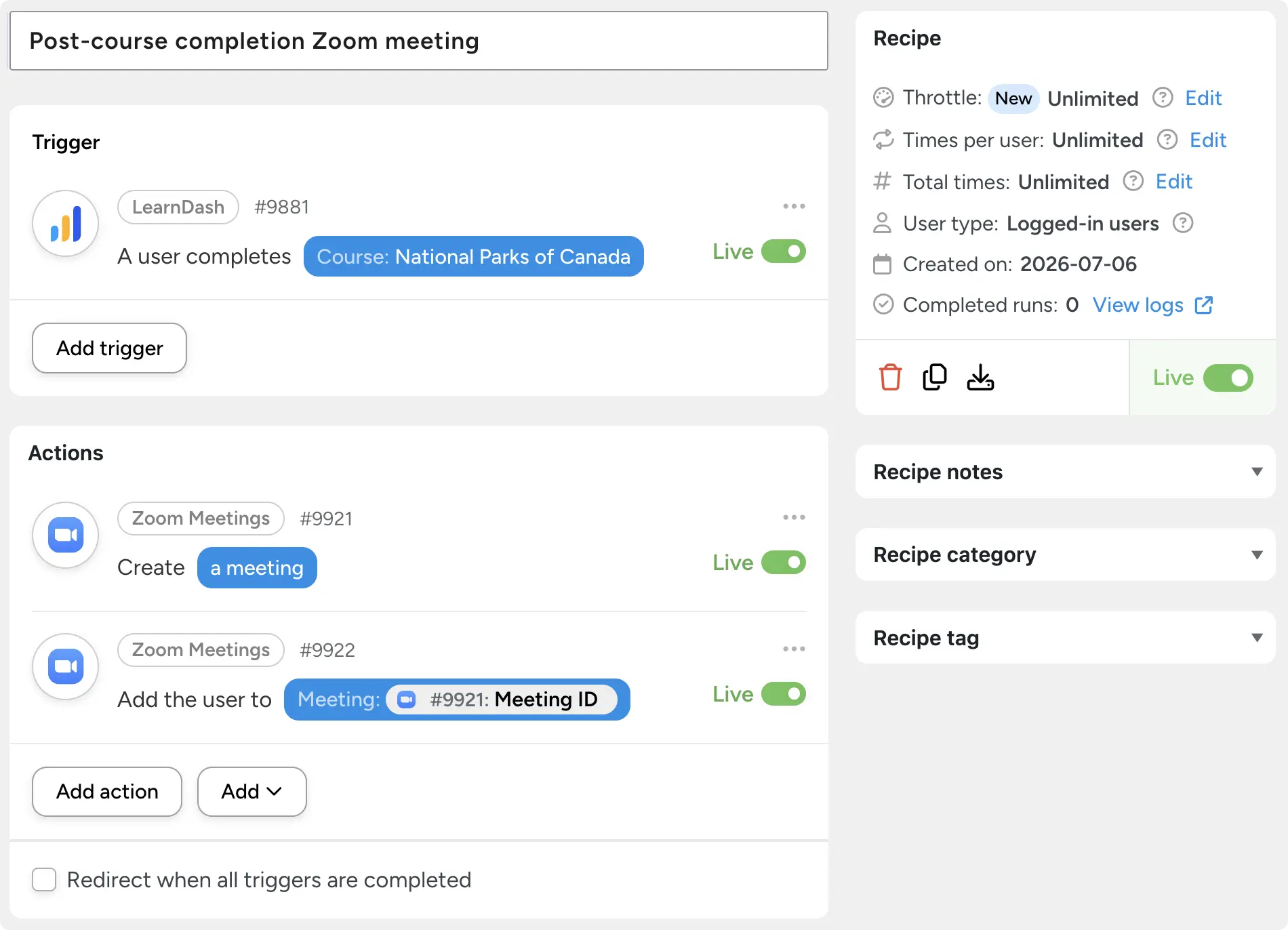
Why it works: High-touch programs generate significantly more revenue per learner and build much stronger retention through accountability and relationship. This automation catches learners at peak motivation and routes them straight into your highest-value offer.
Ready to put your course completions to work? Get Automator Pro >>>
What Post-Course Automation Does for Your Learning Business
Individually, each of these recipes is a nice win. Together, they form something bigger: a post-course retention and growth system that runs itself.
- Learners progress through your catalog instead of stalling after one course
- Average customer value climbs through timely, relevant upsells
- Community belonging keeps learners on your platform between courses
- Social proof and certificate sharing generate organic reach
- Membership and subscription revenue compounds
- At-risk learners get flagged and rescued before they churn
- And you’re freed from manual follow-up entirely—every step runs in the background
With Automator connecting LearnDash to your entire stack, every course completion becomes a launchpad—for your learners’ growth and for yours.
Start Building Your Post-Course Automations Today
You don’t need all 8 of these on day one. Pick the one that matches your biggest gap—if learners finish a course and never come back, start with auto-enrollment; if you’re sitting on happy students and zero testimonials, start with feedback collection—and build from there.
Remember, Automator Lite is free from the WordPress plugin repository and covers many of the automations in this post. When you’re ready for delays, filters, and premium integrations, Automator Pro unlocks the full toolkit. And if you want the bigger picture on automating your whole elearning business, check out our Complete Guide to eLearning Automation >>>.
Your learners finished the course. Where they go next is up to you.
What will you do with more time?
Frequently Asked Questions
Do I need Automator Pro to automate my LearnDash site?
No, you don’t need Automator Pro to automate your LearnDash. Uncanny Automator Lite is free forever and lets you create an unlimited number of recipes. If you’re looking for post-course automations, several of the recipes in this article work with Automator Lite—sending an email when a user completes a course, for example, uses Automator’s native email action and costs nothing. Automator Pro unlocks delays, filters, multi-trigger recipes, and premium actions like membership enrollment and CRM tagging. Start free, upgrade when a recipe calls for it.
Does Uncanny Automator work with my version of LearnDash?
Automator’s LearnDash integration is actively maintained and works with current versions of LearnDash. You can see the full list of supported triggers and actions on our LearnDash integration page.
Can I trigger automations from quiz results instead of course completions?
Yes. Automator includes LearnDash quiz triggers—a user passes a quiz, fails a quiz, or achieves a score threshold—so you can route learners down different paths based on performance. Send strugglers a remedial resource and high scorers an advanced course invite from the same site.
What if a learner completes multiple courses—will they get duplicate emails?
With Uncanny Automator, you’re in control of your automations. Recipes can be limited to run once per user, and filters let you exclude learners who’ve already received a particular invitation or upgrade. Your alumni won’t get invited to a community they already joined.

Related Posts










































Comments (0)