

Wondering what WooCommerce AI can actually do? See what you can automate, create, and optimize…
How to Troubleshoot WordPress Plugin Conflicts with AI
Learn how to troubleshoot WordPress plugin conflicts with AI. See how Uncanny Agent detects, diagnoses, and helps fix conflicts through plain-English conversation.
TLDR? Get the highlights:
- Plugin conflicts are one of WordPress’ most common headaches—usually two plugins fighting over the same hook, library, or behavior. They’re rarely fatal, but hard to find.
- The most common conflict patterns are caching plugins silently breaking form notifications, security plugins blocking outgoing emails, and page builders fighting form plugins over JavaScript.
- Uncanny Agent, the AI assistant for WordPress built into Uncanny Automator, troubleshoots plugin conflicts through plain-English conversation.
- Agent never deactivates plugins, changes settings, or runs code without your explicit confirmation. Every fix is reviewed and approved by you.
The contact form on your WordPress site has been working as intended for two years. Visitors to your site fill it out, get a confirmation message after they submit it, and you get a notification.
But, some time in the last week (or month, you don’t know), the notification emails stopped landing in your inbox—and you’ve been missing leads ever since. At first, you blamed a dip in web traffic, but the real culprit? A site gremlin—a pesky plugin conflict.
Plugin conflicts are the silent killer of WordPress sites. They rarely crash anything; they just quietly break one thing—a form, a checkout, an enrollment. You don’t realize it until something downstream goes missing.
Troubleshooting WordPress plugin conflicts usually means deactivating plugins one by one, reading cryptic server logs, or filing support tickets and waiting. But AI has changed all of that.
With Uncanny Agent—the AI assistant for WordPress built into Uncanny Automator—you simply describe what’s broken in plain English and Agent does the technical investigation for you.
Let’s dive in.
What Are WordPress Plugin Conflicts (and Why They Happen)
For anyone who isn’t a developer—and, sometimes, even for developers—plugin conflicts can seem scary. Fortunately, more often than not, plugin conflicts are more of a nuisance than a genuine crisis.
WordPress plugin conflicts happen when two plugins (or a plugin and your theme or WordPress itself) interfere with each other. They usually occur when plugins/themes try to load different versions of the same code, change the same website feature in incompatible ways, or compete over shared website resources.
Plugin conflicts are extremely common, rarely fatal, and almost always fixable once you know where to look. And therein lies the problem—where do you start to look?
The Most Common Types of WordPress Plugin Conflicts
A few patterns show up over and over:
- Caching plugins (like WP Rocket or LiteSpeed Cache) showing a saved version of your page instead of the live one, so form submissions don’t actually go through and no notifications are sent.
- Security plugins (like Wordfence or Sucuri) blocking outgoing API calls that other plugins rely on.
- Page builders (like Elementor or Divi) fighting with form plugins over how to load JavaScript and animations.
- Two plugins loading different versions of jQuery (the behind-the-scenes code that makes things like buttons and popups work), breaking sliders, modals, and other interactive elements.
Why Plugin Conflicts Aren’t the End of the World
Plugin conflicts are deterministic. There’s always a reason, which means that there’s always a fix.
Lost leads and interrupted workflows are costly, but they aren’t the full cost of plugin conflicts. For developers and site owners, these site gremlins can take hours or even days to find and fix. That’s the gap that AI—in the form of Uncanny Agent, an AI assistant for WordPress—closes.
Why Traditional WordPress Plugin Conflict Troubleshooting Is So Painful
If you’ve troubleshot a plugin conflict the traditional way, you know the drill:
- Deactivate plugins one by one until the problem goes away. It’s slow, breaks your live site, and still can’t help you find intermittent issues.
- Read your server error logs. Helpful if you can find them, know how to read them, and have hosting that exposes them.
- File a support ticket, wait, attempt to explain a problem that you yourself don’t fully understand, wait some more, and then get a boilerplate response.
Each method works eventually. But every minute the site is broken is a minute you’re losing leads, sales, or trust.
Skip the deactivate-and-pray cycle. Add Agent to your site >>>
Troubleshooting Plugin Conflicts With AI
To troubleshoot WordPress plugin conflicts with AI, you need an AI agent that can “see” your WordPress configuration. That’s where Uncanny Agent comes in—the AI assistant for WordPress built into Uncanny Automator.
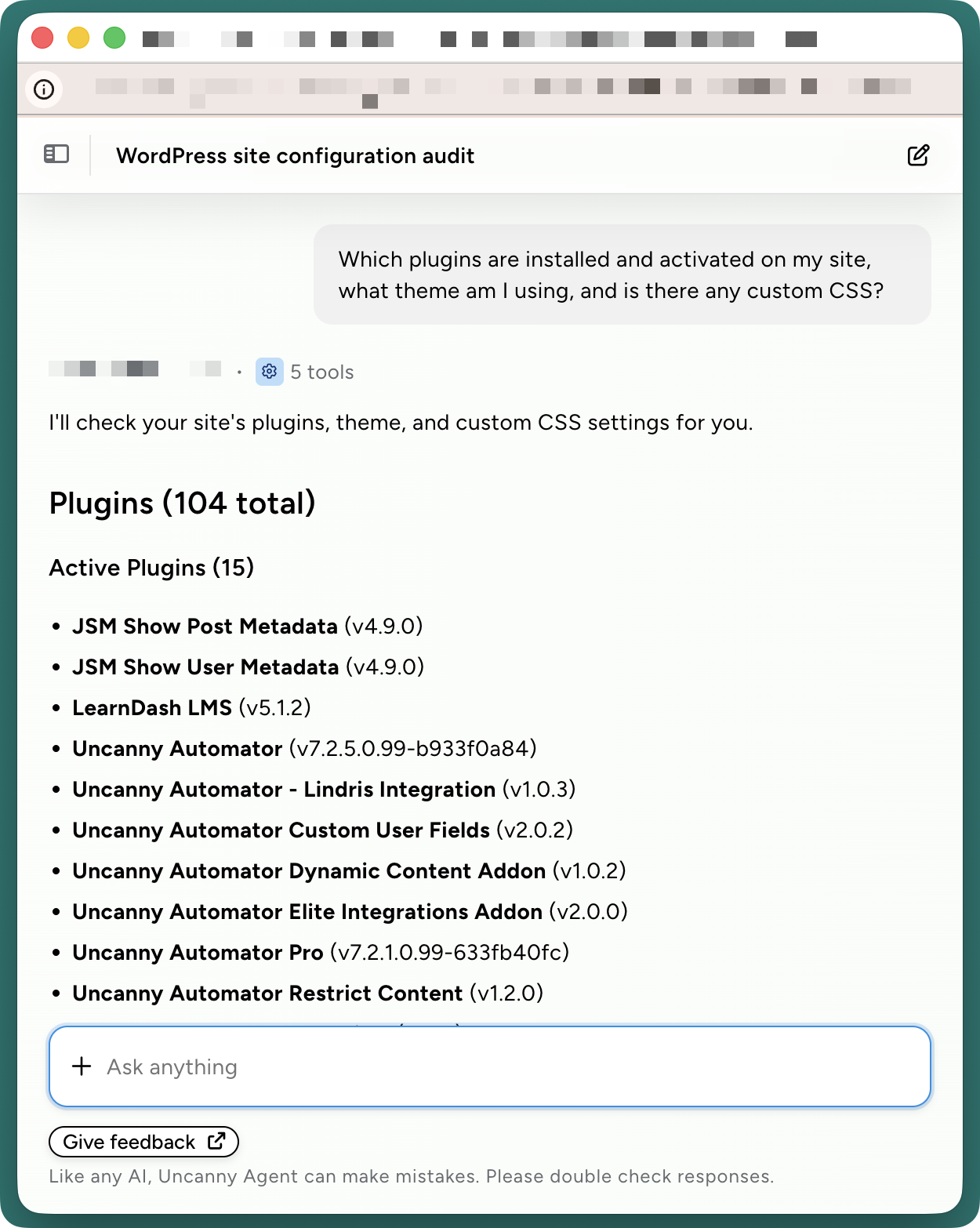
Agent operates within your WordPress site. That means it already understands which plugins are installed, what theme you’re using, if you have any custom CSS, and much more.
You talk to it in plain English; it does the technical audit and investigation for you.
How Uncanny Agent Troubleshoots Plugin Conflicts
Having an AI assistant like Uncanny Agent changes the way that WordPress site owners and developers can manage their sites.
When it comes to resolving plugin conflicts, the work stays more or less the same—except for who is doing it.
Agent still follows many of the same processes for identifying conflicts that a real human would. However, Agent doesn’t need to switch plugins on and off so your site stays functional.
Here are a few types of prompts for troubleshooting plugin conflicts with AI:
- Preemptive Prompts: Before you make plugin, theme, or custom code updates, ask Agent if there are potential conflicts. You might say, “What’s in the new update for my caching plugin? What would the update change and might that create any conflicts with my existing plugins or theme?”
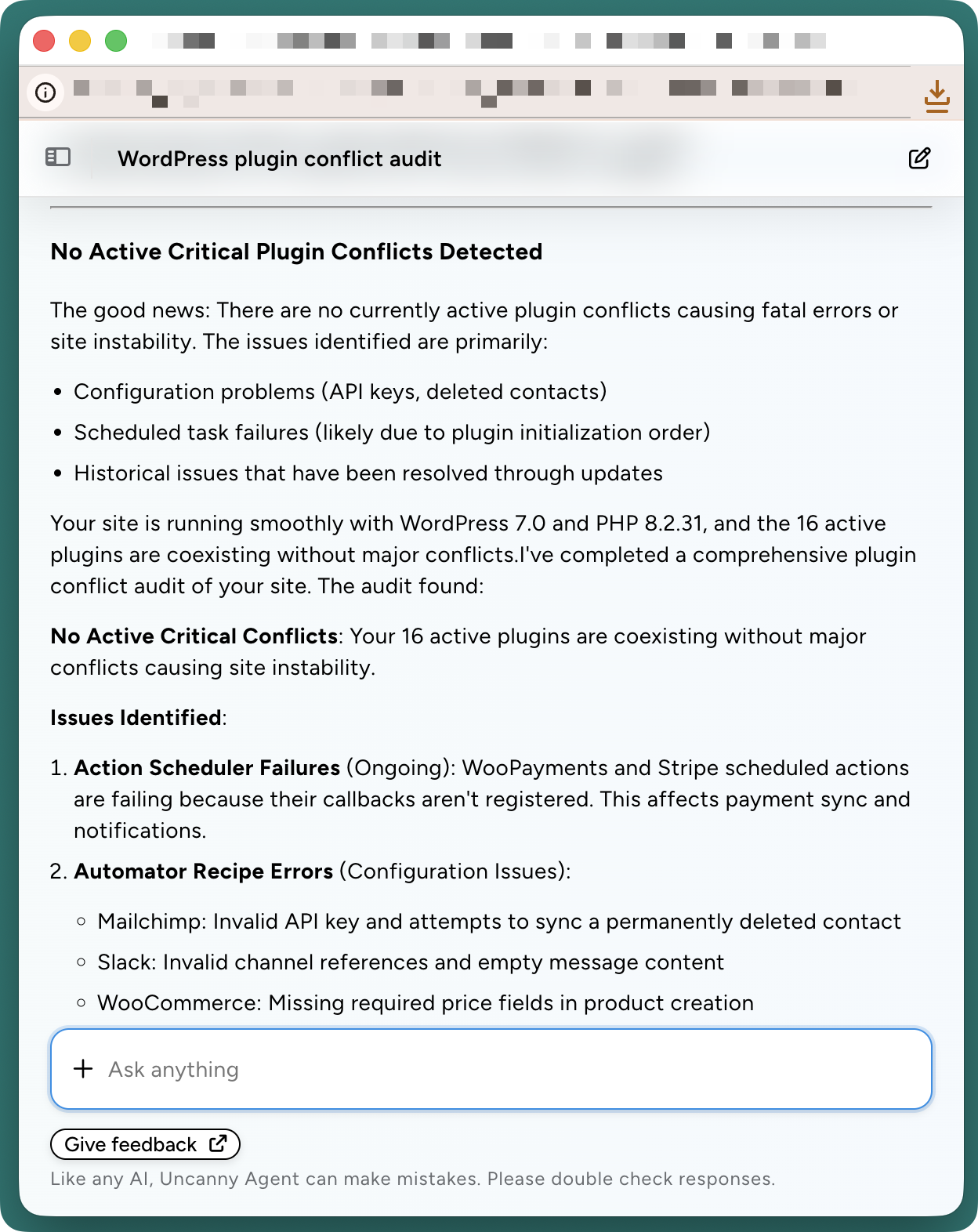
- Operational Prompts: Ask it to look for existing plugin conflicts that might be impacting your site. You could ask, “Perform an audit of my site and identify any existing plugin conflicts and what those conflicts are doing.”
- Diagnostic Prompts: If you’ve already noticed that something isn’t working the way that it should, ask Agent to diagnose the issue. For example, you might say, “I’m not getting notifications when someone submits my WPForms contact form.”
Once you’ve prompted Uncanny Agent—preemptively, operationally, or diagnostically—you’ll get:
- Suggestions: Agent recommends a specific fix and explains why it recommends that fix.
- Implementation (with your approval): Agent can apply most fixes itself or provide you with instructions for fixing the issue if you’d rather a more hands-on approach.
These prompts turn hours or days of work and endless headaches into simple conversations with a knowledgeable and action-oriented assistant.
Troubleshooting a Real WordPress Plugin Conflict with AI
Let’s run through the scenario from the introduction: a contact form that submits successfully but stops delivering notification emails. This is one of the most common WordPress plugin conflicts in the wild, and any number of issues can cause it.
I’ve set up a simple scenario that I ran through on my own staging site as a way to show you Agent in action.
I started by describing the symptom in my own, plain English words:
“I’m not getting notifications when someone submits my WPForms contact form. People who submit the form also aren’t getting confirmation emails.”
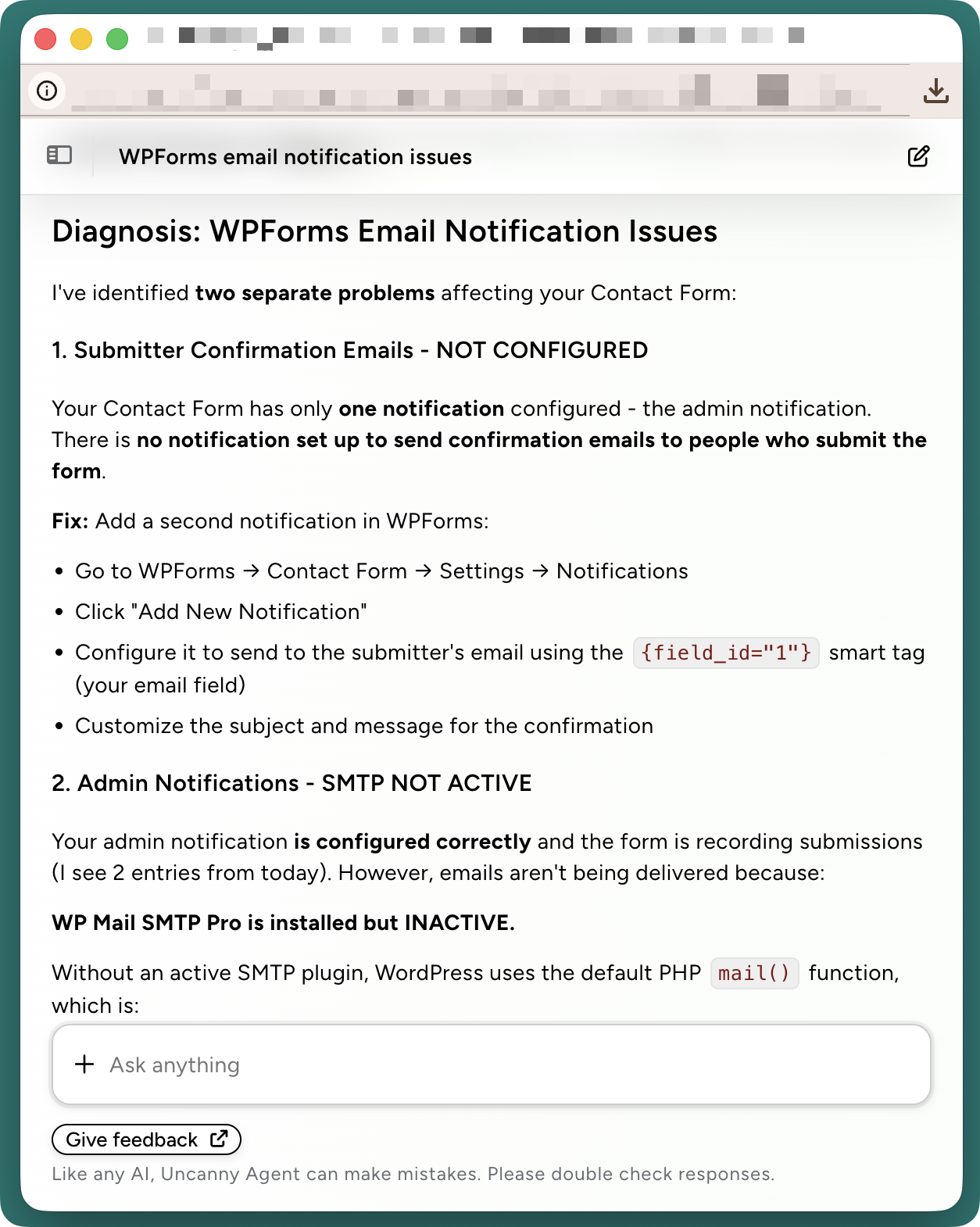
Agent got to work. Within a few minutes, it came back with a diagnosis—two separate problems hitting the same form.My “Contact Form” only had one notification configured (the admin notification); nothing was set up to send confirmation emails to people who filled it out. And WP Mail SMTP Pro was installed but inactive, so WordPress was falling back to PHP’s default mail() function—a method notorious for being blocked by hosting providers and flagged as spam.
I made both fixes that Agent recommended—or, at least, I thought I did, but the emails still weren’t getting sent. So, I pushed back:
“I did both of those things and still no emails are being sent.”
Uncanny Agent investigated what I did and got back to me in a little over a minute.
This time, Agent investigated again and reviewed what I had done. WP Mail SMTP Pro was active, but still using the default mail() function. The plugin hadn’t actually been pointed at a real mailer—no API keys, no SMTP credentials, nothing.
Agent walked me through the mailer options, explained the tradeoffs (Gmail is easiest with one-click setup, SendGrid has a 100-emails-per-day free tier), and asked which one I wanted to set up.
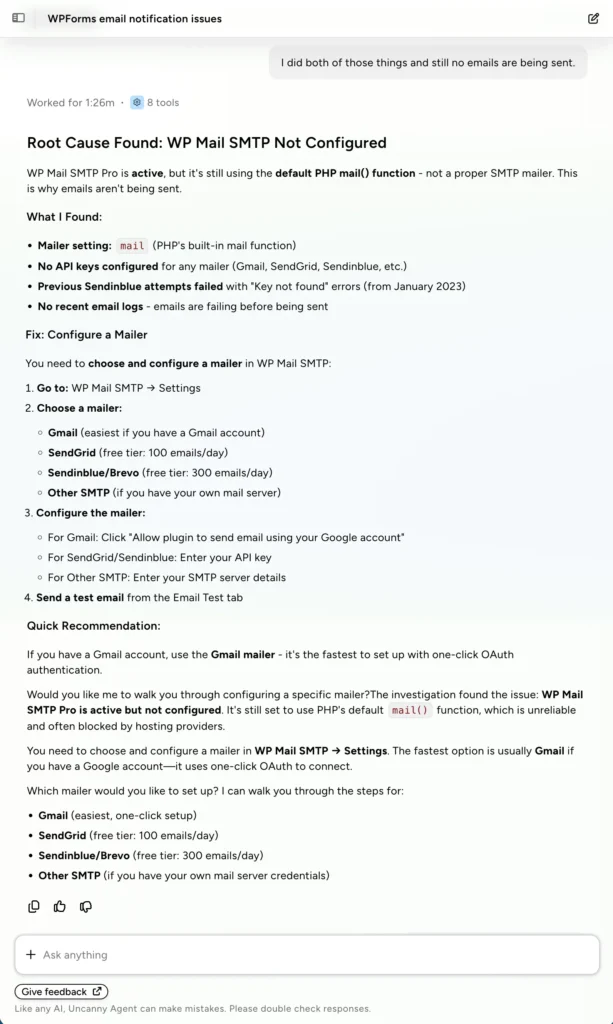
I configured Gmail, tested my contact form submissions, and… still no emails! One more prompt and one minute later, I had my solution.
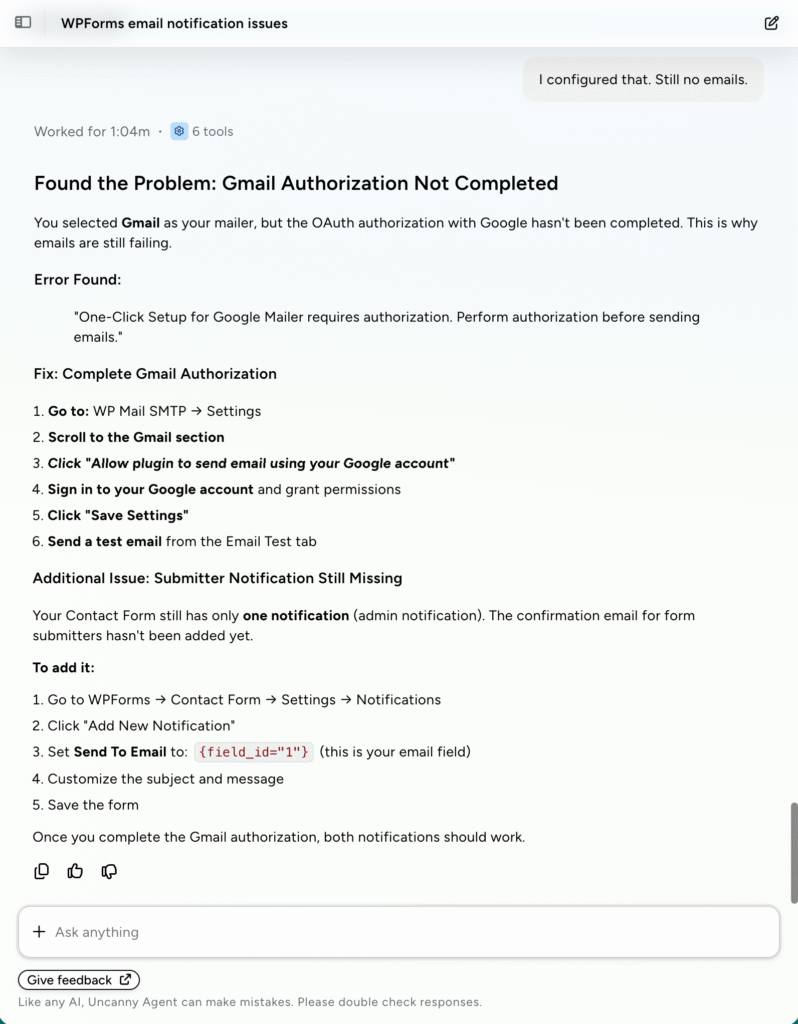
Three simple prompts. Three investigations. Zero plugins deactivated, zero server logs read, and zero support tickets filed.
Now, I didn’t pick this example because configuring email notifications is hard—it usually isn’t. I picked it because it shows how frictionless troubleshooting becomes when Agent does the investigation for you.
Your troubleshooting conversations with Agent won’t look exactly like mine—and that’s really the point. Uncanny Agent knows your site and your plugins. It knows your configuration—down to the last line of code that you’ll never have to read. That’s what makes Agent capable of identifying, investigating, and ultimately fixing the issues plaguing your site.
Stop guessing your way through WordPress plugin conflicts. Get Automator Pro >>>
More WordPress Plugin Conflict Scenarios You Can Troubleshoot with Agent
Missing form submission notifications is only one example. But plugin conflicts come in all kinds of shapes and sizes. Depending on the issues that you’re seeing, try one of these prompts with Uncanny Agent:
- Security plugin blocking emails or APIs: “My transactional emails stopped sending after I updated [security plugin]. What’s being blocked?”
- jQuery or JavaScript conflicts: “My slider stopped working on the homepage. Is something fighting it for jQuery?”
- Page builder vs. form plugin layout: “My Elementor form looks broken on mobile after the last update. What changed?”
- Membership or LMS enrollment failures: “New users aren’t being enrolled in the course after they buy. Which integration broke?”
The pattern is the same every time: describe the symptom, let Agent investigate.
Pro Tips for Preventing WordPress Plugin Conflicts
- Stage updates before applying them to production. Most plugin conflicts surface within hours of an update. A staging environment lets you catch them before your visitors do.
- Keep recipe logs and error notifications turned on. Automator’s built-in error notifications and Recipe Logs give Agent more to work with when something does break.
- Ask Agent for a monthly “plugin health check.” A recurring prompt like “Show me any plugins with errors in the last 30 days” surfaces problems before they cost you leads.
Ready to Stop Wrestling with WordPress Plugin Conflicts?
Maybe it’s 4:47 PM on a Friday and you’re looking forward to the weekend when you notice that a plugin on your site has broken a crucial workflow. You know you can’t just leave it for the weekend.
Without an AI agent like Uncanny Agent, you end up spending the next three hours trying to figure out what went wrong. You eventually throw up your hands and send out a support ticket to the plugin developer. Your weekend is delayed, and your site still isn’t fixed.
With Agent, however, you’re out the door by 5 PM—and a plain English conversation was all it took.
Get Automator Pro with Uncanny Agent for as little as $25/month >>>
What will you do with more time?
Frequently Asked Questions
How do I know if I have a WordPress plugin conflict in the first place?
The most common signs of WordPress plugin failure include: something that used to work has stopped, the site is slower than usual, or a customer reaches out to you to point out that something isn’t working on their end. Instead of waiting for something to break, however, you can ask Uncanny Agent, the AI assistant for WordPress built into Uncanny Automator, “Are there any active plugin conflicts on my site?”
Can Uncanny Agent fix every WordPress plugin conflict automatically?
No, and that’s by design. Uncanny Agent reads your site, identifies likely causes, and suggests fixes—but it only changes anything after you approve. Some conflicts also need a vendor fix; Agent will tell you when that’s the case.
Do I need to be a developer to use AI for plugin conflict troubleshooting?
No. When using AI, such as Uncanny Agent, to troubleshoot plugin conflicts, simply write in plain English. Describe the issues that you’re seeing, ask a question, or provide instructions for a targeted investigation. Uncanny Agent handles the technical side of things for you. If you are a developer, tell Agent and it will go deeper—sharing hook names, log excerpts, and code snippets. It’s your assistant, and it adjusts its depth depending on who is asking.
Will Agent touch my site without permission?
No. Agent never deactivates a plugin, changes a setting, or runs code without your explicit confirmation. Every action is reviewed and approved by you before it happens.

Related Posts


















































Comments (0)