

Looking for the best WordPress page builder in 2026? We compare Elementor, Divi, Bricks, Gutenberg,…
How to Connect WordPress to Your CRM — The Complete Automation Guide
Learn how to connect WordPress to your CRM—HubSpot, Mailchimp, ActiveCampaign, FluentCRM or any other—using no-code recipes from Uncanny Automator.
TLDR? Get the highlights:
- Connecting WordPress and your CRM turns lead capture, segmentation, and follow-up into a single, automated system
- Three integration patterns unlock almost every workflow you’ll ever need: lead capture, contact sync, and behavioral tagging
- Uncanny Automator connects WordPress to HubSpot, ActiveCampaign, Mailchimp, Brevo, FluentCRM, and more—all without writing a line of code
- Copy-paste-able recipes inside this guide cover user registration sync, high-intent lead tagging, progressive profiling, and WooCommerce-to-CRM account creation
- Best practices help you build integrations that scale cleanly and stay compliant from day one
Picture this: a site visitor fills out a one-field exit intent popup and within seconds they are added to your CRM and tagged as “exit intent”.
A few moments later, a soft follow-up email lands in their inbox and they are nurtured through your funnel. Progressive profiling, built from simple site interactions like free downloads, clicks and page visits, lets you personalize their experience. Within weeks to months, the customer is at your checkout counter, adding to their lifetime spend which you are tracking in real-time.
All of that, and nobody touched a thing.
That’s the marketing setup most businesses say they want: leads that capture, segment, and nurture themselves, with humans stepping in only at crucial touchpoints. That’s the marketing setup you can have when you connect WordPress to your CRM—and it’s surprisingly easy to build.
In this guide, I’ll show you how Uncanny Automator integrates the most popular CRMs with WordPress sites and give you some tips for nurturing leads on autopilot.
By the end of this guide, you’ll have connected your WordPress site to your preferred CRM and be well on your way to a fully-automated email marketing system.
Let’s get started.
What a Connected WordPress-CRM Setup Looks Like
When WordPress and your CRM work together as a single system, your marketing operation gets a quiet but significant upgrade. You get:
- Instant lead sync: Form submissions create or update CRM contacts the moment they happen—no exports, no waiting.
- Behavioral context: Leads are tagged automatically based on what they actually do—”downloaded whitepaper,” “attended webinar,” “visited product page three times”.
- Triggered workflows: Follow-up emails, lead scoring updates, and task assignments fire the instant a lead is ready for them
- Single source of truth: Lead data stays consistent across both platforms, with every system seeing the same picture of each contact
For marketing managers, this means cleaner data, faster sales handoffs, and campaign attribution that actually works. For solopreneurs, it means leads that nurture themselves while you focus on delivering the goods.
For every WordPress site, it means email marketing automation that fuels and supports future growth.
Three Ways WordPress Integrates With Your CRM
Almost every WordPress-CRM workflow falls into one of three categories: lead capture, contact and data synchronization, and behavioral segmentation.
Understanding these different types of integrated workflows will help you build smarter, more conversion-ready email funnels.
Lead Capture: Form Submission to CRM Contact
The first step in connecting WordPress to your CRM should be focused on capturing and nurturing leads.
The workflow goes something like this:
- A site visitor fills out a form (Gravity Forms, WPForms, etc.).
- The submission becomes a new (or updated) CRM contact.
- The contact is automatically segmented based on their submitted form fields.
- The contact receives a confirmation email and enters a drip sequence.
Contact and Data Synchronization: Keeping Your CRM Updated
Lead capture is just the start. Once someone is in your CRM, their record should keep evolving to reflect the latest and most accurate information across all of your platforms.
That’s called data synchronization and it is an essential part of creating a smooth customer experience. Whenever a contact completes a purchase, finishes a course, or renews their subscription, take that as an opportunity to update their profile in your CRM.
The information for an email contact that might change over time includes:
- country/state (billing and/or shipping),
- phone number(s) and social media accounts, or
- job title and honorifics.
It might not seem like much, but these changing fields can impact the timing of your campaigns, the channels you use for marketing, and even sales and operations decisions.
Behavioral Tagging: Segment Leads by What They Actually Do
Stated preferences are nice—but behavior is the real tell.
Once you’ve integrated your CRM and WordPress website, on-site activity becomes a powerful option for enriching your segmentation.
This is where you get to build funnels that respond to your customers’ revealed preferences instead of attempting to create one-size fits all campaigns that reach everyone and convert no one.
A fully-integrated WordPress-to-CRM setup lets you tag contacts based on anything that happens on your site, such as:
- course completions,
- content interactions,
- purchase history, or
- event attendance.
With the right automation and integration tool (such as Uncanny Automator) you can even tag your contacts based on custom metrics such as the frequency of logins.
Connect WordPress to HubSpot, ActiveCampaign, Mailchimp, FluentCRM, and More
At the start of this guide, I promised to show you how Uncanny Automator connects your WordPress site to your CRM. This is where the rubber hits the road.
Below are quick-start instructions for integrating WordPress with the most popular CRMs (HubSpot, ActiveCampaign, Mailchimp, and FluentCRM).
Still deciding which CRM is best for your business? Check out our full list of the best CRMs for WordPress websites—who made the list (and who didn’t) will surprise you.
Get started with Uncanny Automator
Whichever is your preferred CRM, to connect it to your WordPress site, you’ll need to have Automator installed. Install and activate Uncanny Automator Lite from the WordPress repository or from your WordPress Admin Dashboard.
Alternatively, get started with Automator Pro to access enhanced marketing automation features such as filters, loops, and powerful addons.
Claim your Pro license. Reclaim your time >>>
- From your WordPress Admin Dashboard /wp-admin/, navigate to Plugins > Add new. In the search bar, enter “uncanny automator” and click Install and Activate. (This installs the free version of Uncanny Automator which must be active to use Automator Pro features.)
- Purchase your Automator Pro license from the Automator pricing page.
- Once purchased, you can download the latest version of Uncanny Automator Pro inside your Automator account.
- After downloading the .zip file, navigate to Plugins > Add New in /wp-admin/. Click the Upload Plugin button, select the Pro .zip file then install and activate the plugin.
- Once activated, be sure to visit Automator > Settings in /wp-admin/ to enter your license key (in your purchase confirmation email).
For a more detailed walkthrough, click here.
WordPress-HubSpot Integration
HubSpot is among the most popular CRMs for WordPress thanks to its generous free tier, easily editable custom fields, and robust API.
Connecting it to WordPress with Automator takes less than two minutes. From your WordPress Dashboard, navigate to:
- Automator > Settings.
- Click the App integrations tab and scroll down to HubSpot.
- Click Connect HubSpot account and follow the prompts as they appear.
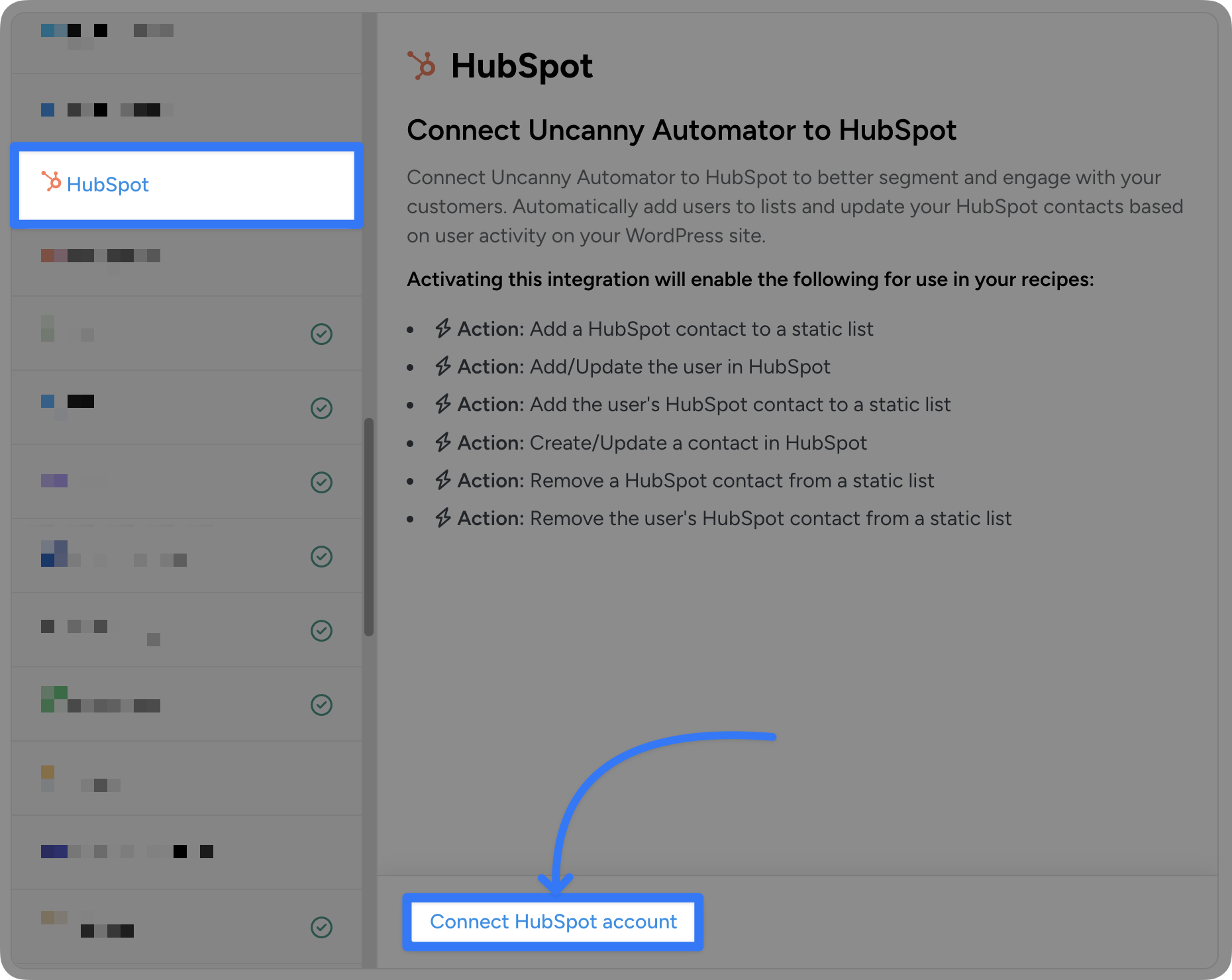
For the full step-by-step walkthrough, read our complete guide to connecting HubSpot to WordPress >>>
WordPress-ActiveCampaign Integration
ActiveCampaign combines CRM, email, and sales automation in one platform. It’s perfect if you want sophisticated marketing automation workflows triggered by WordPress activity.
Connecting ActiveCampaign to your WordPress site is easiest with Uncanny Automator and takes just a few clicks. From your WordPress Dashboard, navigate to:
- Automator > Settings.
- Click the App integrations tab and scroll to ActiveCampaign (it should be at or near the top).
- Click Connect ActiveCampaign account and follow the prompts as they appear.
For the full walkthrough, read our complete guide to connecting ActiveCampaign to WordPress >>>.
For advanced email marketing automations, you can also enable ActiveCampaign triggers, allowing two-way sync between your WordPress site and your CRM.
WordPress-Mailchimp Integration
Mailchimp is ideal for email-first automation, audience segmentation, and newsletter management. Connecting it to WordPress is wonderfully simple with Automator.
From your WordPress Dashboard, navigate to:
- Automator > Settings.
- Click the App integrations tab and scroll to Mailchimp.
- Click Connect Mailchimp account and follow the prompts as they appear.
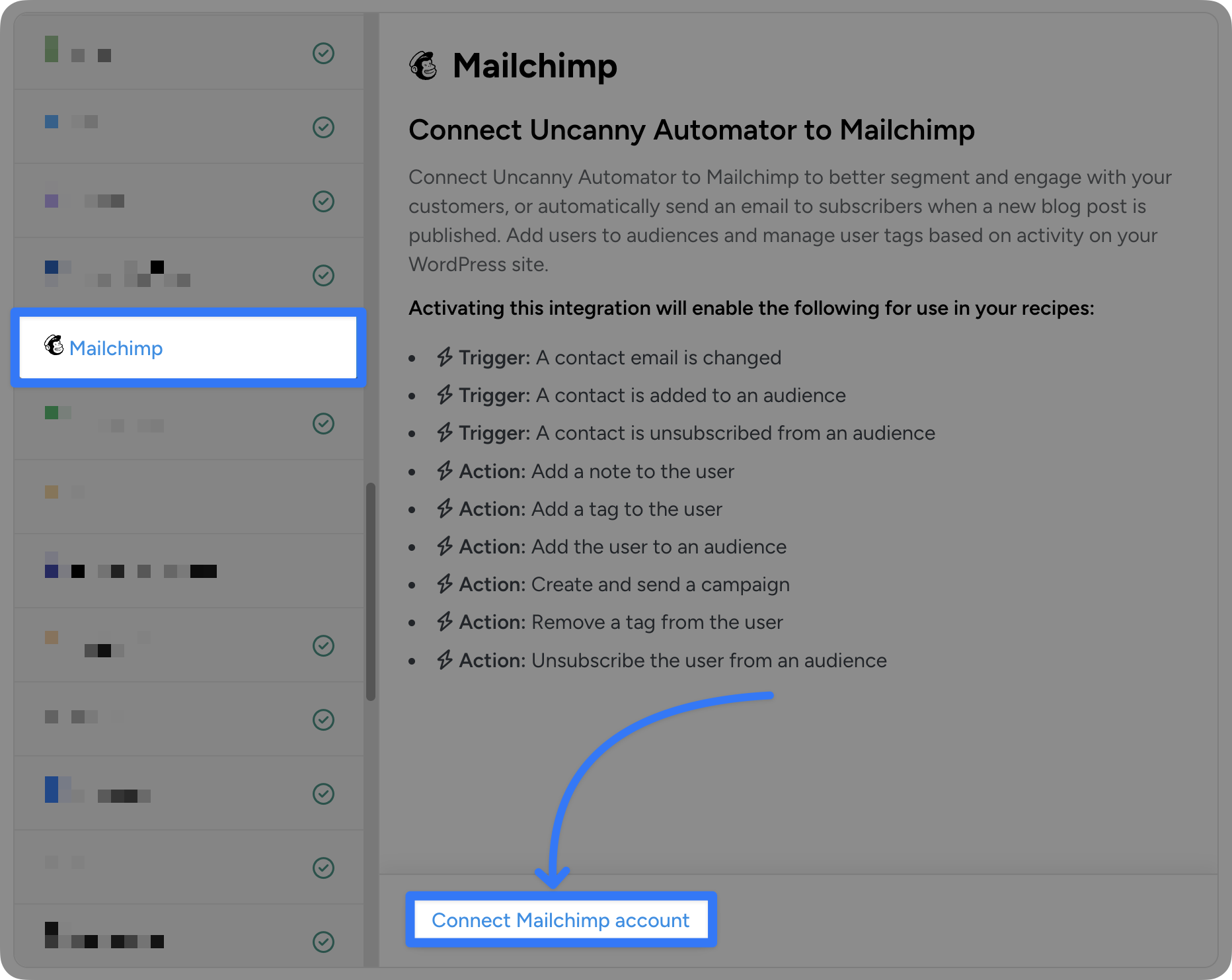
For the full step-by-step guide, read the easiest way to connect Mailchimp to WordPress in four steps >>>.
For advanced email marketing automations, you can also enable Mailchimp triggers, allowing two-way sync between your WordPress site and your CRM.
FluentCRM Integration
FluentCRM is a WordPress-native CRM plugin—meaning your contact database lives inside your WordPress install. Even so, FluentCRM requires a plugin like Automator to connect to your other apps and plugins.
Because FluentCRM lives in your WordPress site, you don’t need to connect your account. From your WordPress Dashboard, navigate to Automator > Add new recipe. You will find FluentCRM already connected in the recipe builder.
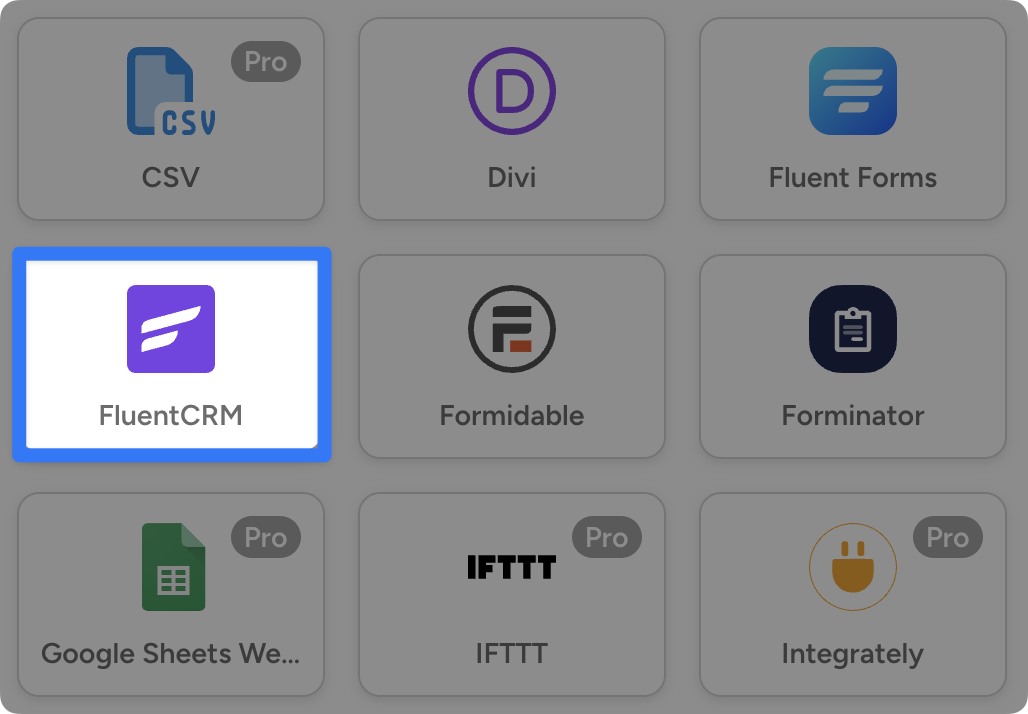
Because FluentCRM lives inside WordPress, no API authentication is required—actions fire instantly with zero latency.
Don’t see your preferred CRM? Find all of the most popular CRMs and email platforms in the full list of 253 integrations.
Creating WordPress and CRM Automations
Now that you have Automator installed and your CRM connected, it’s time to start building some automations that connect them.
Let’s take a look at setting up three recipes (that’s what Automator calls automations) that cover lead capture and nurture, data synchronization, and behavioral tagging.
Lead Capture: WPForms Contact Form to FluentCRM
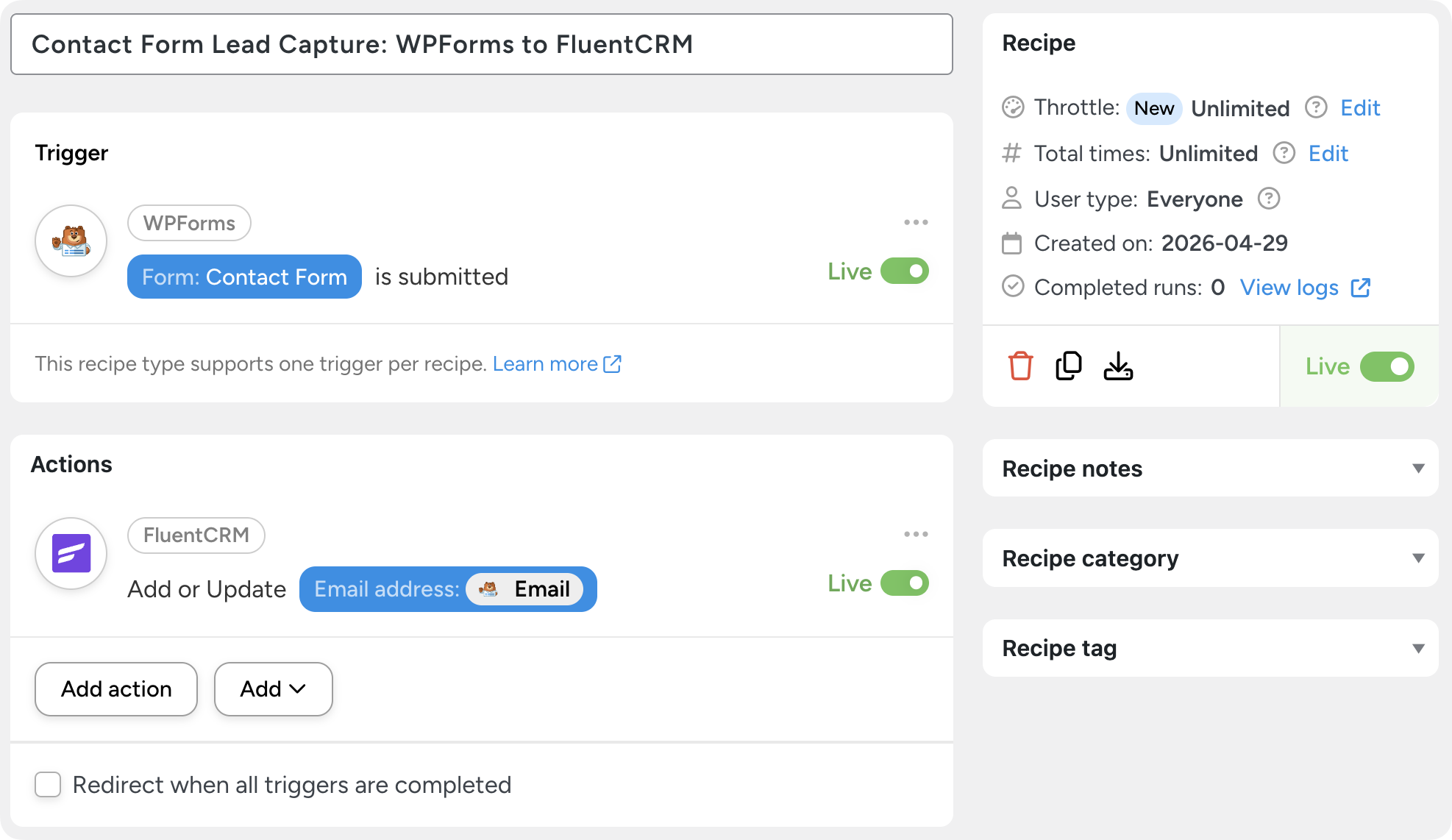
The first recipe that I recommend building to connect WordPress to your CRM is a simple lead capture automation. This one applies universally, even if you’re using a WordPress-native CRM or email platform like FluentCRM.
To recreate the recipe pictured above, follow these steps:
- From your WordPress Dashboard, navigate to Automator > Add new recipe. In the modal that appears, select Everyone.
- Give your recipe a name that makes it easy to recognize at a glance. For example, I have named this recipe “Contact Form Lead Capture: WPForms to FluentCRM”.
- In the Triggers panel, select WPForms (or your preferred form-building plugin). From the dropdown list that appears, select A form is submitted. Select your form and click Save.
- In the Actions panel, click Add action and select FluentCRM. From the dropdown list that appears, select Add or Update a contact.
- Automator will present you with a set of fields. In the Email field, select the “Email” token from the WPForms trigger. Fill out the remaining fields as desired and click Save.
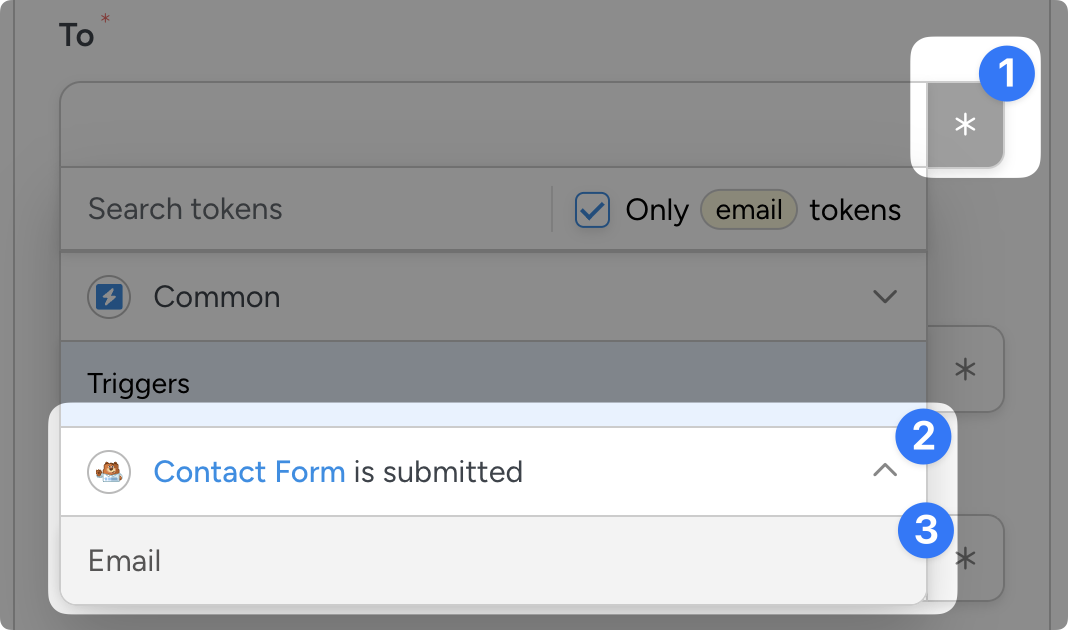
That’s it! All you have to do is toggle the recipe from “Draft” to “Live”.
Data Sync: User Registration to CRM with Lead Source
Contact list health is a product of data synchronization—as is the quality of your customers’ experience. Keeping your contact list fresh and current is less about building specific recipes and more about building them right.
To make sure that fields like “Country” and “Phone Number” stay accurate, build recipes like this one:
- From your WordPress Dashboard, navigate to Automator > Add new recipe. In the modal that appears, select Logged-in users.
- Give your recipe a name that makes it easy to recognize at a glance. For example, I have named this recipe “Data Synchronization: Update HubSpot Contact Information”.
- In the Triggers panel, select Woo. From the dropdown list that appears, select A user purchases a product. Set the Trigger condition and Product the click Save.
- In the Actions panel, click Add action and select HubSpot. From the dropdown list that appears, select Create/Update a contact in HubSpot.
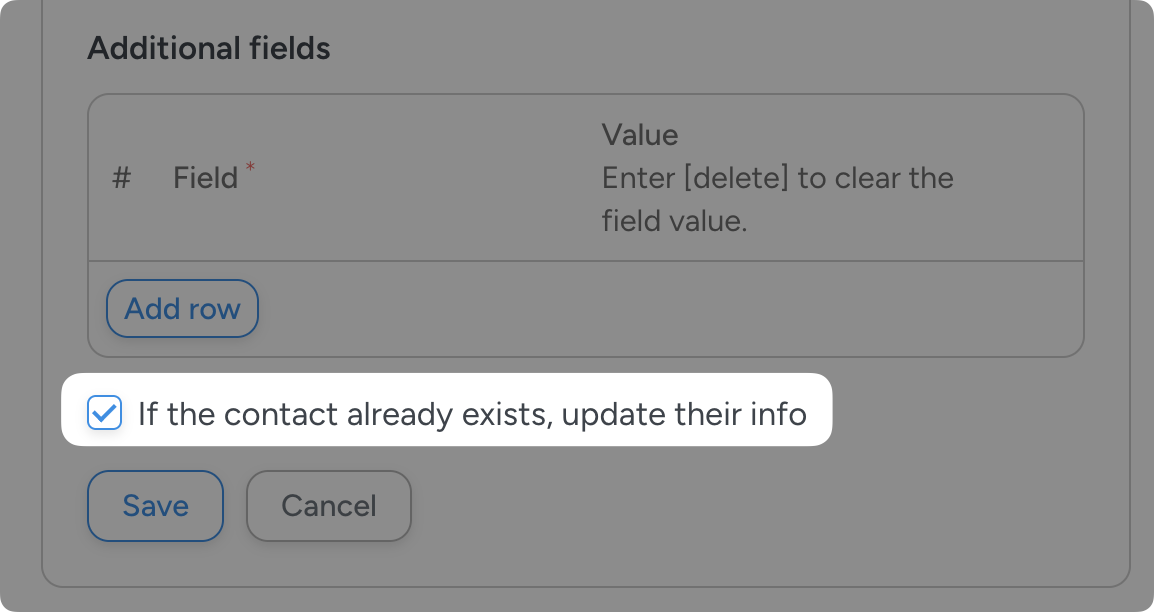
- Automator will present you with a set of fields. In the Email field, select the “Email” token from the Woo trigger. Fill out the remaining fields as desired.
Before clicking Save, make sure that you have checked the box “If the contact already exists, update their info”.
Behavioral Tagging: Build Segments That Matter
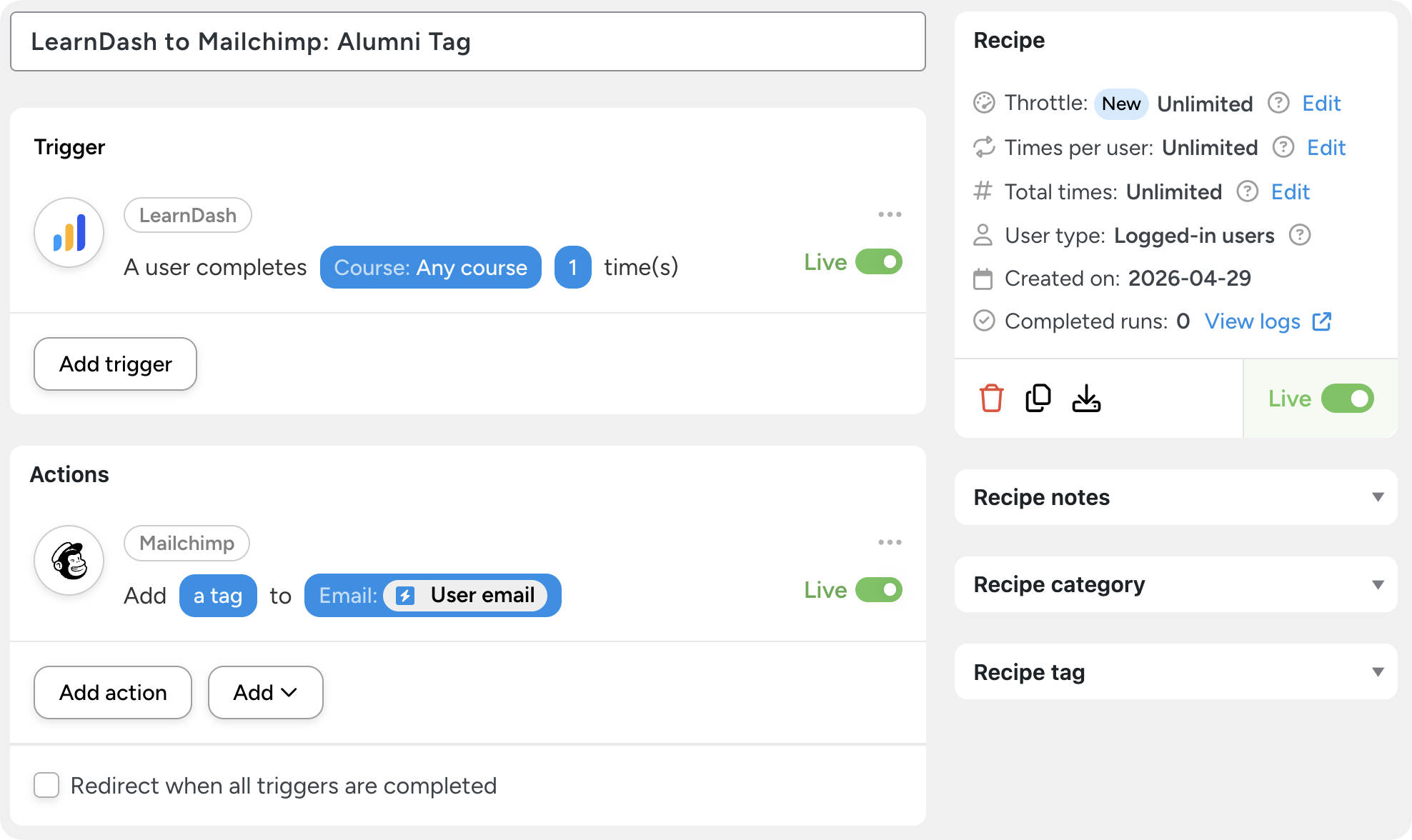
Tags and segments are usually not static. Tags change as your products and services do. Segments adapt to changing funnels and consumer habits. By integrating your CRM with WordPress, you can create tags and edit lists nimbly.
For CRMs like Mailchimp, Automator lets you create tags on the fly so you can create segments based on what your customers are actually doing. For example, in the recipe pictured above, I can add a tag to my contacts in Mailchimp when they complete a LearnDash course.
Alternatively, you can use Automator’s Loops to retroactively apply tags to all of your contacts based on their purchase history.
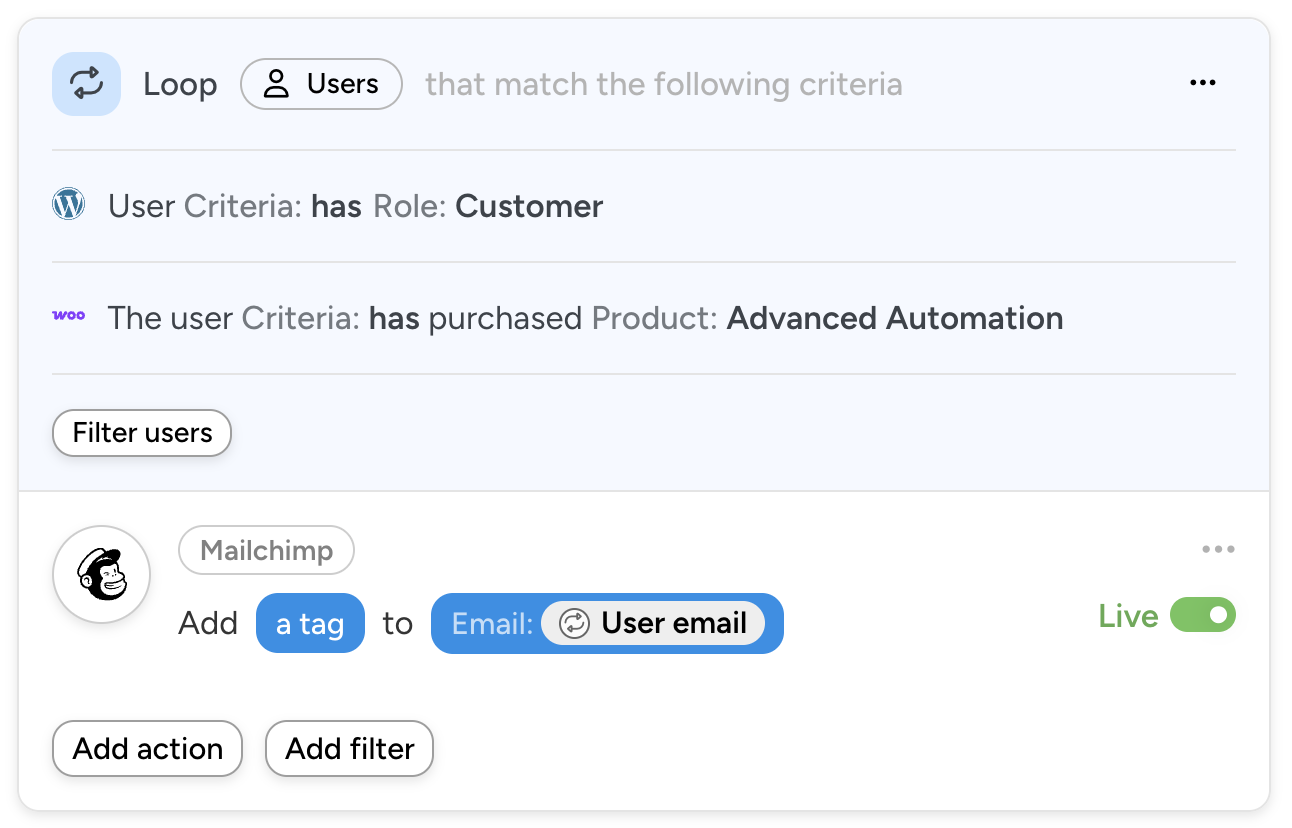
Create more recipes like these to capture more leads, build better segments, and keep your email list healthy.
Best Practices for Integrating Your CRM With WordPress
Connecting WordPress to your CRM was the easy part. To make sure that it stays easy, I’ve put together some best practices so that your setup scales gracefully as your business grows.
Make sure to apply these principles before creating too many recipes so you can handle more contacts and more complexity in the future.
1. Use Email as Your Unique Identifier
Email is the universal key across WordPress users, form submissions, and CRM contacts. Map email correctly in every recipe using tokens, and turn on your CRM’s native duplicate detection rules. When configuring CRM actions in Automator, choose “update if exists” options where available—this prevents duplicate contacts when the same person fills out multiple forms over time.
2. Test Every Recipe Before You Trust It
Before taking your hands off the wheel, make sure your new WordPress-to-CRM engine is pointed in the right direction. Test every recipe with dummy data. Submit a fake form, register a test user, place a test order. Then check Automator’s recipe logs (under Automator > Logs) to verify each action ran successfully and that field values mapped correctly to your CRM.
This is a good time to check potential conflicts like date and time formats. If you run into a conflict, check out Automator’s Formatter integration for help.
3. Use Filters, Delays, and Loops for Real-World Workflows
Real workflows—especially lead-nurture related workflows—are rarely as straightforward as one trigger and one action.
They have edge cases, timing requirements, and bulk operations. Automator Pro’s filters, delays, and loops let you handle these without writing custom code:
- Filters skip actions when conditions aren’t met (e.g., only sync if order value > $100)
- Delays stagger follow-ups (e.g., wait three days after signup before triggering a re-engagement email)
- Loops run actions across many records (e.g., re-tag every WooCommerce customer who bought a specific product)
Read more about advanced Automator features.
4. Plan for GDPR and CCPA From Day One
If you’re collecting lead data, you’re collecting personal data—and that means you need a deletion plan.
Automator can help you delete user data from your WordPress site (and some CRMs) when a deletion request comes in. You can also use Automator to tag the contact with a deletion request in your CRM for follow-up review and processing.
5. Choose a Single Source of Truth
For every contact field, decide which system is the master: WordPress or your CRM. If a customer changes their phone number in their WordPress account, does that update flow to the CRM? If your sales team updates a CRM custom field, does that flow back to WordPress?
For most setups, your CRM should be the source of truth for contact and engagement data, while WordPress is the source of truth for site-specific behavior (purchases, course progress, membership status).
Automator’s Custom User Fields addon makes WordPress a viable source of truth when you need it.
Final Thoughts and Next Steps
When WordPress and your CRM work together as one system, your marketing operation runs on a different level. Lead capture is instant. Segmentation is automatic. Follow-ups happen the moment a lead is ready for them. And your team gets to spend their time on the work that actually moves the needle—strategy, creativity, and conversations with the leads that are ready to buy.
Start with one recipe: connect your most important contact form to your CRM and test it with a dummy submission. Once that’s running, layer in tags, conditional logic, and progressive profiling. Within a week, you’ll have an integration that rivals the most expensive marketing automation platforms—and it’ll run from inside WordPress, where the rest of your business already lives.
Ready to build it? Download Uncanny Automator Lite for free and pick your CRM integration guide above.
What will you do with more time?
Frequently Asked Questions
How do I choose which CRM to connect to WordPress?
Start with the tools you already use. If your sales team lives in HubSpot, connect HubSpot. If your business is email-first, Mailchimp or Brevo are easy entry points. If you want a CRM that lives entirely inside WordPress (with no external API dependencies), FluentCRM is the most natural fit. For a deeper comparison, check out our roundup of the best WordPress CRM platforms.
Will I lose existing CRM data when setting up these automations?
No. The recipes in this guide only add or update contacts moving forward. Your existing CRM data stays untouched. If you want to backfill historical WordPress data into your CRM, you can build a separate one-time recipe using Automator’s User Loops feature.
What if a contact already exists in my CRM?
Configure your recipe to “update if exists” instead of “create.” Almost every CRM action in Automator has this option. It prevents duplicates and keeps records current as the same lead engages with you across multiple forms and pages.
Can I sync data back from my CRM to WordPress?
Yes—Automator has triggers for many CRMs including Mailchimp and ActiveCampaign. Beyond that, Automator supports incoming webhooks, which means your CRM can push contact updates back to WordPress in real time from just about any platform. Most native recipes focus on WordPress → CRM because that’s the most common direction, but two-way sync (or bi-directional sync) is fully supported using webhook triggers.
Do I need to manage API keys?
For external CRMs like HubSpot, ActiveCampaign, Mailchimp, and Brevo, you’ll connect once via API key or OAuth. Automator stores these credentials securely in your WordPress install. FluentCRM requires no API key at all since it lives inside WordPress.

Related Posts





















































Comments (0)