

When an AI connection fails, the message tells you where it stopped: while you connect your site at mcp.automatorplugin.com, on your site’s WordPress approval page, while you add Uncanny Automator to your AI app or approve it, or later while your AI works on the site. This article lists the messages in that order, quoted as they appear, with what each one means and what to do.
Words in italics inside a message stand for a value that changes, such as a site address or a number. Many messages end with “Reference:” and a code. Keep that code: it is what support needs to find the failure.
Note: This article is about connecting AI apps such as ChatGPT or Claude to your site. For the AI integrations in recipes, where you add an OpenAI, Anthropic, Google Gemini or Perplexity API key, see Connecting Anthropic to WordPress.
Check these first
Most failed connections come down to one of these:
- Uncanny Automator 8.0.0 or newer is installed and active on the site.
- The site’s address starts with
https://and the site is reachable from the internet. A local development site can’t connect. - The same Uncanny Automator account is linked to the site in WordPress and signed in at mcp.automatorplugin.com, using the license the site is activated on.
- You approve in WordPress as an administrator.
- Your AI app uses the server URL exactly:
https://mcp.automatorplugin.com/mcp.
The full journey is in Connect your AI to your WordPress site.
Connecting your site
These messages appear at mcp.automatorplugin.com while you sign in, choose your site and send it to WordPress for approval. When the connection stops with an error, the page heading reads “We couldn’t connect your site”, with Try again and Go to Uncanny Automator buttons below the message.
Signing in and finding your site
| Message | What it means | What to do |
|---|---|---|
| “Sign-in didn’t go through.” “Select Connect now to try signing in again. If it still fails, try again later.” | The automatorplugin.com sign-in didn’t finish. | Click Connect now and sign in again. |
| “This site needs a public address” “Uncanny Automator needs to reach your WordPress site over the internet to connect it.” | The site’s address is a local one, such as a .local site on your computer. |
Connect a site that is online at a public HTTPS address. For a development site, ask your developer to set up a secure HTTPS tunnel, then open Connect your AI in WordPress from that address. |
| “Check this site’s license” “We couldn’t find this site on the license you’re using here.” | You’re signed in with a different account, or using a different license, from the one the site uses. | In WordPress, go to Automator > Settings > General > License and compare the license key or the Account email with the one shown in the dialog. Then use Switch license or Sign in with another account, and click Check again. |
| “We couldn’t confirm whether this site is on this license. Try again, or choose a site from your list.” | The license check didn’t answer. | Click Try again, or choose the site from Your sites. |
| “No sites activated on this license yet” or “Activate this license on your WordPress site” | No site has linked this account or activated this license yet. | In WordPress, go to Automator > Dashboard and click Link account, or enter a Pro license key under Automator > Settings > General > License. Then click Refresh sites. See Connecting your site with a free Uncanny Automator account. |
| “We couldn’t load the sites on this license.” or “We couldn’t refresh the sites on this license. This list is from the last successful check. Use Refresh sites to try again.” | The list of sites on your license didn’t load. | Refresh the page or click Refresh sites. If it keeps happening, try again later. |
| “We couldn’t load the sites linked to your license. Try again. If this keeps happening, sign out and sign back in.” | The same, from the site list itself. | Try again, then choose Log out and sign in again. |
| “Only the first 200 licenses could be checked. Some of your sites may be missing.” | Your account has more licenses than the page checks. | Use Switch license to choose the license the site is activated on. |
| “Sign in again to see your sites” “Your Automator sign-in needs to be renewed. Your site connections and AI app approvals are kept.” | Your sign-in at mcp.automatorplugin.com has expired. Nothing was disconnected. | Click Sign in again. |
| “There’s no license to choose from. Licenses that have expired don’t show here.” | Your account has no active license to use. | Renew the license at automatorplugin.com, or link the site to a free account. |
| “We couldn’t switch your license.” “Please try again.” | Switching license didn’t finish. | Try again from Switch license. |
Before WordPress opens
When you click Continue to WordPress or Connect, Uncanny Automator first checks that it can reach your site. These messages mean that check failed. During this step a message can start with “The site’s WordPress connection check failed.”
| Message | What it means | What to do |
|---|---|---|
| “AI apps can’t connect while this site’s address starts with http://. In Settings › General, change WordPress Address (URL) and Site Address (URL) to start with https://.” (shown in WordPress on MCP settings > Connections) | The site’s address uses http://. AI apps can only connect over HTTPS. |
Change both addresses under Settings > General. If the address is set in the site’s configuration, or the site is on a multisite network, the message names who can change it: your host, your developer or a network administrator. |
| “This connection requires Uncanny Automator 8.0.0 or later. Update the plugin on your site, then try again.” | The site runs an older Uncanny Automator. | Update Uncanny Automator (and Uncanny Automator Pro, if installed) under Plugins, then connect again. |
| “We couldn’t find a supported version of Uncanny Automator on your site. Update it to 8.0.0 or later, then try again.” | The site didn’t report a version Uncanny Automator recognizes. | Check that Uncanny Automator is active and up to date, then connect again. |
| “Your site is missing a WordPress feature that Uncanny Automator needs. Update WordPress and Uncanny Automator to their latest versions. If that doesn’t fix it, another plugin may be interfering: ask your developer or contact Automator support.” | The site’s WordPress doesn’t offer abilities, which the connection needs. | Update WordPress and Uncanny Automator. If the message stays, deactivate other plugins one at a time to find the one interfering. |
| “Cloudflare’s security check blocked the connection. Ask your host or site administrator to allow Uncanny Automator’s connection requests, then try connecting again.” | Cloudflare in front of your site challenged the request. | Ask whoever manages Cloudflare to allow Uncanny Automator’s requests. The addresses it connects from are listed at mcp.automatorplugin.com/allowlist. |
| “Your site didn’t allow the connection. Ask your host or site administrator to check the site’s access rules and allow Uncanny Automator’s connection requests.” | The site or its host refused the request. | Ask your host to check firewall and access rules for Uncanny Automator’s requests. |
| “Your site returned a web page instead of connection details. A login page or security check may be blocking access. Ask your host or site administrator to check that Uncanny Automator’s requests can reach the site.” | A login page, maintenance page or security plugin answered instead of WordPress. | Check for a maintenance or coming-soon mode, a login wall or a security plugin blocking the WordPress REST API. |
| “Your site redirected the connection request. Ask your host or site administrator to check the site address and any login or security rules that may be redirecting Uncanny Automator’s requests.” | The request was sent somewhere else, often because the site’s address changed. | Check the addresses under Settings > General and any redirect rules. |
| “Your site may be offline or slow to respond. Check that it’s working, then try again. If the problem continues, ask your host to look into it.” | The site didn’t answer. | Open the site in a browser. If it loads, try again; if not, contact your host. |
| “We couldn’t connect to your site. Check that it’s publicly reachable over HTTPS and that Uncanny Automator is active and up to date. Your host or site administrator can check for security rules blocking Uncanny Automator.” | The site couldn’t be reached for one of the reasons above. | Work through the checks at the top of this article. |
| “Could not reach the WordPress API: provider blocked the request before WordPress answered. Ask the site administrator or host to allowlist the IP addresses Uncanny Automator connects from, listed at https://mcp.automatorplugin.com/allowlist, in provider, then try again.” | A firewall (Wordfence, Imunify360 or Sucuri) blocked the request. | Allowlist the addresses from mcp.automatorplugin.com/allowlist in that firewall. |
| “Could not reach the WordPress API: provider returned a security challenge.” followed by advice for that provider and “A browser CAPTCHA cannot authorize this server request.” | Cloudflare, AWS WAF or SiteGround asked for a human check, which a server request can’t pass. | Follow the advice in the message: allow Uncanny Automator’s requests in the firewall, or ask SiteGround support to allowlist the addresses. |
| “Your site is limiting connection attempts. Wait about number minutes, then try connecting again.” (or “Wait number seconds” or “Wait a few minutes”) | Your site refused more connection attempts for a while. | Wait the time shown, then connect again. |
| “Too many connection attempts. Wait a minute and try again.” | You started several connections in a short time. | Wait a minute, then try again. |
| “Connecting sites isn’t available right now. Try again later.” | The hosted connection is temporarily unavailable. | Try again later. |
On your site’s WordPress approval page
The approval page on your site is headed Connect this WordPress site?. Your site shows its own error page instead when it can’t open or save the approval. The heading reads “The app could not connect”, followed by what happened, the next step and a reference such as UA-MCP-308. The next step is usually “Go back to the app and select Connect again.”, which here means going back to mcp.automatorplugin.com and connecting the site again.
| Message | What it means | What to do |
|---|---|---|
| “An administrator must approve this connection” “This WordPress account cannot approve app connections. Sign in with an administrator account to continue.” | You’re signed in to WordPress as a user who isn’t an administrator. | Click Sign in as an administrator. |
| “Apps cannot connect to this site right now.” with a reason such as “OAuth authorization requires HTTPS.” | The site isn’t set up to accept AI connections, usually because of its http:// address. |
Follow the reason on the page, then connect again. |
| “This site received too many connection attempts in the last minute.” | The site limits approval attempts. | Wait a minute, then connect again. |
| “This site could not save a security check.” | WordPress couldn’t store the approval’s security check. | Try again. If it continues, ask your host to check the WordPress database and object cache. |
| “This approval page expired or was opened by a different account. Approval pages work for 10 minutes.” | The approval page was open too long, or you approved as a different WordPress user than the one who opened it. | Connect the site again and approve within 10 minutes. |
| “This approval was already submitted.” | The page was submitted twice, for example after going back in the browser. | Check the Connections page at mcp.automatorplugin.com; connect again if the site isn’t connected. |
| “This site does not recognize the app that sent you here.” (sometimes with “This app’s registration is not on this site.” or “This site could not download the app’s public description from the app’s address. Check that this site can make outbound HTTPS requests.”) | The connection request didn’t match a registration on the site. | Connect again from mcp.automatorplugin.com. If the second reason shows, ask your host to allow outbound HTTPS requests from the site. |
| “The app’s return address does not match its registration on this site.” | The request’s return address changed. | Connect again. |
| “This app’s registration was disconnected on this site.” or “This app’s registration expired before the approval was saved.” | The registration was removed under MCP settings > Connections, or it timed out. | Connect again. |
| “This site was busy with another request for this app.” | Two approvals ran at the same time. | Connect again. |
After you approve in WordPress
When WordPress sends you back, the Connections page shows the result at the top. “site is connected.” means it worked. Anything else is listed here.
| Message | What it means | What to do |
|---|---|---|
| “The connection was declined in WordPress. Connect the site again to retry.” or “The connection was cancelled on your site. Connect again when you’re ready.” | Cancel was clicked on the WordPress approval page. | Connect again and click Approve connection. |
| “Finish approving the connection in WordPress, then return here and refresh this page.” | The approval in WordPress hasn’t happened yet. | Approve in the WordPress tab, then refresh. |
| “We’re still finishing the connection. Refresh this page in a moment.” | The connection is being saved. | Wait a moment and refresh. |
| “The connection didn’t finish in time. Connect the site again.” or “Site connection was not completed. Try Connect again.” | The approval wasn’t completed. | Connect again. |
| “We couldn’t check the connection result. You can still manage your sites below.” | The result didn’t load. | Check the site’s status in the Sites list. |
| “Your site refused the connection request. Check Automator › Settings › MCP settings › Authentication log on the site, then connect again.” (sometimes with a code in brackets) | The site rejected the request after you approved it. | Open Automator > Settings > MCP settings > Connection log (the message’s “Authentication log”) and read the newest entry, then connect again. See Check the Connection log below. |
| “Your site approved the connection, but finishing the sign-in failed. Check that Uncanny Automator is active and up to date on the site, then connect again.” The same wording appears for “couldn’t read the site’s details”, “couldn’t read the site’s tools” and “couldn’t read the tools for connected AI apps”. | You approved, but the site didn’t complete one of the steps after approval. | Update Uncanny Automator and any addons together, then connect again. If it repeats, check the Connection log. |
| “Your site took too long to finish the connection. Check that the site is responding, then connect again.” | The site was too slow after approval. | Check the site loads normally, then connect again. |
| “The connection was interrupted before it finished. Connect again.” | The connection stopped partway. | Connect again. |
| “Your site no longer recognizes this connection request. Connect again to start fresh.” | The site’s record of the request was removed. | Connect again. |
| “Your site approved the connection, but saving it failed on our side. Connect again. If it keeps failing, contact support with this reference.” | The hosted service couldn’t save the connection. | Connect again. If it fails again, contact support with the reference. |
| “Your sign-in has expired. Go back to Uncanny Automator or your AI app and connect your site again.” | Your mcp.automatorplugin.com sign-in ran out during the approval. | Sign in again and connect again. |
| “We couldn’t verify this request. Go back to Uncanny Automator or your AI app and try again.” or “We couldn’t finish connecting your site. Go back to Uncanny Automator or your AI app and connect it again.” | The approval came back in a different browser session, or couldn’t be matched to one. | Start again from mcp.automatorplugin.com in one browser. |
A site that was connected before can later show Reconnect needed in the Sites list, which means the site no longer accepts the saved connection. Click Reconnect and approve again; see Manage and remove AI connections.
Adding Uncanny Automator to your AI app
These come from the AI app itself, before mcp.automatorplugin.com opens. Each app’s article has the full steps.
| What you see | What it means | What to do |
|---|---|---|
| Claude shows “You’re not connected to Uncanny Automator yet.” after you add the connector. | The connector is added, but you haven’t approved it yet. | Click Connect on the connector’s page. The approval page at mcp.automatorplugin.com opens. |
| Claude says “A connector with this URL already exists in your organization…” | On a Team or Enterprise plan, the Uncanny Automator connector is already added for your organization, so a second copy is refused. | Open the existing Uncanny Automator connector under Customize > Connectors and click Connect. |
| ChatGPT opens a Connect Uncanny Automator dialog after Create as a plugin. | This is a normal step: ChatGPT asks before it sends you to sign in. | Click Connect Uncanny Automator. |
| Gemini’s Connected Apps page has no Custom apps section, and no message says why. | Your Google account can’t add custom apps. Work and school accounts, such as a Google Workspace account, may not show the option, and Google also requires a personal account in the US. | Use a Google account that meets Google’s requirements; see Connect Gemini to your WordPress site. |
| Perplexity’s Add custom menu shows only Upload plugin or skill, Create skill with Computer and Import plugin from GitHub. | Your Perplexity plan can’t add custom connectors. They need Pro, Max or Enterprise. | See Connect Perplexity to your WordPress site for the plan requirements. |
Approving your AI app
When your AI app sends you to mcp.automatorplugin.com to sign in, you approve it on a page that asks “Connect app to your WordPress sites?”. If that page can’t open or save, you see one of these messages instead. Most have a Try again button.
| Message | What it means | What to do |
|---|---|---|
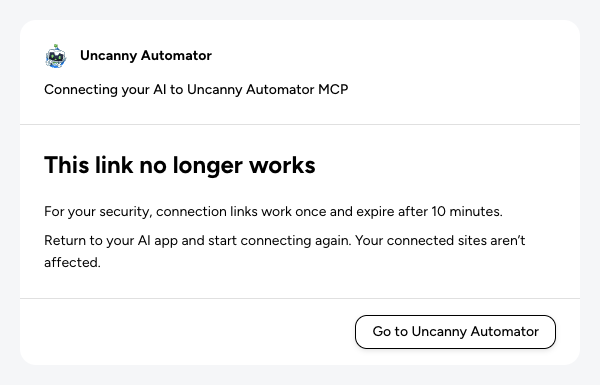
| “This link no longer works” with “For your security, connection links work once and expire after 10 minutes.” or “The link may be incomplete or out of date.” | The sign-in link from your AI app was used already, is older than 10 minutes, or was cut short. | “Return to your AI app and start connecting again. Your connected sites aren’t affected.” |
| “This AI app needs to be set up again. In your AI app, remove Uncanny Automator, add it again, then connect.” | The AI app’s registration with Uncanny Automator is gone. | Remove Uncanny Automator from the AI app’s connector settings and add it again with the server URL. |
| “This AI app could not be identified. Ask its developer to check its registration, then reconnect.” | The app’s details don’t match a known return address. | For a developer tool, check its OAuth settings; see Connect another AI app or developer tool. |
| “We couldn’t finish connecting your AI app” with “Your sign-in has expired or this page is out of date. Select Try again.” or “Something went wrong. Select Try again.” | The approval couldn’t be saved. | Click Try again. |
| “This page is out of date. Select Try again to review the request.” or “The sites on this page changed while it was open. Select Try again to review them, then approve.” | The list of sites changed after the page opened, so it was shown again rather than approved unseen. | Click Try again, review the sites, and approve. |
| “We couldn’t confirm the sites on your current license. Select Try again.” | The license’s site list didn’t load. | Click Try again. |
| “Connect a WordPress site first, then approve. Your AI app gets its tools from your sites.” or “No sites are connected yet. Connect one below to approve this connection. Your AI app gets its tools from your sites.” | No site is connected on your current license, so Approve connection is unavailable. | Click Connect beside a site on the same page and approve it in WordPress. You return with “Your site is connected. Select Approve connection to finish.” |
| “Connect a WordPress site first” “No WordPress sites are activated on your current license.” | No site on this license is linked yet. | Follow the steps in the message: install Uncanny Automator, click Link account under Automator > Dashboard (or activate your Pro license), then refresh the page. |
| “Only sites activated on this license are shown. For sites on another license, switch license in your account, then connect your AI app again.” | The site you expected is on a different license. | Choose Switch license in the account menu, then start connecting from your AI app again. |
| “We couldn’t load the other sites on your current license. Refresh this page to try again.” or “We couldn’t load the sites on your current license, so none can be approved yet. Refresh this page to try again.” | The site list didn’t load. | Refresh the page. |
| “A site you chose to add back is no longer available. Select Try again.” | A site you selected with Add back was disconnected meanwhile. | Click Try again. |
| “Your site wasn’t connected because the request was cancelled in WordPress. To try again, select Connect next to it below.” or “We couldn’t connect your site. To try again, select Connect next to it below.” | Connecting a site from the approval page didn’t finish. | Click Connect beside the site again. |
| “Make sure Uncanny Automator is installed, active and up to date on your site, then try again.” | The site couldn’t start the connection. | Check the plugin on the site, then click Try again. The messages under Before WordPress opens can also appear here. |
| “Your sign-in has expired. Select Try again to sign in.” | Your mcp.automatorplugin.com sign-in ran out. | Click Try again. |
If you approved and your AI app still can’t see Uncanny Automator, finish the app’s own steps, such as turning the connector on in a chat. Each app’s article lists them; start from Connect your AI to your WordPress site.
If the Connections page lists the same AI app twice under Connected AI apps, you probably removed Uncanny Automator in the app and added it again. Removing it in the app doesn’t end its approval at mcp.automatorplugin.com, so disconnect the row with the older Last used; see Manage and remove AI connections.
While your AI is working
Once connected, problems come back to your AI app as the result of a tool use. Your AI may quote these messages or put them in its own words. The codes in brackets help support.
If your AI seems to wait without doing anything, check whether the app is asking for permission. Claude, for example, asks before each Uncanny Automator tool use; click Allow once or Always allow.
A tool is missing or switched off
| Message | What it means | What to do |
|---|---|---|
| “Provide intent as 2-160 characters describing this call’s purpose. If your app does not show intent, refresh its tool list (tools/list) before trying again.” or “This root tool is no longer available. … Refresh the tool list.” | The AI app is using an older list of Uncanny Automator’s tools. | Make the app reload its tools. In Claude, open Customize > Connectors, click Uncanny Automator, then ⋯ > Refresh tools list. In ChatGPT, go to Settings > Plugins, open Uncanny Automator and click Refresh tools. In Perplexity, open Plugins > Installed > Uncanny Automator and choose ⋯ > Re-sync tools. Gemini has no refresh control: start a new chat, and if the error continues, disconnect the custom app and connect it again. Then start a new chat. |
| “This site’s tool list is unavailable. Ask the user to reconnect the site in Uncanny Automator, then refresh tools/list. Nothing was sent for execution.” | The site’s saved tool list is missing, often because a Site tools switch was off when the site was connected. | On the Connections page, disconnect the site and connect it again, then reload the app’s tools. |
| “Action ‘code‘ is switched off for AI apps on this site. Ask the site owner to turn it on under Automator › Settings › MCP settings.” | The action is switched off on Automator actions. | Enable the action or its integration; see Choose what your AI can access. |
| “Action ‘code‘ changes the site’s plugins or themes, which needs site management. It is off on this site. …” | Site management is off in Site tools. | Enable Site management if you want AI apps to change plugins and themes. |
| “Could not run site_manage: the tool is disabled or the connected WordPress user lacks permission (-32602). …” | Site management is off, or the WordPress user who approved the connection can’t manage plugins. | Enable Site management, and check that user’s role under Users. |
| “Action ‘code‘ is not available for AI execution. …” or “Action ‘code‘ runs arbitrary code and is not available to AI apps. The site owner can run it from the recipe builder.” | The action is never available to AI apps. | Run it yourself in a recipe. Your AI can’t use it. |
| “Could not run the Automator tool: the connection lacks permission (-31903). Ask the site administrator to check the connected user under WordPress > Users and tool access under Automator > Settings > MCP settings.” | The tool or the WordPress user’s role doesn’t allow the request. | Check the switches in MCP settings and the approving user’s role. |
| “This setting belongs to the site owner and can be changed only on Automator’s settings screens, so it was not changed.” | Your AI tried to change one of the MCP settings, which only you can change. | Change it yourself under Automator > Settings > MCP settings. |
Access, account and license
| Message | What it means | What to do |
|---|---|---|
| “Tool access for this app was removed.” or “App consent is no longer available.” | The app was disconnected, or its approval expired. | Connect the app again from the AI app. |
| “This site is no longer approved for this app.” or “This site connection is not available.” | The site was disconnected or removed from this app. | Connect the site again at mcp.automatorplugin.com. |
| “This site needs to be reconnected under Uncanny Automator > Connected sites before this app can use it.” or “Could not authenticate the WordPress request: Uncanny Automator rejected the site credential (-31901). …” | The site no longer accepts the saved connection. It shows Reconnect needed. | On the Connections page, click Reconnect beside the site (the message’s “Connected sites” is the Sites list there). |
| “The selected Automator license has expired.” or “The selected Automator license is no longer eligible.” | The license chosen at mcp.automatorplugin.com can’t be used. | Renew the license, or sign in at mcp.automatorplugin.com and choose another one with Switch license. Don’t reconnect the AI app; its approval is still valid. |
| A message about your Uncanny Automator account, such as “Your Uncanny Automator account connection is unavailable. This app’s authorization is still valid.” | Your account sign-in needs renewing. | “Sign in on the Uncanny Automator website to restore account access, then continue here. Do not disconnect or reconnect this AI app.” |
| “Tool usage is temporarily unavailable. Try again shortly.” | The usage check didn’t answer. | Try again in a moment. You don’t need to sign in or reconnect. |
The daily limit
| Message | What it means | What to do |
|---|---|---|
| “You’ve used today’s 150 tool calls on the free plan. They reset at 6 AM Toronto time. The available plans are described at https://automatorplugin.com/pricing/” | Your Uncanny Automator account has used its 150 tool uses for today on Lite. The limit is shared across all your sites and AI apps. | Wait until 6:00 AM Eastern Time (Toronto), or move to a paid plan for unlimited tool usage. See Tool uses and the daily limit. |
| “Your remaining tool calls are in progress. Wait for them to finish before starting another call.” | You’re close to the limit and other tool uses are still running. | Wait for them to finish. |
| “This attempt was already recorded. Check the site before retrying.” | The same request was sent twice. | Check the site to see whether the change happened before asking again. |
The site refused or didn’t answer
| Message | What it means | What to do |
|---|---|---|
| The firewall and security challenge messages under Before WordPress opens | A firewall now blocks requests to the site. | Allowlist the addresses at mcp.automatorplugin.com/allowlist. |
| “This site’s MCP connection setting is off or the site isn’t using HTTPS. Ask the site owner to check Automator › Settings › MCP settings › Connection and confirm the site uses HTTPS, then try again.” | The site’s address changed to http://, or AI connections were turned off on the site. |
Check Automator > Settings > MCP settings > Connections for the http:// warning and fix the address. |
| “Could not complete the WordPress request: the site is limiting requests (HTTP 429). …” | The site or its host limits how many requests it accepts. | Wait the time shown. Check the change before asking again if it could have changed the site. |
| “Could not run the Automator tool: it is disabled by the site’s rate-limit configuration (-31929). …” | Custom code on the site turned the tool off with a rate-limit filter. | Ask your developer to check the automator_mcp_tool_rate_limit_per_minute filter. Waiting won’t help. |
| “Could not access the WordPress API: WordPress is in scheduled maintenance mode (HTTP 503). …” | WordPress is installing updates. | Wait for the update to finish, then check the item before repeating the request. |
| “Could not complete the WordPress request: the site stopped with a PHP fatal error (automator_mcp_php_fatal_error, UA-MCP-190). …” | A plugin crashed while handling the request. | Open the Connection log (the message’s “Authentication log”); it names the plugin, file and line. Update Uncanny Automator and its addons together. |
| “Could not complete the WordPress request: WordPress reported an internal server error (internal_server_error). …” | WordPress failed while handling the request. | Check Tools > Site Health and the PHP error log. Check the item before repeating the request. |
| “Could not reach the requested WordPress API route (rest_no_route). …” | Uncanny Automator is inactive or outdated, or a security plugin disables REST routes. | Check Plugins and your security plugin’s REST API settings. |
| “Could not access the WordPress API: WordPress or a security plugin refused the request (code). …” or “Could not access the WordPress API: the request was refused (HTTP status), but the response did not identify the cause. …” | WordPress, a security plugin or the host refused the request. | Check the approving user under Users, the security plugin’s REST API restrictions and the site’s security logs. |
| “The WordPress API request redirected. …” or “The request was not sent because the site’s address is not a permitted public HTTPS destination. …” | The site’s address changed, or no longer points to a public HTTPS server. | Check the addresses under Settings > General. If the site moved, disconnect it on the Connections page and connect it again at the new address. |
| “Could not complete the WordPress request: Cloudflare reported that cause (HTTP status). …” | Cloudflare couldn’t reach the server behind it, or its HTTPS certificate failed. | Ask your host to check the server’s availability and HTTPS setup. |
| “Could not complete the WordPress request: the server returned HTTP status. …” or “Could not read the WordPress API response: the site returned a web page instead of API data (HTTP status). …” | The server answered with an error or a web page. | Ask your host to check the server error logs, login redirects and security rules. |
| “The WordPress response was too large to process. …” | The site sent back more than the connection accepts. | Ask your AI to request less at a time, for example fewer records. |
A change may or may not have happened
Some failures happen after the request reached your site, so the change may have been made even though your AI got an error. Check the post, setting or recipe in WordPress before you ask your AI to repeat anything. On the Connections page at mcp.automatorplugin.com, Recent activity marks these as result unconfirmed.
| Message | What it means | What to do |
|---|---|---|
| “Could not complete the WordPress request: no complete response arrived. …” | The site stopped answering partway. | Check the item in WordPress, then ask your host to check the site’s logs if it repeats. |
| “WordPress returned an error after the request was sent. The action may have run. Check the site before trying again.” | The request ran into an error after it started. | Check the item before repeating. |
| “WordPress answered this site_manage request with an error. Part of the command may have run: check the site with site_command before trying again.” | A plugin, theme or upkeep task may be half done. | Check Plugins or Appearance > Themes, or ask your AI to check the site before trying again. |
| “WordPress returned an invalid response. If this was an action, check the site before trying again.” | The site’s answer couldn’t be read. | Check the item before repeating. |
Messages in WordPress and on the Connections page
| Message | Where | What to do |
|---|---|---|
| “You do not have permission to manage these settings. Contact a site administrator.” | MCP settings | Sign in as an administrator. |
| “Connections could not be loaded. Refresh this page to try again. If it still does not work, contact your host or site administrator.” or “Access could not be checked. …” | MCP settings > Connections | Refresh the page. |
| “Site tools could not be loaded. Refresh the page to try again.”, “The action list could not be loaded. Refresh the page to try again.” or “Some abilities could not be loaded. Refresh the page to try again.” | Site tools, Automator actions, WordPress abilities | Refresh the page. |
| “The change was not saved” with “The change could not be saved. Try again.” or “The security check failed. Refresh the page and try again.” | Any switch in MCP settings | Refresh the page and change the switch again. |
| “The saved state could not be confirmed. Refresh before making another change.” | Any switch in MCP settings | Refresh the page and check the switch before changing anything else. |
| “This tool is no longer available to connected AI apps. Refresh the page.” or “That item cannot be switched here. Refresh the page.” | Site tools, Automator actions | Refresh the page. |
| “The list was not saved. Enter up to 100 exact table names, one per line. Each name can have up to 64 letters, numbers or underscores.” | Site tools > Database access | Fix the table names and click Save table list. |
| “Your usage couldn’t be loaded.” or “Your AI activity couldn’t be loaded.” | Automator > Dashboard | Refresh the page later. The usage card shows your account’s total for all sites. |
| “AI connections could not all be disconnected. Please try disconnecting your account again.” | Disconnect site on the License settings | Click Disconnect site again. |
| “We couldn’t confirm the disconnection. Refresh this page to check, then try again if needed.” | Connections page at mcp.automatorplugin.com | Refresh and check whether the app or site is still listed. |
| “We couldn’t refresh your sites. Your list and connections haven’t changed. Try again.” | Refresh sites at mcp.automatorplugin.com | Try again. |
| “We couldn’t load your usage. Refresh this page to try again.” or “We couldn’t load recent activity. Refresh this page to try again.” | Connections page at mcp.automatorplugin.com | Refresh the page. |
Check the Connection log
The Connection log records your site’s side of its connection to Uncanny Automator, with events such as App registration, Sign-in request, Sign-in approved, Token exchange, Token check and Discovery check. An AI app’s own sign-in happens at mcp.automatorplugin.com and isn’t recorded here, so for those failures use the message and reference on the page.
- Go to Automator > Settings, click the MCP settings tab, then the Connection log sub-tab.
- After a connection attempt, click Refresh log to see the latest events.
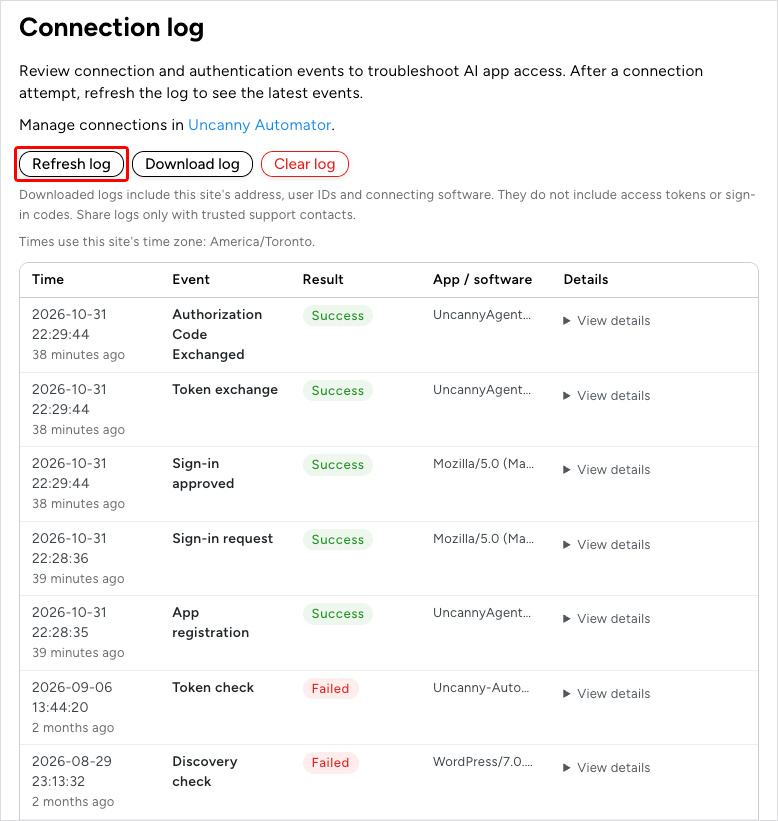
- Find the newest entry with the result Failed and click View details in its row to read what happened and what to do.
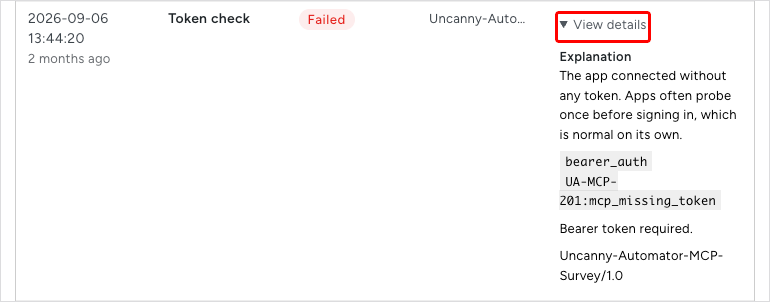
Not every Failed entry is a problem. A Token check that failed because the app connected without a token is normal on its own: apps often check once before signing in, as the explanation above says. Old Discovery check entries marked Failed come from an earlier way of connecting. External apps now connect through Uncanny Automator, so if a current connection fails, read its newest entry instead.
Times use the site’s time zone. The page shows up to 100 recent entries, and new entries replace the oldest ones. Some failed attempts that aren’t signed in are sampled, so not every one appears, and an empty log doesn’t prove that a request never reached the site.
To share the log with support, click Download log. The download includes up to 200 entries with the site’s address, user IDs and the connecting software, but no access tokens or sign-in codes. Share it only with trusted support contacts. Clear log deletes every entry; it doesn’t disconnect any app.
Contact support
If a fix here doesn’t work, contact Uncanny Automator support with:
- When it happened, including the UTC time if the message shows one
- The AI app you were connecting or using
- The site’s address
- The full message, with its reference code
- The downloaded Connection log, for failures during the site connection
Never send passwords, license keys, access tokens or sign-in codes.
Related: Connect your WordPress site at mcp.automatorplugin.com, Manage and remove AI connections, Choose what your AI can access, Tool uses and the daily limit


Comments (0)