

When you connect an AI app such as ChatGPT or Claude to your WordPress site, two things decide what it can do. On the site, the switches under MCP settings control which tools, actions and abilities AI apps may use there. At mcp.automatorplugin.com, the approval you give each AI app decides which of your connected sites it can reach. This article covers both, switch by switch.
Everything here applies after the site is connected. If you haven’t connected your AI yet, start with Connect your AI to your WordPress site.
Note: These settings are not the AI integrations in recipes, where you add an OpenAI, Anthropic, Google Gemini or Perplexity API key so a recipe action can call a model. For those, see Connecting Anthropic to WordPress.
How access works
A connected AI app works through Uncanny Automator’s actions, plugin abilities and reviewed WordPress operations. It can read the site’s code and files to diagnose problems. It never changes a file, runs a shell command or writes to the database directly. No shell. No file writes. No direct database writes.
Within that, three limits apply to every request your AI makes:
- WordPress permissions — the connection uses the site as the WordPress user who approved it, and that user must be an administrator. Your AI can’t do anything that user couldn’t do.
- The switches on the site — the Site tools, Automator actions and WordPress abilities sub-tabs. They apply to every AI app connected to the site. There are no separate switches per AI app.
- The approval at mcp.automatorplugin.com — each AI app can use the sites included when you approved it, plus sites you connect later.
Neither approval screen offers a read-only choice. When you connect through mcp.automatorplugin.com, the AI app is approved to read and make changes, and the switches on each site are where you narrow that down. To keep AI apps to reading only, see the Limit AI apps to reading section below.
Every switch saves as soon as you change it and applies to new requests. A request your AI already started may still finish. Changing a switch never undoes a change your AI already made.
Open the MCP settings
- In your WordPress dashboard, go to Automator > Settings.
- Click the MCP settings tab.
Once an AI app is connected, the Automator menu also shows AI settings, which opens the same tab.
The Connections sub-tab opens first. Its Review permissions box links to the three sub-tabs that control access: Site tools, Automator actions and WordPress abilities. The other two sub-tabs, Connections and Connection log, are covered in Manage and remove AI connections and Troubleshooting AI connections.
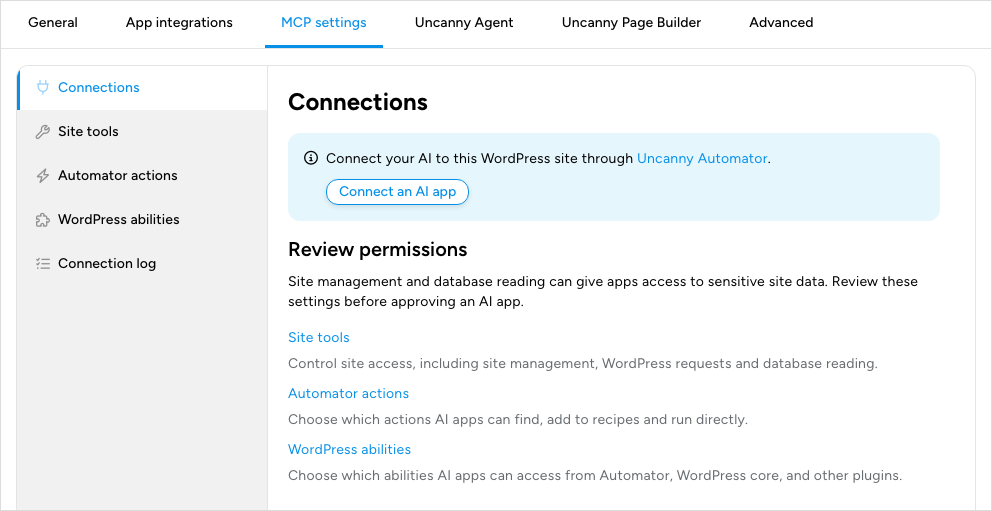
Only a WordPress administrator can change these settings. Other users see the note “You do not have permission to manage these settings. Contact a site administrator.”
Site tools
Site tools are the building blocks every AI app uses on your site: reading site information, reading the database, reading code and files, managing plugins and themes, and running abilities and WordPress operations. The page groups them by what they can do. Click a tool’s name to see what it does, the access it needs, how its provider describes its behavior, and the technical details your AI app reads.
Most Site tools apply only to connected AI apps. Site management, Code and file reading and the database table limits also apply to Uncanny Agent, the AI assistant built into Uncanny Automator. See How these settings apply to Uncanny Agent below.
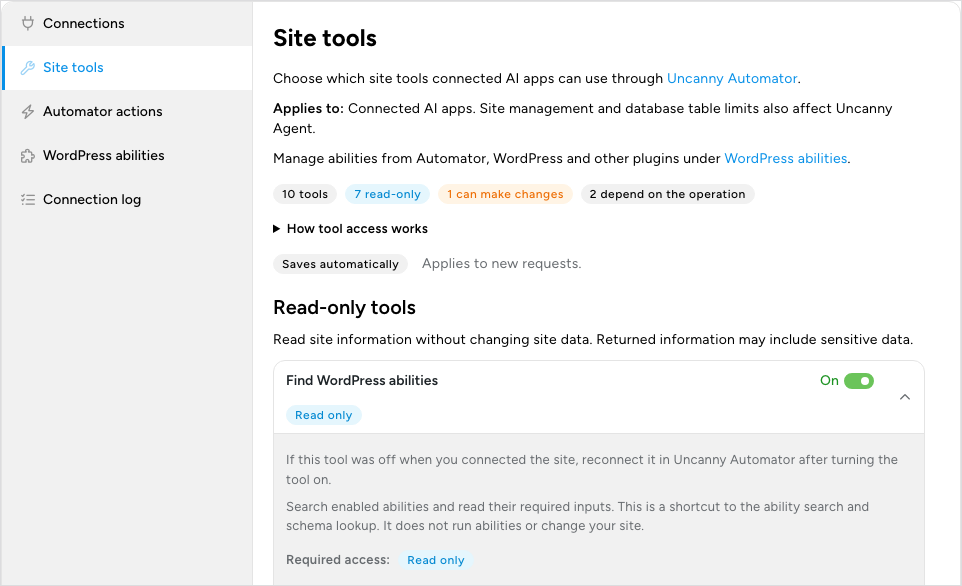
Important: Each tool’s details say “If this tool was off when you connected the site, reconnect it in Uncanny Automator after turning the tool on.” Your AI app gets the site’s tool list when the site is connected. If you enable a tool that was disabled at that time, you may need to connect the site again before AI apps can see it: on the Connections page at mcp.automatorplugin.com, disconnect the site, then click Connect beside it under Your sites and approve it on your site’s Connect this WordPress site? page. AI apps you already approved get the site back without another approval. Disabling a tool takes effect without connecting again. See Manage and remove AI connections.
Read-only tools
These tools read site information without changing site data. What they return can still include sensitive data, so disable any you don’t want AI apps to use.
- Find WordPress abilities — searches the enabled abilities and reads the inputs they need. It doesn’t run them.
- Find WordPress operations — finds the site operations your AI can run and the information each one needs.
- List database tables — finds the database tables your AI may read and their approximate record counts.
- Read database records — reads selected records from those tables, with filters.
- Read long database text — reads a long text value from one database record in smaller parts.
- Run read-only site commands — reads site information with WP-CLI-style commands such as
plugin list. The commands are built into Uncanny Automator; there is no shell or command-line access. - View database columns — shows column names, data types and defaults for the tables your AI may read.
Database access
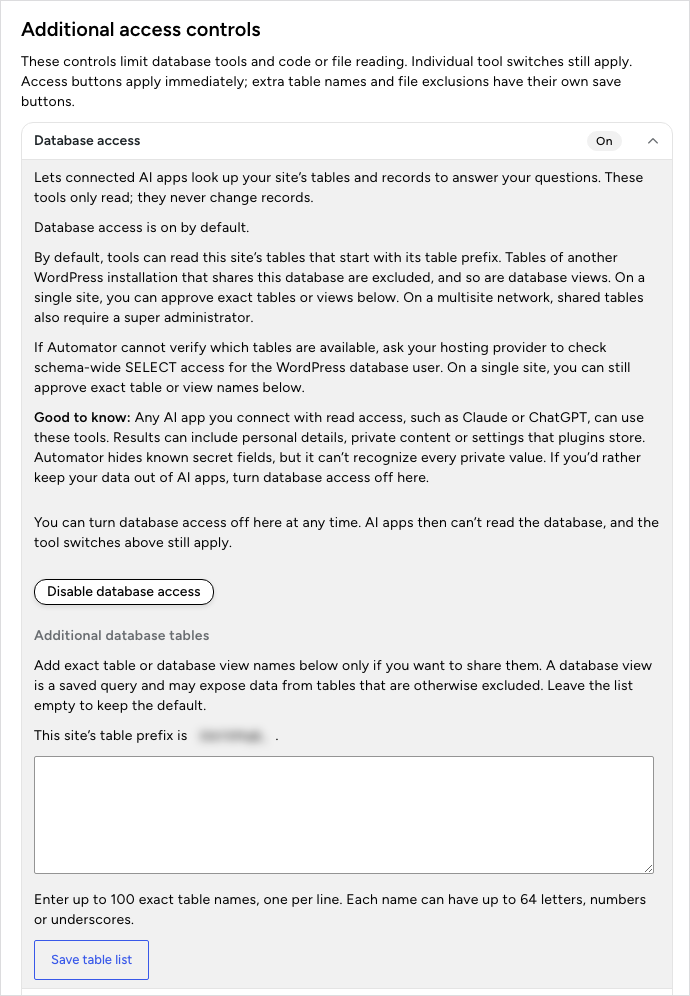
Database access, under Additional access controls, lets connected AI apps look up your site’s tables and records to answer your questions. The database tools only read; they never change records. Results can include personal details, private content or settings that plugins store. Uncanny Automator hides known secret fields, but it can’t recognize every private value, so disable database access if you’d rather keep that data out of AI apps.
- To disable it, expand Database access and click Disable database access. AI apps then can’t read the database.
- To enable it, select I understand that connected AI apps will be able to read database information., then click Enable database access.
The tools can read the tables that start with this site’s table prefix, which the panel shows. Tables of another WordPress installation that shares the database are excluded, and so are database views. To share a table or view outside that prefix, enter its exact name under Additional database tables, one per line (up to 100 names of up to 64 letters, numbers or underscores each), and click Save table list. A database view is a saved query and may expose data from tables that are otherwise excluded. Leave the list empty to keep the default.
On a multisite network, only a super administrator can enable database access, and the Additional database tables list isn’t available.
On a single site, or the main site of a network, this switch applies to connected AI apps only. Uncanny Agent can still read the database while it is disabled, within the table limits above.
Code and file reading
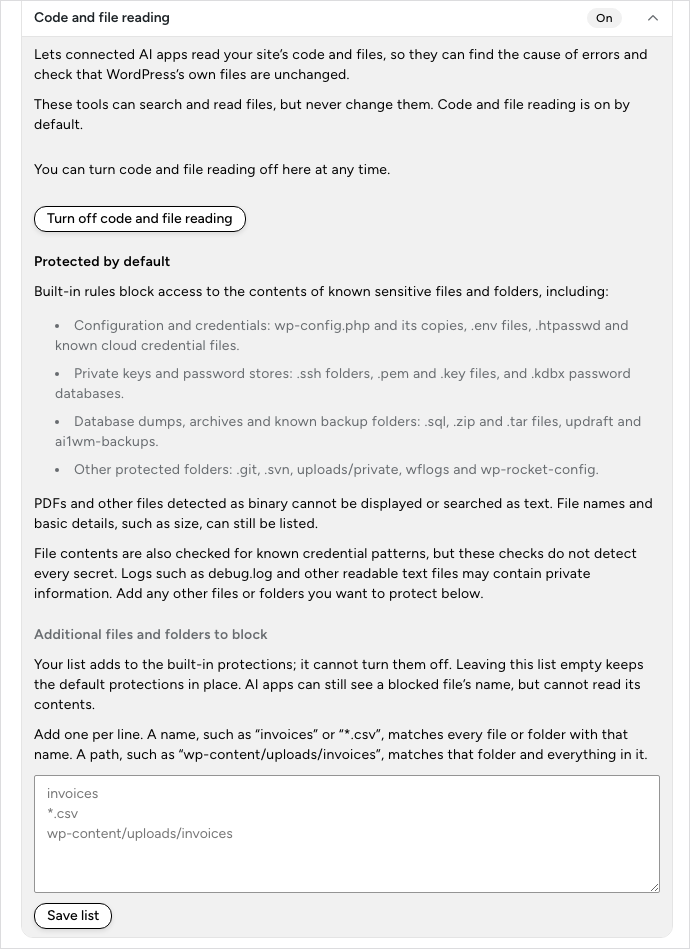
Code and file reading lets connected AI apps read your site’s code and files, so they can find the cause of errors and check that WordPress’s own files are unchanged. These tools search and read files but never change them.
- To disable it, expand Code and file reading and click Turn off code and file reading. AI apps can’t read your site’s code and files while it is off.
- To enable it again, click Turn on code and file reading.
Built-in rules always block the contents of known sensitive files and folders: configuration and credential files such as wp-config.php and .env files, private keys and password stores, database dumps, archives and backup folders, and folders such as .git and uploads/private. The panel lists them under Protected by default. File contents are also checked for known credential patterns, but these checks don’t catch every secret, and logs such as debug.log may contain private information.
To protect more, add one name or path per line under Additional files and folders to block and click Save list. A name, such as invoices or *.csv, matches every file or folder with that name. A path, such as wp-content/uploads/invoices, matches that folder and everything in it. Your list adds to the built-in protections and can’t turn them off. AI apps can still see a blocked file’s name, but not its contents.
On a multisite network, the sites share their files, so these choices apply to every site, and only a super administrator can turn file reading back on or remove an entry from the list.
Site management
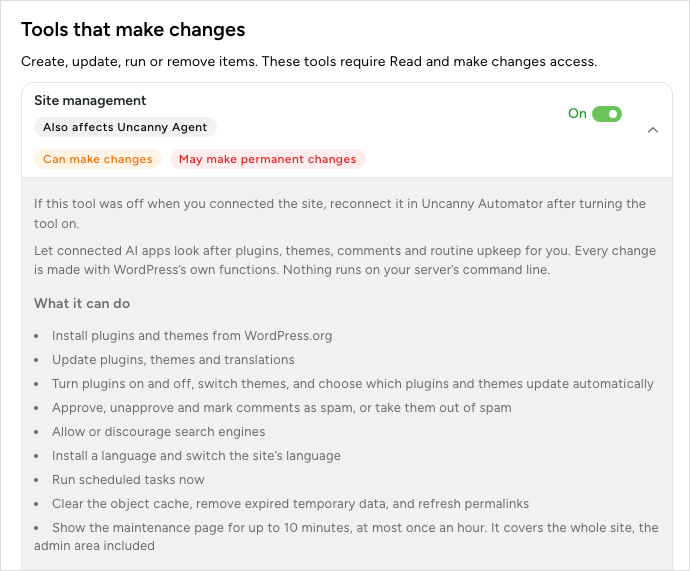
Site management, under Tools that make changes, lets connected AI apps look after plugins, themes, comments and routine upkeep. Every change is made with WordPress’s own functions, the same changes you can make under Plugins, Appearance, Comments and Settings. With it enabled, your AI can:
- Install plugins and themes from WordPress.org
- Update plugins, themes and translations
- Turn plugins on and off, switch themes, and choose which plugins and themes update automatically
- Approve, unapprove and mark comments as spam, or take them out of spam
- Allow or discourage search engines
- Install a language and switch the site’s language
- Run scheduled tasks now
- Clear the object cache, remove expired temporary data, and refresh permalinks
- Show the maintenance page for up to 10 minutes, at most once an hour (it covers the whole site, the admin area included)
Plugins, themes, comments and content are never deleted this way, and Uncanny Automator never updates or deactivates itself, though an AI app may turn on its automatic updates. As with any update, keep regular backups. Plugins your AI installs may add their own abilities, which appear under WordPress abilities.
The Also affects Uncanny Agent label means this switch controls Uncanny Agent as well as connected AI apps. The Automator actions that install, update, activate or deactivate plugins, or switch themes, also need this switch enabled. On a multisite network, only a super administrator can enable Site management.
Run a WordPress ability and Run a WordPress operation
The two tools under Tools that can read or make changes run other things, so what they can do depends on what they run.
- Run a WordPress ability — runs an ability from WordPress or another plugin, such as one registered by WooCommerce, when that ability is enabled under WordPress abilities. While it is disabled, AI apps can’t use any ability from those providers.
- Run a WordPress operation — runs a supported site operation, such as reading or editing a post, or one of Uncanny Automator’s own abilities, such as building a recipe. While it is disabled, AI apps can’t use any of Uncanny Automator’s abilities, even ones whose switches are on. Your selections are kept, and Uncanny Agent keeps its access.
Both can permanently change or delete information. Review what they reach before you leave them enabled.
Automator actions
Automator actions lists the actions of every integration available on the site, so you can choose which ones connected AI apps can find, add to recipes and run directly. These switches apply to connected AI apps only; they don’t affect Uncanny Agent.
- Click the Automator actions sub-tab.
- Find an integration in the list, or type its name or an action’s name in Search integrations and actions.
- Use the switch beside the integration to allow or block all its actions. Disabling an integration keeps your choice of individual actions for when you enable it again.
- To choose individual actions, click the integration’s name to expand it, then use the switch beside each action. Each row shows how many of its actions are selected.
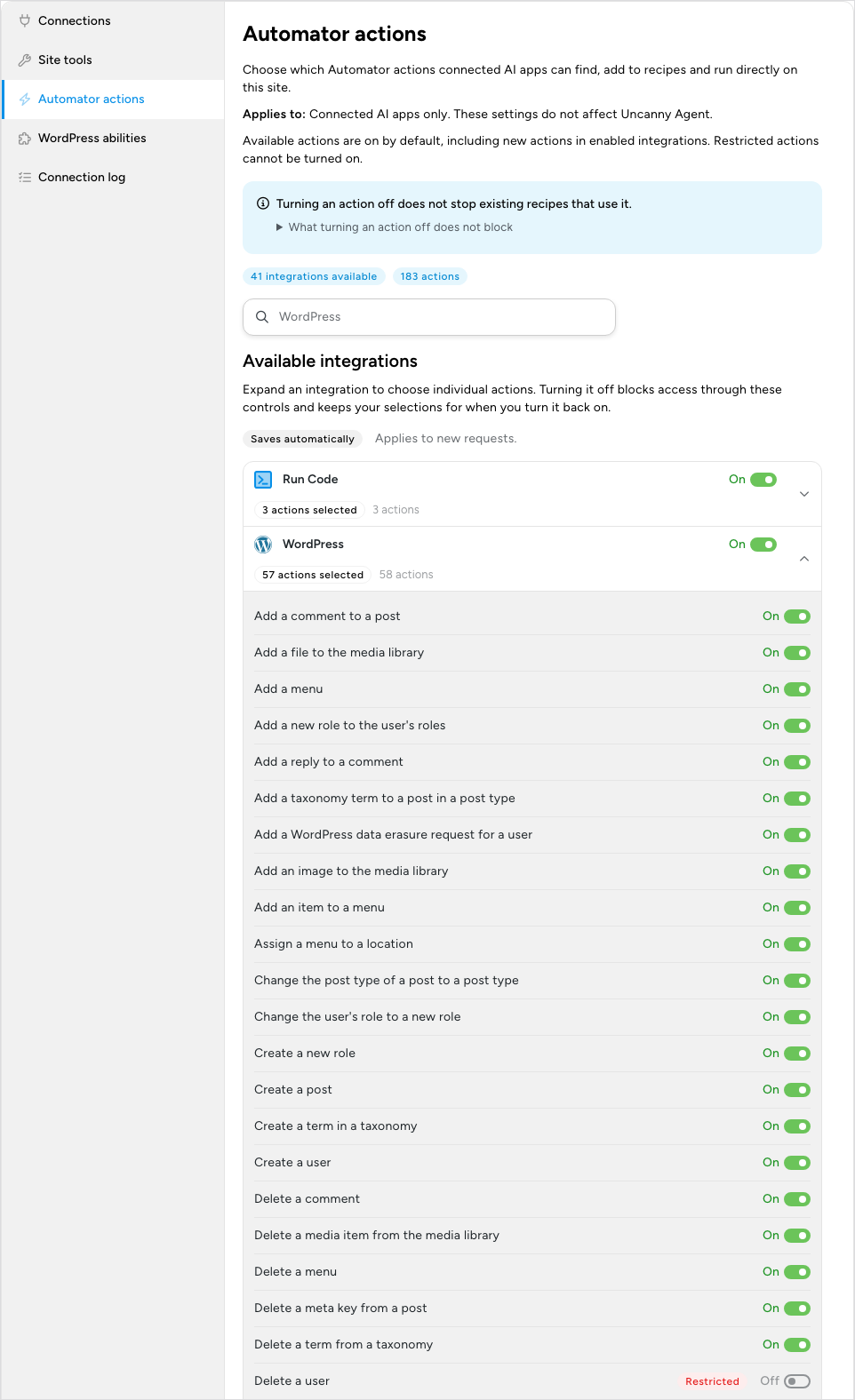
New actions in an enabled integration are available to AI apps as soon as they appear, so check this list after you add a plugin or connect an app. Integrations that need more setup before AI apps can use their actions are listed under Integrations that need setup, each with its requirement: Not installed, Inactive, Setup required, Not connected or the plan it requires. Connect an app integration under Automator > Settings > App integrations to move it into the list.
Disabling an action doesn’t stop your existing recipes that use it, and existing recipe actions can still be edited. Other allowed actions or WordPress abilities may use the same integration. To control whether AI apps can run recipes, review Run a recipe under WordPress abilities.
Some actions are never available to AI apps:
- Actions marked Restricted, which can’t be turned on: running raw database queries and deleting users. Your AI reads the database with the database tools instead.
- Actions that run custom code, such as the Run Code integration’s actions, and the action that makes a network super administrator.
- Actions that write custom fields directly, such as setting post meta or duplicating a post or page. Your AI changes custom fields with the Change custom fields ability instead.
The last two groups are refused even where their switch shows on. Recipes you saved with any of these actions keep running as you saved them.
WordPress abilities
Abilities are tasks that WordPress, Uncanny Automator and other plugins offer to AI apps, such as listing recipes, editing content or reading a store’s products. WordPress abilities groups them by the plugin that provides them, and each ability has its own switch.
- Click the WordPress abilities sub-tab.
- Click a provider’s name to expand it.
- Use the switch beside each ability you want to allow or block.
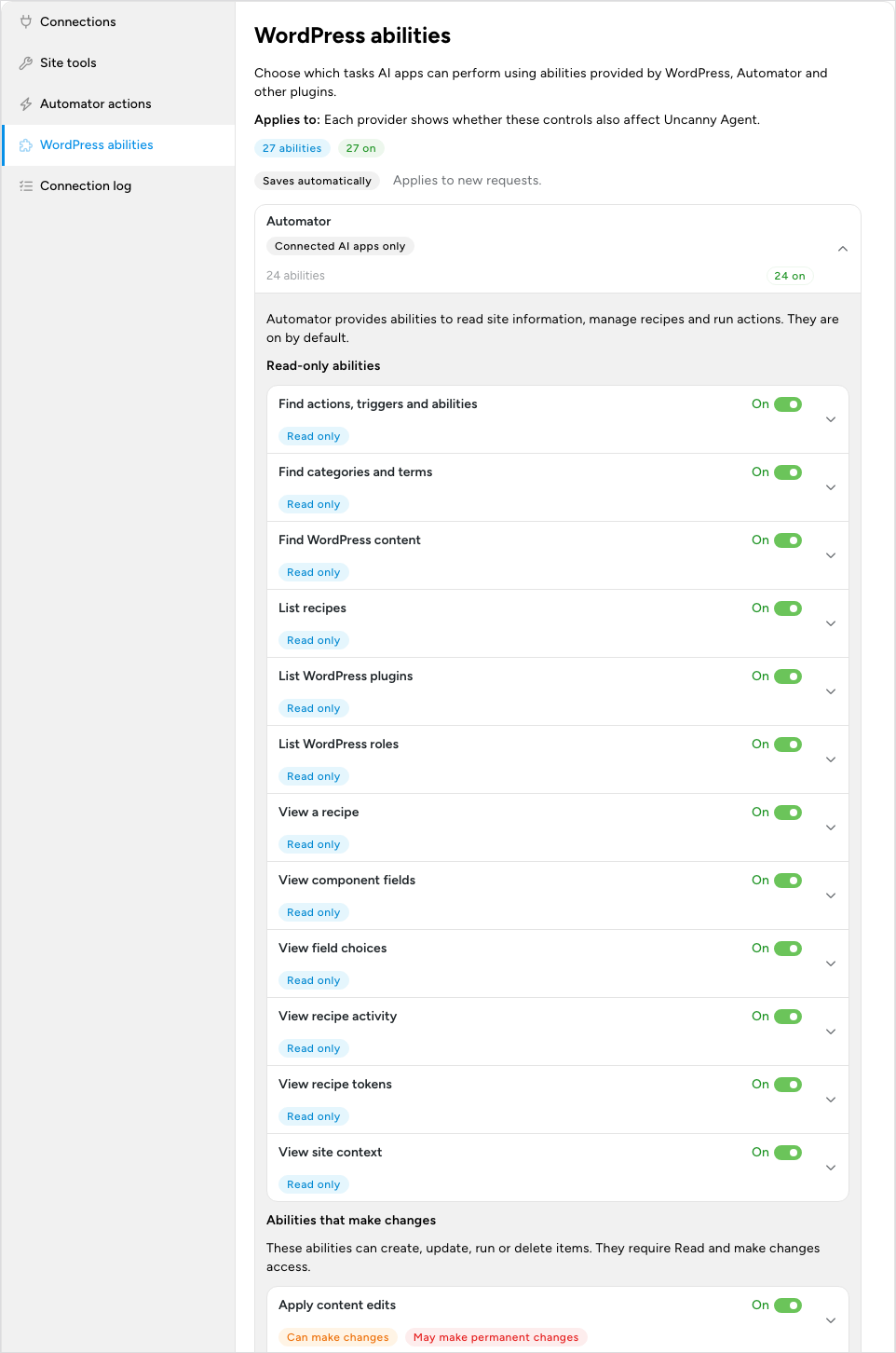
Each provider’s label says who its switches affect:
- Automator — Uncanny Automator’s own abilities, labeled Connected AI apps only, in two groups. Read-only abilities read information, such as finding actions and triggers, listing and viewing recipes, finding content, and reading recipe activity. Abilities that make changes create and update recipes and their triggers, actions, blocks, loops and conditions, remove recipe items, edit content and custom fields, run a recipe and run an action. They all need Run a WordPress operation enabled in Site tools. Find WordPress content also controls whether AI apps can read or change posts and pages through Run a WordPress operation.
- WordPress and other plugins — abilities from WordPress itself, such as Get Site Information, and from other active plugins, labeled Connected AI apps and Uncanny Agent. Their switches also apply to Uncanny Agent. They need Run a WordPress ability enabled in Site tools; while it is disabled, the provider shows “Run a WordPress ability is off.”
An ability marked Unavailable is kept away from AI apps by the plugin that provides it, so you can’t enable it here. It becomes available when that plugin allows it, for example after a plugin update. Enabling an ability never gives an app more access than its approval and the plugin’s own permission checks allow. If the page says “The WordPress Abilities API is not available on this site.”, the site runs a WordPress version older than 6.9, which added abilities. They appear after you update WordPress to 6.9 or newer.
How these settings apply to Uncanny Agent
Uncanny Agent, the AI assistant built into Uncanny Automator, uses Uncanny Automator’s abilities, such as finding, building, editing and running recipes, and it has its own tools for research, images, files and conversation history. Some of the settings on this page limit it as well as connected AI apps; others apply to connected AI apps only.
| Setting | Connected AI apps | Uncanny Agent |
|---|---|---|
| Site management | Applies | Applies |
| Code and file reading | Applies | Applies |
| Abilities from WordPress and other plugins, on the WordPress abilities sub-tab | Applies | Applies |
| Database access on a multisite subsite | Applies | Applies |
| Database access on a single site or a network’s main site | Applies | Doesn’t apply |
| The other switches on the Site tools sub-tab | Applies | Doesn’t apply |
| The switches on the Automator actions sub-tab | Applies | Doesn’t apply |
The actions marked Restricted under Automator actions can’t be run directly by Uncanny Agent either, but Uncanny Agent can add them to a recipe it saves, and the recipe then runs them when it is switched on. Check any recipe Uncanny Agent builds before you switch it on.
For example, disabling Database access on a single site doesn’t stop Uncanny Agent from using its database tools. The table limits on this page and WordPress’s own permission checks still apply to it.
Multisite subsites are different because the sites on a network share one database. Database access is disabled on a subsite until a super administrator enables it, and that applies to Uncanny Agent too. Once it is enabled, Uncanny Agent and connected AI apps can read only that subsite’s tables.
To hide Uncanny Agent’s launchers in your WordPress admin, see Turning off Uncanny Agent.
Limit AI apps to reading
To let AI apps look but not change anything on a site, disable the three Site tools that can make changes:
- Go to Automator > Settings > MCP settings > Site tools.
- Disable Site management.
- Disable Run a WordPress ability.
- Disable Run a WordPress operation.
The read-only tools stay available, so your AI can still answer questions about the site, its plugins, its database and its files, within the database and file settings above. Uncanny Automator’s abilities need Run a WordPress operation, so your AI can’t read or build recipes in this setup. Uploading files to your Media Library also stops, because uploads use Run a WordPress operation.
Choose which sites an AI app can use
Which of your sites an AI app can reach is set at mcp.automatorplugin.com, when you approve the app. The approval page lists the sites under Sites included in this approval, with your current license named below the heading.
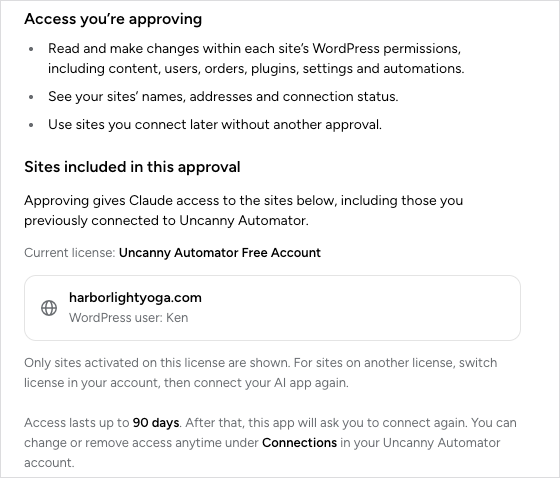
- Every connected site on the current license is included. There is no per-site choice on the approval page. Approving gives the app access to the sites listed, including sites you connected earlier.
- Sites you connect later join automatically. The approval reads “Use sites you connect later without another approval.”
- Only sites on the current license appear. For sites on another license, choose Switch license in the account menu at mcp.automatorplugin.com, then connect your AI app again.
- Removed sites stay removed. A site removed from an app is listed under Previously removed sites and isn’t included unless you select Add back before you click Approve connection.
To keep every AI app away from a site, disconnect the site on the Connections page at mcp.automatorplugin.com. To change what apps can do on a site without disconnecting it, use the switches in this article. See Manage and remove AI connections.
Things to know
- Your AI app may ask before it acts. Your AI app may ask you to approve a tool use before it runs. That depends on the app, its mode and its settings, not on Uncanny Automator. Claude, for example, asks before each Uncanny Automator tool use, with Allow once, Always allow and Decline.
- Information your AI reads leaves the site. Anything read through the connection is sent to the AI app and may be processed by the AI services it uses.
- Recipes keep running. A recipe your AI built keeps running until you turn it off, even after you change a switch or disconnect the app.
- Approvals last a limited time. An AI app’s access lasts up to 90 days. After that, the app asks you to connect again.
- Removing Uncanny Automator in your AI app doesn’t end its approval. The approval stays on the Connections page at mcp.automatorplugin.com until you disconnect it there. See Manage and remove AI connections.
Related: What your AI can do on your site, Manage and remove AI connections, Tool uses and the daily limit, Troubleshooting AI connections


Comments (0)