

Connect Gemini to your WordPress site and you can manage and automate the site by asking Gemini. You add Uncanny Automator to Gemini as a custom app, approve access to your connected sites on mcp.automatorplugin.com, then try a first request.
An MCP server is how AI apps such as ChatGPT or Claude connect to other software. Uncanny Automator is an MCP server for WordPress with a built-in automation engine: it connects your AI to your WordPress site.
This is not the Google Gemini integration in recipes, which adds a Gemini API key so a recipe action can call a model. That integration is covered in Connecting Google Gemini to WordPress.
What you need
- A WordPress site running Uncanny Automator 8.0.0 or newer, at a public web address. mcp.automatorplugin.com can’t reach a site on a local address, such as a development copy on your computer.
- An Uncanny Automator account. A free account is enough: on the Lite plan you get 300 tool uses a day for your first week, then 150 a day, shared across all your sites and AI apps. A tool use is one thing your AI does on your site through Uncanny Automator. Paid plans have unlimited tool usage. See Tool uses and the daily limit.
- A Google account that can add custom apps to Gemini. Google currently requires a personal account in the US, an account holder aged 18 or older, Gemini in English, and Keep activity turned on (in Gemini, under Settings > Activity). Work and school accounts, such as a Google Workspace account, may not show the option at all.
- Gemini on the web, on a computer.
If your account doesn’t meet Google’s requirements, Gemini doesn’t show the custom app option, and it doesn’t show a message saying why. Google’s help page on custom apps has the current rules.
Connect your site first
Gemini gets its tools from the sites connected to your Uncanny Automator account, so the Gemini setup page opens only after at least one site is connected. If you haven’t connected a site yet, follow Connect your WordPress site at mcp.automatorplugin.com, then come back here.
Open the Gemini setup page
The setup page on mcp.automatorplugin.com has the server address you paste into Gemini. Keep it open next to Gemini while you work.
- Go to mcp.automatorplugin.com and sign in with your Uncanny Automator account. If your account has more than one license, choose one first. The Connections page opens.
- Click Connect an AI (it reads Connect another AI once an AI app is connected). You can also click Connect AI in the header.
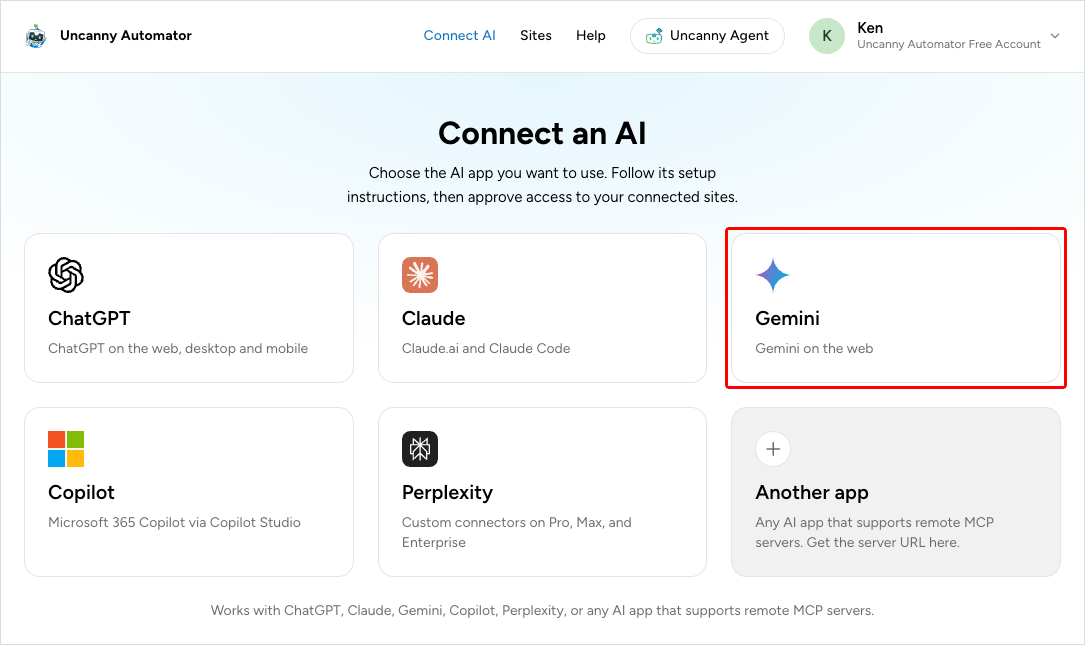
- On the Connect an AI page, click the Gemini card.
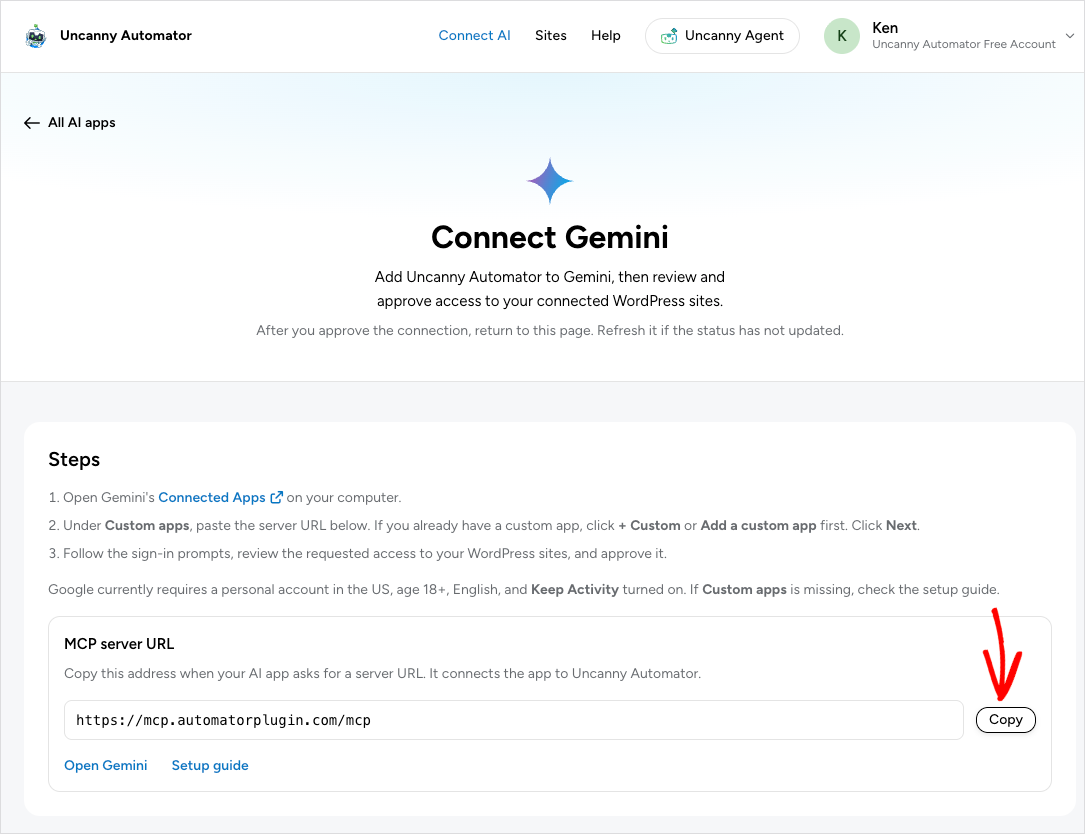
The Connect Gemini page opens. It lists the steps for Gemini and Google’s account requirements, and under MCP server URL it shows the address https://mcp.automatorplugin.com/mcp. Every Uncanny Automator account uses this same address; your sign-in is what links Gemini to your sites.
- Under MCP server URL, click Copy.
Add Uncanny Automator to Gemini
Add the custom app in Gemini on the web, on a computer.
- Open Gemini’s Connected Apps page. The Connected Apps link on the setup page opens it too; inside Gemini, it is under Settings > Connected Apps.
- Click + Custom at the top of the page.
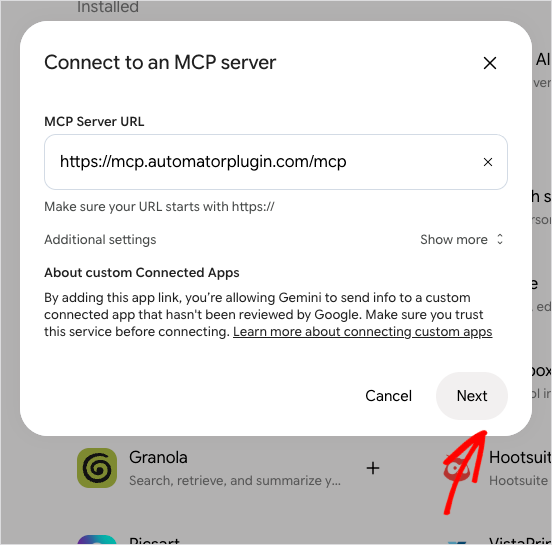
- In the Connect to an MCP server dialog, paste the address you copied into MCP Server URL and click Next.
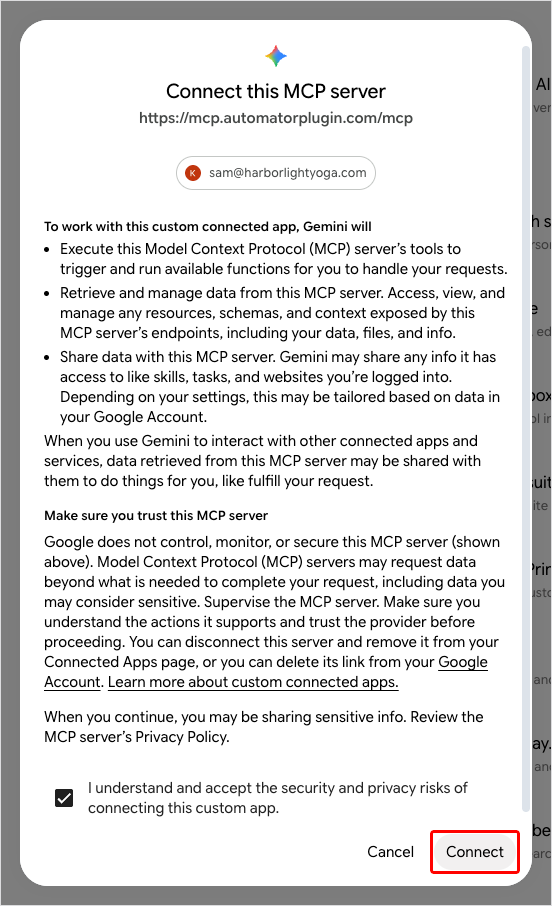
- Gemini explains what a custom connected app can do. Read it, tick I understand and accept the security and privacy risks of connecting this custom app. and click Connect.
- On Link your Google Account and [Custom] Automatorplugin account, click Agree and continue. The approval page at mcp.automatorplugin.com opens in the same tab.
Note: If + Custom is missing from Connected Apps, your Google account can’t add custom apps. Gemini doesn’t say why. This is usually because it is a work or school account, or because of Google’s other requirements under What you need. Google’s help page has the current rules.
Approve the connection
The approval page is on mcp.automatorplugin.com, in the tab Gemini opens. It decides which of your sites Gemini can use.
- If the page reads Sign in to review this connection, click Sign in and sign in with the Uncanny Automator account your site is connected to.
- If your account has more than one license, choose the license your site is activated on and click Use this license. Only sites on the chosen license are included.
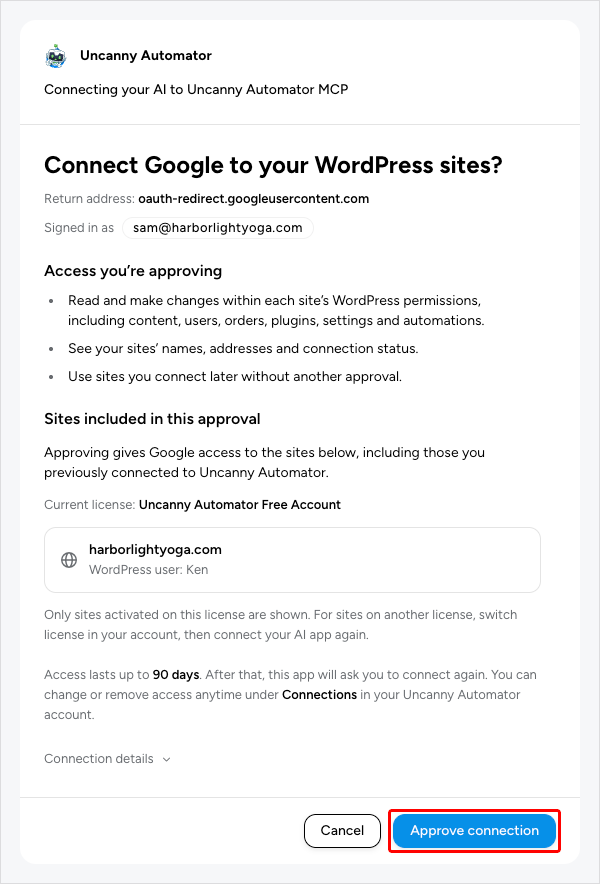
- Check the top of the page. Gemini identifies itself to Uncanny Automator as Google, so the heading reads Connect Google to your WordPress sites?. Return address shows oauth-redirect.googleusercontent.com, Google’s address for sending you back to Gemini.
- Under Access you’re approving, review what Gemini can do: read and make changes on each site within that site’s WordPress permissions, see your sites’ names, addresses and connection status, and use sites you connect later without another approval.
- Under Sites included in this approval, check that your site is listed. To add a site that is on your license but not connected yet, click Connect next to it. Your site’s WordPress approval page, Connect this WordPress site?, opens; approve it there and you come back to this page.
- Click Approve connection.
You’re sent back to Gemini, which opens Save your custom app with the app’s name, Uncanny Automator Model Context Protocol, and its Available actions. You can change the name here; it is the name you use in chats.
- Click Connect.
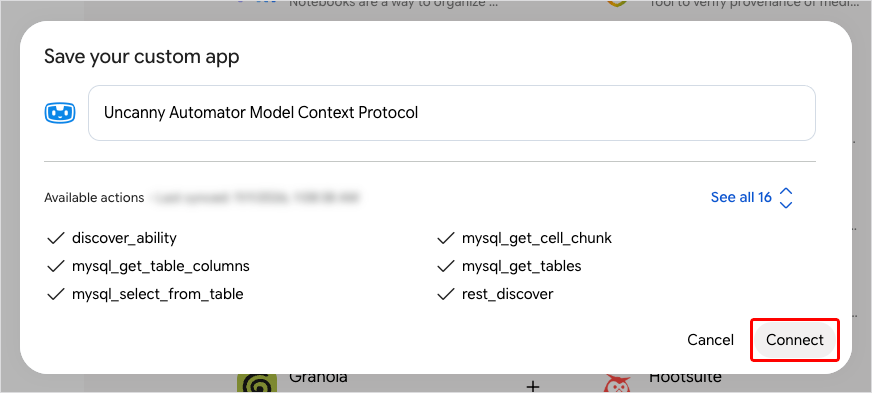
A message confirms that the app is connected and ready to use.
The approval page also says how long access lasts: up to 90 days. After that, Gemini asks you to connect again. You can change or remove access at any time under Connections at mcp.automatorplugin.com.
Note: The approval page has no read-only choice. To limit what Gemini can do on a site, use the switches in that site’s WordPress dashboard, described in Choose what your AI can access.
To confirm the connection, go back to the Connect Gemini page and refresh it. It shows Connected with “Gemini is connected to your Automator account.” and a Review its site access link.
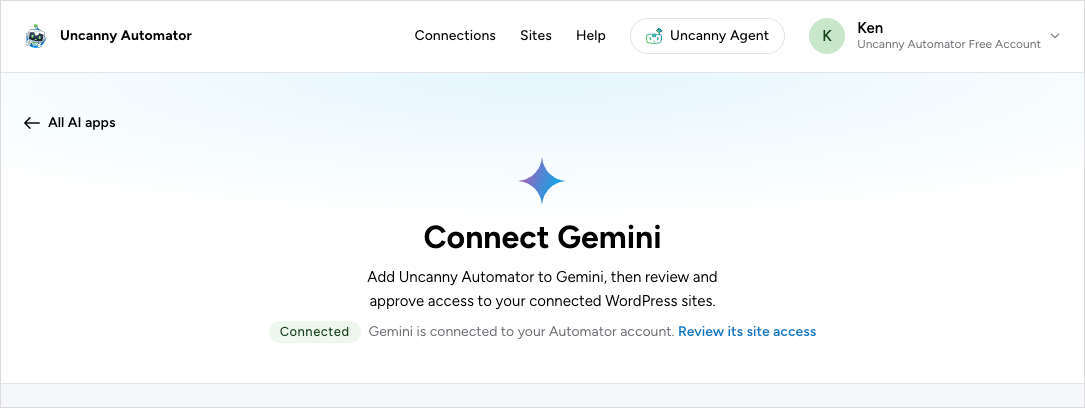
If you started from the setup wizard in WordPress, go back to its tab. Once Gemini is connected, the wizard moves on to its Try it step by itself.
Try a first prompt
- Start a new chat in Gemini on the web.
- Type @ and choose Uncanny Automator Model Context Protocol (or the name you gave it) under Connectors. Gemini uses the app only when you mention it; without the mention, it answers from the web instead.
- Ask: What plugins are installed on my site?
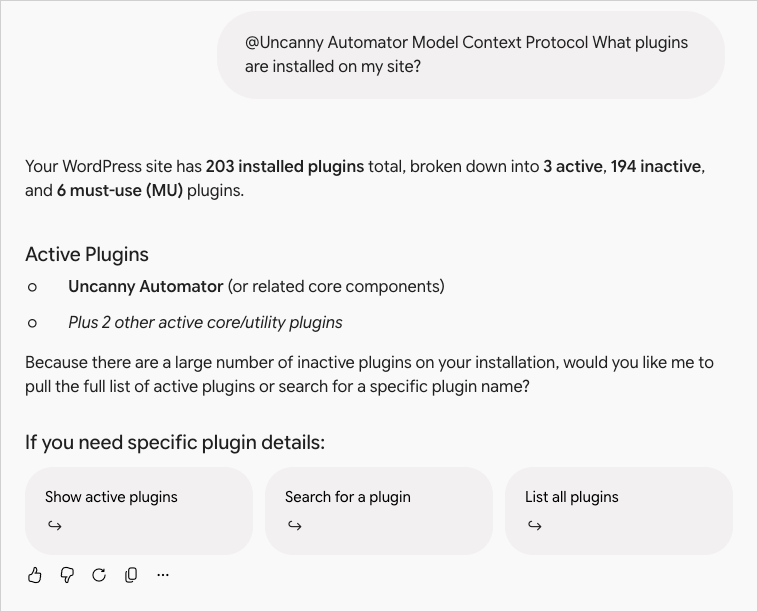
Gemini asks Uncanny Automator for the answer and shows it in the chat. If several sites are connected, name the site in your request. Each thing Gemini does on your site counts as one tool use, so one request can use several. For more ideas, the setup wizard’s Try it step lists requests you can copy, such as “Review my site’s SEO.”
What to do next
- What your AI can do on your site: the kinds of work Gemini can do through Uncanny Automator.
- Choose what your AI can access: the switches on each site for tools, Automator actions and WordPress abilities.
- Manage and remove AI connections: Gemini’s site access, last use and recent activity on the Connections page, and how to disconnect it.
- Troubleshooting AI connections: what to do when a step above fails.
Related: Connect your AI to your WordPress site, Connect ChatGPT to your WordPress site, Connect Claude to your WordPress site


Comments (0)