

Your AI connections are managed in two places. The Connections page at mcp.automatorplugin.com shows every AI app and every site on your Uncanny Automator account, and it is where you disconnect one app or one site. In WordPress, each site shows its own connection to Uncanny Automator, which you can remove to end all AI access to that site. This article covers both, and what each option ends.
To change what connected AI apps can do on a site without disconnecting anything, use the switches described in Choose what your AI can access.
Which option to use
| To stop | Use | Where | To use it again |
|---|---|---|---|
| One AI app, on all your sites | Disconnect beside the app | Connections page at mcp.automatorplugin.com | Connect the app again from the AI app |
| Every AI app, on one site | Disconnect beside the site | Connections page at mcp.automatorplugin.com | Connect the site again; apps you approved get it back |
| Every AI app, on one site, from WordPress | Remove access | Automator > Settings > MCP settings > Connections | Connect the site again from mcp.automatorplugin.com |
| Every AI app on the site, and the site’s link to your free Uncanny Automator account | Disconnect site | Automator > Settings > General > License | Link the account again, then connect the site |
None of these options undo changes your AI already made. A request that was already running may still finish, and recipes your AI built keep running until you turn them off.
Review your connections at mcp.automatorplugin.com
- Go to mcp.automatorplugin.com and sign in with your Uncanny Automator account.
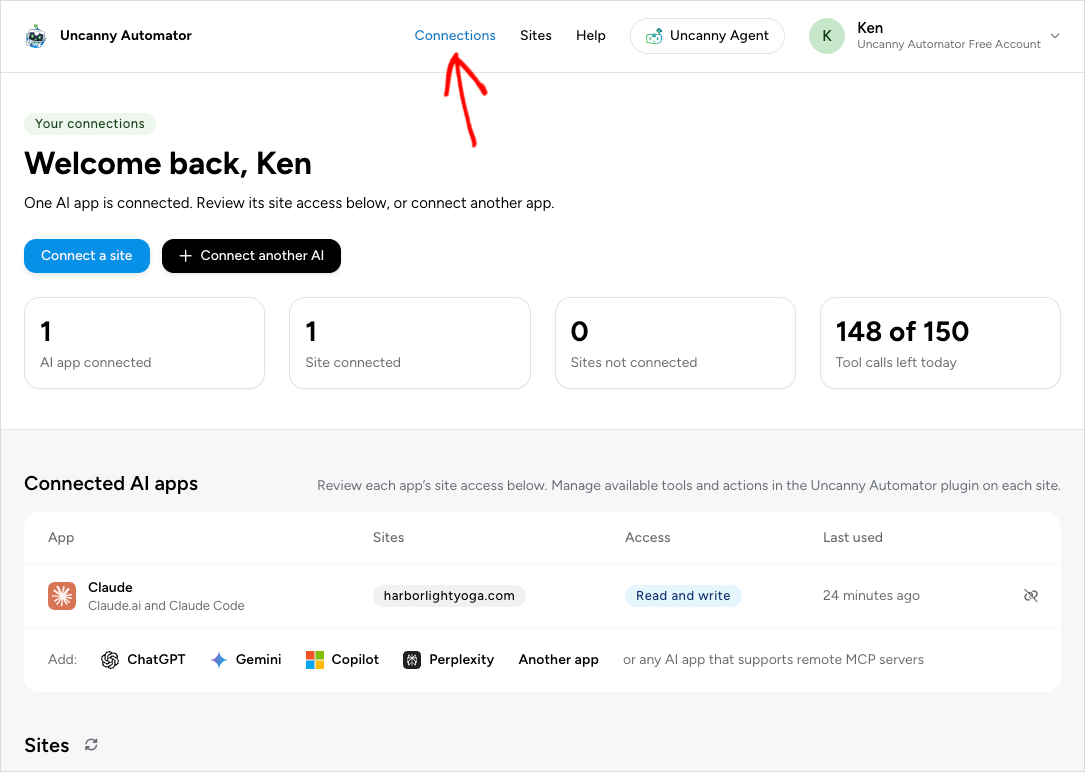
- Click Connections in the header.
The page opens with a count of the AI apps connected, the sites connected and the sites not connected. On Lite a fourth box shows how many tool uses you have left today, out of 150; see Tool uses and the daily limit. Use Connect a site or Connect another AI to add more.
Connected AI apps
Each AI app you approved has a row:
- App — the AI app’s name.
- Sites — the sites it can use. Every connected site on your current license is included, plus sites you connect later.
- Access — what the app asked for when you approved it. Read and write means it can use the tools on your sites, within each site’s switches and WordPress permissions. Site list only means it can see your sites’ names and addresses but not their content. No site access means it can read Uncanny Automator’s guides and service information only.
- Last used — when the app last worked on your sites, or Not in 90 days.
The Disconnect icon is at the end of each row.
Below the table, Add: lists the AI apps you haven’t connected yet. Click one to open its setup steps.
Sites
The Sites list shows the sites activated on your current license, named below the heading, with an icon for each AI app using the site. Its Status is one of:
- Connected — AI apps you approved can use the site.
- Reconnect needed — the site no longer accepts the connection, so AI apps can’t use it until you reconnect. See Reconnect a site below.
- Not connected — the site is on your license but not connected for AI apps yet. Click Connect to connect it; see Connect your WordPress site at mcp.automatorplugin.com.
At the end of each row, the Manage in WordPress icon opens the site’s MCP settings, where you set what AI apps can do there, and the Disconnect icon disconnects the site. If a site is missing, click the Refresh sites icon beside the Sites heading, and check that the site is activated on the license you’re using; Switch license is in the account menu when your account has more than one.
Recent activity and usage
Recent activity lists what your AI apps did on your sites in the last 7 days: the task, the site, the app and, when it didn’t succeed, the outcome (failed, access denied, over the allowance or result unconfirmed). The task name is how the AI app described the request, so check the site itself when you need to confirm a change. The Usage card shows today’s tool uses on Lite, or unlimited tool usage on a paid plan.
Disconnect an AI app
Disconnecting an app ends its access to every site on your account. Other AI apps keep their access.
- On the Connections page, find the app under Connected AI apps.
- Click the Disconnect icon at the end of its row.
- The dialog reads “Disconnect this app?” and “app name loses access to your sites until you connect it again.” Click Disconnect.
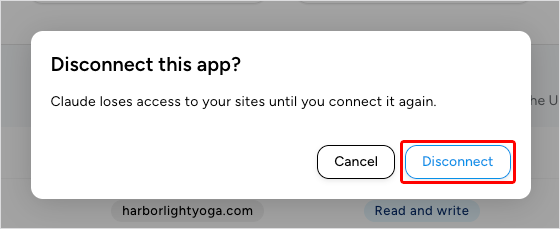
The app disappears from the list. Uncanny Automator still appears in the AI app’s own connector settings; remove it there too if you don’t plan to use it again. To connect the app again, follow its setup article from Connect your AI to your WordPress site.
Important: Removing Uncanny Automator inside your AI app (for example, Disconnect on the connector in Claude) doesn’t end the app’s approval here. The approval stays under Connected AI apps until you disconnect it on this page. If you remove the connector and add it again, the app can be listed twice; disconnect the row with the older Last used.
Disconnect a site
Disconnecting a site ends every AI app’s access to it. Your other sites and your AI apps stay connected.
- On the Connections page, find the site in the Sites list.
- Click the Disconnect icon at the end of its row.
- The dialog reads “Disconnect this site?” and “AI apps will lose access to site. You can connect the site again later.” Click Disconnect.
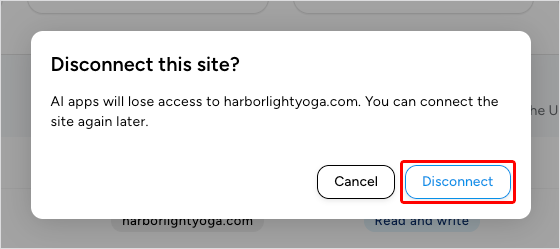
Access stops straight away, and the site’s status changes to Not connected. To connect it again, click Connect a site, then Connect beside the site under Your sites; your site’s WordPress approval page opens straight away. The AI apps you approved can then use the site again without another approval.
Reconnect a site
A site shows Reconnect needed when it refuses the saved connection, for example after someone removed access in WordPress. The label appears the next time an AI app tries to use the site. An expired sign-in renews on its own and doesn’t need this.
- On the Connections page, click the Reconnect icon beside the site.
- Your site’s WordPress approval page, Connect this WordPress site?, opens. Sign in as an administrator if WordPress asks, then click Approve connection.
AI apps that still include the site use the new connection without another approval.
See connections in WordPress
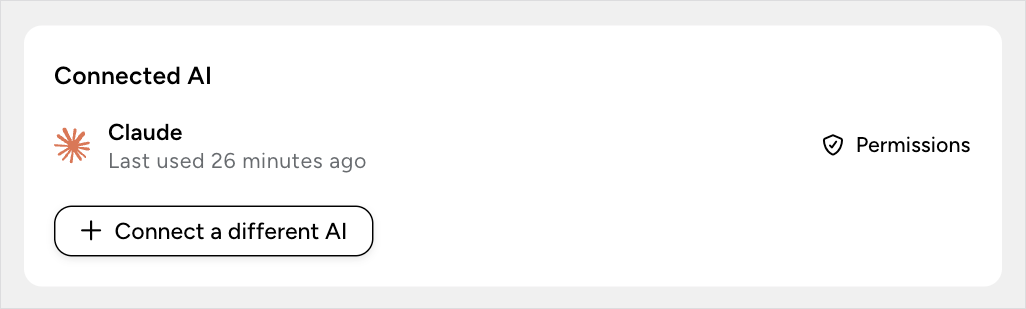
Once an AI app is connected, the Connected AI card on Automator > Dashboard lists each app with when it last used the site, such as “Last used 26 minutes ago” (or “Not used yet.”). Permissions beside an app opens Site tools, which apply to every AI app on the site. Connect a different AI opens mcp.automatorplugin.com.
The site’s connection itself is listed on the MCP settings page:
- Go to Automator > Settings and click the MCP settings tab.
- On the Connections sub-tab, scroll to Automator MCP access to this site.
Each row is a connection between the site and Uncanny Automator, not a single AI app. “Each connection lets Uncanny Automator and your connected AI apps use this site as the WordPress user who approved it.” The table shows the Connection ID, the Status (Active or Removed), the WordPress User who approved it with the Uncanny Automator account email, the date it was Registered on, and Remove access under Actions. Dates use the site’s time zone.
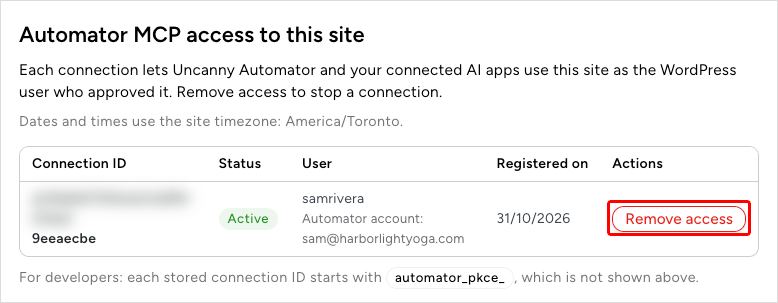
Remove access from WordPress
Removing access ends every AI app’s access to this site through that connection. Use it to stop AI access from the site itself.
- In the Automator MCP access to this site table, click Remove access on the connection.
- The dialog asks “Remove access for the connection ending ID?” and explains: “Uncanny Automator and its AI apps can no longer use this site through this connection. To use them again, connect again from Uncanny Automator. Completed actions are not undone. Work already started may still finish.” Click Remove access.
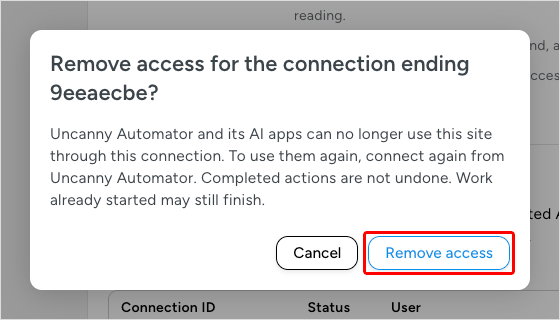
The page shows “Access removed.” and the connection’s status changes to Removed. To use your AI apps on this site again, connect the site from mcp.automatorplugin.com.
A removed connection stays in the table as a record. To delete it, click Delete registration and confirm. To act on every connection at once, expand Manage registrations and use Remove all access, then Delete all registrations. A registration can only be deleted after its access is removed.
Disconnect the site from your Uncanny Automator account
If the site is linked to a free Uncanny Automator account, disconnecting that link also ends every AI connection on the site first.
- Go to Automator > Settings and stay on the General tab.
- Under License, find the Free account section showing Site connected and the Account email.
- Click Disconnect site.
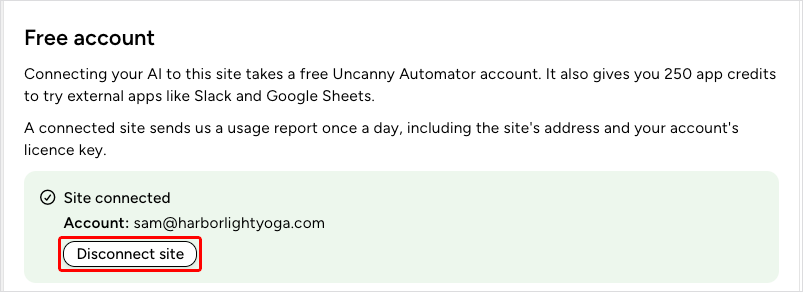
The account menu on Automator > Dashboard also offers Disconnect account on a site with a free account, which does the same thing. If the site shows “AI connections could not all be disconnected. Please try disconnecting your account again.”, the account is still linked; try again. Only an administrator can disconnect the account.
On a site with Uncanny Automator Pro, deactivating the license doesn’t end AI connections. Use Remove access instead.
To connect AI apps to the site again later, link it to your account first; see Connecting your site with a free Uncanny Automator account.
Things to know
- Access expires on its own. An AI app’s approval lasts up to 90 days. After that, the app asks you to connect again.
- Logging out keeps your apps connected. Choosing Log out at mcp.automatorplugin.com ends your browser session only. Your AI apps keep their access.
- Switching license keeps existing approvals. Apps you approved keep their access when you choose Switch license. The Sites list and new approvals then show the sites on the license you switched to.
- Uncanny Agent is separate. Disconnecting an AI app, disconnecting a site here or removing access in WordPress doesn’t affect Uncanny Agent, the AI assistant built into Uncanny Automator.
Related: Choose what your AI can access, Connect your WordPress site at mcp.automatorplugin.com, Tool uses and the daily limit, Troubleshooting AI connections


Comments (0)