

Once you connect an AI app such as ChatGPT or Claude to your WordPress site through Uncanny Automator, you can ask it to work on the site in plain English: look things up, make changes, build recipes, run actions and track down problems. This article describes what a connected AI can do, what it can’t, how you stay in control, and some requests to start with.
Everything here assumes your AI app is already connected. If it isn’t, start with Connect your AI to your WordPress site.
Read and manage your site
Your AI can read what is on your site and make changes to it, within the WordPress permissions of the administrator who approved the site’s connection. Uncanny Automator’s approval page sums it up as reading and making changes “including content, users, orders, plugins, settings and automations.”
- Look things up: your posts and pages, categories and tags, users and roles, the plugins installed, your recipes and their activity, and general information about the site.
- Make changes through WordPress: create and edit content, update settings, and use the operations WordPress and your other plugins offer, such as a store’s orders. Each change goes through WordPress’s own reviewed operations, so the same rules apply as when you make it yourself.
- Build and edit pages in the page builder you already use (Gutenberg, Elementor, Divi or WPBakery), or with Uncanny Page Builder, which is built in.
- Look after the site when site management is allowed: install plugins and themes from WordPress.org, update plugins, themes and translations, turn plugins on and off, switch themes, moderate comments, change the site’s language, run scheduled tasks, clear caches and refresh permalinks.
- Add files to your Media Library, in AI apps that show Uncanny Automator’s upload card, or that can send a file from your computer. Your AI can also add a file from a public link.
Build and run recipes
A recipe is a deterministic automation: triggers, conditions and actions that run the same way every time. Your AI can turn a task you describe into a recipe: it finds the right triggers and actions, sets their fields, adds Filter, Queue and Loop blocks, and saves the result. It can also list and open your recipes, read their logs, change them, and run one on request.
Once a recipe is built and switched on, it runs on your site every time its trigger fires, with no AI involved. Building it uses your AI; running it doesn’t.
Run Automator actions directly
The actions you add to recipes can also be run once, straight away, without a recipe. Ask your AI to do something that an integration on your site provides and it can find the matching action, fill it in and run it. Only the integrations active on your site are available, and actions from app integrations still need the app connected under Automator > Settings > App integrations. On the free plan, an app action your AI runs uses app credits, the same as when a recipe runs it.
Use abilities from your other plugins
WordPress and other plugins can register abilities: tasks they make available to AI apps, such as a store plugin’s product search. Your AI can find the abilities on your site and run the ones you allow. Uncanny Automator’s own abilities (finding actions and triggers, building recipes, running actions) are listed in the same place.
Diagnose problems
When something on the site isn’t working, your AI can investigate without changing anything:
- Read your site’s code and files to find the cause of an error, and check that WordPress’s own files match the versions WordPress.org publishes.
- Read the database, when database access is allowed: list tables, look at their columns and read records. These tools only read; they never change a record.
- Run read-only site commands, such as listing the active plugins or showing the WordPress version.
Your AI can also load step-by-step guidance for a specific plugin or task from Uncanny Automator, so it follows the right steps for jobs such as site maintenance or building a recipe.
Work across all your sites
One AI connection covers every site you’ve connected to your Uncanny Automator account, including sites you connect later. Your AI can list your connected sites and work on any of them. When more than one is connected, name the site in your request so the AI works on the right one.
What your AI can’t do
No shell. No file writes. No direct database writes. Your AI works through Automator’s actions, plugin abilities and reviewed WordPress operations. It can read the site’s code and files to diagnose problems, but it never changes a file, runs a shell command or writes to the database directly. Plugin and theme installs and updates go through WordPress’s own functions, as they do when you use the Plugins screen.
- It can’t read the contents of known sensitive files and folders, such as
wp-config.php,.envfiles, private keys, database dumps and backup folders. You can add your own files and folders to that list. - It can’t do anything the WordPress account that approved the connection can’t do.
- It can’t use a tool, action or ability you’ve switched off.
You decide what it can do
Every tool, integration, action and ability has a switch, plus one each for database access, site management, and code and file reading. The switches are on each site under Automator > Settings > MCP settings, on the Site tools, Automator actions and WordPress abilities tabs, and they apply to every AI app connected to that site. See Choose what your AI can access.
A few more things to know before you hand your AI a task:
- Your AI app may ask before it acts. Whether it asks you to approve a tool use before it runs depends on the app, its mode and your approval settings in that app. Claude, for example, asks before each tool use (Decline, Always allow or Allow once) until you choose Always allow for that tool.
- What your AI reads goes to the AI app. Information read through the connection is sent to your AI app and may be processed by the AI services it uses.
- Changes stay made. Disconnecting an AI app doesn’t undo the changes it made, and recipes it built keep running until you turn them off. Plugin updates and activations have no rollback, so Uncanny Automator tells your AI to warn you first and suggest a staging site or a backup.
- You can see what it did. The Connections page at mcp.automatorplugin.com lists your AI’s recent activity for the last 7 days: what each tool use was for, on which site, from which app, and whether it failed. See Manage and remove AI connections.
For habits that keep your site safe while an AI makes changes, see Using AI safely with WordPress.
Example requests
Start with a question that only reads, such as What plugins are installed on my site? Your AI app shows when it used Uncanny Automator; in Claude, a Used Uncanny Automator line appears above the answer. Here Claude took two tool uses to answer: one to list the connected sites and one to read the plugin list.
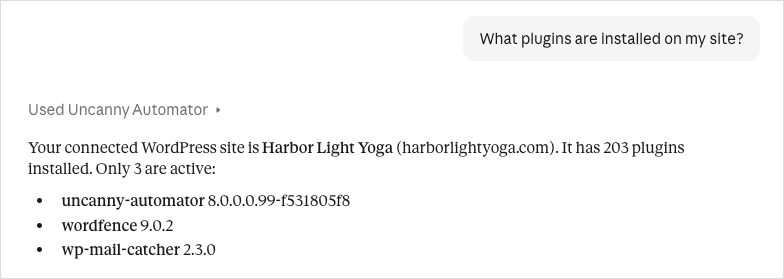
Then try requests like these:
- Get to know your site: “Review my site’s setup and call out anything of interest.” “Give me a summary of draft pages and posts.”
- Improve your site: “Review my site’s SEO.” “Give me some suggestions to improve my site’s performance.” “Review my site’s blog and suggest a couple of new posts that would complement the existing content.”
- Automate it: “Build a recipe that emails me whenever someone comments on one of my posts.” “Build a recipe that posts new blog posts to my social media feeds.”
- Your store: “Summarize my sales this month and compare month over month.” “Which products are low on stock or out of stock?” “Tell me which products are most often sold together.”
If you have several sites connected, add the site’s name or address to the request.
Lite and paid plans
Lite and the paid plans give your AI the same tools. The difference is how much it can do in a day: Lite includes 300 tool uses a day for your first week, then 150 a day, shared across all your sites and AI apps, and paid plans have unlimited tool usage. A tool use is one thing your AI does on your site through Uncanny Automator, so one request can take several. See Tool uses and the daily limit.
Related: Connect your AI to your WordPress site, Choose what your AI can access, Tool uses and the daily limit, Using AI safely with WordPress


Comments (0)