

Nothing goes live until you say so. This article covers how to preview your work at any screen size, keep pages as drafts, and publish when you’re ready.
Preview at any width
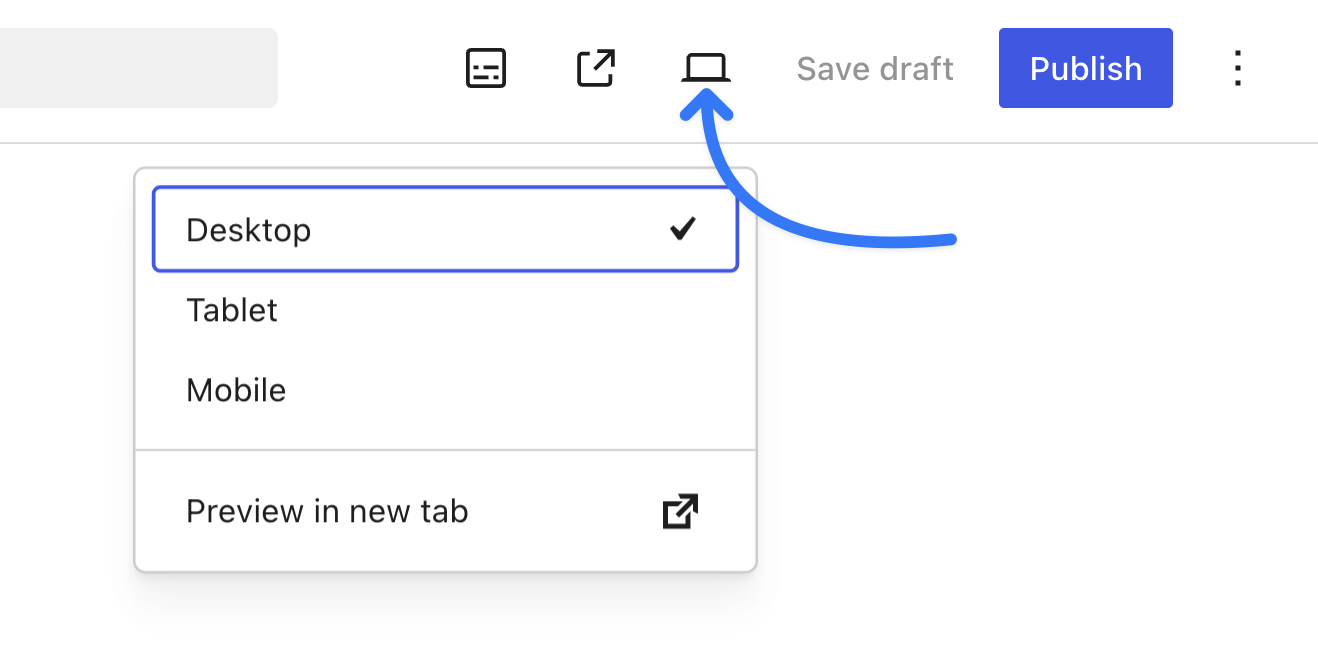
Click the device selector in the Page Builder toolbar to switch the canvas between Desktop, Tablet, and Mobile widths. Styles can differ per device, so it’s worth checking all three — and you can ask Uncanny Agent for device-specific changes like “make the buttons bigger on mobile.”
To see the page outside the builder, choose Preview in new tab.
Set the title and URL
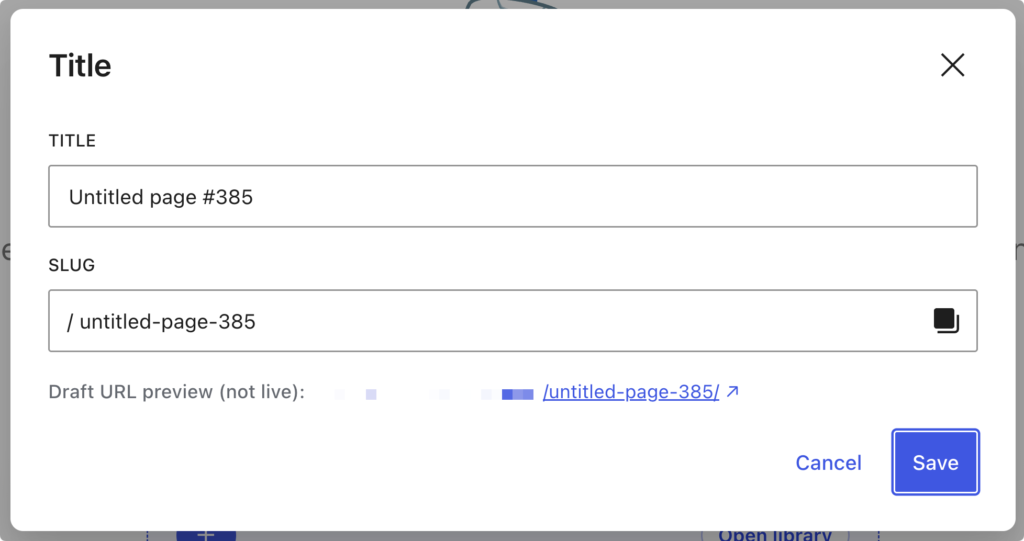
Click Edit page details in the toolbar to set the page title and URL slug. The dialog shows the resulting permalink, with a one-click copy button.
Save as a draft
Click Save Draft to save your work without publishing. Drafts are ordinary WordPress drafts — they appear in Pages > All Pages like any other page, and only logged-in users with permission can preview them.
If you’re building with Uncanny Agent, you can also just say so: “save this page as a draft and don’t publish it.” Saving is one of the significant actions Agent asks approval for, so you’ll always see it coming.
Publish
Click Publish in the toolbar (or ask Uncanny Agent) when the page is ready. The page goes live at its permalink, using the layout mode you chose — your theme’s header and footer, or the full Page Builder design.
Undo and iterate safely
Every edit can be undone (up to 30 steps per page), and you can keep refining after publishing — changes go through the same preview-and-approve flow. See Reviewing and approving what Uncanny Agent builds.




















































Comments (0)