

Uncanny Page Builder fits into the site you already have. For every page, you choose whether the page keeps your theme’s header and footer or whether Page Builder designs the entire page — and you can change your mind later.
The two layout modes
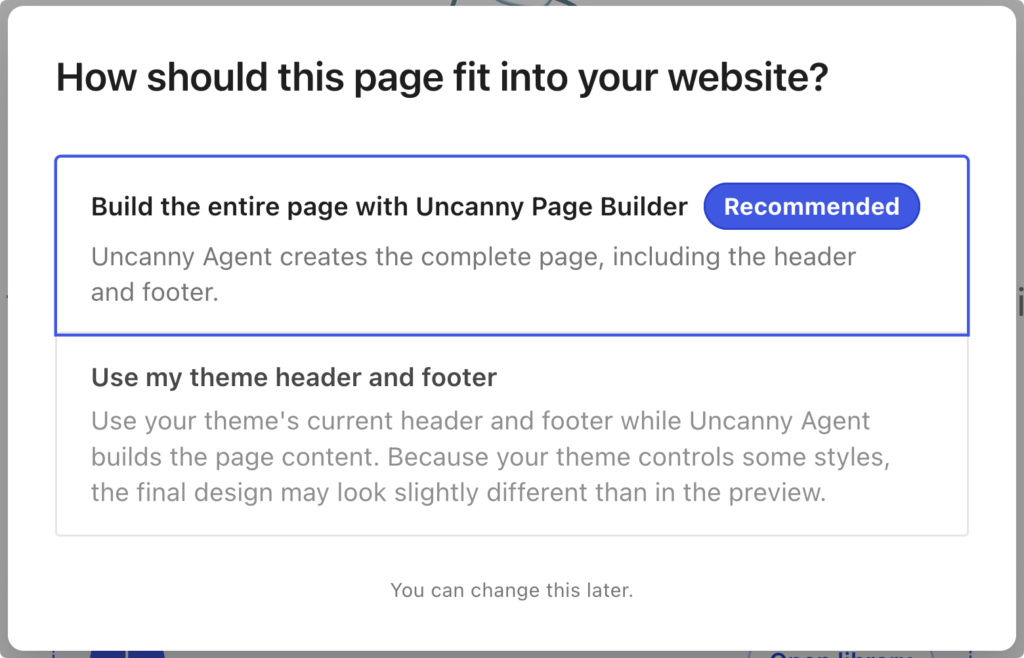
When you first open a page in Page Builder, it asks: How should this page fit into your website?
- Build the entire page with Uncanny Page Builder (recommended) — Page Builder creates the complete page, including the header and footer. Choose this for landing pages, campaign pages, or any page that should have its own design.
- Use my existing header and footer — your theme continues to provide the header and footer while Page Builder builds the page content in between. Because your theme controls some styles, the final page may look slightly different than it does in the builder preview.
Full-page mode: pick your header and footer
If you choose full-page mode and your site already has a saved header and footer in Page Builder, you’ll be asked whether to:
- Use my saved header and footer — apply the shared header and footer you’ve already created that is managed in one place and used across pages; or
- Start a stand-alone page — no header or footer, ideal for focused landing pages. You can add them later.
Shared headers and footers are managed as reusable parts — see Reusable sections, headers, and footers.
Adopt Page Builder at your own pace
These choices are per page, so you can redesign a single landing page today and leave the rest of your site exactly as it is. Page Builder runs happily alongside your theme and the plugins your site is built on, and it detects other page builders (like Elementor) on a page so two editors never fight over the same content.
























































Comments (0)