

Uncanny Page Builder is built into Uncanny Automator, so there’s nothing to install or connect. Once Automator is active and Uncanny Agent is enabled, you can build your first page in minutes.
Create a new page
- In your WordPress dashboard, go to Pages > Add Page.
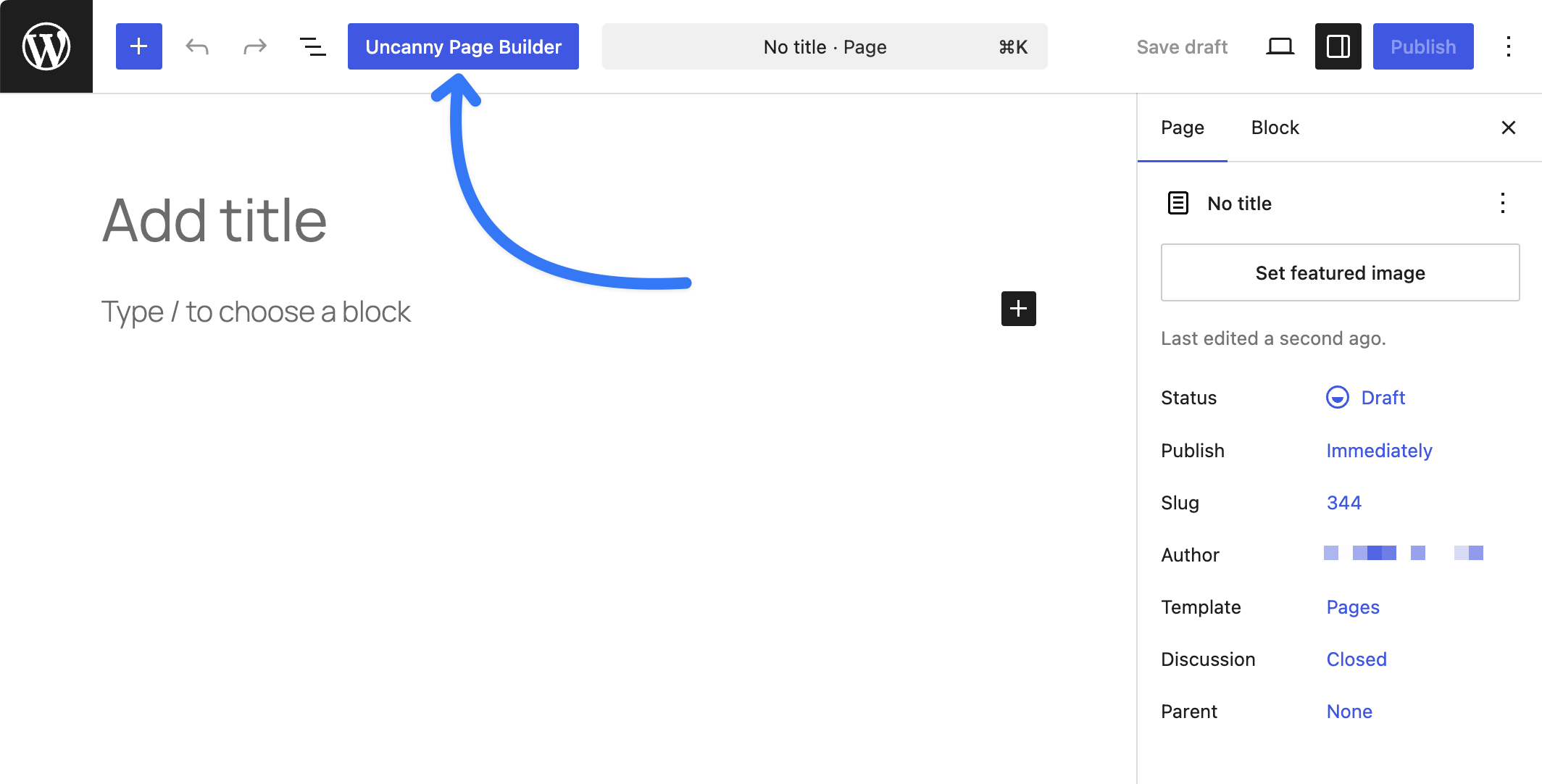
- In the block editor’s top toolbar, click the Uncanny Page Builder button.
- Confirm the switch. Page Builder saves an exact copy of the current WordPress page body so you can switch back later.
Choose how the page fits your site
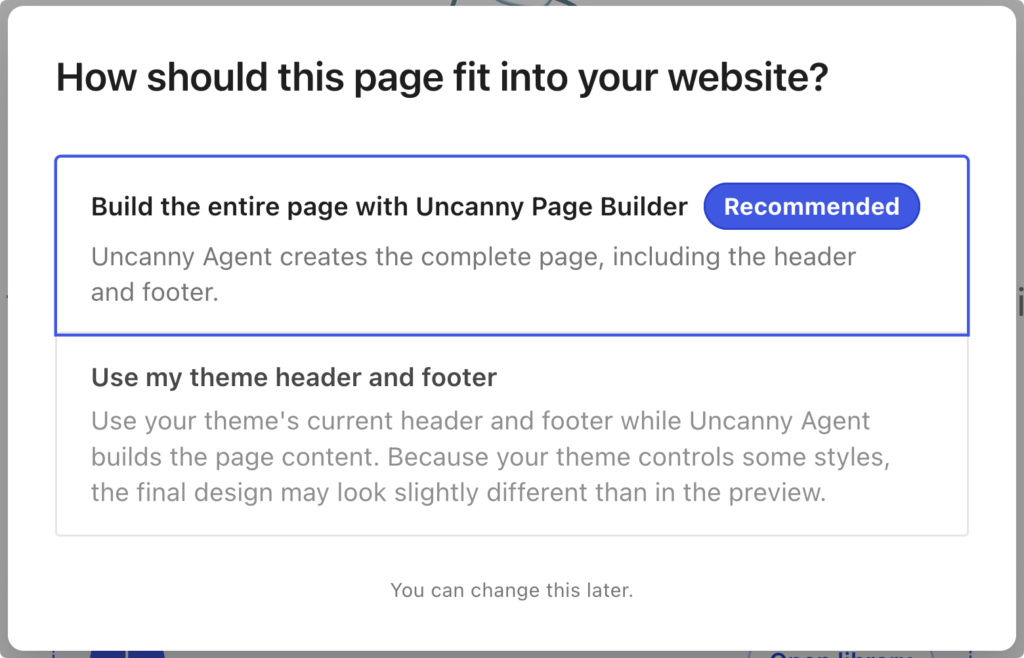
Page Builder asks two quick questions the first time you open a page:
- How should this page fit into your website? Choose Build the entire page with Uncanny Page Builder (recommended) to have Uncanny Agent create the complete page, including the header and footer — or Use my existing header and footer to keep your theme’s header and footer and let Agent build just the page content.
- Set up your page header and footer. If your site already has a saved header and footer in Page Builder, you can apply them to this page or start with a stand-alone page.
You can change these choices later. See Choosing a page layout for details.
Describe your page
On the empty canvas, click Start chatting and tell Uncanny Agent what you want, in plain language:
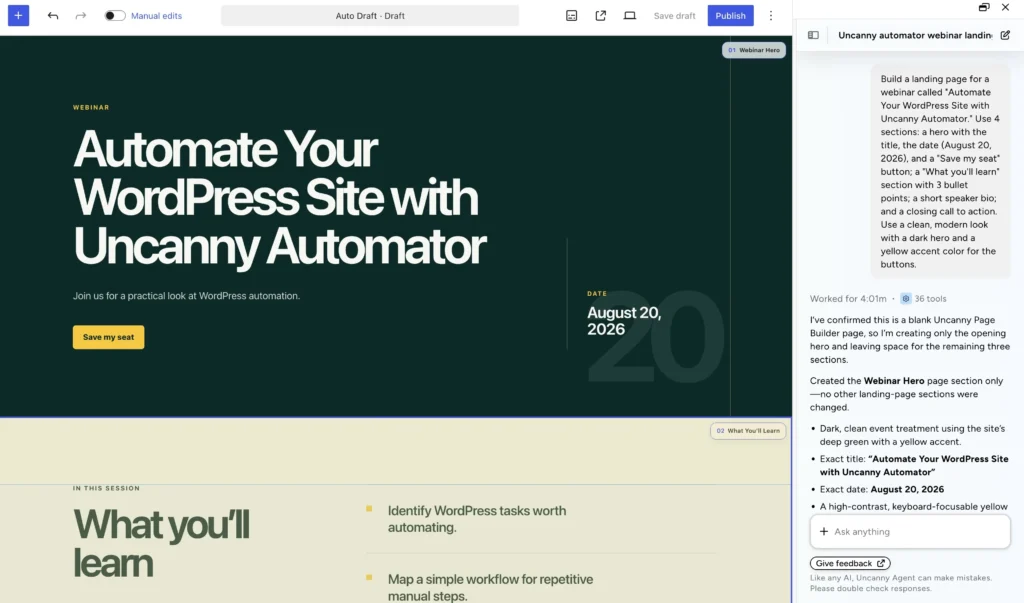
Build a landing page for an upcoming webinar. Keep it to 4 sections: a hero with the title, date, and a registration button; a “What you’ll learn” section with 3 bullet points; a brief speaker bio; and a final call to action.
Uncanny Agent plans the page, builds each section, and posts a summary of what it created. Significant steps — like saving the page or deleting an element — are shown for your approval before they happen. When it’s done, you’ll see the finished sections on the canvas, each with a name badge.
Want to know how to get the best results out of Uncanny Page Builder?
Name, save, and publish
- Click Edit page details in the toolbar to set the page title and URL slug.
- Click Save Draft to save without publishing, or Publish when you’re ready to go live.
- Use the device selector to preview at desktop, tablet, and mobile widths, or choose Preview in new tab.
From here, keep refining through conversation — or flip on the Manual editor for hands-on tweaks. Next: Building pages with Uncanny Agent.
























































Comments (0)