

Pages built with Uncanny Page Builder are stored as clean, standard HTML and CSS, not proprietary shortcodes or builder-specific code. Your content is portable: you can move a page, copy it, or take it somewhere else entirely.
Download a page as a standalone web page
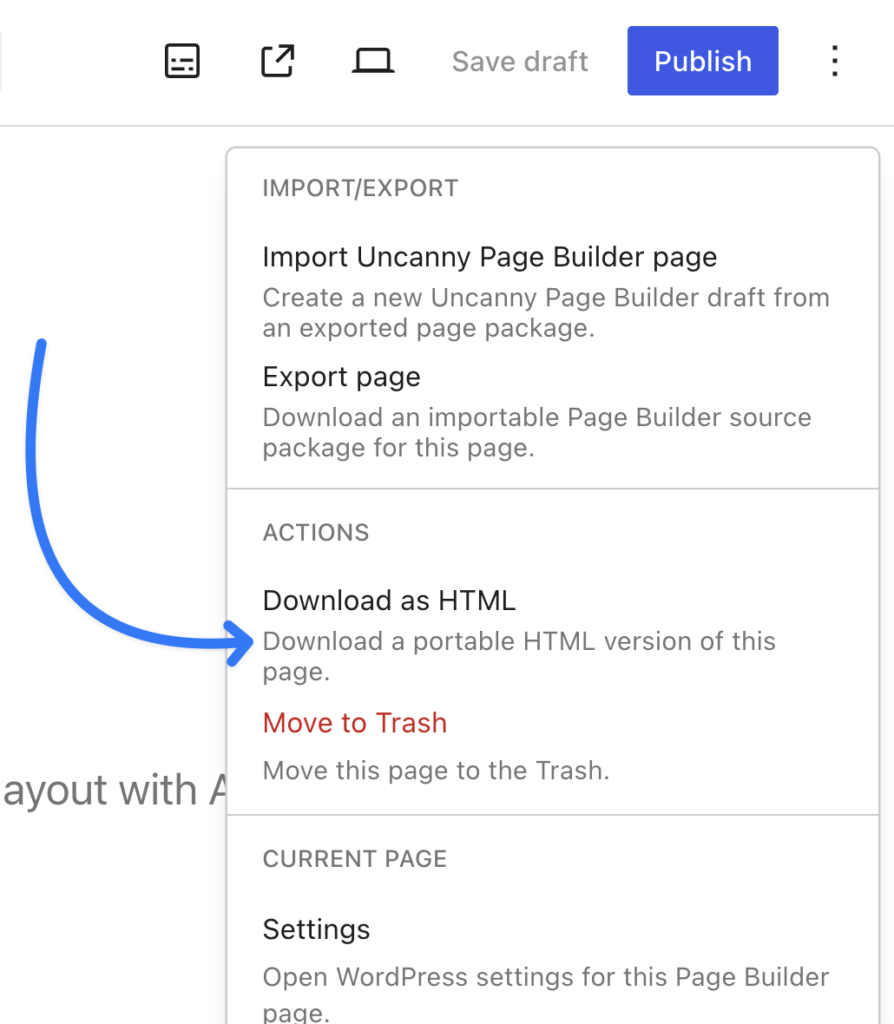
From the More page actions menu (⋮ at the right of the Page Builder toolbar), choose Download as HTML to download a portable HTML version of the page, complete with styling. You can host it anywhere, even outside WordPress.
Move pages between sites
Choose Export page from the same menu to download an importable Page Builder package. This is useful for moving work between staging and production, or reusing a page across client sites. To import the package on another site running Uncanny Page Builder:
- Go to Pages > All Pages.
- Click Import Uncanny Page Builder page at the top of the list.
- Select the file you exported.
The import creates a new draft page and never overwrites an existing one.
What happens without the plugin
Because the output is standard web code, your pages keep rendering even if the plugin is deactivated:
- Content and design stay intact.
- Live elements are not displayed while the plugin is inactive. The rest of each section keeps its design and static content, and the live elements return when the plugin is active again.
- In a downloaded HTML copy of a page, snapshot-capable elements are saved with their values at the time of the download, and live-only elements (such as login forms and visitor-specific content) are left out. The Live content reference guide shows which elements are which.
Uninstalling the plugin never deletes your pages or their content.
Related: Redesigning an existing page (and switching back), Adding live elements to your pages

Comments (0)