

In Uncanny Page Builder, Uncanny Agent does the building. Anything you can do with a page (create it, restructure it, restyle it) you can do by describing what you want in the chat panel. This article covers what you can ask for.
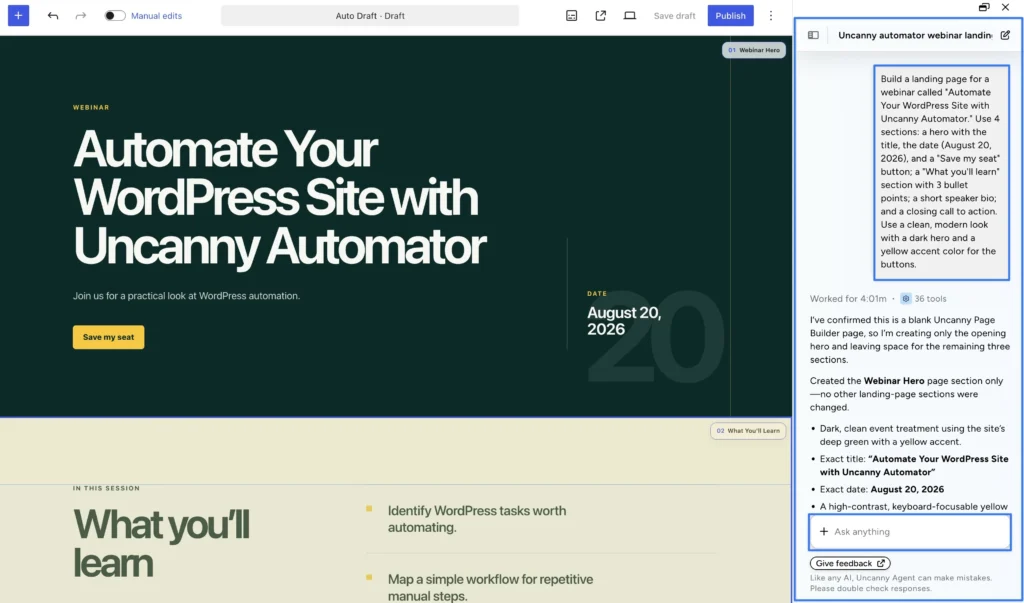
Create whole pages and sections
Describe the page and Uncanny Agent builds the layout, content, and styling together:
“Create a landing page with a hero section, three feature cards, a testimonial, and a call to action.”
Be as specific or as loose as you like. Uncanny Agent plans the sections, writes concise copy from your description, and names each section so it’s easy to refer to later (“the Webinar hero”, “the pricing section”). On an empty page, the chat suggests prompts for creating a page; on an existing page, it suggests refinements.
Refine through conversation
Iterate the same way you built:
- “Make the hero section taller and change the background to a lighter shade of blue.”
- “Swap the feature cards for a two-column layout.”
- “Move the signup form above the testimonials.”
- “Make the buttons bigger on mobile.” Styles can differ per device: desktop, tablet, and mobile.
- “Darken the button on hover.” Styles can also differ per state: normal, hover, and focus.
Uncanny Agent reads the page and your site’s brand styles before editing, so its changes start from what’s really there.
Beyond the page itself
Uncanny Agent handles more than layout:
- Menus: create navigation menus, add, remove, or reorder items, and assign menu locations, all by conversation.
- Images: Uncanny Agent can search your media library and upload images as part of a build.
- Icons: Uncanny Agent can add icons from the open-source Lucide icon library.
- Interactive touches: ask for sliders, carousels, and subtle animations, built with the approved libraries listed at Page Builder > Settings > JavaScript. They run as custom JavaScript, so they work only while page custom JavaScript is enabled on that tab, and only for administrators with the highest permission level (on a multisite network, super admins).
Build from an example
Upload a screenshot of a design you admire in the chat, and Uncanny Agent builds a page in that style. Uncanny Agent works from the image you upload; it can’t browse the web or visit URLs.
Ask for design advice
Uncanny Agent can review a page as well as build one. Ask “How can I optimize this page for conversions?” and it suggests improvements, the way an experienced designer looking over your site would.
Related: Tips for getting better results from Uncanny Page Builder, Fine-tuning pages with the Manual editor, Reviewing and approving what Uncanny Agent builds

Comments (0)