

You don’t need a test site to try Uncanny Page Builder. Open any existing page, even a live, published one, and redesign it with Uncanny Agent. If you want the old version back, you can restore it exactly as it was: same page, same URL.
Your original is saved automatically
When Page Builder takes over a page, it saves an exact copy of the original, so there are no manual backups or duplicate pages to manage. The confirmation you see when you click the Uncanny Page Builder button says so: “The existing WordPress editor content is preserved as a separate version and can be restored later.”
Your visitors are covered too: they keep seeing your original page until you publish your first Page Builder version. The swap only happens when you publish, so a live page is never left blank while you work on its redesign.
Because it’s the same page at the same URL throughout, there’s nothing to redirect and nothing for search engines to re-learn.
Redesign an existing page
- In your WordPress dashboard, go to Pages > All Pages and open the page you want to redesign.
- In the editor’s top toolbar, click the Uncanny Page Builder button, then click Edit with Uncanny Page Builder to confirm.
- Choose how the page should fit into your website, then describe the redesign to Uncanny Agent.
- Click Save draft while you work, and Publish when you’re happy with the result.
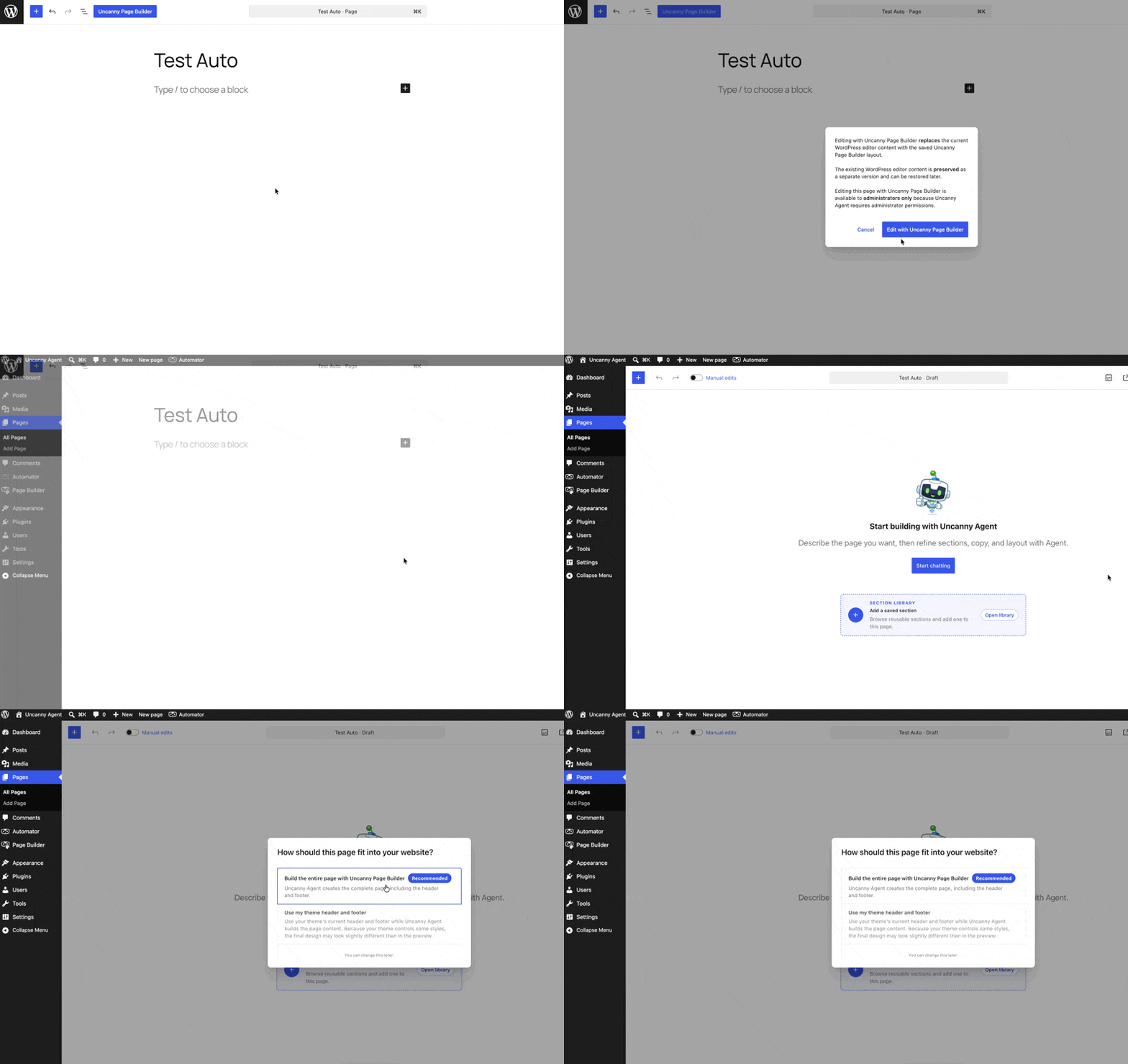
Page Builder also detects other builders (such as Elementor) on a page, so two editors never work on the same content.
Switch back anytime
To restore the original page:
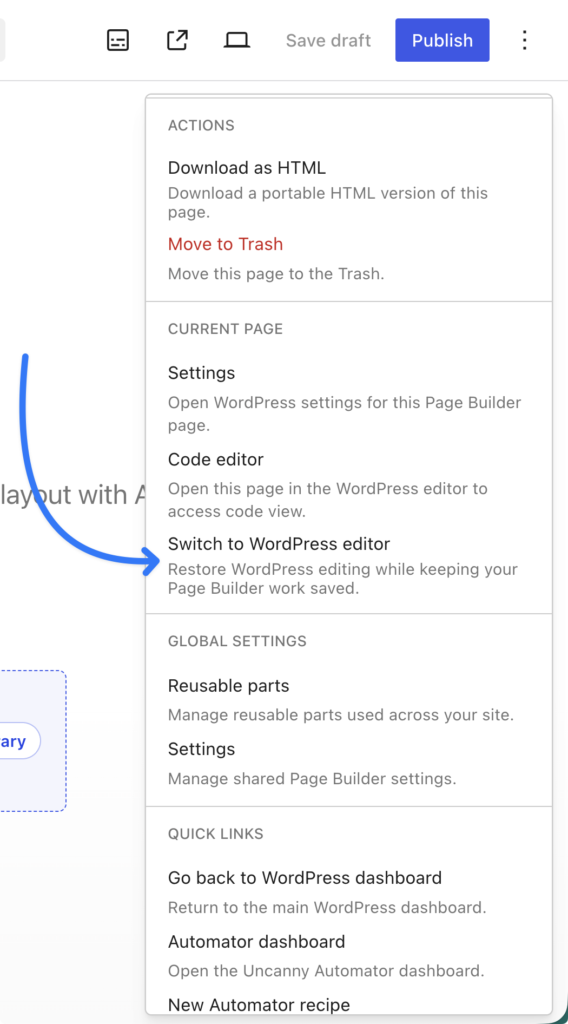
- In the builder, open the More page actions menu.
- Choose Switch to WordPress editor, then confirm with Switch to WordPress.
WordPress editing is restored, and the original page returns exactly as it was, at the same address. Your Page Builder redesign isn’t thrown away: it stays saved, so if you switch to Page Builder again later, you pick up where you left off.
Related: Choosing a page layout: theme header/footer or full page, Downloading, exporting, and moving your pages

Comments (0)