

Every chat with Uncanny Agent is saved automatically, so you can pick up where you left off, revisit something Uncanny Agent did last week, or clear out conversations you no longer need.
Who can see my conversations?
When you activate your Uncanny Automator license on a site, any user with the manage_options capability (typically users with the Administrator role) will be able to use Uncanny Agent. Conversations are unique to every combination of site and license key. This means that if you have multiple site administrators on a particular site, they will see and be able to continue the conversations started by other site administrators.
If you have an Uncanny Automator AI + Automation license that supports multiple site activations, users across sites will not see conversations from other sites. Learn more.
Opening the conversation list
With Uncanny Agent open, click the menu icon in the top-left of the panel to expand the conversation history sidebar. You’ll see a list of all your past conversations, ordered with the most recent at the top.
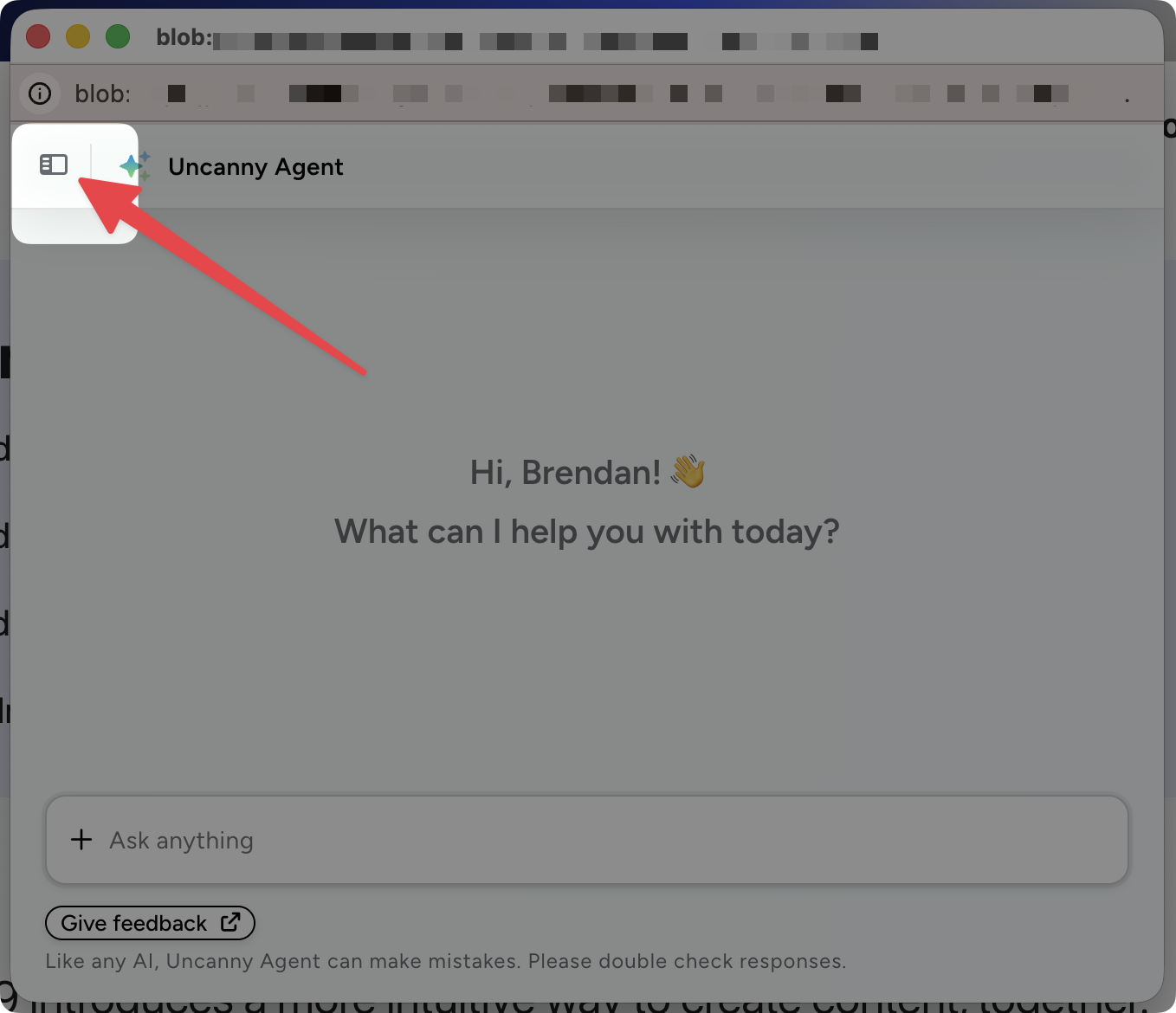
Each conversation shows a short title that Uncanny Agent generates automatically based on what you discussed (for example: “Create LearnDash course” or “Customer lifetime value”). Click any entry to jump back into that conversation.
Starting a new conversation
Click + New conversation at the top of the sidebar to start fresh. New conversations begin with the welcome screen and the suggested prompts, just like the first time you opened Uncanny Agent.
Starting a new conversation is a good idea when you switch topics. For example, when you’re done building a recipe and want to move on to drafting content. A focused conversation tends to produce better results than a long, mixed-topic one.
Searching past conversations
Use Search conversations above the list to find an older chat by keyword. This searches conversation titles. Useful for finding “the one about HubSpot” three weeks later.
Renaming a conversation
If the auto-generated title doesn’t match how you think about the chat, hover over the conversation in the sidebar, click the three dots (•••), and then click Rename. Type a new title and press Enter.
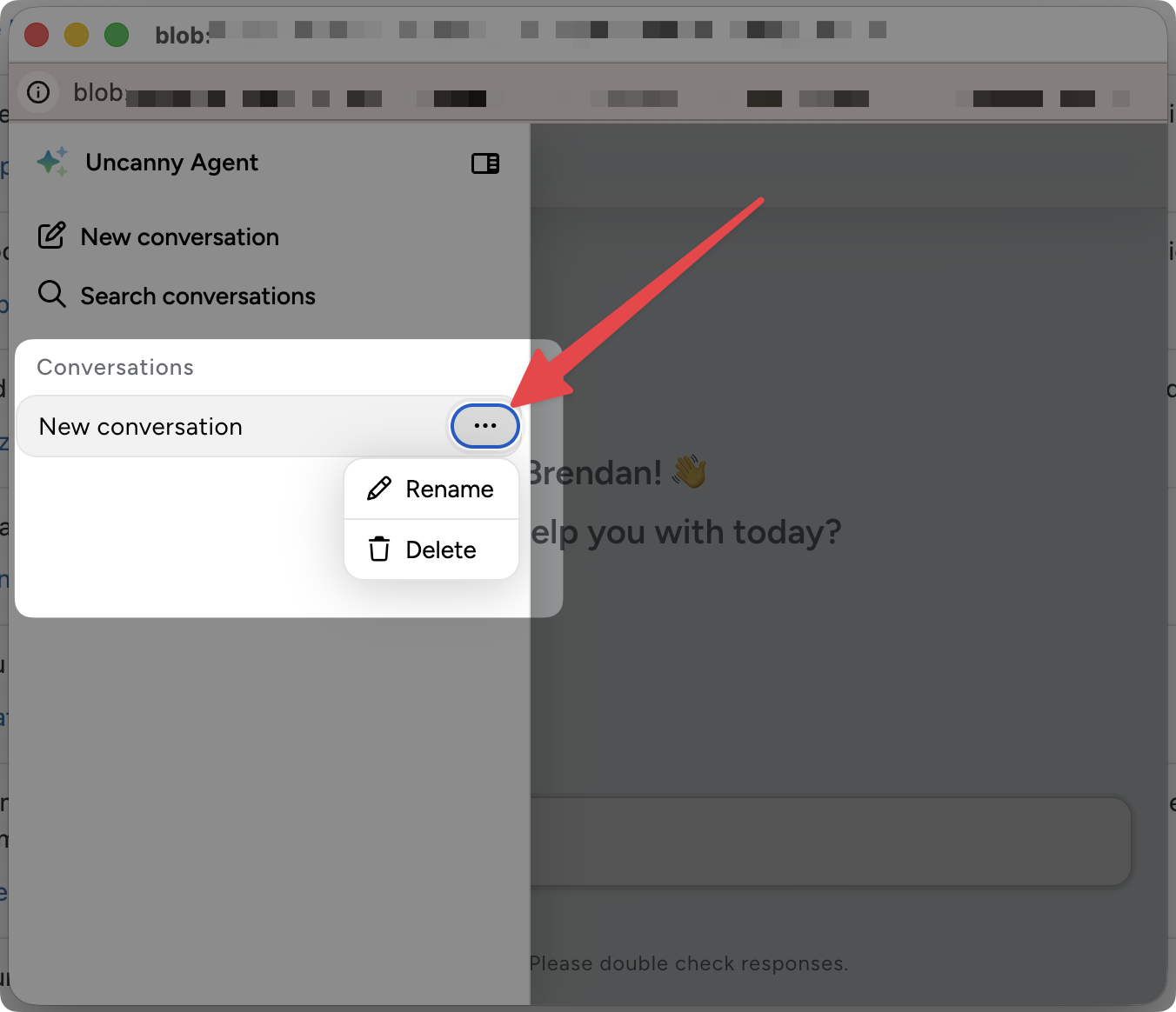
Deleting a conversation
Hover over a conversation and click Delete to remove it. Deletion is permanent—the conversation, including any actions the Agent took on your site, can’t be restored from the chat history. (The actions themselves—recipes, posts, etc.—are not deleted; only the chat record is.)
A note on retention
Uncanny Agent stores your conversations to help you reference past work and to provide better context for future requests. See our Privacy Policy and our Terms and Conditions for details on what is stored, where, and for how long.




















































Comments (0)