

Uncanny Agent works best when you talk to it like a capable teammate who already has access to your WordPress site. You don’t need to memorize commands or use special syntax. Simply describe what you want and Agent gets it done.
Where to type your message
The Ask anything box at the bottom of the Agent panel is where every conversation starts. Type your request and press Enter to send it.
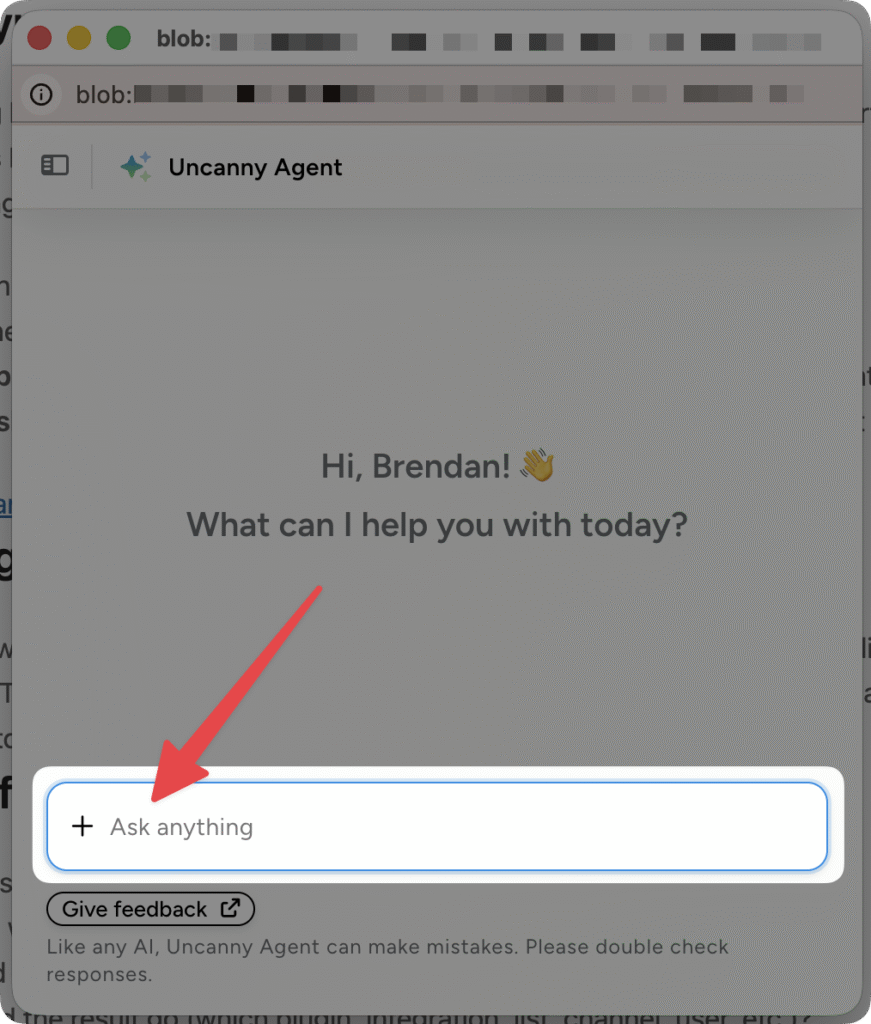
To the left of the input you’ll find:
- + — opens the attachments menu
- Add files or photos — upload an image, document, or CSV that Agent should look at for additional context
- Take screenshot — capture part of your screen and share it directly with Agent
See Sharing files and screenshots with Uncanny Agent for the details on attachments.
Use the suggested prompts to explore
If you’re not sure where to start, the welcome screen offers suggested prompts, depending on which screen you’re on. They’re a great way to discover what Uncanny Agent can do without having to write a prompt from scratch.
Anatomy of a great prompt
A useful prompt usually answers three questions:
- What do you want to happen?
- When should it happen (the trigger or schedule)?
- Where should the result go (which plugin, integration, list, channel, user, etc.)?
A weak prompt:
“Send people an email.”
A strong prompt:
“When a customer buys a product in the Coaching category in WooCommerce, wait one hour, then send them a welcome email with some helpful information about their purchase and a 15% off coupon for their next order.”
The second prompt gives Uncanny Agent enough context to pick the right trigger, configure the delay, choose the email action, and pull in the right tokens—usually in one shot, with no follow-up questions.
Chat back and forth
Uncanny Agent remembers the rest of the conversation, so you can refine your request without starting over:
- “That’s great — can you also tag those customers in HubSpot?”
- “Run that report again for last month instead of last week.”
- “Pause the recipe for now, I want to test it manually first.”
When to ask follow-up questions
If Uncanny Agent finishes a task and something looks off, just tell it. “The trigger is firing, but the email isn’t sending — can you check the logs?” is exactly the right level of detail. Uncanny Agent will inspect the logs and report back.
What if Uncanny Agent gets it wrong?
Like any AI, Uncanny Agent can make mistakes. Each response has 👍 and 👎 buttons — please use them. Negative feedback (with an optional comment) goes back to the Uncanny team and helps us to improve the Agent over time. You can also use the Give feedback link at the bottom of the panel for longer-form notes.
For more on writing effective prompts, see Tips for getting better results.
























































Comments (0)