

A recipe with a Users loop applies one change to many existing users at once: add a role, enrol everyone in a course, tag a group of contacts in your email platform, or send an announcement. You build it once, run it from the Run now button, and follow the results in the log. This article walks through a recipe that gives every Subscriber an extra role and sends each of them an email, using only the WordPress and Emails integrations, and then covers how to adapt and run it safely.
You need Uncanny Automator Pro: the Loop block and the Run now trigger are both Pro. For the full reference on loop types, filters, and tokens, see Loop block: users, posts and tokens.
How the recipe is shaped
Every bulk update recipe has the same three parts:
- A trigger that you control. The Run now trigger (“Trigger recipe manually”) runs the recipe when you click a button in the builder. A Schedule trigger runs it at a date and time or on a repeating schedule. Both are Pro, and both run for everyone, so they can be used only in Everyone recipes. In a Logged-in users recipe the picker shows them as unavailable with “This trigger runs for everyone and cannot be used in a recipe for logged-in users.”
- A Loop block with Loop type Users, with loop filters that select exactly the users you mean. The filters are the safety net: the actions run on every user who passes them.
- The actions inside the loop, which run once for each selected user. Actions that act on “the user” act on the loop’s current user; tokens from the Loop section of the token picker carry that user’s details into emails and other fields.
Building the recipe
- In your WordPress dashboard, go to Automator > Add new recipe.
- In Select a recipe type, choose Everyone and click Confirm. The type cannot be changed later.
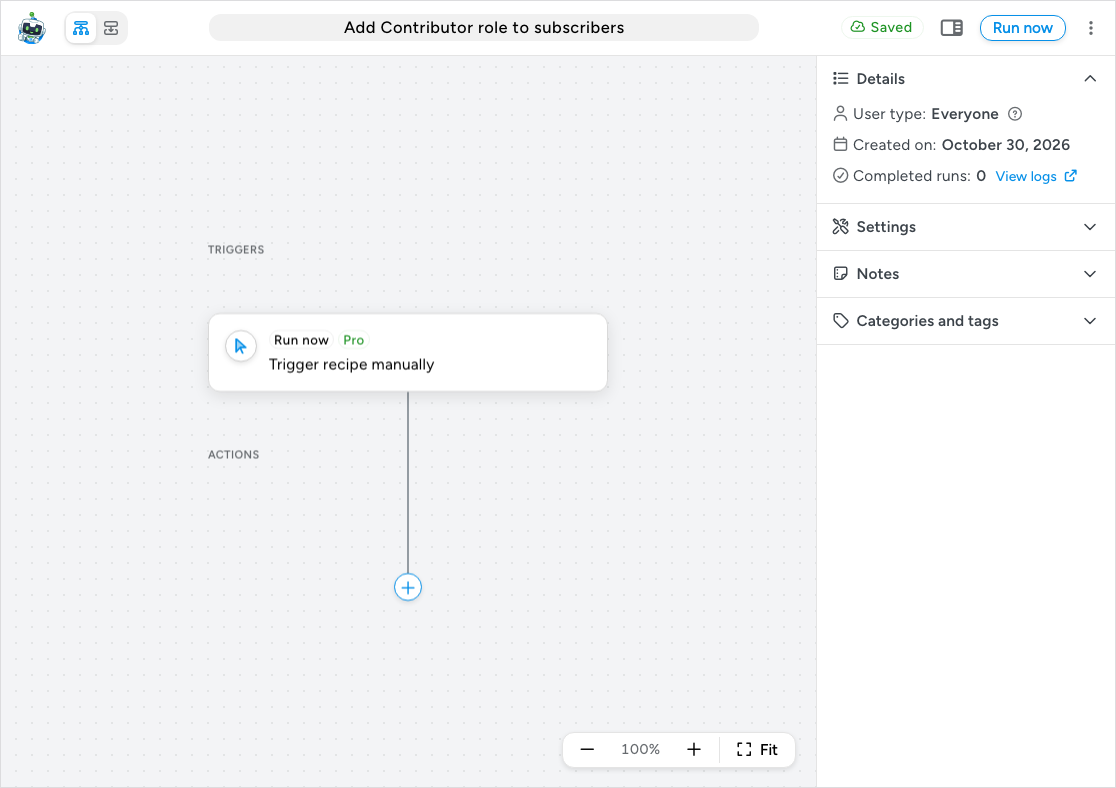
- Click the title field, type a name such as “Add Contributor role to subscribers”, and wait for Saved.
- Click Add trigger. In the picker, search for “run now”, click the Run now integration, then Trigger recipe manually. The trigger has no fields and no Test step: click Save.
The top bar now shows a Run now button in place of the Recipe on / off switch. Nothing runs until you click it.
Add the Users loop
- Click the + under the trigger. In the picker, scroll to Recipe blocks and click Loop.
- Choose Users as the Loop type and click Save.
The new block reads “Loop through Users” and shows “No modifiers in this block”. The filters you add next decide which users the loop processes.
Choose the users
- On the Loop block, click Add modifier.
- Click WordPress Core, then User has a specific role.
- Check that Criteria is has and Role is Subscriber (the form opens with both selected; change Role for a different group of users), then click Save.
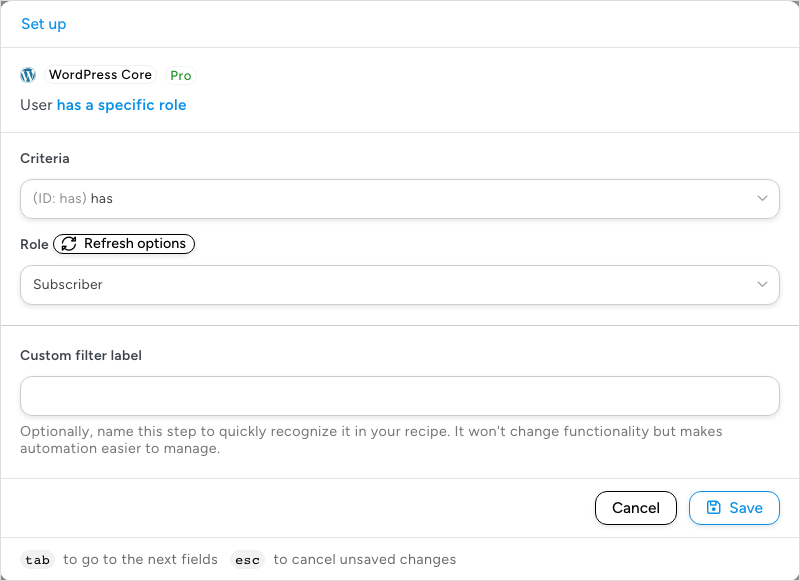
The loop now processes every user who has the Subscriber role. When a loop has several filters, a user must pass all of them. Other filters you can add from the WordPress integration: User’s email address ends with a domain, A user field meets a condition (ID, display name, email, login, registration date, and other profile fields), A user meta value meets a condition, and A user’s registration date meets a condition. Plugins such as LearnDash, WooCommerce, and MemberPress add their own, for example users enrolled in a course or users with an active membership.
Add the actions
- Click + Add inside the Loop block.
- Click WordPress Core, then Add a new role to the user’s roles.
- Set Role to Contributor and click Save. This action has no Test step.
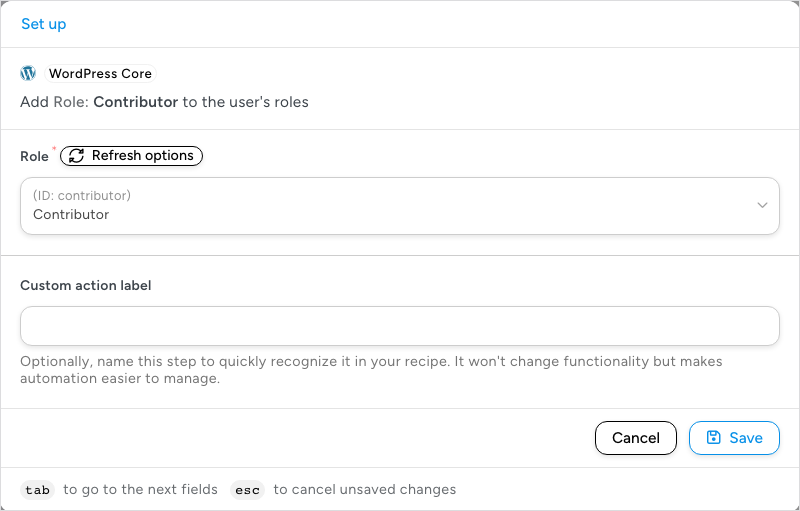
Because the action is inside a Users loop, “the user” is the user of the current pass, so each Subscriber gets the Contributor role added to their existing roles. (The related action Change the user’s role to a new role replaces the roles instead of adding one.)
- Point at the line below the first action, inside the Loop block, and click the + that appears (its tooltip reads Add inside Loop). Click Emails, then Send an email.
- In To, click the ∗ button, open the Loop section, and choose User email.
- Write the Subject and Body. Insert the loop’s User first name token where the greeting goes. Click Save.
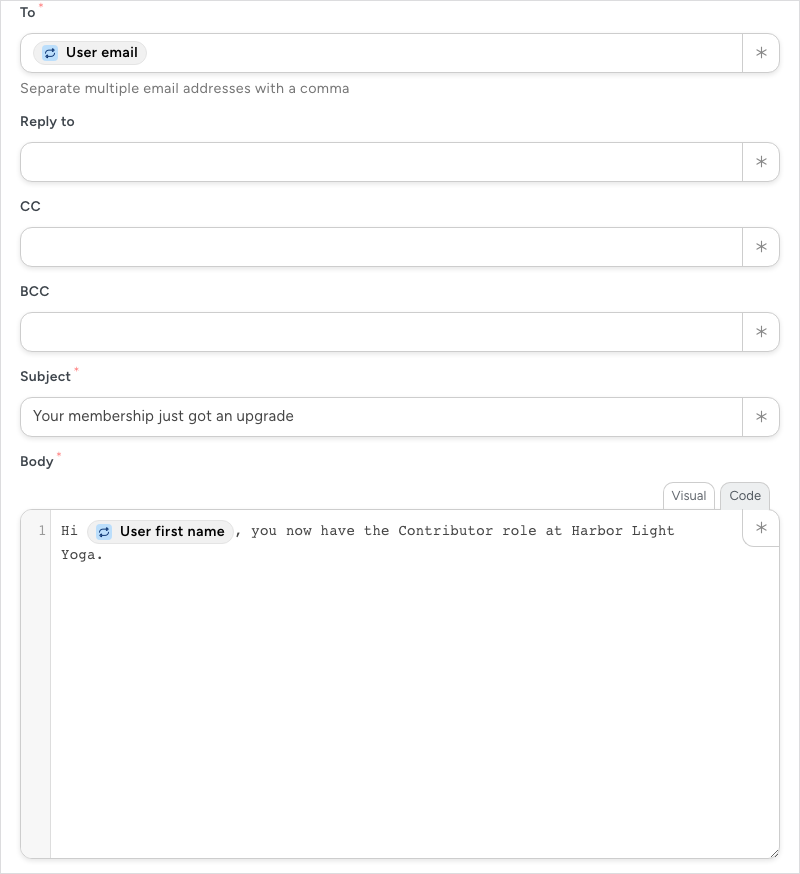
Use the Loop section’s tokens, not the general user tokens: inside a Users loop, User email and User first name from the Loop section belong to the user being processed. Each selected user receives one email addressed to them.
Running the recipe
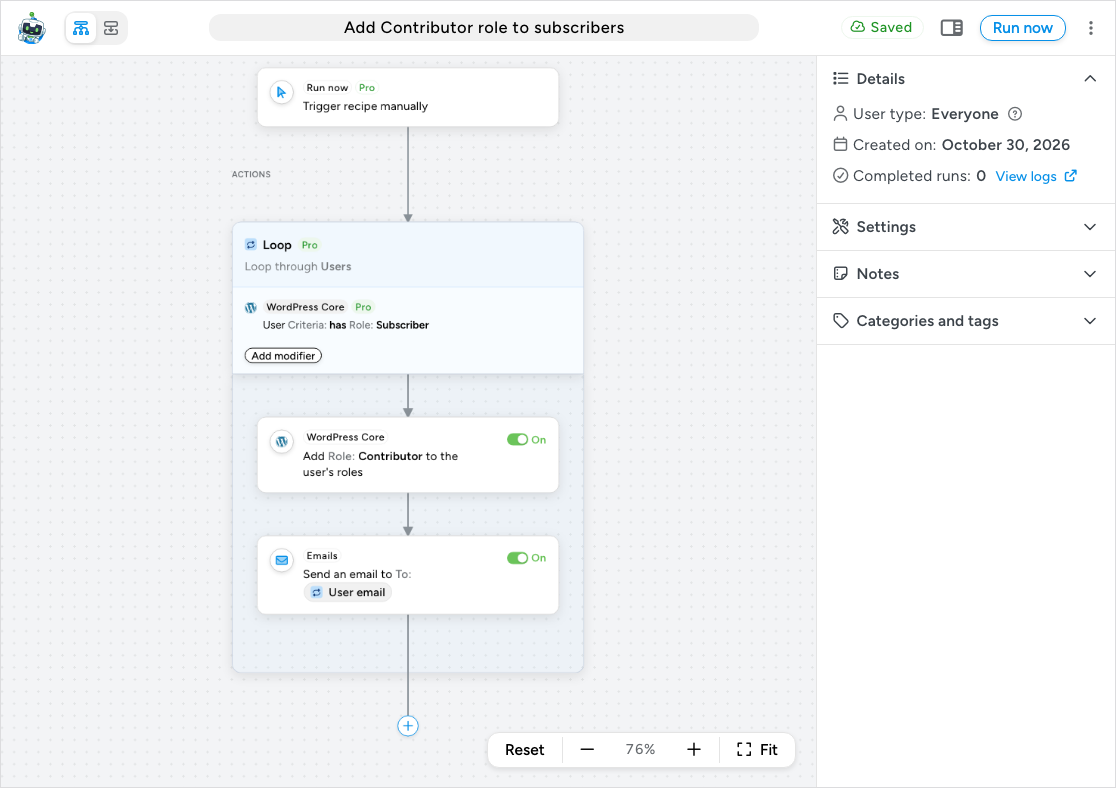
- Check the canvas: the trigger, the Loop block with its filter, and the two actions inside the frame, both switched On.
- Click Run now in the top bar.
The recipe starts immediately and the builder opens the log of this run. If something in the recipe is incomplete, a dialog titled This recipe can’t be run yet lists what to fix, and the affected steps are marked on the canvas. While the run is in progress the recipe is locked: edits are not accepted and the Run now button is disabled until the loop finishes.
Checking the results
In the run log, the Loop block shows its status, a counter of users finished out of the total with a percentage, a progress bar, and Pause and Cancel buttons while it runs. Cancelling stops the users that have not been processed yet; the change already made to earlier users stays. The loop checks for a cancel every 25 users, so up to 25 more users can be processed after you click Cancel.
When the loop completes, click View details on an action inside the loop to open its Action details panel. The Iterations section lists each user by ID and display name with that action’s status for them, including any that failed; open a failed user’s entry to see the reason above its properties. Then confirm the change where it lives: in Users > All Users, the Subscribers now show the Contributor role as well. You can reopen the log at any time from the sidebar’s Details > View logs or from Automator > Logs.
Adapting the recipe
Swap the actions for whatever your bulk change needs; the trigger, loop, and filters stay the same. Common choices:
- Add a role or remove a role (WordPress).
- Enroll the user in a course (LearnDash), or the equivalent in your LMS or membership plugin.
- Add a tag or move a contact to a list in your email platform (Mailchimp, ActiveCampaign, and the other app integrations).
- Send an email with a personal greeting, as above. For very large audiences, see Sending bulk emails with user lists for advice on your host’s sending limits.
- Export each user to Google Sheets or Airtable.
To make a different choice for some users, add a Filter block inside the loop: users who meet its conditions take the CONDITIONS MET path and the rest take CONDITIONS NOT MET.
Things to know
- There is no undo. Before running on everyone, test on a subset: add a second filter such as A user field meets a condition with ID is your own test account, run, check, then remove the test filter. Better still, run the recipe first on a staging copy of the site with outgoing email disabled.
- The loop processes users who exist when it starts. Someone who registers after you click Run now is not included. For an ongoing rule (“every new Subscriber gets this role”), build a second recipe with an event trigger such as a user registering.
- Total times counts recipe runs, not loop items. A Run now recipe runs once per click, so one click processes every selected user however many there are. Open Settings in the sidebar if you want to cap how many times the recipe can be run. An Everyone recipe has no Times per user setting: its Settings panel shows Throttle and Total times only. See Recipe settings: times per user, total times and throttling.
- Loops run in the background in batches. A large loop takes a while, and app actions (Google Sheets, Mailchimp) are subject to the receiving service’s rate limits. Narrow the filters and run several smaller loops if a large one fails part-way through.
- Running the same recipe twice repeats the actions. Adding a role a user already has is harmless, but sending the email again is not. Filter out users who already have the change (for example, a second User has a specific role filter that excludes Contributor) so a second run only reaches new users.
Related: Loop block: users, posts and tokens, Bulk update posts with a recipe, Run Now, Schedule, Filter block and conditions, Using Automator Logs.


Comments (0)