

The User Lists Addon turns a list of WordPress users into an audience you can email from a recipe. A Loop block selects everyone on the list, and a Send an email action inside the loop sends each of them a personal message. This article builds that recipe in the Uncanny Automator 8.0 recipe builder, runs it with the Run now button, and covers the sending limits and unsubscribe handling to keep in mind.
You need the User Lists Addon installed and active, which requires the Plus or Elite plan, and Uncanny Automator Pro, because the Loop block and the Run now trigger are both Pro. You also need at least one list with members; see Managing user lists. Lists hold WordPress users only, so everyone you email has an account on your site.
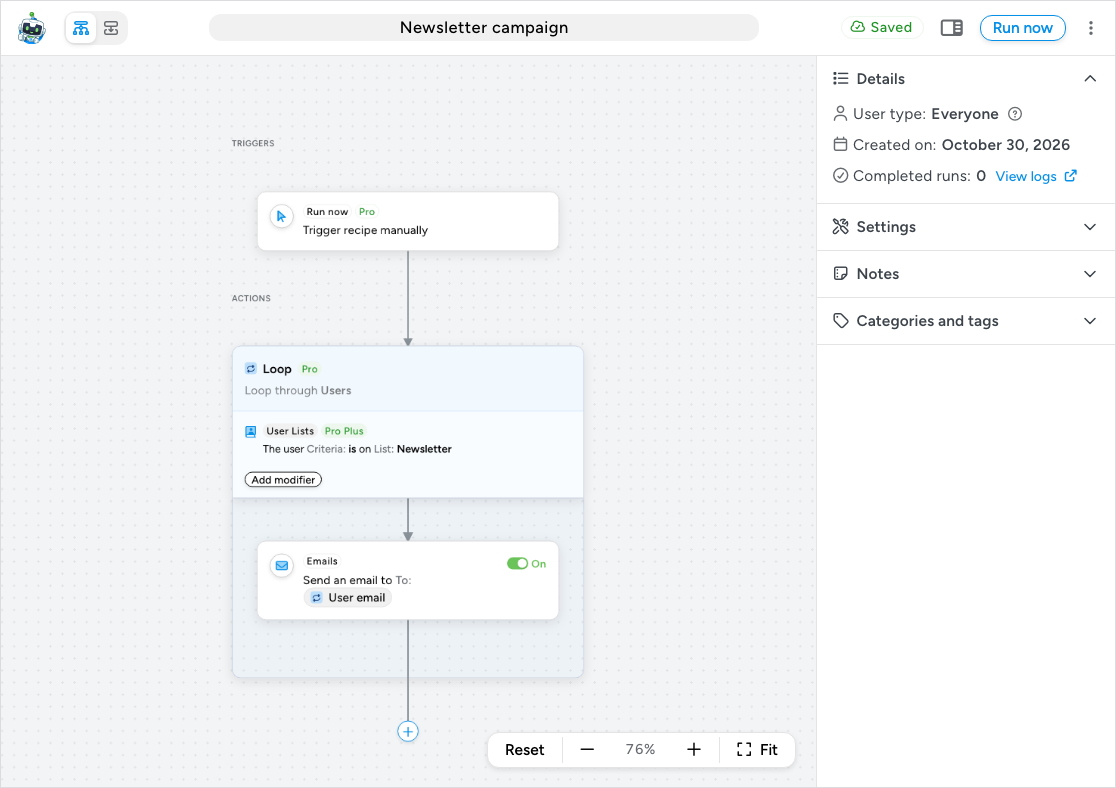
The recipe has three parts: a trigger you start by hand, a Users loop whose filter is list membership, and the email action inside the loop. For the full reference on loops, see Loop block: users, posts and tokens; for other bulk changes built the same way, see Bulk update users with a recipe.
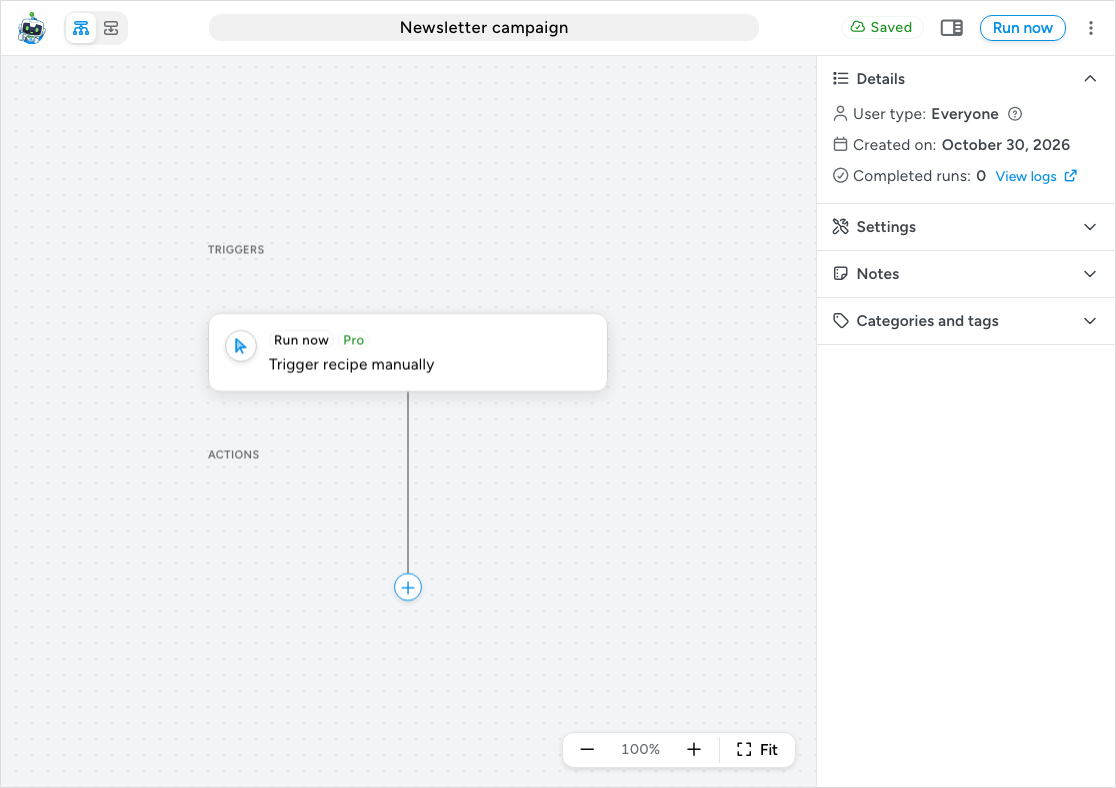
Create the recipe and add the Run now trigger
- In your WordPress dashboard, go to Automator > Add new recipe.
- In Select a recipe type, choose Everyone and click Confirm. The Run now trigger is only offered in Everyone recipes, and the type cannot be changed later.
- Click the title field and type a name for the campaign, then wait for Saved.
- Click Add trigger. In the picker, search for “run now”, click the Run now integration, then Trigger recipe manually, and click Save. The trigger has no fields and no Test step.
The top bar now shows a Run now button in place of the Recipe off switch. Nothing is sent until you click it.
Add a Users loop filtered by list
- Click the + under the trigger. In the picker, scroll to Recipe blocks and click Loop.
- Choose Users as the Loop type and click Save. A new Users loop has no filters yet, only an Add modifier button. A loop with no filters processes nothing, so the next step is to add one.
- On the Loop block, click Add modifier.
- In the picker, search for “User Lists”, click User Lists, then The user is/is not on a list.
- Set Criteria to is, choose the list under List, and click Save.
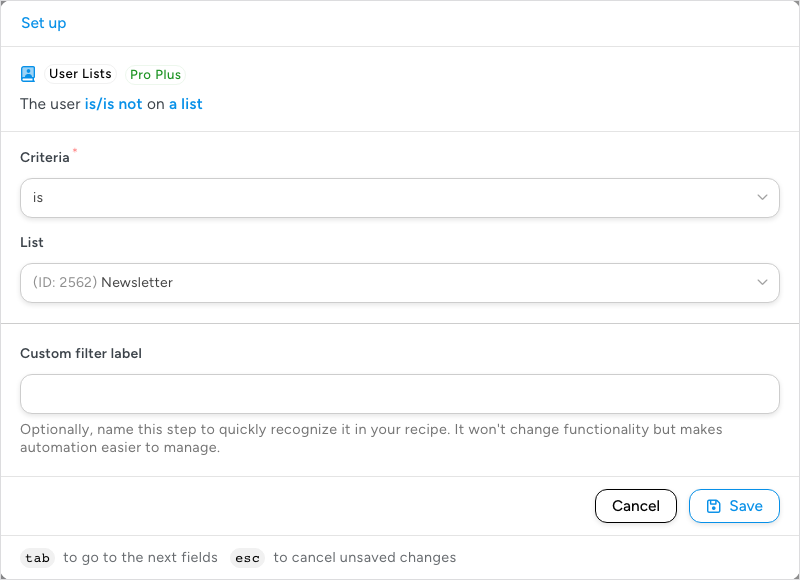
The loop now processes every member of that list. is not does the opposite and selects every user who is not on the list, which is how you reach people who have not joined something yet. When a loop has several filters, a user must pass all of them, so you can add a second User Lists filter to require membership of two lists, or a WordPress filter such as User has a specific role to narrow the audience further.
Add the email inside the loop
- Click + Add inside the Loop block. Click Emails, then Send an email.
- In To, click the ∗ button. On the From previous steps tab, open the Loop section and choose User email. Each pass of the loop then addresses the email to the user being processed.
- Leave Bypass Unsubscribed list unchecked. The addon adds this checkbox just above the To field; while it is unchecked, “the email will not be sent if the target user/email is on the Unsubscribed list”, which is what you want for a campaign.
- Write the Subject and Body. Personalise them with the Loop section’s tokens, such as User first name, rather than the general user tokens: inside a Users loop, the Loop tokens belong to the user of the current pass.
- At the end of the body, insert the Unsubscribe link token from the User Lists section on the token picker’s Global tab. It renders as an “Unsubscribe” link to your site’s manage emails page, so every recipient can opt out; Unsubscribe URL gives the bare address if you want to write your own link text.
- Click Save. A test would not tell you much here: the Test step sends to an Email address you type, and token values are not replaced during tests, so the loop tokens arrive as raw placeholders. Test with a small list instead (see Things to know).
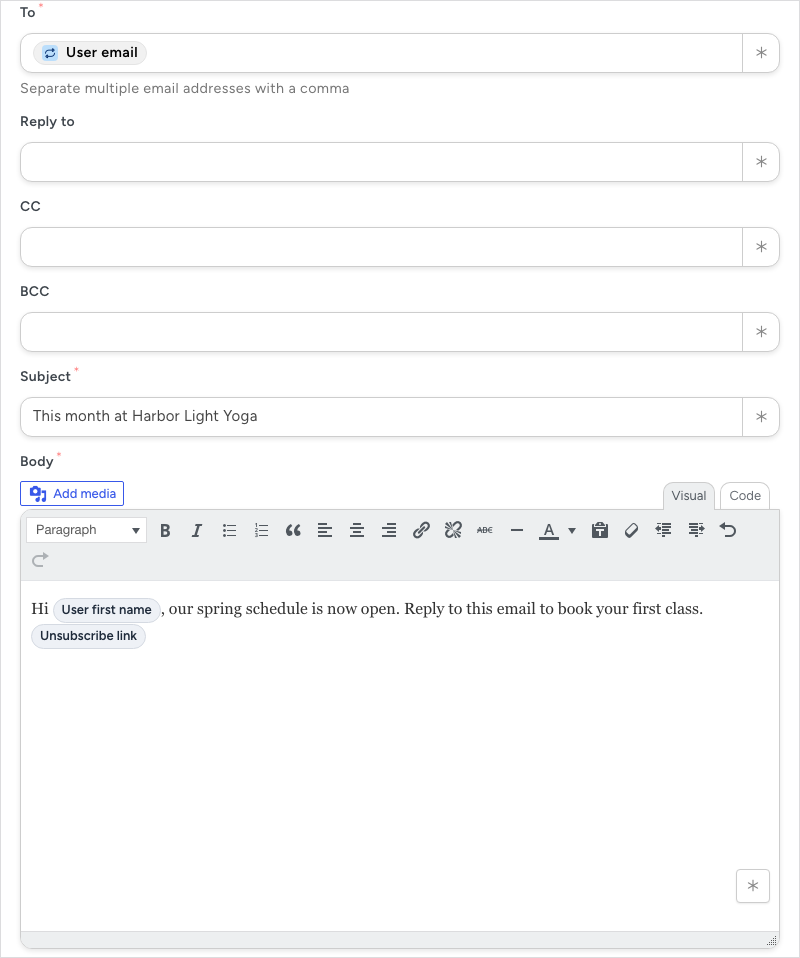
The email is one of many actions you could run on the list. The same loop could change every member’s role, add them all to another list, create and email each of them a WooCommerce coupon, or enrol them in a course; swap the action and the trigger, loop, and filter stay the same.
Send the campaign
- Check the canvas: the Run now trigger, the Loop block with its filters, and the email action inside the frame, switched On.
- Click Run now in the top bar.
The recipe starts at once and the builder opens the log of this run. The Loop block in the log shows a counter of users finished out of the total, a progress bar, and Pause and Cancel buttons while the loop runs. Emails already sent are not recalled by Cancel; users not yet processed are skipped. To follow the progress of the send later, open Automator > Logs or click View logs under Details in the builder sidebar. While the run is in progress the recipe is locked and the Run now button is disabled.
Things to know
- Your host limits outgoing email. Most hosts cap the number of emails a site can send per hour or per day, to stop their servers being blocklisted for spam. Before emailing hundreds or thousands of users, find out your host’s limit; emails over it are not delivered. If the limit is too low for your lists, send through an SMTP or transactional email service with an SMTP plugin, which also improves deliverability.
- The Unsubscribed list is respected automatically. With Bypass Unsubscribed list unchecked, a recipient on the Unsubscribed list is dropped and the log records that the address “was removed from the email recipients because the user has unsubscribed from all emails”. Tick the box only for transactional email the user expects, such as a receipt. See The Unsubscribed list and managing subscriptions.
- Test on a small list first. There is no undo for a sent email. Create a list with your own account on it, run the recipe against that list, check the message and the unsubscribe link, then change the loop filter to the real list.
- Each click sends again. Running the recipe a second time emails every member again. If some members already received the campaign, move them to another list and add a second filter, The user is not on that list.
- The loop uses the list as it is when you click Run now. Users added to the list afterwards are not included. For an ongoing welcome message, build a second recipe with the A user is added to a list trigger instead.
Related: Loop block: users, posts and tokens, Bulk update users with a recipe, Managing user lists, The Unsubscribed list and managing subscriptions, User Lists Integration with Automator, Run Now, Recipes for Everyone.

Comments (0)