

Sometimes the fastest way to get help is to show Uncanny Agent what you’re working on. A screenshot of an error, a CSV of customer data, a brief from your client—all of that gives Agent more context to work with.
Uncanny Agent supports attachments and a built-in screenshot tool to help you draft better prompts.
The attachment menu
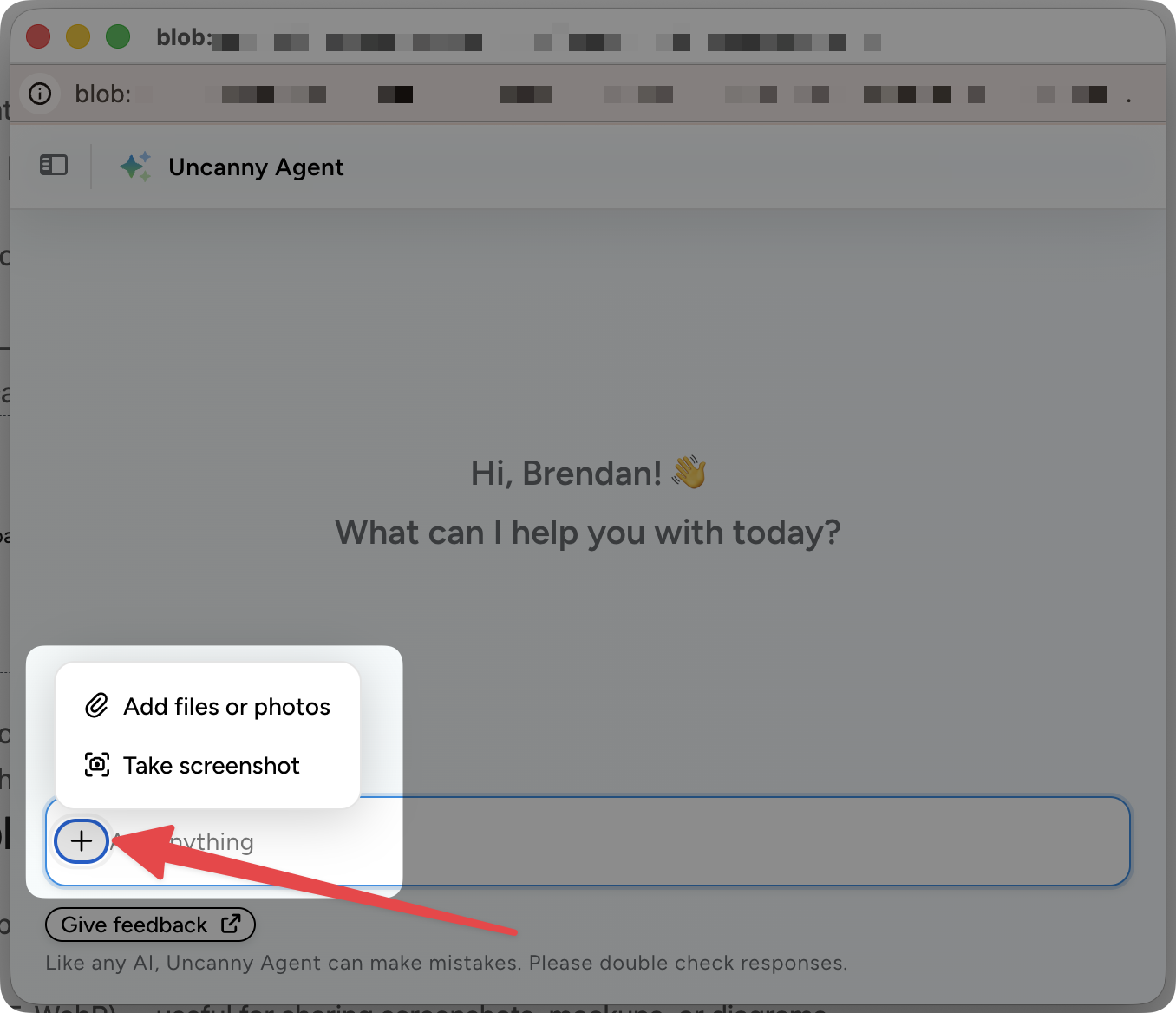
Click the + icon to the left of the Ask anything input to open the attachments menu. You’ll see two options:
- Add files or photos — choose a file from your computer
- Take screenshot — capture an area of your screen without leaving the Agent
You can attach more than one file to a single message, and you can mix attachments with text. For example, attach a screenshot from your Automator logs and ask Agent “Why is this error happening?”
Adding files or photos
The Add files or photos option opens your browser’s file picker. Common file types are supported, including:
- Images (PNG, JPG, GIF, WebP) — useful for sharing screenshots, mockups, or diagrams
- PDFs — for briefs, specs, or supplier documents
- CSVs and spreadsheets — for bulk data the Agent should review or import
- Plain text and Markdown files — for content drafts or notes
Once attached, the file appears as a chip above the input. Send your message and Uncanny Agent will read the file as part of your request.
Using the built-in screenshot tool
Take screenshot lets you capture part of your screen and attach it to the message in one step. This is the fastest way to ask:
- “Why is this option greyed out?”
- “What does this error mean?”
- “Can you replicate this layout in the recipe builder?”
After clicking the option, drag a selection rectangle around the area you want to share. The screenshot is attached automatically.
Privacy reminder
Anything you attach is sent to Uncanny Agent for processing. Avoid uploading files that contain real customer credentials, payment details, or other sensitive material that doesn’t belong in a support workflow.
See our Privacy Policy and Terms and Conditions for all of the details.
Tips for getting useful answers from attachments
- Be explicit about what you want. A screenshot on its own is ambiguous—add a sentence like “What’s wrong with this recipe?” or “Recreate this email in WordPress.”
- Crop tightly. A focused screenshot of the relevant area is easier to interpret than a full-screen capture.
- Use CSVs for bulk data. If you want to import a list of users, products, or orders, a CSV is much more efficient than describing the data in text.
























































Comments (0)