

Struggling with member churn? Get started with these proven, automated membership retention strategies for WordPress…
The Best Contact Form 7 and Google Sheets Integration
Uncanny Automator is the best Contact Form 7 and Google Sheets integration. Find out why in this easy how-to guide.
TLDR? Key takeaways:
- Explore advanced automation ideas to enhance your Contact Form 7 workflows.
- You can connect Contact Form 7 to Google Sheets with Uncanny Automator—no code required.
- Creating a Contact Form 7 and Google Sheets integration with Automator only takes 5 steps.
If you’re looking for a simple (and FREE) way to connect Contact Form 7 to Google Sheets, you’ve found the right page.
In this article, I’ll show you how to create a seamless Contact Form 7 and Google Sheets integration using Uncanny Automator. By the end of this tutorial, you’ll be able to store your form submissions in a spreadsheet of your own.
Let’s get started.
Why Connect Contact Form 7 to Google Sheets With Automator
Uncanny Automator is the #1 automation and integration tool for WordPress sites.
Integrate Everything. Automate Anything.

Using simple combinations of triggers and actions, you can integrate all of your favorite apps and plugins to automate your workflows. But what makes Automator the best Contact Form 7 and Google Sheets integration?
- No-Code Automation: Forget exorbitant developer fees or error-prone custom code. Automator offers powerful, no-code automation. Simply point and click your way to smarter workflows.
- No Per-Automation Fees: Unlike other WordPress automation tools, Automator doesn’t charge per-automation fees. In other words, the more you integrate and automate, the more you save.
- Full Integration: Automator is fully integrated with your WordPress site and the plugins and apps that you connect. Whether you want to map custom fields, dig through meta data, or simply keep your records in sync, Automator makes that easy.
- Filters and Conditions: Add filters to your automations to create workflows that fit your business’ needs. Determine which actions will apply to which users and how, exactly, you want them to be carried out.
- Powerful Addons: Take advantage of Automator’s addons, such as the Custom User Fields Addon to upgrade your forms’ functionality. Store birthdays, countries, phone numbers, social media handles, and more all in your WordPress site.
Get started with Automator and connect Contact Form 7 to Google Sheets >>>
Not ready to go Pro just yet? No worries. You can still create a seamless Contact Form 7 and Google Sheets integration with Automator Lite. Simply install and activate Automator Lite on your WordPress site, and don’t forget to register your account to receive some complimentary app credits.
Connect Contact Form 7 to Google Sheets
Integrating Contact Form 7 and Google Sheets with Uncanny Automator only takes five steps—and about just as many clicks. Before we dive into the details, here’s a brief overview of the steps we’ll take.

- Create a new recipe: From your WordPress Admin Sidebar, navigate to Automator > Add new recipes > Everyone.
- Name your recipe: When a user submits a form, add an entry in Google Sheets.
- Configure your trigger: Select Contact Form 7 > A form is submitted.
- Configure your action: Select Google Sheets > Create a row in a Google Sheet.
- Go Live: Toggle your recipe from Draft to Live.
Step 1: Create a New Recipe
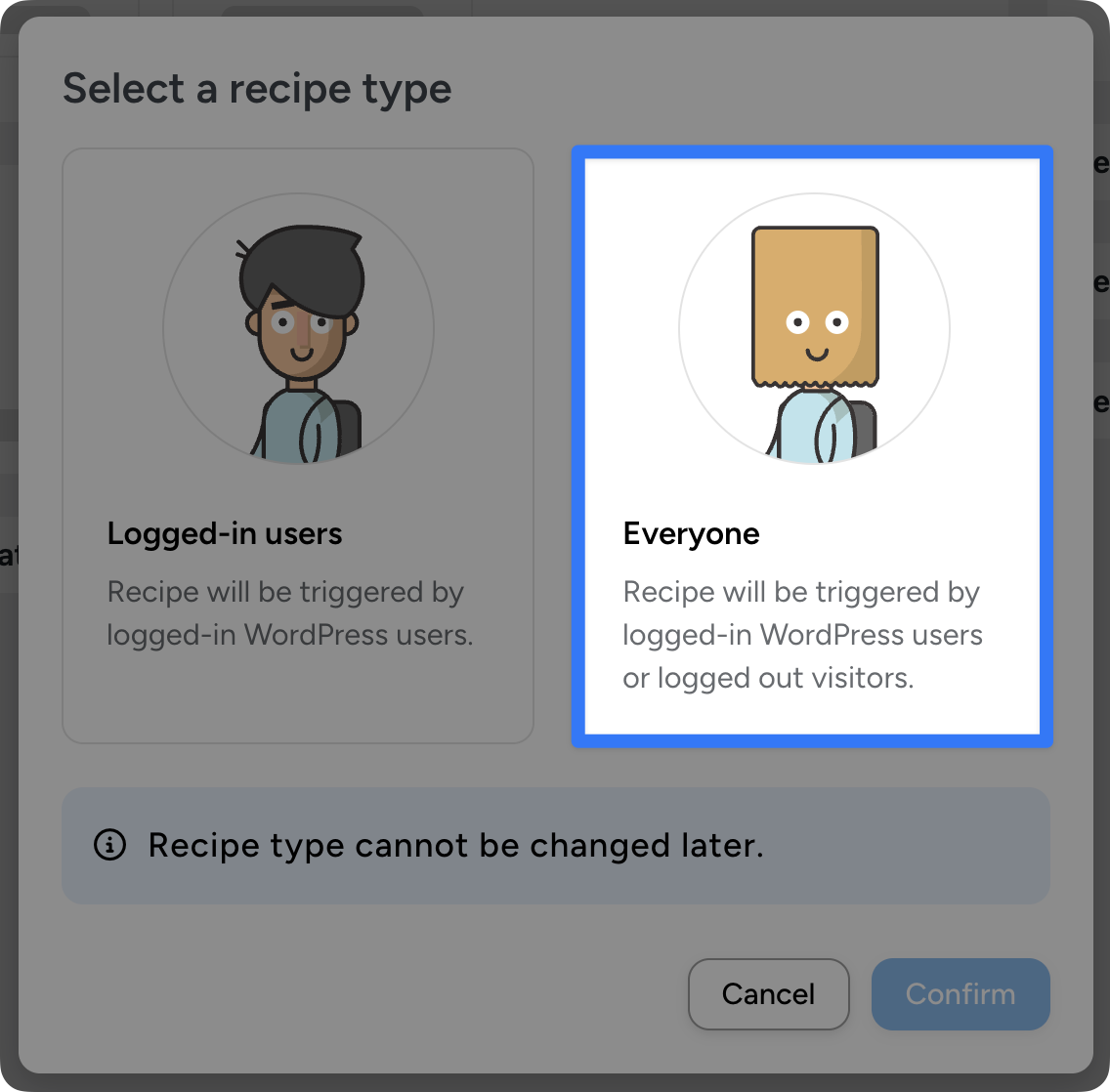
From your WordPress Admin Dashboard, navigate to Automator > Add new recipe. In the modal that appears, select Everyone.
Step 2: Name Your Recipe
Give your recipe a name that makes it easy to recognize at a glance. For example, I’ve named this recipe “When a user submits a form, add an entry in Google Sheets”.
Step 3: Configure Your Trigger(s)
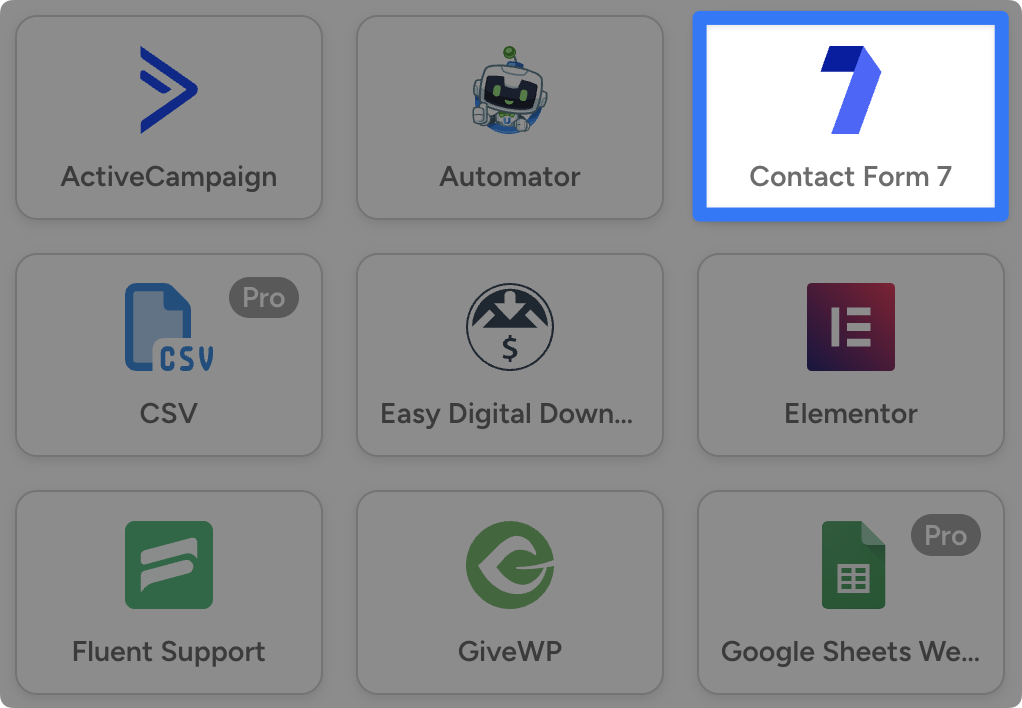
In the Triggers panel, from the menu of available integrations, click on Contact Form 7.
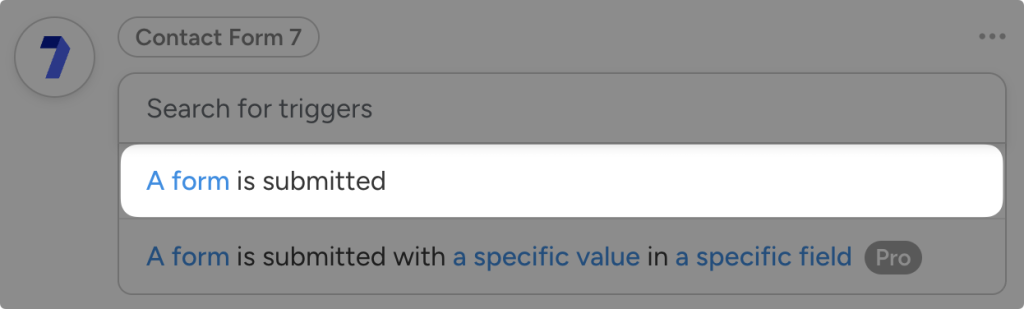
From the drop-down list that appears, select “A form is submitted”.
Automator will prompt you to select one of your contact forms. After you’ve selected the form, click Save.
Step 4: Configure Your Action(s)
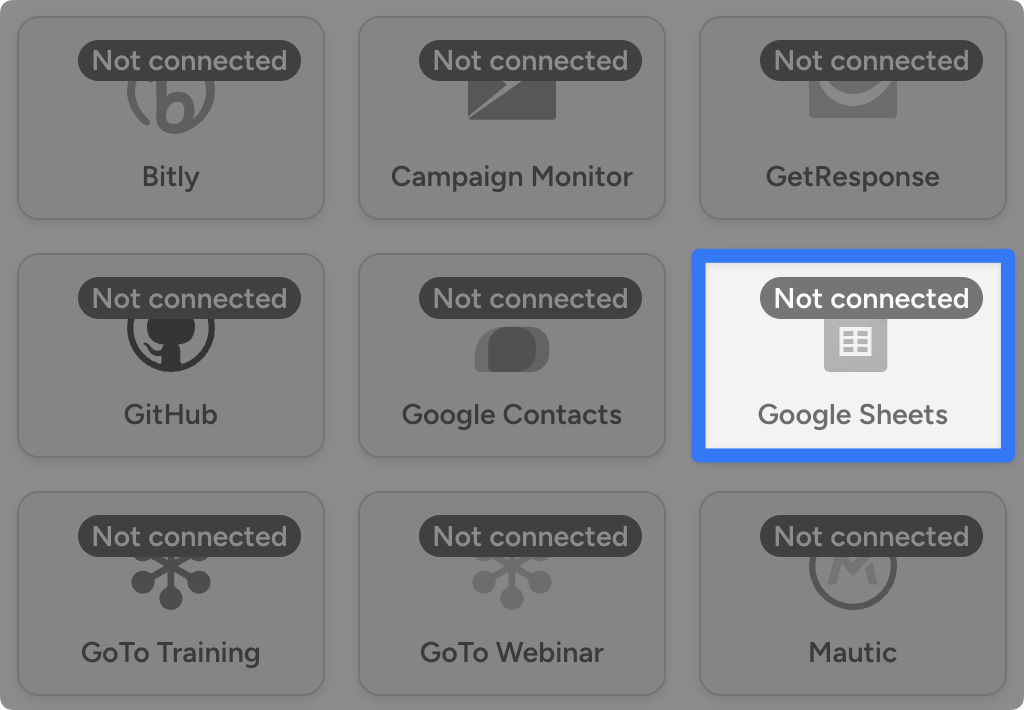
In the Actions panel, click on Add action and select Google Sheets. (If you haven’t already connected your Google account, Automator will prompt you. Follow the prompts to connect your account.)
After you’ve connected your Google account, a dropdown list will appear. Select “Create a row in a Google Sheet”.

Automator will then prompt you to select the Spreadsheet and specific Worksheet where you would like to store your Contact Form 7 submissions data.
Once you do, Automator will fill in the Columns fields with the first value (presumably the title) from each column in your spreadsheet.

Once Automator has retrieved the columns, you can proceed to fill in the values for the new row of cells.
To fill in these cells with Contact Form 7 data, we are going to use tokens (i.e. dynamic data from your WordPress site and within recipes).
To use tokens, click on the Asterisk next to a field and select the token that you want to use to populate the cell.
For Contact Form 7 tokens, the name of the token corresponds to the name of the field in your contact form. You can also use data and time tokens, such as the Current Unix timestamp token, to record the exact moment that someone submitted the form.
(If you’re unfamiliar with Unix time, check out our guide on converting Unix timestamps to dates in Google Sheets and Airtable.)
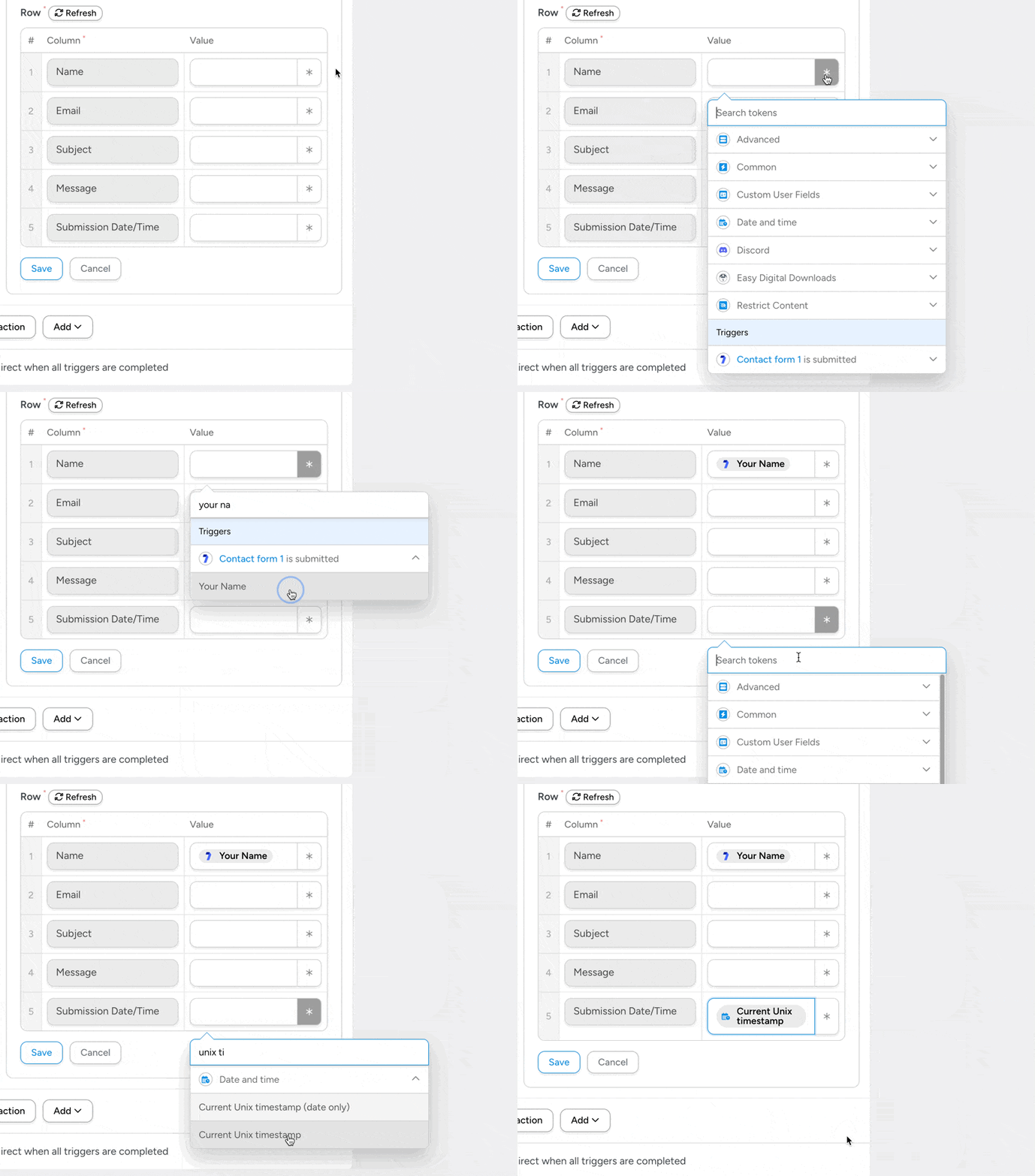
After you’ve filled out all of the fields, click Save.
Step 5: Go Live!
You’re just about ready to connect Contact Form 7 to Google Sheets. All you have to do now is toggle the recipe from Draft to Live.
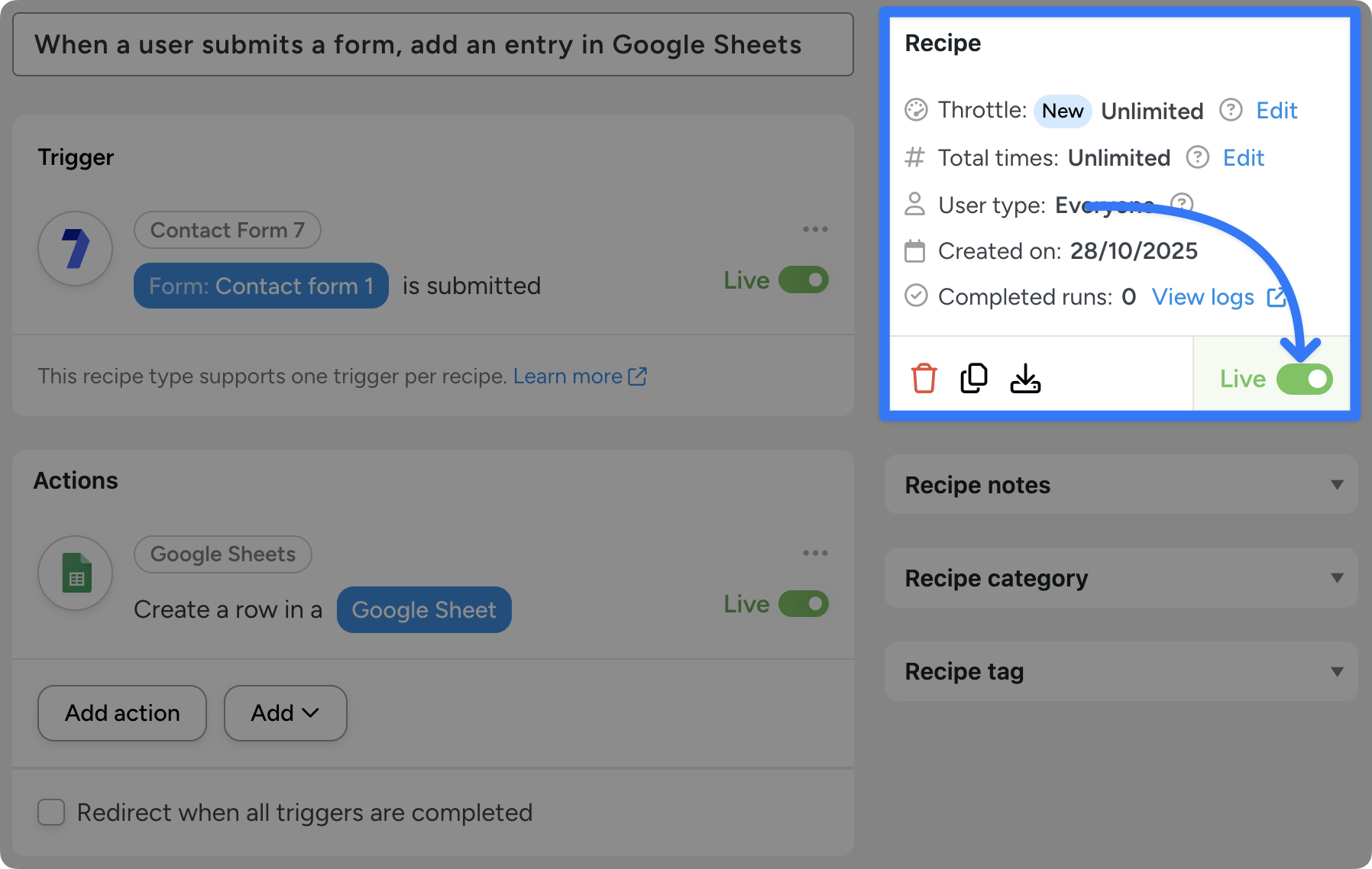
That’s it! You’ve just created a seamless Contact Form 7 and Google Sheets integration. But why stop there?
More Contact Form 7 and Google Sheets Integrations
Now that you’ve gotten the hang of creating Automator recipes, why not kick things up a notch?
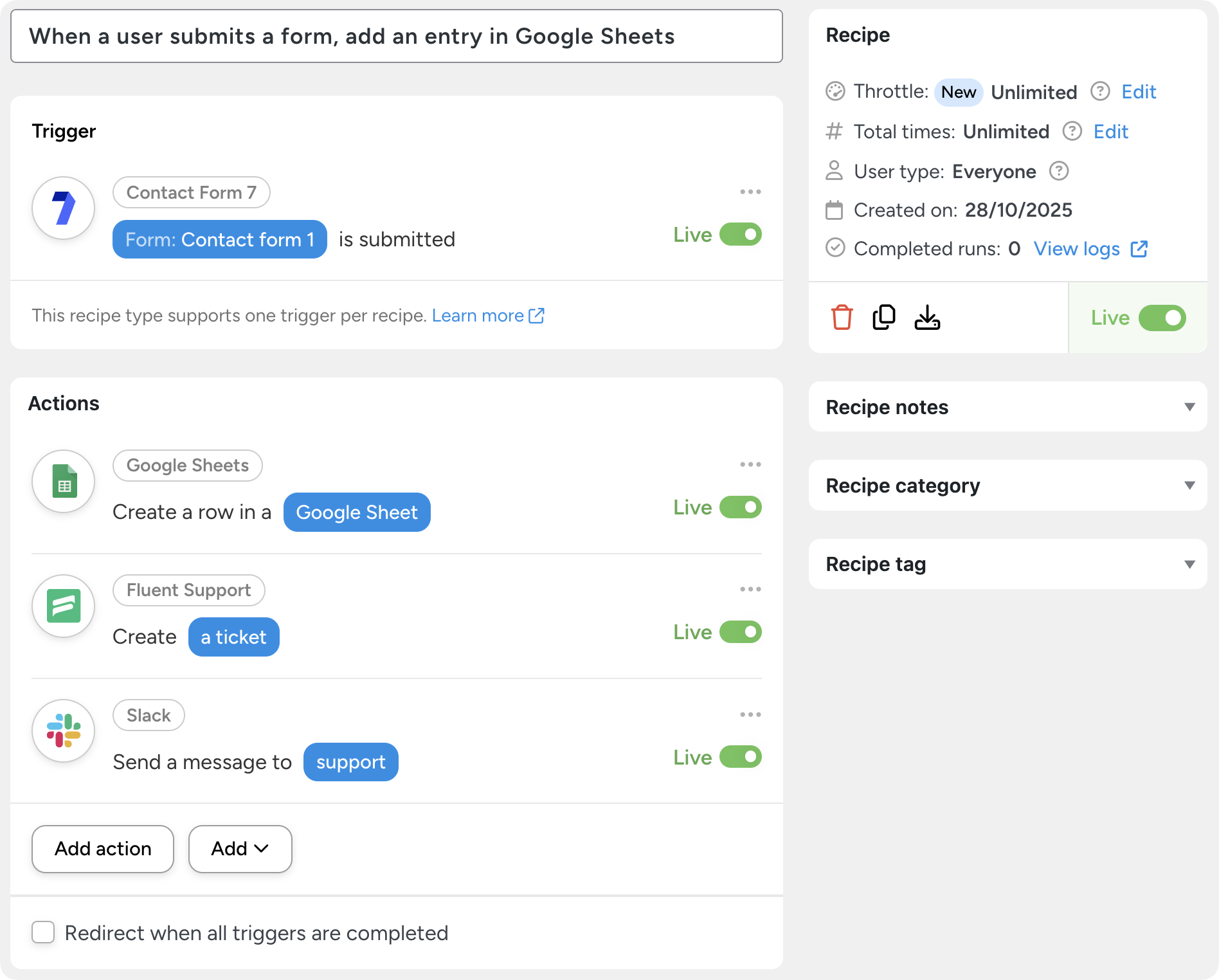
As seen in the recipe pictured above, I’ve added a few actions to the recipe that we created together. Now, I can turn a simple form submission into a fully automated customer support workflow.
In addition to storing the form submission in Google Sheets, the recipe will create a Fluent Support ticket and send a Slack message to my support team.
Of course, if you’re still looking for more ways to automate your workflows, there’s a lot more you can do. Here, at Automator, we’ve developed a framework for identifying tasks you can (and should) be automating.
The idea is simple: think R.I.C.H.:
- Repetitive: Tasks, particularly unavoidable ones, that you perform over and over again. For example, transactional emails, marketing emails, and inventory management.
- Iterative: Tasks that you can and/or do perform across any measurable number of customers, products, posts, pages, etc. or a subset thereof. These tasks usually include workflows such as product updates and customer/member onboarding. They can also include popups and customer segmentation.
- Costly: Tasks that consume significant resources, namely time and money. For example, data entry and lead validation are both costly workflows, primed for automation.
- Hard: Tasks that are complex and prone to human error. These workflows are usually operational in nature such as data entry and generating sales reports.
Conclusion
By now, you’ve seen just how easy it is to connect Contact Form 7 to Google Sheets using Uncanny Automator.
With only a few clicks—and even fewer minutes—you can store, organize, and analyze form submissions automatically. No code, no stress.
And once you’ve mastered this integration, you’ll open the door to countless other automations across your WordPress site.
Upgrade your WordPress workflows with Automator >>>
Until next time, happy automating!
Frequently Asked Questions

Related Posts
























































This Post Has 0 Comments