

Every Uncanny Automator recipe is one of two types, Logged-in users or Everyone, chosen in the Select a recipe type modal when the recipe is created. The type decides which triggers are available, how many triggers the recipe can have, and whether Automator already knows which user the actions apply to. This article explains both types, what differs between them, and how an Everyone recipe chooses the user it runs as.
The two types
- Logged-in users: the recipe is triggered by logged-in WordPress users. Automator always knows who the user is, so the actions act on that user and the user’s data is available as tokens. Choose it for events that only an account holder can cause: completing a course, publishing a post, logging in, updating a profile, or buying a product while signed in.
- Everyone: the recipe is triggered by logged-in users or logged-out visitors. Choose it for events that can happen without an account: a visitor submits a form, a guest checks out, a comment is posted, or another service sends data to a webhook. Automator does not assume a user; if an action needs one, you tell the recipe which user to run as (see below).
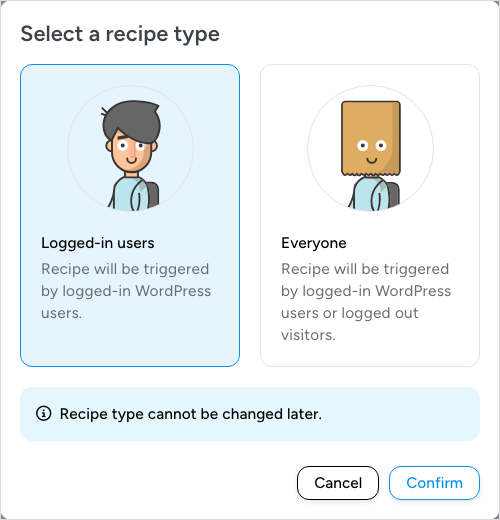
Logged-in users is selected when the modal opens. To make an Everyone recipe, click Everyone before you click Confirm.
The same event can belong to either type depending on who causes it. A WooCommerce purchase of a course, made by a customer who must have an account, is a Logged-in users recipe. A purchase of a physical product with guest checkout enabled is an Everyone recipe, because the buyer may or may not have an account. When you are unsure, start from the trigger: an Everyone recipe’s picker lists only the triggers that can run for everyone, and the integration pages at automatorplugin.com/integrations/ state for each trigger which recipe type it supports.
The type cannot be changed later
The modal says so, and the Details panel in the builder sidebar shows the type as User type without an edit control. The type decides which triggers, actions, and tokens the recipe can use, so switching it would invalidate what is already in the recipe. If you chose the wrong type, create a new recipe of the other type and add the trigger and actions again.
What differs between the types
- Number of triggers: a Logged-in users recipe can have several triggers, and Change trigger logic sets whether the actions run when any trigger fires or only after all of them have. An Everyone recipe has exactly one trigger. Once it is saved you cannot add another, and Diagram view shows no + Add trigger button.
- Available triggers: an Everyone recipe lists the triggers that work without a login, often a different set from the logged-in version of the same integration (for example, a form plugin’s “A form is submitted” instead of “A user submits a form”). Many Everyone triggers require Uncanny Automator Pro; the picker labels them Pro.
- Recipe settings: Times per user appears only in Logged-in users recipes, and the Throttle scope choice (per recipe or per user) is also logged-in only. An Everyone recipe can be throttled per recipe and capped with Total times. See Recipe settings: times per user, total times and throttling.
- Who the actions run as: in a Logged-in users recipe, the actions run as the user who fired the trigger. In an Everyone recipe, actions that need a user run as the user you define in Run recipe as.
User data in an Everyone recipe
Many actions act on a user: enrolling them in a course, adding a role, adding them to a group, or sending an email to their address. In an Everyone recipe, Automator cannot know who that user is from the trigger alone. When you add an action that needs user data, a RUN RECIPE AS section appears between TRIGGERS and ACTIONS with the card Choose which user the recipe runs as and the notice “User data needed: One or more elements in this recipe need user data. Click the card above to finish setting up the user selector.”
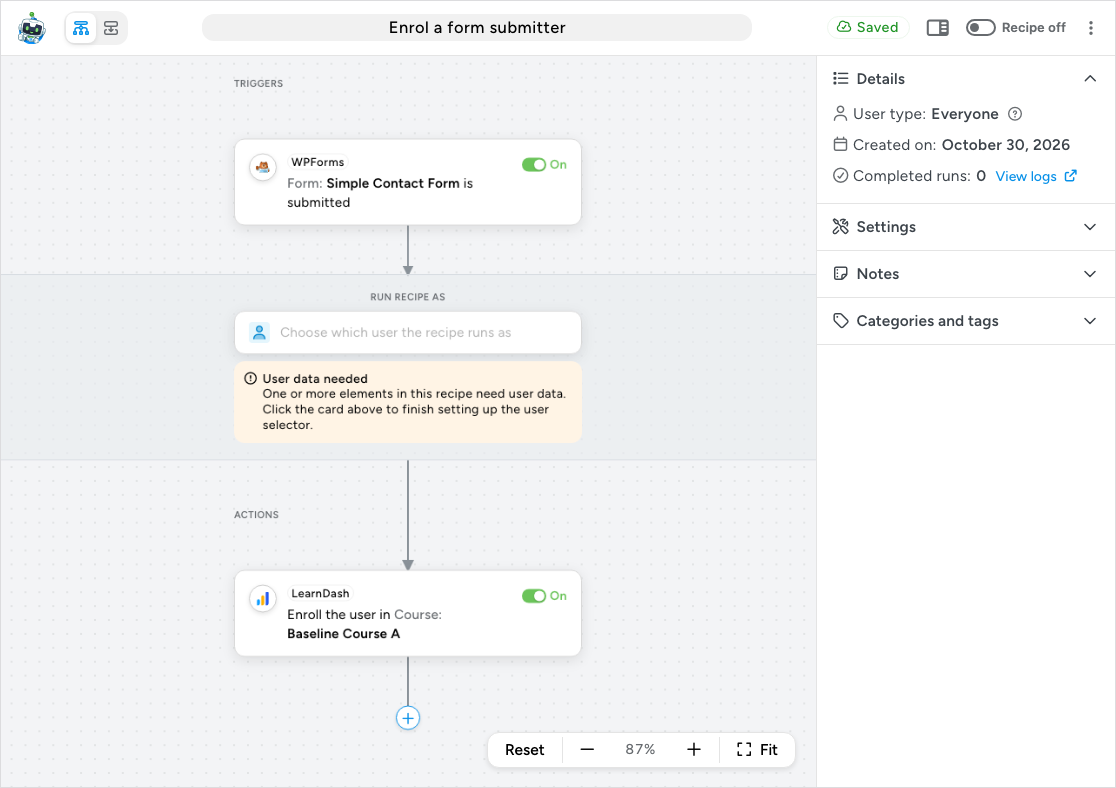
Actions that do not involve a user, such as sending an email to a fixed address or posting data to a webhook, run without this setup, and the RUN RECIPE AS section does not appear until the recipe contains something that needs user data. While the card still shows User data needed because no Value is set, the recipe cannot be switched on: Recipe on opens This recipe can’t go live yet with “The recipe runs as an existing user, but no value was set to find that user by.”
The Run actions as dialog
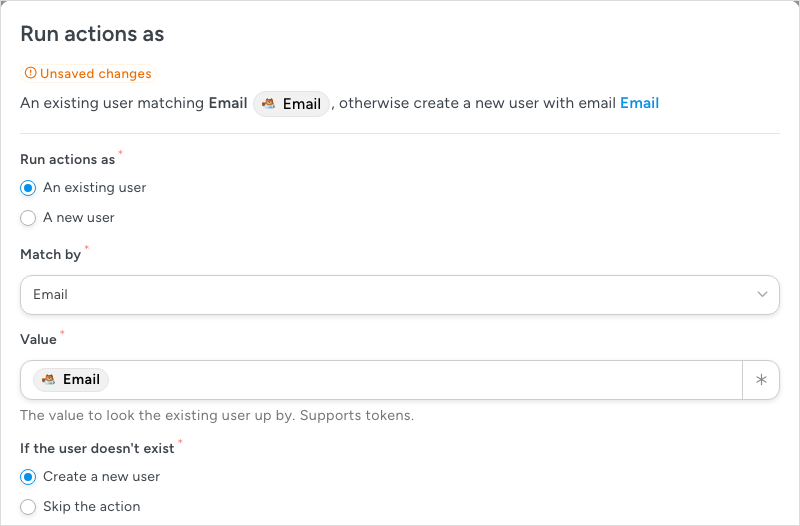
Click the card to open Run actions as. The first choice is whether the actions run as An existing user or A new user; the fields below change with it. Every text field accepts tokens through the ∗ button, which is how you pass the trigger’s data (a form’s email field, a webhook’s username value) into the user lookup.
An existing user
- Match by: the field Automator uses to find the user: Email, User ID, or Username. Email is the usual choice because forms and external services almost always supply one.
- Value: the value to look the user up by. Insert a token from the trigger so each run looks up the person who caused it.
- If the user doesn’t exist: Create a new user adds the new-user fields below, so people without an account get one and existing users are matched; Skip the action skips every action in that run when no user matches, including actions that do not need user data, and the log notes that no user was found.
A new user
- Email, Username, First name, Last name, Display name: the WordPress profile fields for the account, filled from tokens.
- Password: if left empty, the user will need to reset their password to log in. Pair it with a Send an email action that includes a password reset link.
- Role: Subscriber, Contributor, Author, or Editor.
- Log the new user in: signs the visitor in once the account is created. This works only when the visitor caused the trigger on your site, such as a form submission; a webhook from another service cannot log anyone in.
- If the user already exists: Use the existing user runs the actions on the matching account instead; Skip the action stops there. The field is required and neither option is selected until you choose one. Choosing Use the existing user adds Match the existing user by (Email or Username), which settles the rare case where one account matches the email and a different one matches the username.
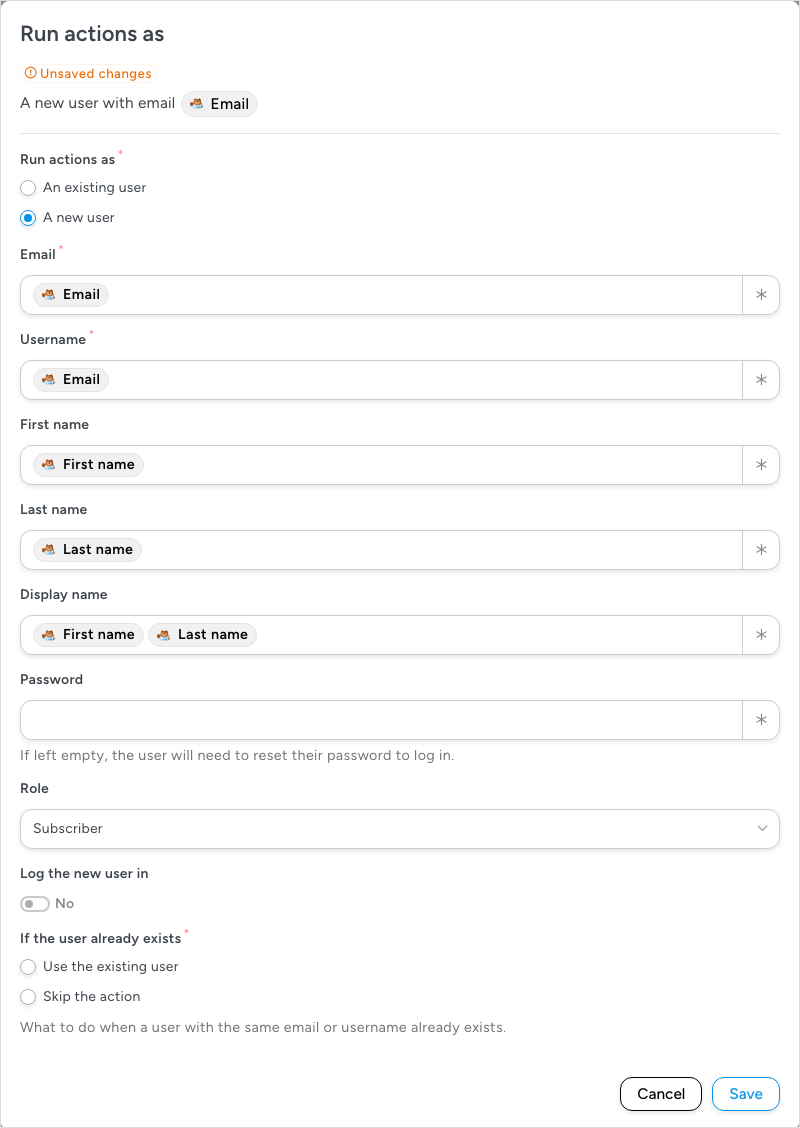
As you choose, the sentence at the top of the dialog summarizes the setup, for example An existing user matching Email followed by the token and otherwise create a new user with email, and an Unsaved changes badge shows until you save. Click Save. The card then shows the same sentence and the User data needed notice disappears. Choosing which user the actions run as, an existing user or a new one, requires Uncanny Automator Pro. Without Pro, the card reads Choosing which user an Everyone recipe runs its actions on requires Uncanny Automator Pro. and the choices in the dialog are turned off.
For a worked example that builds an Everyone recipe from a form submission, see Recipes for Everyone.
Related: Creating a recipe, Recipes for Everyone, Recipe settings: times per user, total times and throttling, Managing triggers


Comments (0)