

The Uncanny Automator recipe builder shows a recipe in one of two views. Diagram view draws the recipe as a flowchart on a canvas; List view stacks the same triggers, actions, and blocks in a single column. Both views edit the same recipe, so a change made in one is there when you switch to the other. This article covers what each view shows, when each is useful, how to switch, and the controls that belong to the canvas.
Diagram view
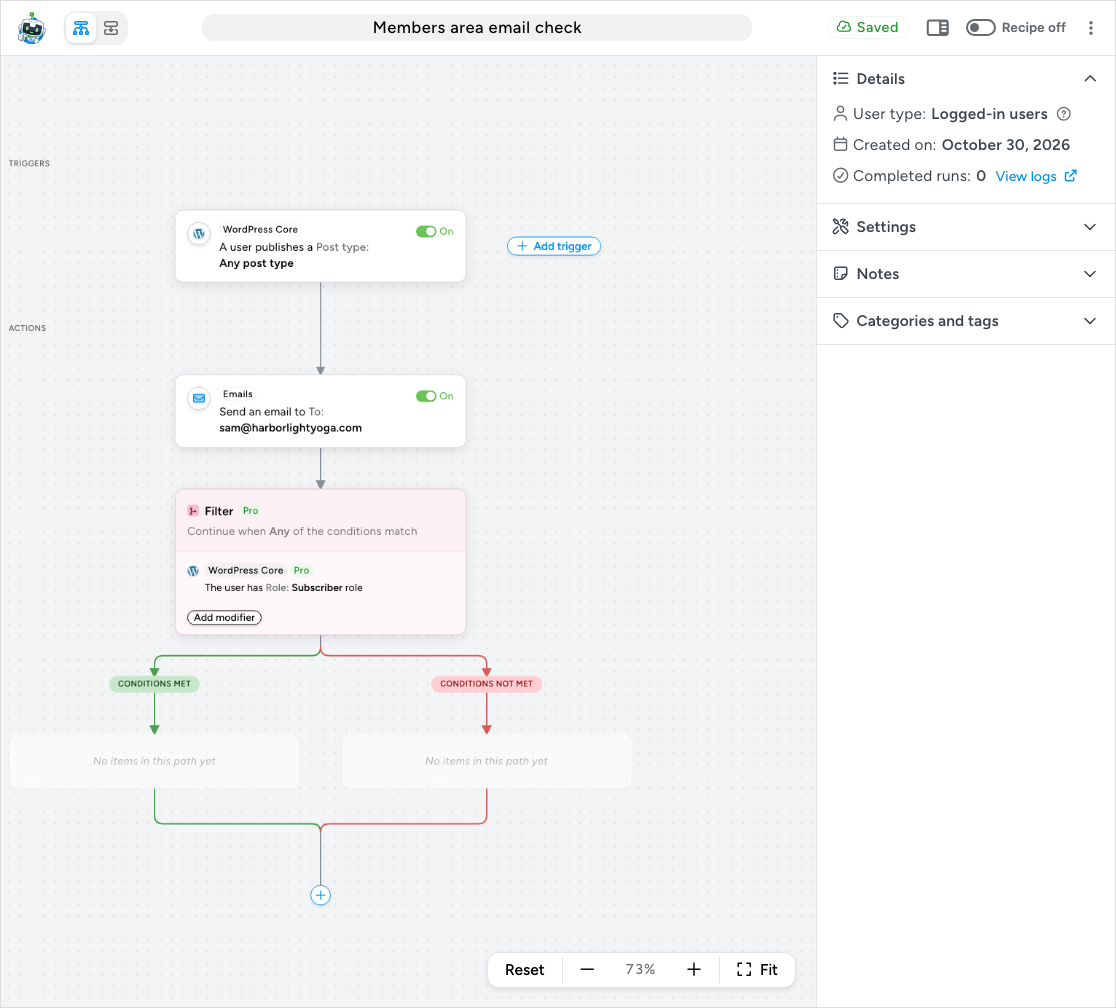
Diagram view is where someone new to Uncanny Automator starts; if you created recipes on the site before, the builder starts in List view instead (see Which view opens first below). TRIGGERS sit at the top of the canvas and ACTIONS below them, each item on its own node, with lines showing the order the recipe follows, a + Add trigger button beside the triggers, and a + at the end of the flow for adding the next action. A Filter block fans out into its CONDITIONS MET and CONDITIONS NOT MET paths side by side, which rejoin below it, a Loop block and a Queue block wrap the actions inside them, and actions queued by a Queue block are listed under Delayed actions at the bottom of the canvas. Diagram view is the better choice when a recipe branches or nests blocks, because you can see every path and what is inside it at once. Every other article in this knowledge base shows the builder in Diagram view.
List view
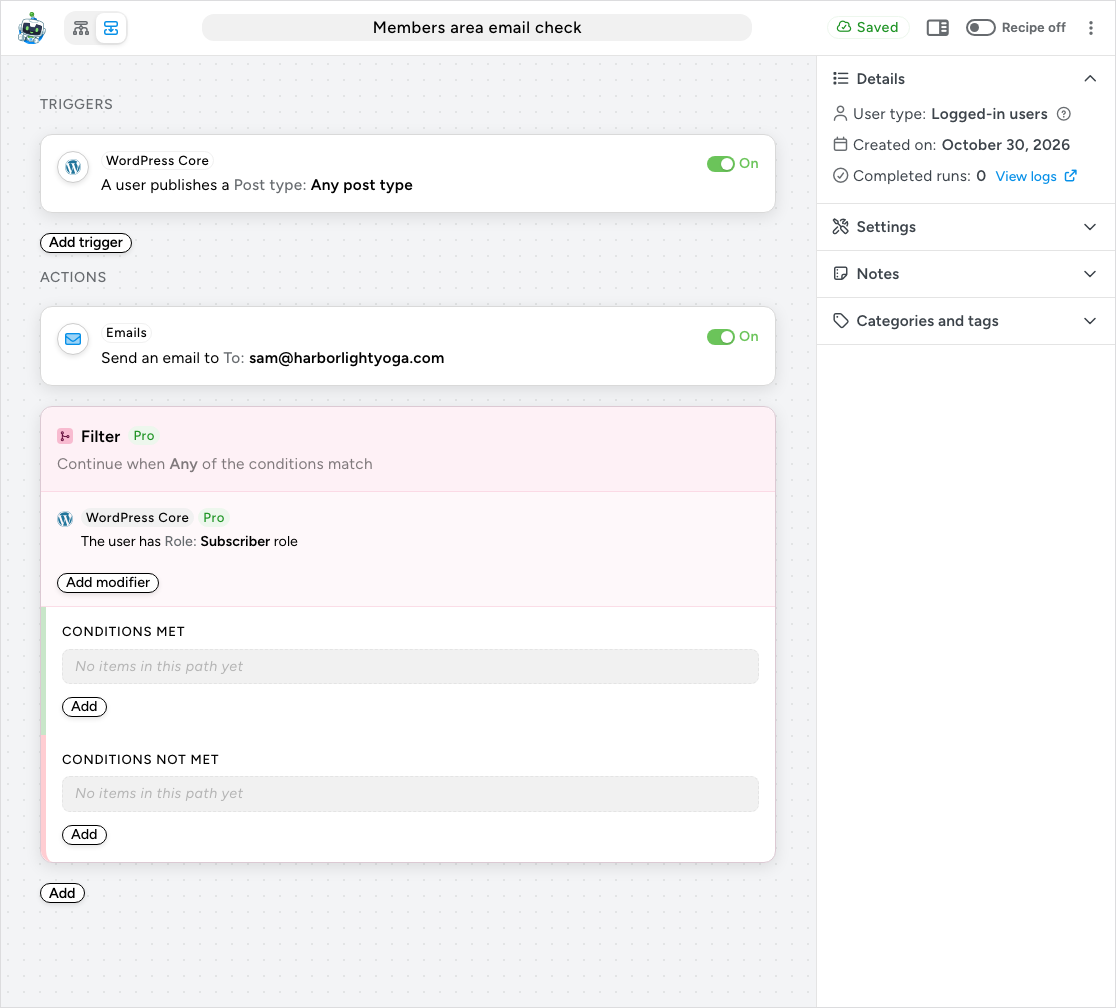
List view shows the same items in one column with no canvas: the triggers, then the actions and blocks in the order they run. A block’s modifiers and paths stack inside it, and the Add trigger and Add buttons sit in the column where the + nodes would be. There is nothing to zoom or pan, so a long recipe with no branching reads top to bottom like a checklist. You may also find it easier on a narrow browser window. The builder never switches to List view by itself, whatever the window size, so choose it when you want it. Everything else works as it does in Diagram view: the same On / Off switches, ⋮ menus, and drag handles, the same sidebar, and the same Recipe on switch.
Switching views
- Open the recipe from Automator > Recipes.
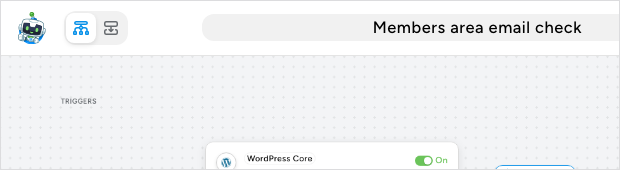
- At the left of the top bar, beside the Automator icon, click the Diagram view or List view icon button. The pressed button shows the current view. The switch is immediate and nothing needs saving.
Which view opens first
Until you pick a view, the builder opens in a default view that Uncanny Automator sets for your user account once: the first time you create a recipe or open the builder, whichever comes first.
- List view — if a recipe you created was already on this site, switched on or off. This is what you see first after updating from an earlier version of Uncanny Automator, because List view is the closest to the builder you knew.
- Diagram view — if you had not created a recipe on this site yet. You keep Diagram view as your default when you go on to build more recipes.
Once you click Diagram view or List view, your choice replaces the default. It is saved to your WordPress user account, so each person on the site has their own view, and it also applies to the recipe logs: a run you open from View logs or Automator > Logs is drawn in the same view, and switching views there switches the builder too. Your browser keeps a copy of the choice: the first time you open the builder in another browser or on another device, it opens in the view saved to your account, and from then on each browser opens in the view you last picked in it.
Canvas controls
The controls at the bottom right of the canvas belong to Diagram view only.
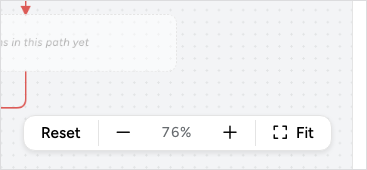
- Zoom out and Zoom in — the − and + buttons step the zoom level down or up. The percentage between them shows the current level. A recipe always opens at 100%; the zoom level is not remembered between visits.
- Fit — zooms so the whole recipe is visible in the canvas. Use it to get your bearings in a recipe with several blocks, then zoom back in to read a node.
- Reset — appears only when the zoom is not 100%. Click it to return the canvas to 100% and re-centre it.
To move around a large recipe, drag an empty part of the canvas, or scroll with the mouse wheel or two fingers on a trackpad: both pan the canvas without changing the zoom. To zoom with the mouse, hold Ctrl (or Cmd on a Mac) while you scroll, or pinch on a trackpad.
Reordering items
Every action and block has a drag handle: the grip of six dots at the left edge of its node. Drag the handle up or down to change the order the actions run in. The change saves on its own like every other edit. Triggers have no drag handle. Dragging works the same way in List view.
The sidebar toggle
The sidebar toggle in the top bar, to the left of the Recipe on switch, hides and shows the right sidebar with its Details, Settings, Notes, and Categories and tags panels. Hide it to give a wide recipe the whole window in Diagram view; the panels and their values are unchanged when you show it again. The sidebar is the same in both views.
Related: Creating a recipe, Moving to the new recipe builder, Recipe blocks: Filter, Queue and Loop, Recipe settings: times per user, total times and throttling


Comments (0)