

Recipe blocks are containers you add to a recipe’s flow to decide which actions run, when they run, and how many times they run. Uncanny Automator 8.0 has three: the Filter block (run actions only when conditions are met), the Queue block (run actions later), and the Loop block (run actions once for each user, post, or item in a list). This article covers what the three blocks have in common; each block’s own article covers its settings.
Recipe blocks require Uncanny Automator Pro. In the picker each block carries a Pro tag, even when Pro is active. On a site without Pro, the blocks are also marked Locked and cannot be added; their helper text reads “You must have a valid Pro Basic license or higher”.
What a block is
A recipe is a deterministic automation: triggers, conditions, and actions that run the same way every time. Triggers decide when a recipe runs; actions do the work. A block sits among the actions and wraps some of them. It has a sentence of its own on the canvas (“Continue when any of the conditions match”, “Run the actions inside later”, “Loop through the items”), a Set up dialog with the block’s settings, and one or more paths: the places inside the block where you put actions.
The actions inside a block are ordinary actions. You add them from the same picker, set them up with the same Set up and Test steps, and they have their own On and Off switch and ⋮ menu. The block changes only whether and when they run. A block cannot hold triggers; triggers stay in the TRIGGERS section at the top of the recipe.
Adding a block
- Open a recipe from Automator > Recipes, or create one with Automator > Add new recipe.
- Click the + at the end of the flow. To put a block inside another block, click the + Add button in that block’s path instead.
- In the picker, scroll to the Recipe blocks section and click Filter, Loop, or Queue. You can also type the block’s name in the search box, which searches integrations, apps, recipe blocks, and items.
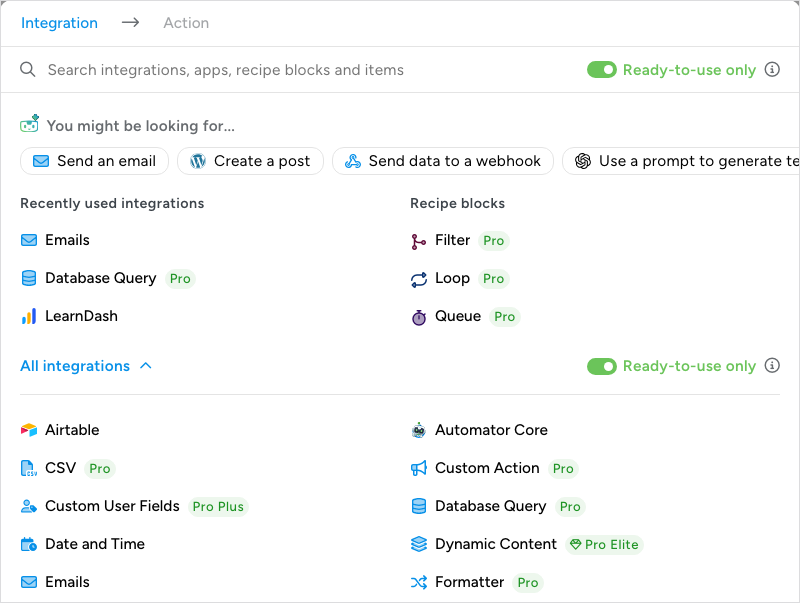
- In the Set up dialog, choose the block’s settings: the Condition match mode for a Filter, the Wait mode for a Queue, or the Loop type for a Loop.
- Click Save. Blocks have no Test step, so the dialog has only Cancel and Save.
The block appears on the canvas with its paths empty. The recipe saves automatically, so there is nothing else to click.
The parts of a block
Every block on the canvas has the same anatomy. The screenshot shows a Filter block, which has every part.
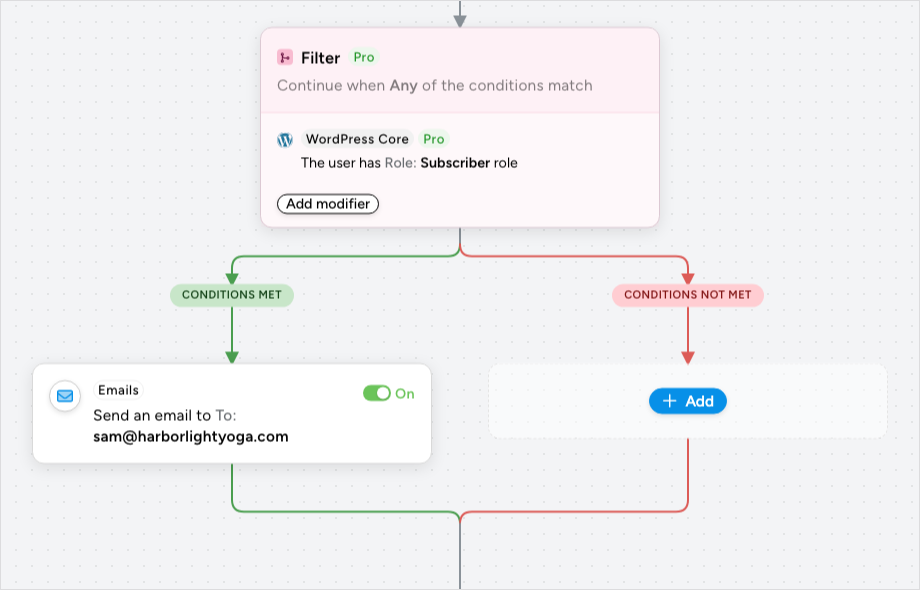
- Sentence — the block’s name, its Pro tag, and a summary of its settings, such as Continue when Any of the conditions match. Click the sentence to reopen Set up.
- Modifiers — rules that belong to the block rather than to any one action. A Filter block’s modifiers are its conditions; a Loop block’s modifiers are its loop filters, which narrow the users or posts the loop goes through. A block with none reads No modifiers in this block, and Add modifier opens the picker to add one. The Queue block has no modifiers.
- Paths — where the actions go. A Filter block has two, CONDITIONS MET and CONDITIONS NOT MET; Queue and Loop blocks have one. An empty path reads No items in this path yet; point at it and a + Add button appears. Once a path holds an item, point at the line between items (or below the last one) and click the small + that appears; its tooltip names the place, for example Add inside Filter: Conditions met.
- ⋮ menu — Duplicate and Delete. Duplicating a block copies it with everything inside; deleting asks you to confirm.
- Drag handle — the grip of six dots at the left of the block header; drag it to move the block up or down the flow.
The ⋮ button and the drag handle appear when you point at the block’s header.
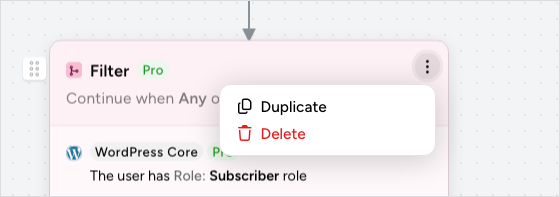
A block has no On / Off switch of its own. The actions inside a path keep theirs, so you can switch off one action in a path without touching the others.
Nesting blocks
A block can go inside the path of another block, to any depth: a Filter inside a Loop so that only some of the looped users get an email, a Queue inside a Filter’s Conditions met path so that the follow-up waits a week, a Loop inside a Filter path, or a Filter inside a Filter. Click + Add in the path and pick the block from the Recipe blocks section as usual.
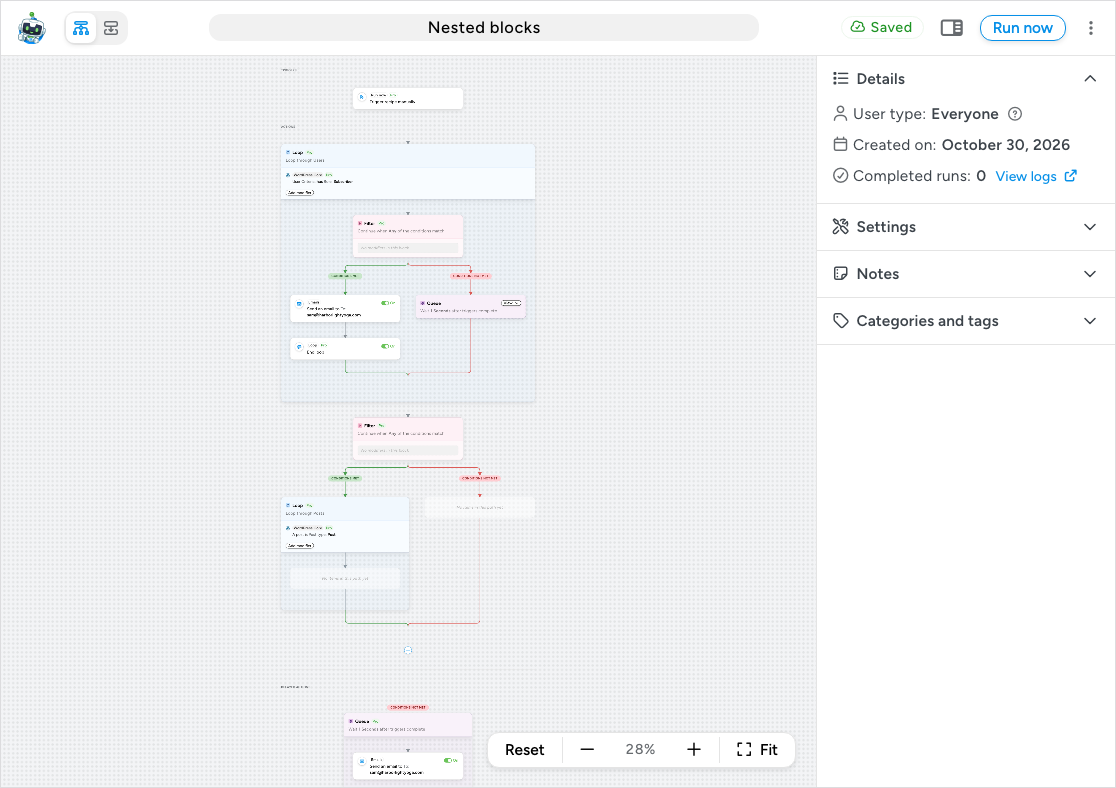
A Queue block placed inside a path shows there as a short marker with a View button. The block itself, with the actions it holds, is listed under DELAYED ACTIONS at the bottom of the canvas; click View to jump to it and open its Set up from there.
Two combinations are not allowed, and the picker says so: a Queue block cannot go inside another Queue block, and a Loop block cannot go inside another Loop block. A Redirect action cannot go inside a Queue or a Loop either, because those actions run in the background after the visitor has moved on, so a redirect would have nobody to redirect.
A deeply nested recipe gets tall. Fit in the zoom controls fits the widest block to the canvas, so the bottom of a tall flow can still be out of view: drag the canvas to move along it, or click − to zoom out further, and Reset to return to 100%. The same recipe in List view shows the nesting as indented items without the canvas.
How the blocks map to the old builder
If you built recipes in Uncanny Automator 7.x, each block replaces something you already know.
| In 7.x | In 8.0 | What changed |
|---|---|---|
| Filter group (Add > Filter), holding several actions that ran only when its conditions matched | Filter block | Conditions are modifiers on the block, and Condition match mode is Any or All. The block gains a Conditions not met path, so you can run different actions when the conditions fail instead of running nothing. |
| Delay or Schedule, set on one action at a time from the action’s Delay button | Queue block | One block holds any number of actions that share the same wait. The wait modes are Set time, Schedule, and Use a token / custom value. The behaviour is the same as before: the actions inside are queued and the rest of the recipe continues at once. |
| User loop, Post loop, and Token loop groups | Loop block | One block with a Loop type of Users, Posts, or Token. Loop filters are modifiers on the block, and the End loop item exits the loop early. |
The transition guide walks through every other change between the two builders.
Things to know
- Blocks only shape the flow of actions. Recipe settings such as Times per user and Total times still apply to the recipe as a whole, from the Settings panel in the sidebar.
- A block with an empty path is valid. A Filter block with nothing in Conditions not met behaves like the old Filter group: when the conditions fail, nothing in the block runs and the recipe carries on below it.
- When a block cannot run the actions inside it, for example a Queue block whose wait cannot be worked out, or any block while Uncanny Automator Pro is not active, those actions are recorded as Skipped and the block and the run both read Completed with errors in the run log. Click View details on the block in the run log; its Notes row says why. See Using Automator logs.
- Deleting a block that holds steps opens a dialog that asks what should happen to them. Keep the steps inside, selected to start with, moves them up to where the block was; when the block has two paths, they are merged, so all their steps run one after the other. Delete the steps inside removes them with the block. You can also drag an action out of a path before you delete the block.
- Uncanny Agent can build and change blocks for you: describe the recipe to the Agent and let it place the blocks. To ask about one block, click its ⋮ menu and choose Ask Uncanny Agent; Uncanny Agent opens with a question about that block and its recipe, and changes it only if you ask.
Related: Filter block and conditions, Queue block: delaying and scheduling actions, Loop block: users, posts and tokens, Creating a recipe, Moving to the new recipe builder


Comments (0)