

Comparing Make.com alternatives for WordPress? See how Uncanny Automator delivers unlimited, instant automations with no…
The Complete Guide to WordPress Automation with Uncanny Automator
WordPress automation, explained: how to automate WordPress with Uncanny Automator’s no-code Recipe Builder and 220+ integrations.
TL;DR? Get the highlights:
- WordPress automation means using software to run repetitive tasks automatically. You can automate everything from form submission processing and CRM tagging to data synchronization and content publishing.
- Automations (or recipes) are combinations of triggers (something that happens) and actions (what happens next). Some automations can include branching logic using filters (conditions that must be met).
- Uncanny Automator is the leading WordPress automation plugin, with hundreds of integrations and a visual, click-and-play recipe builder.
- Automator is WordPress-native—it runs on your site, not on an external service, which means deeper integrations, faster execution, and no per-task pricing. See the full list of Automator’s 243 integrations.
- You can start free with Uncanny Automator Lite and upgrade when you need more integrations, advanced logic, or multi-site licensing.
Ready to work less and live more? Get started with Uncanny Automator for free >>>
Ever finish a workweek and wonder where the time went?
For most WordPress site owners, the answer is buried in a stack of small, repetitive admin tasks. Tagging contacts in your CRM and updating lists and segments. Copying form submissions into a spreadsheet. Posting an update in Slack every time a high-value customer signs up. Reconciling data between WordPress and the three other tools you depend on.
If any of that sounds familiar, this guide is for you.
WordPress sites generate a constant stream of these tiny jobs and site owners often think they have to do this work manually—clicking, copying and pasting their way through dozens of small tasks a day.
WordPress automation is how you reclaim your time from those tedious tasks. Instead of handling each task yourself, you build workflows that handle them for you:
- A contact form submission flows into your CRM, your spreadsheet, and your Slack channel—all at once.
- A paid checkout fires off the right tags, the right segments, and the right follow-up sequence.
- A published post triggers social shares and a newsletter broadcast.
The work still happens—you just stop doing it.
And in this complete guide to WordPress automation, I’ll show you how. What it is, why it matters, how to set it up, and how to use Uncanny Automator—the #1 automation and integration plugin for WordPress—to take hours of manual work off your plate every week.
Whether you’re a solopreneur running a single site, a marketing manager juggling campaigns, or an agency managing dozens of clients, everything in this guide applies.
Let’s dive in.
What Is WordPress Automation?
WordPress automation is the practice of using software to run repetitive site tasks—the small, rule-based jobs that normally eat your afternoon.
Here’s what that looks like in practice:
- Contact form to spreadsheet: Someone fills out a form → their details land in Google Sheets or Airtable, automatically tagged with the date and source.
- Cross-system tagging: A customer buys a course or membership → they’re tagged in your CRM and added to a course-specific email segment.
- Email notifications: A post or product goes live → your subscribers get a broadcast and your Slack channel gets a heads-up.
- Data sync: A user updates a custom field in their profile → their corresponding custom field in Mailchimp, HubSpot, or ActiveCampaign is changed and in your backup spreadsheet.
- Content publishing: A new blog post is published → it gets pushed out across your social channels such as X, Facebook, and LinkedIn.
- Comment moderation: A new comment arrives → it’s flagged for review if it contains certain keywords, or auto-approved if it’s from a verified customer.
- Inventory management: A product hits low stock → you get a Slack ping, the supplier gets a reorder email, and a “limited stock” badge appears across your site.
- Progress nudges: A student hasn’t completed a lesson in a week → they get a gentle email reminder, and the group leader gets a dashboard update.
Without automation, these things happen manually—or they don’t happen at all, which usually means money left on the table or customers left waiting.
What WordPress Automation Does For You
The case for automation isn’t complicated: anything a computer can do reliably, a computer should do.
For WordPress websites, automation:
- Saves time. Automation can do in seconds what it takes even experienced WordPress site owners hours or even days to do. Contact and order form processing, order fulfillment, user management, data entry—handled in seconds with automation.
- Reduces errors. Manual data entry introduces typos, missed fields, and duplicate records. A workflow that runs the same way every time doesn’t forget to add a tag, doesn’t spell the email wrong, and doesn’t get distracted by a Slack notification halfway through.
- Improves the customer experience. Automation closes the gap between an action and the response to it. For example, a site visitor fills out a contact form and within seconds they’re in your CRM, on the right email list, and your sales team gets a Slack notification. All of it geared towards creating a smoother customer experience.
- Scales your business. You can handle more customers, more content, and more complexity without adding headcount. For a solo operator, automation is the difference between plateauing at a hundred customers and growing to a thousand.
- Saves money. Fewer manual tasks means less admin overhead, fewer dropped follow-ups, and less revenue leaking out the cracks between your tools.
- Frees you up for the work only you can do. Strategy. Product. Writing. Talking to customers. The work that actually grows a business rarely happens in a spreadsheet—but manual work keeps you trapped in one.
The point of WordPress automation isn’t to cram more tasks into your day or replace members of your team. It’s about doing more with less so you can actually work less and live more.
What Makes Uncanny Automator the Best WordPress Automation Plugin
Automation is the goal. But it doesn’t happen by itself. You need an automation platform to do the actual work of listening for events, connecting your tools, and running the actions you want.
The category is crowded. General-purpose Integration Platform as a Service products (iPaaS) like Zapier and Make have been around for years. Self-hosted alternatives like n8n have a growing developer following. And a handful of WordPress-specific plugins compete in the same space.
They all do roughly the same job at the surface level: trigger an action in one tool when something happens in another. What separates them is how they do it—where they run, what they can integrate with, and what they cost over time.
For WordPress sites specifically, Uncanny Automator is the strongest option in the category. It’s the #1 automation and integration plugin for WordPress, with hundreds of integrations, tens of thousands of active installs, and a 4.9/5 average rating.
The way Automator works comes down to one core idea: instead of writing code or wiring webhooks, you build recipes (that’s what Automator calls its automations) by clicking through a visual builder. A recipe connects two or more of your plugins or platforms so that an event in one triggers an action in another.
The mechanics are identical whether you’re moving contact form or sales data into a spreadsheet on Monday or putting together a multi-step content publishing engine. Only the integrations change.
What makes Automator the best WordPress automation plugin specifically comes down to two things: it’s WordPress-native by design, and it outperforms general-purpose alternatives on the dimensions that matter most for WordPress sites.
WordPress-Native by Design
The first thing that sets Automator apart is also the simplest: it runs on your WordPress site, not on a third-party server. That sounds like a small detail, but it changes the whole experience.
- Faster execution. Recipes don’t have to leave your server, get processed in someone’s data center, and come back. Most actions happen instantly.
- Deeper integrations. Automator can read and write directly to your WordPress database, which means it has access to plugin data that external services often can’t see or require some code to access.
- No per-task pricing. Automator licenses are flat—you don’t pay per workflow run, so you can fire as many recipes as you want without watching a meter.
- Your data stays put. Information only leaves your server when you explicitly send it somewhere (to Mailchimp, for example). Otherwise, everything stays local.
For most WordPress site owners, this is the deciding difference. External automation tools are general-purpose; Automator is WordPress-built.
How Automator Compares to Other Automation Tools
If you’ve evaluated automation options before, you’ve probably come across names like Zapier, Make, n8n, and OttoKit, amongst others.
Each has its strengths in its own niche. Zapier and Make are the leading general-purpose iPaaS tools. n8n is a self-hosted open-source alternative. OttoKit and AutomatorWP are WordPress-focused competitors.
For WordPress-centric work, here’s how Automator stacks up against the most popular options:
| Uncanny Automator | Zapier | Make | n8n | |
| Runs on your WordPress site | ✅ | ❌ | ❌ | Self-host only |
| Direct access to WordPress data | ✅ | ❌ | ❌ | ❌ |
| Deep WP plugin integrations (LearnDash, WooCommerce, MemberPress, etc.) | ✅ | Limited | Limited | Limited |
| No per-task pricing | ✅ | ❌ | ❌ | ✅ |
| Free tier available | ✅ (Lite) | ✅ (limited) | ✅ (limited) | ✅ (self-host) |
| Your data stays on your server | ✅ | ❌ | ❌ | ✅ |
If most of your automation lives in or around WordPress, Automator is the right call.
Get started with Uncanny Automator
You can always install and activate Uncanny Automator Lite from the WordPress repository or from your WordPress Admin Dashboard.
But if you already know which tasks you want to automate, get started with Automator Pro.
Claim your Pro license. Reclaim your time >>>
- From your WordPress Admin Dashboard /wp-admin/, navigate to Plugins > Add new. In the search bar, enter “uncanny automator” and click Install and Activate. (This installs the free version of Uncanny Automator which must be active to use Automator Pro features.)
- Purchase your Automator Pro license from the Automator pricing page.
- Once purchased, you can download the latest version of Uncanny Automator Pro inside your Automator account.
- After downloading the .zip file, navigate to Plugins > Add New in /wp-admin/. Click the Upload Plugin button, select the Pro .zip file then install and activate the plugin.
- Once activated, be sure to visit Automator > Settings in /wp-admin/ to enter your license key (in your purchase confirmation email).
For a more detailed walkthrough, click here.
Building Your First WordPress Automation
Now that you have Automator installed and activated, you can begin automating your WordPress workflows.
Every Automator recipe is built from at least two pieces: a trigger (an event that kicks the recipe off) and an action (what happens next). Additional features like filters or delays are optional.
In this section, we’ll build a simple first recipe together: when someone submits a contact form on your site, send them an email confirmation. It uses the native WordPress email integration, so you don’t need to set up a third-party email service to follow along.
This walkthrough assumes you already have Uncanny Automator installed and activated on your site. If not, scroll up—it takes about two minutes.
Step 1: Open the Recipe Builder
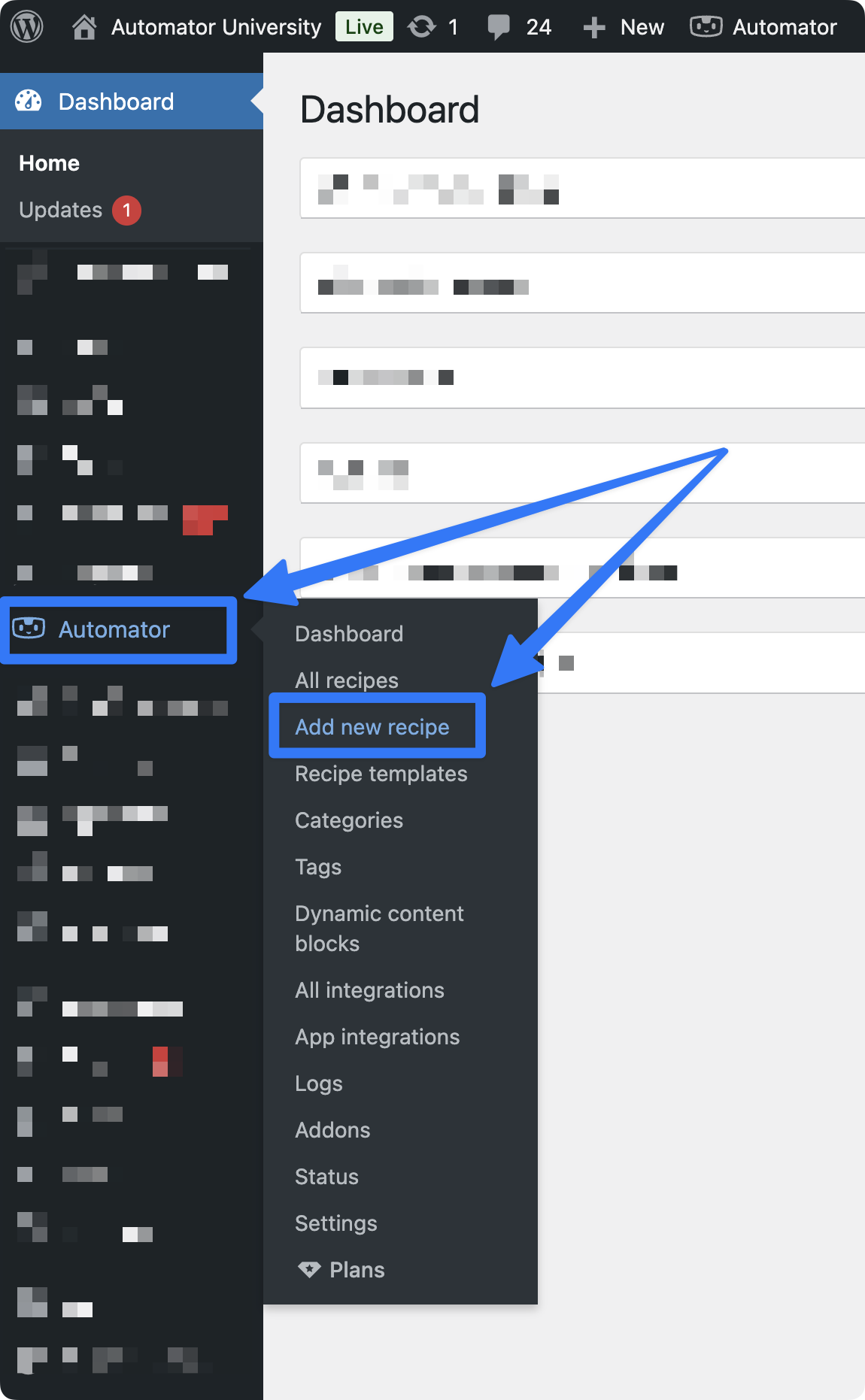
From your WordPress Admin Dashboard, navigate to Automator > Add new recipe.
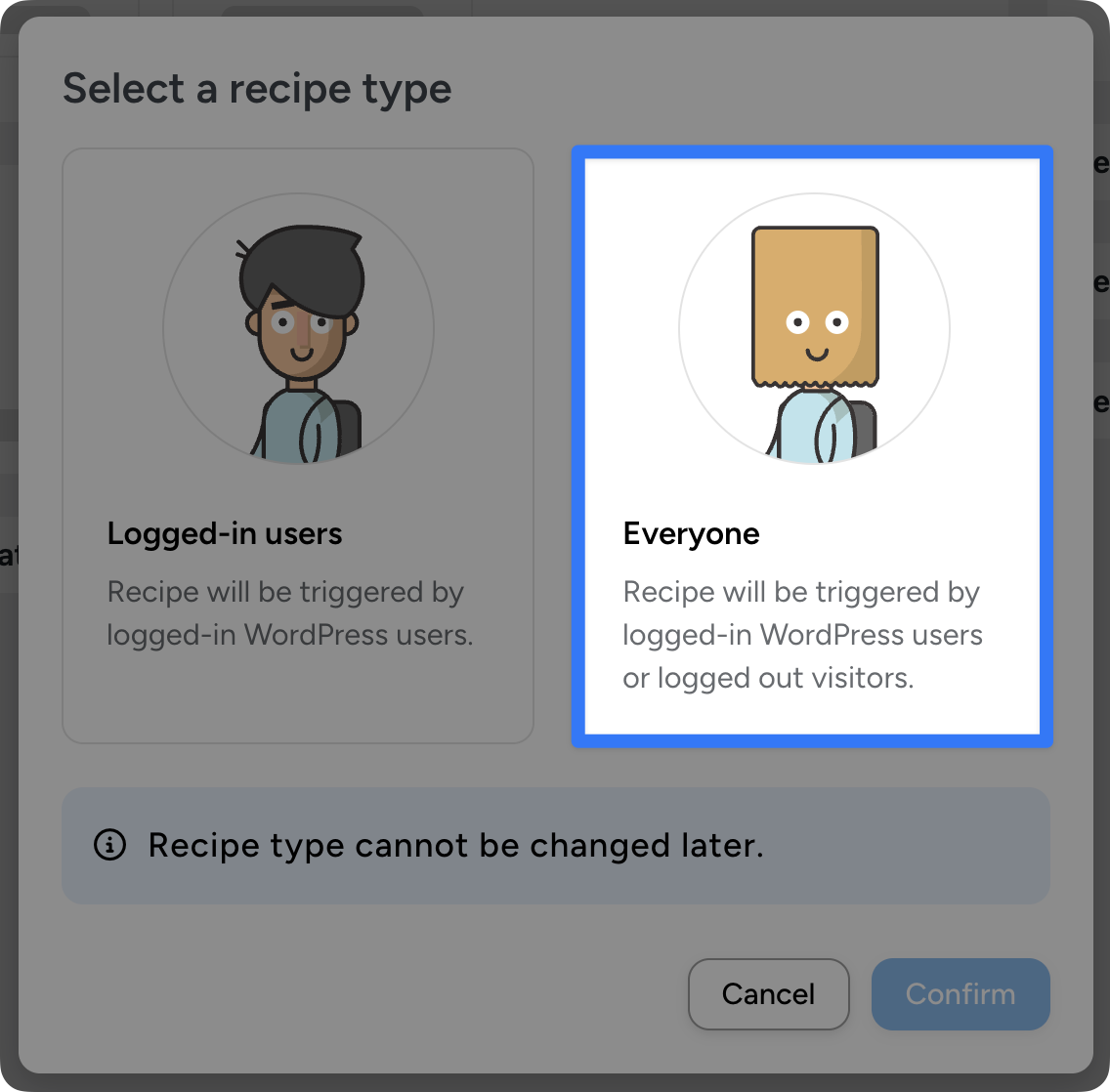
Automator will prompt you to select a recipe type: Logged-in users (recipes that fire only for authenticated users) or Everyone (recipes that fire for anyone, logged in or not). For most use cases—such as contact form submissions—select Everyone.
Give your recipe a clear, descriptive title at the top of the page—something like “Contact form: send confirmation email”. Future-you will thank present-you when there are dozens or even hundreds of recipes and you need to find them quickly.
Step 2: Add Your Trigger
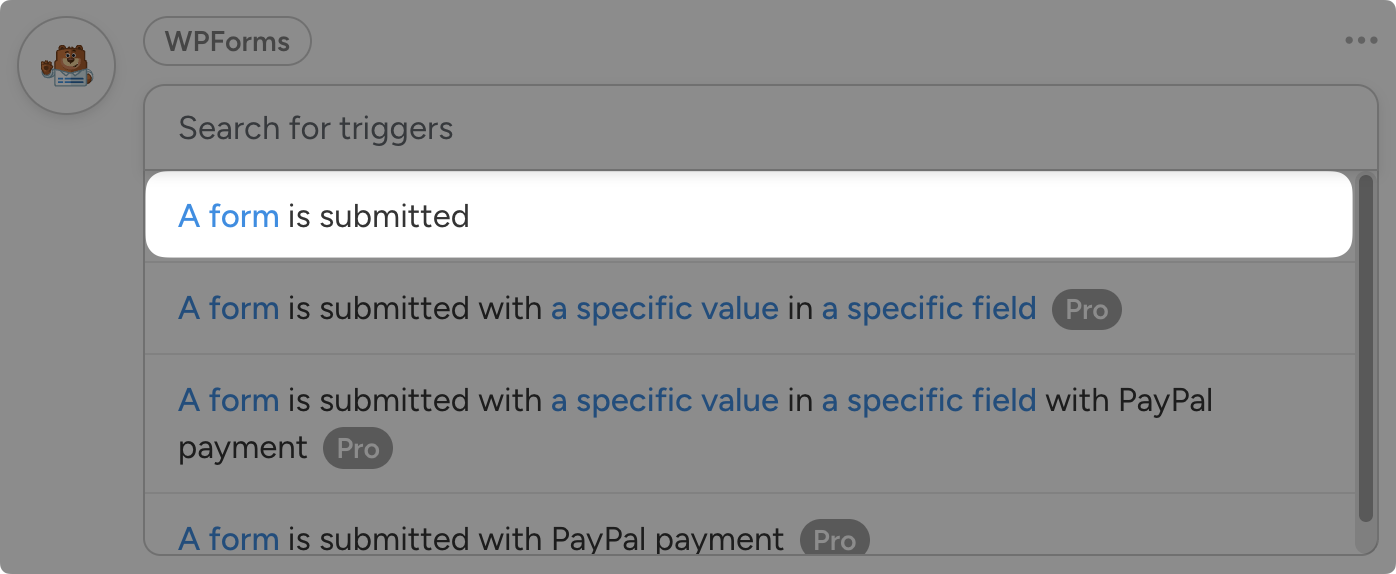
Triggers are organized by integration. In the Trigger panel, click to choose an integration. For this example, choose your form plugin (WPForms, Gravity Forms, Fluent Forms, Contact Form 7, or whichever you use on your site).
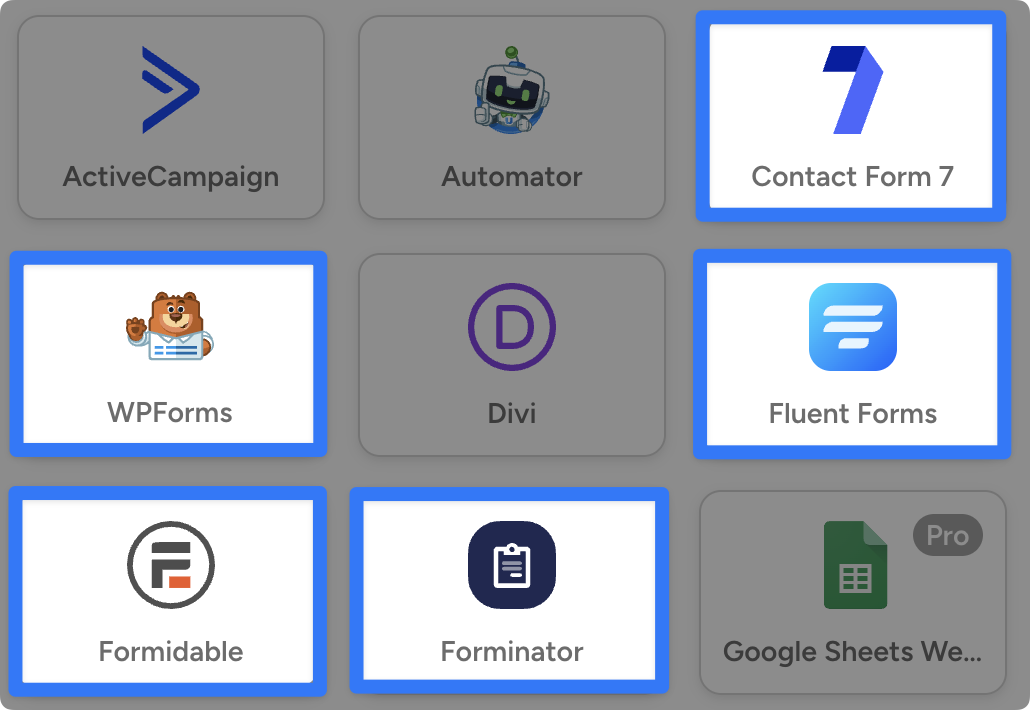
After selecting your form plugin (I’ve selected WPForms), Automator will present you with a dropdown list of available triggers. From this dropdown, select “A form is submitted”.
Next, Automator will prompt you to select a form. For example, I have selected “Content Form”.
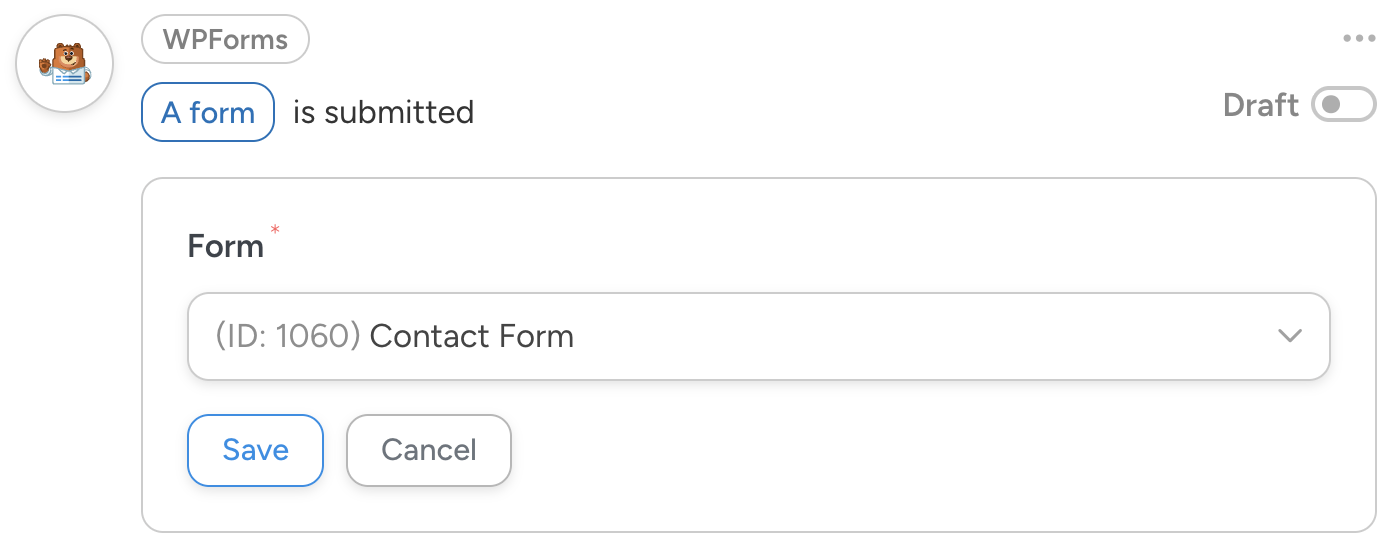
Once you’re finished, click Save. Your trigger is set.
Step 3: Add Your Action
In the Actions panel, click Add action and select Emails from the menu of available integrations.
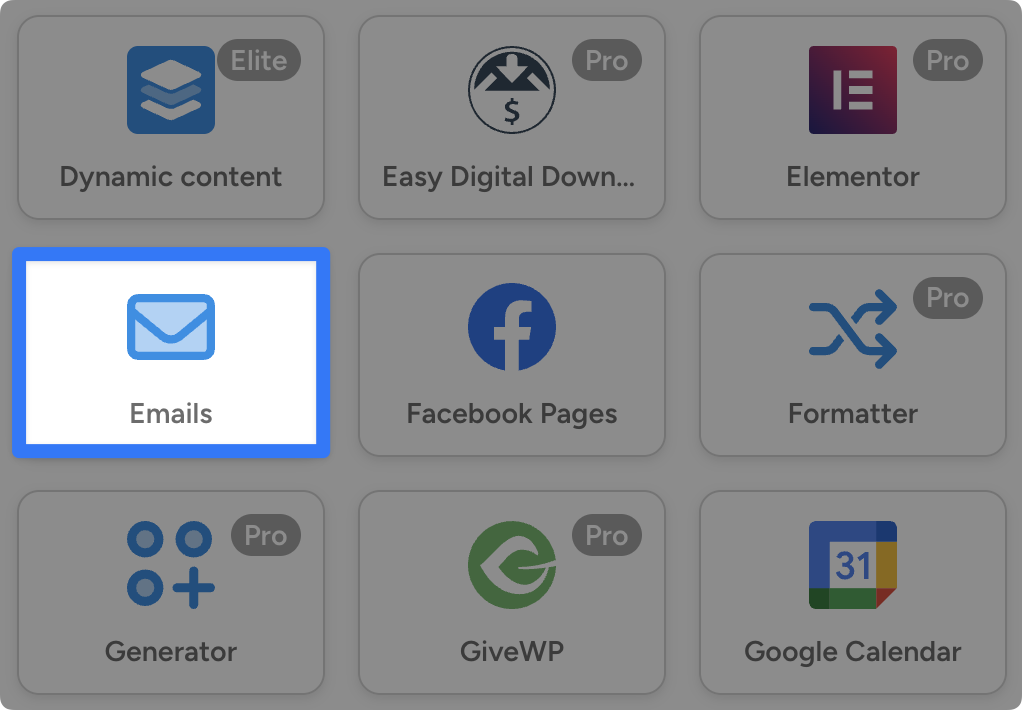
From the dropdown list, select “Send an email”.
Automator will present you with an email editor. You’ll see all of the regular email fields (From, To, Subject, etc.). This is where tokens come in.
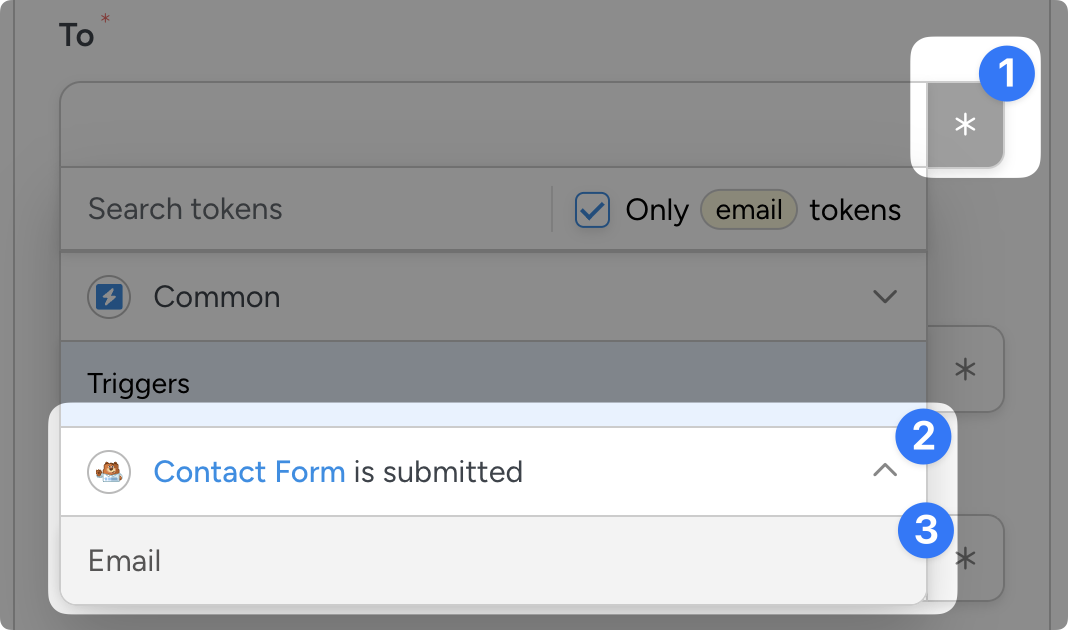
In Automator, tokens are dynamic placeholders that pull data from your WordPress site or from triggers and other actions within recipes. For example, we’re going to select the token from the form submission trigger that represents the submitter’s email.
To select a token, click the Asterisk in a field and select a token. In our example, select Contact Form is submitted > Email. (Note: the name of the tokens from your form plugin are taken from the names of the fields in the form.)
Fill out the remaining required fields such as Subject and Body. Use tokens here too—add personalization with the contact’s name if you have it from your form.
Once you’re finished, click Save.
Step 4: Switch the Recipe Live
You’re just about to complete your first WordPress automation. In the upper-right of the recipe page, you’ll see a toggle marked Draft. Click it to switch the recipe to Live.
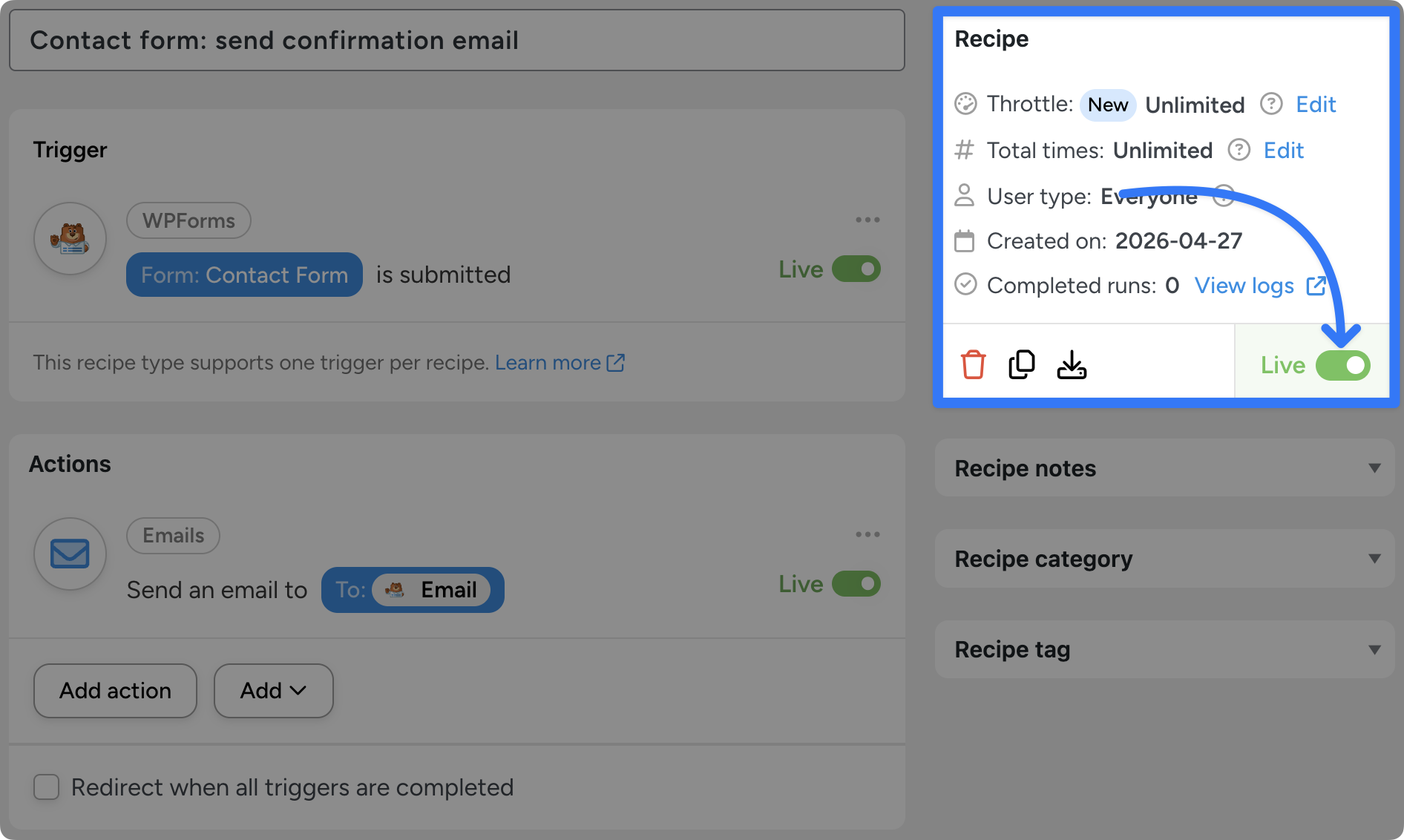
That’s it. The recipe is active.
To verify it’s working, submit a test form on your site using an email address you control. Within a few seconds, you should receive your confirmation email at that address.
Want to style your WordPress emails? Learn how to make branded, beautiful emails with totally free plugins >>>.
If something doesn’t fire as expected, check Automator > Recipe Log in your WordPress admin. Every recipe run is logged there—including failures—so you can see exactly what happened and why.
You’ve just built your first WordPress automation. Let’s look at what becomes possible when you go deeper.
Building Advanced WordPress Automations With Automator
The recipe you just built is the entry point—one trigger, one action, no frills. But Automator can do much more than that. Once you’re comfortable with the basics, several advanced features unlock workflows that would be impossible (or wildly expensive) with general-purpose automation tools.
Filters: Conditional Logic Inside Recipes
Filters allow for branching logic within recipes. Without them, a recipe runs every time the trigger fires. With filters, it runs only under specific conditions.
A few practical examples:
- Only run if the WooCommerce order total is over $500
- Only run if the customer is from a specific country
- Only run if the form submission contains a particular value in a particular field
- Only run if the user has a specific role (e.g., “Subscriber” but not “Customer”)
Filters are stackable. You can chain multiple conditions (“order total over $500 AND from the US AND first-time buyer”) so a recipe fires only for very specific scenarios. Filters give your recipes the flexibility to match your actual workflows.
Tokens: Dynamic Data Between Steps
We briefly looked at the tokens in the recipe that we created. However, they’re capable of doing a lot more.
Automator offers hundreds of different types of tokens, from user-based tokens to date and time tokens. This allows you to easily retrieve, use, and even edit WordPress metadata without writing code or reading unrecognizable html.
Want the welcome email to address the customer by first name? Drop in the first name token. Want the Slack notification to show the order total? Drop in the order total token. Want the spreadsheet row to log which form was submitted? Drop in the form name token.
Tokens turn rigid templates into personalized, contextual workflows. They also work across multiple actions in the same recipe. Data captured by the trigger is available to every action that follows, so you can pass form details into a CRM tag, a Slack ping, and a Google Sheets row all at once, without ever entering anything manually.
Loops: Run Recipes Across Many Records at Once
Most recipes run on individual events—one form submission, one order, one user. Loops do something different: they run a recipe across an entire set of records.
Automator supports three types of loops:
- User Loops run a recipe across a set of users. Example: once a week, send an email to every user with a specific membership status or tier.
- Post Loops run a recipe across a set of posts (or any custom post type). Example: once a month, find every blog post older than 12 months that hasn’t been updated and queue it for a content audit.
- Token Loops iterate over the contents of a token—useful when a single trigger event contains multiple items (like a WooCommerce order with several products) and you want to run an action for each one.
Loops are an Automator Pro feature, but they’re the answer whenever you want to “run an automation across a bunch of records at the same time”.
Addons
Beyond the core integrations, Automator has a library of add-ons that extend your WordPress site’s capabilities and make managing your workflows even easier.
- Custom User Fields Addon: Add fields to user profiles to store data such as phone numbers, social accounts, referral codes, and more.
- Restrict Content Addon: Easily restrict your WordPress content such posts, pages, and even modules.
- User Lists Addon: Create and manage users segments directly in your WordPress dashboard.
- Dynamic Content Addon: User-specific or sitewide content blocks that update in real-time with no page refresh required so you can build interactive content elements on your site.
- Elite Integrations Addon: Advanced integrations such as QuickBooks Online and Salesforce for power-users.
Automator addons are included for free with Plus and Elite licenses.
Webhooks
If a service isn’t natively integrated with Automator, webhooks usually bridge the gap. Automator can receive incoming webhooks and send outgoing webhooks, effectively making the entire internet your tech stack.
Delays and Scheduled Actions
Pro recipes can include delays between actions (“send the follow-up email three days after enrollment”) or be scheduled to run at specific times. This is what makes drip campaigns, renewal sequences, and time-based reminders possible without bolting on a separate scheduling tool.
For the full deep-dive on advanced WordPress automation features and patterns, see our complete guide to advanced WordPress automation.
More Ways to Automate Your WordPress Site
Form-to-email is just the start. Automator can power workflows across nearly every part of a WordPress site, from membership lifecycle management to webinar follow-ups to customer support routing. To go deeper into any specific area, check out these detailed guides with plenty of recipes you’ll want to sink your teeth into:
- The Complete Guide to WordPress Membership Automation: Automate signup, renewal, expiration, dunning, and member communications across MemberPress, Restrict Content Pro, WooCommerce Memberships, and other membership plugins.
- The Complete Guide to WordPress Customer Support Automation: Route tickets, send acknowledgments, escalate based on urgency, and connect your help desk tools to the rest of your stack.
- The Complete Guide to WordPress Webinar and Event Automation: Automate registration, reminders, post-event follow-ups, and attendee segmentation for Zoom, GoToWebinar, The Events Calendar, and similar tools.
- The Complete Guide to WordPress eLearning Automation: Build the workflows that turn your LMS into a virtual campus. Drip nudges, completion follow-ups, certificate delivery, alumni segmentation, and CRM tagging for LearnDash, LifterLMS, and Tutor LMS.
- The Complete Guide to WordPress Marketing Automation: Lead capture, CRM enrichment, email segmentation, lifecycle campaigns, and cross-platform sync between WordPress and your marketing stack.
- The Complete Guide to WordPress Content Automation: Publish, distribute, and repurpose content automatically—social shares, newsletter broadcasts, internal notifications, and content calendar updates.
- The Complete Guide to WooCommerce Automation: The full playbook for automating a WooCommerce store. Create automations for order processing, inventory alerts, abandoned cart recovery, customer segmentation, refund handling, review requests, and more.
Each guide stands on its own and goes much deeper into the specific use cases, recipes, and integrations for that area. Pick the one that matches what you’re trying to automate first.
Automation Best Practices: Pro Tips & Tricks
We’ve been building automations for a while and helping WordPress site owners such as yourself build the automations that they rely on every day.
Over the years, we’ve learned a thing or two about automating WordPress sites. Here are the tips and tricks that we picked up (and the mistakes we made so you don’t have to):
- Strategize first, build second: Before you build a single automation, map out your workflows and customer funnels. Understanding your workflows and how your customers interact with your site and business makes it easy to identify points of friction that are ripe for automation.
- Start with high-impact, low-risk workflows: Begin with recipes where the output is easy to verify—form-to-email, form-to-spreadsheet, simple notifications. Once you’ve earned your own trust, move on to multi-step workflows.
- Test before you publish: Send test emails. Trigger recipes yourself. Before you put an automation into place, test it to ensure that it’s working as intended. It takes five minutes and saves entire afternoons of “why did everyone get a second email?”
- Use filters liberally: Most often, the issue of misfiring recipes comes down to missing filters and branching logic. Ask yourself: should this recipe run every time the trigger fires, or only in certain cases? If it’s the latter, add a filter.
- Build for the edge cases: No two site visitors are the same—but some are more extreme than others. Whenever building a recipe, consider the “edge cases”, i.e., the site visitors who take unusual paths to the checkout counter. Understanding these edge cases helps reduce errors like sending out coupons to customers who shouldn’t get them.
- Keep individual recipes simple: If a recipe has 15 actions and eight filters, it’s probably two recipes. Split it up. Simpler recipes are easier to debug and easier to change.
- Document your “why”: Automator’s recipe builder includes a “Recipe notes” field. A note in the recipe explaining the business reason it exists will save someone—possibly you, six months from now—from deleting a recipe they don’t understand.
Final Steps—Get Started with WordPress Automation Today
The question for most WordPress site owners isn’t whether to automate. It’s how much.
If you’re spending hours every week on tasks that follow the same pattern every time—form processing, CRM tagging, cross-tool data sync, notifications, reporting—that time is reclaimable. All you need is the right tool and a few minutes to set up the recipes that will save you hours.
Download Uncanny Automator Lite for free and build your first automation today. Connect your plugins and apps, build a simple recipe, and watch the work happen without you. Once you’ve felt that first “huh, I don’t have to do that anymore” moment, you won’t stop.
Ready to go Pro and unlock the full integration library, advanced filters, and User Loops? See plans and pricing on the Automator pricing page >>>.
You’ll save time with WordPress automation, yes—but more importantly, you’ll work less. Automation isn’t just about working faster. It’s about freeing up the hours you’d otherwise spend on rote work for the strategy, product, and customer conversations that actually grow a business.
What will you do with more time?
Frequently Asked Questions
Do I need coding experience to use Uncanny Automator?
No. Automator’s recipe builder is fully visual—no code required. If you can follow a workflow and configure a few fields, you can build automations. The learning curve is closer to setting up a new email app than it is to programming.
Can I automate my WooCommerce store?
Absolutely. WooCommerce is one of the most-used integrations in Automator. Common workflows include order processing, inventory alerts, customer email sequences, abandoned cart recovery, CRM tagging by order value or product mix, refund cleanup across multiple systems, and review request follow-ups.
Will automation slow down my WordPress site?
No. Automator runs efficiently in the background, and most actions happen asynchronously—they don’t block page loads or checkout. Automator is built on WordPress-native architecture, which means it’s lighter and faster than routing work through external services like Zapier or Make.
What’s the best WordPress automation plugin?
The best WordPress automation plugin depends on what you’re optimizing for, but Uncanny Automator is the most-used and most-integrated option in the WordPress ecosystem. It runs natively on your site with no per-task pricing and puts every piece of data at your fingertips. With hundreds of integrations, Automator has deep support for the WordPress ecosystem. Uncanny Automator Lite is free forever and lets you get started with no commitment.
Can you automate a WordPress site without code?
Yes—that’s the whole point of Uncanny Automator. Automator’s recipe builder is fully visual—simply point, click, and automate. There’s no PHP, no JavaScript, no webhook plumbing. If you’ve ever set up an email rule or a Zap, the learning curve is similar. No-code automation for WordPress is exactly what Automator was built for.
What if I use plugins that Automator doesn’t integrate with?
Automator integrates with 220+ plugins and platforms, so most popular plugins are already covered. If yours isn’t, you can usually bridge the gap with webhooks. If a plugin is commonly requested, there’s a good chance it’s already on the integration roadmap—and you can always ask the Uncanny team.
Can I automate across multiple WordPress sites?
Yes. With Automator Pro on multiple sites, you can set up recipes on each site independently. You can also use webhooks to pass data between sites—useful for agencies managing a portfolio of client sites, or for businesses running a main site plus one or more satellites.
What happens if a recipe fails?
Automator’s recipe logs record every recipe run, including failures, with details about which action failed and why. You can re-run failed recipes from the log, fix the underlying issue (an expired API key, a renamed field), and pick up where things left off. Quiet failures are the enemy of good automation, and the recipe log is how you catch them.
Can I delay an action or run it on a schedule?
Yes—with Automator Pro, you can add delays to actions or schedule actions to run at specific times. This is what makes drip campaigns, renewal sequences, and time-based reminders possible without bolting on a separate scheduling tool.
How is Uncanny Automator different from Zapier or Make?
Automator is WordPress-native—it lives inside your WordPress site, not in an external service. That means deeper integrations (Automator can read directly from your WordPress database), faster execution (no round-trip to an external server), lower cost (no per-task pricing), and no data leaving your site unnecessarily. For WordPress-centric workflows, Automator usually wins on every dimension that matters.
Where can I learn more or get help?
Check out the Uncanny Automator knowledge base for documentation on everything from triggers and actions to setting up specific integrations and more. Alternatively, if you’re looking for a little inspiration or the cutting edge of automation thought leadership, the Automator blog is a great resource.

Related Posts























































Comments (0)