

Struggling with member churn? Get started with these proven, automated membership retention strategies for WordPress…
Find and Re-Engage Inactive WooCommerce Customers
Want to know how to get your WooCommerce customers back? Launch your re-engagement campaign with Automator and win-back your inactive WooCommerce customers!

Saying goodbye to your WooCommerce customers is never easy. But it’s a whole lot easier when you know that they’ll be back. However, every now and then, after checkout, one of your shoppers will simply disappear—almost like they’ve fallen asleep at their keyboard.
We probably don’t have to tell you about the advantages of returning customers. They boost your KPIs such as lifetime value and loyalty scores. They cost less to convert than new customers and add to your invaluable word-of-mouth marketing efforts.
But, quite apart from the impact on your bottom line, we’re sure that you’d simply love to hear from these catnapping customers once again. So, if you’ve been asking yourself, “How do I get my WooCommerce customers back?” you’ll want to keep reading.
In this step-by-step guide, we’ll show you how Uncanny Automator can sound an alarm clock to bring your inactive WooCommerce customers back from dreamland.
Let’s wake up some shoppers!
Introduction
We’re sure that you’re eager to reach through your computer screen and give your dormant customers a gentle tap on the shoulder. (Or shout through a megaphone.) First, let’s take a look at exactly how Automator is going to help you accomplish this.
By the end of this quick tutorial, Automator will help you to:
- define how long a customer must be “sleeping” before they are considered inactive,
- automatically identify and target inactive WooCommerce customers,
- integrate WooCommerce with your CRM and favorite plugins to launch high-converting re-engagement campaigns, and
- accomplish so much more!
Without further ado, let’s get those customers to rise and shop!
Find Inactive WooCommerce Customers with Uncanny Automator
What if we told you that you could get your inactive WooCommerce customers back with just one plugin? From ecommerce automation to marketing automation and more, Uncanny Automator can help you:
- find and target inactive customers,
- send automated personalized messages,
- and even generate personalized offers that maximize conversion rates.
And you can do it all without ever having to write (or read) a single line of code.

If Automator sounds like the stuff of a WordPress developer’s dreams, that’s because it is. Automator is the #1 AI + automation and integration plugin for WordPress websites. Using simple combinations of triggers and actions, you can connect all of your favorite apps and plugins to create seamless workflows.
When it comes to finding and re-engaging inactive WooCommerce customers, you’ll need metadata-level access and control of your WordPress website. Fortunately, Automator puts the power and flexibility of metadata right at your fingertips with a click-and-play interface. No phpMyAdmin, no SQL necessary.
Get started with Uncanny Automator
Throughout this tutorial, we’ll be using Automator Pro features such as Loops. You can get started with Automator Pro – Basic for as little as $149.
So, go ahead and follow these steps to get started with Automator and then we’ll work on getting those customers back together.
Claim your Pro license. Reclaim your time >>>
- From your WordPress Admin Dashboard /wp-admin/, navigate to Plugins > Add new. In the search bar, enter “uncanny automator” and click Install and Activate. (This installs the free version of Uncanny Automator which must be active to use Automator Pro features.)
- Purchase your Automator Pro license from the Automator pricing page.
- Once purchased, you can download the latest version of Uncanny Automator Pro inside your Automator account.
- After downloading the .zip file, navigate to Plugins > Add New in /wp-admin/. Click the Upload Plugin button, select the Pro .zip file then install and activate the plugin.
- Once activated, be sure to visit Automator > Settings in /wp-admin/ to enter your license key (in your purchase confirmation email).
For a more detailed walkthrough, click here.
Send Automated Emails to Inactive WooCommerce Customers
Now that you have an Automator license, it’s time to wake up those sleeping customers with an automated alarm they can’t ignore.
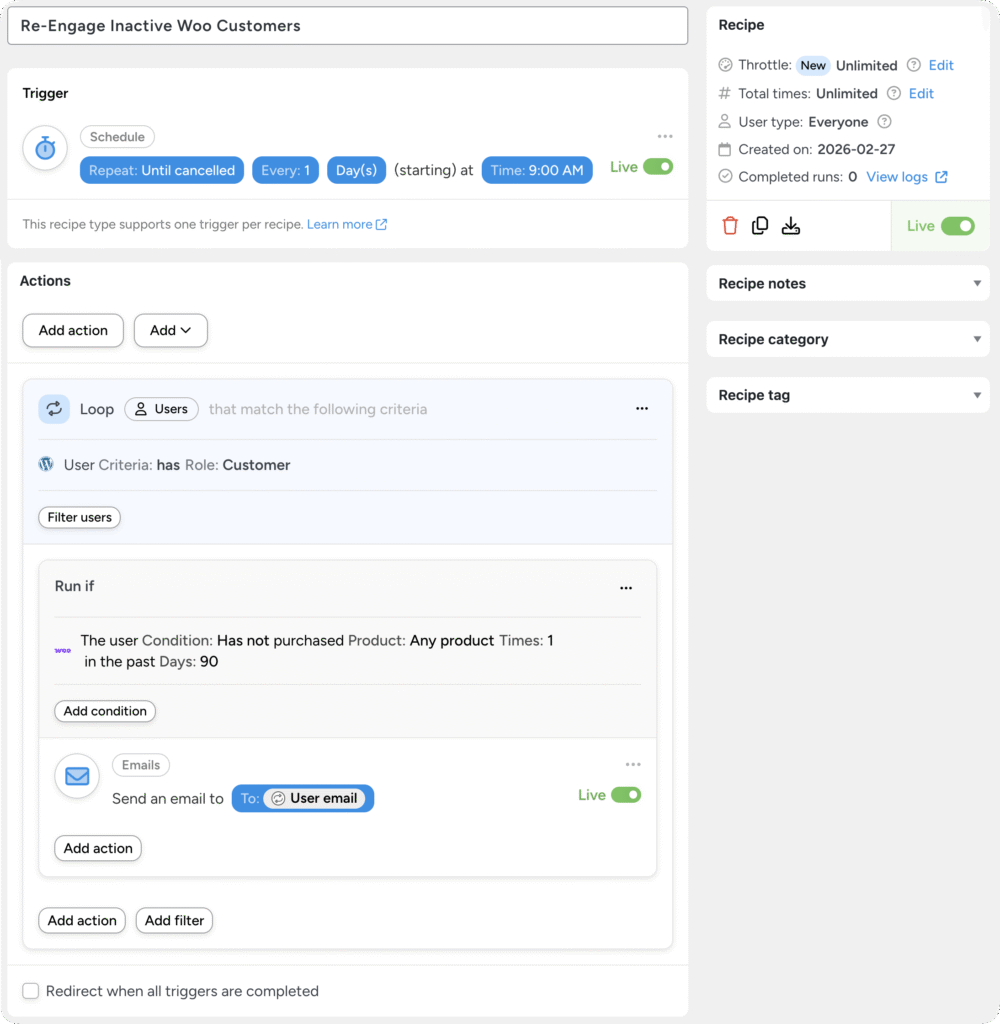
We’re going to recreate the recipe pictured above together. It’s pretty simple: every day at 9:00 AM, Automator will run through all of your Woo customers who haven’t purchased a product in 90 days and send them a re-engagement email.
Later on, we’ll look at some optional upgrades to this recipe such as personalized offers to wake up those really deep sleepers.
Step 1: Create and Name a New Recipe
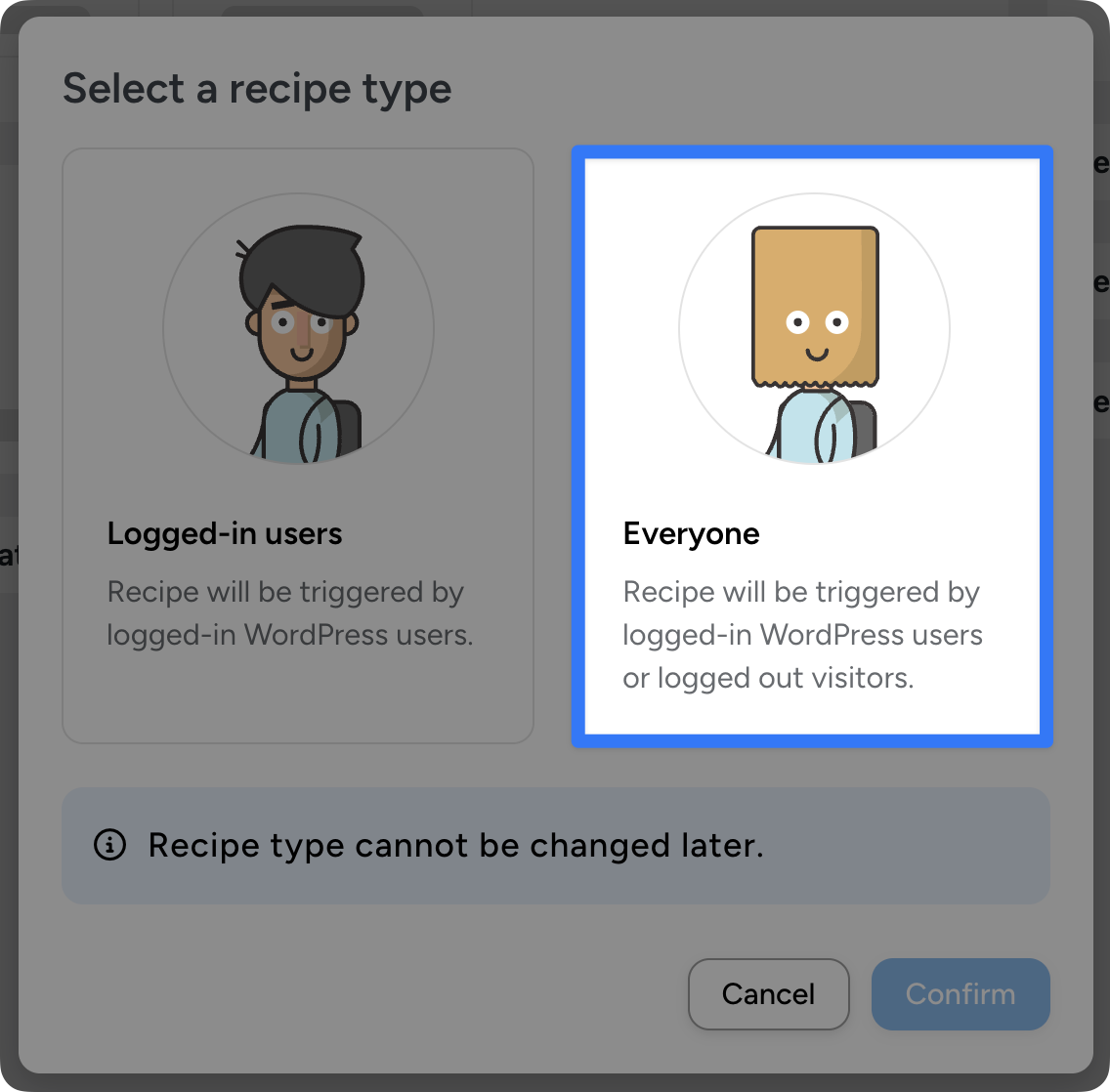
From your WordPress Admin dashboard, navigate to Automator > Add new recipe. In the modal that appears, select Everyone.
Give your recipe a name that makes sense to you. For example, I have named this recipe “Re-Engage Inactive Woo Customers”.
Step 2: Configure Your Trigger(s)
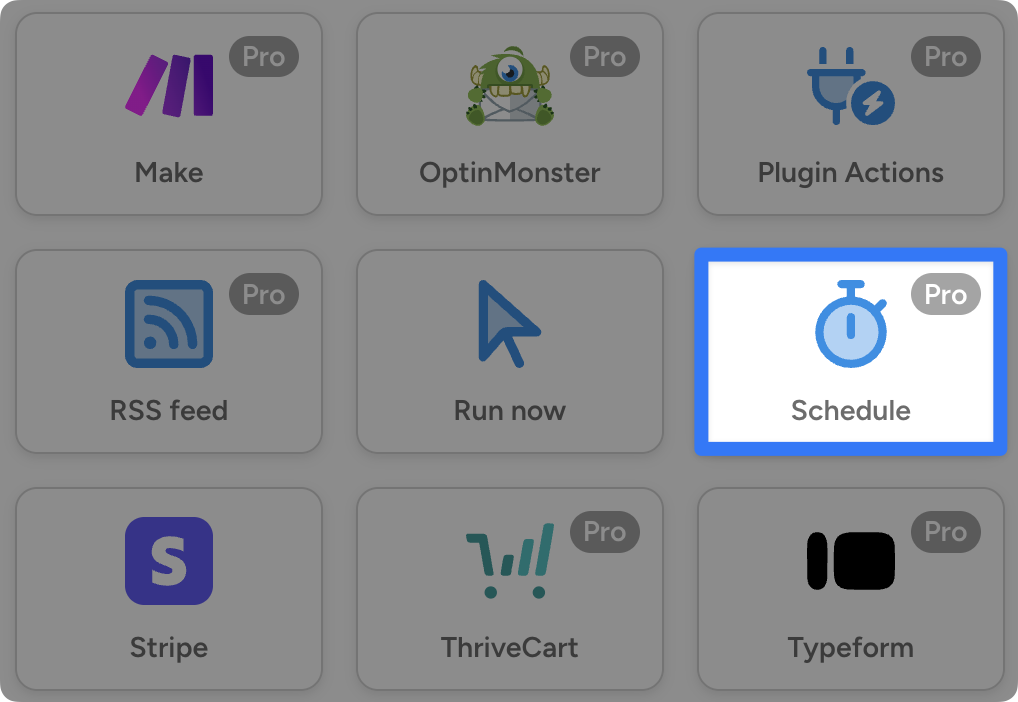
In the Trigger panel, from the menu of available integrations, select Schedule.
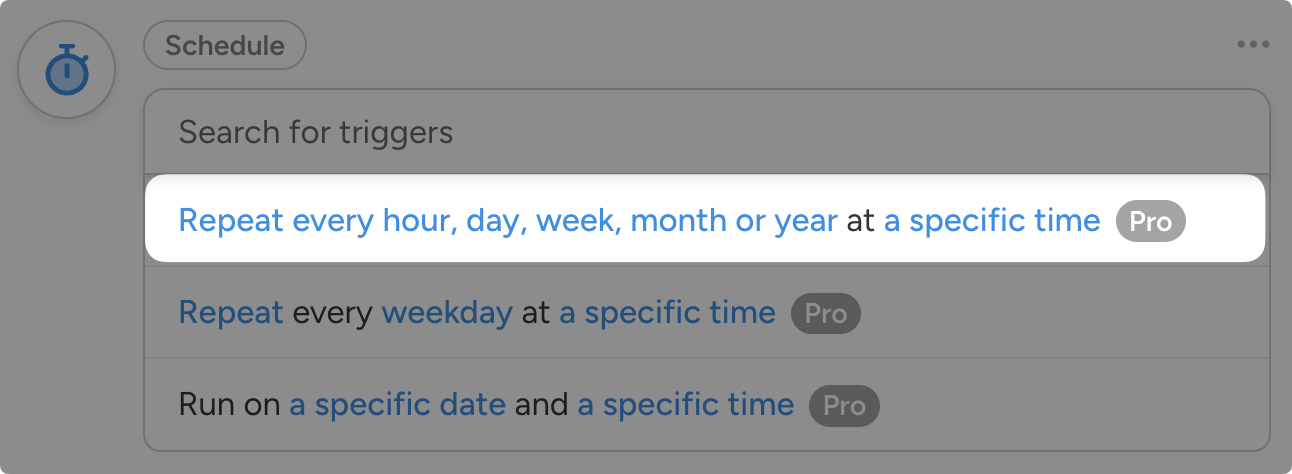
From the dropdown list that appears, select “Repeat every hour, day, week, month or year at a specific time”.
Configure the intervals for your schedule however they best fit into your workflows. For example, we have set this recipe to run once every day at 9:00 AM until it’s cancelled.
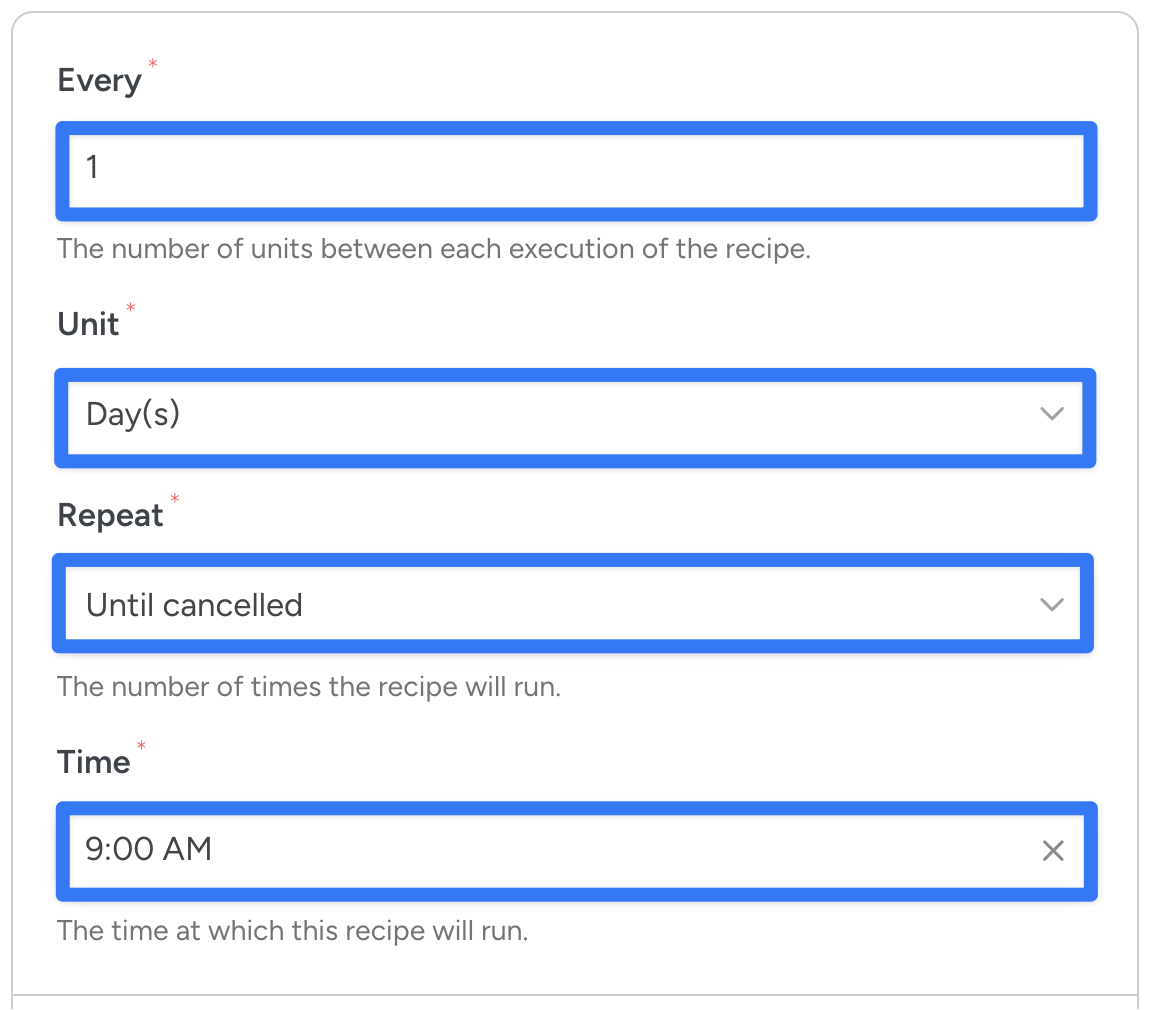
Once you’re finished, click Save.
Step 3: Create a User Loop
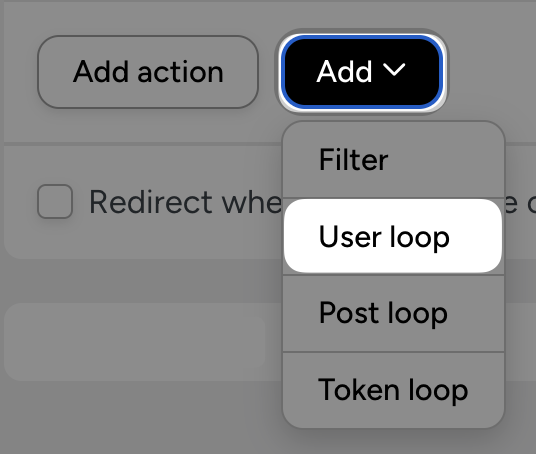
In the Actions panel, click Add > User loop.
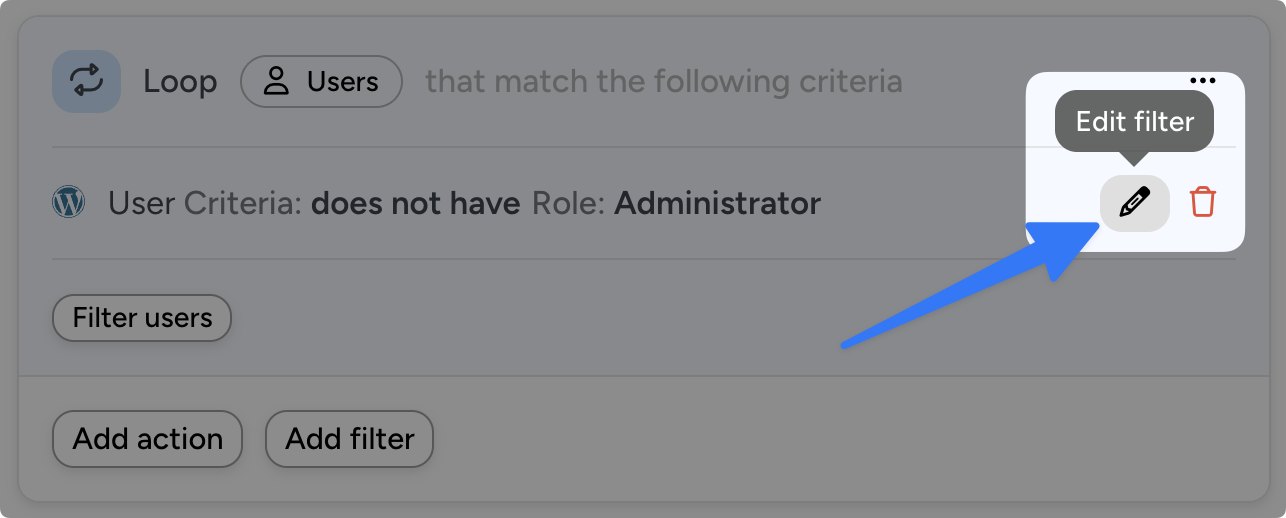
By default, Automator will set the User Loop to run on every user who isn’t a site Administrator. To change this, hover over the User filter and click the Edit filter icon.
In the modal that appears, select the users you would like to run the recipe on. Likelier than not, that is “Customers”.
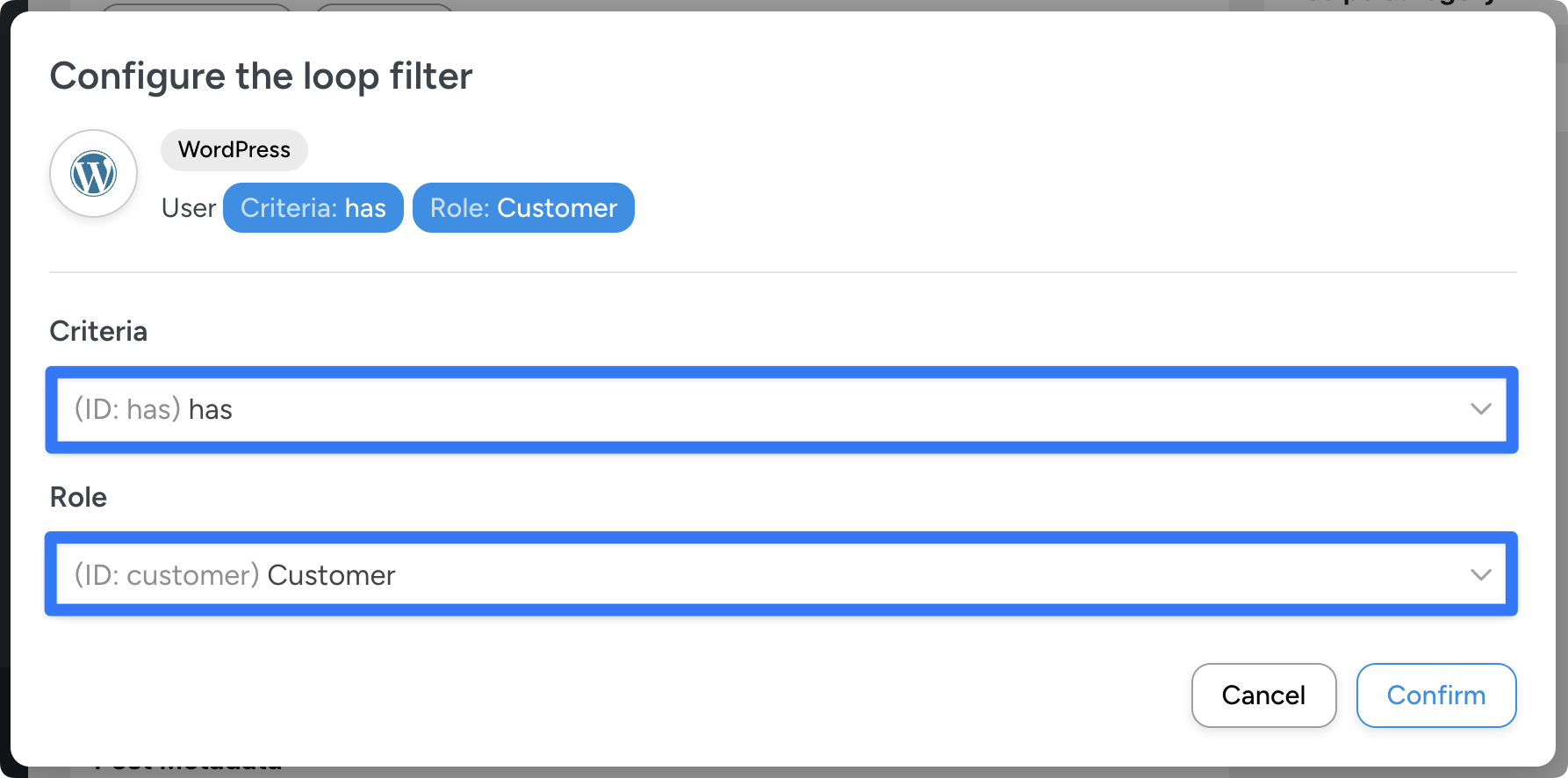
Once you’re finished click Confirm.
Step 4: Configure Your Action(s)
Within the User Loop, click Add action and select Emails from the menu of integrations.
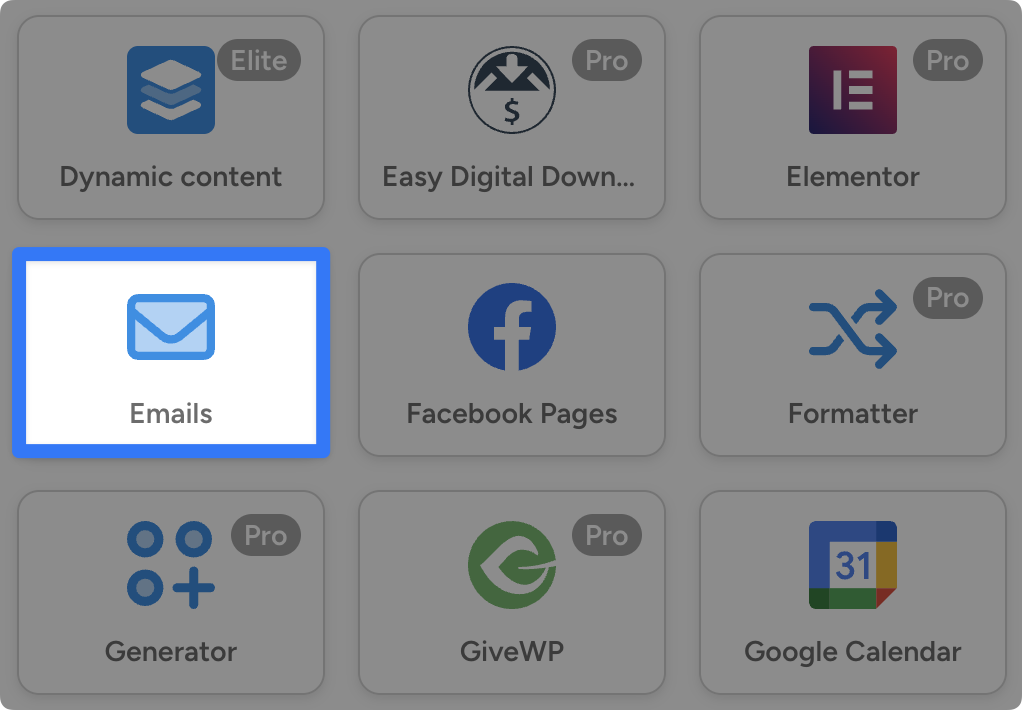
From the dropdown list, select “Send an email”.
Automator will present you with a form to draft your email settings and copy.
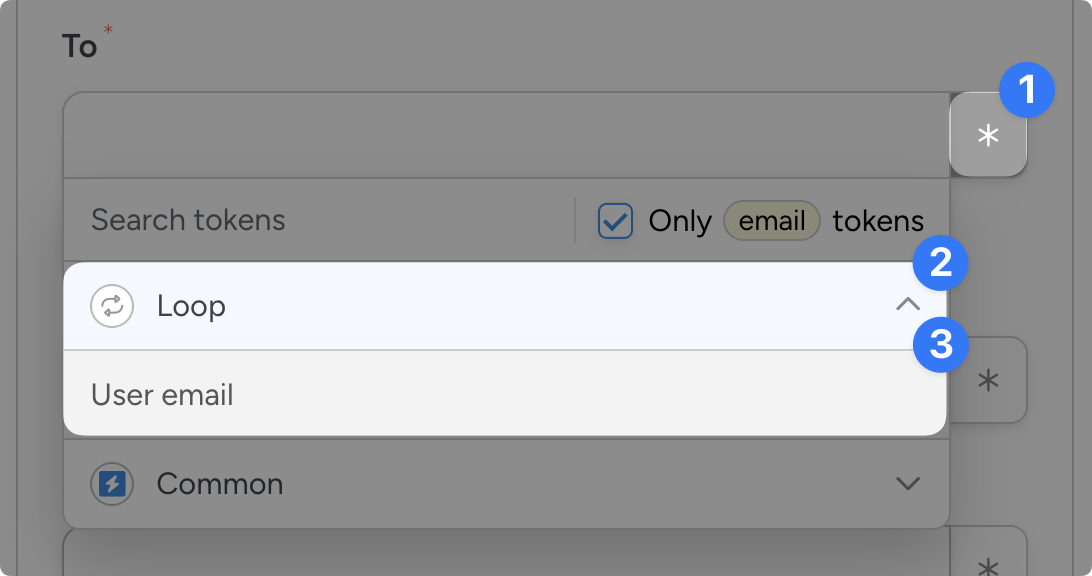
In the To field, click the Asterisk and select User loop > User email. This token will ensure that Automator cycles through the user emails for this action that satisfy the criteria in the Loop filter.
Next, you get to draft your re-engagement email.
Stuck for ideas? Not sure what to say? Here are some samples with different strategies to get you started:
Once you’ve drafted your email, click Save.
Step 5: Add an Action Filter
As the recipe is configured now, Automator will send the email to all of your Woo customers. Needless to say, not all of them are currently drooling over their keyboards.
To target the inactive shoppers, we’ll add an action filter.
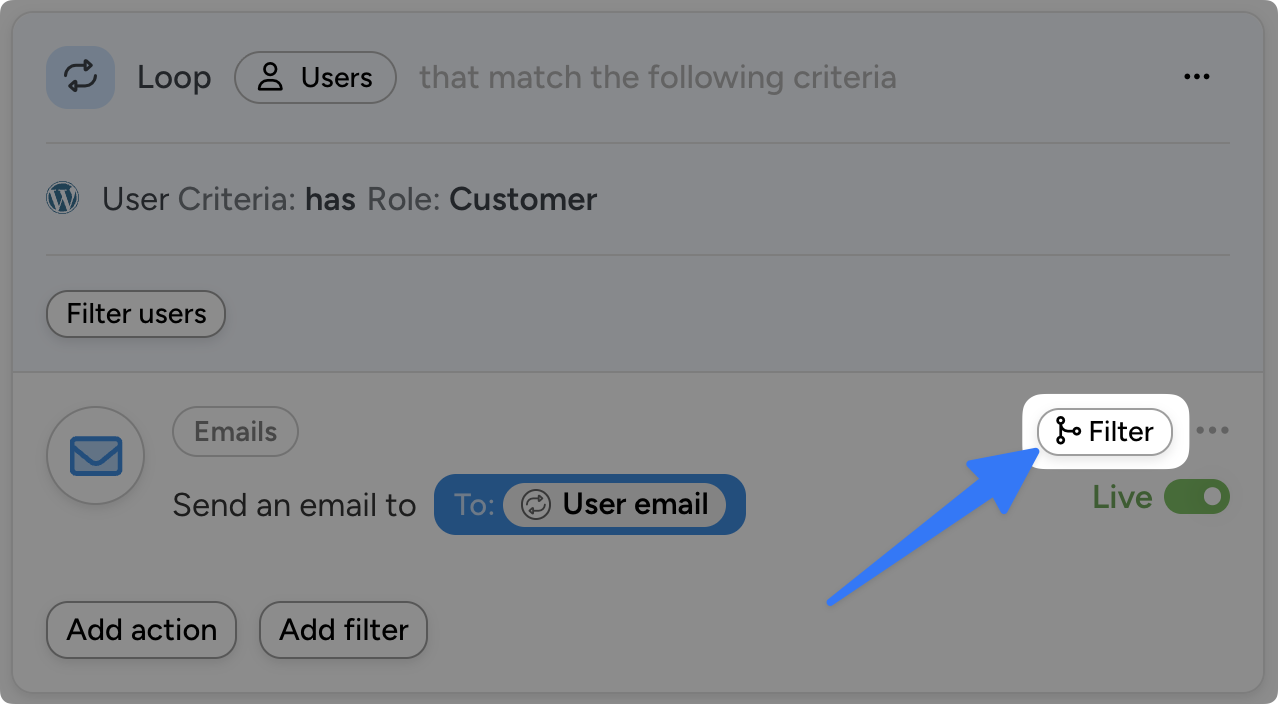
Hover over the Emails action and click Filter.
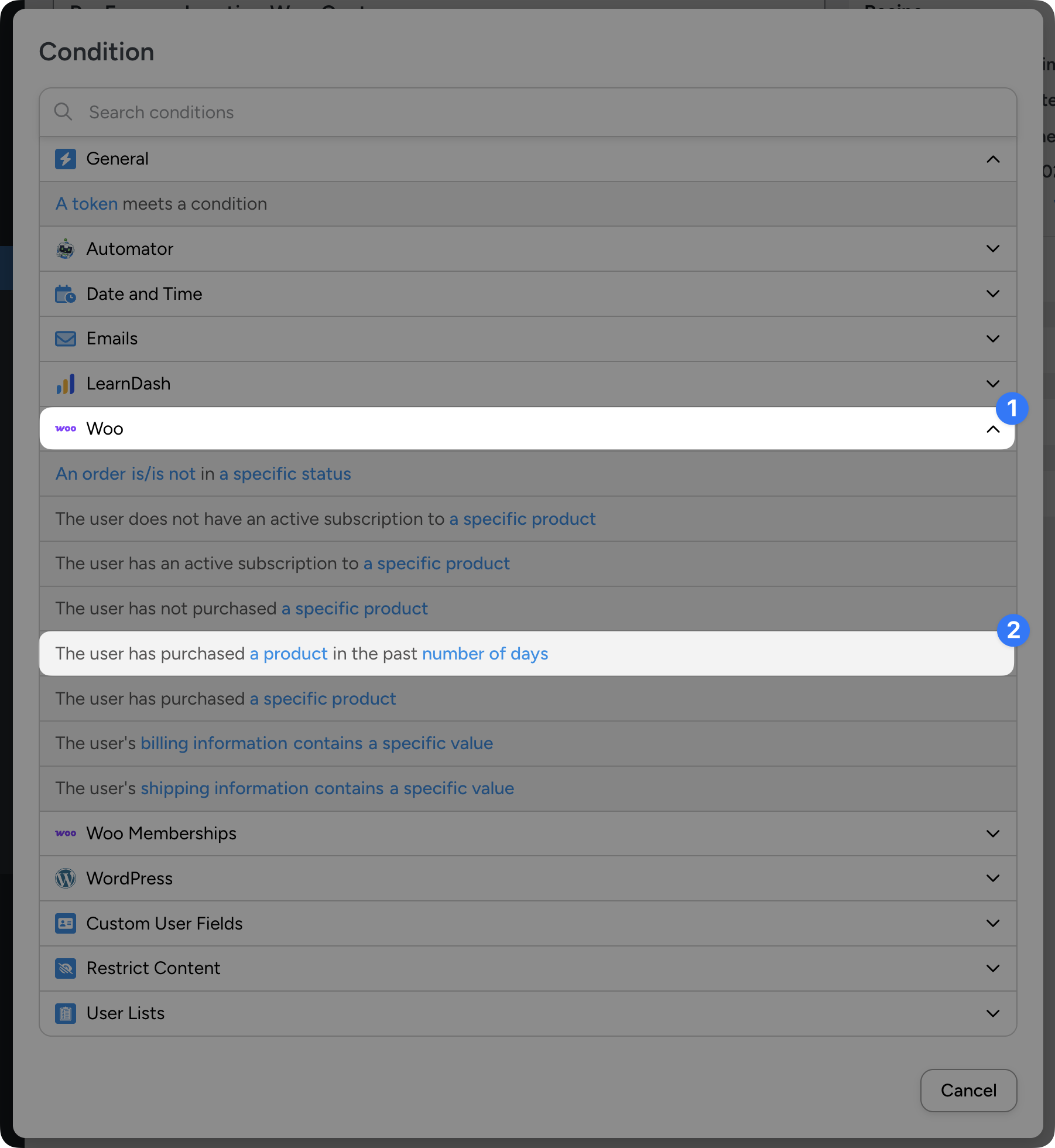
In the modal that appears, select Woo > The user has purchased a product in the past number of days.
Automator will then present you with another modal where you can define the period of inactivity.
Set the fields as follows:
- Condition: “Has not”
- Product: “Any product”
- Times: “1”
- Days: “90” (or your preferred period of inactivity)
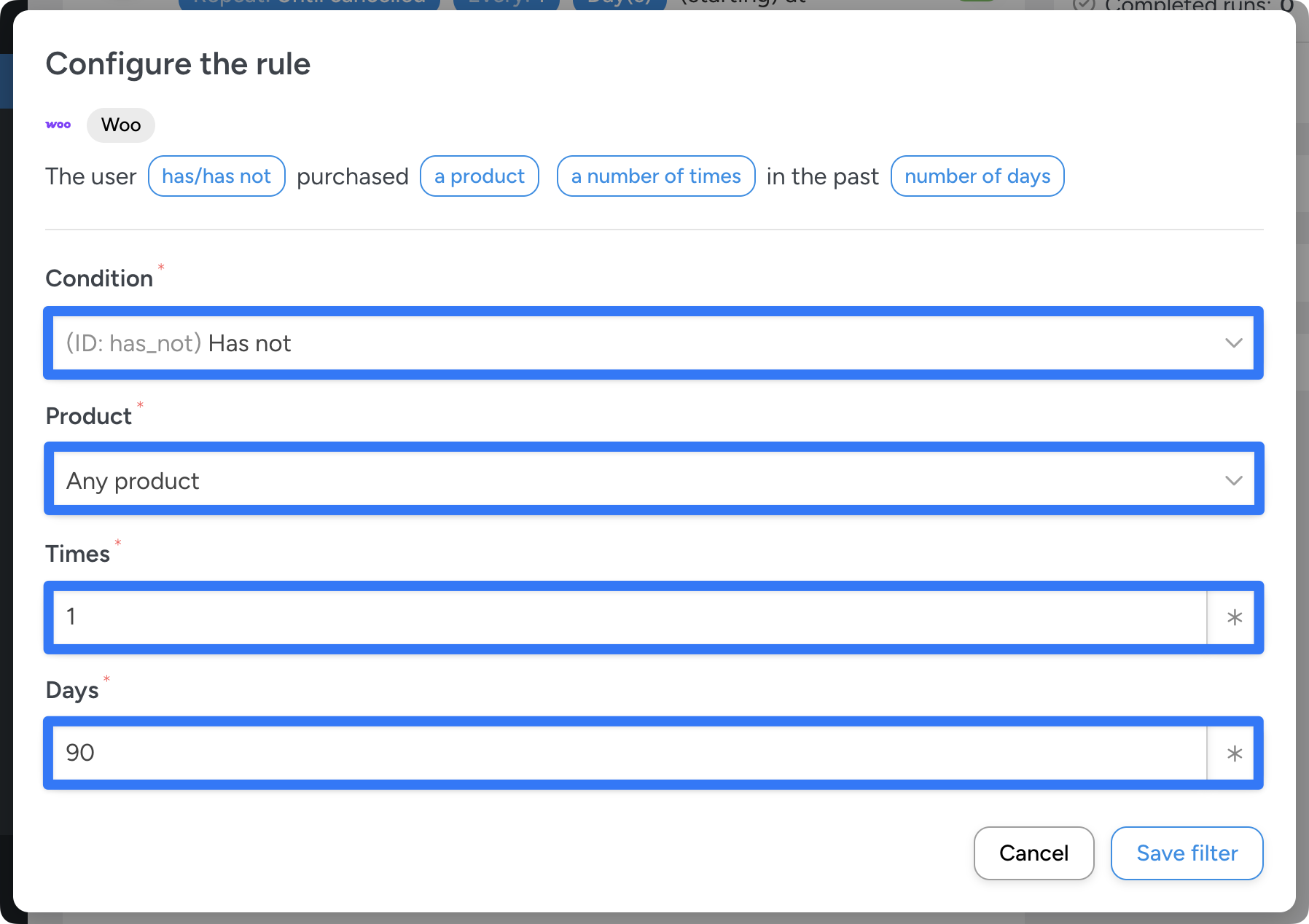
Once you’re finished, click Save filter.
Now, Automator will only send the email to Woo customers who haven’t purchased any product in the past 90 days (or whichever period of inactivity you set).
Step 6: Go Live and Sound the Alarm
You’re just about ready to give your customers that virtual tap on the shoulder. All that’s left for you to do is to toggle the recipe from Draft to Live.
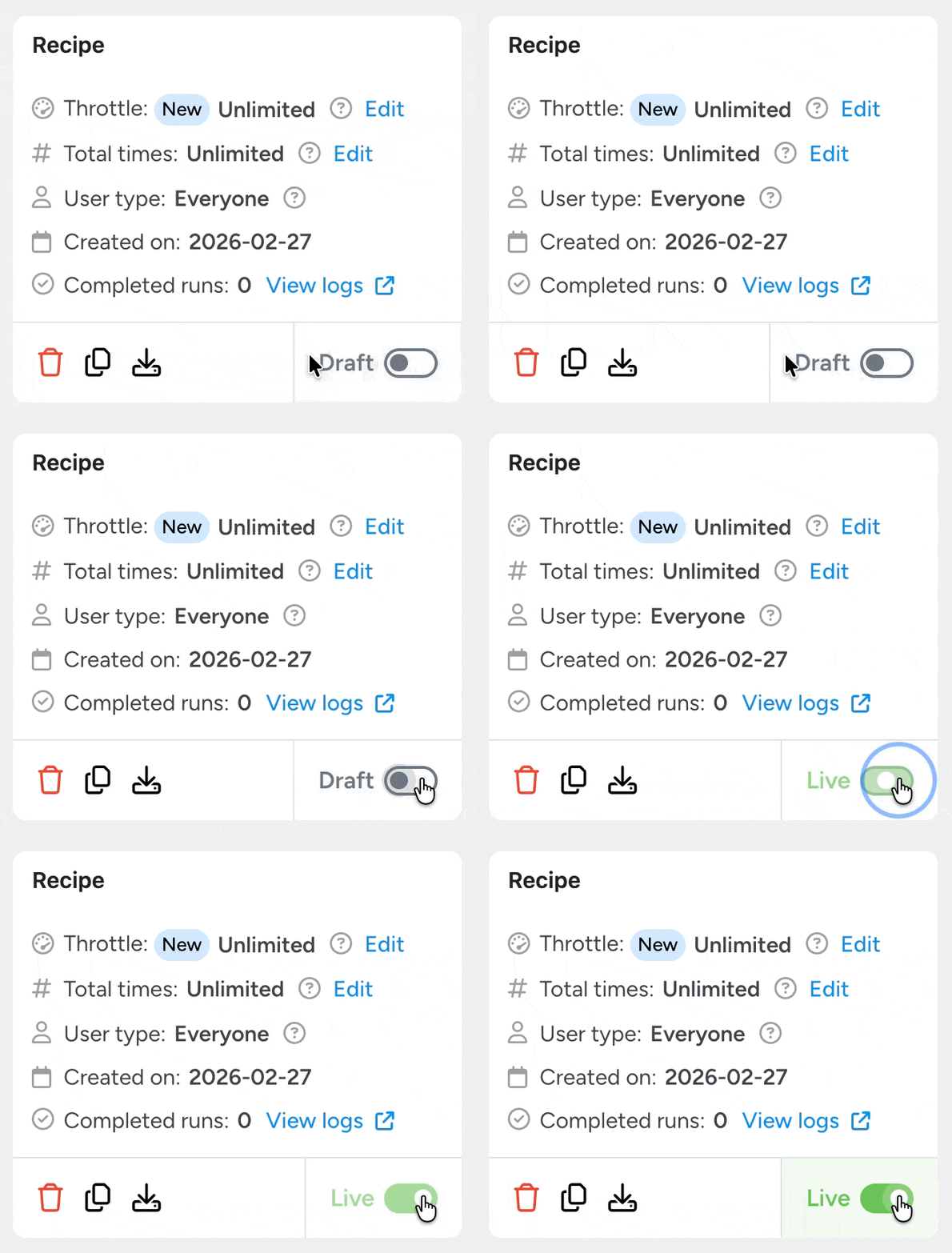
(Note: When you run this recipe for the first time, you could trigger hundreds (or even thousands!) of emails. Check with your web host and/or email delivery plugin first to make sure that you aren’t going to hit or exceed any send limits.)
More Ways to Re-Engage Inactive WooCommerce Customers
If the smell of bacon and waffles is enough to wake anyone out of bed in a literal sense, then the sweet smell of savings should be enough to wake up inactive customers. At least, that’s the reasoning behind this small modification we made to the recipe we just created.
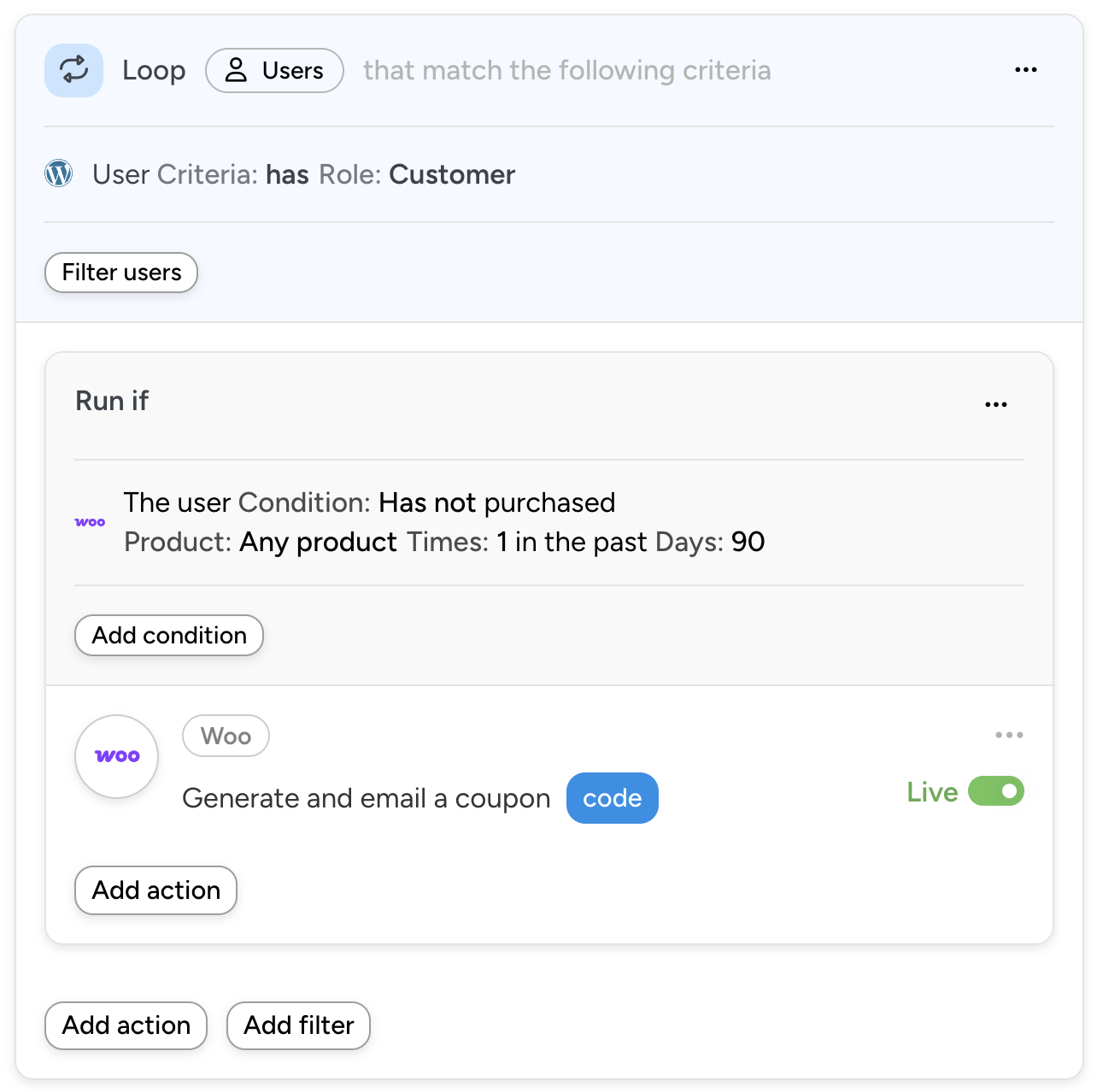
When a simple tap on the shoulder isn’t enough, get your inactive WooCommerce customers back with an exclusive offer, tailored just for them.
In the recipe pictured above, all we did was swap out our Emails action with an action to generate and email a personalized coupon code to our snoozing shopper.
Want some help drafting your re-engagement email with a personalized offer? Here are some sample emails to get you started:
Track Inactive WooCommerce Customers in Your CRM
CRMs such as ActiveCampaign, HubSpot, Drip and MailPoet are great for tracking your contacts who haven’t been reading your emails.
However, without Automator, these CRMs have no idea what’s happening in your WooCommerce store. And what good are emails that don’t convert readers into buyers?
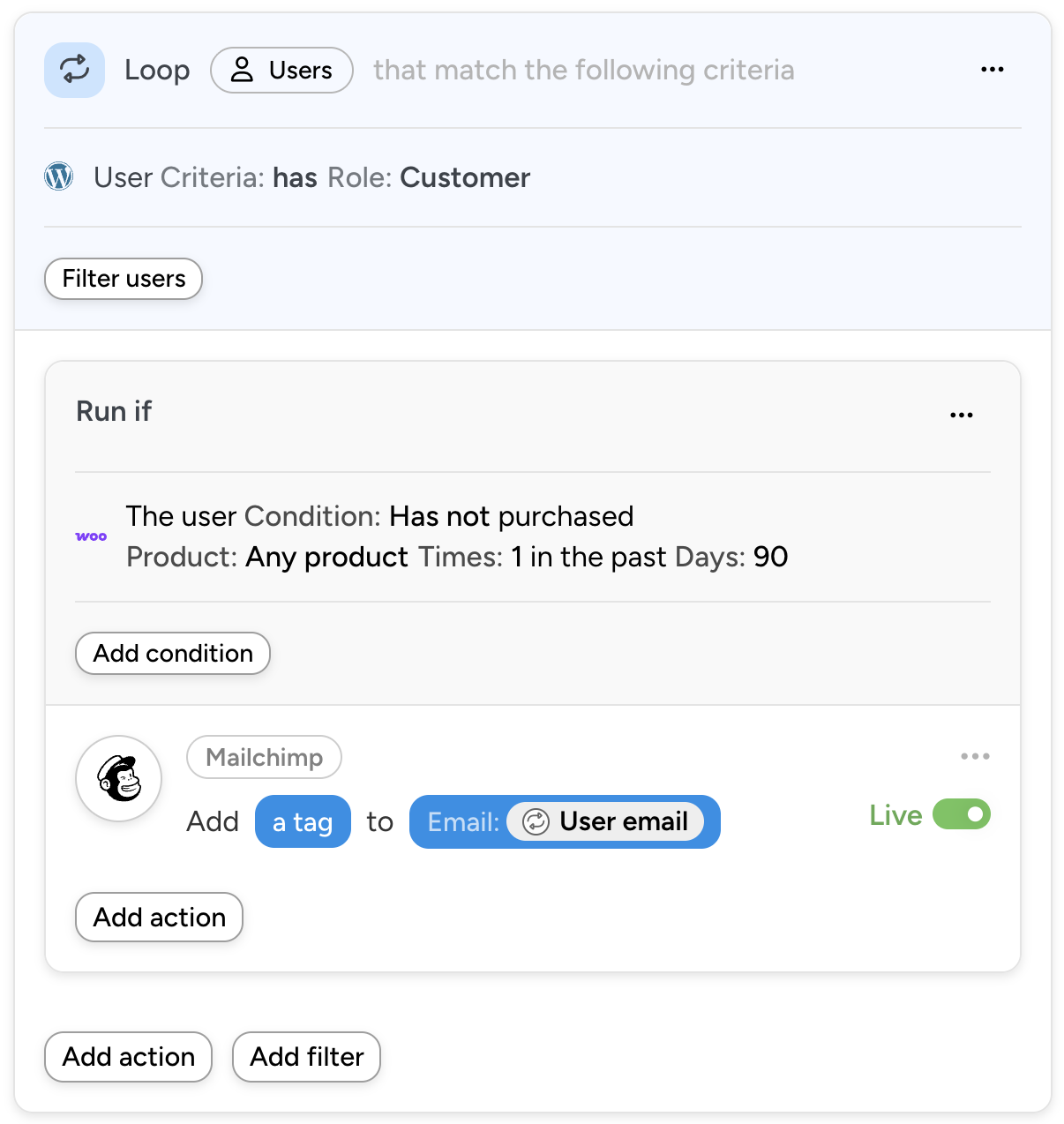
In the recipe pictured above, instead of using an Emails action, we’ve tagged our inactive customers in Mailchimp.
If you prefer to manage your emails through your CRM, check out our list of 229 integrations to see if Automator connects with your preferred platform. If you don’t see it right now, check back soon—we’re always adding more integrations!
Conclusion
Well, if that didn’t wake your inactive WooCommerce customers from their slumber, they might not be sleeping…
As promised, in this article, we showed you how to define, identify and target inactive customers. Then we showed you a few different ways to integrate your WooCommerce store with your other apps and plugins to create personalized and high-converting re-engagement campaigns.
If you’re still not sure how Automator can help you shake your customers out of their hibernation, drop us a line in the comments section below. We promise, U-Bot is never sleeping!
Until next time, happy automating!

Related Posts




















































The instructions should probably specify that this recipe will only capture inactive customers going forward in time — it won’t find customers who may already be inactive.
Hi Tamara!
First of all, sorry for the delayed reply. We’ve actually been working on something really big behind the scenes that will make recipes like this one much easier to build! We’re really excited to share that with you and the other automators out there, so make sure to stay tuned in the next few weeks and months!
To address your specific use case, we’ve actually made some pretty great improvements to our WooCommerce integration. I’ve gone ahead and updated the blog post with new instructions (and some sample re-engagement emails you might want to try!) so you can get your existing inactive Woo shoppers back to the checkout counter.
Thanks for being an active automator. Let us know if there’s anything else we can do to help you build more impactful automated workflows!
Happy automating!