

Wondering what WooCommerce AI can actually do? See what you can automate, create, and optimize…
How to Connect WordPress to Facebook [Beginner’s Tutorial]
Expand your content’s reach—connect WordPress to Facebook for free using Uncanny Automator. Auto-post to social with a free social media planner.
TLDR?
Connect your WordPress site to Facebook Pages for free with Uncanny Automator Lite. In just 5 minutes you can begin auto-posting from WordPress to Facebook and other social media platforms.
- Install and activate Automator Lite on your WordPress site.
- Create and name a new recipe (for example, “Auto-Post to Social”.
- In the Trigger panel, select WordPress > A user publishes a post.
- In the Actions panel, select Facebook Pages > Publish a post with an image to a Facebook page.
- Toggle the recipe from Draft > Live.
Enhance your new recipe with Automator’s AI integrations for more engaging and dynamic content.
Having trouble expanding the reach of your WordPress content? As a WordPress content writer, I’ve been there myself.
WordPress is just one of the platforms where I try to connect with my audience. But there’s also Facebook, emails, Instagram, X, Discord, LinkedIn… you get the idea.
Managing all of those platforms is not easy. Which is why I don’t. I let Uncanny Automator do it for me.
With just a few clicks, I can create set-it-and-forget automations that connect WordPress to Facebook and all of my other platforms.
I even use AI integrations like ChatGPT, Grok, and Claude to turn my new lengthy posts into quippy, attention-grabbing social snippets.
Want to know how I do it? Let’s get started.
How to Connect WordPress to Facebook
Connecting WordPress to Facebook—or any other external platform—usually requires some pretty in-depth technical know-how. But, I’m not a developer. And even if I was, I wouldn’t want to spend hours creating custom glue code.
Instead, I use Uncanny Automator—and I’m going to show you how.
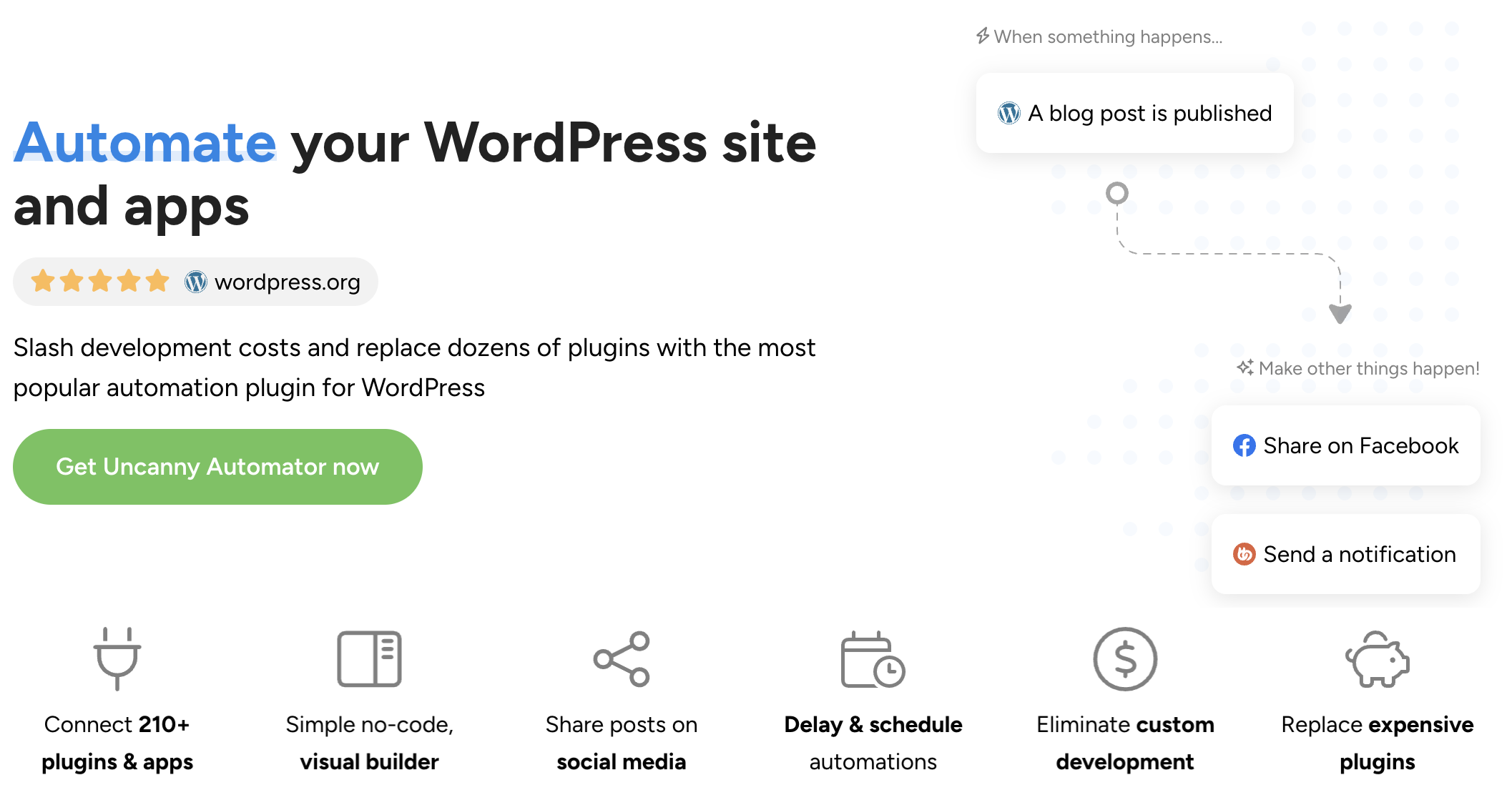
If you’re not already familiar with Automator, it’s the #1 automation and integration tool for WordPress sites.
The idea is simple: using combinations of triggers and actions called recipes, Automator connects all of your favorite apps and plugins to execute workflows without the need for manual intervention. No code needed.
Here are just a few of the features that make Automator ideal for connecting WordPress to Facebook:
- Schedule and Delay: Using Automator’s Schedule integration, you can create a fully-automated social media calendar that posts your latest WordPress content without you ever needing to hit “Publish”.
- Image Compatibility: Automator is fully-integrated with your WordPress site. That means you can auto-post images from your WordPress media library to Facebook or Instagram.
- AI Integrations: Using any one of Automator’s AI integrations (Claude, Gemini, Grok, ChatGPT, and more) you can create AI-summaries, new images, etc. to keep your posts original and fresh.
In the next steps, I’ll show you how to create an Automator recipe to connect Facebook to WordPress so you can auto-post with the click of a button.
Step 1: Install and Activate Uncanny Automator
First, you’ll need to install and activate Uncanny Automator on your WordPress site.
Automator Lite is free forever and comes with complimentary app credits once you register your account so you can use integrations like Facebook. Once your app credits run out, you can upgrade to Automator Pro, starting at $149/year, for unlimited app credits and a host of additional features.
To install Uncanny Automator, from your WordPress Admin Dashboard at /wp-admin/, navigate to Plugins > Add plugin. Enter “uncanny automator” in the search bar and click Install and Activate.

(Note: Don’t forget to register your account to get those complimentary app credits. You’ll need them to integrate with Facebook and other social media platforms.)
Step 2: Create an Auto-Post to Social Recipe
Now that you have Automator installed and activated on your WordPress site with a registered account, you can create your first recipe.
From your WordPress Admin Dashboard, navigate to Automator > Add new recipe. In the modal that appears, select Logged-in users.
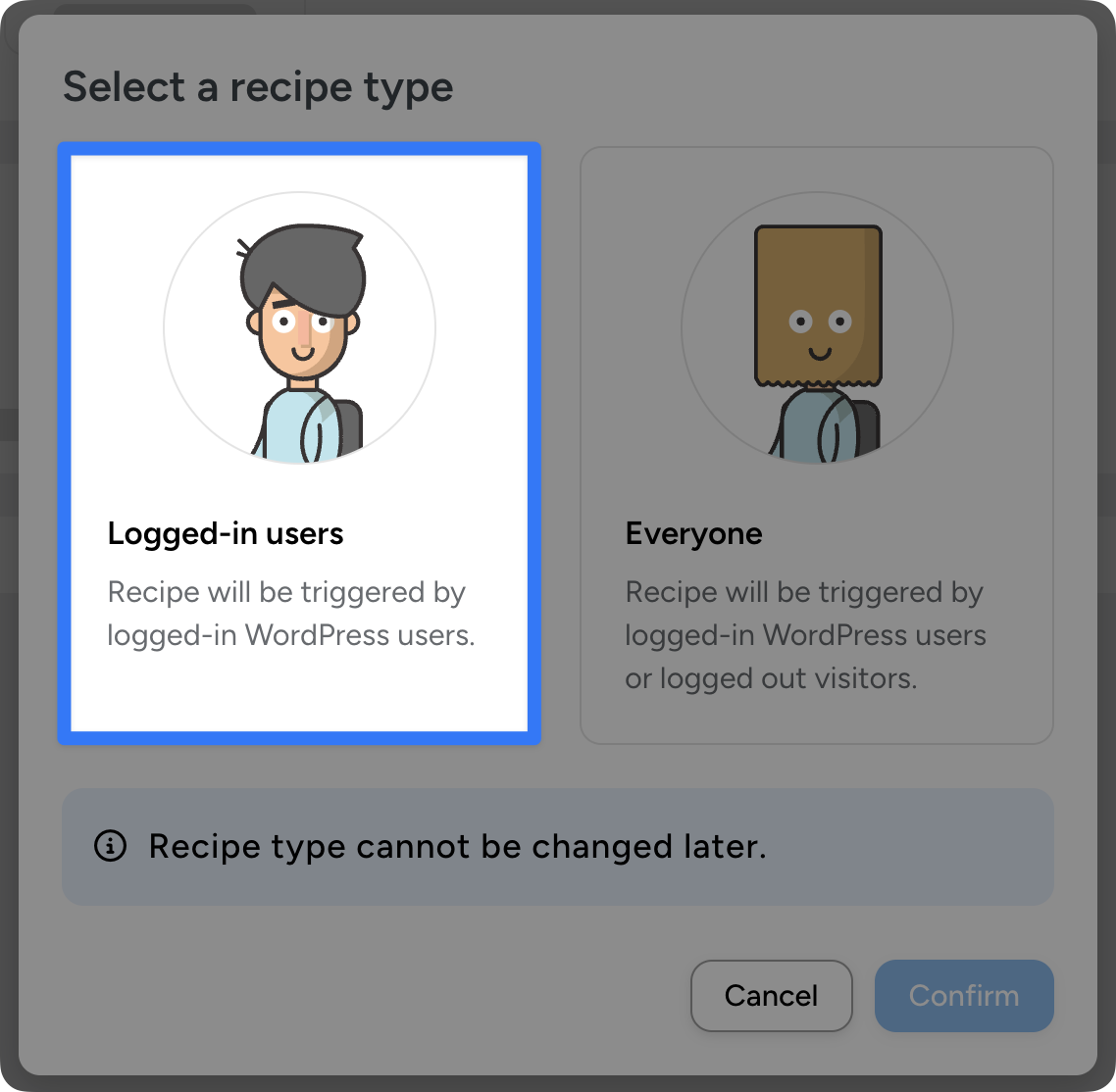
Next, give your recipe a name that makes it easy to recognize at a glance. For example, I have named this recipe “Auto-post to Facebook from WordPress”.
Step 3: Add a WordPress Trigger
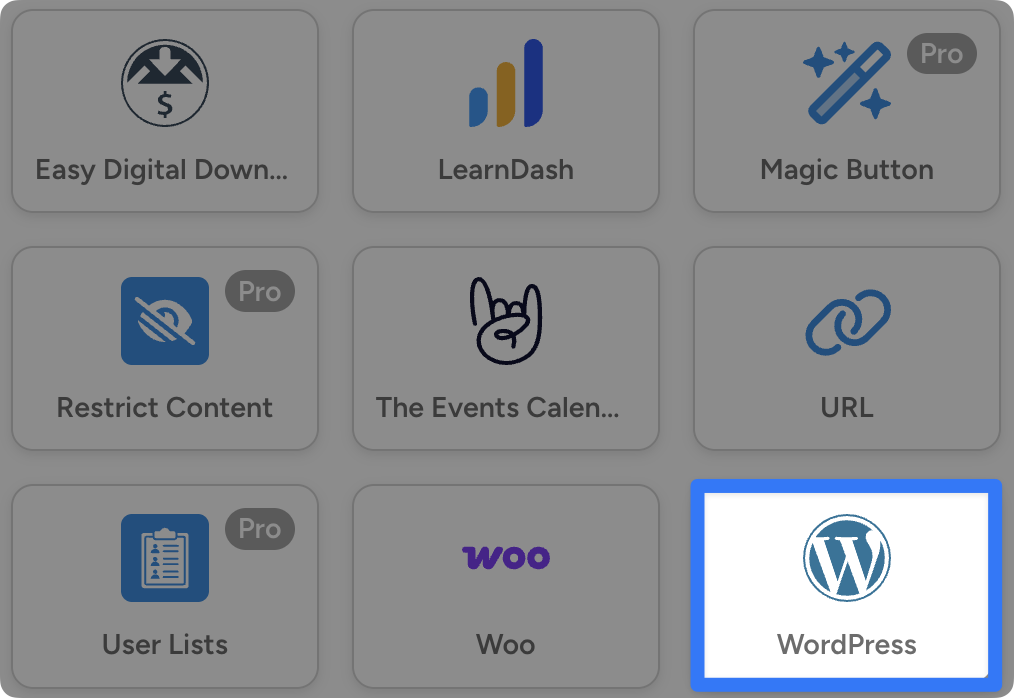
In the Trigger panel, from the menu of available integrations, select WordPress.
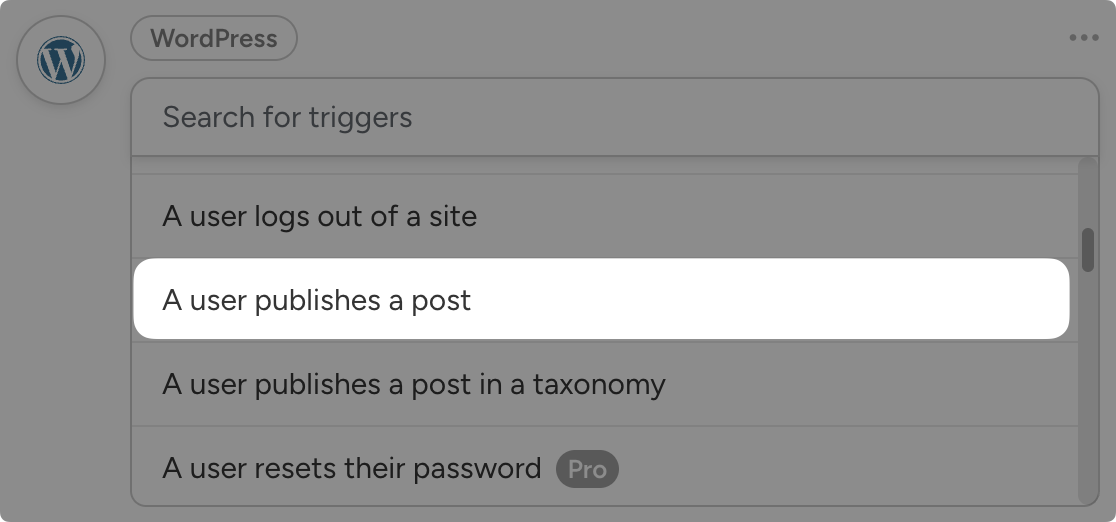
From the dropdown list, select “A user publishes a post”.
In the Post type field select “Post” and click Save.
(Note: Depending on your workflow and content needs, you can select another type of post, such as “Product”, or “Event”. The same basic steps apply.)
Step 4: Connect Your Facebook Account to WordPress
In the Actions panel, click Add action and select Facebook Pages from the menu of available integrations.
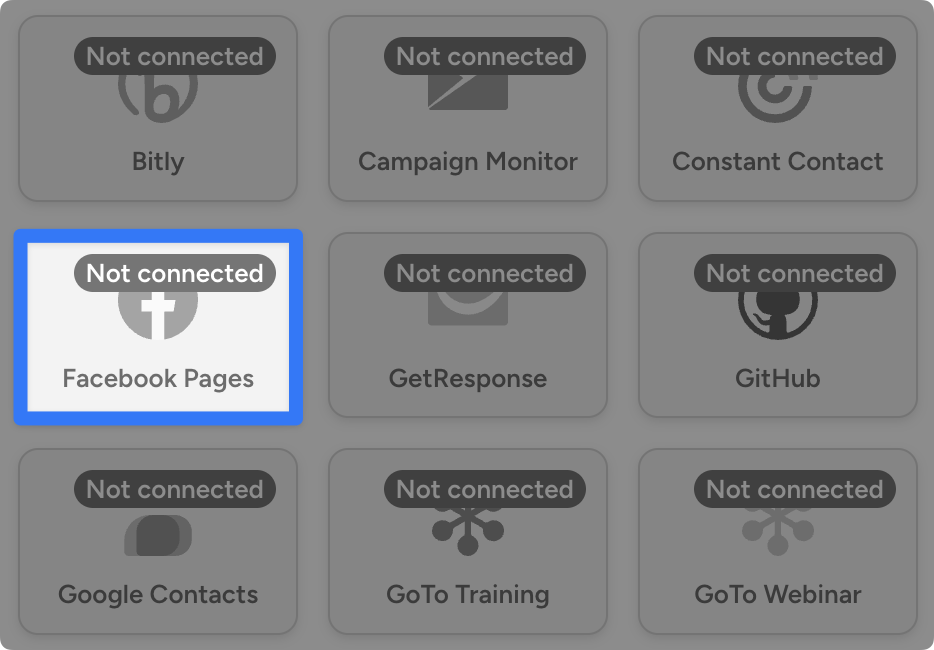
If you haven’t already connected your Facebook account, simply follow the prompts after clicking on the Facebook Pages integration tile. You can also find more detailed, step-by-step instructions here.
Once you’ve connected your account, return to the recipe editor. From the dropdown list that appears, select “Publish a post with an image to a Facebook page”.
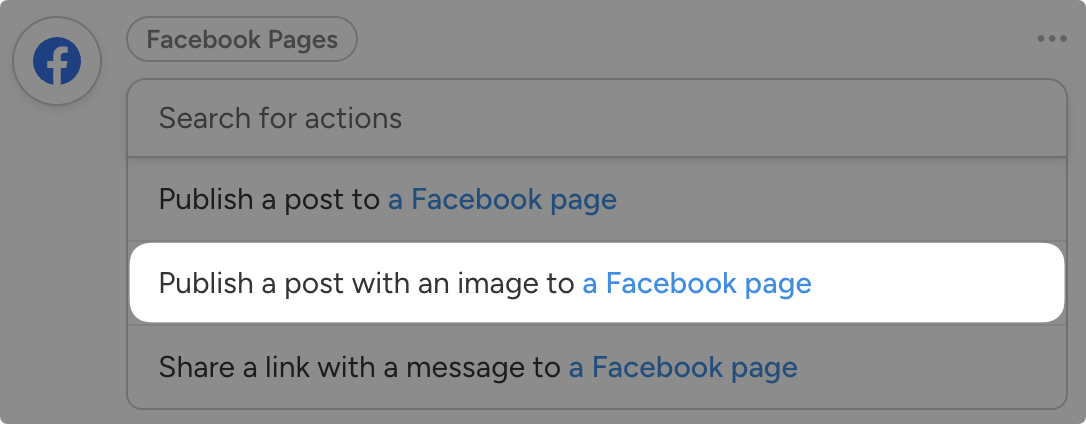
Automator will present you with different fields for drafting your Facebook posts. We’ll use a combination of static text and tokens (i.e., dynamic data) to fill out these fields.
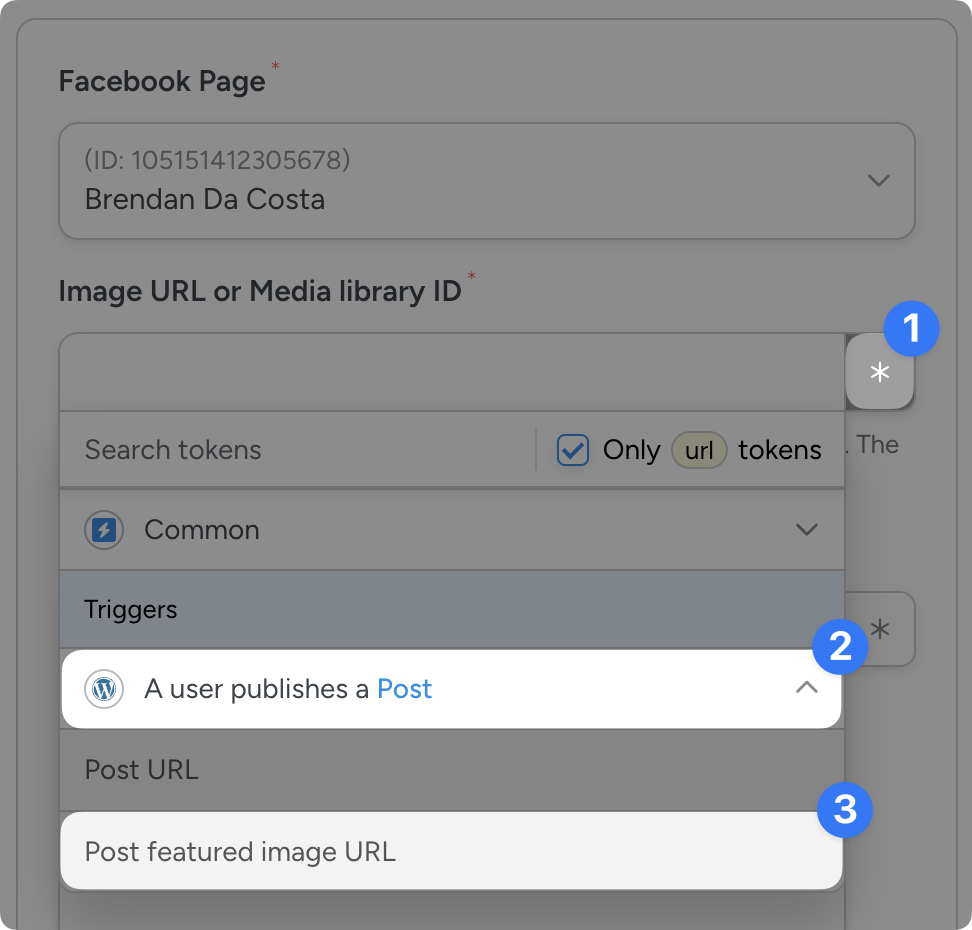
First, select the Facebook Page you want to post to.
Next, in the Image URL or Media Library ID field, click the Asterisk and select the Post featured image URL token from the dropdown list.
In the Message field, draft the post you want to publish to Facebook using a combination of static text and tokens.
For example, I have drafted a post that reads: “New Post! / {{Post title}}: {{Post excerpt}} / Read the full blog post here: {{Post URL}}.”
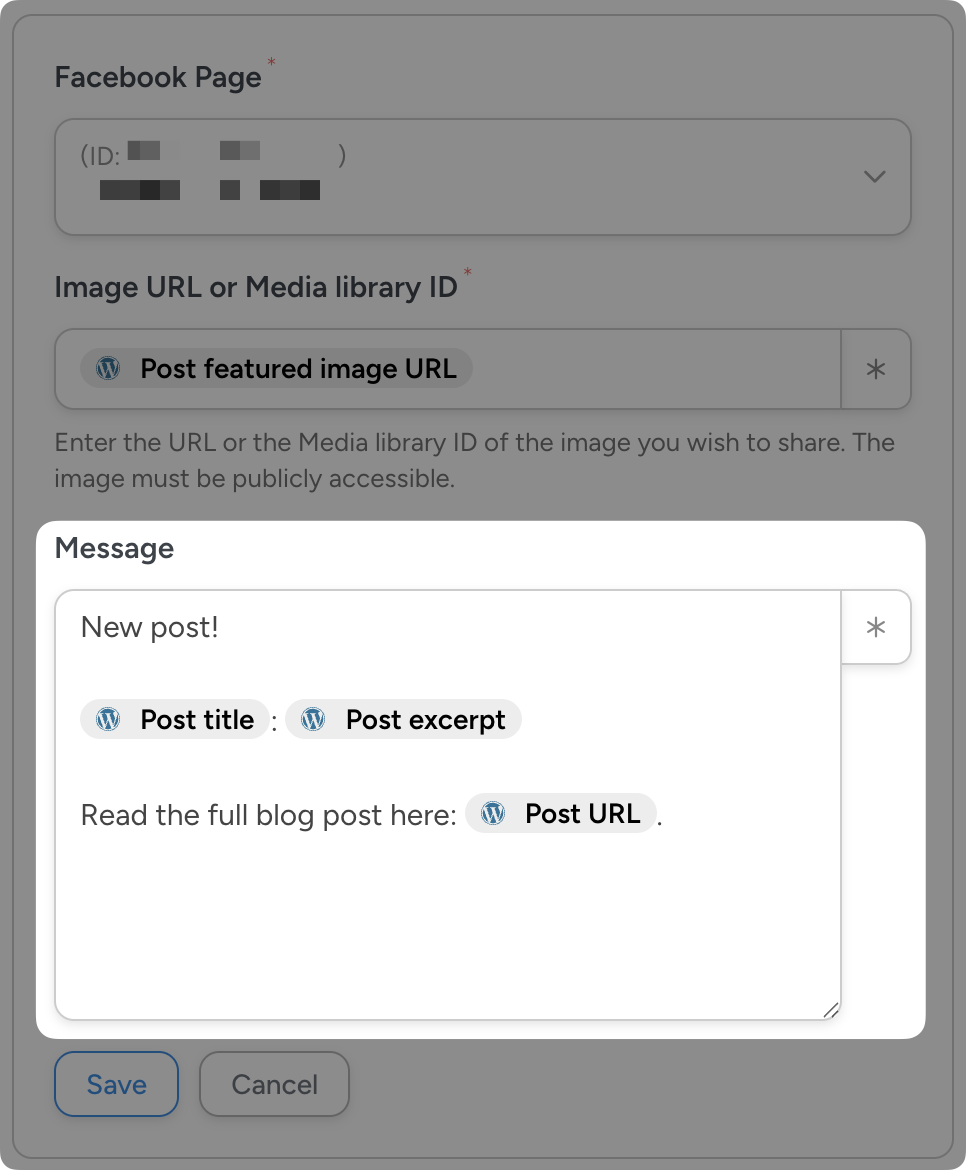
Once you’re finished click Save.
Step 5: Connect WordPress to Facebook!
You’re just about ready to connect WordPress to Facebook. All you have to do now is toggle the recipe from Draft to Live.
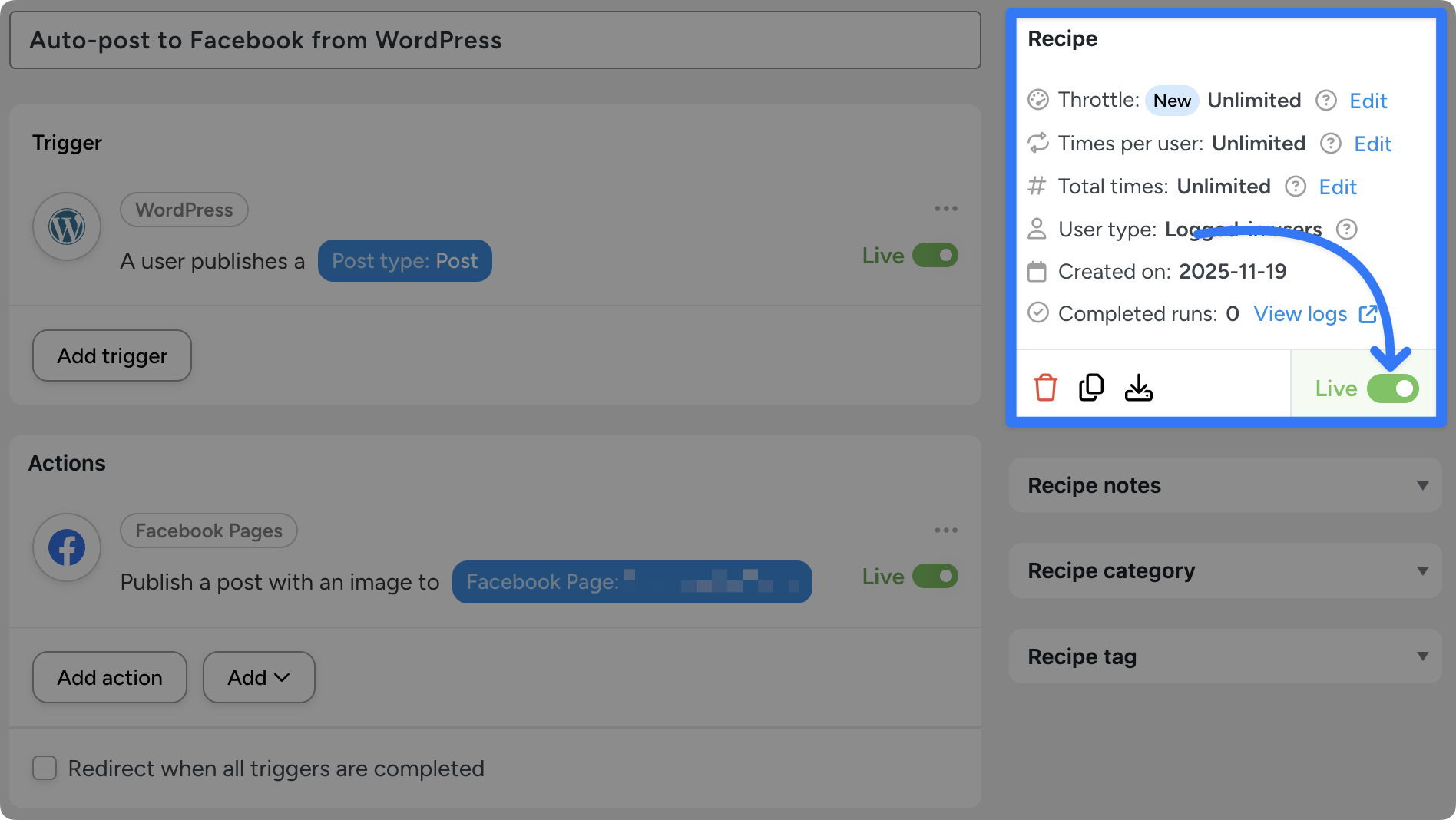
That’s it! That’s how easy it is to auto-post from your WordPress site to Facebook.
The recipe that we just created together is a good starting place. But to really maximize the reach of your content, you can add a few other actions.
More Ways to Connect WordPress to Facebook
Connecting WordPress to Facebook is just the beginning. Now that you’ve gotten the hang of creating Automator recipes, you fine-tune them to optimize your content workflows.
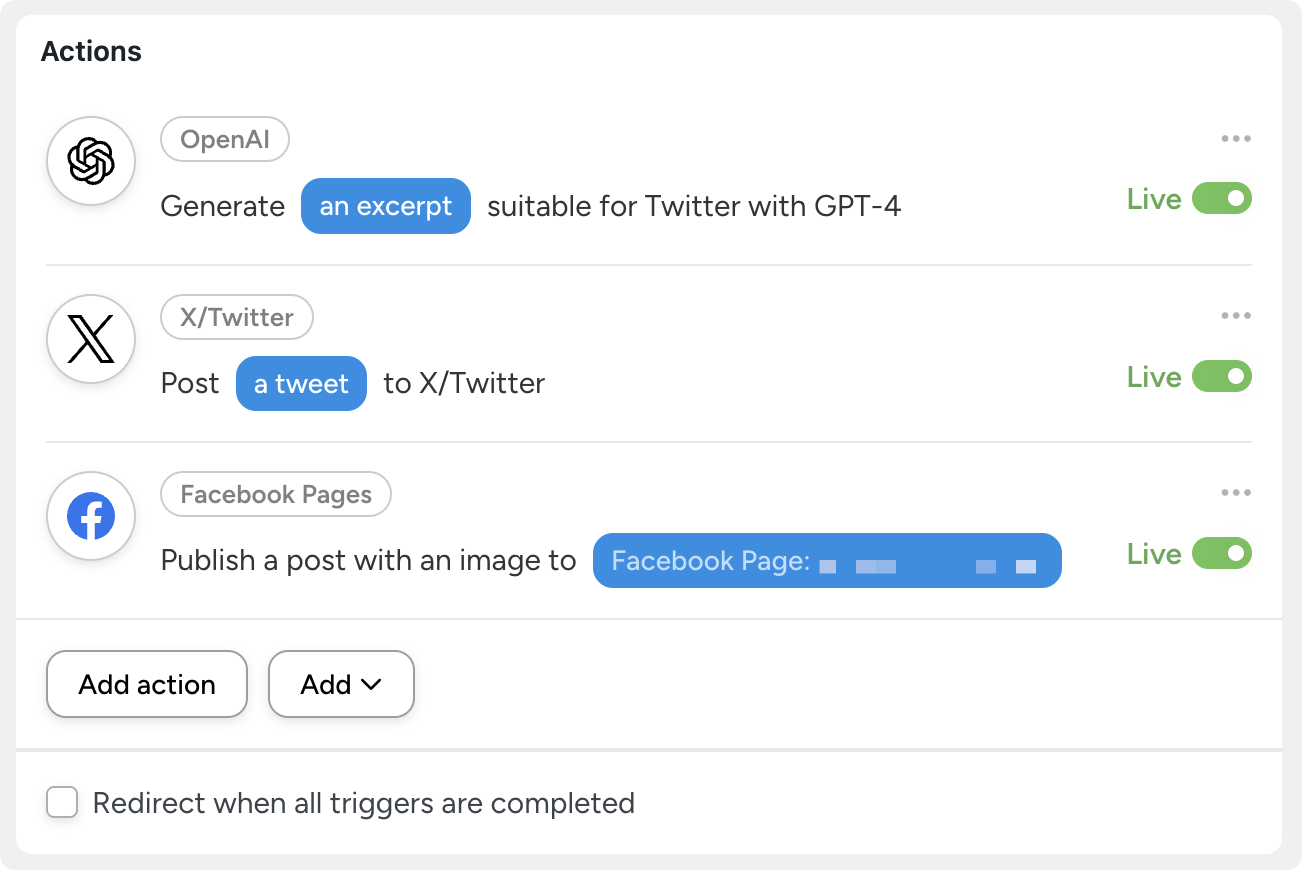
For example, you can add an OpenAI action to generate all new content for your Facebook, Instagram, and/or X posts. Use tokens to give the AI model the proper context and then include the generated content in your post.
It’s that simple.
Want to know the best ways to integrate AI into your WordPress content? Check out my other articles on creating WordPress content with AI and integrating different AI models with your WordPress website:
- How to Use AI Writing Tools in WordPress >>>
- Automator: AI Image Plugin for WordPress >>>
- How to Integrate OpenAI and WooCommerce >>>
Keep creating more recipes like these and the reach of your content will spread across the internet—automatically.
Frequently Asked Questions
Connect WordPress to Facebook Today
With the help of Uncanny Automator, you can connect WordPress to Facebook and 253 other integrations.
With a tool like this, you can focus on creating more content and spend less time trying to manage and promote it. Automator will handle the busywork of repurposing your WordPress content and optimizing it for different platforms before posting it wide to your preferred channels.
Remember, Automator Lite comes with a limited number of complimentary app credits. If you’re a prolific poster like me who relies on AI for generating speedy content, you’ll run through those complimentary app credits relatively quickly.
When you’re ready, upgrade to Automator Pro for just $149/year to unlock unlimited app credits and a whole host of content-forward features such as the Schedule integration.
I hope this article helped you find a solution for your content management workflows. Recipes like this one have drastically reduced my overhead so I can focus on this—writing!
Until next time, happy automating!

Related Posts





















































Comments (0)