

Wondering what WooCommerce AI can actually do? See what you can automate, create, and optimize…
3+ WooCommerce Upsell Automations That Will Actually Drive Sales
Upgrade your upsells. Get the only WordPress plugin that can create WooCommerce upsell automations such as drip campaigns, on-site messages, and personalized offers.
TLDR? 100-word Summary
WooCommerce’s built-in upsells are limited—Uncanny Automator upgrades them.
Get started with automated WooCommerce upsells that actually drive sales. Specifically, you’ll discover how to:
- Trigger CRM-based upsells by tagging shoppers based on product views or purchases ↓
- Send one-click post-purchase upsells with direct checkout links ↓
- Display real-time on-site messages with personalized coupons—no popups required ↓
The result? More personalized offers, less friction, better conversions, and higher average order value—automatically!
If you’re relying on WooCommerce’s built-in upsells and cross-sells, you’re leaving money on the table—plain and simple. Woo’s default upsell tools only work on product pages, which means most of your customers never even see them.
And when your upsells stay hidden, so does your potential average order value.
But here’s the good news: with the right automations, upping your WooCommerce revenue becomes both easy and automatic.
In this guide, I’ll walk you through WooCommerce upsell automations that work anywhere along the customer journey—not just on product pages. Using Uncanny Automator, you can:
- Tag shoppers in your CRM the moment they view or buy a product to initiate upsell campaigns,
- Deliver one-click, post-purchase upsells straight to the inbox,
- Show real-time, on-site messages with personalized coupons at the perfect moment.
If you’re ready to turn missed opportunities into meaningful sales, let’s dive in.
Why WooCommerce Upsells Need an Upgrade
Upselling and cross-selling are two of the most reliable ways to boost average order value (AOV). And the data backs it up.
Upselling, by the numbers…
- Industry research shows that cross-selling can contribute 10–30% of total eCommerce revenue.
- Even better, businesses that embrace cross-selling strategies often see around a 20% increase in profits, simply by encouraging customers to buy complementary items.
- When it comes to ROI, upselling and cross-selling to your existing customer base can be 5 to 25 times more cost-effective than acquiring brand-new buyers.
In other words: optimizing your WooCommerce upsell strategy is the revenue-generator you’ve been sitting on.
But here’s the challenge: WooCommerce’s native upsell and cross-sell functionality is extremely limited.
- WooCommerce upsell and cross-sell blocks only appear on specific pages (usually on product pages or the checkout page).
- WooCommerce doesn’t support behavioral targeting (browsing history, past purchases, etc.) to optimize upsells.
- There are no automated follow-ups or personalized offers if the first point of upselling didn’t convert.
- Upsells can’t be sent through CRM automations, SMS, on-site messages, or email sequences—not without help.
This means most WooCommerce stores are barely scratching the surface of what upselling can achieve. With the right automations, though, you can make upselling a multi-channel step in your existing sales funnel.
Uncanny Automator : WooCommerce Upsells on Autopilot
Before we jump into the specific upsell automations I want to share with you, let me clarify what I mean by “upsell automations”.
“Upsell automations are behavior-based workflows that enhance WooCommerce’s default upsell and cross-sell tools.”
Instead of waiting for customers to land on the right page or scroll down to your upsell and cross-sell blocks, automations proactively recommend products. These automations can run across native WordPress emails, CRM platforms, SMS, on-site messages, and more—dramatically increasing your conversion rates and AOV.
But, in order to get these workflows running, you need more than what WooCommerce can do.
That’s where Uncanny Automator comes in.
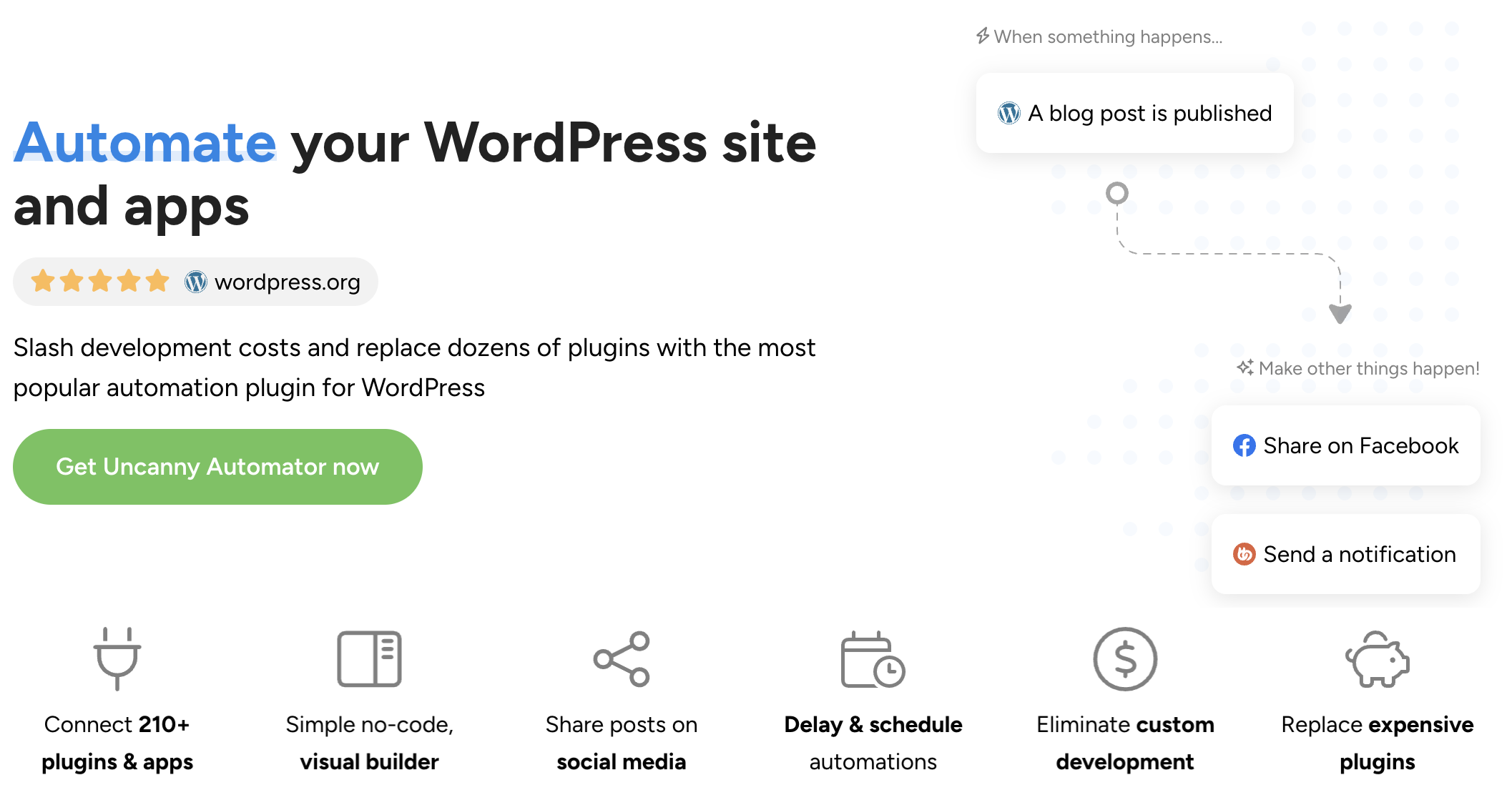
Automator is the #1 rated no-code automation and integration tool for WordPress sites. Using simple combinations of triggers and actions, Automator allows you to connect your favorite apps and plugins.
Most importantly it gives WooCommerce store owners the power to build sophisticated upsell funnels without a single line of code.
With Automator, you get:
- Behavioral Tracking: Track which products your customers view and buy, which discounts and sales they act on, and more. Sync that data to Mailchimp, HubSpot, ActiveCampaign, Brevo, and other CRMs.
- Deep WooCommerce Integration: WooCommerce-specific triggers, actions, and filters allow you to generate coupons, create orders, filter by product category, send checkout URLs, and more.
- Multi-Channel Support: Push upsell automations through email, SMS, WhatsApp, on-site messaging, and other connected tools.
- 100% No-Code Automation: Build powerful upsell workflows visually. No PHP, JS, HTML, or CSS required.
- Cost-Effective Scaling: Automator replaces multiple single-use plugins without per-automation fees or costly SaaS subscriptions.
Ready to upgrade your upsell game?
Install Uncanny Automator:
- From your WordPress Admin Dashboard /wp-admin/, navigate to Plugins > Add new. In the search bar, enter “uncanny automator” and click Install and Activate. (This installs the free version of Uncanny Automator which must be active to use Automator Pro features.)
- Purchase your Automator Pro – Elite license from the Automator pricing page.
- Once purchased, you can download the latest version of Uncanny Automator Pro inside your Automator account.
- After downloading the .zip file, navigate to Plugins > Add New in /wp-admin/. Click the Upload Plugin button, select the Pro .zip file then install and activate the plugin.
- Once activated, be sure to visit Automator > Settings in /wp-admin/ to enter your license key (in your purchase confirmation email).
You can find a more detailed walkthrough for installing and activating Uncanny Automator here.
How to: 3 WooCommerce Upsell Automations
Now that you have Automator Pro installed and activated, it’s time to create some automated upsell funnels.
In this section, I’ll walk you through three powerful WooCommerce upsell automations you can build with Uncanny Automator. In 15 minutes or less, you’ll have automations that will boost your AOV.
These automations work at every step of the customer journey, from browsing to checkout to post-purchase follow-ups. Here’s what we’ll cover:
- CRM-Based Upsell Automations (Tag & Nurture)
- Direct-to-Checkout Upsell Automations
- On-Site Notification Upsells with Personalized Coupons
Let’s start boosting that average order value.
CRM-Based Upsell Automations (Tag & Nurture)
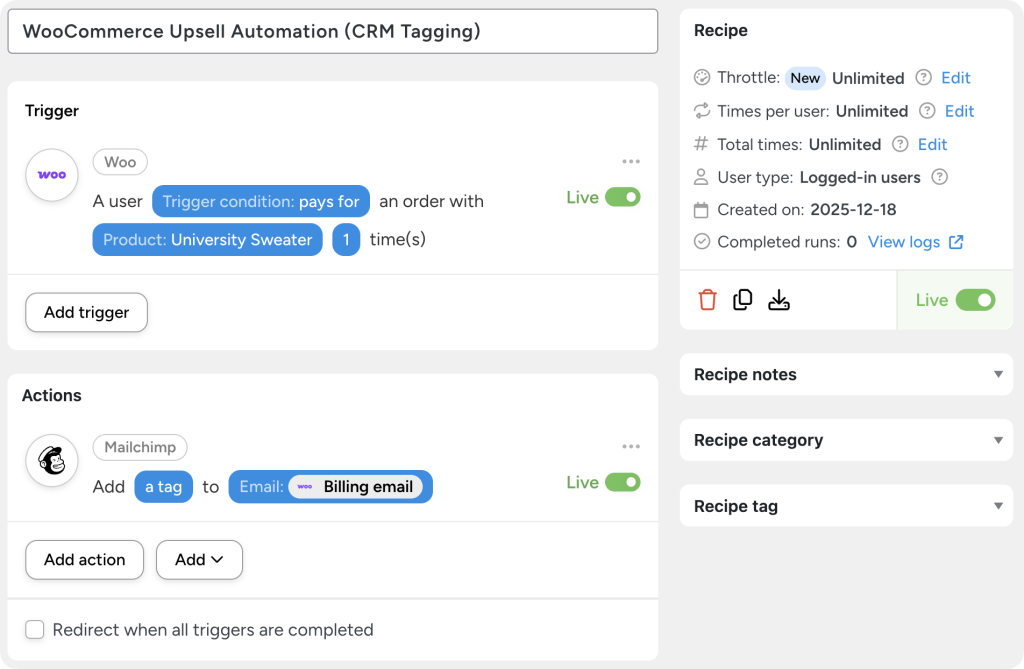
Whether a user views a product or makes a purchase, Automator can tag them in your CRM to initiate an upsell campaign.
How It Works
- A logged-in shopper views or purchases a product (or a product within a specific category).
- Automator tags the customer with:
- the product category, or
- a specific product upsell or cross-sell (for example, uni-sweater-upsell),
- Your CRM launches a targeted and automated upsell or cross-sell campaign.
No CRM? No problem. Learn how to send automated drip campaigns directly from your WordPress site with Uncanny Automator—no CRM needed.
Why It Works
WooCommerce’s native upsells rely entirely on product pages. But with CRM tags, upsells go straight to your customers’ inboxes.
- Deep personalization matches the shopper’s real interests.
- Great for replenishable products, accessories, memberships, bundles, seasonal items, and more.
- Perfect for stores with many SKUs or multiple product categories.
Step-by-Step: Tag Users Based on Product Purchases
- From your WordPress Admin Dashboard, navigate to Automator > Add new recipe. In the modal that appears, select Logged-in users (or Everyone if you allow guest checkout).
- Give your recipe a name that makes it easy to recognize at a glance. For example, I have named this recipe “WooCommerce Upsell Automation (CRM Tagging)”.
- In the Trigger panel, select Woo > A user purchases a product.
- In the Actions panel, select Mailchimp > Add a tag to a contact.
- Toggle the recipe from Draft to Live.
- Optional: Add filters so that the recipe only runs on customers who have not previously purchased the upsell product.
- Optional: Select the trigger Woo > A user purchases a product in a category and set the Times per user value to “1”. This means that Automator will tag the user the first time that they purchase a product in a specific category.
Give this recipe a try. And let me know in the comments section if you have any questions.
Direct-to-Checkout Upsell Automations
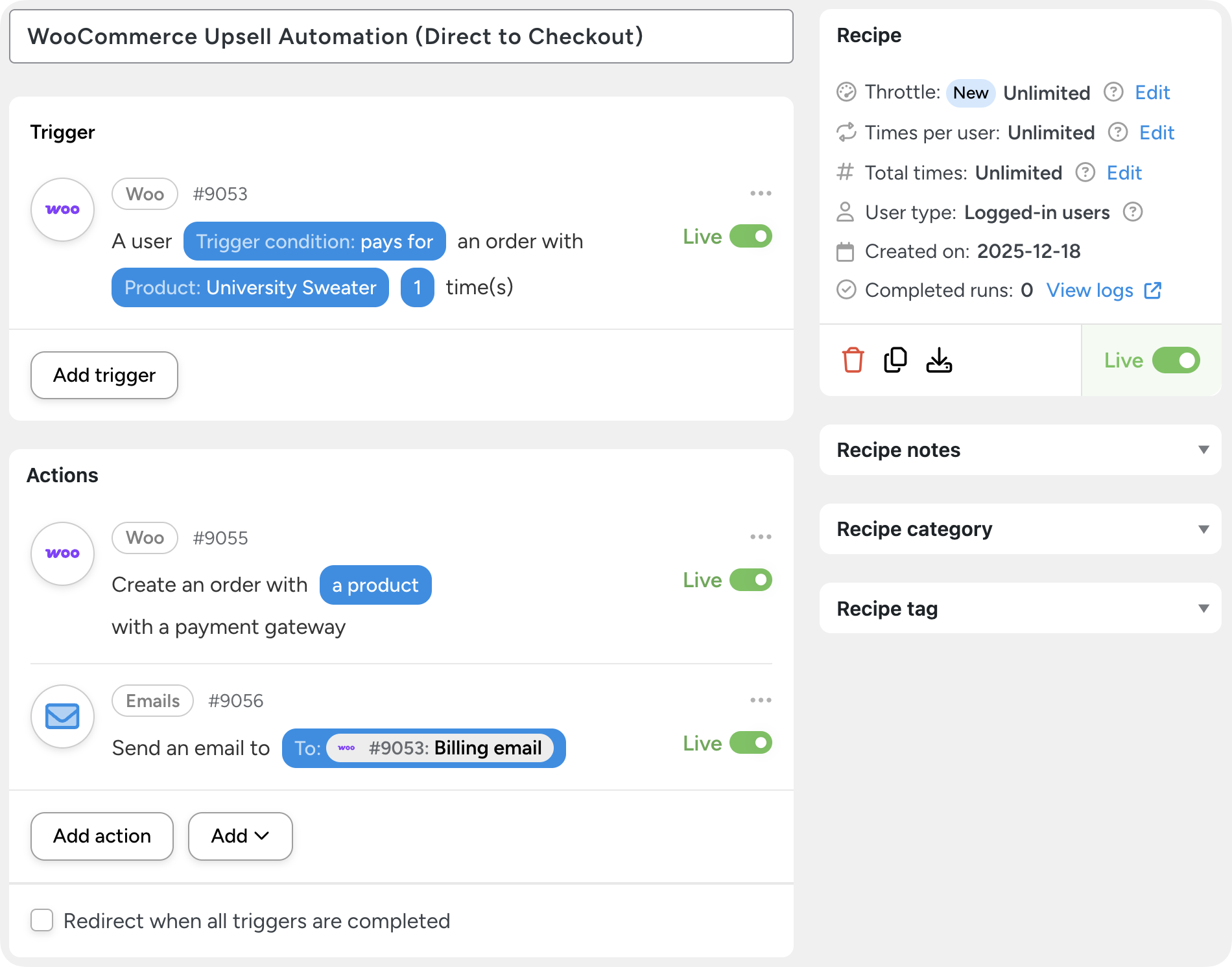
This automation lets you offer a highly persuasive upsell or cross-sell after a customer makes a purchase.
Automator can generate a new order in WooCommerce—complete with a coupon code and a simplified payment flow—and email the customer a one-click checkout URL.
How It Works
- A customer completes their initial purchase.
- Automator automatically creates a second order with:
- a related or complementary product,
- a unique coupon code (if desired),
- the customer’s checkout information from their initial purchase,
- a simple payment gateway for ultra-fast checkout.
- Automator emails the shopper a direct checkout link they can complete in seconds.
- If the shopper doesn’t take the offer, Automator cancels the unused order after 24 hours to keep your reporting clean.
Why It Works
This is one of the highest-converting upsell methods because:
- It doesn’t interrupt the checkout process—no popups or distractions.
- It feels like a personalized “thank-you” bonus rather than a sales pitch.
- It capitalizes on the post-purchase momentum when customers are most engaged.
- It removes all friction: one click takes them straight to the final confirmation page.
Step-by-Step: Create an Upsell Order After Purchase
- From your WordPress Admin Dashboard, navigate to Automator > Add new recipe. In the modal that appears, select Logged-in users (or Everyone if you allow guest checkout).
- Give your recipe a name that makes it easy to recognize at a glance. For example, I have named this recipe “WooCommerce Upsell Automation (Direct to Checkout)”.
- In the Trigger panel, from the menu of available integrations, select Woo > A user purchases a product.
- In the Actions panel, click Add action and select Woo > Create an order with a product with a payment gateway.
- In the Actions panel, click Add action and select Email > Send an email. In the body of the email, include the token “Direct checkout URL”.
- Toggle the recipe from Draft to Live.
- Optional: Add a third action with a filter and a delay to cancel the upsell order if the user doesn’t complete it.
- Select Woo > Set a specific order to a specific status. In the Order ID field, select the token “Order ID” from the first Woo action (i.e., Woo > Create an order with a product with a payment gateway”). Set the status to “Cancelled”.
- Add the filter, Woo > An order is/is not in a specific status. In the Order field, select the “Order ID” token from the first WooCommerce action. Set the Criteria to “is not” and the Order status to “Completed”.
- Set a delay to the action. For example, I have set a delay of 24 hours, giving the customer a day to take the offer.
On-Site Notification with Personalized Coupons
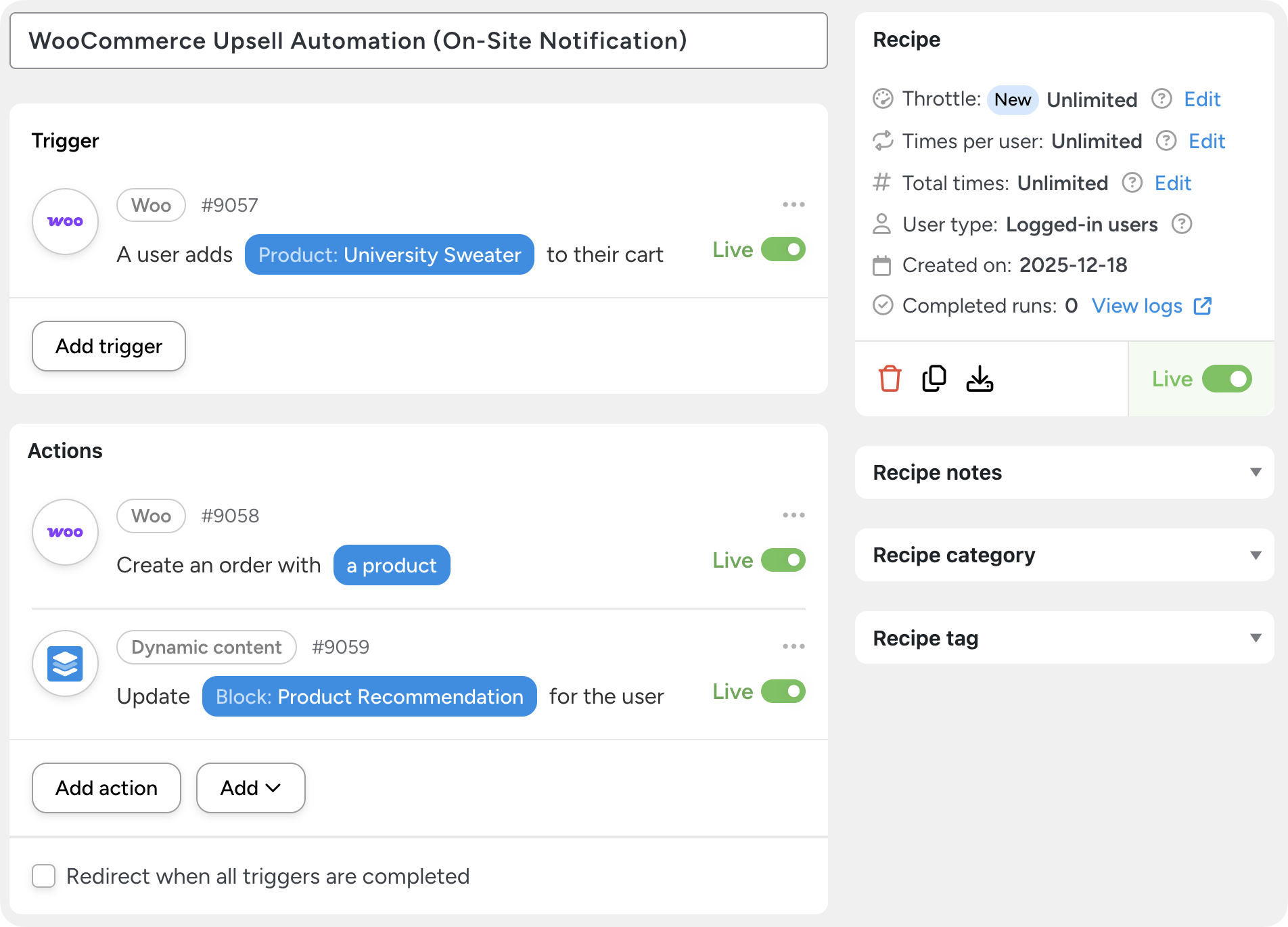
This automation uses Automator’s Dynamic Content Addon to display real-time upsell messages the moment a shopper adds a product to their cart.
And because it isn’t a popup, the upsell doesn’t feel pushy and doesn’t disrupt the checkout process.
How It Works
- A user adds a product to their cart.
- Automator instantly generates:
- a unique coupon code for a related product that the user can redeem at checkout, or
- an order with a coupon already applied with a direct-to-checkout link.
- Automator triggers an on-site message (not a popup!) showing a personalized message with the coupon or pre-configured order.
Why It Works
This method of upselling blends timing, relevance, and subtlety:
- More engaging than WooCommerce’s static “Related Products” box.
- Less intrusive than traditional popups.
- Perfect for impulse buys, accessory recommendations, bundles, and last-minute cart boosters.
- Helps increase AOV without disrupting the checkout flow.
Step-by-Step: Create a Dynamic Block + Real-Time Coupon Upsell Automation
Before you can create this recipe, you’ll need an Automator Pro – Elite license to get the Dynamic Content Addon.
Click here to learn how to install the Dynamic Content Addon once you’ve purchased your Automator Pro – Elite license.
- From your WordPress Admin Dashboard, navigate to Automator > Dynamic Content Blocks.
- Click Add new content block. In the block editor, name your block and set the Type to “User”.
- Embed the shortcode for the dynamic content block on a product page.
- From your WordPress Admin Dashboard, navigate to Automator > Add new recipe. In the modal that appears, select Logged-in users.
- Give your recipe a name that makes it easy to recognize at a glance. For example, I have named this recipe “WooCommerce Upsell Automation (On-Site Notification)”.
- In the Trigger panel, from the menu of available integrations, select Woo > A user adds a product to their cart.
- In the Actions panel, click Add action and select either:
- Woo > Create an order with a product, or
- Woo > Generate a coupon.
- In the Actions panel, click Add action and select Dynamic content > Update a dynamic content block for the user. Select the block you created in the second step and draft a message instructing the shopper how they can redeem the offer. Make sure to include either the “Direct checkout URL” token or the “Generated coupon”.
- Toggle the recipe from Draft to Live.
Automator’s Dynamic Content Addon is one of the most versatile and powerful features for an eCommerce business. Want to learn more about using dynamic content on your site? Check out our detailed guide, complete with use cases and tips and tricks for styling and optimizing.
More Smart WooCommerce Upsell Ideas
Once you start building automated upsell funnels, you’ll quickly see just how flexible (and profitable!) they can be. Here are a few more ideas to spark your creativity and help you turn everyday customer actions into revenue-boosting opportunities.
- Membership & Subscription Upgrades: If you sell memberships or recurring subscriptions, you can automatically offer customers an upgrade path when they purchase a lower-tier product. Trigger a limited-time offer, send a personalized coupon, or even generate a direct-to-checkout link that makes upgrading frictionless.
- Seasonal & Holiday Upsells: Black Friday, Christmas, back-to-school, and other high-volume seasons are the perfect opportunity to upsell. If a customer adds a product to their cart, use Automator’s Dynamic Content Addon to offer them a “bundle and save” option.
- “Complete Your Kit” Upsells: This one is a classic because it works so well. Any time a customer purchases a core item, Automator can recommend the accessories that complete the set: brushes for paint kits, filters for cameras, polish for shoes, laces for boots—you get the idea.
- Automated Upsells for High-Intent Shoppers: If someone visits the same product (or product category) multiple times, Automator can trigger a personalized offer. Send the customer an email or an on-site message that either nudges them toward completing the purchase or offers them related products in case they hadn’t yet found what they wanted. This is especially powerful for high-ticket items.
Ready to Build WooCommerce Upsells That Actually Convert?
WooCommerce’s default upsell tools are a good starting point—but they simply can’t keep up with how customers shop today.
If you want to boost average order value, personalize the customer journey, and deliver offers when shoppers are most likely to say “Yes!” then you need automations that work behind the scenes and across multiple channels.
That’s exactly what Uncanny Automator gives you:
- CRM-powered segmentation and follow-ups,
- Post-purchase one-click upsells,
- Real-time on-site messages with personalized orders and coupons,
- Deep WooCommerce integrations and zero coding required.
Whether you’re selling memberships, consumables, accessories, or seasonal products, the right upsell automation can turn casual customers into high-value repeat buyers.
Upgrade your WooCommerce upsells with Automator Pro >>>
Frequently Asked Questions

Related Posts






















































Comments (0)