

The Unsubscribed list is a special list in the User Lists Addon that records users who have opted out of every communication sent with Uncanny Automator. The addon creates it for you, and it cannot be deleted. This article explains how the list affects the Send an email action, the two unsubscribe tokens, the Manage emails page, and how to keep an external email tool in step with it.
You need the User Lists Addon installed and active, which requires the Plus or Elite plan. Creating other lists is covered in Managing user lists.
A user is on the Unsubscribed list or on your other lists, never both. Adding a user to the Unsubscribed list removes them from every other list, and a user on the Unsubscribed list cannot be subscribed to another list until they are removed from it.
Using the Unsubscribed list
Users land on the Unsubscribed list by clicking the Unsubscribe link in an email and choosing Unsubscribe from all (see Unsubscribe tokens below), or when a recipe or an administrator adds them. Either way, they have said they no longer want marketing from you.
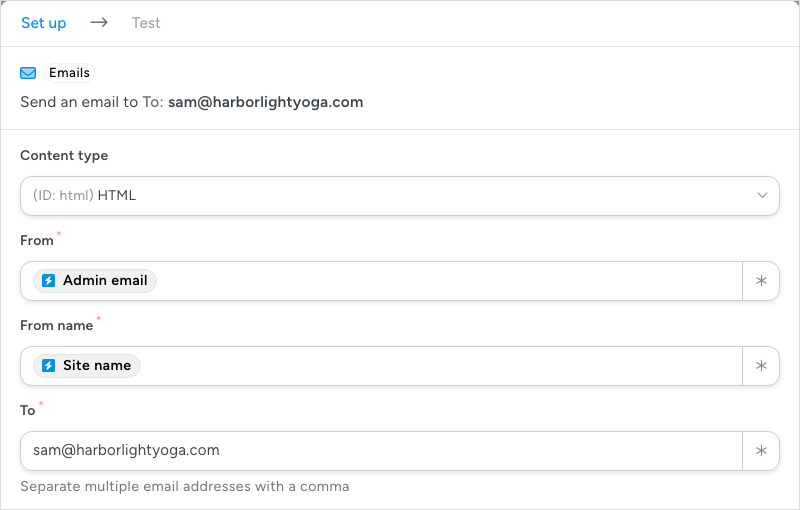
To honour that, the addon adds a Bypass Unsubscribed list checkbox to the Send an email action, just above the To field in the action’s Set up step. While the box is unchecked, “the email will not be sent if the target user/email is on the Unsubscribed list”, so a campaign recipe skips unsubscribed users without any extra condition. Tick the box only when the email must reach the user regardless.
The case for ticking it is transactional email: messages about the user’s own account or order that they expect to receive even after opting out of marketing. Examples:
- Password reset emails
- Account creation and welcome emails
- Shipping confirmations
- Payment invoices, purchase receipts, and order confirmations
- Payment failure notifications
Whatever you send, make sure it complies with the anti-spam laws of your country and of the countries your recipients live in.
Unsubscribe tokens
The addon adds two unsubscribe tokens for emails sent by Uncanny Automator, so every message can carry a way for the reader to manage their lists. Insert them with the ∗ button at the end of the email body or any other field: open the token picker’s Global tab and the User Lists section. The section also holds the User’s lists tokens covered in User Lists Integration with Automator.
- Unsubscribe link — inserts a ready-made link for the user to manage their subscriptions. Its text comes from Unsubscribe link text on the addon’s settings page (“Unsubscribe” unless you change it). The link opens the address in Unsubscribe URL on the addon’s settings page, which by default points to the Manage emails page the addon creates on activation.
- Unsubscribe URL — inserts the bare address of the same page, with no link markup, so you can write your own link text or button around it.

Both tokens include a code that identifies the user, so the page knows whose subscriptions to show. They return nothing when the recipe has no user, for example in an Everyone recipe before the Run actions as card has been set up.
Manage emails page
On activation, the addon creates a Manage emails page at /manage-emails. The page holds a shortcode that lists the user’s current list subscriptions, each with a checkbox, plus an Unsubscribe from all option.

Ticking Unsubscribe from all and clicking Apply adds the user to the Unsubscribed list and removes them from every other list. Only lists the user is already on appear here, so the page lets users leave lists, not join them. To move the page or change its address, update Unsubscribe URL on the settings page so the tokens follow it.
Using the User Lists Addon with other email marketing tools
The addon is a lightweight list manager for sites that send their email from WordPress. If you also use an external email marketing tool, remember that the Unsubscribed list only affects email sent with Uncanny Automator. A user who clicks Unsubscribe in an Automator email will expect to stop hearing from your marketing tool as well.
Keep the two in sync with recipes built from the addon’s own triggers and actions:
- Trigger: A user is added to a list
- Trigger: A user is removed from a list
- Action: Add the user to a list
- Action: Remove the user from a list
For example, a recipe with the trigger A user is added to a list set to the Unsubscribed list, and your marketing tool’s unsubscribe action, mirrors the opt-out outward. A second recipe with the marketing tool’s “contact unsubscribed” trigger and the action Add the user to a list set to Unsubscribed mirrors it back. See User Lists Integration with Automator for everything the addon adds to the recipe builder.
Related: Managing user lists, Managing user list subscriptions, Sending bulk emails with user lists, User Lists Integration with Automator.

Comments (0)