

User lists are named groups of WordPress users that you can subscribe users to, email in bulk, and use as the audience for a Loop block. The User Lists Addon manages them from one settings page. This article covers creating, editing, and deleting lists; subscribing users to a list is covered in Managing user list subscriptions.
You need the User Lists Addon installed and active, which requires the Plus or Elite plan. Once the addon is active, an Addons tab appears in Automator > Settings with a User lists entry.
What user lists are
A user list is a segment of your user base: newsletter subscribers, members of a programme, customers of a product line. Once a user is on a list, a recipe can send the whole list an email, an SMS, or a WhatsApp message, or run any other bulk operation on its members with a Loop block.
Lists hold WordPress users only. The addon does not store contacts who have no account on your site; for those, use an email marketing integration such as Mailchimp or ActiveCampaign.
Creating a user list
- In your WordPress dashboard, go to Automator > Settings > Addons > User lists.
- In the User lists section, click Add list.
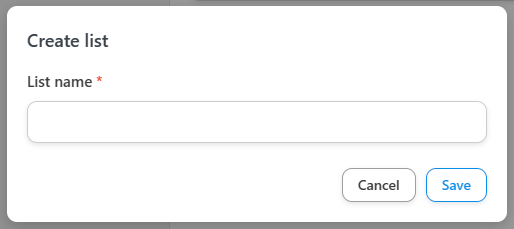
- In the Create list dialog, enter a List name. Choose a name that tells you at a glance which users belong on the list, because recipes, loop filters, and the token picker all show lists by name.
- Leave Use custom slug set to No unless you need a specific slug. The slug is generated from the name and identifies the list internally; most sites never change it.
- Click Save.
The new list appears in the table with its ID, name, slug, and a Users column showing how many users are on it. The Unsubscribed list is created for you and cannot be deleted; see The Unsubscribed list and managing subscriptions.
Editing and deleting user lists
To rename a list, click the edit icon in its row and change the name in the Edit list dialog. Renaming a list does not affect its members, and recipes that reference the list keep working.
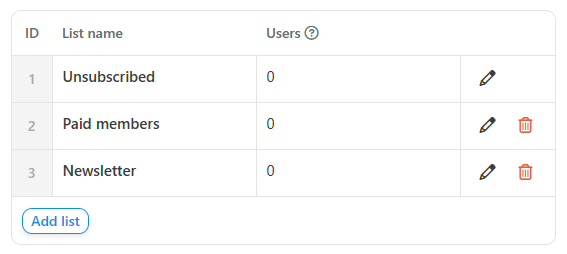
To delete a list, click the delete icon in its row. Deleting a list removes it from the settings page, from the loop filters and conditions in your recipes, and from the token picker, and every member loses their subscription to it. A deleted list cannot be restored: a new list with the same name or slug starts with no members and a new ID, so recipes that used the old list do not pick it up. Make sure no live recipe still depends on a list before you delete it.
Related: Managing user list subscriptions, The Unsubscribed list and managing subscriptions, User Lists Integration with Automator, Sending bulk emails with user lists.

Comments (0)