

AI website management is changing WordPress: AI page builders, AI assistants, and MCP servers that…
Claude for WordPress: What Claude Can Do on Your Site
Search for “Claude for WordPress” or “WordPress and Claude” and you get three kinds of results. One is a chat bubble for your visitors. One is a box in the post editor that writes a paragraph for you. The third is a tutorial that starts with an API key and ends somewhere in a code editor.
None of those is what you were after. You wanted the Claude you talk to every day to do the work in WordPress that’s been eating your evenings: building pages, updating product descriptions, finding broken CSS. You’ve been told that AI is going to make your life easier, but you haven’t been shown how—until now.
With Uncanny Automator, the Claude tab you already keep open becomes the place you build, manage and maintain your WordPress site. All through chat, no code required.
In this post, I’ll show you how to get Claude talking to your site, then three things to try on day one: building a page, setting up a workflow automation that keeps running on its own, and getting answers about your site.
Let’s get started.
Is There a Claude Plugin for WordPress?
Yes, there are several Claude plugins for WordPress… and that’s the problem. “Claude plugin” can mean any number of things, depending on who you’re talking to. But it usually means any of these three types of plugins:
- A chatbot for your visitors. A chat bubble on your site’s front end that fields customers’ questions. Handy for an ecommerce store, but it serves your visitors, not you. That’s not what this article is about.
- Claude’s model inside your automations. An API key (a code from Anthropic that lets software use Claude) so a workflow can write a product description or draft a reply to a comment when something else happens. Automator does this too, through its Anthropic integration. If that’s the one you were after, start there.
- Claude itself, working on your site. You type in Claude, and the change happens in WordPress. This is the most powerful kind of connection, and it’s the one the rest of this post is about. It’s made through an MCP server.
An MCP server is how AI apps such as ChatGPT or Claude connect to other software. Uncanny Automator is an MCP server for WordPress with a built-in automation engine: it connects your AI to your WordPress site, so you can manage and automate the site with your AI.
MCP stands for Model Context Protocol, the open standard AI apps use to connect to other software. I promise, that’s the last of the jargon. But, if you’d like to know more, our MCP server for WordPress page covers the supported AI apps, the controls and the details, and the WordPress MCP guide goes deeper still.
What Claude Can Do on Your WordPress Site with Automator
“Build, manage and maintain” covers a lot of ground. Here’s what that looks like day to day, beginning with the jobs you’ll likely hand over first.
- Build and update pages in the page builder you already use: Gutenberg, Elementor 4.3 or later, Spectra, Divi 5 or WPBakery. No page builder? If you go with Uncanny Automator as your WordPress MCP plugin, Uncanny Page Builder is built in: fast, light and AI-native. Describe the page you want, Claude builds it. It really is that simple.
- Write and update content. Type a one-sentence prompt into Claude, get a one-page blog post in WordPress. Or simply ask Claude to update all of your product descriptions for the holiday shopping season. You can even ask it to fix a typo you caught on the fly.
- Set up workflow automations that carry on without you or Claude. Not all WordPress MCP plugins can do this. Uncanny Automator is unique in that comes with a built-in automation engine—the same one that has been powering WordPress sites long before AI emerged from its digital cocoon. Describe the repeat version of any job (every new customer gets a thank-you, every contact form gets an answer) and Claude builds it as a recipe, an automation that runs the same way every time. You’ll see one built below.
- Get answers about your site without going looking for them. Which pages are out of date, which plugins need an update, what sold this week. Ask, and the answer arrives in the chat.
- Keep the site healthy. Update plugins and themes, moderate comments and clear the cache, from chat. Nothing is ever deleted or uninstalled.
- Reach the apps around your site. Post to your team’s Slack channel, drop a row into a Google Sheet or tag a contact in a CRM like HubSpot or ActiveCampaign. This is another MCP plugin feature that only Automator can offer. Your connected AI runs Automator’s actions across your plugins and apps, so its reach extends past WordPress itself. Browse what’s available in the WordPress MCP tools and abilities by plugin lists.
- Find out why something broke. Claude can read your site’s code and work out what’s gone wrong, though it can’t edit it.
Is It Safe to Let Claude Work on Your Site?
Giving an AI the run of a live site is a reasonable thing to be nervous about. At every step, Automator keeps the decisions with you:
- You decide what Claude can do. Each tool and each action has its own switch in your WordPress dashboard (under Automator > Settings > MCP settings), and those switches are out of Claude’s reach.
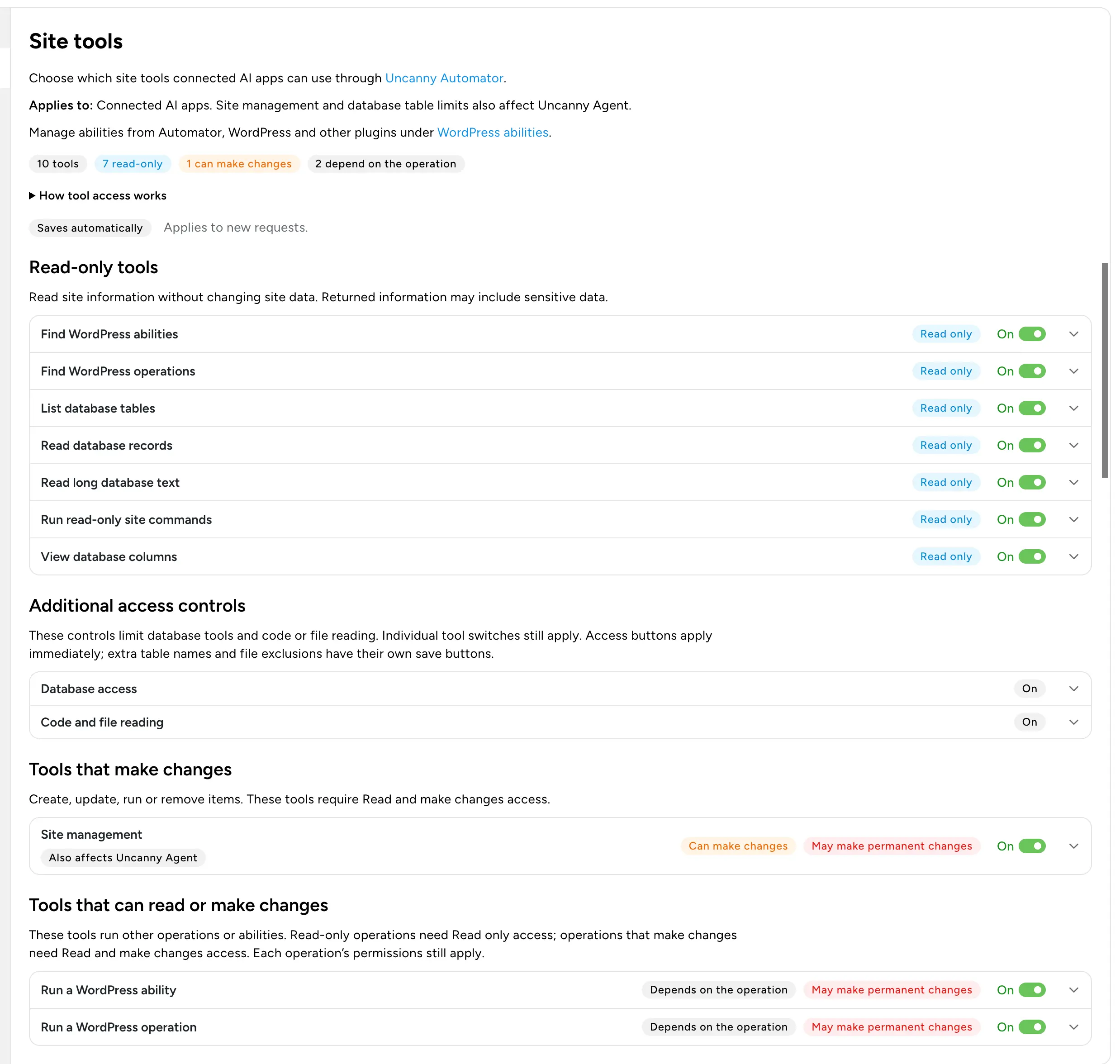
- Claude asks first. Before it uses a tool, Claude shows you what it’s about to do and asks: Allow once, Always allow or Decline. You can let trusted tools run without asking, in Claude’s own settings.
- Some things are never available to any AI. Direct database edits and user deletion stay out of bounds for every AI.
- It works the way you do. Claude makes changes through the same actions you’d use in the dashboard. It can’t touch your site’s files or database directly.
- You can see what it did. Your Connections page keeps a running list of what Claude has done lately, on which site, and whether each request succeeded.
Our security and control page covers each of these in more detail, and the knowledge base explains how to choose what your AI can access.
A note on privacy: Claude’s requests reach your site over an encrypted connection. The service keeps a record of each request and result, with credentials removed, and it never receives your WordPress password. What Claude reads from your site is sent to Claude, the same as anything else you share in a chat. The Privacy Policy explains what the connection keeps.
Getting Started with Uncanny Automator
Uncanny Automator has been automating WordPress sites since 2018, and it’s free to start. The MCP server is built into the free plugin, so a free Claude account and Automator Lite are all you need.

What You Need
- A WordPress site where you’re an administrator, live at a public web address. (A copy that runs only on your own computer can’t be connected. Staging sites can.)
- Uncanny Automator 8.0.0 or newer. From your WordPress Admin Dashboard, navigate to Plugins > Add New. In the search bar, enter “uncanny automator” and click Install Now, then Activate. This installs Automator Lite, which is free. The installation guide has a more detailed walkthrough.
- A free Uncanny Automator account.
- A Claude account. A free one will do.
Connect Claude in 60 Seconds
- In your WordPress dashboard, go to Automator > Connect your AI and sign in with your Uncanny Automator account.
- Click Continue to WordPress, then Approve connection. Your site is now linked.
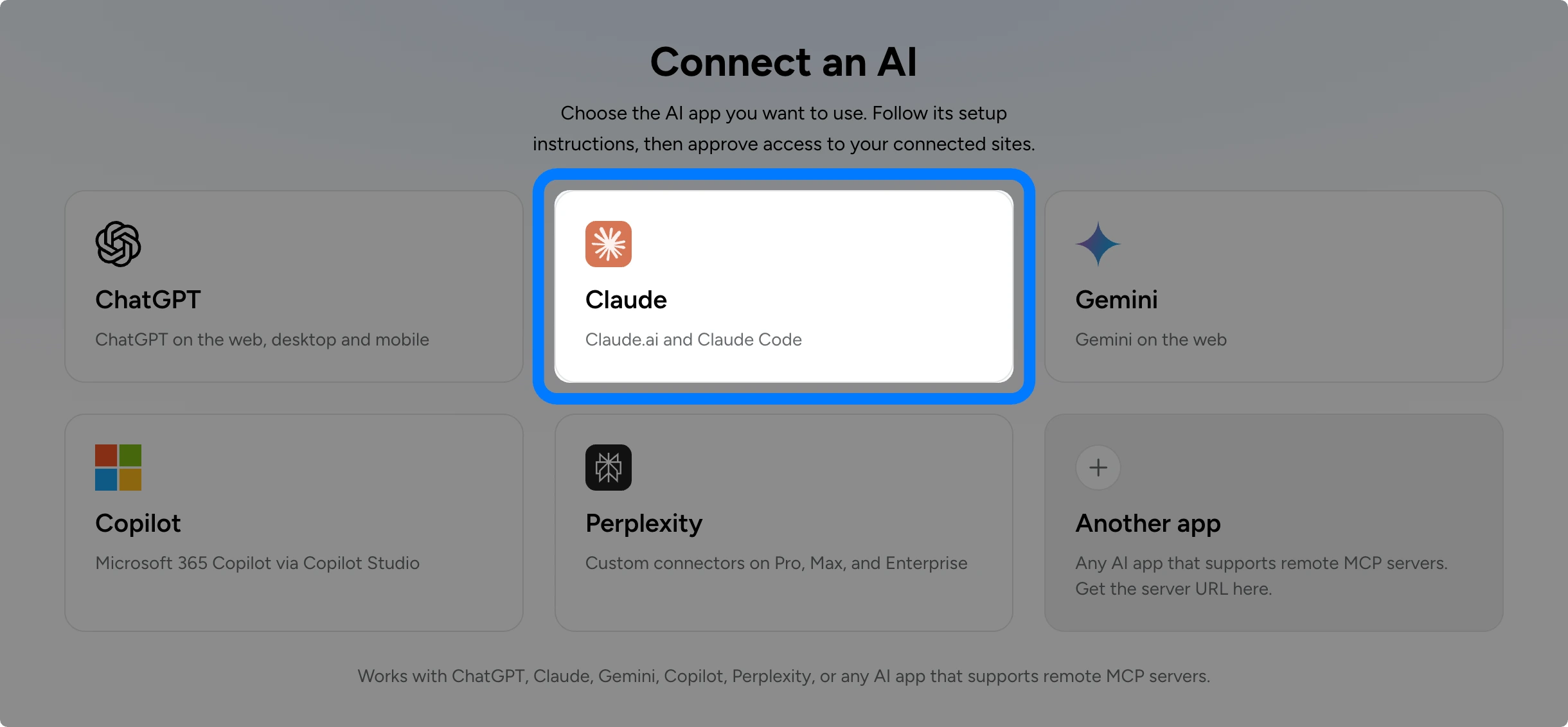
- Click Connect an AI and choose Claude. Click Copy under MCP server URL.
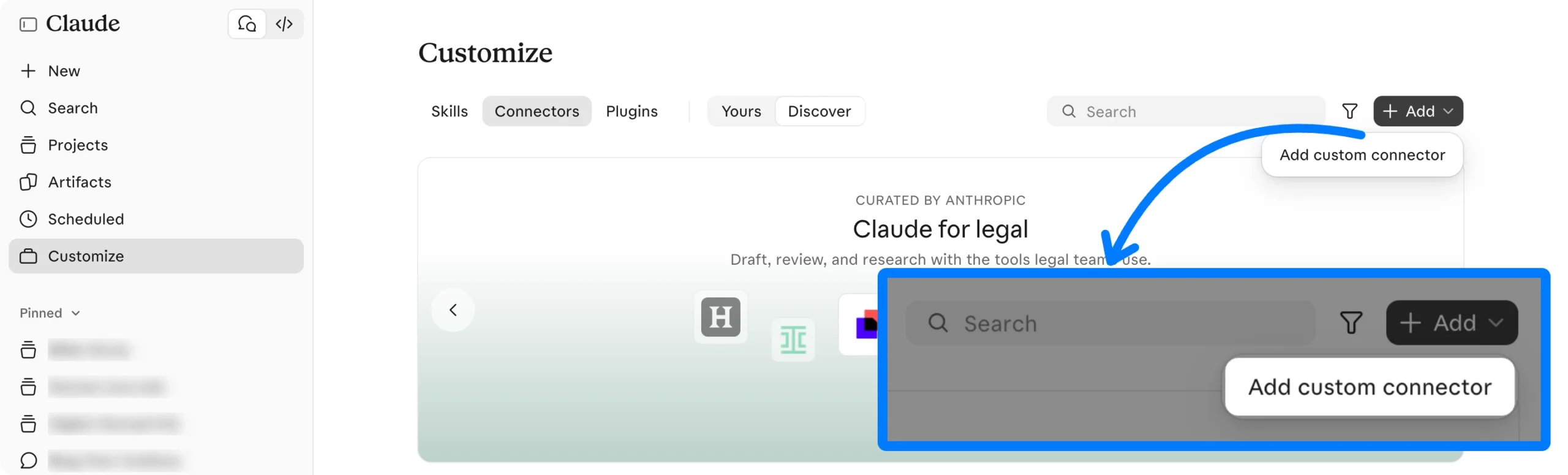
- In Claude, go to Customize > Connectors and click Add > Add custom connector. Name it “Uncanny Automator”, paste the URL and click Continue. Keep the sign-in settings Claude detects and click Add.
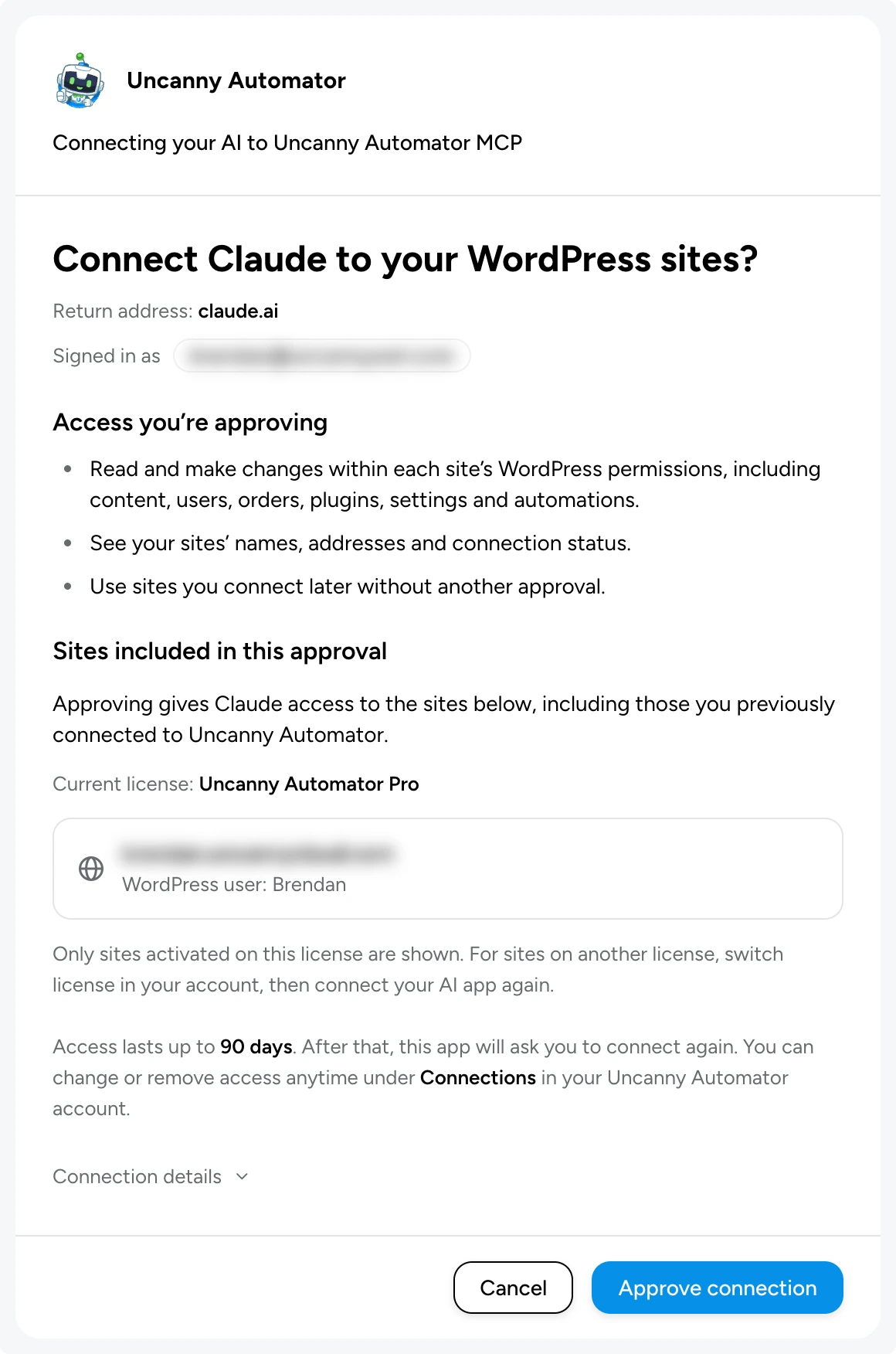
- Click Connect on the Uncanny Automator connector. Claude sends you to the approval page: sign in if asked, check that your site is listed and click Approve connection.
Claude brings you back to its Connectors page, with Uncanny Automator now in the list. The same connection works in the Claude desktop app when you sign in with the same account, so there’s nothing separate to set up for your Mac or PC.
Want to test it? Start a new chat, click +, switch on Uncanny Automator under Connectors, and ask: “What plugins are installed on my site?” Claude will ask before it uses its first tool. Click Allow, and when it answers, you’re connected.
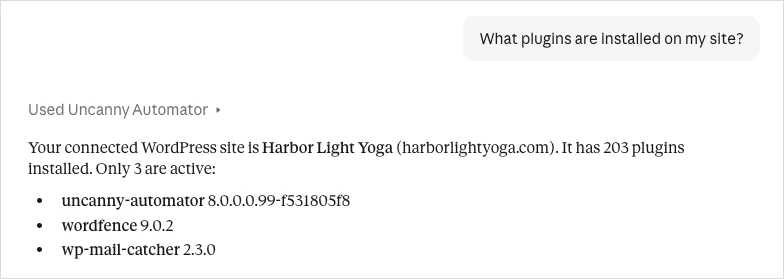
(Note: Claude asks before every tool unless you tell it otherwise, so a request like “create a draft post” waits for your Allow. To let it work without asking each time, go to Customize > Connector in Claude, open Uncanny Automator and set its Tool permissions.)
Your approval lasts up to 90 days. After that, Claude asks you to connect again.
Need help connecting? Read the full guide at Connect Claude to WordPress.
Connect your AI in 60 seconds >>>
WordPress and Claude: Real Prompts and Results
Enough explaining. Below are three prompts I actually ran, each quoted exactly as I typed it, with what Claude came back with. I ran these on my own test site, Automator Academy, a small course site with a campus store that uses the Kadence theme with the WordPress block editor.
Build a Page with Claude
“Build me a festive holiday sales page with a big headline, a short intro, three featured products from my store with a one-line description each, a banner that says ‘20% off everything until December 31’, and a ‘Shop now’ button that goes to my Shop page. Make it feel like a celebration: rich holiday colours, a bold cover section at the top, and the three products in a row of cards. Save it as a draft.”
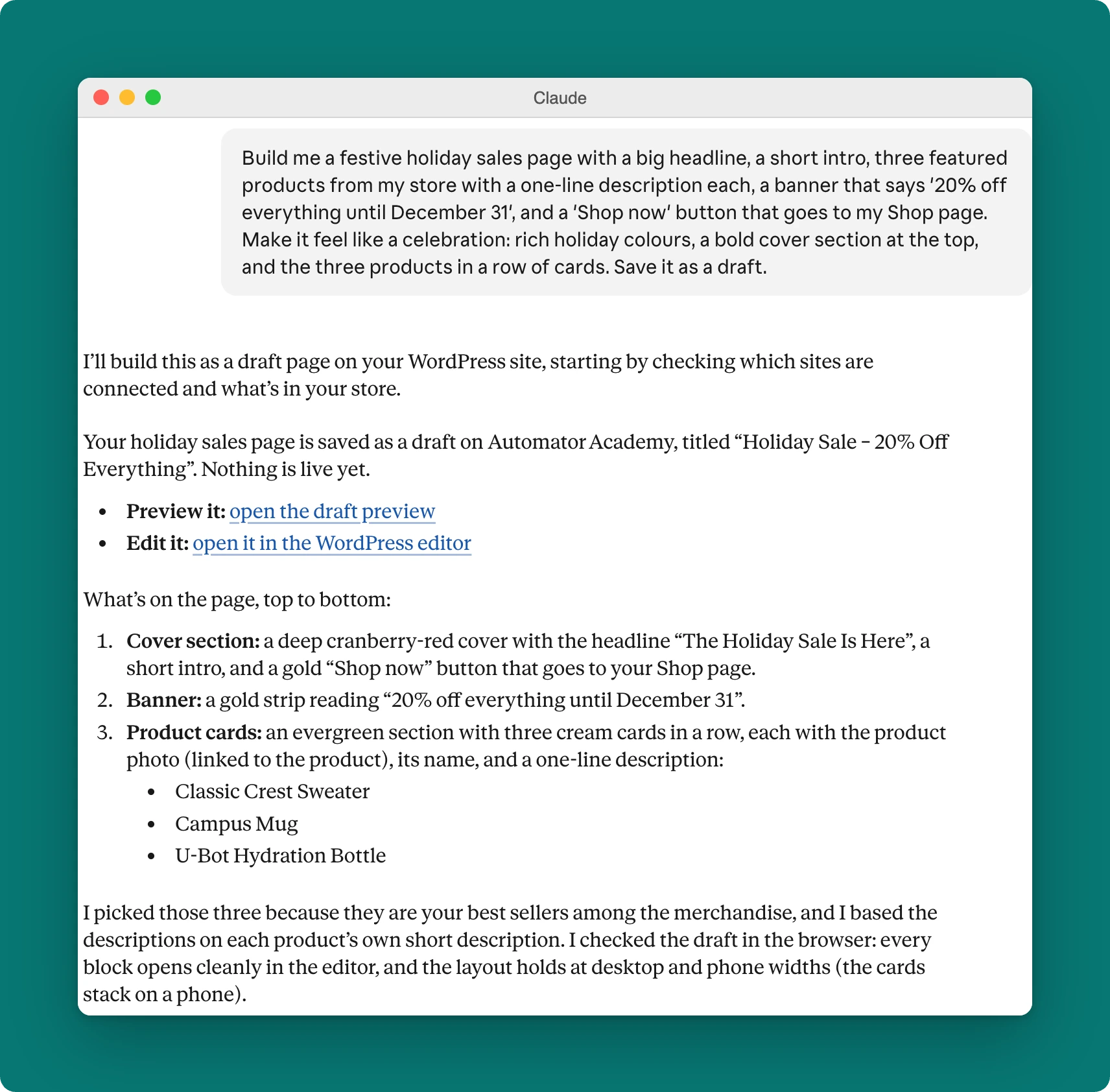
About five minutes later, I had a draft page called “Holiday Sale – 20% Off Everything” sitting on my site.

Claude had looked up the Shop page’s address and my store’s best sellers, then built the page in the block editor my site already uses: a deep cranberry cover with “The Holiday Sale Is Here”, a two-sentence intro and a gold Shop now button; a gold strip reading “20% off everything until December 31”; and an evergreen section with three cream cards, one each for the Classic Crest Sweater, the Campus Mug and the U-Bot Hydration Bottle, with the product photos linked to the product pages.
It even checked the draft itself and told me the cards stack properly on a phone, so my page was mobile responsive without my having to ask.
Just as useful was what Claude told me before I published. It hadn’t created a coupon or changed any prices, because I hadn’t asked it to, so the page advertised a discount that didn’t exist yet.
The Campus Mug was already marked down, so I’d need to decide whether the 20% applied on top, and it had left prices off the cards for that reason. It had used a colour gradient for the cover because my media library had no holiday photo, and offered to swap one in. All true, and all things I’d have noticed a week later.
The same prompt works in Elementor 4.3 or later, Spectra, Divi 5 or WPBakery, because Claude builds in whichever page builder your site already has. On a site with no page builder at all, Claude falls back to Uncanny Page Builder instead.
Takeaway: This year’s sale page, or your very first page, from a description, in the editor you’d use anyway. Next year, swap the dates and the products in the prompt and run it again.
Build a Workflow Automation with Claude
“Whenever someone submits my Contact Form, send them a short thank-you email from me saying I’ll reply within one business day, and email me their name and message.”
Claude’s first move was a question: my site turned out to have two forms called “Contact Form”, one from WPForms and one from Gravity Forms, and it asked which one I meant. I picked the WPForms one, the form that’s actually on a page.
A few minutes later it had built the automation as a recipe (that’s just what Automator calls a workflow automation) in the Uncanny Recipe Builder.
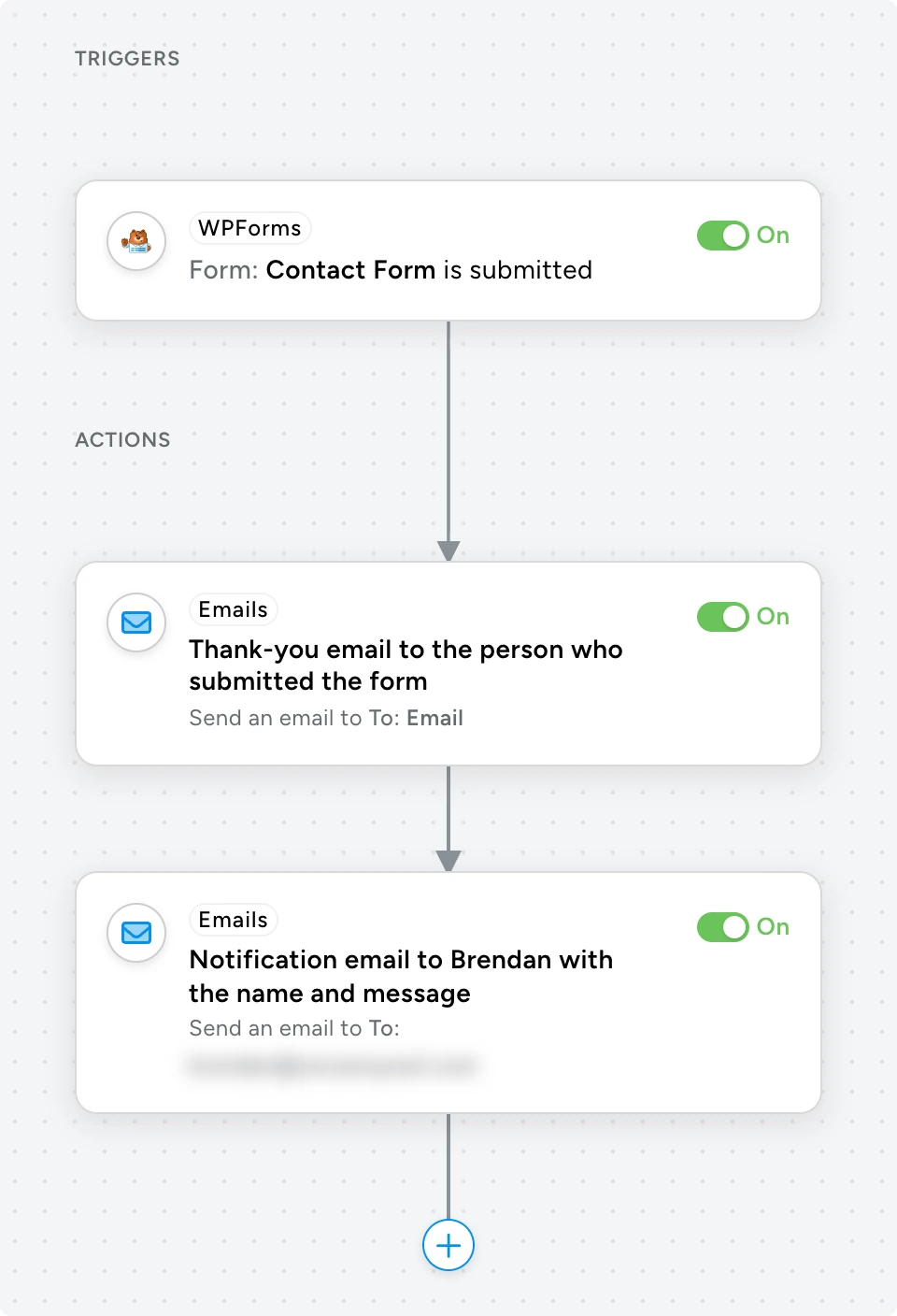
- One trigger: “A form is submitted” from WPForms, set to my “Contact Form”
- Two email actions: “Send an email”, one to the site visitor who submitted the form (Automator pulled their email from the email field using a token) and another one to me, with the form submission details.
It switched the recipe on and told me it was ready. I had never had to open up my WordPress admin—except to take this screenshot to show you the recipe it built.
It also told me something I didn’t know: my site’s email sending was broken. Eighteen of the last thirty emails the site had tried to send had failed, because the Gmail account it sends through had signed out!
Claude couldn’t fix that (it needs my Google sign-in), but it told me where to look and offered to walk me through it. It was right, too: my first test submission fired the recipe, and both emails bounced at Gmail.
Once I’d signed the site back in to Gmail, the recipe ran as expected.
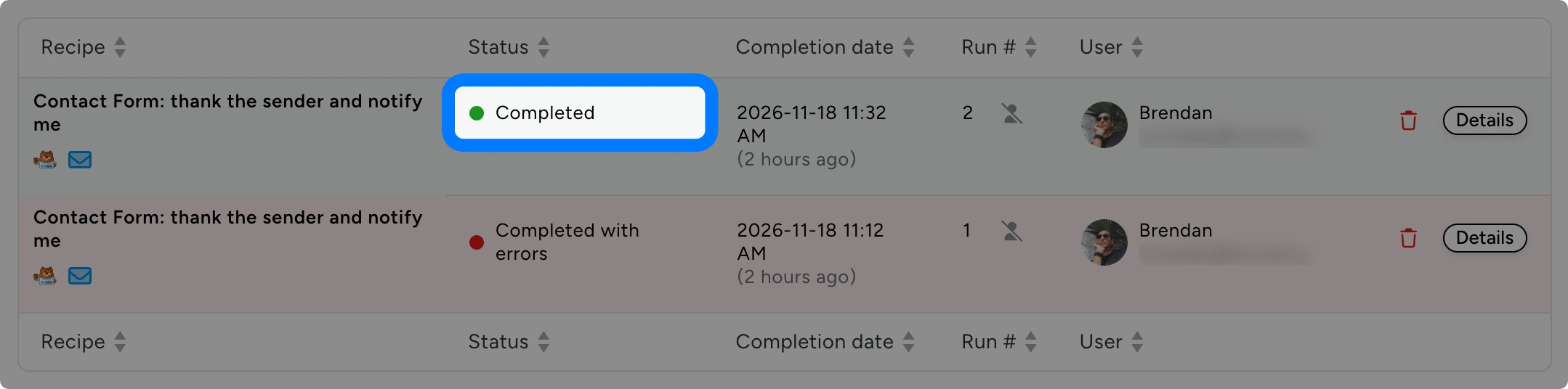
Recipes run the same way every time, whether you’re logged in or not and whether Claude is open or not. Claude did the setup once; the recipe does the work from now on. This one uses only WordPress and the plugins on the site, so it runs on Automator Lite with nothing else to connect.
Takeaway: Any job you’d describe with the word “whenever” is a recipe waiting to be built.
Get Answers About Your Site from Claude
“Which pages on my site haven’t been updated in more than six months? List them with the date, and tell me which ones I should look at first.”
The answer came back in under a minute: a table of nine pages, oldest first, with a column saying what was on each one. Three store pages (Cart, Checkout and Purchase History) hadn’t been touched since 2022, three account pages since January, the two payment pages since January, and the Thank You page since March.
Then the useful part. Claude pointed out that none of these are content pages, so an old date isn’t a problem in itself, and picked four worth a look in order:
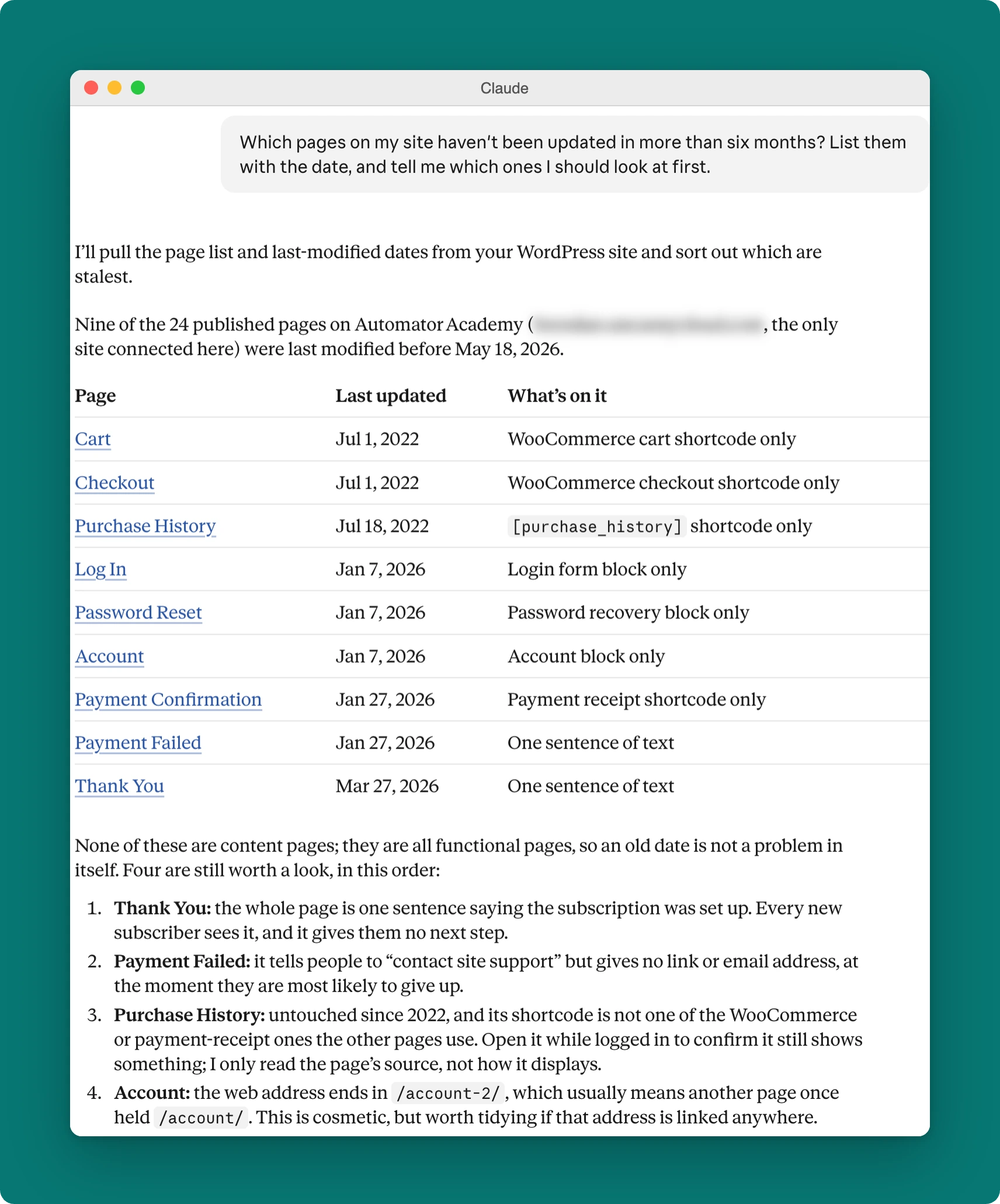
Takeaway: Instead of scrolling through the Pages list and squinting at dates, ask. If you run a store, ask about last week’s orders instead; if you run courses, ask who finished one.
More Prompts to Try
- “Draft a post announcing our holiday hours, add it to the News category and schedule it for Monday at 9am.”
- “Update my outdated plugins one by one and flag anything that needs my attention.”
- “Which comments are waiting for approval? Flag the ones that look like spam.”
- “Add Sam as an Editor and send them the login link.”
- “Whenever my contact form is submitted, send me the details in a Slack message.”
(Note: a plugin update can’t be undone from chat, so take a backup or try it on a staging site before a big round of updates. Slack is an app rather than a plugin, so that last recipe uses app credits on Automator Lite; app credits are what the free plugin uses when an action runs in a connected app, and the knowledge base has the details.)
Get new recipes and prompts by signing up for our newsletter ↓
What Happens After the Chat: The Recipe Builder
The contact form recipe above is the part of this that no other WordPress MCP server can do, and it’s worth a closer look.
Every recipe Claude builds lives on your site, in the Uncanny Recipe Builder. Open one and the trigger, the actions and any conditions are laid out as a flow that reads from top to bottom.
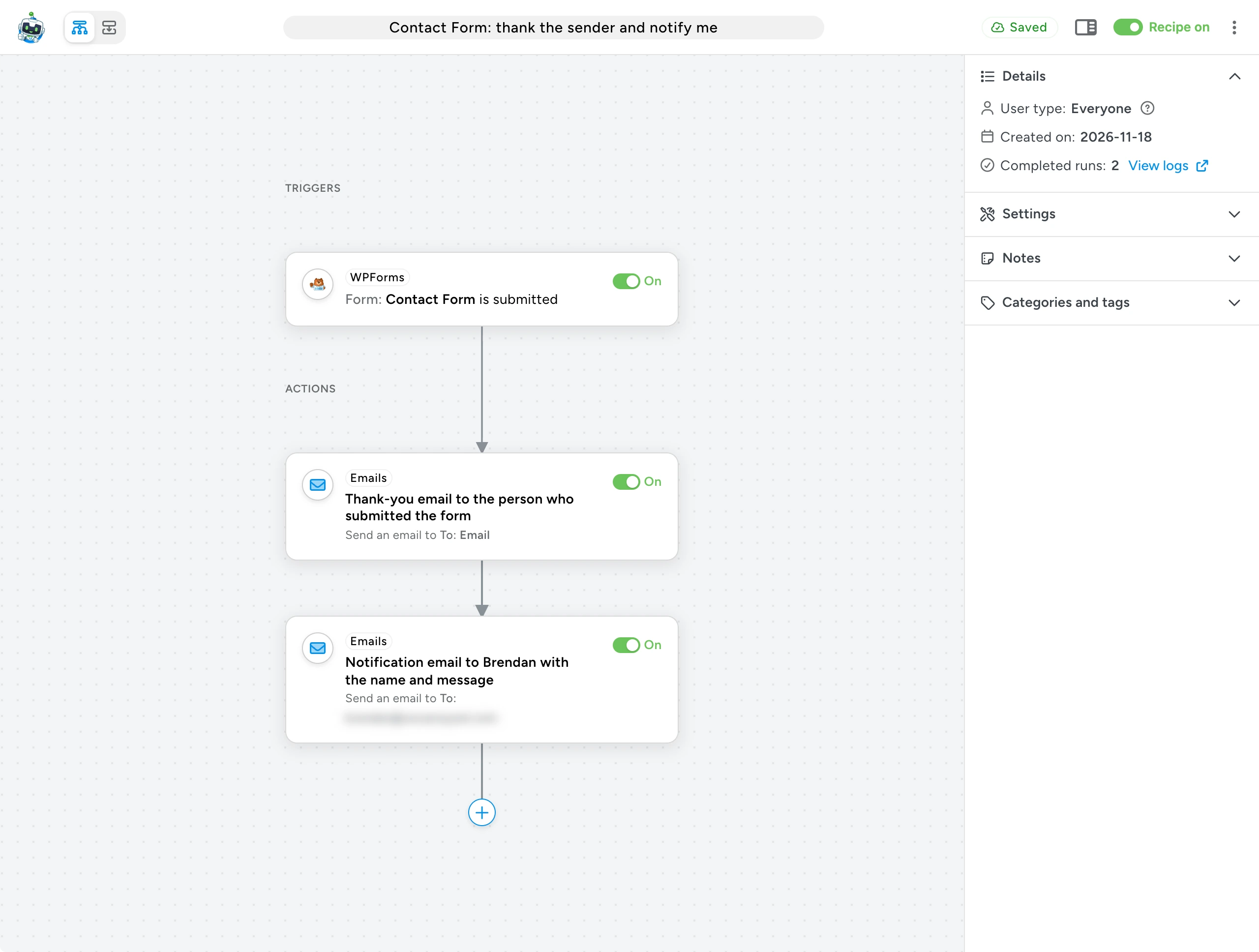
From there, it’s yours:
- Change it by hand. Change the trigger, bolt on another action or a condition, or switch the recipe off, and Claude never needs to be open. A recipe Claude built and a recipe you built yourself work exactly the same way.
- Build one from scratch. Go to Automator > Add new recipe in your WordPress dashboard, pick a trigger, pick an action and switch the recipe on.
- Check what ran. Every run is recorded in the recipe’s log, so you can see what ran, when and with what data.
The chat is where you set things up. The Recipe Builder is where your site keeps running them. See what else the Uncanny Recipe Builder can do >>>
(Note: a few building blocks belong to Pro, among them filters, which decide whether an action should run, and loops, which run an action across many records in one go. See plans for what’s included.)
Want Claude to build this for you? Connect your AI >>>
Put Claude to Work on Your Site
The plugin you went looking for is real, it costs nothing, and Claude already knows its way around it.
Start small. Have Claude build a page, then answer a question about your site, then take over the repeat version of a job you’re sick of doing by hand. Leave most switches off at first and let Claude ask before every change; give it more room as your confidence grows.
Start free >>>
What will you do with more time?
Claude and WordPress: Frequently Asked Questions
Is Uncanny Automator a Claude plugin for WordPress?
Yes, in that Automator lets you build, manage and maintain your WordPress site from Claude. It does that as an MCP server (the connection that lets your AI work on your site) with a built-in automation engine. Automator also lets you use Claude inside your automated workflows through its Anthropic integration. And it isn’t only for Claude: it works with ChatGPT, Gemini, Copilot, Perplexity or any AI app that supports remote MCP servers.
Is this a Claude chatbot for my visitors?
No. It’s Claude working for you, in your dashboard and in the apps around your site. Your visitors never see it.
Does it work in the Claude desktop app?
Yes. Claude Desktop’s MCP support means the connector you add in Claude shows up in the desktop app when you sign in with the same account, so there’s nothing separate to set up.
Do I need a Claude subscription?
No. Claude’s free plan allows one custom connector, and that’s all this needs. Pro, Max, Team and Enterprise plans allow custom connectors too; on a Team or Enterprise plan, an Owner adds Uncanny Automator for the whole organization and each member clicks Connect. Other AI apps set their own rules: ChatGPT’s free plan can add Uncanny Automator and make changes, for example, while Perplexity needs a paid plan. The knowledge base has the details for each app, starting with Connect Claude to your WordPress site and Connect ChatGPT to your WordPress site.
Is it safe to use Claude on my site?
You decide what Claude can do on each site with the switches in your WordPress dashboard, and Claude can’t change those switches. Claude asks you before it uses a tool, and you can decline. Some things are never available to any AI: raw database changes and deleting users. Claude can’t touch your site’s files or database directly, you can see what it did, and you can disconnect it whenever you like. Claude’s requests reach your site over an encrypted connection, and the service never receives your WordPress password (Privacy Policy). (Note: a plugin update can’t be undone from chat, so Claude is told to warn you and suggest a backup first.)
Do I need an AI subscription?
No. Most people connect the AI they already pay for (ChatGPT, Claude, Gemini, Copilot, Perplexity or any AI app that supports remote MCP servers). If you don’t have one, Uncanny Agent is built into the plugin: it does the same things with nothing to set up, and it is free to start. Connecting Claude and using Agent are separate, and one doesn’t use up the other’s allowance. For how the two compare, see Uncanny Agent vs. ChatGPT.
Does it work with my page builder?
It works with Gutenberg, Elementor 4.3 or later, Spectra, Divi 5 and WPBakery. If your site doesn’t have a page builder, Uncanny Page Builder is built in.
Can I use Claude’s model inside a recipe without connecting Claude?
Yes. With an API key from the Anthropic Console, a recipe can call on Claude to write or summarize content as one of its actions. That’s the Anthropic integration. Connecting Claude is different: it’s for Claude itself working on your site.

Related Posts
Comments (0)