

Send WordPress Slack notifications with Uncanny Automator and format them so they get read. Includes…
ChatGPT WordPress Plugin: Build, Update and Maintain Your Site from ChatGPT
Looking for a ChatGPT WordPress plugin? Uncanny Automator’s free MCP server lets you build, update, maintain and run your site from ChatGPT.
Run a search for “ChatGPT WordPress plugin” or “WordPress ChatGPT plugin” and you get two kinds of results. One puts a chat bubble on your site for visitors. The other adds a box to the post editor that writes a paragraph for you.
Those are helpful, but neither is what you were after. You wanted the ChatGPT you use every day to do the work in WordPress that’s been slowing you down: build your pages, update product descriptions in bulk, tell you what your best-seller was last week. Or, as most people put it: “I already pay for ChatGPT. Why can’t it just run my site?”
It can — and Uncanny Automator is how it’s done. It’s the free plugin that lets you build, manage and maintain your WordPress site from the ChatGPT app or tab you keep open all of the time.
In this post, I’m going to show you how to connect your ChatGPT to your WordPress site, then show you just some of the things that it can do: building a page, building a workflow automation that keeps running on its own, and getting answers about your site.
Let’s get started.
Is There a WordPress ChatGPT Plugin?
Yes, there are plenty of ChatGPT plugins for WordPress that allow you to “connect” your ChatGPT to your WordPress site. The trouble, however, is that “ChatGPT plugin” can mean any number of things, and it all depends on how that “connection” between your AI and your site is established.
Generally speaking, there are three types of ChatGPT plugins for WordPress:
- A chat-bot for your visitors: A chat bubble on the front of your site that answers customer questions. It works for your site visitors, not for you. That’s a useful feature for ecommerce stores, but it’s not what this article is about.
- A ChatGPT step inside your automations: Suppose you want AI to draft responses to comments as customers leave them, or to generate featured images for blog posts as they are drafted. That’s what adding a ChatGPT step inside an existing workflow automation is for. Much like n8n or Zapier, Automator does this too through its OpenAI integration, and our guide to connecting OpenAI to WooCommerce shows it at work. If that’s what you came for, start there.
- ChatGPT itself, working on your site: This is the most powerful and dynamic type of connection between ChatGPT and your WordPress site. You type in ChatGPT, and the change happens in WordPress. This type of connection is established through an MCP server.
An MCP server is how AI apps such as ChatGPT or Claude connect to other software. Uncanny Automator is an MCP server for WordPress with a built-in automation engine: it connects your AI to your WordPress site, so you can manage and automate the site with your AI.
MCP stands for Model Context Protocol, the open standard AI apps use to connect to other software. Don’t worry; that’s as technical as we’re going to get in this post. But if you’d like to know more (security features, supported AI clients, etc.), check out our MCP server for WordPress page.
Uncanny Automator’s MCP server is built into Automator Lite, the free version of the plugin, so you don’t need to reach for your wallet quite yet.
Start free >>>
What ChatGPT Can Do on Your WordPress Site with Automator
Just as with form plugins or membership plugins, not all WordPress MCP server plugins are created equal. Some allow you to edit theme files. Others add usage restrictions on top of your ChatGPT usage limits.
As I mentioned in the introduction, Automator lets you “build, manage and maintain” your WordPress site from a ChatGPT conversation. But what exactly does that mean? Here’s what that covers, starting with the things you’ll probably use most.
- Build and update pages in the page builder you already use: Gutenberg, Elementor 4.3 or later, Spectra, Divi 5 or WPBakery. Even if you don’t have a page builder, Automator is unique amongst MCP plugins because it comes with Uncanny Page Builder, which assembles fast, light and fully portable pages. Describe the page you want (or drop in a screenshot of a page you admire) and ChatGPT builds that page on your WordPress site.
- Write and update content. Draft a post, rewrite product descriptions in bulk or fix a typo on a page, all from one sentence.
- Set up workflow automations that keep running without you or AI. This is another capability that is totally unique to Uncanny Automator. Automator is the only WordPress MCP server with a built-in automation engine. Simply describe the task or workflow that you would like to have repeated (every new customer gets added to HubSpot, every sale gets logged in Google Sheets, every learner gets a progress summary on Tuesdays) and ChatGPT builds it as a recipe (an automated workflow) using Automator’s Recipe Builder. Recipes run on their own, whether you’re logged in to your WordPress admin or not, and without a prompt from ChatGPT.
- Get answers about your site instead of digging for them. What sold this week, which plugins are out of date, which pages have no meta description. Anything you want to know about your site, at your fingertips.
- Keep the site healthy. Update plugins and themes, moderate comments and clear the cache, from chat. Nothing is ever deleted or uninstalled.
- Reach the apps around your site. Message your team in Slack, add a row to Google Sheets or tag a contact in an email tool like ActiveCampaign or HubSpot. This one is also Automator’s alone: ChatGPT can use Automator’s library of actions across your plugins and apps, so it isn’t limited to WordPress itself. Browse what’s available in the WordPress MCP tools and abilities by plugin lists.
- Find out why something broke. We’ve all been there: 404s and broken links. ChatGPT can read your site’s code to work out what’s wrong. It can’t change it.
Is It Safe to Let ChatGPT Work on Your Site?
Handing an AI the keys (API, skeleton or otherwise) to a live site might sound like the opening scene of a disaster movie in which the robots take over the world. It’s a fair thing to be nervous about.
However, Automator keeps you in charge at all times. Here’s how your site and data stay under your control:
- You decide what ChatGPT can do. Every tool and every action has a switch in your WordPress dashboard, and ChatGPT can’t flip a switch itself.
- ChatGPT can ask first. In ChatGPT’s own settings you can force it to ask you for permission before every change, or limit it to read-only access.
- Some things are never available to any AI. Raw database changes and deleting users are two things that Automator keeps out of your AI’s reach.
- It works the way you do. ChatGPT makes changes through the same actions you’d use in the dashboard. It can’t touch your site’s files or database directly.
- You can see what it did. Your Connections page lists your AI’s recent activity: what it did, on which site, and whether it worked.
Our security and control page covers each of these in more detail.
A note on privacy: your AI’s requests reach your site over an encrypted connection. The service keeps a record of each request and result for 90 days, with credentials removed, and it never receives your WordPress password. The Privacy Policy explains what the connection keeps.
Getting Started with Uncanny Automator
Uncanny Automator is a WordPress MCP server plugin with a built-in automation engine that has been powering WordPress sites since 2018 — and it’s free to start. You can even connect your WordPress site to a free ChatGPT account using Automator Lite.
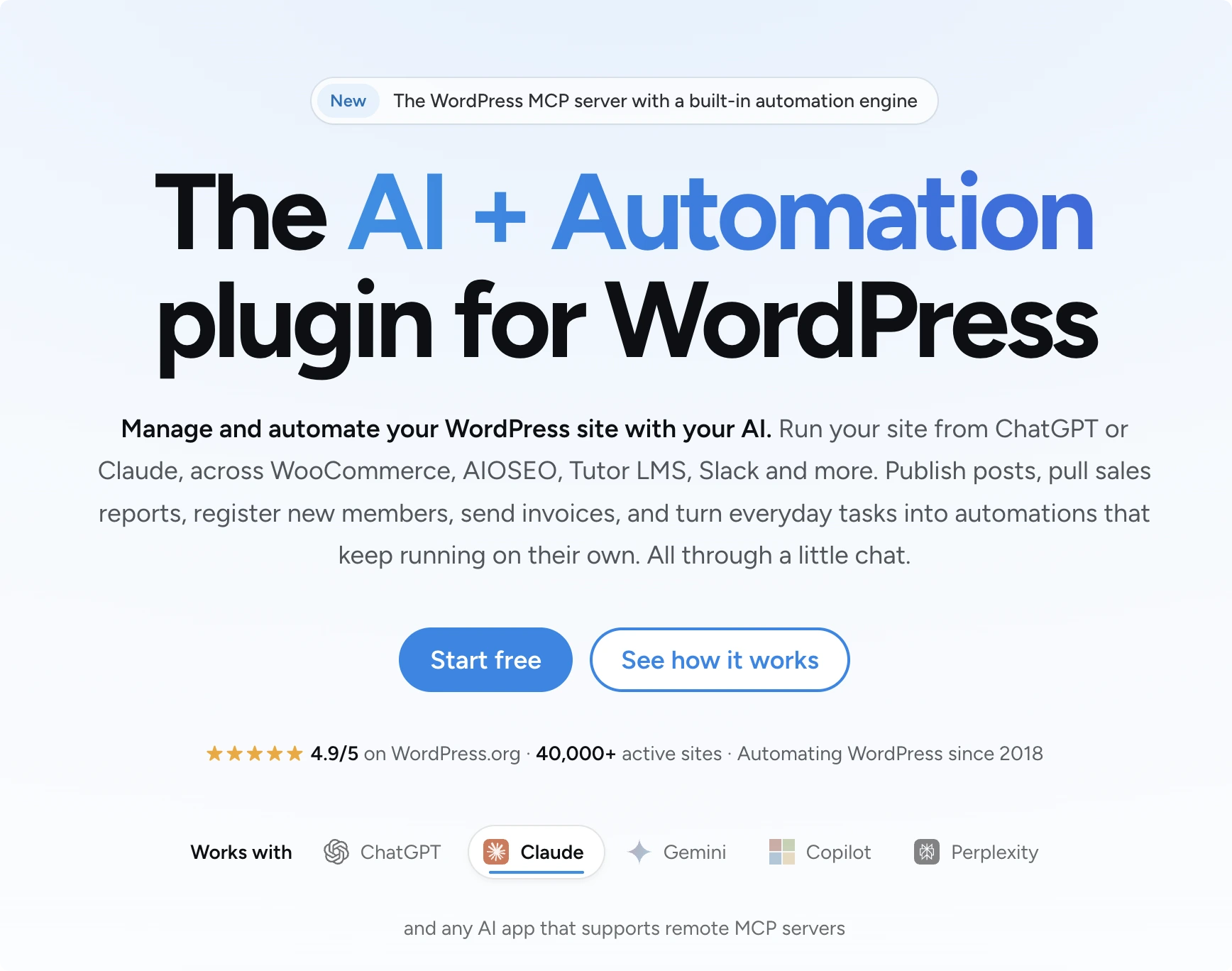
What You Need
- A WordPress site where you’re an administrator, live at a public web address. (A copy that runs only on your own computer can’t be connected. Staging sites can still be connected.)
- Uncanny Automator 8.0.0 or newer. From your WordPress Admin Dashboard, navigate to Plugins > Add New. In the search bar, enter “uncanny automator” and click Install Now, then Activate. This installs Automator Lite, which is free. The installation guide has a more detailed walkthrough.
- A free Uncanny Automator account.
- A ChatGPT account. The free plan is enough.
Connect ChatGPT in 60 Seconds
- In your WordPress dashboard, go to Automator > Connect your AI and sign in with your Uncanny Automator account.
- Click Continue to WordPress, then Approve connection. Your site is now linked.
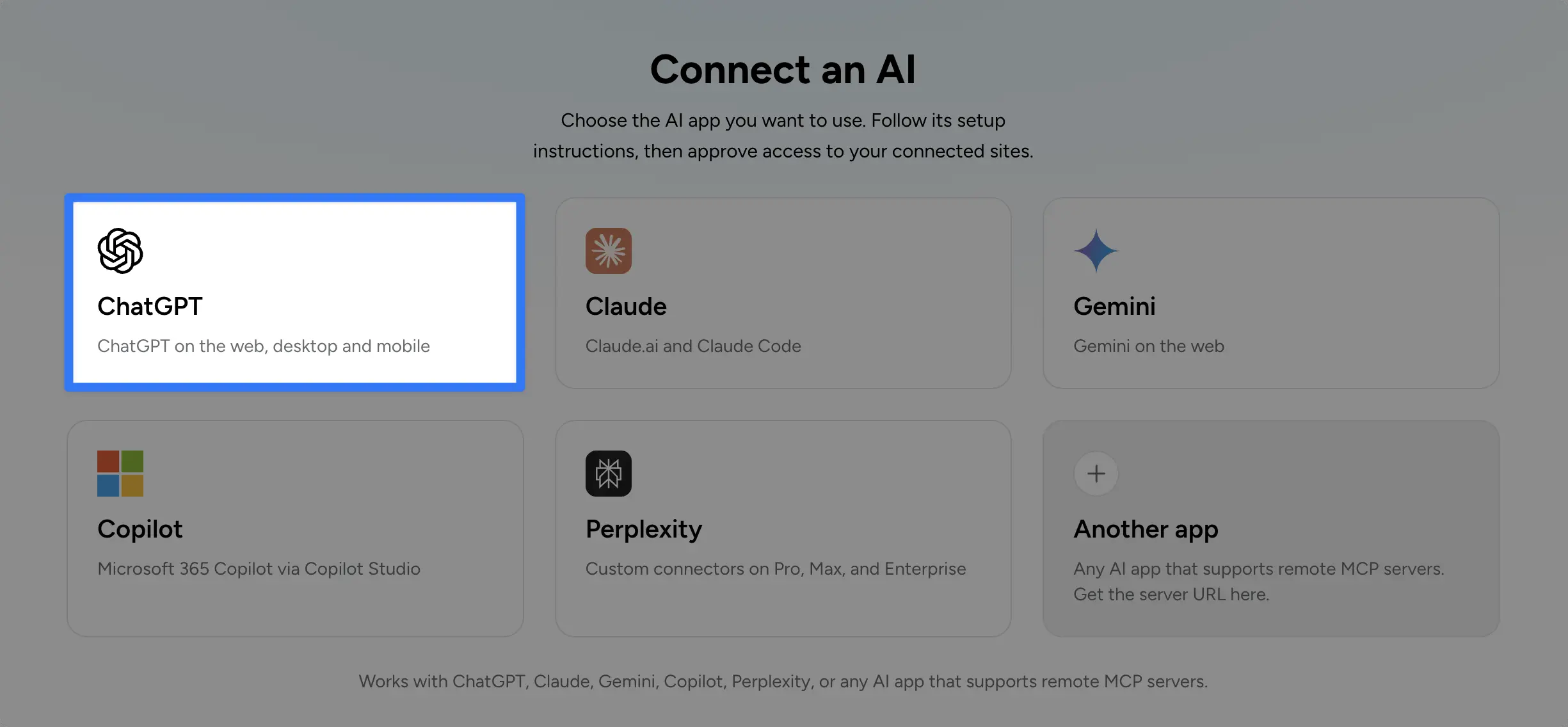
- Next, click Connect an AI and choose ChatGPT. Click Copy under MCP server URL.
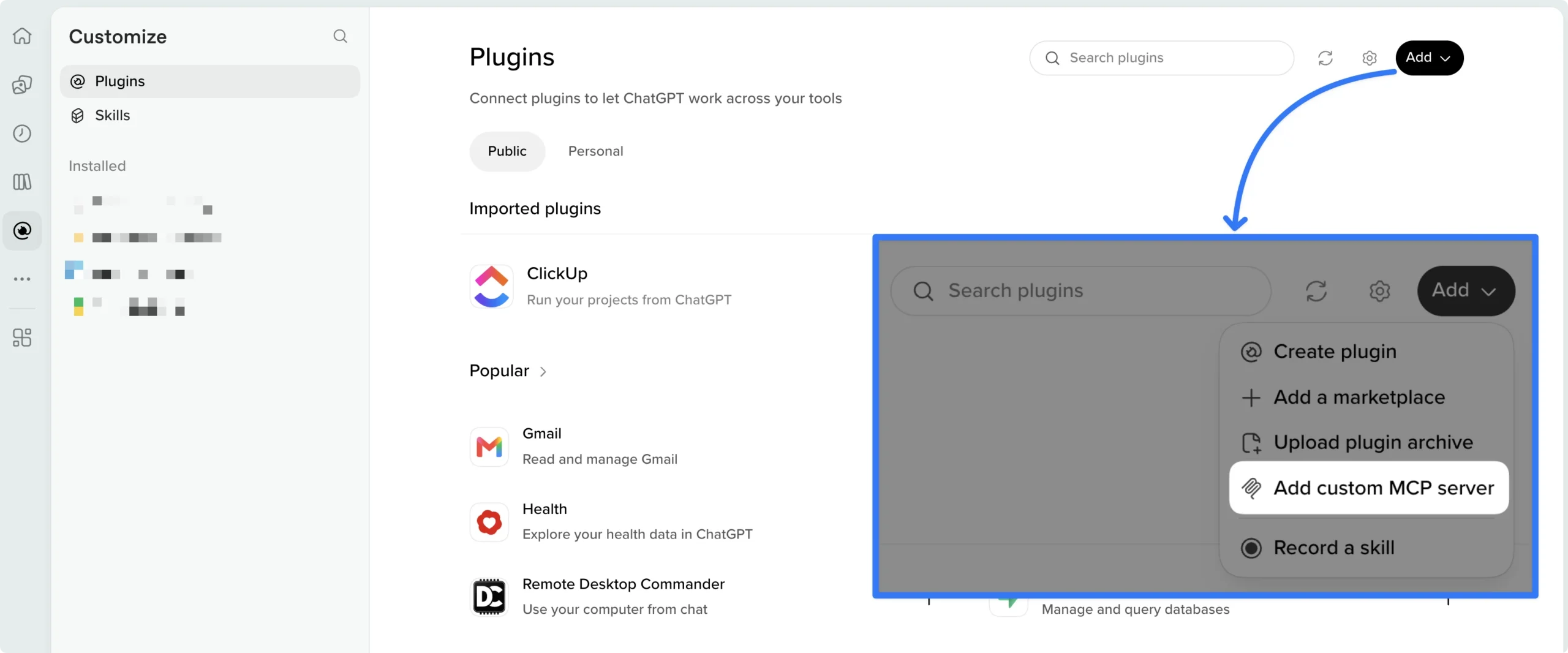
- In ChatGPT, open Plugins and click Add > Add custom MCP server. Give it a name such as “Uncanny Automator” or “Automator” and paste the MCP server URL into the Server URL field.
- Check I understand and want to continue, click Create as a plugin, then Connect Uncanny Automator.
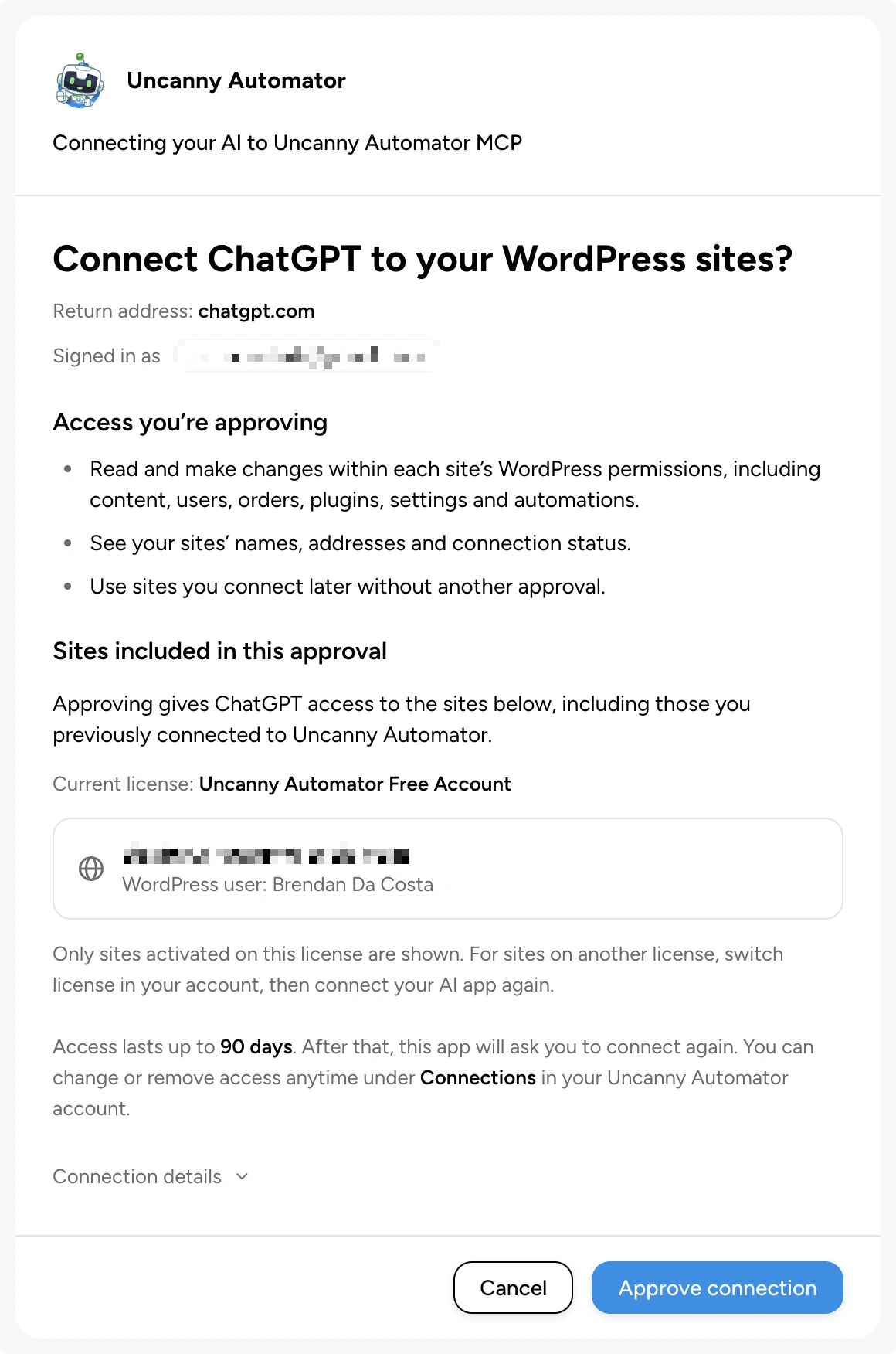
- ChatGPT sends you back to approve the connection. Check that your site is listed and click Approve connection.
You land back in ChatGPT with Uncanny Automator listed under Installed.
Want to test your connection? Start a new chat and type “@Uncanny Automator”, or whatever name you gave to your MCP connection, and ask: “What plugins are installed on my site?” When ChatGPT answers, you’re connected.
(Note: ChatGPT makes low-risk changes without asking first, so a request like “create a draft post” happens straight away. To approve each change yourself, go to Settings > Plugins in ChatGPT, open Uncanny Automator, click Permission and choose Always ask or Allow read-only tools.)
Your approval lasts up to 90 days. After that, ChatGPT asks you to connect again.
Need help connecting? Read the full guide at Connect ChatGPT to WordPress.
How to Use ChatGPT in WordPress: Real Prompts and Results
That’s enough with the theories, explanations and walkthroughs. Now it’s time for show and tell.
Here are three real prompts to start with, each shown exactly as typed, followed by what came back. I ran these examples on my actual staging site with an Automator Lite plan.
Build a Page with ChatGPT
“Build an About page with a short intro, a photo on the left, three bullet points about what I offer and a contact form at the bottom. Use my site’s colours, fonts, etc.”
In a little more than five minutes, I had the draft of an on-brand, mobile-responsive About page sitting on my WordPress site, ready to be reviewed.
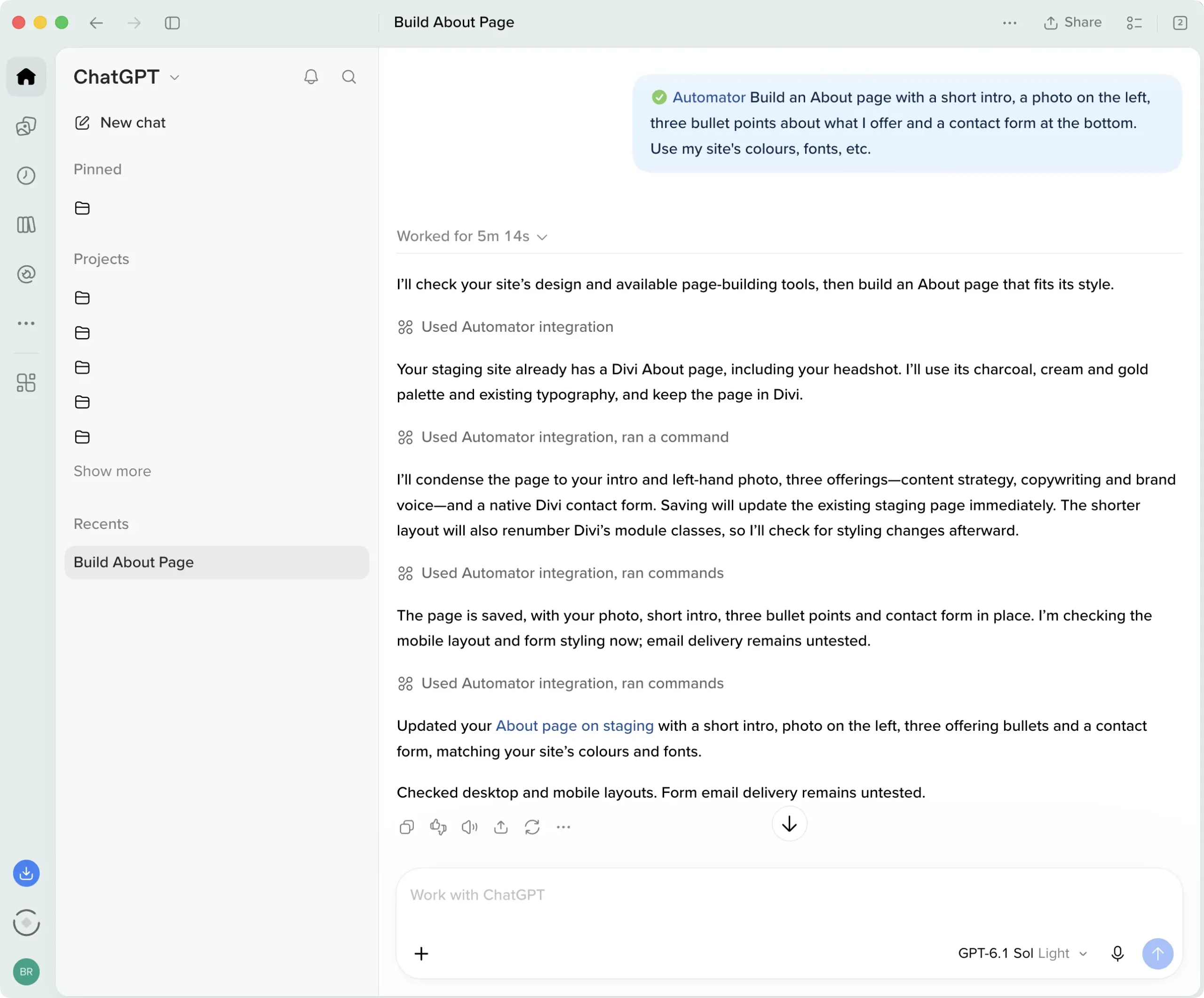
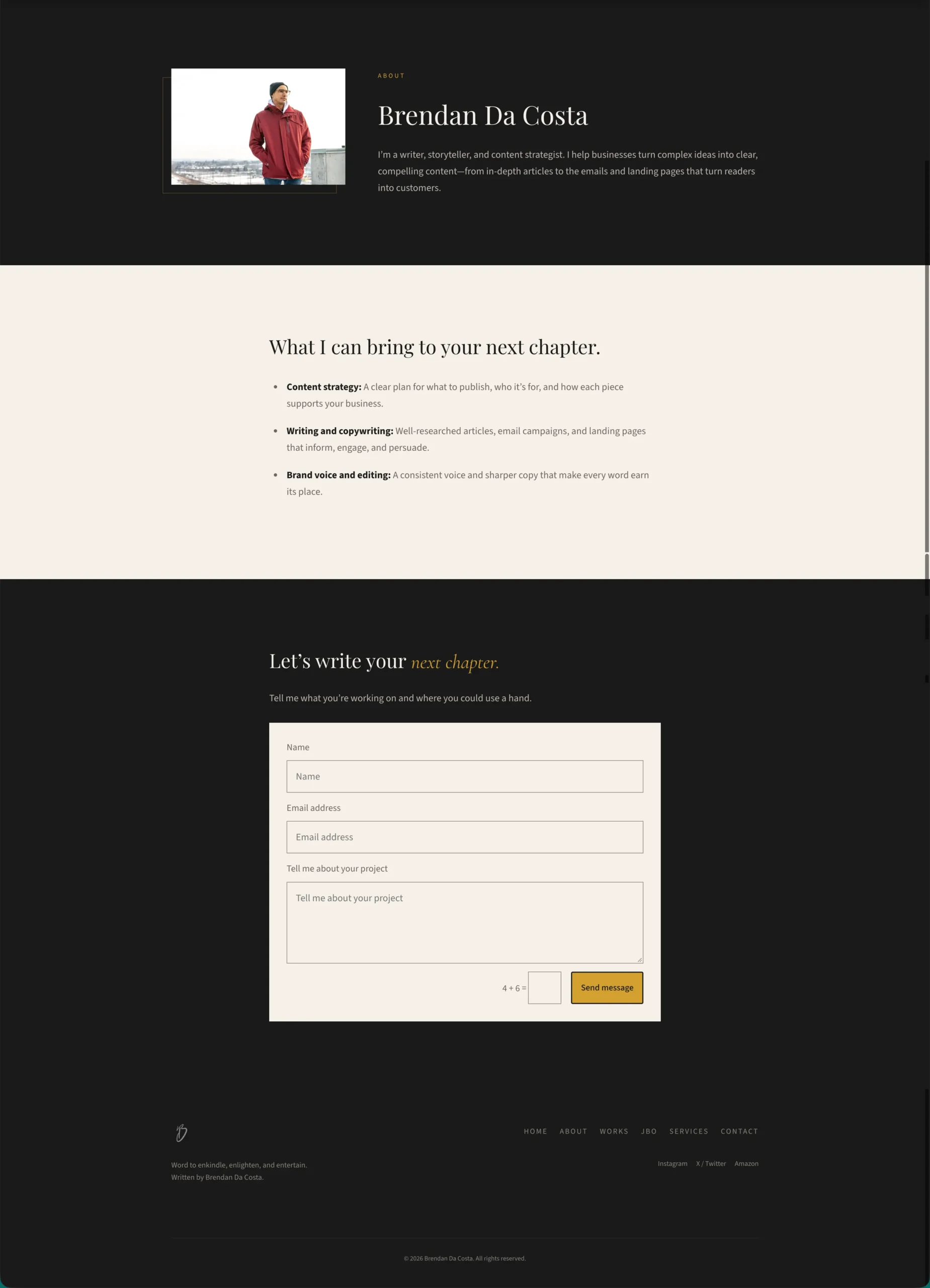
I happened to have Divi on my site, and ChatGPT recognized that it was the builder I had used for most of my pages, so it continued using it. However, Automator has skills for the most popular WordPress page builders, including Elementor 4.3 or later, Spectra and WPBakery. And, if your site has no page builder, ChatGPT can build the page in Uncanny Page Builder or Gutenberg instead.
Takeaway: Your first page, or your next one, can be built from a simple prompt in ChatGPT, and it’s ready in minutes. And because it lands in the builder you’d use anyway, you can edit the fine details by hand if you so choose. The distance between a wireframe and a finished page is the length of a sentence.
Build a Workflow Automation with ChatGPT
“Every time a user logs in to my site, add a row to the Logins sheet of my Site Activity spreadsheet in Google Sheets with the user email, user role and time.”
(Note: Google Sheets has to be connected first under Automator > Settings > App integrations. For a detailed walkthrough, read this guide on how to do it — it takes less than 60 seconds. Google Sheets is an app integration, not a WordPress plugin. Lite plans come with 250 complimentary app credits. Pro plans unlock unlimited app credits.)
ChatGPT builds the recipe (that’s just what Automator calls workflow automations) using the Uncanny Recipe Builder. These automations run the same way every time, triggered by events on your site, or beyond it, that you define. Once it’s built, it runs without ChatGPT.
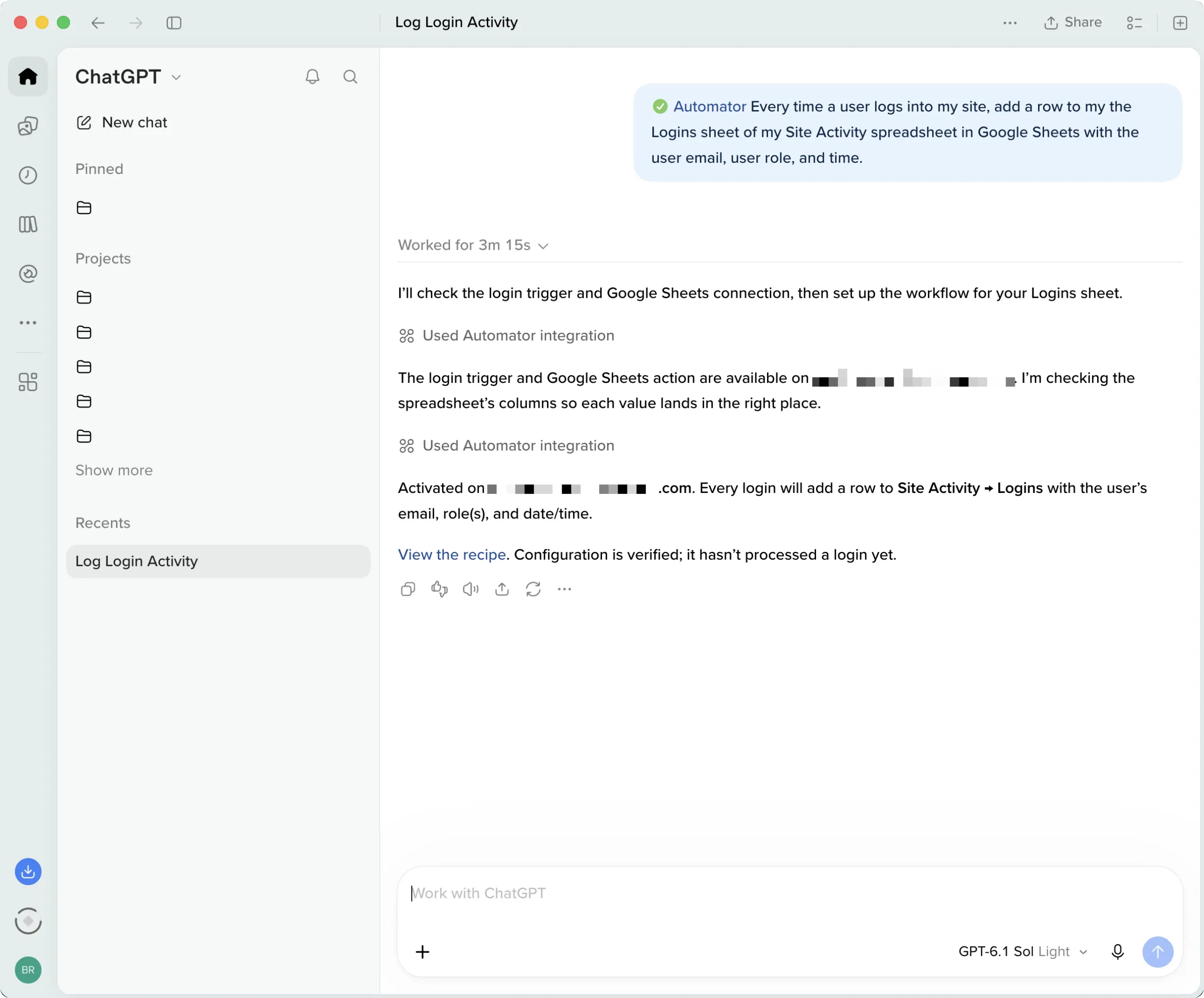
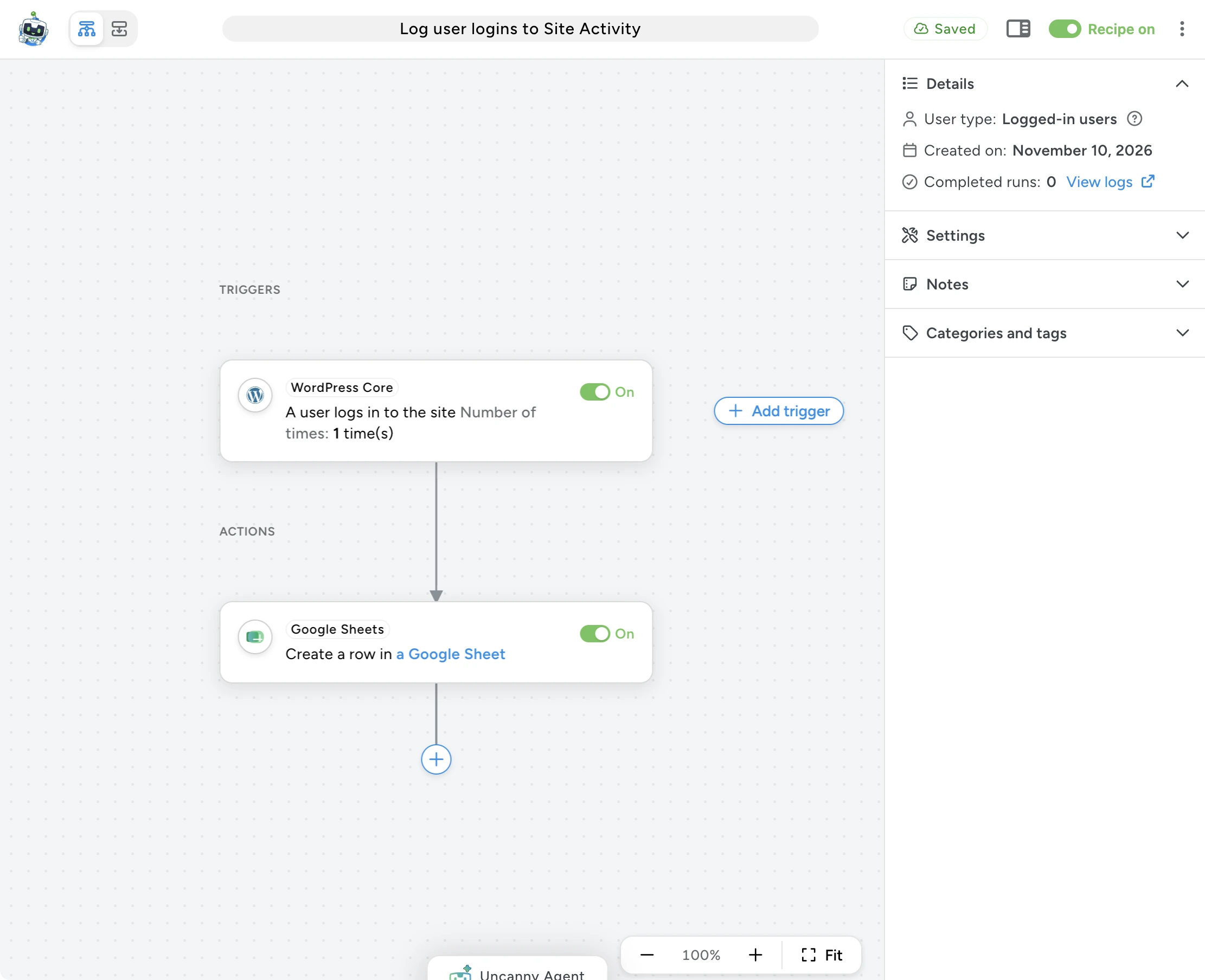
And just to make sure that the recipe was working as intended, I logged out of my site and back in, then checked my Google Sheets spreadsheet.
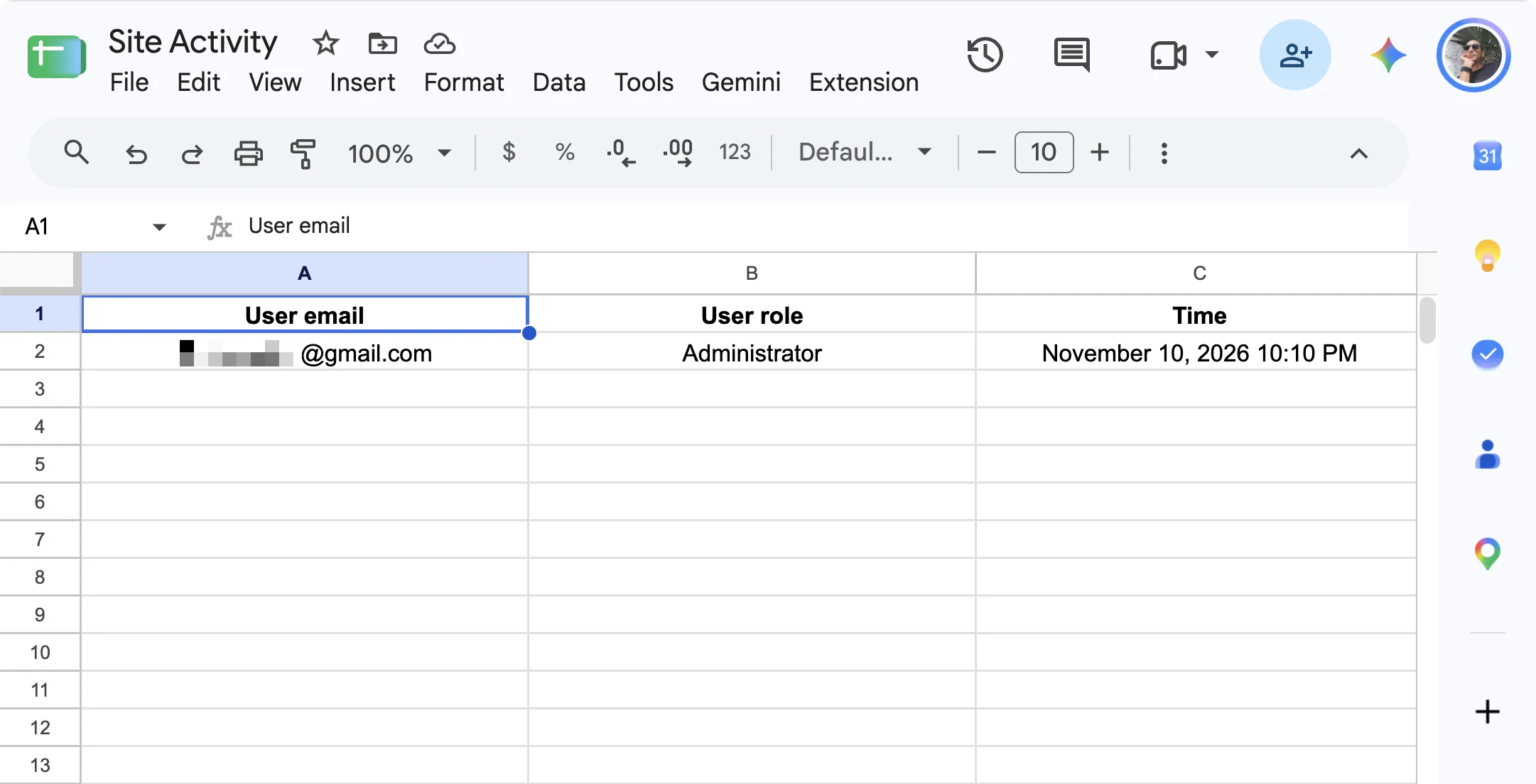
Takeaway: ChatGPT did the setup once — Automator will run it until you say otherwise.
Get Answers About Your Site from ChatGPT
“How many plugins are active on my site, what are they, and can I switch any of them off without impacting site functionality?”
This one took less than a minute, and ChatGPT came back with an answer and some recommendations.
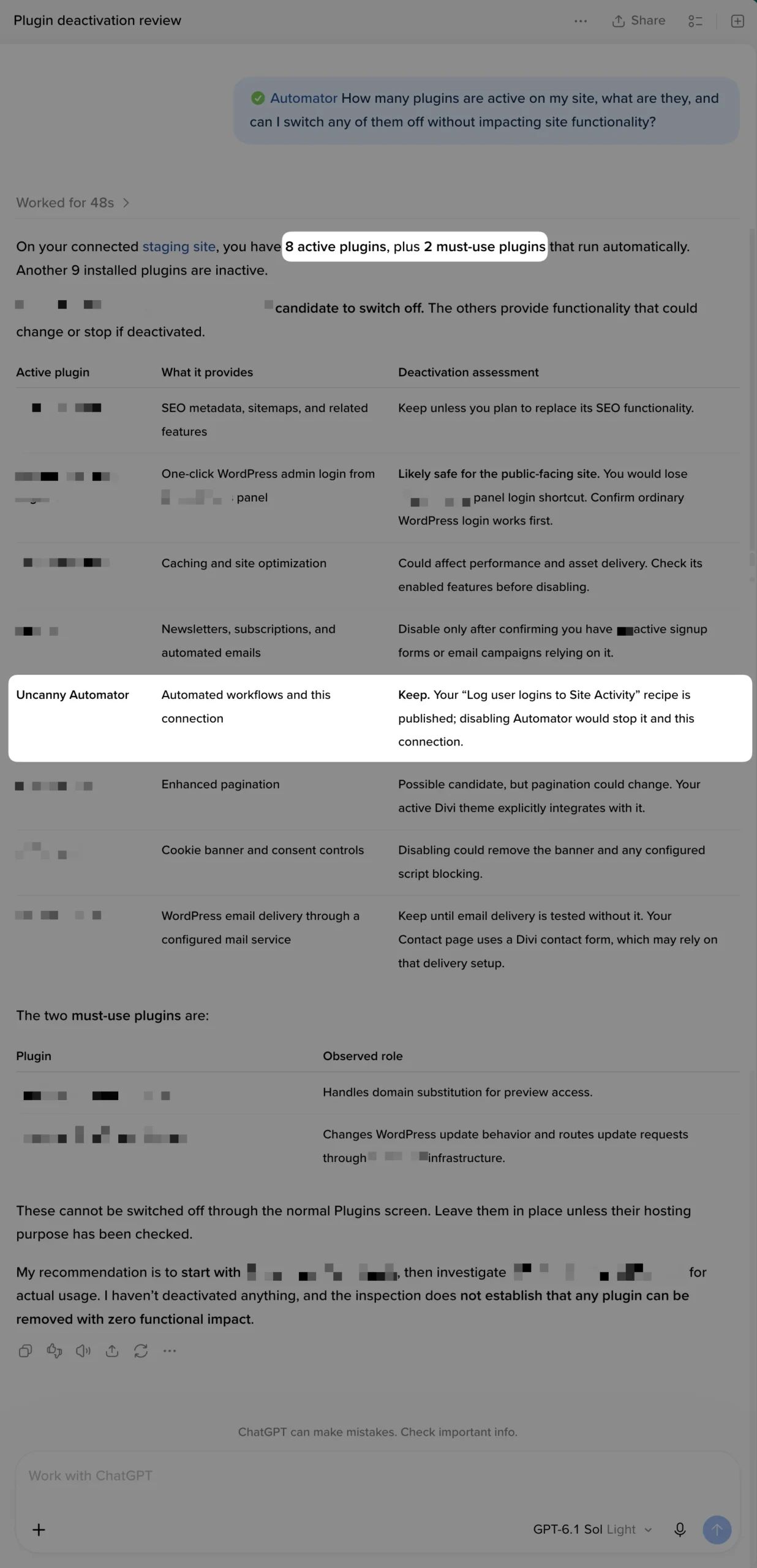
Takeaway: Instead of digging through menus, get answers to questions about your site simply by asking. If you’re running an ecommerce store or a membership site, just ask about your sales or your membership engagement rates.
More Prompts to Try
- “Update my out-of-date plugins one at a time and clear the cache when you’re done.”
- “Show me the comments waiting for approval and tell me which look like spam.”
- “My checkout page is showing an error since this morning. Find out what’s causing it.”
- “Draft a post announcing our extended holiday hours and generate a featured image for it.”
- “When someone submits my contact form, send me a Slack message with their details.”
(Note: a plugin update can’t be undone from chat, so take a backup or try it on a staging site before a big round of updates.)
Want more prompts and productivity tips? Sign up for our newsletter.
Automating After the Chat: The Recipe Builder
I mentioned earlier that Automator is the only WordPress MCP server with a built-in automation engine. And you saw that engine in the login logging example in the previous section.
That engine, the Uncanny Recipe Builder, is where the real work happens. It’s what makes Automator more than just a ChatGPT skin for your WordPress admin.
Every recipe ChatGPT builds lives on your site, in the Uncanny Recipe Builder. Open it and you’ll see the trigger, the actions and any conditions laid out as a flow you can read from top to bottom.
From there, it’s yours:
- Change it by hand. Swap the trigger, add an action, add a condition or switch the recipe off, all without opening ChatGPT. A recipe ChatGPT built and a recipe you built yourself work exactly the same way.
- Build one from scratch. From your WordPress Admin Dashboard, navigate to Automator > Add new recipe, choose a trigger, choose an action and switch the recipe on.
- Check what ran. Every run is recorded in the recipe’s log, so you can see what ran, when and with what data.
Want to know more about the engine powering your WordPress workflows? Visit the Uncanny Recipe Builder page to see what else it can do >>>
(Note: some building blocks, such as filters (conditions that decide whether an action runs) and loops (bulk operations that run actions across many records at once), are part of Pro. See plans for what’s included.)
Want ChatGPT to build this for you? Connect your AI >>>
Put ChatGPT to Work on Your Site
The plugin you were searching for exists, it’s free, and you can do almost anything in WordPress with it.
Start small. Ask for a page, ask a question about your orders, then ask for the repeat version of a job you’re tired of doing by hand.
And if you’re still having nightmares about a WordPress version of Terminator, that’s fair. Switch off anything you don’t want ChatGPT to use, set it to ask before every change, and widen its reach as you get comfortable.
Start free >>>
What will you do with more time?
ChatGPT and WordPress: Frequently Asked Questions
Is Uncanny Automator a ChatGPT plugin for WordPress?
Yes, in that Automator lets you build, manage and maintain your WordPress site from ChatGPT. It does that as an MCP server (the connection that lets your AI work on your site) with a built-in automation engine. Automator also lets you integrate ChatGPT and other AI platforms into your automated workflows through its OpenAI integration, similar to n8n but for WordPress. And it isn’t only for ChatGPT: it works with Claude, Gemini, Copilot, Perplexity or any AI app that supports remote MCP servers.
Is this a ChatGPT chatbot for my visitors?
No. It’s ChatGPT working for you, in your dashboard and in the apps around your site. Your visitors never see it.
Is it safe to use ChatGPT on my site?
You decide what ChatGPT can do on each site with the switches in your WordPress dashboard, and ChatGPT can’t change those switches. In ChatGPT itself you can set Uncanny Automator to ask you before every change, or limit it to read-only tools. Some things are never available to any AI: raw database changes and deleting users. ChatGPT can’t touch your site’s files or database directly, you can see what it did, and you can disconnect it whenever you like. Your AI’s requests reach your site over an encrypted connection, and the service never receives your WordPress password (Privacy Policy).
Do I need a paid ChatGPT plan?
No. ChatGPT’s free plan can add Uncanny Automator and use all of its tools, including the ones that make changes on your site, and there’s no developer setting to turn on. Other AI apps set their own rules. Claude’s free plan allows one custom connector, for example, while Perplexity needs a paid plan. The knowledge base has the details for each app, starting with Connect ChatGPT to your WordPress site and Connect Claude to your WordPress site.
Do I need an AI subscription?
No. Most people connect the AI they already pay for (ChatGPT, Claude, Gemini, Copilot, Perplexity or any AI app that supports remote MCP servers). If you don’t have one, Uncanny Agent is built into the plugin: it does the same things with nothing to set up, and it is free to start. For how the two compare, see Uncanny Agent vs. ChatGPT.
Does it work with my page builder?
It works with Gutenberg, Elementor 4.3 or later, Spectra, Divi 5 and WPBakery. If your site doesn’t have a page builder, Uncanny Page Builder is built in.
Can I use ChatGPT’s model inside a recipe without connecting ChatGPT?
Yes. Add an OpenAI API key and a recipe can use OpenAI’s models to write or summarize content as one of its actions. That’s the OpenAI integration. Connecting ChatGPT is different: it’s for ChatGPT itself working on your site.

Related Posts
Comments (0)