

Once you have connected your Mistral AI La Platforme account to WordPress, you can use Mistral AI actions in your Automator recipes.
Action – Use a prompt to generate a text response with a Le Chat model
The action Use a prompt to generate a text response with a Le Chat model enables AI text generation for use in your workflows.
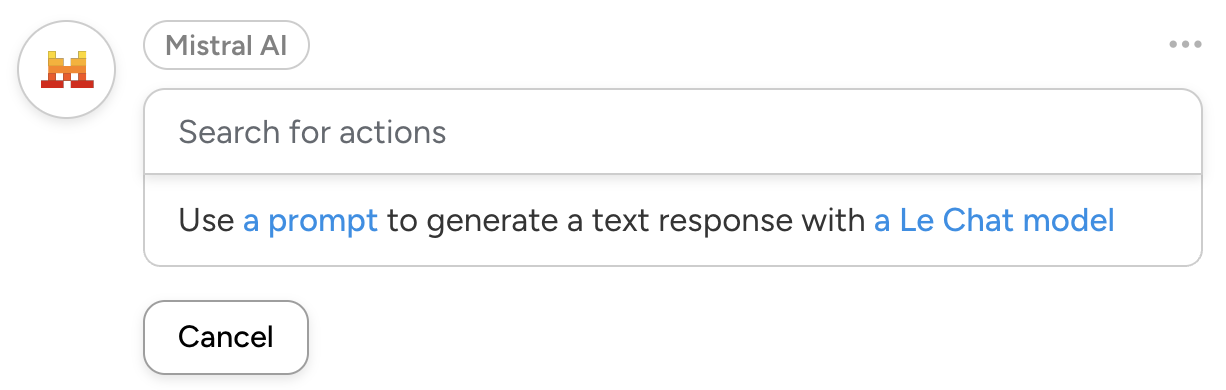
Once you select the action, Automator will present you with a form to customize your prompt. The options are:
Model: Mistral AI’s Le Chat has several AI models with different capabilities, speeds, and usage constraints. To learn more about the various models and their applications, click here.
Temperature: This parameter controls the randomness of the AI model’s response. Higher temperatures correlate to more randomness and “creativity”. To learn more about temperature, click here.
Max tokens: In large language models, tokens are the basic building blocks of text— words or parts of words—that the model reads and processes. To learn more about tokens, click here.
System Message: A set of instructions given to guide the AI model’s behavior and set its “role” or tone for a conversation or prompt. Examples could be:
- You are an experienced WordPress developer with a niche interest in AI models and LLMs.
- You are a passionate WordPress blogger with a flair for the poetic.
- You are an SEO expert with up-to-date knowledge of Google’s guidelines and practices.
Prompt: This is the prompt that will be sent to Mistral AI’s Le Chat model to tell it what text to generate. Examples could be:
- Write a blog post about how to connect WordPress to Mistral AI using Uncanny Automator.
- Write a poem about using AI to write WordPress blog posts.
- Write a story about the best automation plugin for WordPress adding support for Mistral AI.
Once you have configured your Mistral AI action, you can use Le Chat’s response in subsequent actions with the help of tokens.
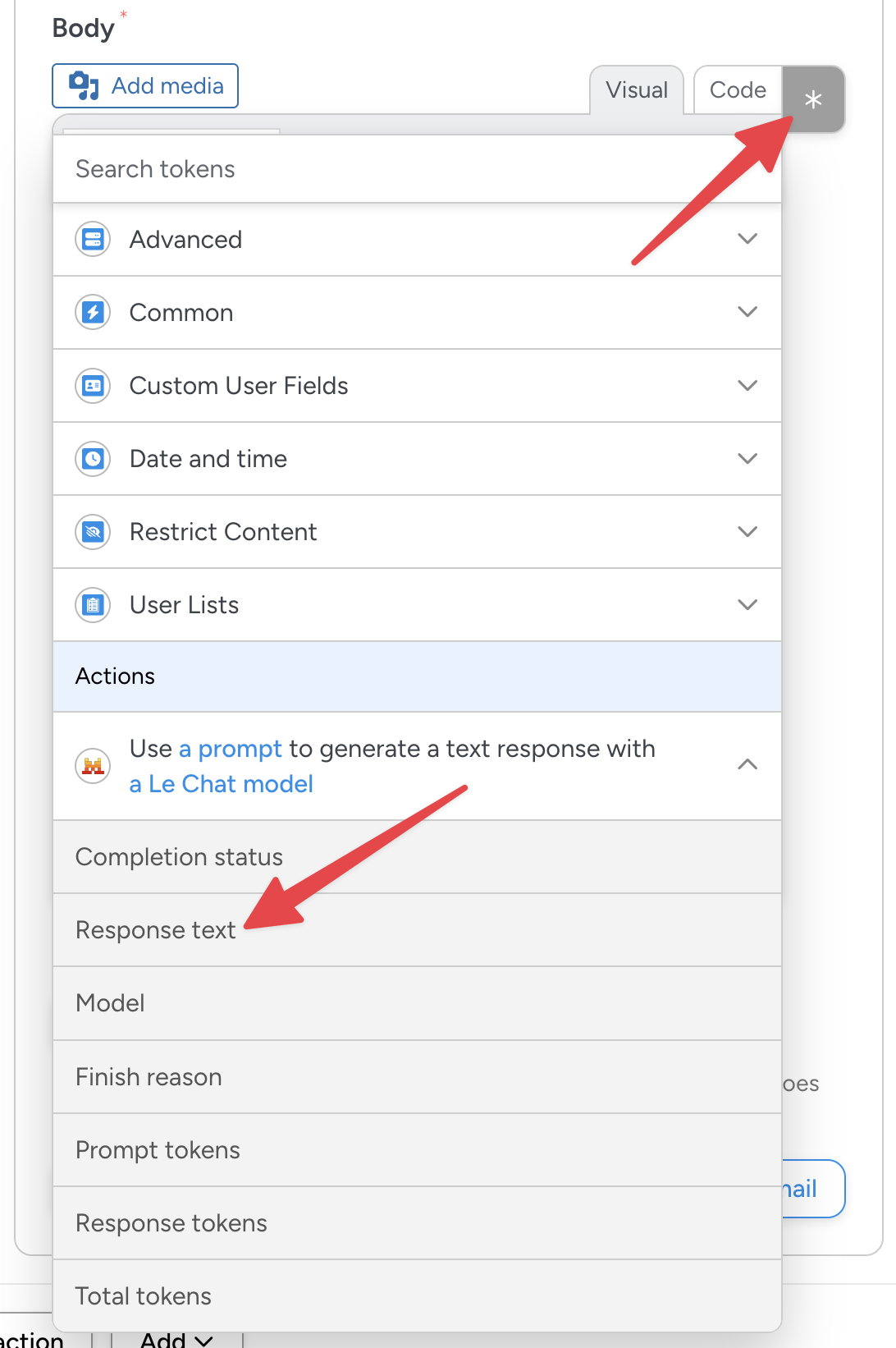
Best practices
AI integrations are powerful tools, and AI models often need a while (typically 5-30 seconds) to “think”.
In the free version of Uncanny Automator, actions in recipes that come after AI integration actions are blocked from running until Automator gets a response. That way, Automator can be certain that data from the AI integration is available for later actions.
For front-end user activities that involve AI integrations, waiting for the response could make your site seem briefly unresponsive. If this is an issue for your users, consider adding a delay to the AI integration and subsequent actions. This causes the action to be scheduled for execution in the background, and the front-end user won’t need to wait for the action to complete.
As a rule of thumb, you can schedule the AI integration action for 1-2 seconds after recipe completion. Any actions that rely on the AI integration action can be set for 45 seconds or longer after completion, ensuring that the AI model’s response has been generated.




















































This Post Has 0 Comments