

Uncanny Automator can create WooCommerce orders from a recipe, both regular purchases and subscription purchases made with WooCommerce Subscriptions. This article lists the order actions, walks through setting one up, and covers what the actions cannot do. The actions require Uncanny Automator Pro and an active WooCommerce; the subscription actions also need WooCommerce Subscriptions.
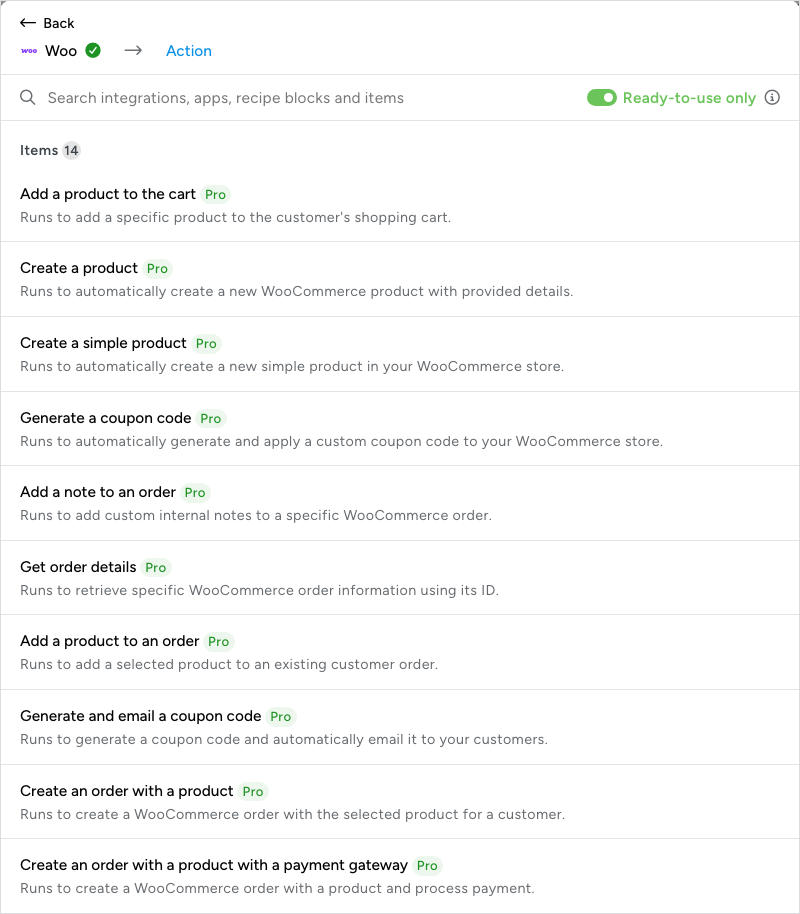
In the recipe builder’s picker, WooCommerce is listed as Woo and WooCommerce Subscriptions as Woo Subscriptions. The order actions are:
- Woo — Create an order with a product; Create an order with a product with a payment gateway
- Woo Subscriptions — Create a subscription order with a product; Create a subscription order with a product with a payment method
Add an order action to a recipe
- Open the recipe at Automator > Recipes, or create one from Automator > Add new recipe, and add its trigger; see Creating a recipe.
- Click the + at the end of the flow. In the picker, search for Woo (searching “WooCommerce” finds it too) and select Woo, or Woo Subscriptions for a subscription order.
- Choose the action, for example Create an order with a product.
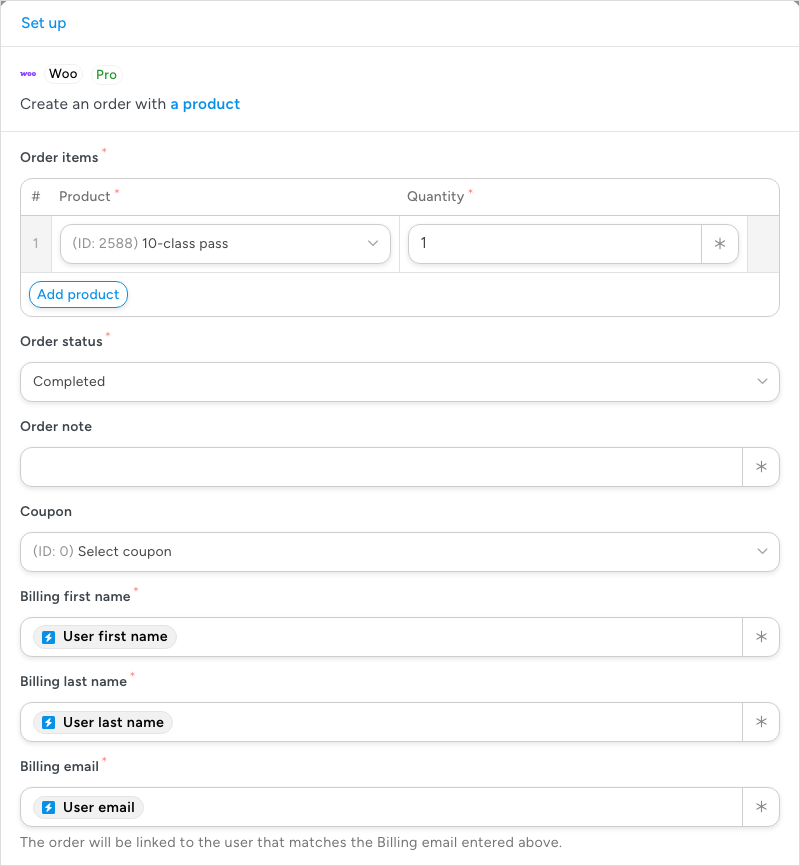
- In the Set up step, under Order items, choose a Product and enter its Quantity. Click Add product for each further product in the order.
- Fill in the other required fields: Order status, which is Completed until you change it, and Billing first name, Billing last name, and Billing email. The order is linked to the user whose email matches Billing email, so insert the User email token with the ∗ button when the order belongs to the person who triggered the recipe.
- Choose a Billing country/region. The field is not marked as required, but the action fails with “Failed to create order. Billing country is required” when it is empty.
- Fill in any optional fields the order needs: Order note, Coupon, the rest of the billing address, Use the same info for shipping?, Shipping method, and the shipping address. Shipping cost uses the shipping method’s own cost when left empty; enter
0for no shipping cost. The payment gateway version of the action adds a Payment gateway field (Payment method on the subscription action). The subscription actions show the same fields, with the order status labelled Status.
- Click Save. The order actions have no Test step, so Save finishes the Set up step.
Only a handful of fields are required, but they must hold valid data when the recipe runs: a published product, a real email address, and a country. Check that the tokens you use resolve to values like these before you switch Recipe on in the top bar.
The action returns tokens for later actions, such as Order ID, Order URL (admin), Order URL (user), and Payment URL, so a follow-up email can link the customer to their new order.
Things to know
- The order actions cannot process payments. The payment gateway and payment method versions record the gateway you choose as the order’s payment method; they do not take a payment.
- Custom order meta cannot be added as part of the action.
- Products are chosen at product level, so you cannot create an order for a specific product variation.
Related: Managing actions, Managing tokens, Finding integrations in the recipe builder

Comments (0)