

The RSS feed integration in Uncanny Automator Pro reads an RSS or Atom feed and runs the actions you choose once for every item in it: a post for each news story, an email for each new episode, a Slack message for each entry. This article covers the Process an RSS feed trigger and action on the Uncanny Automator 8.0 recipe builder, how the action skips items it has already processed, the per-item tokens, a worked example that creates a post from each new feed item, and the caveats.
RSS (Really Simple Syndication) is a web feed format that publishes a site’s latest items in a fixed structure: blog posts, news headlines, podcast episodes, video uploads. Most WordPress sites, YouTube channels, podcast hosts, and news sites publish one, usually at a URL ending in /feed or /rss. Automator reads both RSS 2.0 and Atom feeds.
Trigger or action
The integration offers a trigger and an action with the same sentence, Process an RSS feed, and they do different jobs:
- The trigger is for a one-time import. It is available in Everyone recipes only, and it runs when you click Run now in the builder’s top bar, where the button takes the place of the Recipe off / Recipe on switch, as it does for the Run now trigger. Every item in the feed is processed each time you run it.
- The action is for watching a feed. It works in either recipe type after any trigger, and it has two extra fields, Unique titles only and Use GUIDs, that let it skip items it processed on an earlier run. Put it after a Schedule trigger and the recipe picks up new items every hour or every morning.
For a feed you want to keep up with, use the action. For a feed you want to load once, use the trigger.
Setting up the feed
These fields appear on both the trigger and the action.
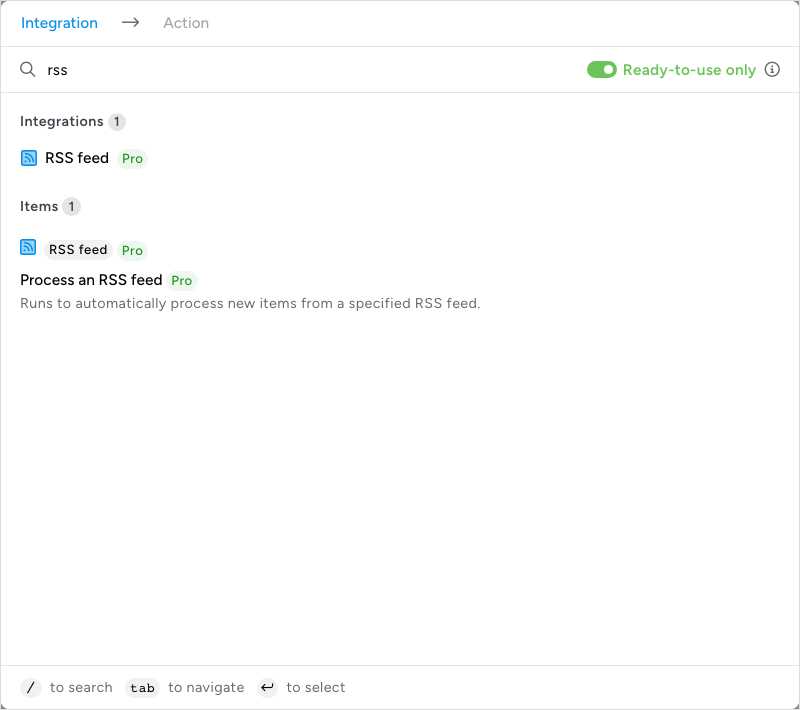
- Open the recipe and click Add trigger, or click the + at the end of the flow for the action. In the picker, type “rss” in the search box. The picker lists the RSS feed integration and the Process an RSS feed item, both with the Pro badge; click Process an RSS feed. Both are hidden while Ready-to-use only is on unless Uncanny Automator Pro is active and licensed.
- In the Set up step, choose a Data source. Link to file is the usual choice for a feed. Upload file, selected by default, is for a feed you have saved as an XML file and uploaded to the media library.
- Fill in Describe data with a short label for the feed (“News feed”, “Podcast episodes”). It completes the sentence Process Describe data: at the top of the step and on the canvas, and the Loop block shows it after Loop through. With Link to file, paste the feed URL into the Link to file field.
- Limit items caps how many items are read from the top of the feed. It is blank by default, which reads the whole feed (the hint says “Leave empty for no limit”). Set it when a feed is long or its publisher limits requests; ten is plenty for a feed you check hourly.
- On the action only, set Unique titles only and Use GUIDs (next section).
- Click Save. The RSS items have no Test step, so the modal offers Cancel and Save only.
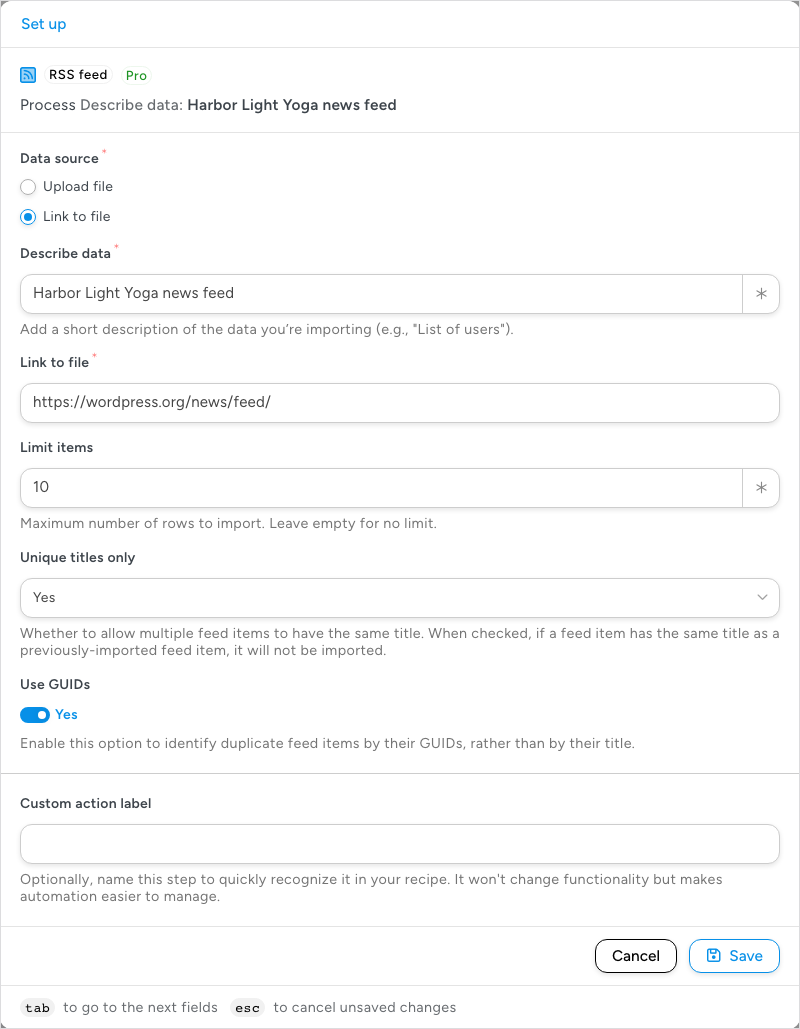
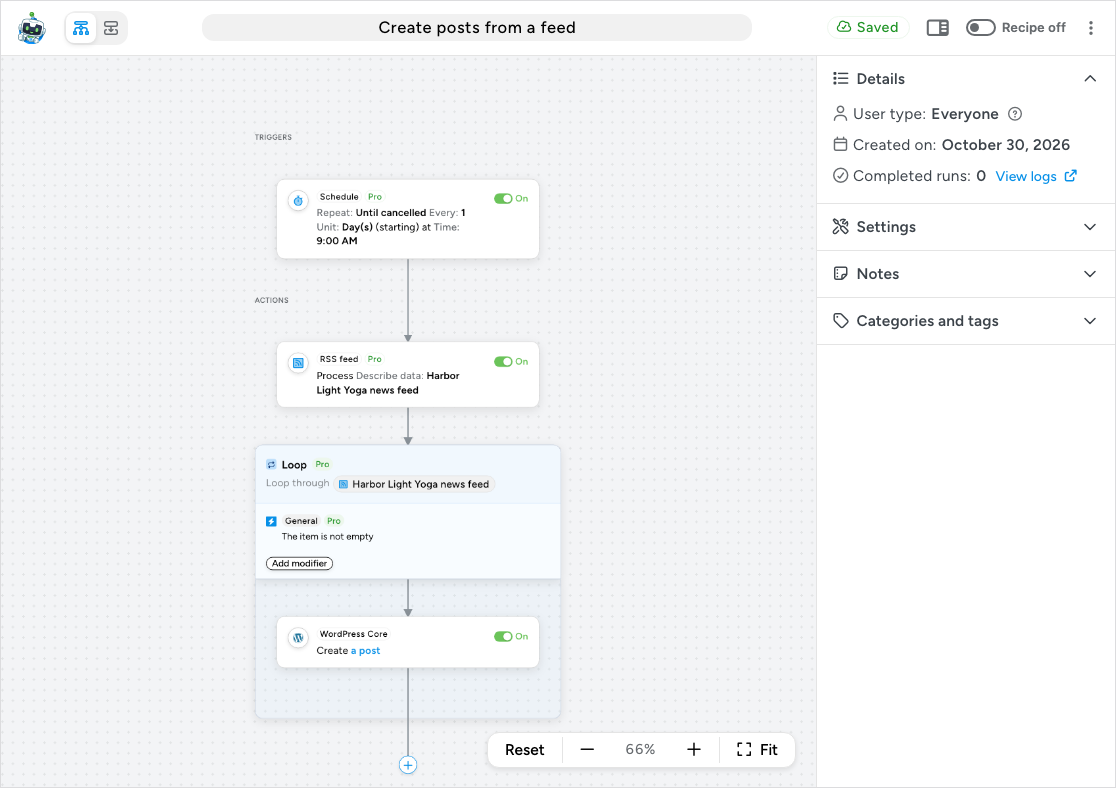
When you save, Automator fetches the feed, records the structure of its first item so the token picker can list the fields, and adds a Loop block under the action in the ACTIONS section. The block reads Loop through followed by your Describe data label (Loop type Token, pointing at the feed’s items), and its modifier row shows the loop filter The item is not empty with an Add modifier button. Every action you add inside the block runs once per feed item. The block is added once, the first time the item is saved with Describe data filled in; if you delete it, add a Loop block from the picker’s Recipe blocks, choose Token, and pick the feed’s token with the ∗ button. The picker on that field lists only loopable tokens.
Skipping items already processed
Each time the Process an RSS feed action runs, it records the title and GUID of every item it hands to the loop. Two fields decide whether an item seen before is handed over again:
- Unique titles only: with Yes, an item whose title matches an item this action processed earlier is skipped. The field’s help text reads “Whether to allow multiple feed items to have the same title. When checked, if a feed item has the same title as a previously-imported feed item, it will not be imported.” The field shows Yes when the action is first opened. Choose No only when you want every run to process every item.
- Use GUIDs is a switch that shows No until you enable it. When it is on, items are matched by their GUID instead of their title, and the title check is not used. A GUID (globally unique identifier) is the identifier a feed assigns to each item, and it is the reliable way to tell new content from old: a corrected headline keeps its GUID, and two different stories can share a title.
For a feed you watch on a schedule, set Unique titles only to Yes and turn Use GUIDs on. When a run skips items, the action completes with a notice in the log, “N items were skipped from the RSS feed because they were not unique”, and only the new items reach the loop.
The record of processed items belongs to the action, not the feed, so a second recipe watching the same feed starts from scratch. Items with an empty title (or an empty GUID when Use GUIDs is on) stop the action with an error that the feed is malformed, because there is nothing to compare.
Feed item tokens
Inside the Loop block, the token picker lists the feed item’s tokens on its From previous steps tab, in a group headed Loop that also holds Loop iteration. The tokens are the elements of a feed item as the feed publishes them. For a typical RSS feed that means title, link, guid, pubDate, description, and content:encoded (the full HTML body), plus whatever else the publisher includes, such as media:thumbnail for an image. Namespaced elements keep their names as written, colon included. Not every feed has every element; open the token picker to see what yours offers.
An Atom feed is converted to the RSS shape before it reaches the picker, so its entries appear as items with the same core tokens (title, link, guid, pubDate, description, content:encoded) plus authors, contributors, and categories, each a comma-separated list. Other namespaced elements, such as YouTube’s yt:videoId or media:group fields, are kept.
Token values keep their HTML. Insert content:encoded into a post content field and the formatting survives; insert it into a plain-text field such as an email subject and you get the tags as text, so use title or description there.
Example: create a post from each new feed item
This recipe checks a feed every morning and creates a draft post for each item it has not seen before.
- Go to Automator > Add new recipe, choose Everyone in the Select a recipe type modal, and click Confirm.
- Click Add trigger, search for “schedule”, and choose the Schedule trigger Repeat every hour, day, week, month or year at a specific time. Set it to repeat every day at the time you want, and click Save.
- Click the + at the end of the flow, search for “rss”, and click Process an RSS feed.
- Choose Link to file, enter a Describe data label, paste the feed URL into Link to file, set Limit items to 10, set Unique titles only to Yes, turn Use GUIDs on, and click Save. The Loop block appears under the action.
- Click + Add inside the Loop block and choose WordPress Core > Create a post.
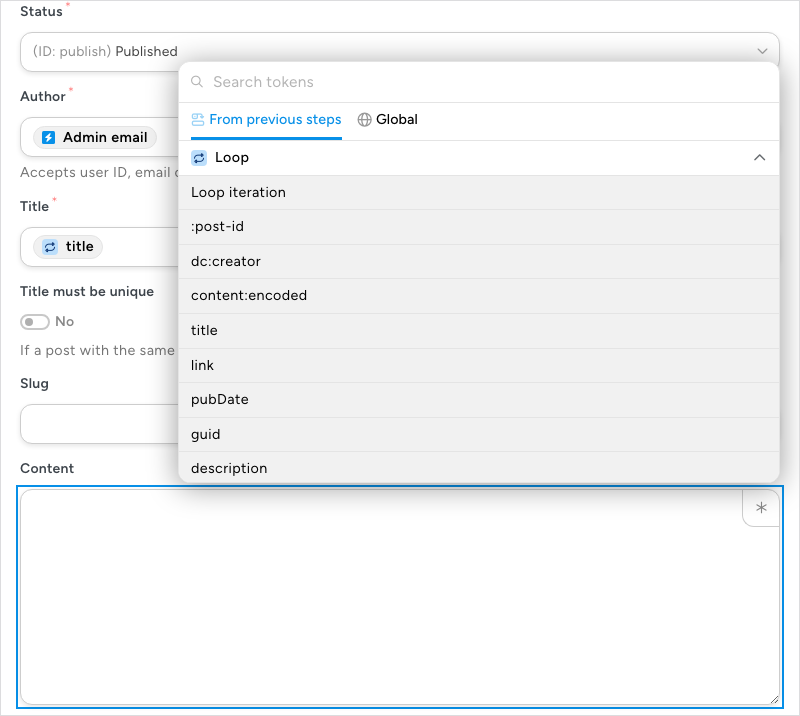
- Set Status to Draft so you can review each post before it goes live (it starts at Published). Author holds the Admin email token, so the posts are credited to the site’s admin email account; replace it if another user should be the author. In Title, click the ∗ button and insert the feed’s title token from the Loop group. In Content, insert content:encoded (or description for a summary) and add a line linking back to the source with the link token.
- Click Save. Create a post has no Test step. The canvas now shows the Schedule trigger, the RSS feed action, and the Loop block with Create a post inside it.
- Switch Recipe on.
The first run creates a post for each of the ten most recent items. Later runs create posts only for items that have appeared since, because Use GUIDs skips the rest.
To send an email per item instead, add Emails > Send an email inside the loop in place of Create a post, with the title token in the subject and description and link in the body. To post each item to Slack, Facebook, or another app, use that app’s action the same way.
Things to know
- Some feeds limit access. Publishers throttle or block clients that fetch too often or too much. Unless you know a feed’s limits, set Limit items and schedule the recipe hourly or daily rather than every few minutes.
- Linked feeds. The feed URL must be public. Automator fetches it with a 25-second timeout, follows up to three redirects, and accepts only a successful (200) response with content; addresses on private or internal networks are refused. If the feed cannot be fetched when you save, no tokens are generated, and you notice this when the Loop group in the token picker has no feed tokens.
- Target specific items. To act on some items only, add a loop filter with Add modifier on the Loop block (The item meets a condition compares a field such as the author or a category with a value), or put a Filter block inside the loop to send items down different paths.
- Feeds differ. Every feed chooses its own elements and formats dates and content its own way. Test a new recipe against the real feed, and use the Formatter or an AI integration’s action inside the loop to reshape a value before it reaches a post or an email.
- Test with reliable feeds. When you are learning the integration, use a well-known feed such as the one from WordPress.org, NASA, or the BBC, then switch to yours.
- Finding a feed. Adding
/feedor/rssto a site’s address reaches most feeds. Some sites have turned theirs off. - Attribution and fair use. Most publishers, news sites in particular, set rules for reusing their feed content. Check them before you switch a recipe on that republishes items.
- Files other than feeds. To loop through a spreadsheet export, a JSON list, or an XML file that is not a feed, use the CSV, JSON, or XML integrations instead; see Import from an XML, JSON or CSV file.
Related: Import from an XML, JSON or CSV file, Loop block: users, posts and tokens, Schedule, Run Now, Recipes for Everyone, Filter block and conditions, Managing tokens.

Comments (0)