

The Dynamic Content Addon adds dynamic content blocks to your site: blocks of content that recipes update while visitors are on the page, with no page reload. A block can show the same content to everyone or different content to each logged-in user. This article covers creating a block, placing it on a page, and updating it with the five Dynamic Content actions.
You need the Dynamic Content Addon installed and active, which requires the Elite plan, and Uncanny Automator Pro, which the addon runs on. Some examples of what dynamic content blocks are used for:
- Sitewide alerts and notifications
- An RSS feed display
- Order status updates
- Daily course progress reports, challenges, or quizzes
- Upcoming event notices
- Leaderboards
- Calls to action that change with the visitor
- Geo-targeted content
- A personal shopping assistant
What dynamic content is
Dynamic content changes with what users do, what they prefer, or what happens on the site. Static content stays the same until someone edits it. A dynamic content block is updated by a recipe, and every page that shows the block picks up the new content on its own. Notices of recent purchases, product recommendations, and personalised messages are all dynamic content you have likely met on other sites.
Types of dynamic content blocks
Each block has a type, chosen when you create it:
- Global: the same content for everyone who views the block. Use it for sitewide activity streams, RSS feed displays, and announcements. New blocks are Global until you change the type.
- User: each logged-in user sees their own content. Use it for features that personalise the experience, such as order status updates or product recommendations. Logged-out visitors, and users who have no content of their own yet, see the block’s default content: what you entered when you created the block.
Creating a dynamic content block
Dynamic content blocks are created like pages or posts, in the WordPress block editor, so you can write a block’s content by hand (for a User block, its default content).
- In your WordPress dashboard, go to Automator > Dynamic content blocks. The addon adds this item to the Automator menu, below Add new recipe.
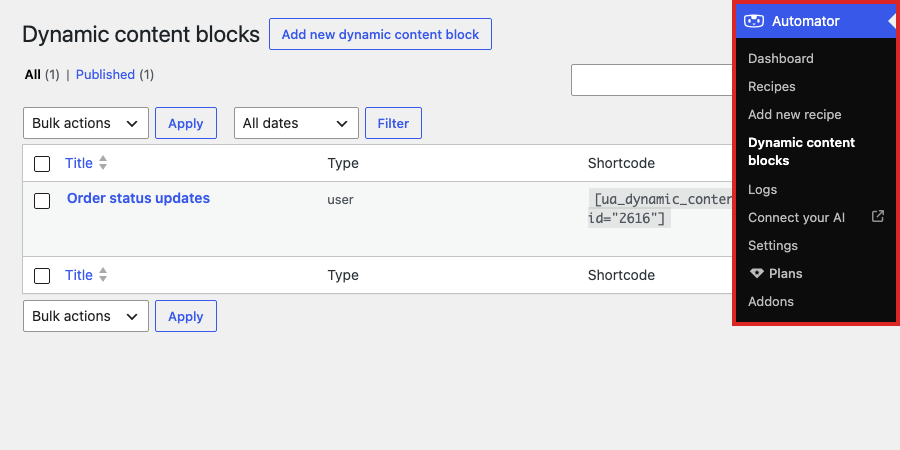
- Click Add new dynamic content block.
- Enter a title. Recipes and the block editor list blocks by title, so name the block after what it shows, such as Order status updates.
- In the editor’s sidebar, click the Dynamic content block tab and, under Type, choose Global or User. Typing in the content switches the sidebar to its Block tab, so come back to the Dynamic content block tab if you set the type later.
- Add the content with blocks, as you would on a page. For a User block, this is the default content.
- Click Publish.

Adding a block to a page
You can place a dynamic content block on any page, post, product, course, event, or other content type in two ways:
- The Dynamic Content Block: in the block editor, add the Dynamic Content Block (it is in the Widgets category) and choose your block from Select a block….
- The shortcode: the Shortcode column at Automator > Dynamic content blocks shows each block’s shortcode, such as
[[ua_dynamic_content id="123"]]. Paste it anywhere that accepts shortcodes, including page builder elements.

Once a block is on a page, the page shows the block’s current content and picks up updates without a reload. Open pages check for new content every 1,000 milliseconds (one second). To change that, go to Automator > Settings > Addons > Dynamic content blocks and set Blocks refresh interval in miliseconds (the field’s label, spelled as on screen), with 250 as the lowest value accepted. A shorter interval shows changes sooner but makes every open page check more often.
Updating a block with a recipe
Once your blocks are on your pages, recipes can change their content. This example keeps an order status feed up to date on each customer’s account page, using a User block named Order status updates.
- Go to Automator > Add new recipe. In Select a recipe type, choose Logged-in users and click Confirm.
- Click the title field and type a name for the recipe.
- Click Add trigger. In the picker, search for “WooCommerce”, click Woo, then A user’s order status changes to a specific status. Choose the status and click Save.
- Click the + under the trigger. In the picker, search for “dynamic content” and click Dynamic Content to see its five actions.
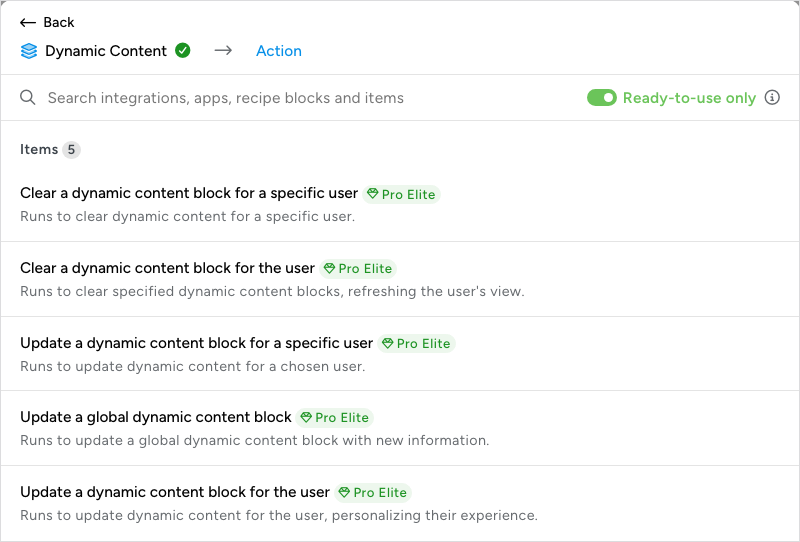
- Click Update a dynamic content block for the user.
- In the Set up step, choose the Block and a Mode:
- Replace: removes the content already in the block and puts the new content in its place. Choose it when the block should show only the latest update.
- Append: keeps the existing content and adds the new content at the end. Choose it for a running feed.
- In Content, write what the block should show. Insert tokens with the ∗ button so the content carries the data from the event, such as the trigger’s Order ID and Order status and the Current date and time.
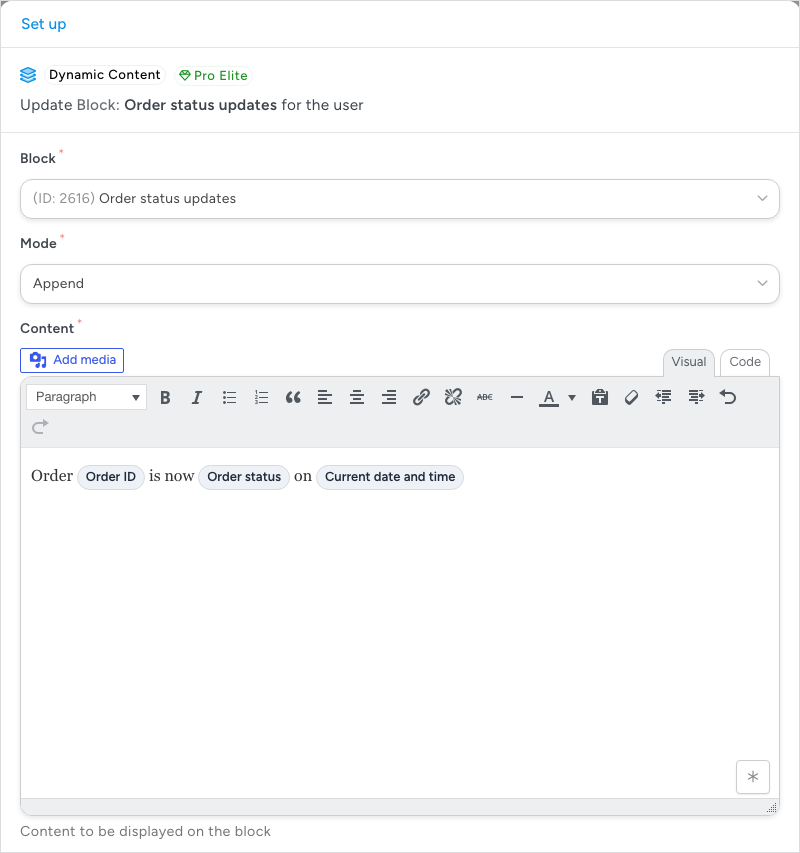
- Click Save. The Dynamic Content actions have no Test step, so the Set up step ends with Cancel and Save.
- Switch Recipe off to Recipe on.
From now on, each time one of the customer’s orders reaches that status, a line is added to their Order status updates block. To show images or video in a block, see Including media in dynamic blocks below.
The five Dynamic Content actions
The Block list in each action shows only blocks of the matching type: Global blocks appear only in the global action, and User blocks only in the four user actions. If the block you want is missing from the list, check that the action matches the block’s type.
For User blocks:
- Update a dynamic content block for the user: replaces or appends content in the block of the user who triggered the recipe. This is the action you will use most, because it allows the most personalisation: curated content feeds, product recommendations, a personal shopping assistant.
- Update a dynamic content block for a specific user: replaces or appends content in any user’s block. Enter the user’s ID in User, typed or as a token. Use it to notify group leaders and other site contributors about what their users do.
- Clear a dynamic content block for the user: removes the content from the block of the user who triggered the recipe, so the block shows its default content to that user again. Select Clear for all users to reset the block for every user at once.
- Clear a dynamic content block for a specific user: removes the content from any user’s block, identified by user ID in User. Use it when resetting a user’s account or history.
The two “specific user” actions do not depend on the recipe’s user, so they also work in recipes for Everyone, and adding one to an Everyone recipe does not add the Run actions as card.
For Global blocks:
- Update a global dynamic content block: replaces or appends content in a block every visitor sees. Use it for a sitewide activity stream, a ticker, or site announcements.
The three Update actions give later actions in the recipe two tokens: Previous block content and Updated block content.
Including media in dynamic blocks
Images, video, and other media can go into an action’s Content field like any other content. To insert media from a URL held in a token, write a little HTML in the field’s Code tab (the Content field has Visual and Code tabs):
- An image from an image URL token:
<p><img src="{URL}"></p> - A video from a video URL token:
<p><embed src="{URL}"></p>
In both, replace {URL} with the token that holds the address. To show a YouTube video from a URL, add a YouTube Embed block when you create the dynamic content block.

Richer layouts, such as a formatted multimedia RSS feed or a leaderboard, need HTML and CSS in the Content field. If you can write basic HTML, or ask an AI app to write it for you, you can lay a block out any way you like.
Things to know
- Editing a block by hand. Open the block at Automator > Dynamic content blocks and edit it like a page; open pages pick up the change without a reload. For a Global block, every visitor sees the new content. For a User block, you are editing the default content, which logged-out visitors and users without content of their own see; each user’s own content is not touched.
- Resetting a block. Edit it by hand, or, for a User block, run one of the two Clear actions. To reset a Global block from a recipe, use Update a global dynamic content block in Replace mode with the content the block should show instead.
- Blocks inside a dynamic content block. Add them by hand in the editor. From a recipe, write them into the Content field as block markup.
- A dynamic content block inside other blocks. The Dynamic Content Block can go only inside blocks that accept inner blocks, such as Group or Columns. Anywhere else that accepts shortcodes, use the shortcode.
Related: Installing the Dynamic Content Addon, Creating a recipe, Finding integrations in the recipe builder, Managing tokens, Recipes for Everyone.

Comments (0)