

The Plugin Actions integration in Uncanny Automator Pro has one trigger, Create a custom trigger for a plugin action hook. It starts a recipe whenever a plugin on your site fires a WordPress action hook you name, so you can automate a plugin that has no Automator integration of its own. This article explains how action hooks work, how to add the trigger, how to capture the hook’s arguments with the Test step, and how to use those arguments as tokens.
Note: This trigger needs some technical knowledge. You must know the name of the hook you want to use, and Uncanny Owl cannot provide information about another plugin’s hooks or arguments. The trigger does not work with every hook; see Things to know at the end.
How action hooks work
WordPress plugins announce events by calling do_action with a named hook. When a learner completes a LearnDash course, for example, LearnDash calls the hook learndash_course_completed. Automator’s own LearnDash trigger A user completes a course listens for that hook, which is how it knows to start a recipe.
The Plugin Actions trigger lets you do the same with any hook. Enter the hook’s name, and the recipe runs each time a plugin calls it. The data the plugin passes along with the hook (the hook’s arguments, such as the ID of the completed course) becomes tokens for the recipe’s actions.
Find the hook name
Hooks are written for developers, so their names are usually in a plugin’s developer documentation or its source code. If you cannot find the hook you need, ask the plugin’s author:
- “I’d like to react when [a specific event] happens in your plugin. Is there a
do_actionhook for that?” - If yes, ask for the hook’s name and how many arguments it passes. Enter the name in the trigger as described below.
- If no, ask whether they can add a hook that fires when that event happens.
Add the trigger
The trigger runs for everyone rather than for a logged-in user, so it belongs in an Everyone recipe. In a Logged-in users recipe the picker shows it disabled with the note “This trigger runs for everyone and cannot be used in a recipe for logged-in users.” If the recipe’s actions need a user, the Run recipe as card lets you pick one from the hook’s data; see Recipes for Everyone.
- In your WordPress dashboard, go to Automator > Add new recipe, select Everyone, and click Confirm.
- Click Add trigger, search for Plugin Actions, select the integration, then select Create a custom trigger for a plugin action hook.
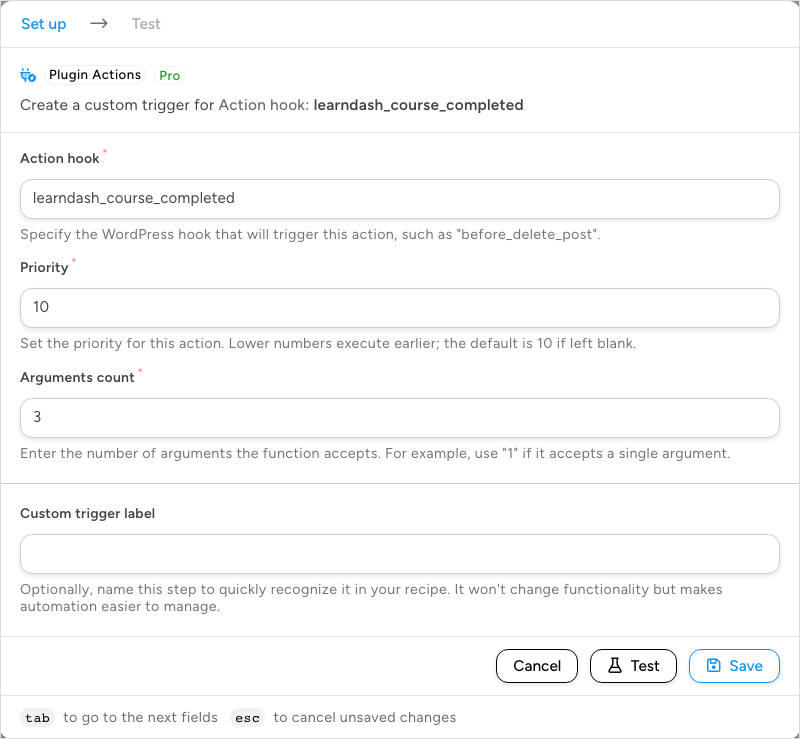
- In Action hook, enter the hook’s name exactly as the plugin uses it, for example
learndash_course_completed. The sentence at the top of the step changes to Create a custom trigger for Action hook: followed by the name. - Priority opens on 10, the usual WordPress priority. Keep it unless you need the recipe to run before or after other code attached to the same hook. Lower numbers run earlier. The field is required: Test and Save are refused while it is empty.
- In Arguments count, enter how many arguments the hook passes. Enter 1 if you are not sure; you can raise it after the Test step shows you what arrives.
- Click Save to add the trigger to the recipe, or click Test to capture the arguments now. The Test step listens for the saved hook name, so Test saves the trigger first and then opens the Test step.
Capture the arguments with the Test step
Automator cannot read a plugin’s code to learn what a hook passes. Instead, the trigger listens for the hook to fire once and records the arguments it receives. On 8.0 this happens in the trigger’s Test step, which replaces the Capture hook data button of earlier versions. Testing triggers and actions describes the Test step in general.
- Get ready to make the event happen. For
learndash_course_completed, that means having a test course a user can finish in another browser tab. - If you saved and closed the trigger, click it on the canvas to open it again (the node shows the hook name you saved). Click Test.
- Click Listen for hook. The Capture hook data card changes to Running with the hint “Fire the saved action hook anywhere on this site to capture its arguments as sample data.”, the button becomes Stop listening, and a countdown starts at 1:00. Save changes (pass tests first) stays disabled until the test passes.
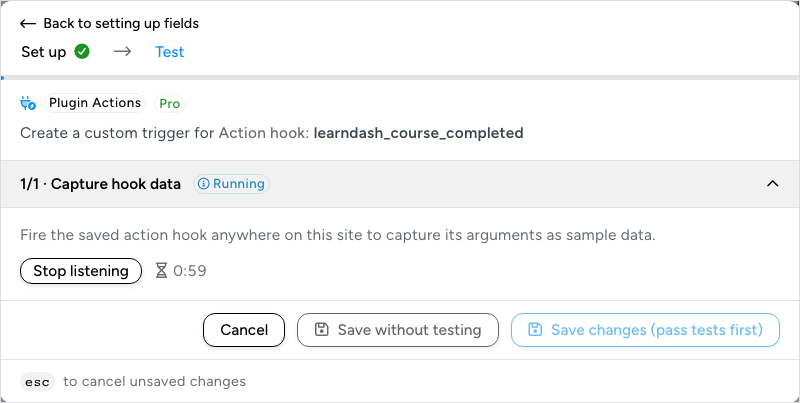
- Within the minute, make the event happen on your site so the plugin fires the hook.
- When the hook fires, the card shows Test passed and “The hook fired!” with a Key and Value table listing each argument and the value it carried.
- Click Save changes. The captured arguments become the trigger’s tokens.
If the hook does not fire within the minute, the test fails with “The hook did not fire within the time limit.” and any earlier capture is kept. If the save that Test makes first is refused, the Set up step stays open with the reason.
Use the arguments as tokens
Each captured argument appears under the trigger in the token picker as argument_0, argument_1, argument_2, and so on, in the order the hook passes them. When an argument is an array or an object, its contents are listed as separate tokens named after the argument and the key, such as argument_1.user_id, with a period between each level. A list of simple values is joined with commas; anything more complex is given as JSON. Boolean values appear as true or false.
The table in the Test step shows you what each argument held when the hook fired, so you can tell which token is the course ID and which is the user ID before you build the actions. If you need to inspect a value during a real run, add an Emails > Send an email action or a Logging > Write data to the log action that outputs the token, switch the recipe on, and fire the hook once.
Insert a token by opening an action, clicking the ∗ button at the end of a field, and choosing it from the trigger’s section. See Managing tokens.
Things to know
- Hooks that fire before
plugins_loadedcannot be used. Automator is not running yet when they fire. This rules outmuplugins_loaded,init,wp_loaded,before_setup_theme,after_setup_theme, andload-{page_hook}, among others. - Arguments count matters. WordPress only passes as many arguments to a listener as it asks for. If a token you expect is missing, raise Arguments count, save, and capture again.
- Test captures the saved hook. If you change the hook name, save the trigger before listening again.
- Capture hook data is gone. On 8.0 the Test step records the arguments; there is no separate button in the Set up step.
- A full integration is the long-term fix. If a plugin’s hooks do not give you what you need, its developer can build an Uncanny Automator integration. Resources are at developer.automatorplugin.com.
Related: Testing triggers and actions, Recipes for Everyone, Managing tokens, Incoming webhook triggers, Moving to the new recipe builder

Comments (0)