

Uncanny Agent is built into Uncanny Automator, so there’s nothing to install. Once Automator is active on your site, Agent is ready to use.
Note: Access to Uncanny Agent requires an Uncanny Automator Pro AI + Automation plan. If you have a Legacy Automator license, you can upgrade at any time.
Opening Uncanny Agent
- Log in to your WordPress Admin Dashboard.
- Look for the Uncanny Agent tab at the bottom of the page. Click the Uncanny Agent tab to open the chat panel.

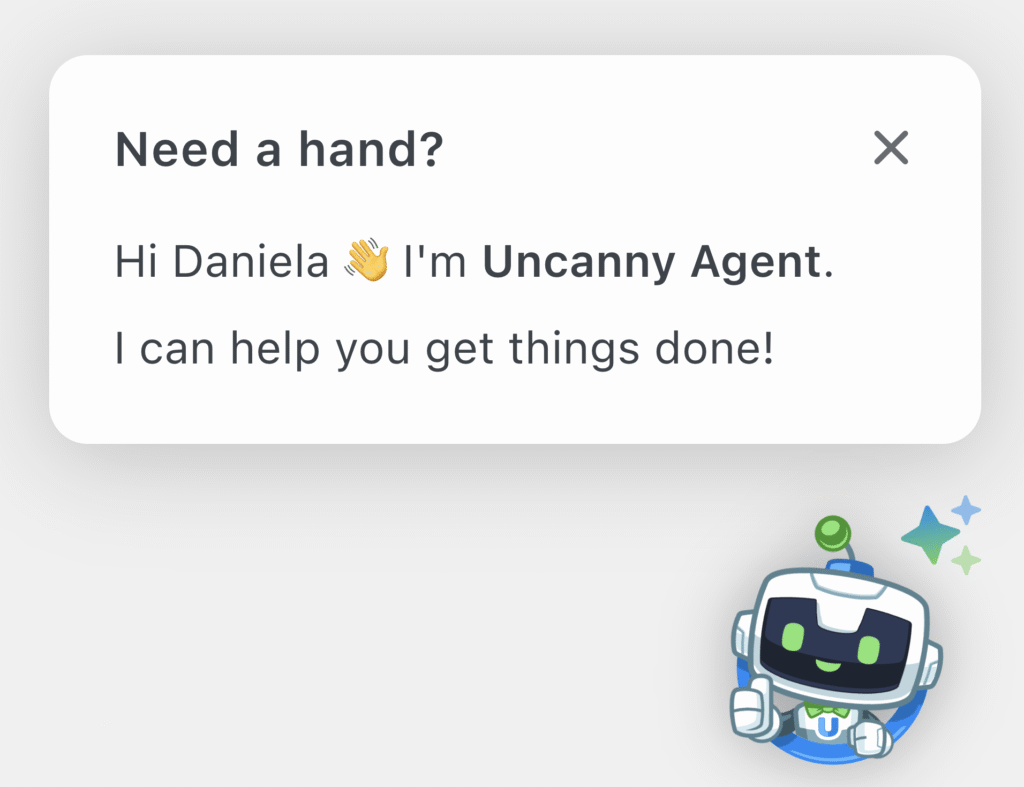
- When it’s your first time using Uncanny Agent, you’ll see a small “Need a hand?” prompt with the message “Hi 👋 I’m Uncanny Agent. I can help you get things done!”
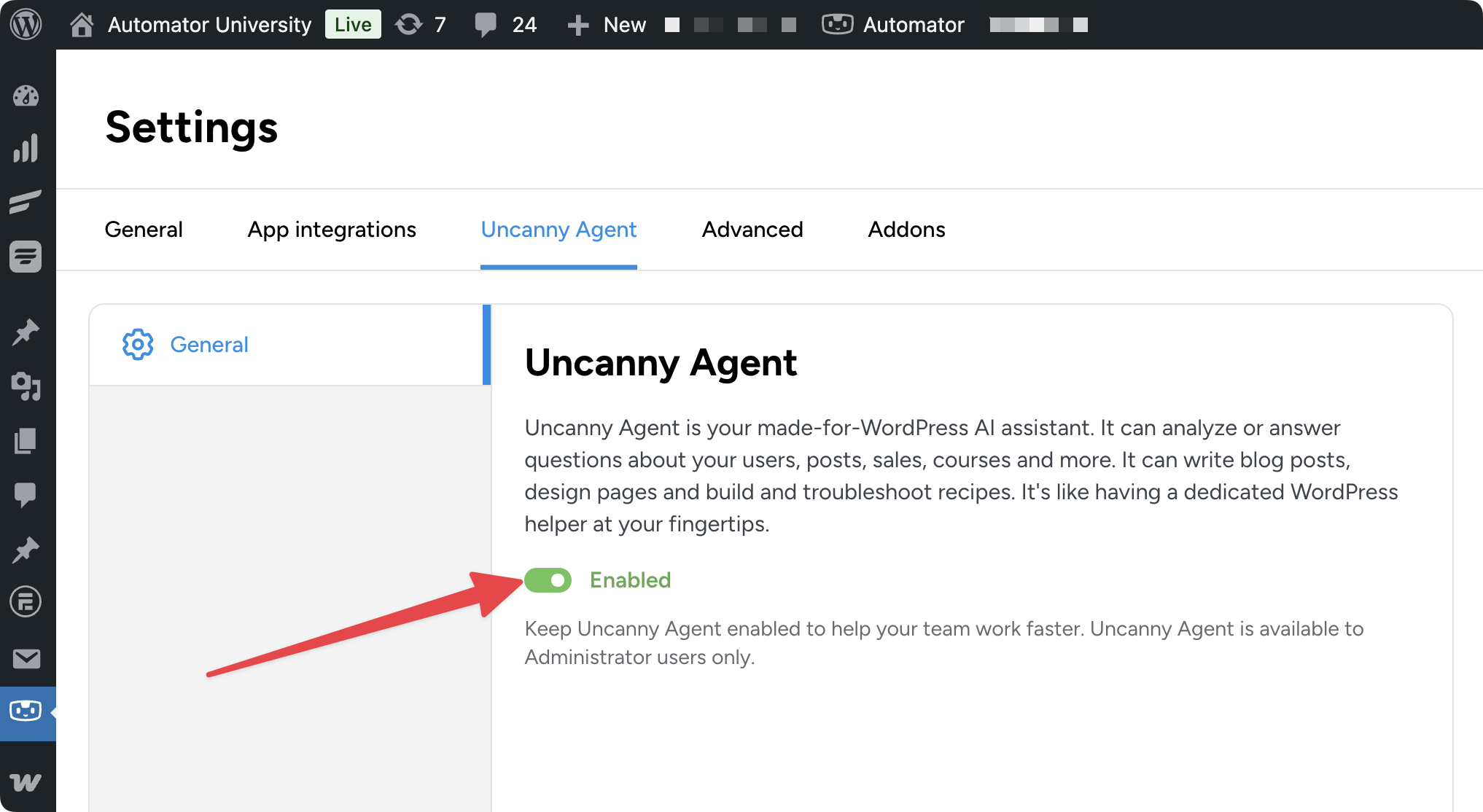
- Still don’t see Uncanny Agent? Head to Automator > Settings > Uncanny Agent and make sure that the toggle is green and switched to “Enabled“.
If you’re on an Uncanny Automator screen (Recipe Builder, Settings pages, etc.), Uncanny Agent slides out as a panel on the right side of your screen. The rest of the WordPress admin stays exactly where it was, so you can keep working while you chat.
In other WordPress screens, Automator opens as a separate window.
Your first conversation
The first time you open Uncanny Agent, you’ll see a friendly welcome and, depending on what screen you’re on, a few suggested prompts to get you started.
You can click any of these suggestions or type your own request in the Ask anything box at the bottom and press Enter.
What happens next
When you send a message, Uncanny Agent reads your request, decides which tools it needs (looking up data, creating content, building a recipe, etc.), and then either does the work or asks a clarifying question. You’ll see a status line like “Working…” while it’s thinking, and a summary of everything it did when it’s finished.
For tips on writing prompts that get great results, read How to ask Uncanny Agent for help.
Closing or reopening the panel
Click the Uncanny Agent tab again (or the close icon at the top of the panel) to dismiss it.
Your conversation isn’t lost. Uncanny Agent saves your chat history automatically. See Managing your Uncanny Agent conversations for more on history, search, rename and delete.























































Comments (0)