

The Formatter is a built-in integration, so there is no account to connect. Its actions take a value (typed text or a token from earlier in the recipe), change its format, and hand the result to later actions as a token: a date turned into a timestamp, a product name in uppercase, a price rounded to two decimals. The Formatter requires Uncanny Automator Pro.
Five actions appear under Formatter in the recipe builder’s picker, each with the Pro label:
- Convert date into format
- Extract the first word from a string
- Convert number into format
- Replace values in a string
- Convert text into format
The three Convert actions are the ones with a choice of output format; their options are listed below. To add any of them, click the + at the end of the recipe’s flow, search for Formatter in the picker, select the action, fill in the Set up step, and click Save. Formatter actions have no Test step.
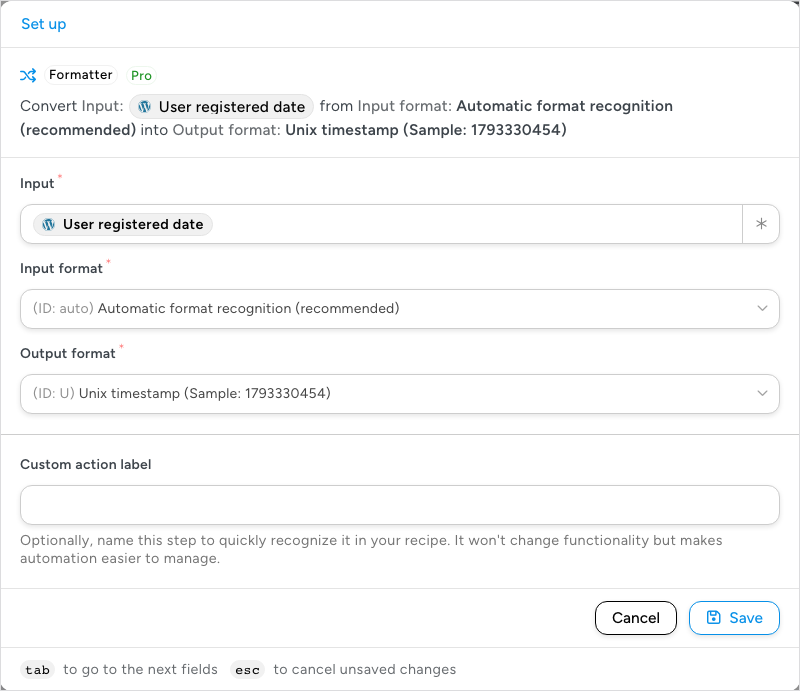
The example below uses Convert date into format. Its Input holds a date token from the trigger, here the user’s registration date. Input format is left on Automatic format recognition (recommended), which lets Automator detect the format and is what we recommend. Output format is set to Unix timestamp, and the dropdown shows a sample of each format.
Supported output formats
Date output formats
Convert date into format accepts any value that holds a date and can output it as:
- Mmm DD, YYYY
- MM/DD/YYYY
- MM/DD/YY
- DD/MM/YY
- DD/MM/YYYY
- ISO 8601
- RFC 2822
- Unix timestamp
- The day of the month (from 01 to 31)
- A textual representation of a day (three letters)
- The day of the month without leading zeros (1 to 31)
- A full textual representation of a day
- Simple time (12 hour format)
- Time with seconds (12 hour format)
- Simple time (24 hour format)
- Time with seconds (24 hour format)
- Timezone offset in seconds
- Timezone abbreviation
- Difference to Greenwich time (GMT) in hours:minutes
- Difference to Greenwich time (GMT) in hours
- Whether the date is in daylight saving time (1 if Daylight Saving Time, 0 otherwise)
- The ISO-8601 numeric representation of a day (1 for Monday, 7 for Sunday)
- A full textual representation of a month (January through December)
- A numeric representation of a month (from 01 to 12)
- A short textual representation of a month (three letters)
Text output formats
Convert text into format offers:
- Uppercase
- Lowercase
- Title case
- Capitalize first letters in words
- Escape HTML
- Remove HTML
- Trim spaces around the string
- Shuffle
- Reverse
- Slugify
- Character count
- Word count
- md5 hash
- sha256 hash
- Nonce create
- URL encode
- URL decode
- Extract Email address
- Extract URL
- Remove spaces
Number output formats
Convert number into format offers:
- Round to integer
- Round to one decimal place
- Round to two decimal places
- Currency English notation (1,234.56)
- Currency French notation (1 234,56)
- Currency with dot decimals (1 234.56)
- Round down (floor)
- Round up (ceil)
- Is even (returns 1 for even values, 0 for odd)
- Default zero (replace empty value with zero)
Using formatted data in a recipe
A Formatter action’s result is available to the actions after it as an action token. Action tokens are filled in only once the action that produces them has run, so keep each Formatter action above the action that uses its output; actions run in the order they appear on the canvas (see Managing actions).
Suppose you want to add one full day (24 hours) to a date that comes from the trigger, such as a date field in a submitted form or the user’s registration date, and store the result in user meta in the “Mmm DD, YYYY” format. That takes three actions:
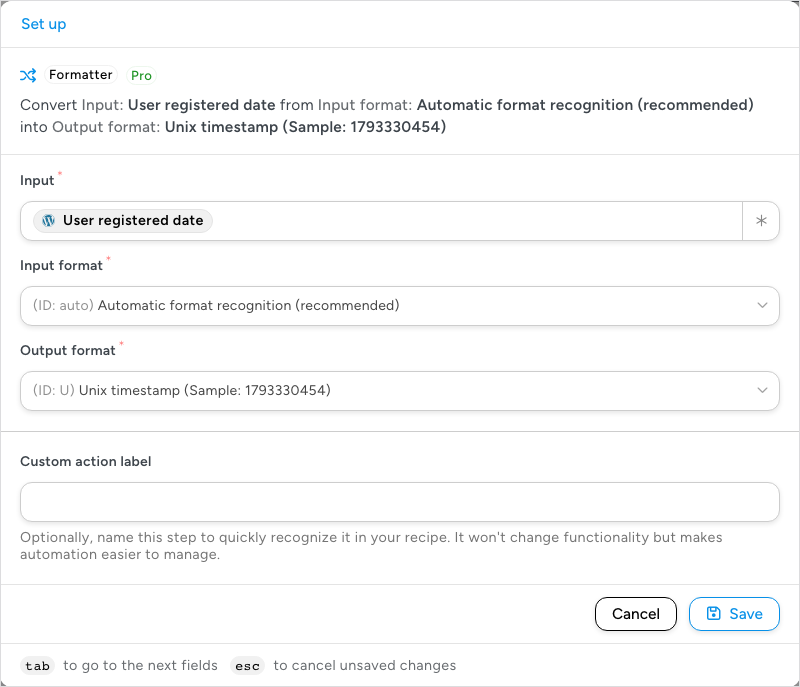
- A Convert date into format action turns the date token into a Unix timestamp, with Input format left on automatic recognition. A timestamp is a whole number of seconds, so the next step can do arithmetic on it. The action’s result is a token named Output.
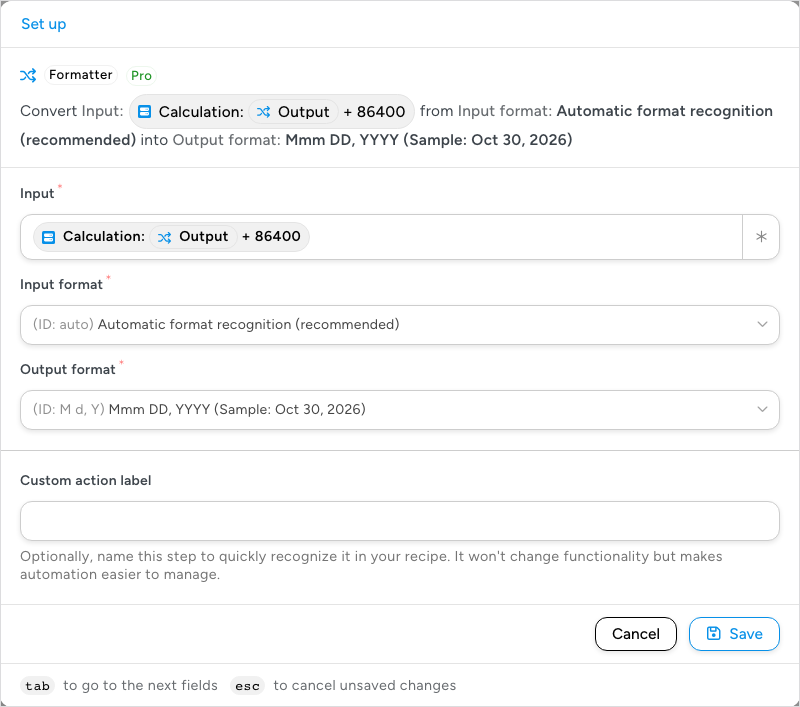
- A second Convert date into format action takes a Calculation token as its input. Click the ∗ button in Input, open the Global tab, then Advanced > Calculation. In the Formula field of the Calculation dialog, insert the first action’s Output token, type
+ 86400(the seconds in a day), and click Save. Set Output format to Mmm DD, YYYY, which returns the date to a readable form.
- A WordPress Core Set user meta action (Pro) saves the second action’s Output token to a meta key. In its Meta table, enter the Key, here
modified_submission_date, and insert the token as the Value. Both Formatter actions name their token Output, so pick it from the second action’s group in the token picker; a Custom action label on each Formatter action makes the two easier to tell apart.
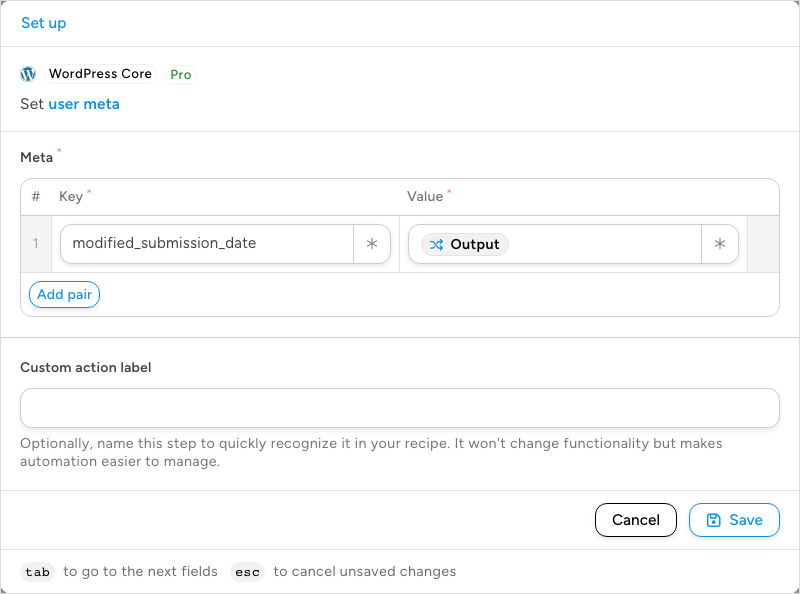
When the recipe runs, the date is converted, a day is added, and the new date is stored in user meta in the “Mmm DD, YYYY” format.
Related: Managing tokens, Calculations and math equations, Managing actions

Comments (0)