

The User Lists Addon adds a User Lists integration to the recipe builder, so list membership can start recipes, be changed by recipes, select the users a Loop block processes, and decide which actions run. This article lists each trigger, action, loop filter, condition, and token the addon provides, with a typical use for each.
You need the User Lists Addon installed and active, which requires the Plus or Elite plan, and at least one list; see Managing user lists. The loop filter and the conditions also need Uncanny Automator Pro, because the Loop block and the Filter block are Pro.
Triggers and actions
Lists hold WordPress users, so the triggers need a user and belong in Logged-in users recipes.
- Trigger: A user is added to a list
- Trigger: A user is removed from a list
- Action: Add the user to a list
- Action: Remove the user from a list
- Action: Create a list
Each trigger and each of the first two actions has one field, List. Typical recipes:
- When a user is added to a list, send them an onboarding email and enrol them in a course.
- When a user is removed from a list, remove them from a community group and drop a CRM tag.
- When a user completes a purchase, add them to the product’s list.
- When a new group is created, create a matching user list for it.
- When a user is refunded for a product, remove them from the product’s list.
Loop filter
Loop filters are the modifiers of a Loop block; they decide which users a loop with Loop type Users processes. The addon provides one filter, The user is/is not on a list, with two fields: Criteria (is or is not) and List.
With is, the loop runs for every member of the list, which is how you email a campaign to everyone on a Marketing list. With is not, it runs for every user who is not on the list, which is how you reach users who have not joined something yet. To add the filter, click Add modifier on the Loop block, search for “User Lists” and click User Lists, choose the filter, set the two fields, and click Save. On the canvas, the modifier then reads, for example, “The user Criteria: is on List: Marketing”.
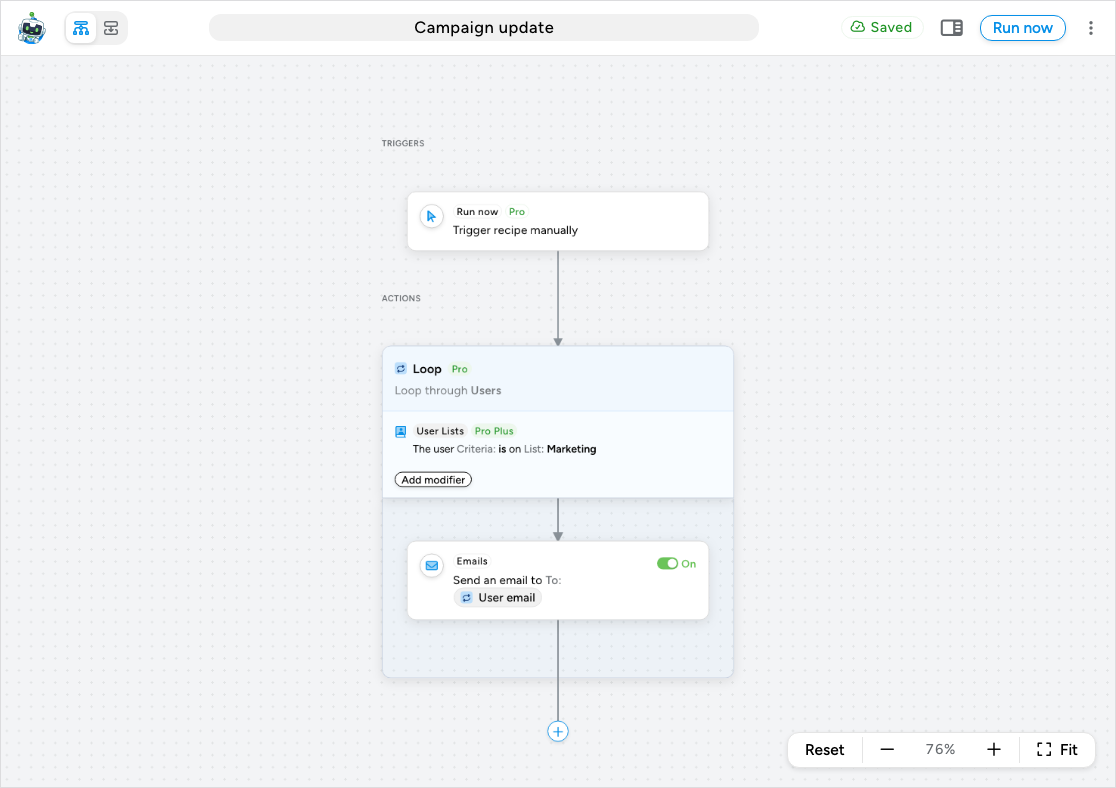
A user must pass every filter on the block, so two User Lists filters select users who are on both lists, and a User Lists filter plus a WordPress filter such as User has a specific role narrows the audience further. Sending bulk emails with user lists builds this recipe step by step.
Conditions
Conditions are the modifiers of a Filter block: the actions in the block’s CONDITIONS MET path run only when the conditions pass, and the CONDITIONS NOT MET path runs otherwise. The addon provides two:
- The user is on a list
- The user is not on a list
Each has one field, User list. Use them to branch a recipe by list status: for example, after a purchase, a Filter block with The user is not on a list set to the Customers list adds the user to the list and sends a first-order email in its CONDITIONS MET path, while repeat customers take the CONDITIONS NOT MET path. In Uncanny Automator 7.x these conditions were set on individual actions; in 8.0 you wrap the actions in one Filter block instead.
Tokens
With the addon active, the token picker’s Global tab gains a User Lists section with four tokens for the recipe’s user. Insert them with the ∗ button at the end of any field.
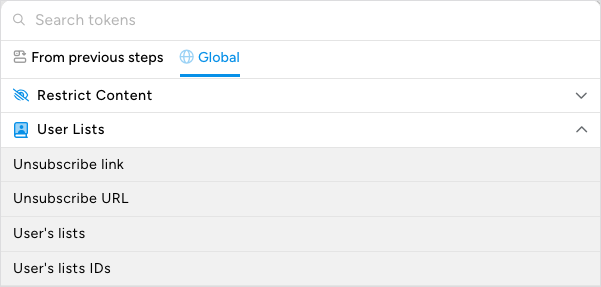
- Unsubscribe link — a ready-made link to the Manage emails page where the user can leave lists.
- Unsubscribe URL — the same address without link markup, for your own link text or button.
- User’s lists — the names of the lists the user is on.
- User’s lists IDs — the IDs of those lists, for use in a custom value field or a webhook.
The two unsubscribe tokens are explained in The Unsubscribed list and managing subscriptions.
Related: Managing user lists, Managing user list subscriptions, Sending bulk emails with user lists, Loop block: users, posts and tokens, Filter block and conditions, Managing tokens.

Comments (0)