

The automatorplugin.com checkout accepts two payment methods: credit card (processed by Stripe) and PayPal. How you update your card depends on which one you used for the purchase.
PayPal
If you paid with PayPal, your card details are stored in your PayPal account, so you update them at PayPal.com.
- If your card is expiring, follow PayPal’s instructions to update your card.
- To move your subscription to a different card, go to the Subscriptions page in the PayPal app or on the PayPal website and select Manage to change the payment method for the subscription.
Credit card
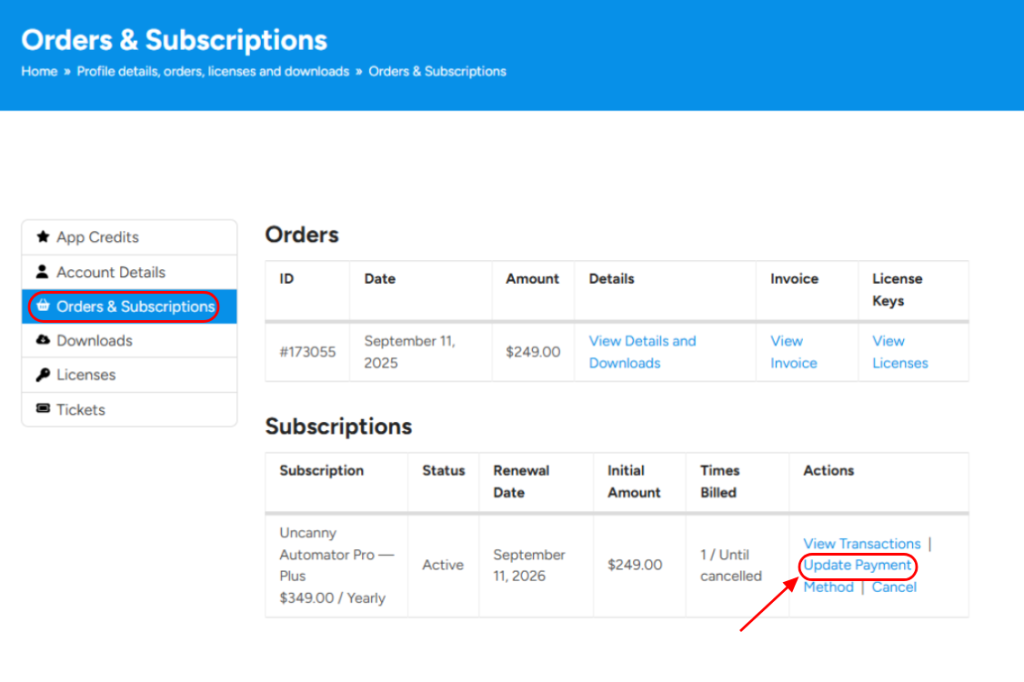
If you paid by credit card, update the card from your account:
- Log in to your account.
- Go to the Orders & Subscriptions page.
- Find the subscription you want to update and click Update Payment.
- Enter your new card details and click Update Payment Method.
Switching between PayPal and credit card
Payment details can’t be transferred between PayPal and Stripe, so a subscription can’t be moved from one to the other. To switch payment methods:
- Cancel your subscription. Your license stays active until it expires.
- Wait for the license to expire. You’ll receive an email two weeks before it expires and another right after.
- Once it has expired, renew your license and pay with the new payment method at checkout.
If you have any questions, open a support request.
Related: Manage your subscription, Renew your license

Comments (0)